

Navigate to Volume Contracts
ClickEmissions > Contracts in the portfolio left sidebar.
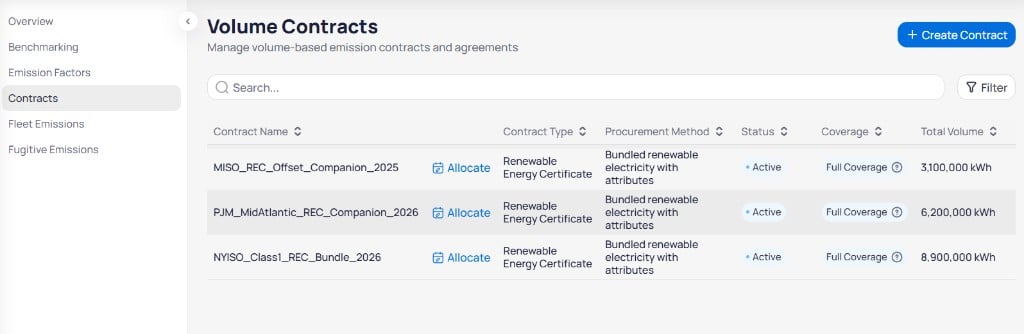
Volume Contracts page with search, filter, and contracts table
+ Create Contract in the top right to add a new agreement. Use Search to find contracts by name and click Filter to narrow the list by status, type, or reporting year. For the columns in the contracts table, see volume contract fields.
Allocate contract volume
Click Allocate on a contract row to distribute Total Volume across buildings or time periods. When Allocated equals Total Volume and Remaining is0 kWh, the contract is fully assigned.
Retire a contract
Each contract row includes actions on the right side of the table, after Document URL.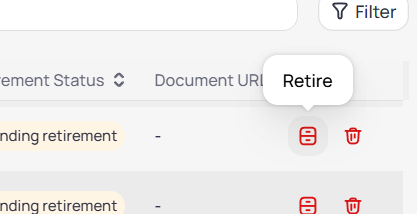
Retire action on a volume contract with Pending retirement status
Confirm Retirement Status before you report market-based emissions. Retired REC volume rolls into offset and renewable charts on Emissions overview.
Create a contract
Click+ Create Contract to open the Create Contract panel on the right. The panel subtitle reads Add a renewable energy instrument.
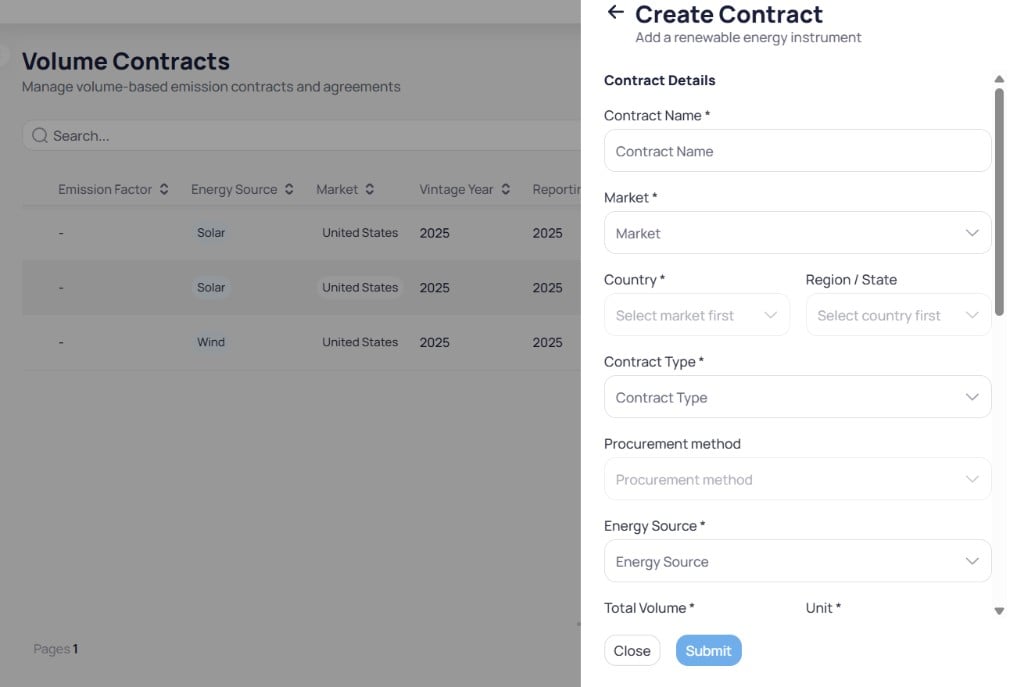
Create Contract panel with Contract Details fields
1
Enter contract details
Fill in Contract Name, Market, Country, Contract Type, Energy Source, Total Volume, and Unit. Add Region / State and Procurement method when they apply. Country activates after you choose Market, and Region / State activates after you choose Country.
2
Set factors and reporting years
Enter Vintage Year and Applicable Reporting Year. Adjust Emission Factor and Emission Factor Unit when the contract includes a linked factor.
3
Add dates and documentation
Set Contract Start and Contract End for the agreement window. Enter Registry / Counterparty, Serial Numbers, Document URL, and Notes when you have audit evidence.
4
Submit the contract
Click
Submit to save the contract. Click Close to exit without saving.Pending retirement and you are ready to count attributes in offset reporting.
Next steps
Emissions accounting
Understand RECs, offsets, and market-based Scope 2.
Emissions reference
Look up the full volume contract field list.
Building emissions overview
Review GHG charts and scope tables for one building.
Portfolio emissions overview
Review offset breakdown and renewable contract rollups.
Emission factors
Manage factors used alongside contract attributes.
Emissions benchmarking
Compare building emissions after contracts are allocated.