Create and manage configurations that you apply on Baseline analysis overview. Each configuration selects buildings, service types, baseline periods, and optional . To learn how baselines and weather normalization work, see Baselines and weather normalization. In the portfolio view, expand Baseline analysis in the left sidebar and select Configurations.
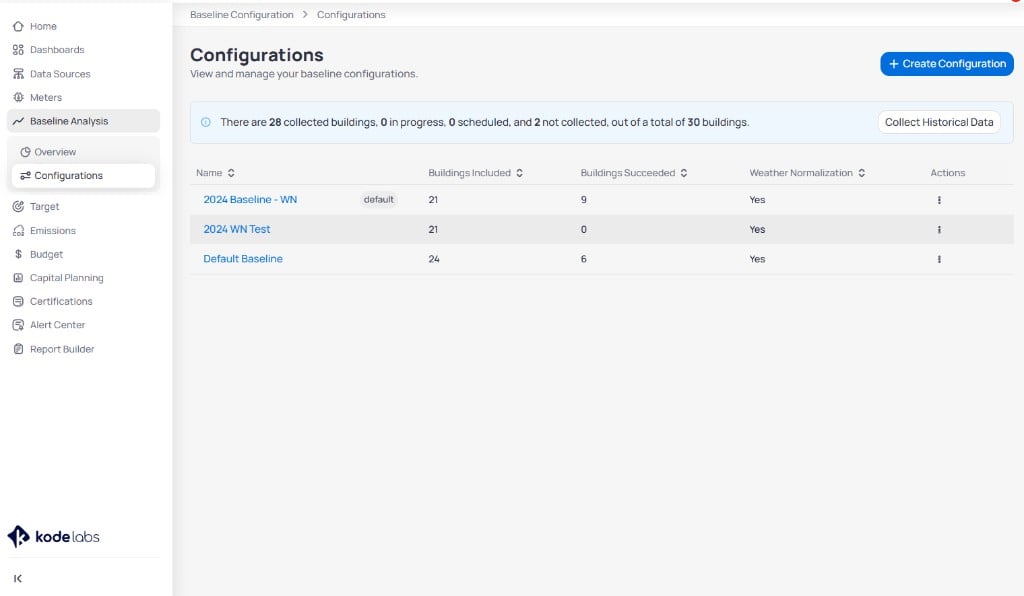
Configurations page showing breadcrumb Baseline Configuration greater than Configurations, status banner with collected and not collected building counts, Collect Historical Data button, and table with Name, Buildings Included, Buildings Succeeded, Weather Normalization, and Actions columns

Configurations list with collection status and baseline configuration table

Review existing configurations

The table lists every saved configuration. The status banner summarizes collection progress across the portfolio. Click Collect Historical Data when you need EnerG to refresh billing and interval history for buildings in the configuration.

Create a configuration

Click + Create Configuration to open the three-step wizard.

Step 1: Basic setup

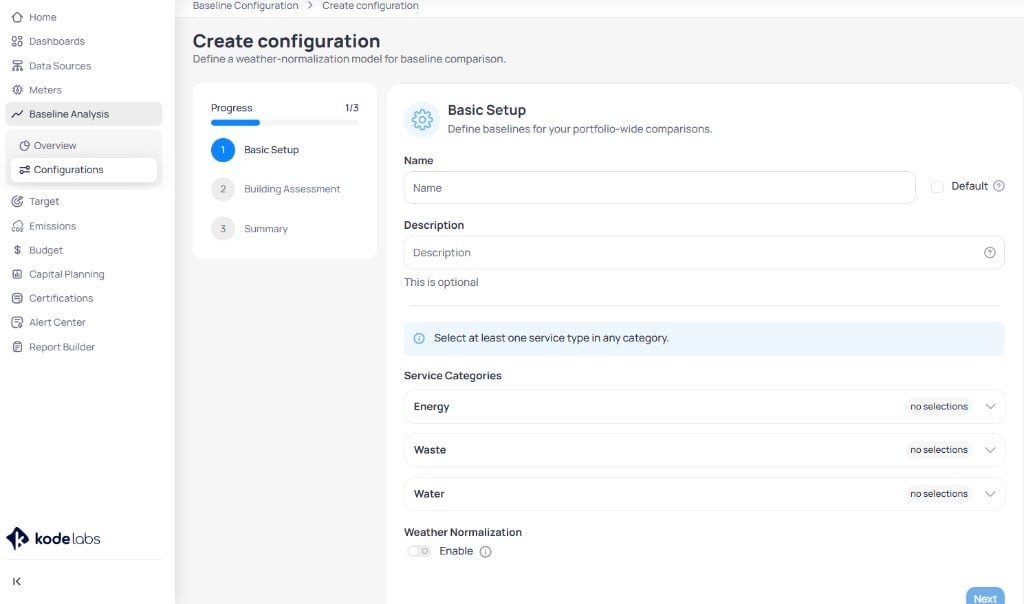
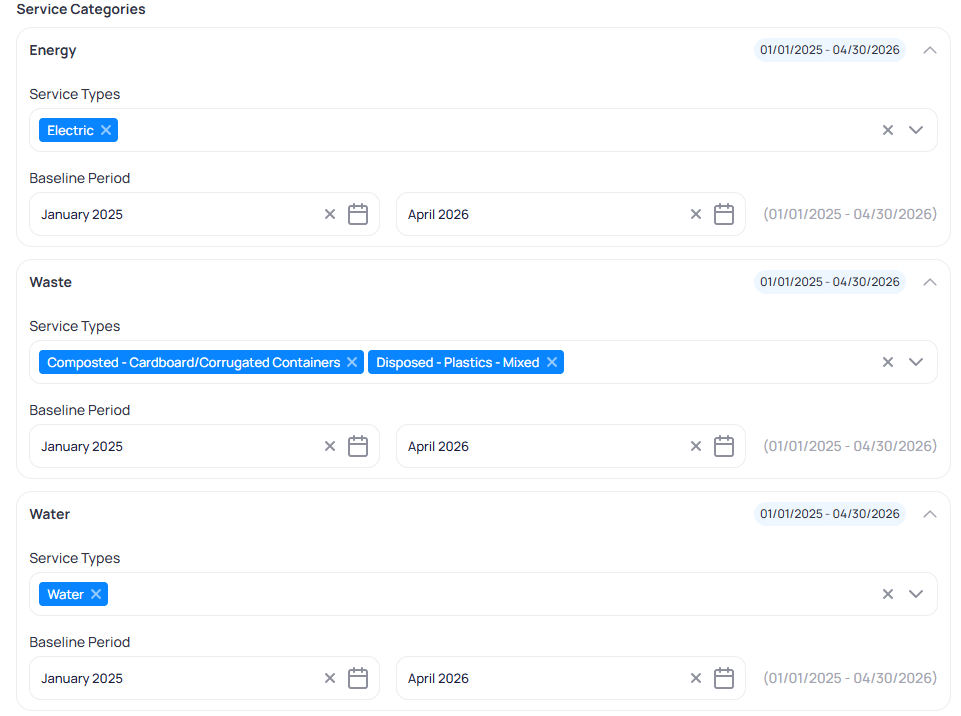
Enter a name and optional description. Mark Default when this configuration should load first on the Overview page. Select at least one service type in Energy, Waste, or Water. Expand each category to choose service types and set the Baseline period start and end months.
Create configuration wizard step 1 Basic Setup with Name and Description fields, Default checkbox, Energy Waste and Water category dropdowns showing no selections, and Weather Normalization Enable toggle

Create configuration Basic Setup step

Basic Setup showing Energy with Electric tag, Waste with Composted Cardboard and Disposed Plastics tags, Water with Water tag, and January 2025 to April 2026 baseline period fields for each category

Service categories with selected types and baseline period

Weather normalization

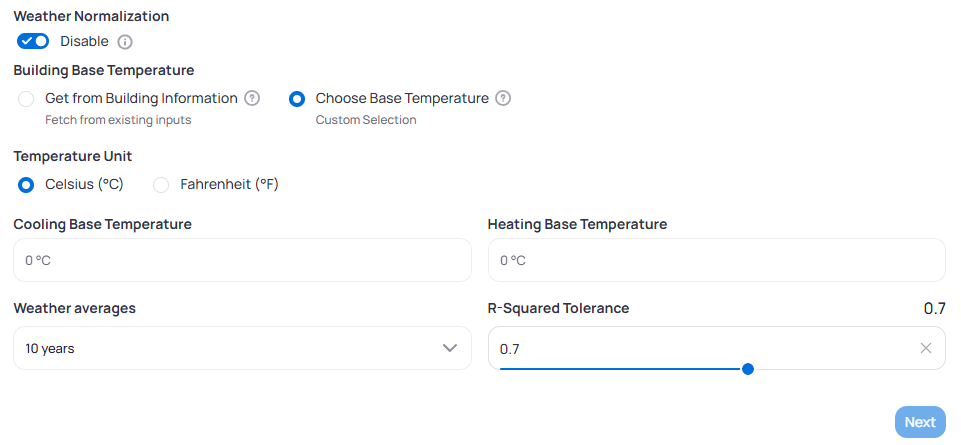
Enable Weather Normalization to train regression models that adjust usage for heating and cooling conditions.
Weather Normalization section with Enable toggle, Building Base Temperature options for Get from Building Information or Choose Base Temperature, Celsius and Fahrenheit unit radios, Cooling and Heating base temperature fields, Weather averages dropdown set to 10 years, and R-Squared Tolerance slider at 0.7

Weather normalization settings in Basic Setup

Set the base temperature source, temperature unit, cooling and heating base temperatures, weather averages lookback, and R-squared tolerance. For each setting, see weather normalization settings. Click Next when every required category has at least one service type selected.

Step 2: Building assessment

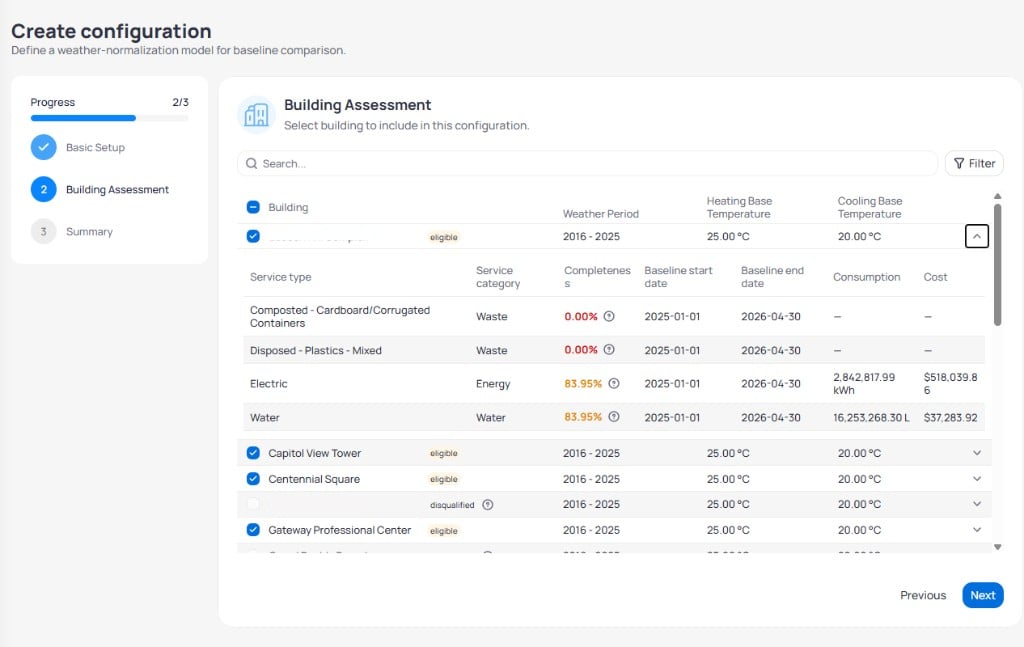
Select buildings to include. The table shows eligibility, weather period, and base temperatures. Expand a building to review service-level completeness, baseline dates, consumption, and cost.
Create configuration step 2 Building Assessment with search and filter bar, building table showing Beacon Hill Complex expanded with service rows for waste energy and water including completeness percentages, and eligible buildings such as Capitol View Tower checked while Cochrane Supply is disqualified

Building Assessment step with eligible and disqualified buildings

Buildings marked disqualified lack the data required for the selected service types. Repair meter gaps or widen the baseline period before you include them. Click Next to review the summary.

Step 3: Summary and model training

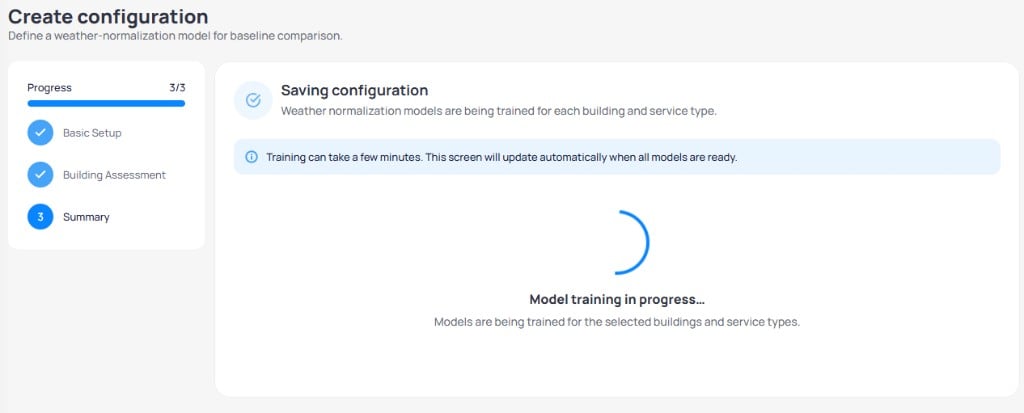
EnerG saves the configuration and trains weather normalization models for each building and service type. Training can take several minutes. The screen updates automatically when models finish.
Create configuration step 3 Summary showing Saving configuration message, info banner that training can take a few minutes, and a loading spinner with Model training in progress text

Saving configuration with model training in progress

After training completes, open Baseline analysis overview and confirm buildings appear under Configuration Results with Successful status.

Configure building baseline windows

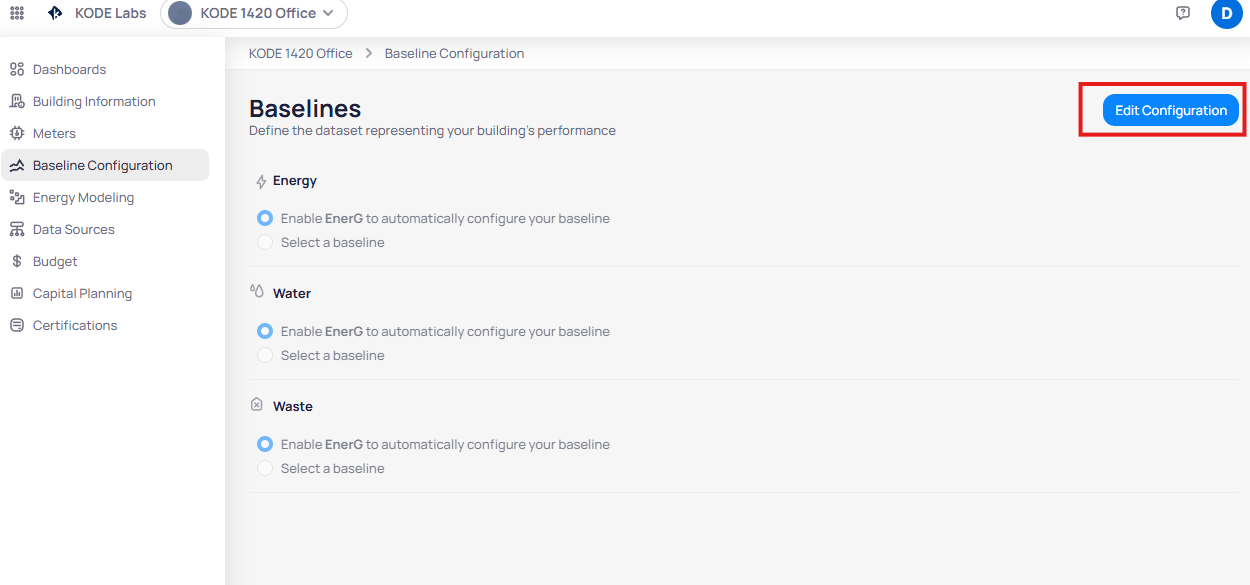
Portfolio configurations train weather-normalized models across many buildings. At each site, you also set energy, water, and waste baseline windows that drive targets, M&V, and dashboard comparisons. Open the building view from Portfolio Home, then use Dashboards > Energy > Baseline Analysis on the Building Energy dashboard. Click Edit Configuration in the top-right corner of the baseline page to configure categories.

Read baseline status

The overview lists three service categories. Confirm each category is ready before you run targets, M&V, or savings reports.

Baseline length and purpose

Pick a one-year or two-year baseline depending on data stability and reporting policy. For guidance on choosing a length, see baseline length. Close gaps in bills or interval feeds on Building meters or through Data completeness before you finalize a window. For qualification rules, see baseline qualification.
Partial months or missing commodities inside the span disqualify that period until you repair the data.
Baselines page with Energy, Water, and Waste sections each showing the auto-configure option selected, and an Edit Configuration button in the top-right corner

Baseline Configuration page for Energy, Water, and Waste

Auto-configured baselines

EnerG can pick the earliest 12-month span where every required service type has complete data.
Use automatic configuration when utility coverage is complete and you need the earliest valid year.
1

Open edit mode

On the building baseline page, click Edit Configuration.
2

Choose automatic configuration

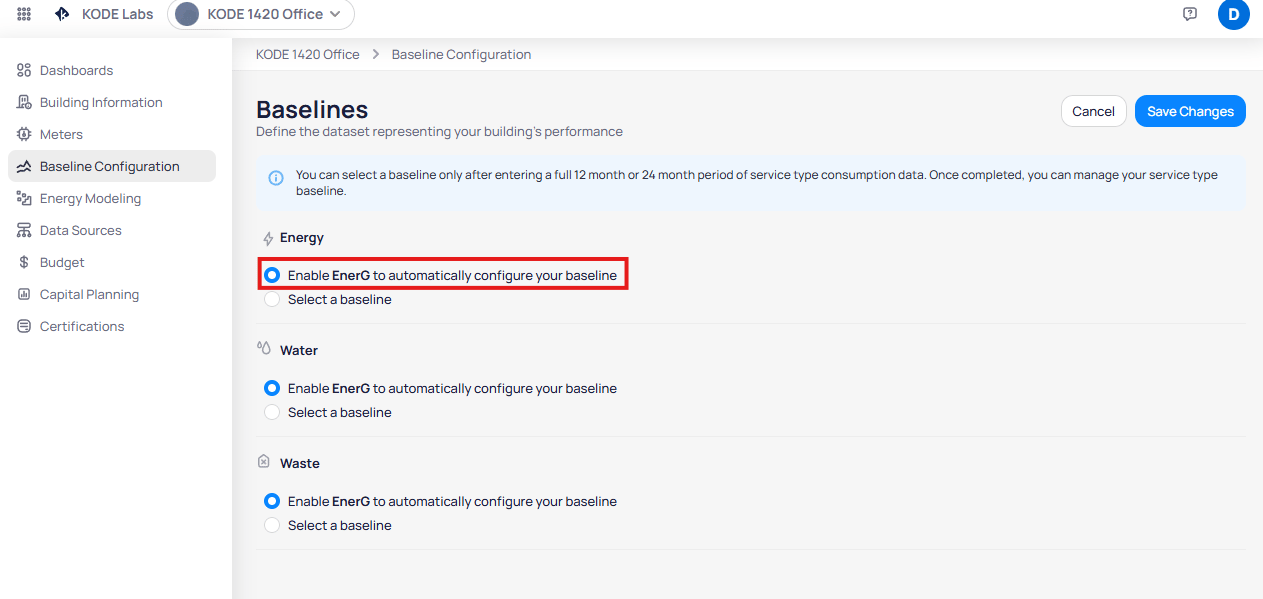
Select the auto-configure option that picks the earliest qualifying 12-month period.
Baselines page in edit mode showing info banner about 12 or 24 month data requirements, with Enable EnerG to automatically configure your baseline selected for Energy, and Save Changes button

Edit mode with auto-configure selected for Energy

3

Review the proposed window

Confirm start and end months cover all energy, water, and waste feeds you expect.
4

Save the baseline

Click Save Changes, then confirm. Baselines feed metrics across EnerG, including the Building Energy Baseline Analysis report.

Manual baseline selection

Define the window when policy requires a specific end month or a two-year average. EnerG calculates the start month from your duration and ending month.

Month
Month that closes the baseline window when you configure a manual baseline.
1

Select duration

Choose a one-year or two-year baseline length.
2

Pick the ending month

Select the month that closes the baseline window.
3

Confirm the start month

Review the auto-calculated start month for the chosen duration.
4

Apply the baseline

Click Save Changes to store the manual baseline.

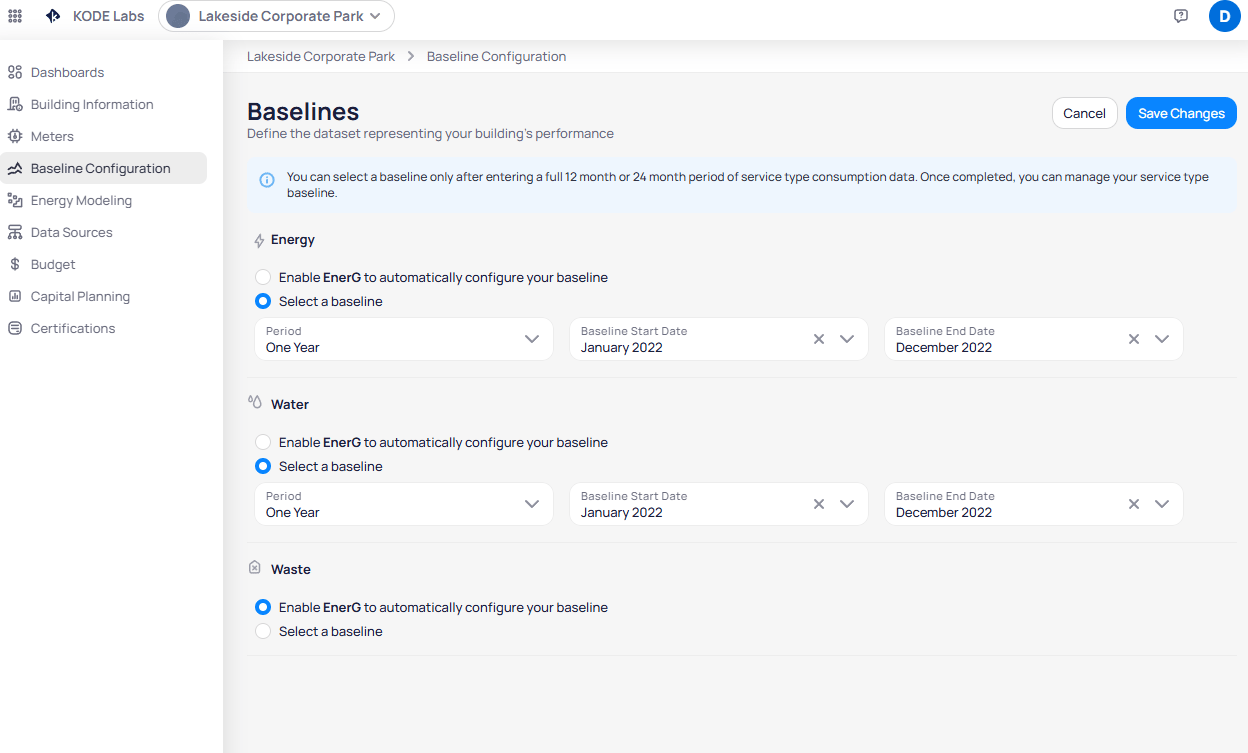
Configure by service category

Energy, water, and waste can each use a different baseline period. Electric and fuel streams roll into Energy. Water and waste stay separate.
Baselines page in edit mode with Select a baseline chosen for Energy and Water showing Period One Year and dates January 2022 to December 2022 while Waste uses auto-configure

Manual baseline selection by service category

Align baseline windows with the meters that existed for each category during the same months.

Next steps

Baseline analysis overview

Compare portfolio usage on the Analysis and Configuration Results tabs.

Building information

Review base temperatures and area data that feed weather normalization.

Portfolio meters

Improve completeness before you rerun Collect Historical Data.

Building Energy — Baseline Analysis

Review baseline charts after you save building windows.

Energy modeling overview

Use trained baselines in M&V and forecasting workflows at the building level.
Last modified on August 18, 2026