

Areas groups a building into floors, zones, and other spatial sections. Floor plans overlay live data on a map of that space. This page follows Areas and Floor plans on the web.
Area creation, ontology mapping, and floor plan authoring are web tasks. Mobile is for navigation, spatial monitoring, and triage.
How to open
- Areas
- Floor plan insights
From the building app launcher, select
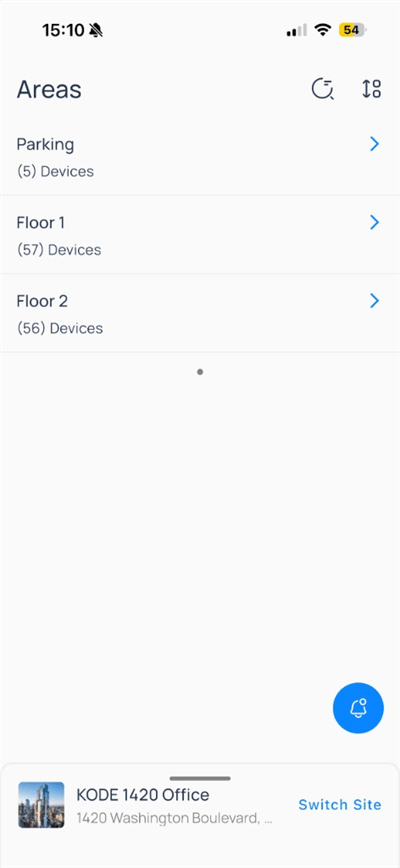
Areas. The list shows floors, zones, and other spatial groupings for the site.Browse the area list
When you openAreas, each row includes:
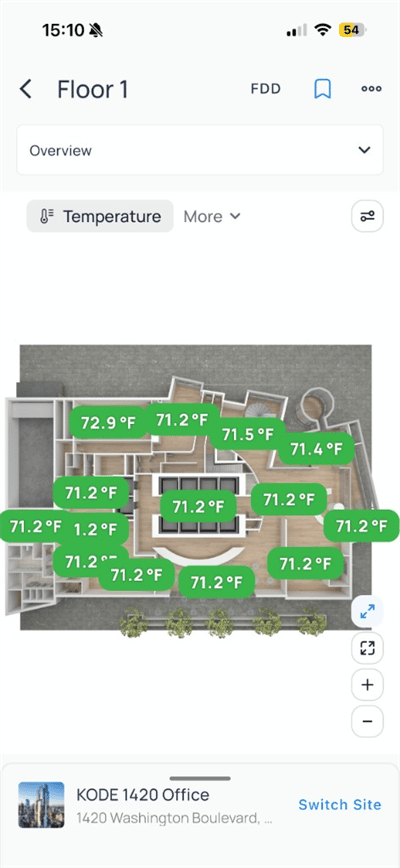
Floor plan overview
Tap an area such asFloor 1 to open the Overview floor plan. The header includes FDD, bookmark, and a more menu.
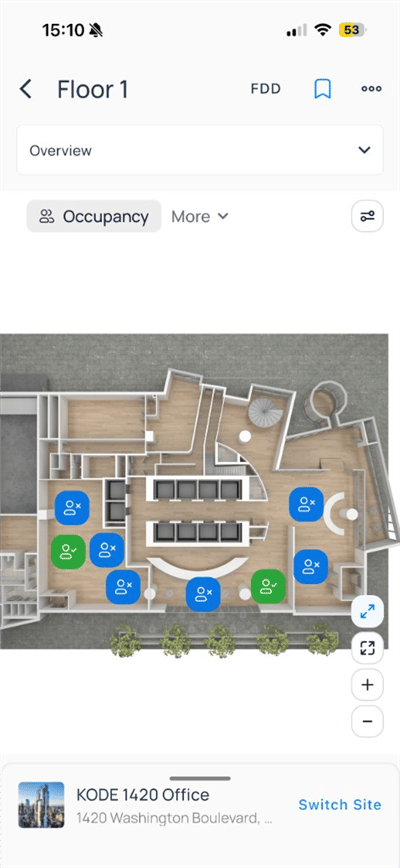
Occupancy layer on Floor 1
Layer chips
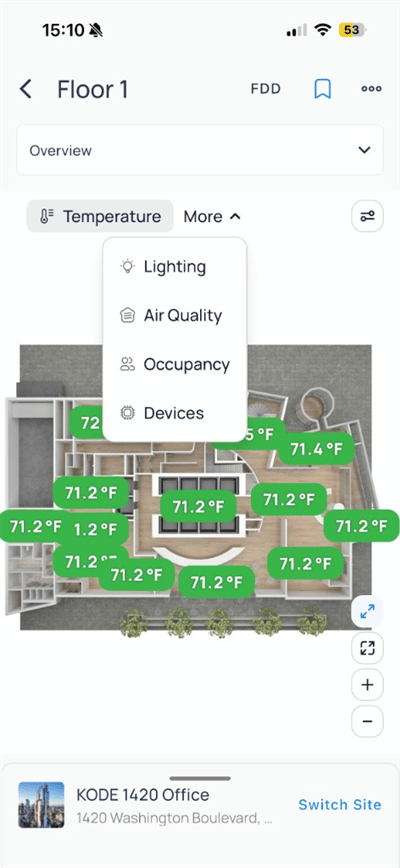
BelowOverview, choose what to overlay on the map:
Open
More to switch layers when not shown as a chip.
Temperature labels on rooms
Map controls
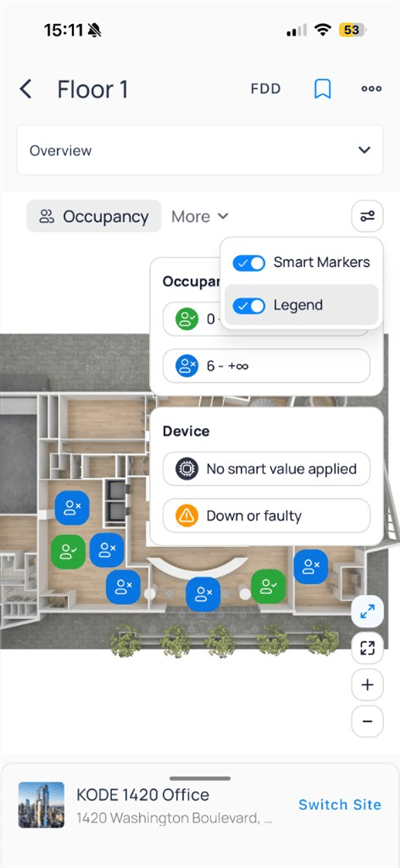
Open the settings icon on the layer bar to toggle
Smart Markers and Legend. The legend explains occupancy colors and device fault icons.
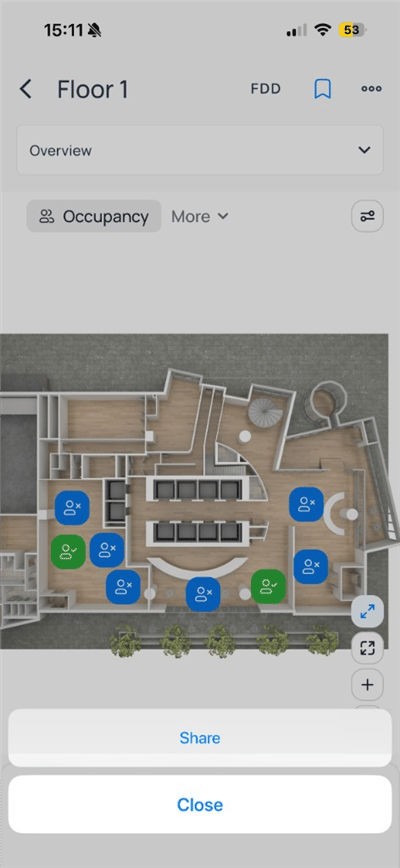
Tap more (
...) and choose Share to send the current floor context.
FDD from an area
TapFDD in the area header to open FDD Reports filtered to that floor. FDD flags equipment behavior that deviates from expected patterns, rather than a single instantaneous alarm.
- Active
- Inactive
Active lists faults that are currently open on the floor.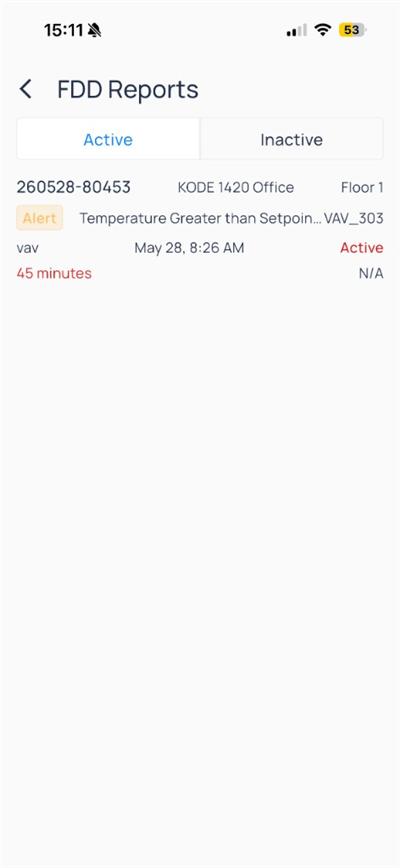
Drill into equipment
From the map or area device list, open a unit to view points, trends, and commands. See Devices on mobile and Systems on mobile.Compare to web
Next steps
Devices on mobile
Open equipment, trends, and device actions.
Points on mobile
Browse status, filters, and point writes.
Areas on web
Create areas and ontology mapping.
Floor plans on web
Author floor plan graphics and layers.