

Organization context
After sign-in, you work in one organization at a time. That organization controls which sites, apps, and data you see.
Changing organization reloads the portfolio, site list, and every module. Bookmarks stay on the device but show data for the active organization only.
If you only see one organization, your administrator has not granted access to others.
Portfolio vs building apps
KODE OS separates portfolio tools (all sites) from building apps (one site).
Use portfolio tools when you compare sites. Use the building launcher when you operate equipment or triage events for one building.
Details for the map, sort, and search are in Portfolio and sites.
Site context
When you enter a building module, the bottom bar shows the active site andSwitch Site.
Site context does not change your organization. It only changes which building’s points, events, and assets load.
Site module launcher
After you enter a site, swipe up the bottom sheet to open the app launcher. The header shows the site name, address, andSwitch Site.
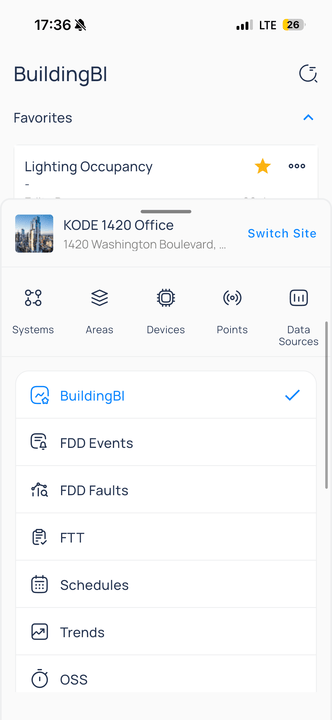
Site module launcher for KODE 1420 Office
Quick access icons
Quick access icons
Module list rows
Module list rows
Your site may also publish
Work Orders, Manual Meters, Bookmarks, or Writable Points when your role and product enablement allow.If a module is missing from the launcher, your role or site may not include it. AssetOps apps such as
Work Orders require AssetOps to be enabled for the building. Confirm assignments with your administrator or in Launchpad on the web.Inside a module
Most building apps share the same screen patterns.
Detail screens often use horizontal tabs (for example,
Details, Attachments, Follow-ups). Lists drill down to a record, then to sub-panels. Deep links from notifications open the target module when your role allows.
Many module home screens show a blue bell for notifications. List screens may show a + button for create actions when your permissions allow.
Portfolio sheet and notifications
Swipe up the bottom handle labeledPortfolio or All Sites Overview from any building screen to return to the map or sites list. You keep your sign-in session and organization.
From the sheet you can open another site, switch to portfolio modules, or reorder modules.
Tap the blue bell on module home screens and the portfolio map to open Notifications. Alerts follow the same policies as KODE OS web for your role. Enable notifications in iOS or Android system settings if you declined the prompt earlier.
Native screens and web views
Web views load
accounts.kodelabs.com or your identity provider during sign-in and organization switch. Use Done or back to return to native navigation.
Quick reference
Next steps
Portfolio and sites
Use the map, site cards, and site switcher.
Customize experience
Manage profile, theme, and organizations.
Mobile app overview
See how mobile covers KODE OS modules.