

Which actions appear depends on the schedule data source. Tap the info (
i) icon on a schedule to see Allowed Actions for that connector.Open Schedules
OpenSchedules from the building app launcher or from Schedules on a device menu.
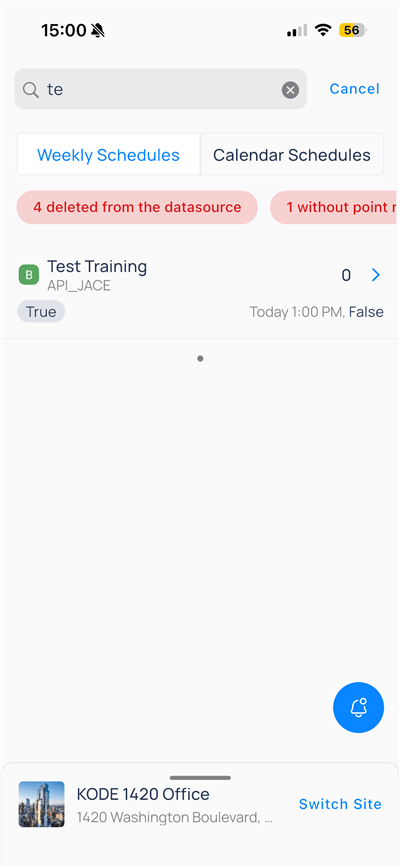
Pink banners may appear when the platform detects data issues—for example, devices deleted from the data source, or schedules without point references. Resolve those on the web or connector before you rely on mobile edits.
Tap search, type part of a name, and tap a result.
Cancel clears search.
Edit a weekly schedule
Tap aWeekly Schedules row (for example, Test Training) to open the editor.
Header actions
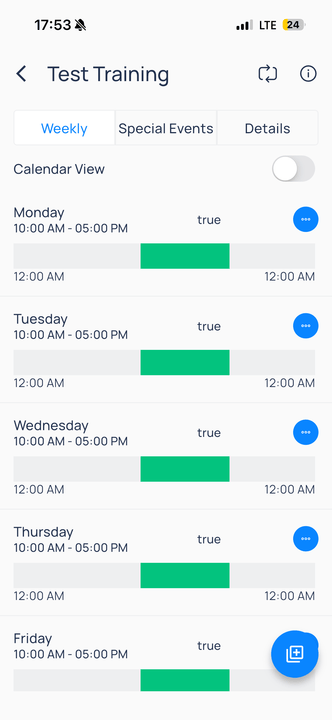
Weekly schedule editor with header actions and day timeline
- Weekly
- Special Events
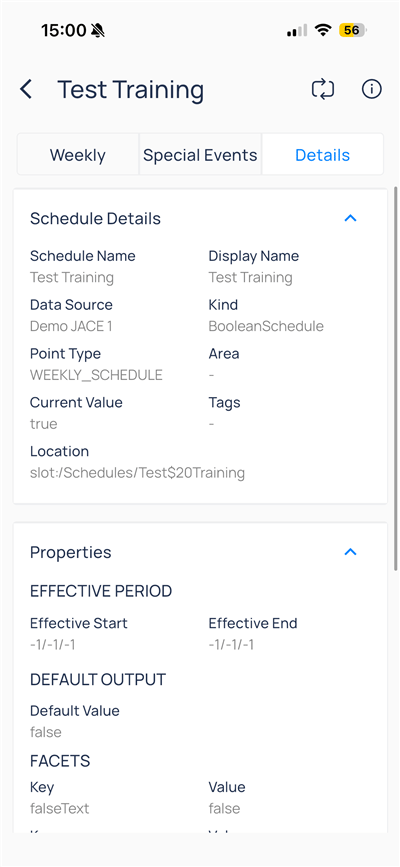
- Details
The 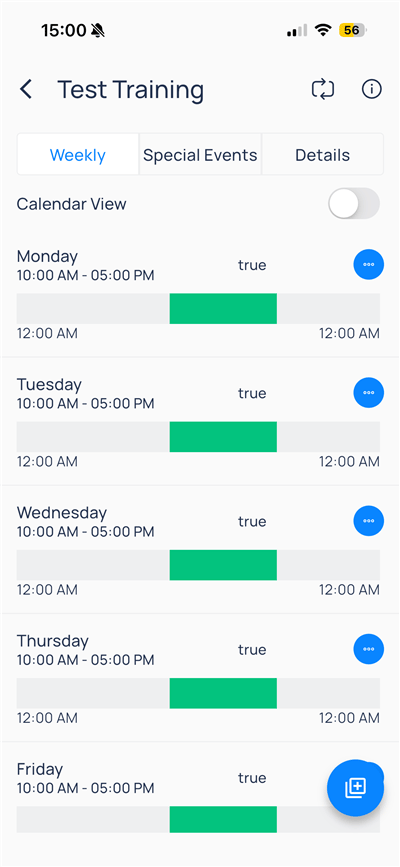
Weekly tab shows occupied hours per weekday.Add or edit a weekly day
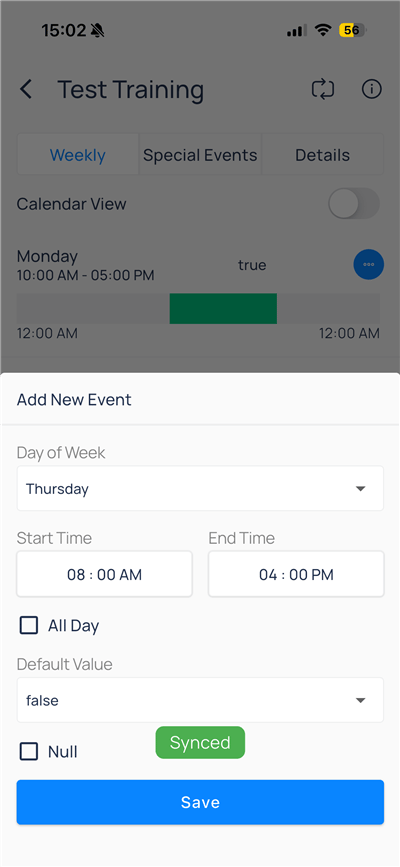
Tap+ or the day overflow menu, then configure Add New Event:Turn
Calendar View on and pick a day letter to see hourly rows with a green block for the active window.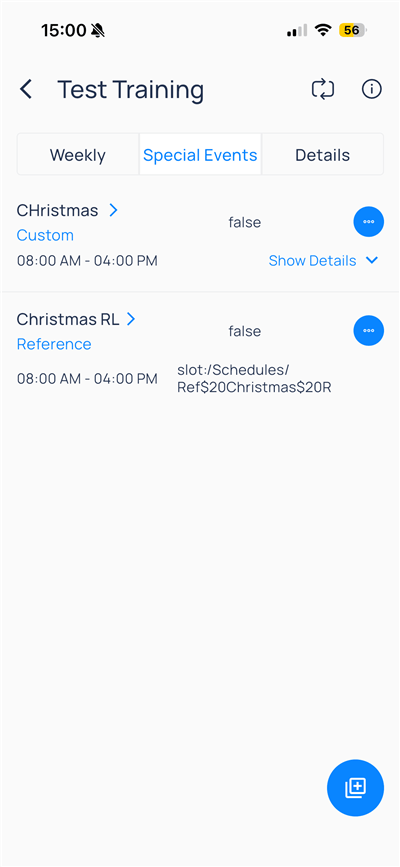
Manage holiday calendars
OpenCalendar Schedules, then open Holiday Schedule (or search for holiday).
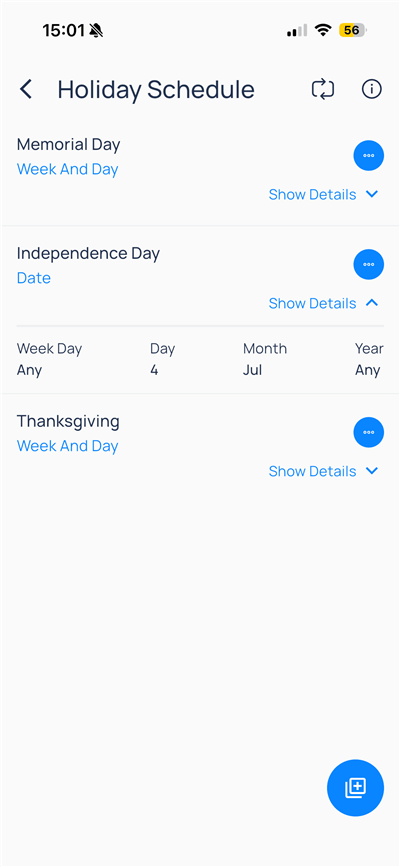
Tap overflow on a holiday row to reveal
Delete and Edit.
Add a holiday
TapNew Event, then set:
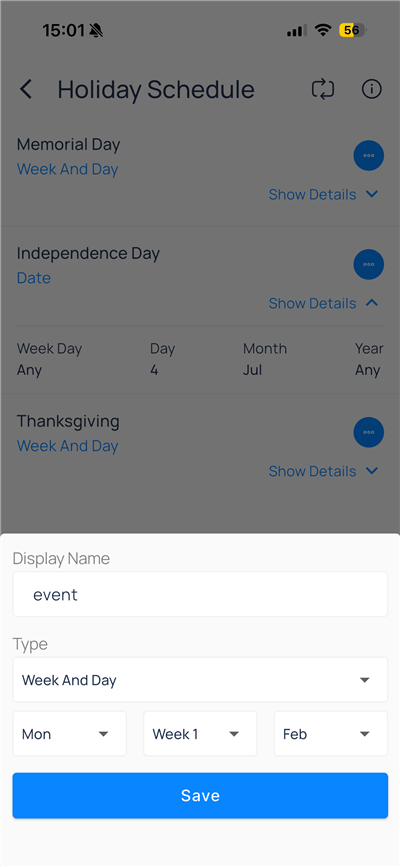
Fixed date example: July 4
Web vs mobile
Next steps
Optimized start/stop
Set operation mode and equipment scope.
Points on mobile
Browse status, filters, and point writes.
Devices on mobile
Open equipment, trends, and device actions.