

Open the portfolio map
Swipe up the bottom sheet and confirmPortfolio / All Sites Overview is selected, or tap All Sites on the right. The map shows pins for every site you can access.
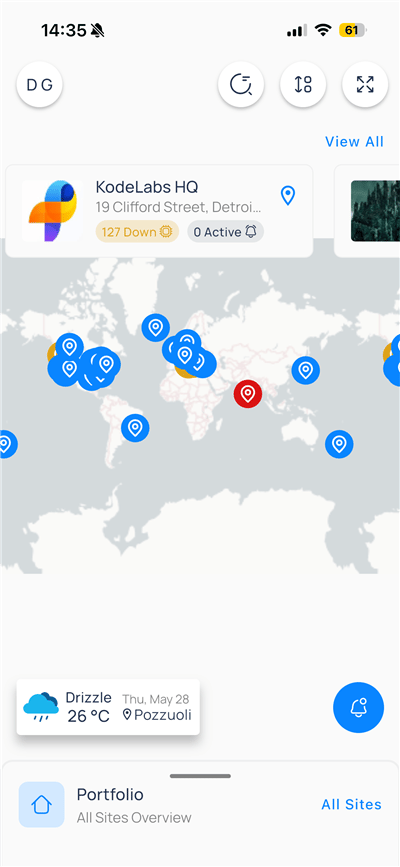
Map toolbar
Site cards and pins
Swipe the horizontal site cards above the map. Each card includes:- Site name and address
- Points down — devices offline or in fault (yellow badge)
- Active events — open FDD or operational events (bell badge)
- Location pin — centers the map on that site
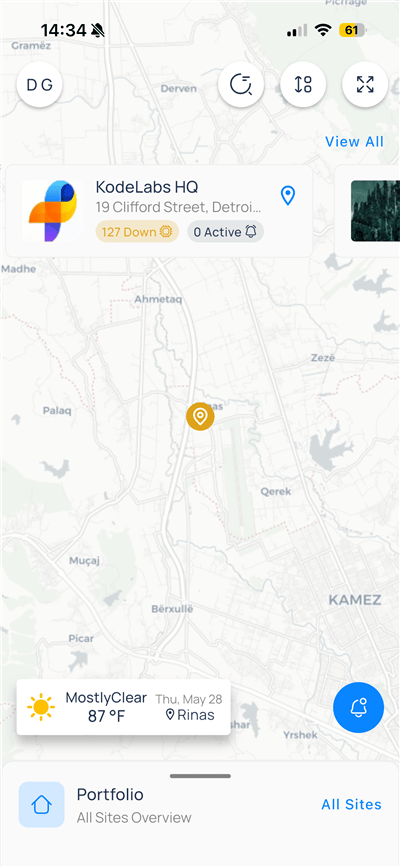
Regional map with site card and weather
Search sites on the map
Tap the refresh/search control to focus the search field. Type a site or address, then submit with the keyboard search key.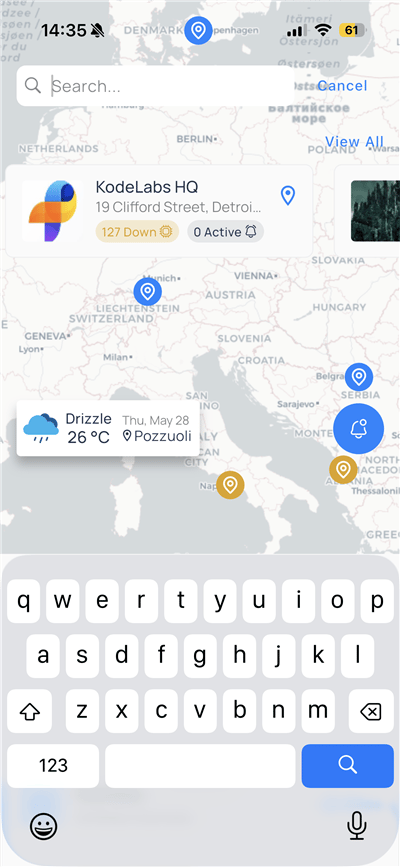
Cancel to exit search and return to the full map.
Sort site cards
Tap the sort icon (two vertical sliders) to openSort by.
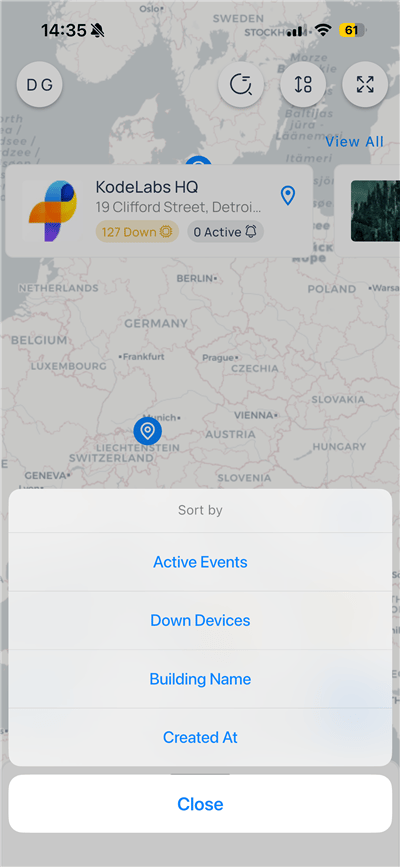
Tap
Close to apply the sort and return to the map.
Portfolio module picker
The bottom sheet lists portfolio-level modules.Sites is the map view; other entries open cross-site tools without entering a building first.
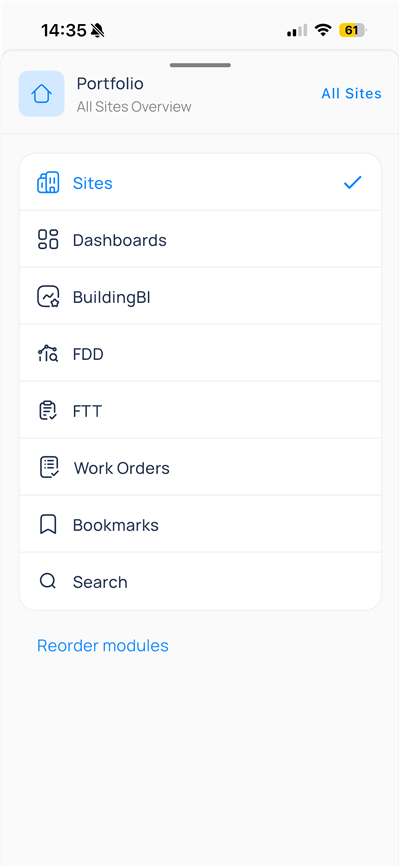
Portfolio modules available from the bottom sheet
A checkmark shows the active module. Select another row to switch modules.
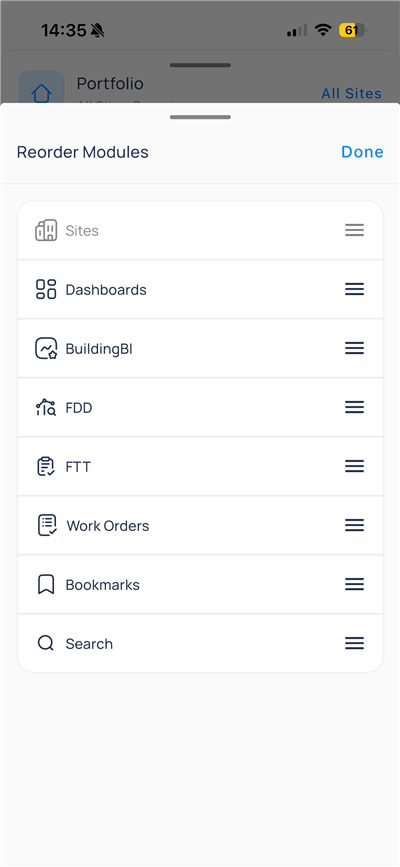
Reorder modules
TapReorder modules at the bottom of the sheet. Drag handles to change the order, then tap Done.
Notifications
Tap the blue bell floating button on the map to openNotifications.
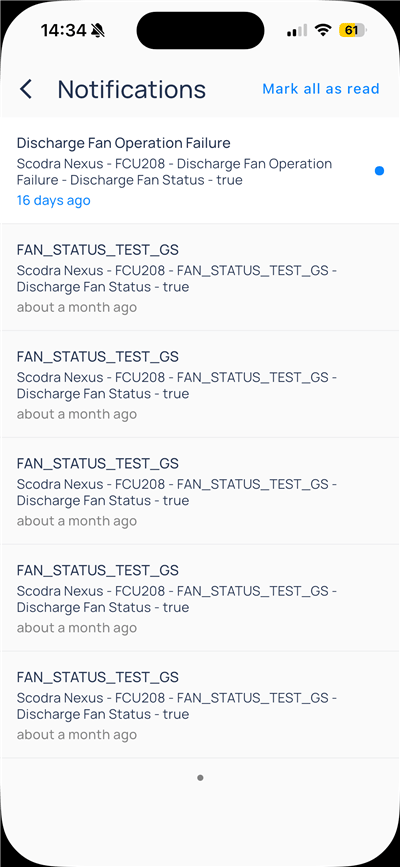
Mark all as read to clear unread state.
Enter a site
1
Select a site
Tap a site card or map pin for the building you need.
2
Open building modules
After the site loads, use the app launcher or portfolio sheet to open Events, Systems, and other building apps. See Navigate the app.
3
Switch site later
From any building screen, open the bottom bar and tap
Switch Site to return to the map or pick another property.Compare to web
Next steps
Navigate the app
Move between portfolio, site, and modules.
Building BI on mobile
Open published collections and dashboards.