

Open OSS
SelectOSS from the building app launcher (label varies by site).
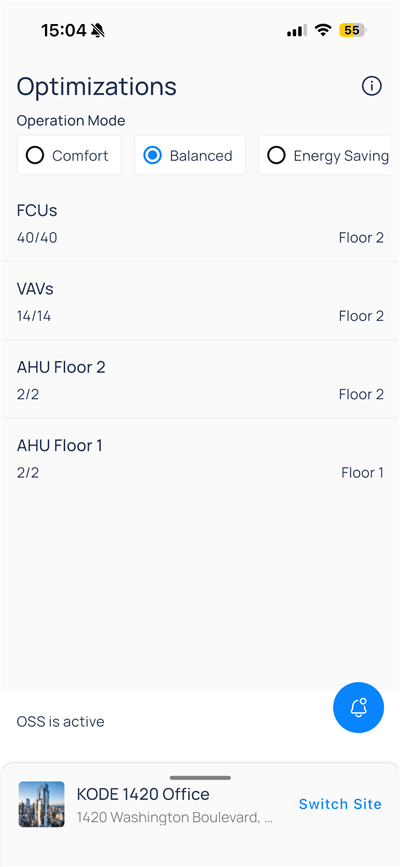
OSS is active). Use the notification bell when your site sends OSS alerts.
Operation mode
Three radio options set the optimization strategy for scoped equipment:
Tap the info icon next to the title to open definitions, then
Close to return.
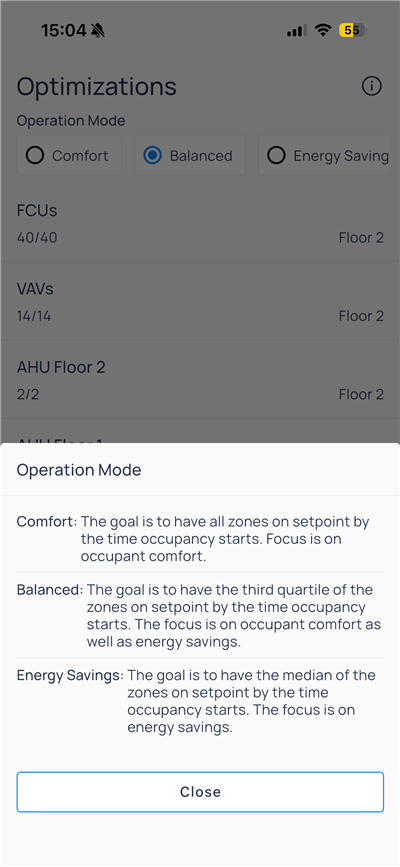
Operation mode help sheet
OSS is active.
Equipment scope
BelowOperation Mode, OSS lists equipment groups included in the run:
The fraction is included devices / total devices in that category. Tap a row to add or remove individual units when your role allows configuration on device.
Add or remove devices
Opening a category (for example,FCUs) shows a checklist of units. Clear or select rows, then tap Save to update scope.
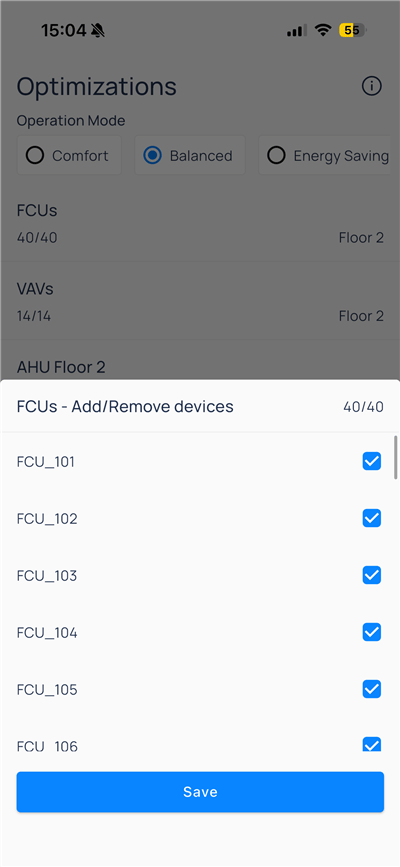
FCUs add/remove devices
Excluding a device removes it from the next optimization cycle for that adapter—the configuration that customizes OSS for a specific HVAC system. Use web OSS for adapter setup, learning mode, bypass, and dashboard history when those controls are not on mobile.
Compare to web
Next steps
Schedules on mobile
Edit weekly days, special events, and holidays.
Systems on mobile
Switch dashboard, graphic, and widget views.
OSS on web
Adapter setup, learning, and dashboards.