Device templates are reusable configurations that define the standard point structure, normalization rules, and tags for a specific type of equipment. Instead of manually configuring each device, you create a template once and apply it to all similar devices across your building or portfolio.

How templates work

A device template defines:
  • Point mappings that associate raw point names from the data source with standardized names in the Cloud BMS
  • Normalization rules that standardize units, naming conventions, and data types
  • Tags and classifications based on the or ontology
  • Entity type definitions that categorize the device (for example, AHU, VAV, FCU)
When you apply a template to a device, Cloud BMS maps the device’s discovered points to the template’s standardized definitions. This ensures consistent naming and classification across devices from different manufacturers.

Point modeling

Point modeling is the process of mapping raw point names to standardized ontology fields. You access Point Modeling from a device’s detail page. The interface displays each point group with its raw name, mapped ontology field, point count, and template status.
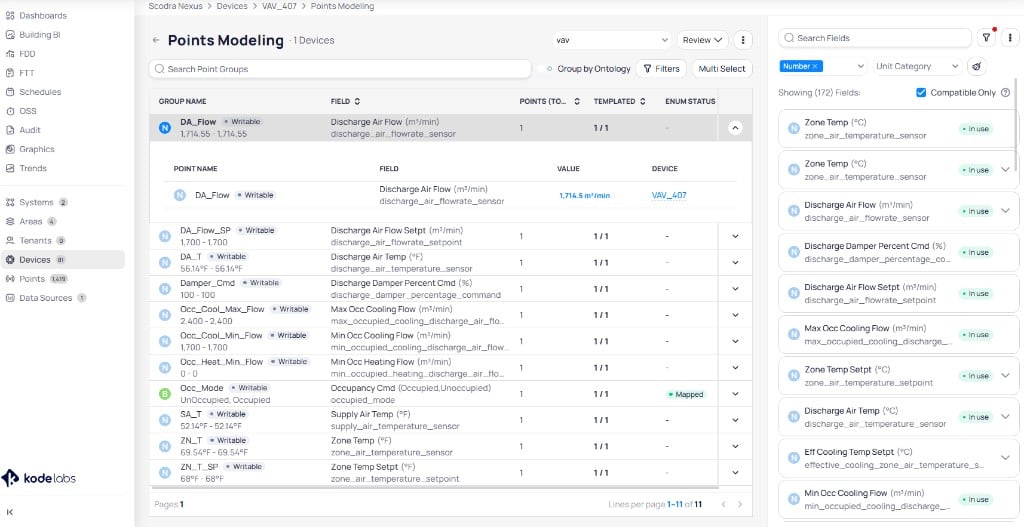
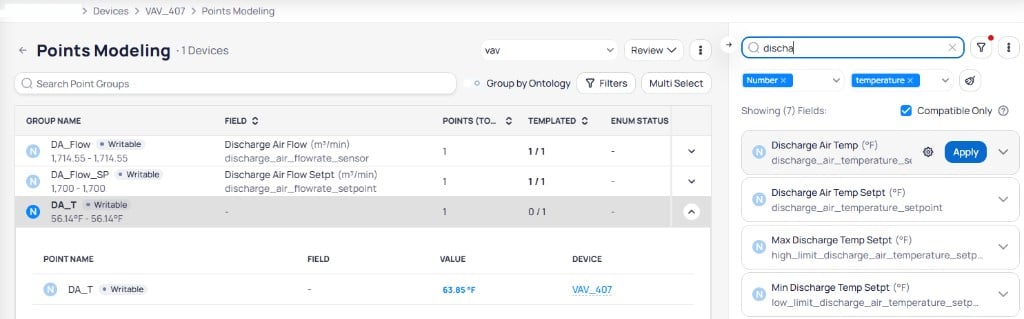
Points Modeling page for a VAV device showing point groups like DA_Flow, DA_Flow_SP, and DA_T with their mapped ontology fields, and a right panel listing compatible fields filtered by category

The Points Modeling page shows each point group with its field mapping, template status, and a panel of compatible ontology fields on the right
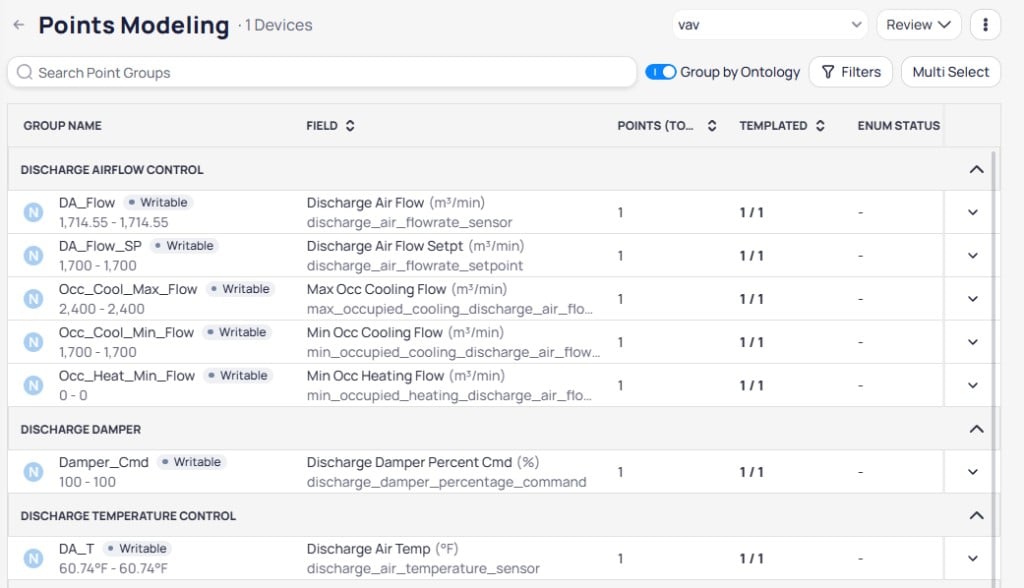
Toggle Group by Ontology to organize point groups by their ontology categories (such as Discharge Airflow Control, Discharge Damper, or Discharge Temperature Control) instead of a flat list.
Points Modeling page with Group by Ontology enabled, showing point groups organized under Discharge Airflow Control, Discharge Damper, and Discharge Temperature Control headings

Group by Ontology organizes point groups under their ontology category headings

The standardized field format follows this structure: [aggregator]_[descriptor]_[component]_[measurement descriptor]_[measurement]_[point type] For example, a raw point named SA-T might map to supply_air_temperature_sensor.

Entity types

The Cloud BMS ontology defines four entity types:
  • Canonical entities are equipment templates (the primary device definitions) that contain mandatory field groups
  • Abstract entities compose canonical types and define reusable field groups
  • General entities apply to all canonical types and define common fields like running status and operation commands
  • Virtual entities represent calculated fields that do not correspond to physical sensors

Create a device template

1

Navigate to point modeling

From the building view, go to Devices and select a device. Open the Points Modeling tab to see all discovered point groups. Use the device type dropdown at the top of the page to select the ontology device type (for example, vav, ahu, boiler). This determines which ontology fields are available for mapping.
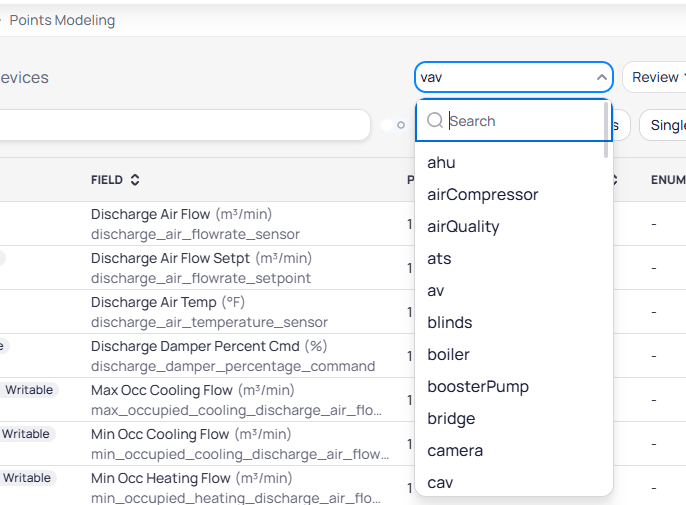
Device type dropdown expanded showing a searchable list of ontology types including ahu, airCompressor, airQuality, ats, av, blinds, boiler, boosterPump, bridge, camera, and cav

The device type dropdown lets you select the ontology type that defines available fields for this device

2

Map points to ontology fields

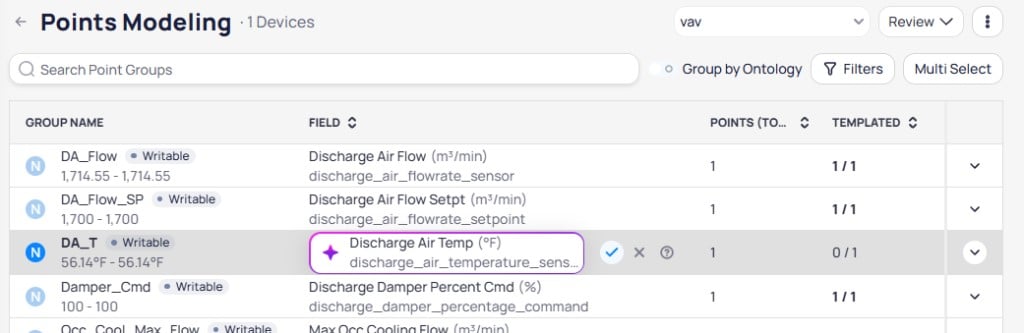
Select an unmapped point group to expand it. Cloud BMS shows the inline field selector where you can accept a suggested mapping or choose a different one.
Inline field suggestion for DA_T showing Discharge Air Temp with accept, cancel, and info icons, and templated status 0 of 1

The inline field selector lets you accept, reject, or get more details on a suggested ontology mapping

When selecting a point group, fields will be filtered based on:
  • Point Kind
  • Unit Category (Number Points)
You can also use the field panel on the right side of the page to search and filter for ontology fields. Use the search bar, unit category tags, and the Compatible Only checkbox to narrow results, then click Apply to assign a field.
Field search panel filtered by Number and temperature showing Discharge Air Temp, Discharge Air Temp Setpt, Max Discharge Temp Setpt, and Min Discharge Temp Setpt with an Apply button

The field panel lets you search, filter by unit category, and apply an ontology field to the selected point group
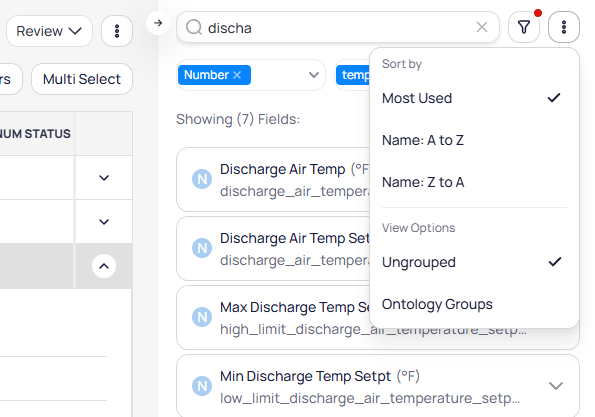
Use the sort and view menu in the field panel to control how fields are listed. Sort by Most Used, Name: A to Z, or Name: Z to A, and toggle between Ungrouped and Ontology Groups views.
Field panel sort menu showing Sort by options for Most Used, Name A to Z, and Name Z to A, and View Options for Ungrouped and Ontology Groups

The field panel sort menu lets you order fields and switch between ungrouped and ontology-grouped views

3

Use AI-powered suggestions

Hover over a mapped point group to reveal the action toolbar. Click the Suggest with AI icon to get mapping recommendations. Cloud BMS offers two suggestion modes:
  • Suggest with AI recommends fields based on general AI knowledge and common naming patterns
  • Historical recommends fields based on how similar points were modeled in your organization
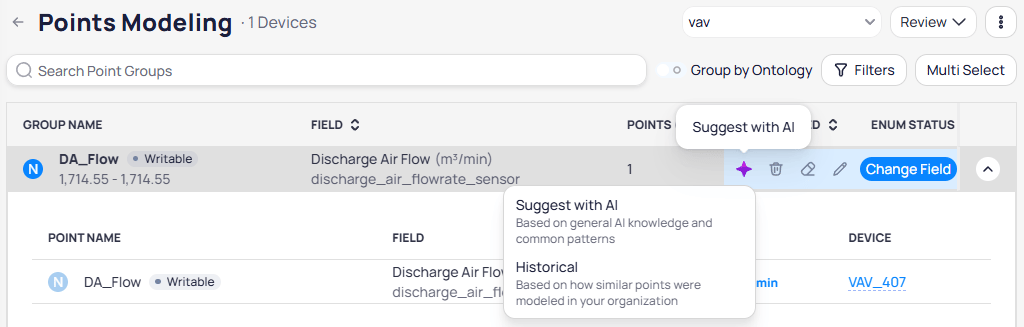
Suggest with AI dropdown showing two options: Suggest with AI based on general AI knowledge and common patterns, and Historical based on how similar points were modeled in your organization

The Suggest with AI menu provides AI-based and historical mapping recommendations

4

Map enum points

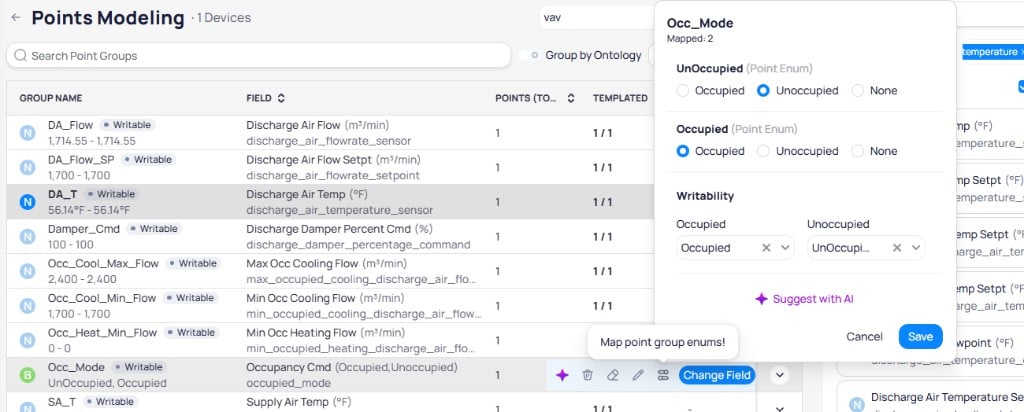
For points with enum values (such as occupancy mode), Cloud BMS displays a mapping panel where you configure each enum state. Select the correct value for each state (for example, Occupied, Unoccupied, or None) and set writability per occupancy mode.Map enum values for Boolean and string points before you use devices in FDD or FTT. Unmapped enum values can block compatibility and command logic.
Enum mapping panel for Occ_Mode showing UnOccupied and Occupied Point Enum states with Occupied, Unoccupied, and None radio options, and Writability settings per mode with Suggest with AI and Save buttons

The enum mapping panel lets you map each enum state and configure writability per mode

5

Review issue indicators

Before you save, review issue indicators on point groups:Resolve duplicates and complete enum mapping when devices must work with FDD or FTT.
6

Save the template

After mapping all points, save the configuration as a reusable template. Name the template to reflect the equipment type and configuration (for example, AHU-Standard-4Pipe).

Edit field configurations

When a point group is mapped, you can fine-tune its field settings. Hover over the point group and click the edit icon to open the field configuration panel.
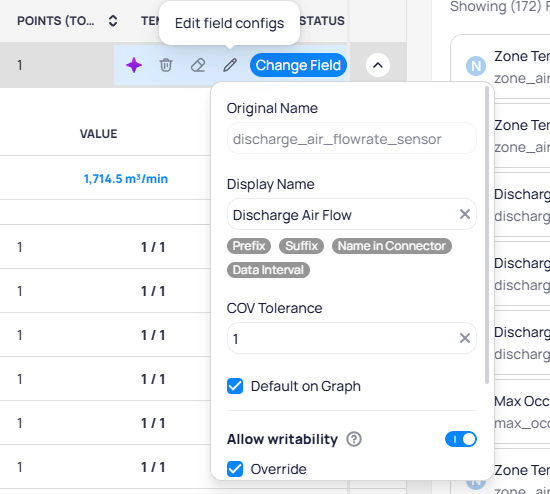
Edit field configs panel showing Original Name, Display Name with Prefix, Suffix, Name in Connector, and Data Interval tags, COV Tolerance set to 1, Default on Graph checkbox, Allow writability toggle, and Override checkbox

The field configuration panel lets you update display name, COV tolerance, graph defaults, and writability

The configuration panel includes:

Manage point groups

The action toolbar on each point group provides controls for managing mappings.

Multi select

Click Multi Select to select multiple point groups at once. A bulk action toolbar appears at the bottom of the page with options to Suggest with AI, Delete Groups, Clear Modeling, Map Enums, or Apply Field to Selected.
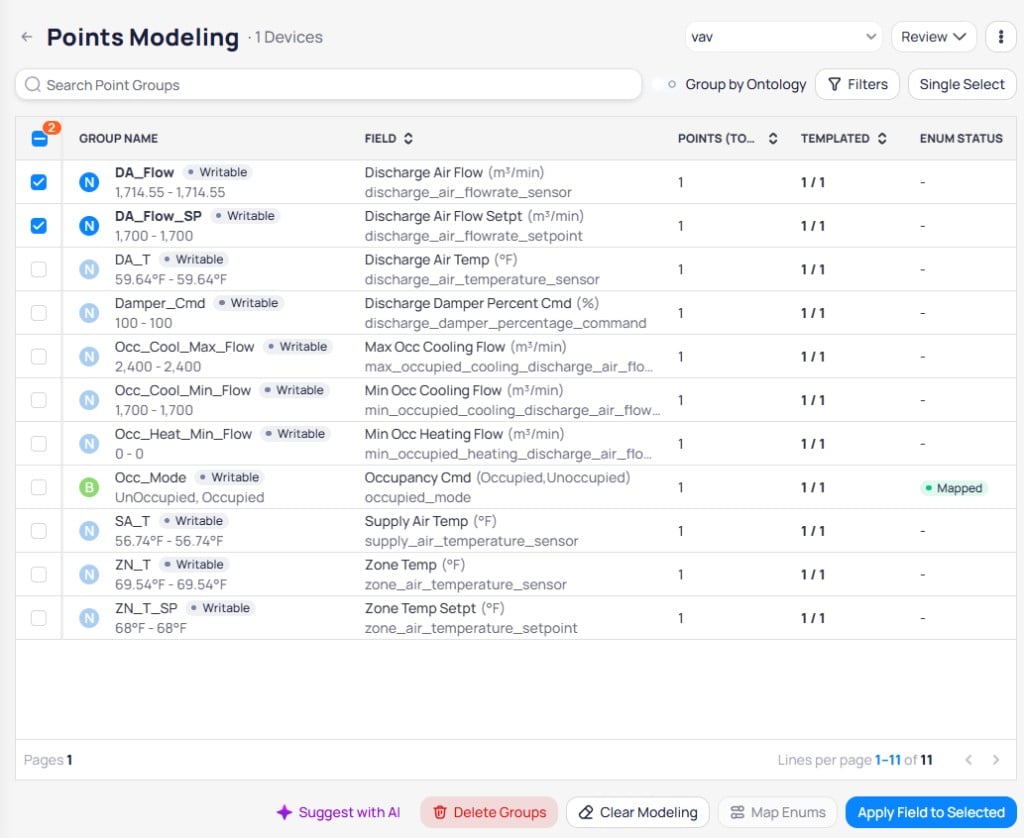
Points Modeling in Multi Select mode with two point groups checked, showing a bottom toolbar with Suggest with AI, Delete Groups, Clear Modeling, Map Enums, and Apply Field to Selected buttons

Multi Select mode lets you select multiple point groups and apply bulk actions from the bottom toolbar

Individual actions

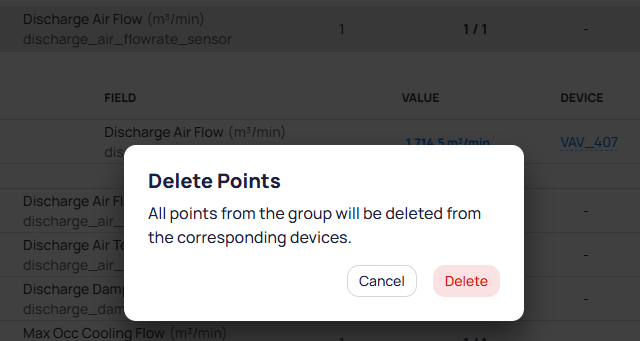
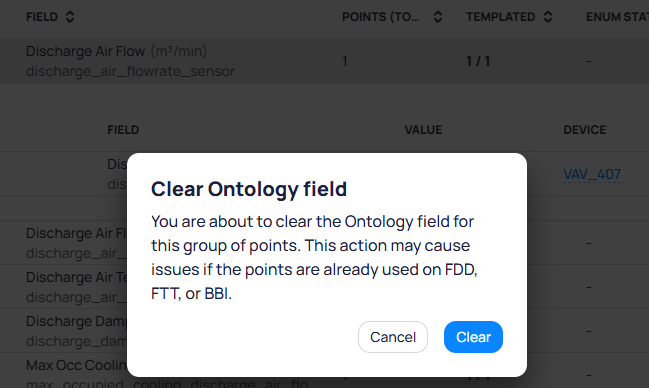
Click the delete icon to remove all points in the group from their corresponding devices.
Delete Points confirmation dialog stating all points from the group will be deleted from the corresponding devices, with Cancel and Delete buttons

The delete confirmation prompts you before removing points from devices
Apply a template to devices

You can apply a template to one or multiple devices at a time.
1

Open batch update

Go to Devices and click Batch Update Devices in the upper right corner.
2

Select target devices

Filter and select the devices that match the template’s equipment type.
3

Apply the template

Choose the template from the available list and apply it to the selected devices. Cloud BMS maps each device’s discovered points to the template definitions.
4

Review results

Verify that points were mapped correctly. Devices with unmatched points are flagged for manual review.

Review modeling

After mapping points, use the Review menu to validate your modeling work. Click Review in the top toolbar to choose between two review modes.
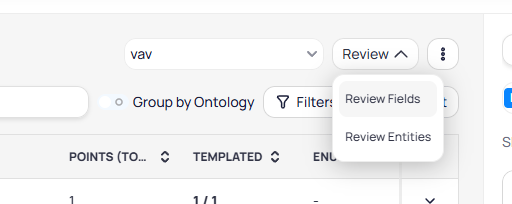
Review dropdown menu showing Review Fields and Review Entities options

The Review menu lets you review mapped fields or matched entities

Review fields

Select Review Fields to open the Review Modeling dialog. The left panel lists all mapped ontology fields with their point counts. Use the Filter mode dropdown to find devices that either contain all selected fields or are missing specific fields.
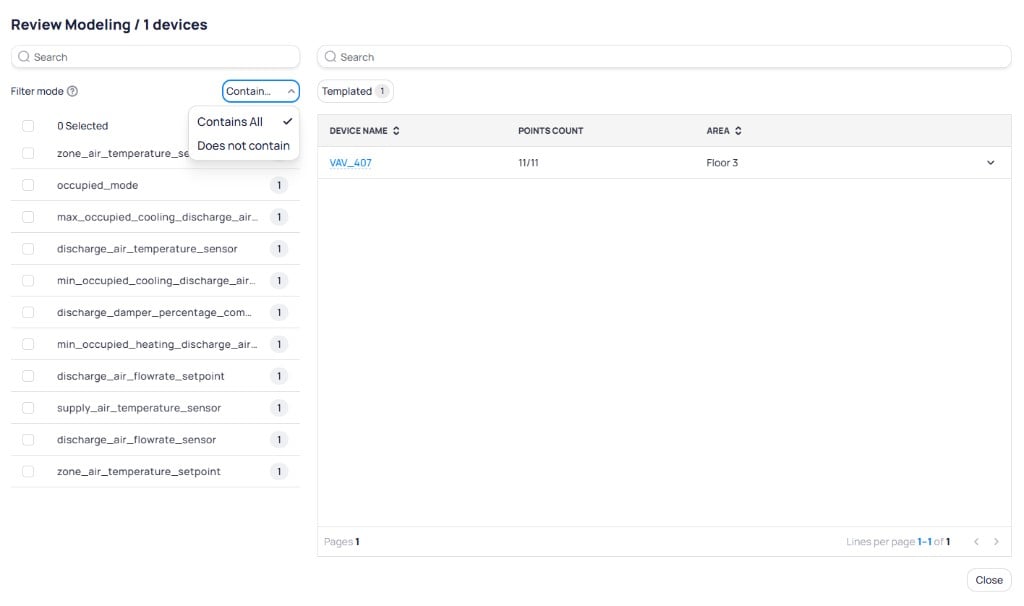
Review Modeling dialog showing a list of ontology fields on the left with point counts, a Contains All filter mode dropdown, and a device table on the right showing VAV_407 with 11 of 11 points on Floor 3

Review Modeling shows all mapped fields and the devices that match your filter criteria

Run an ontology report

Select Review Entities to run an ontology report that validates whether the mapped points correctly match entity definitions.
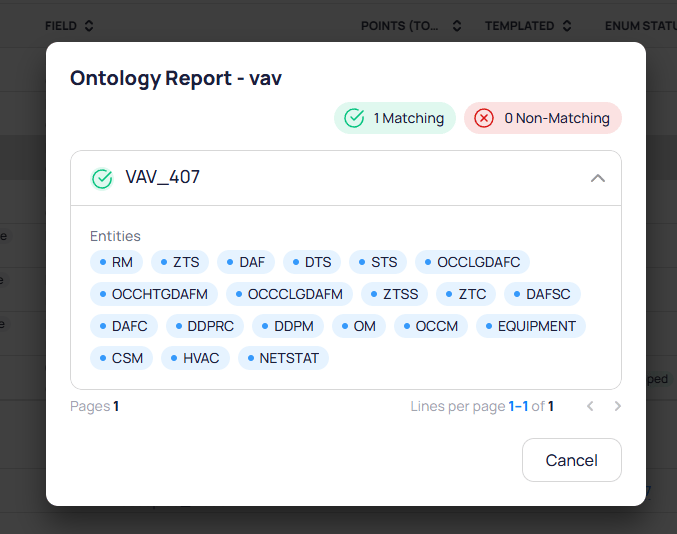
Ontology Report for VAV showing 1 Matching and 0 Non-Matching, with VAV_407 expanded to show entities including RM, ZTS, DAF, DTS, STS, OCCLGDAFC, and others

The ontology report shows matching and non-matching devices with their associated entities

The report displays a count of Matching and Non-Matching devices. Expand a device entry to see all associated entities. Each entity tag represents a recognized classification based on the mapped points.
The ontology report validates that templates correctly describe device behavior. It verifies whether a point is a command or status, a number or enum, and whether the template is the right fit for the device’s actual point structure.

Import and export modeling

The more actions menu (vertical three-dot icon) provides bulk operations for managing modeling data across devices.
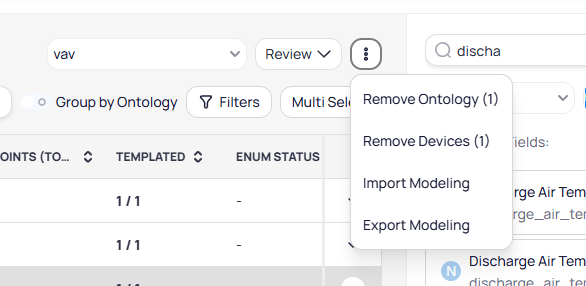
More actions menu showing Remove Ontology, Remove Devices, Import Modeling, and Export Modeling options

The more actions menu provides options to remove ontology mappings, remove devices, and import or export modeling
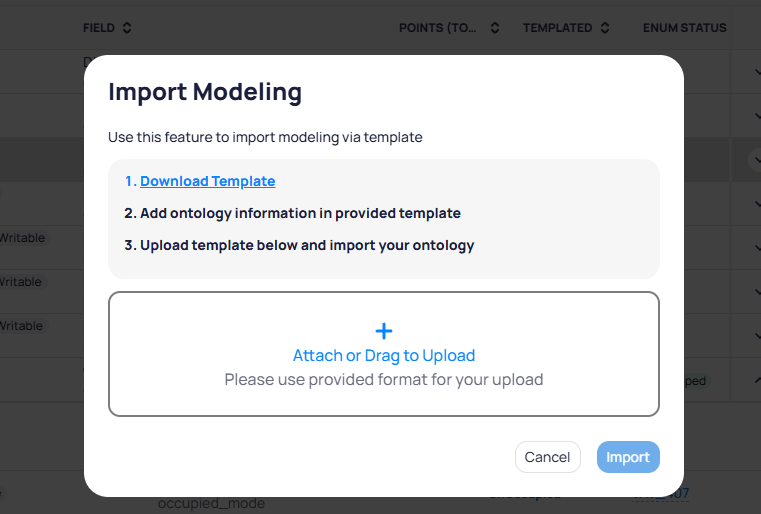
To import modeling, click Import Modeling to open the import dialog. Download the template file, fill in the ontology information, then upload it to apply the mappings.
Import Modeling dialog showing three steps: Download Template, Add ontology information in provided template, and Upload template below and import your ontology, with a file upload area

The Import Modeling dialog walks you through downloading a template, adding ontology data, and uploading the completed file
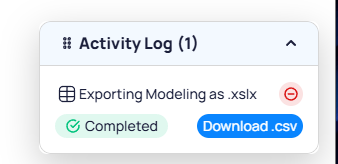
The downloaded template file contains one row per point with the following columns: When you export modeling, the Activity Log in the bottom-right corner tracks the export progress. Once complete, click Download .csv to save the file.
Activity Log showing Exporting Modeling as .xslx with Completed status and a Download .csv button

The Activity Log shows export status and provides a download link when the export completes

Update a template

When you modify a template, you can propagate changes to all devices that use it. Update the point mappings, save the template, and reapply it to the affected devices through batch update.

Next steps

Batch update devices

Apply templates and make mass edits across multiple devices.

Points

Understand the data values that templates organize and standardize.
Last modified on August 18, 2026