

Open batch update
Navigate to Devices from the left sidebar. Click Batch Update Devices in the upper right corner of the devices list.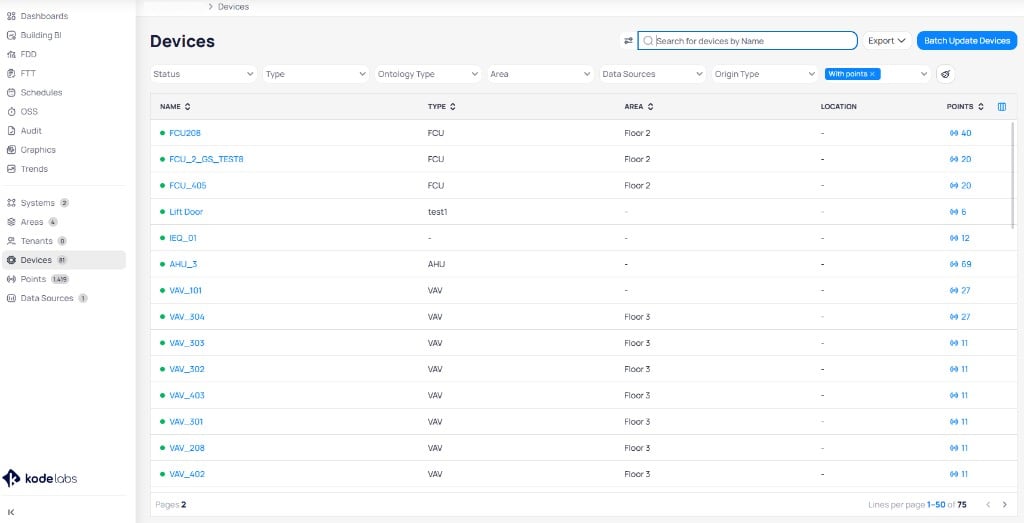
Click Batch Update Devices from the Devices list to open the batch update page
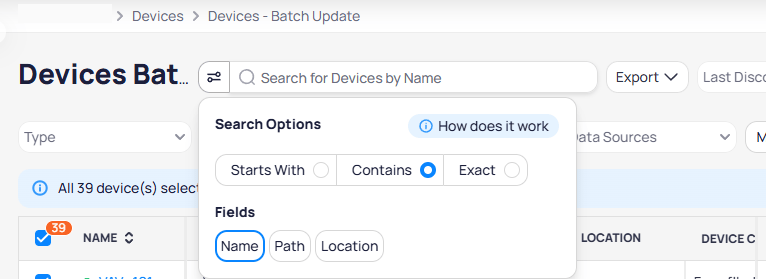
Search options let you control match mode and which fields are searched
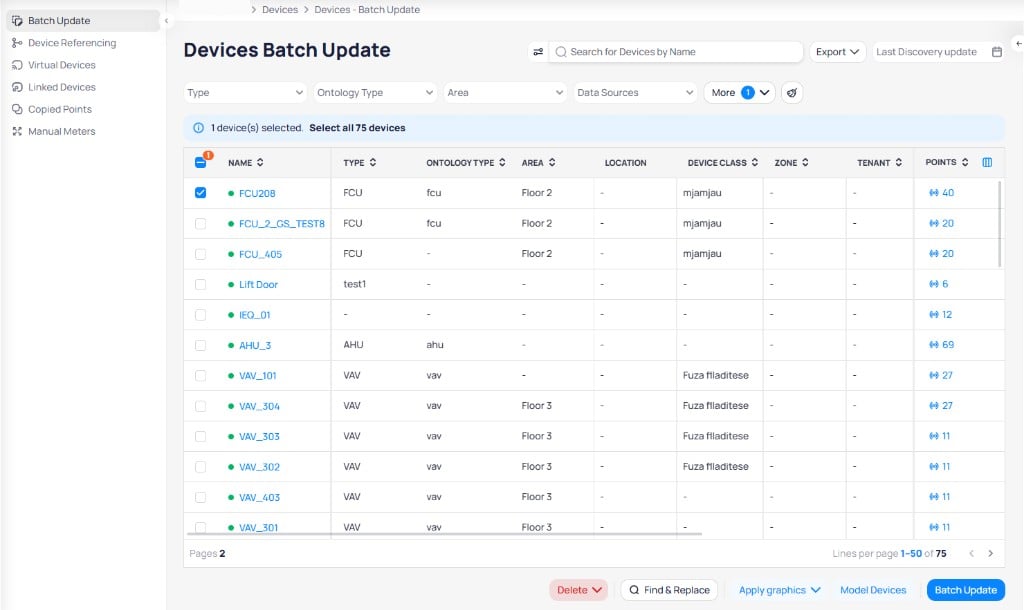
The batch update page shows all devices with selection checkboxes and a bottom action toolbar
Filter devices
Use the filter bar at the top of the page to narrow down the device list by Type, Ontology Type, Area, or Data Sources. Click More to access additional filters.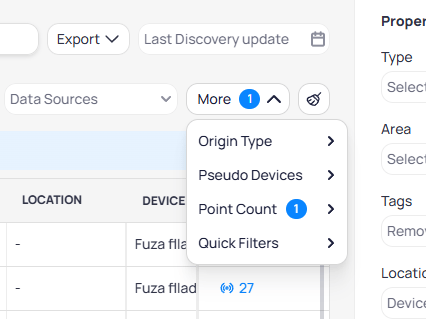
The More menu provides additional filters for Origin Type, Pseudo Devices, Point Count, and Quick Filters
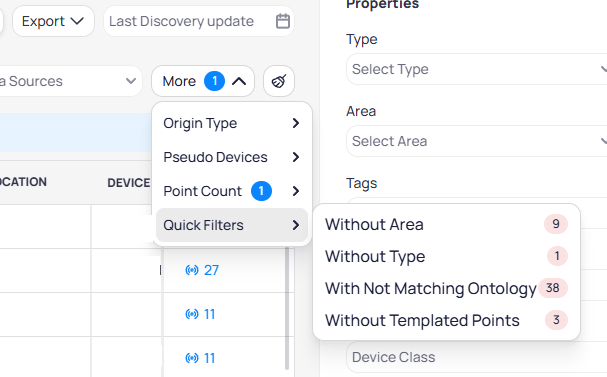
Quick Filters let you find devices that are missing metadata or have modeling issues
Update device properties
Select the devices you want to update by checking the boxes next to each device name, or click Select all to select every device that matches your filters. The Properties panel appears on the right side where you can set values to apply in bulk.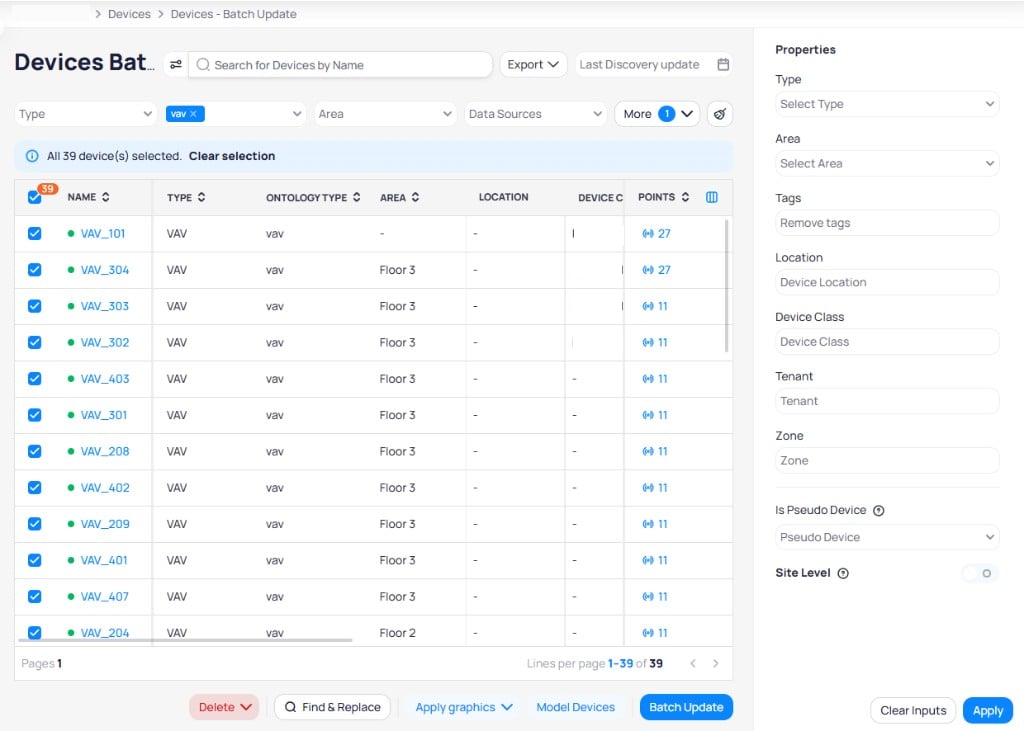
Select devices and use the Properties panel to update type, area, tags, location, device class, tenant, zone, and other settings
Batch actions
The bottom toolbar provides additional actions for selected devices:Delete
Click the Delete dropdown to choose from several removal options: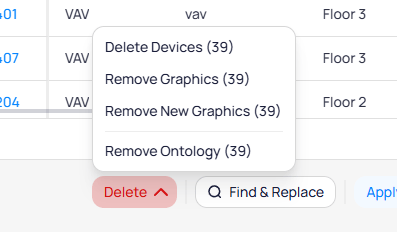
The Delete menu lets you remove devices, graphics, or ontology mappings in bulk
Find and replace
Click Find & Replace to open the find and replace dialog. Enter the text to find in existing device names and the replacement text, then click Replace to rename all matching devices at once.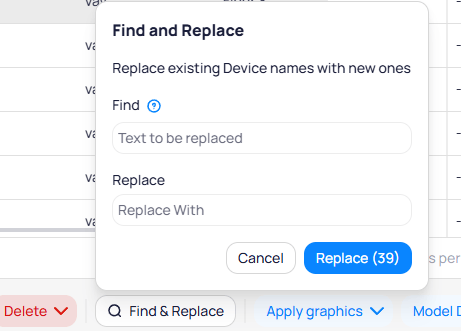
Find and Replace lets you search for text in device names and replace it across all selected devices
Export devices
Click Export at the top of the page to download device data. Enter a file name, select the columns to include, and click Export to generate the file.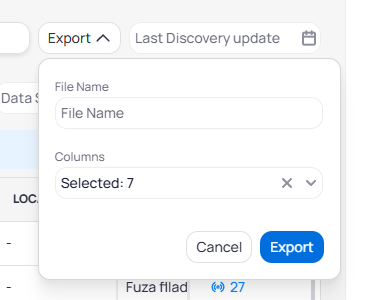
The Export dialog lets you choose a file name and select which columns to include