Copied points let you mirror one or more points from a source device onto other devices in a single batch operation. You do not need to template devices or set up cross-references between source and target equipment. The copy reflects the source point in real time. You can expose the same sensor or setpoint on multiple devices without reconfiguring the data source. Unlike moving points on virtual devices, copying keeps the point on the source device and adds it to target devices.

Use cases

Copied points help when you need to:
  • Share a sensor reading (for example, outdoor air temperature) across multiple devices
  • Mirror a setpoint into another device for dashboards or logic
  • Surface a shared sensor on downstream equipment without cross-referencing
  • Duplicate setpoints or sensors on major water systems where multiple devices use the same value
You can copy points only from original (physical) devices. Copying from virtual devices is not supported.

Copy points from batch update

The main workflow starts on Devices and uses Batch Update DevicesCopied PointsCopy Points.

Open Devices and batch update

In the sidebar, select Devices to open the devices list for your site.
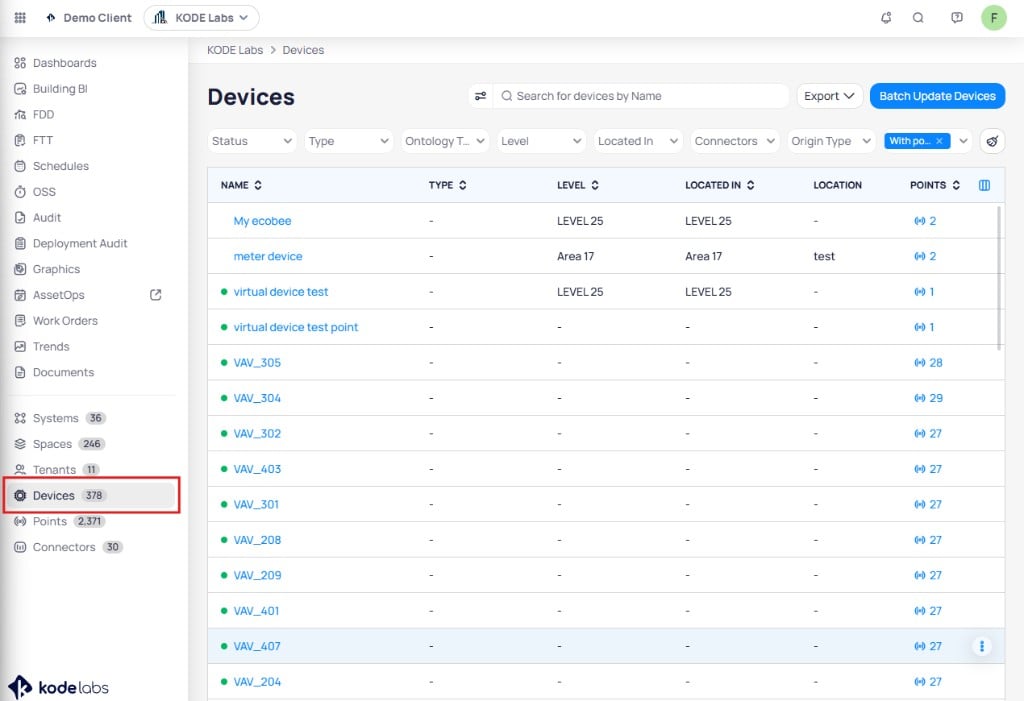
Cloud BMS sidebar with Devices highlighted at the bottom, showing device count next to Systems, Spaces, Tenants, and Points

Choose Devices in the sidebar to open the devices table

On the Devices page, click Batch Update Devices in the upper right corner.
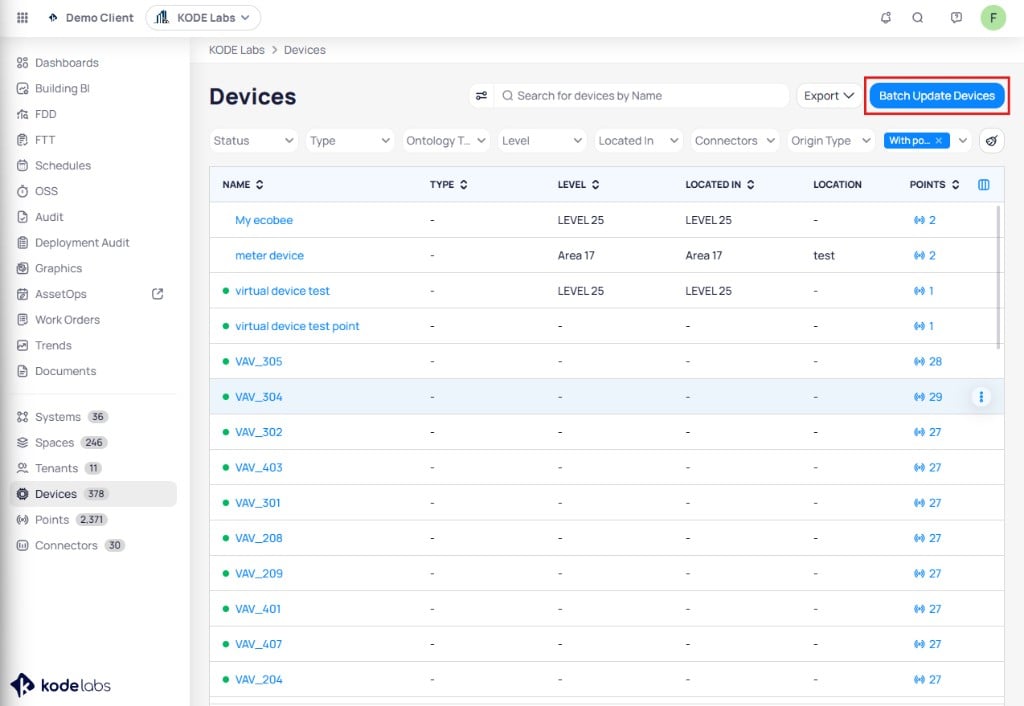
Devices list with search, filters, device table, and Batch Update Devices button highlighted in the upper right corner

Batch Update Devices opens the batch workspace where Copied Points lives

Open Copied Points and start the wizard

In the batch update sidebar, click Copied Points. The page lists existing copies with SOURCE POINT, SOURCE DEVICE, and TARGET DEVICES. Click Copy Points in the upper right to start the wizard.
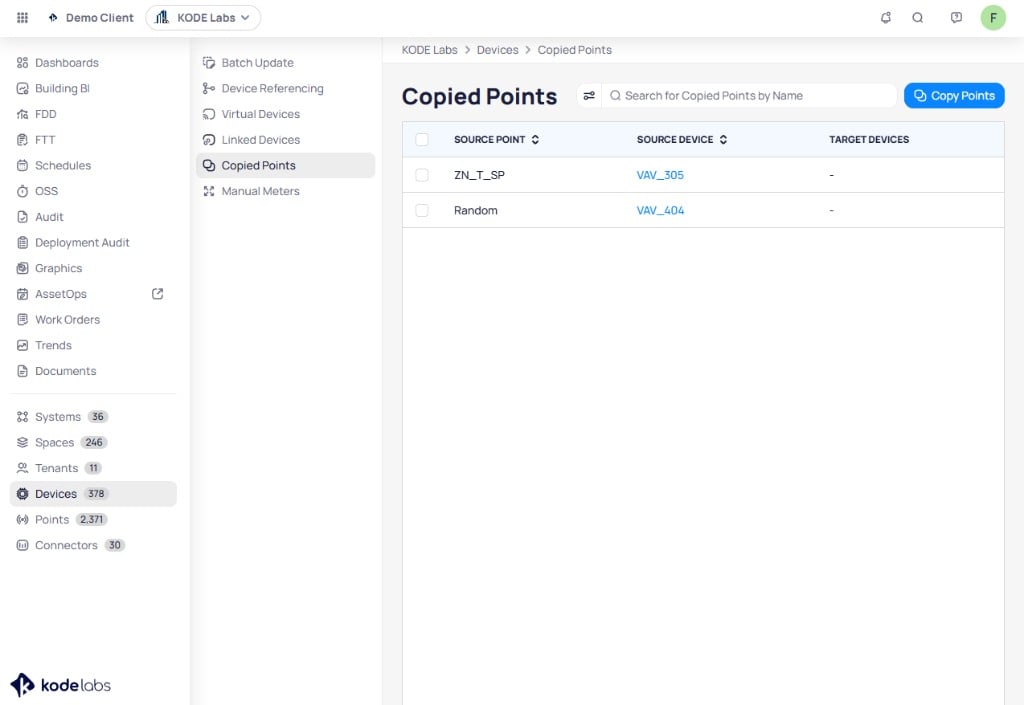
Copied Points page with sidebar showing Batch Update, Device Referencing, Virtual Devices, Linked Devices, Copied Points selected, search bar, Copy Points button, and table columns for source point, source device, and target devices

The Copied Points page lists copies and provides the Copy Points action

Step 1: Select source device

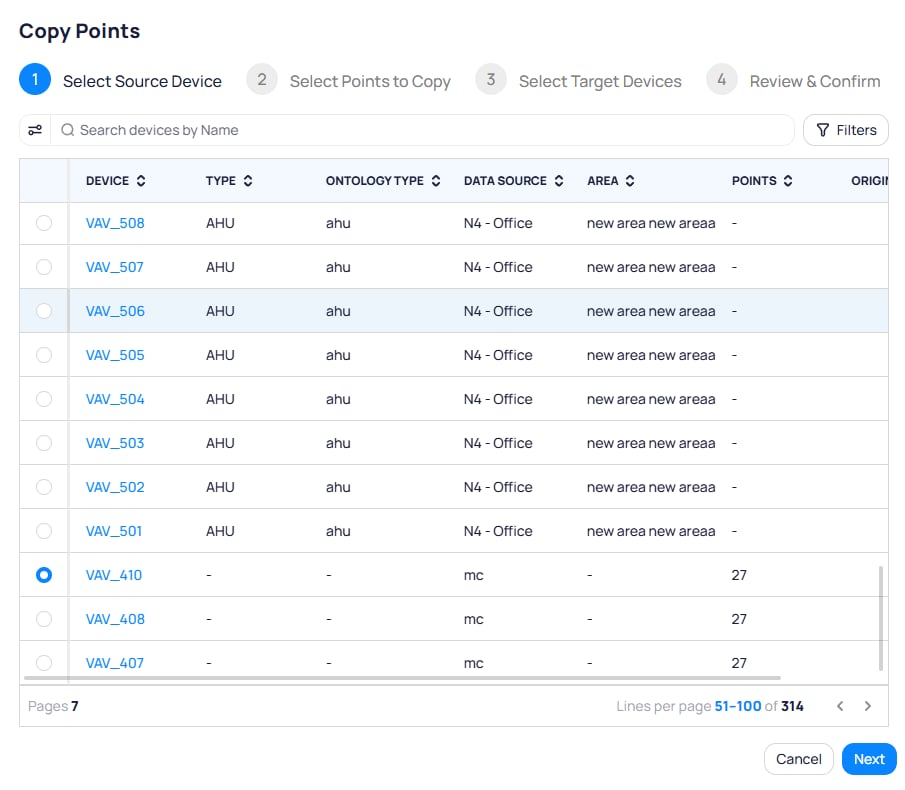
The Copy Points wizard opens on Select Source Device. Search or filter the table, select one source device (radio selection), then click Next.
Copy Points wizard step 1 with stepper, search devices by Name, Filters, device table with radio selection, and VAV_410 selected as source

Select exactly one device to copy points from

Step 2: Select points to copy

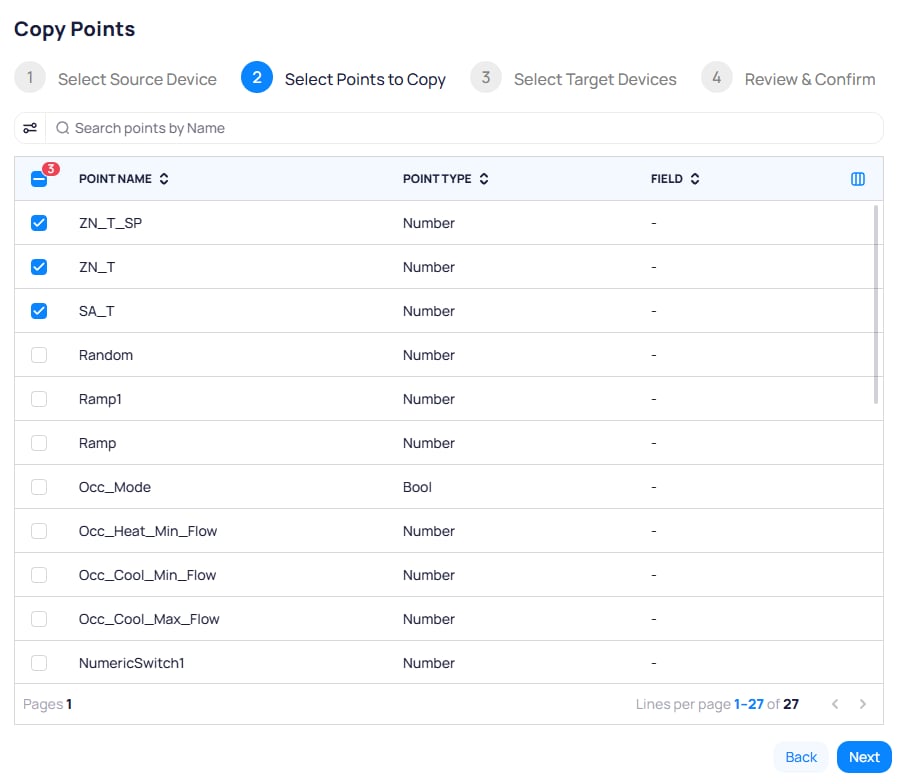
On Select Points to Copy, use the search bar and select one or more points with the checkboxes. Click Next.
Copy Points wizard step 2 showing points table with checkboxes, columns for point name, point type, and field, with several numeric points selected

Choose which points on the source device to duplicate

Step 3: Select target devices

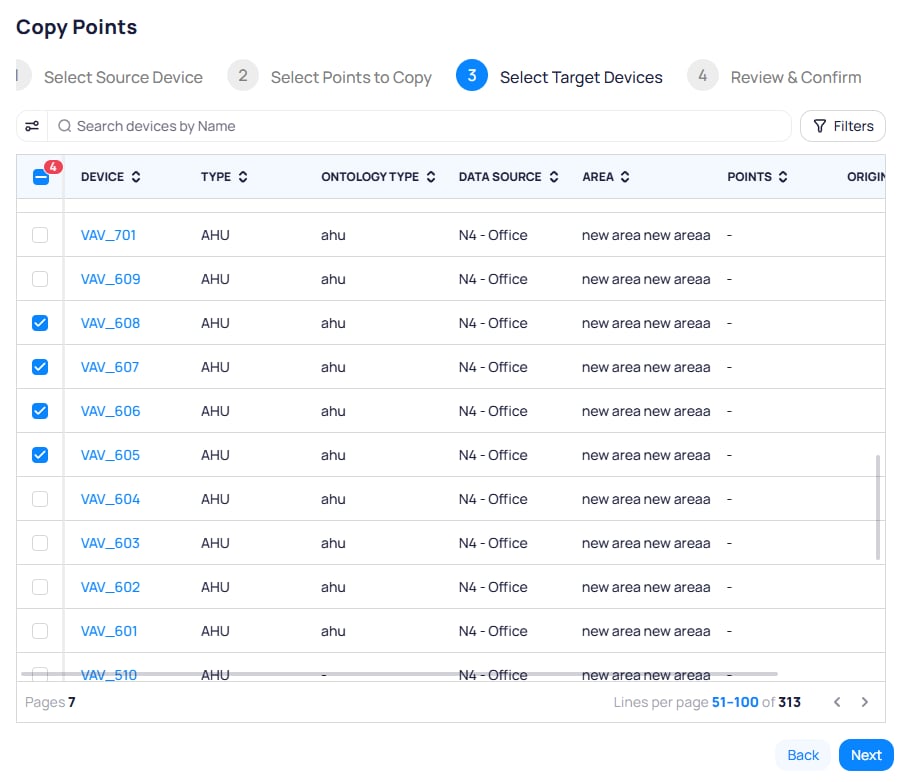
On Select Target Devices, search or filter, then select one or more target devices with the checkboxes. Click Next.
Copy Points wizard step 3 with device table, header checkbox showing partial selection count, and multiple target devices checked

Pick every device that should receive a copy of the selected points

Step 4: Review and confirm

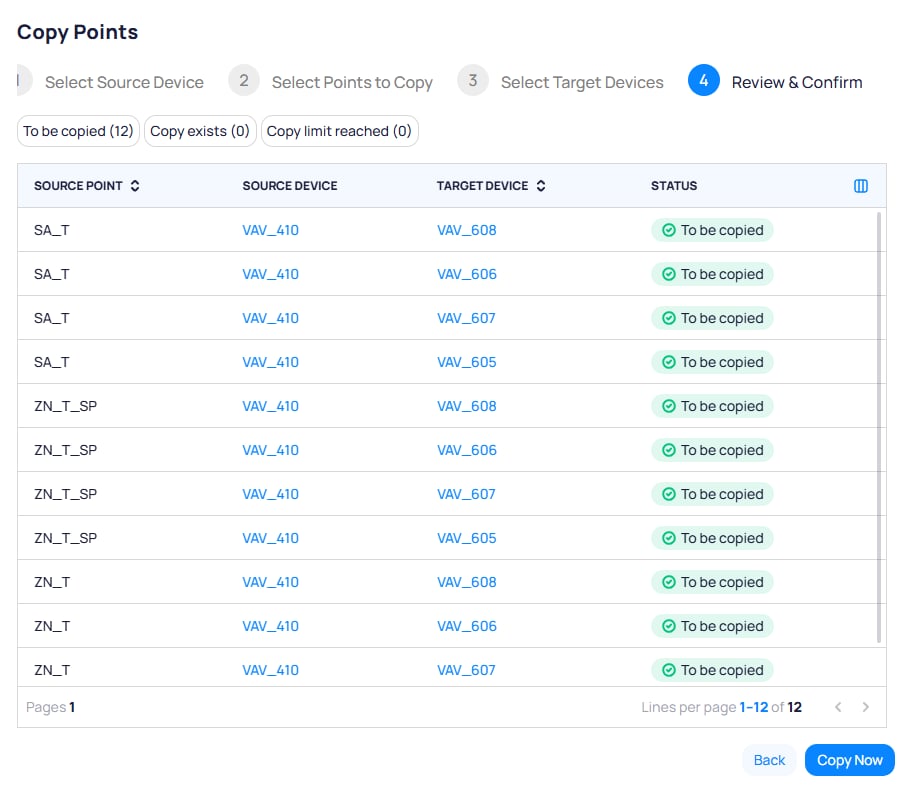
On Review & Confirm, use the tabs To be copied, Copy exists, and Copy limit reached to review the proposed copies. When the list looks correct, click Copy Now.
Each building supports up to 1000 copied points. Rows that exceed this limit appear on the Copy limit reached tab and are not added until you remove existing copies.
Copy Points wizard step 4 with summary table of source point, source device, target device, status To be copied, and Copy Now button

Review the matrix of source points and target devices before running the copy

After the operation completes, the results screen summarizes what ran. Copied points appear on the selected targets and show up on the Copied Points list.

Copy a point from device details

You can start a copy from a single device without opening Copied Points first. This path does not list points that are already duplicated in the building. To audit or manage existing copies, use the Copied Points page under Batch Update Devices. Open the device from Devices, then click the Device Details tab on the device page (alongside Trends, Graphic, and other tabs).
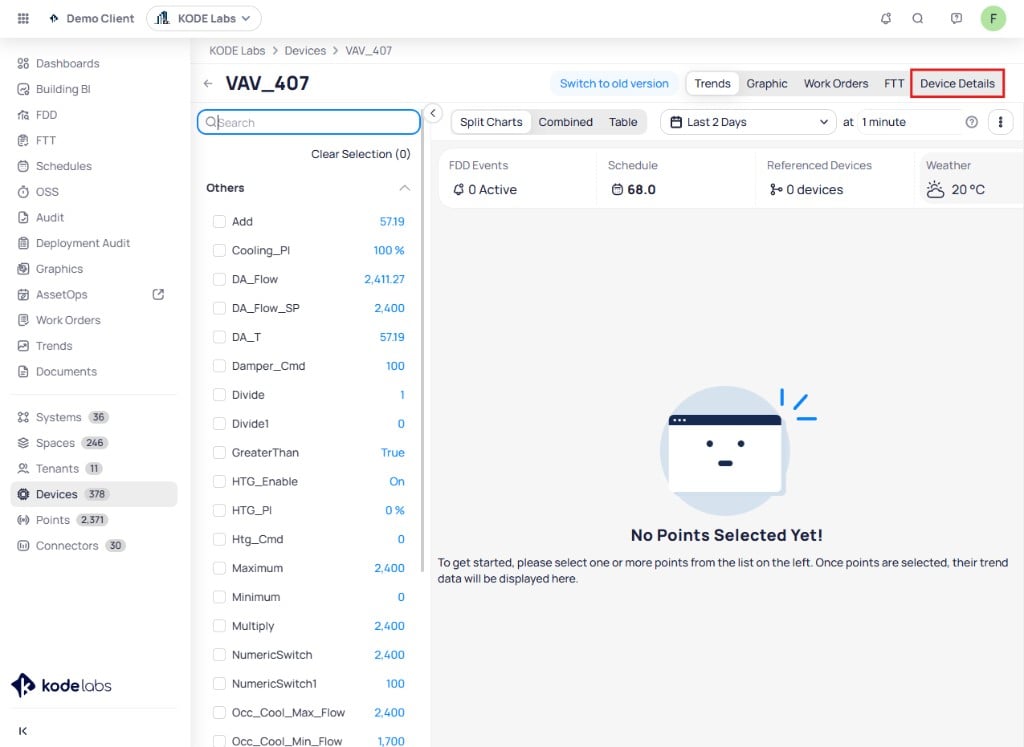
Device page for VAV_407 showing tabs for Switch to old version, Trends, Graphic, Work Orders, FTT, and Device Details highlighted in the top-right, with a points list on the left and trend chart area on the right

Open Device Details from the tab bar on the device page

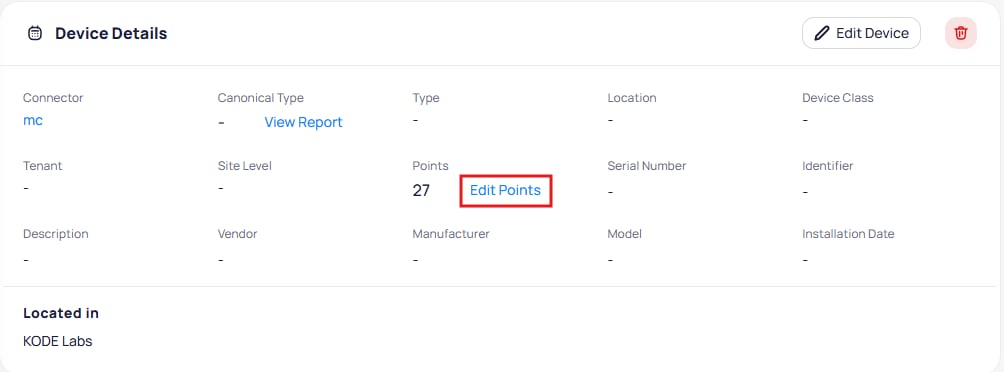
On the Device Details panel, click Edit Points next to the points count.
Device Details panel showing Connector, Canonical Type, Type, Location, Device Class, Tenant, Site Level, Points count of 27 with Edit Points link highlighted, Serial Number, Identifier, and other metadata fields

Edit Points opens the point editor for this device

On Edit Points, select the point in the list. In the right panel, click Duplicate Point (two overlapping squares).
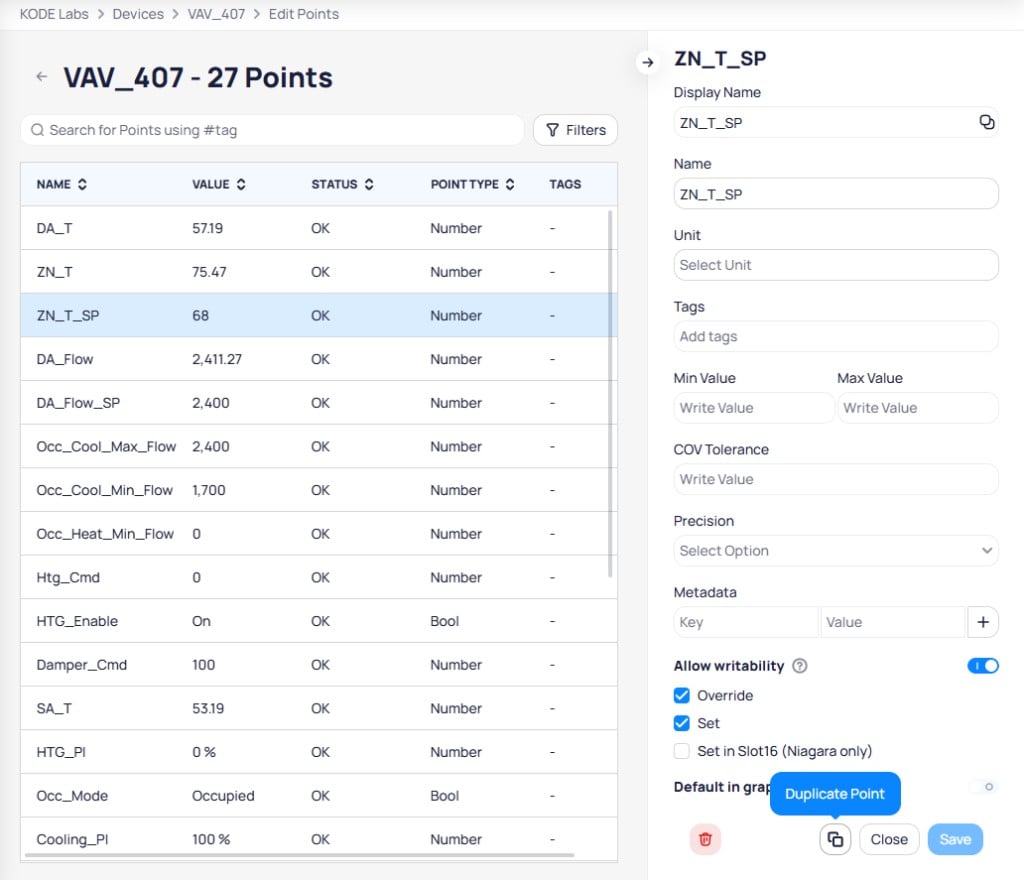
Edit Points view for VAV_407 with 27 points listed on the left showing name, value, status, and point type columns, and ZN_T_SP configuration panel on the right with Display Name, Unit, Tags, Min and Max Value, COV Tolerance, Precision, Metadata, Allow writability toggle, and Duplicate Point button highlighted at the bottom

Duplicate Point starts the copy dialog for the selected point

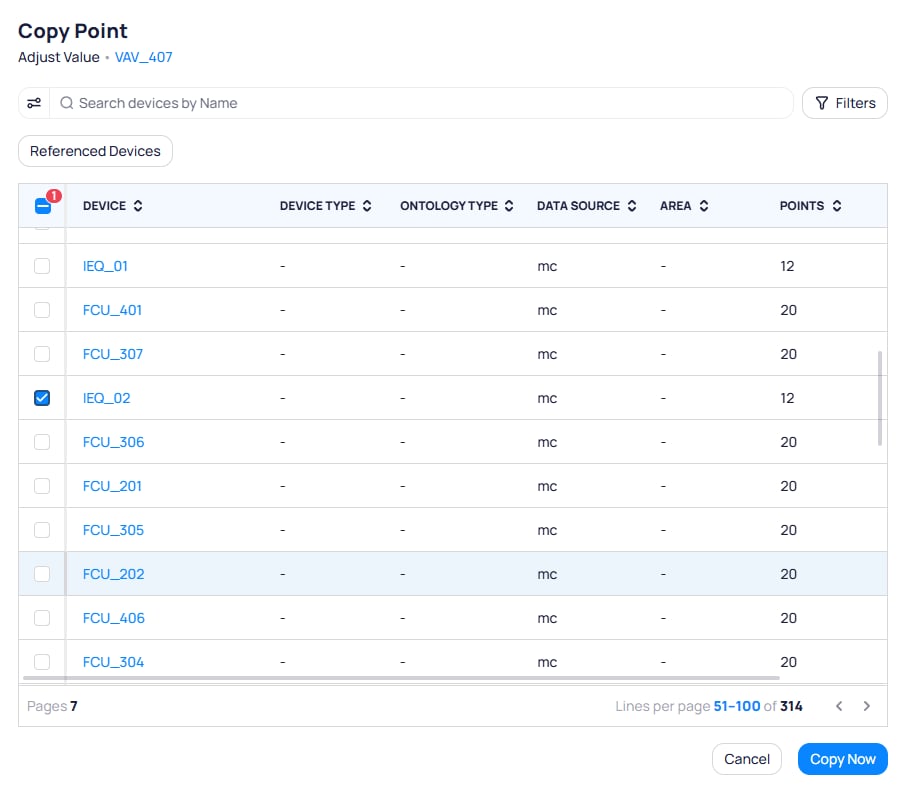
In the Copy Point dialog, use Search devices by Name, Filters, and tabs such as Referenced Devices when shown. Select one or more targets, then click Copy Now.
Copy Point dialog for Adjust Value from VAV_407 with search bar, Filters button, Referenced Devices tab, sortable device table showing Device, Device Type, Ontology Type, Data Source, Area, and Points columns with IEQ_02 selected, pagination showing 314 devices, and Cancel and Copy Now buttons

Search and filter devices, scope with Referenced Devices when available, then confirm

Point behavior after duplication

Remove copied points

Go to DevicesBatch Update DevicesCopied Points. Select one or more rows with the checkboxes. The toolbar shows Delete Duplicated Points with a count of selected rows—click it to remove those copies from their targets.
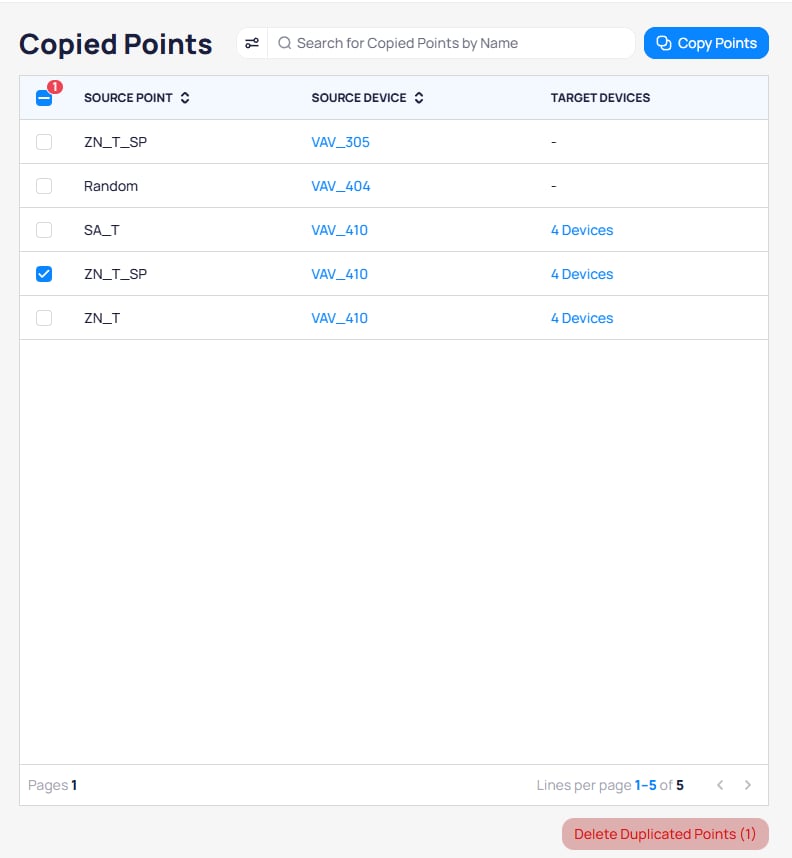
Copied Points table with one row selected and Delete Duplicated Points button showing the selection count at the bottom of the page

Select rows on Copied Points, then use Delete Duplicated Points

You can also open the row three-dot menu and choose Delete Duplicated Points for that row only.
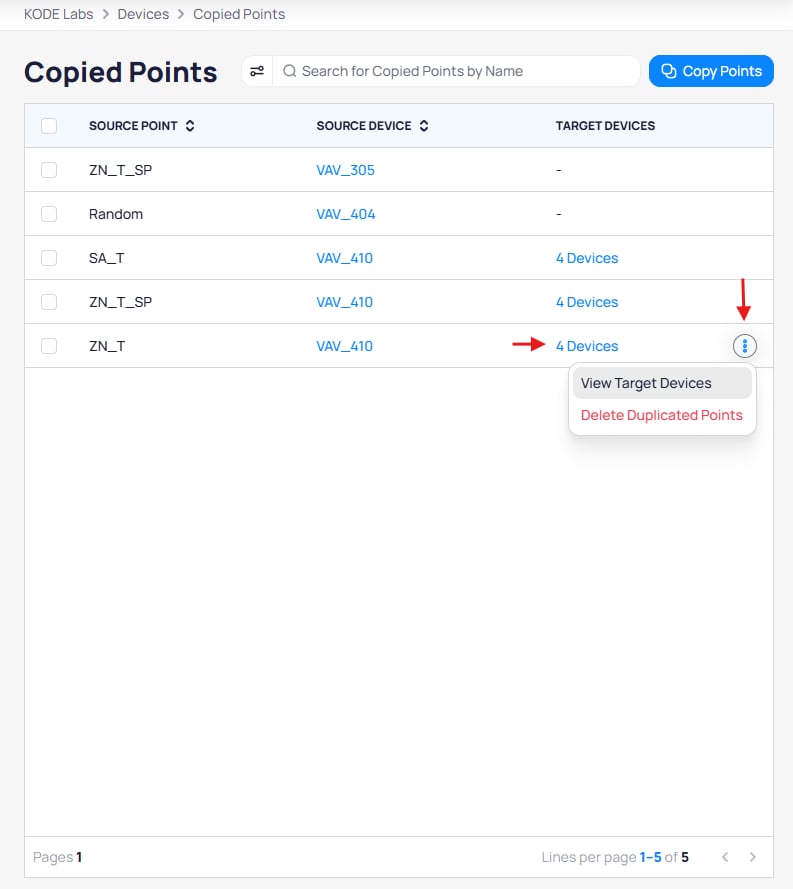
Copied Points row with three-dot menu open showing View Target Devices and Delete Duplicated Points options, with target devices column showing a linked device count

Row menu includes View Target Devices and Delete Duplicated Points

View or manage target devices

From the Copied Points list:
  • Click the link in TARGET DEVICES when copies exist (for example 4 Devices), or
  • Open the row three-dot menu and choose View Target Devices.
The View Target Devices page lists every target that receives the copy for that source point and device. From there you can:
  • Click + Copy to New Devices to copy the same point to additional devices.
  • Select targets and click Remove Selected to drop those copies, or use the minus control on a row to remove one target.
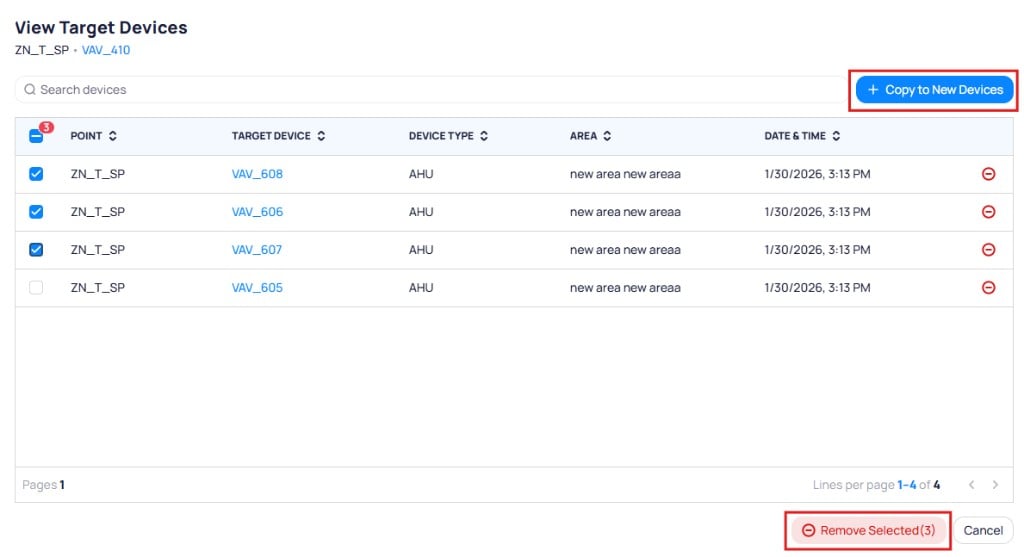
View Target Devices page with subtitle showing source point and device, search bar, Copy to New Devices button, table of target devices with checkboxes, and Remove Selected button

View Target Devices lists targets and supports Copy to New Devices or Remove Selected

Copy history on the Copied Points page

The Copied Points page lists copy activity for the building. Each entry shows the source point, source device, target device or devices, and when the copy ran. Use it to audit shared points and ongoing duplication.

Next steps

Batch update devices

Filter devices and run bulk updates from the batch update workspace.

Points overview

Understand point types, normalization, and how copied points fit in.
Last modified on August 18, 2026