

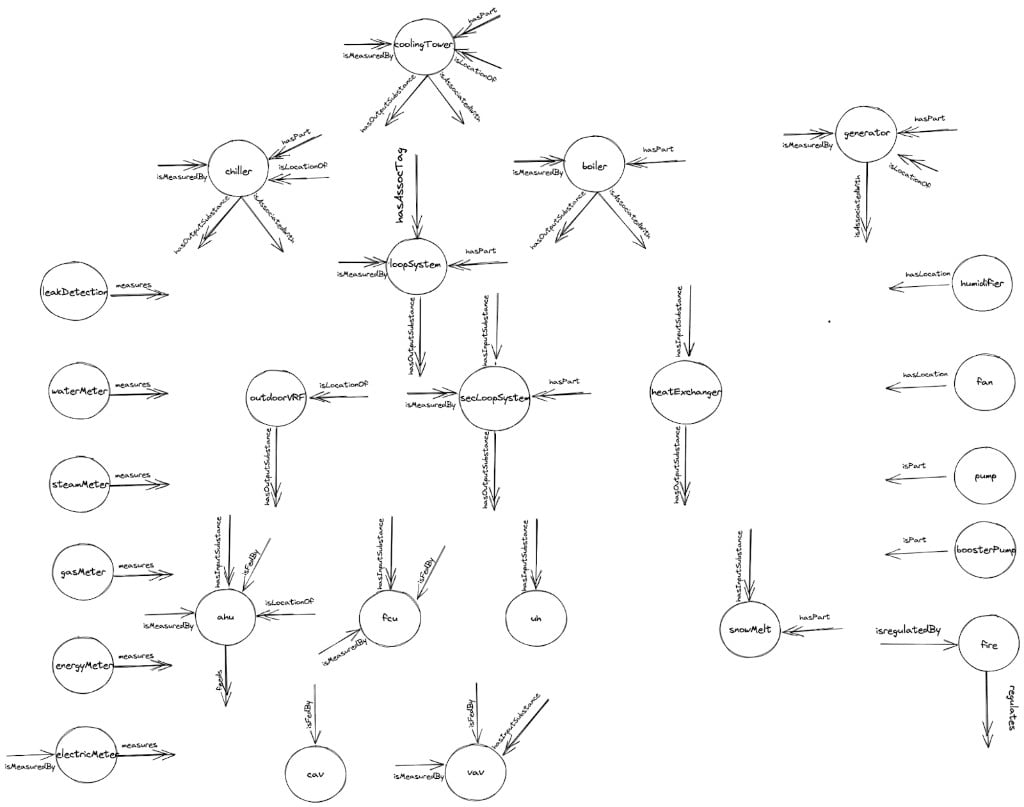
Device referencing maps physical and functional relationships between building systems and equipment
Why device referencing matters
Device referencing transforms raw device data into a structured, relational framework that enhances building management:- Diagnostics and troubleshooting — By mapping device connections, operators can swiftly trace issues. For instance, if a VAV unit malfunctions, its relationship to an AHU via a
feedsreference can pinpoint the source of the problem. - Fault Detection and Diagnosis (FDD) — The system leverages these references to generate contextual alarms, considering not just individual devices but their interconnected dependencies, offering a holistic view of system health.
- Energy analysis — Linking meters to the devices they measure enables detailed energy consumption insights, empowering operators to optimize efficiency and reduce costs.
Reference types
Reference types define the specific nature of relationships between devices. Each reference type has a corresponding reverse reference, automatically establishing a two-way connection. For example, if you connect an AHU to a VAV using thefeeds reference, the VAV will automatically show an isFedBy reference back to the AHU.
HVAC references
- feeds / isFedBy
- hasPart / isPartOf
isFedByisFedBy indicates that a device receives an input from another device or system.Reverse reference: feedsExamples:- An AHU
feedsa VAV — the AHU provides air to the VAV - A VAV
isFedByan AHU — the AHU supplies air to the VAV - An AHU
isFedBya Chilled Water System — the chilled water system supplies water to the AHU for cooling
Metering references
- measures / isMeasuredBy
- hasSubmeter / isSubmeterOf
isMeasuredByisMeasuredBy specifies that a device’s performance or consumption is monitored by a meter.Reverse reference: measuresExamples:- An electricMeter
measuresan AHU — it tracks the AHU’s electrical consumption - An AHU
isMeasuredByan electricMeter — the meter tracks the AHU’s electrical usage
API references
- mirrors / isMirrorOf
isMirrorOfisMirrorOf indicates that a device is a mirrored or API-referenced version of another device, typically for integration with external systems.Reverse reference: mirrorsExamples:- A device
mirrorsan external device — it reflects its data in Cloud BMS - A device
isMirrorOfanother device in an external system — it replicates its data
Example reference flows
The following diagrams illustrate common device referencing patterns in building systems.Chilled and condenser water systems
A condenser water system feeds a chilled water system, which in turn feeds downstream equipment like AHUs, FCUs, and water systems. Components like cooling towers, heat exchangers, and pumps are parts of each system.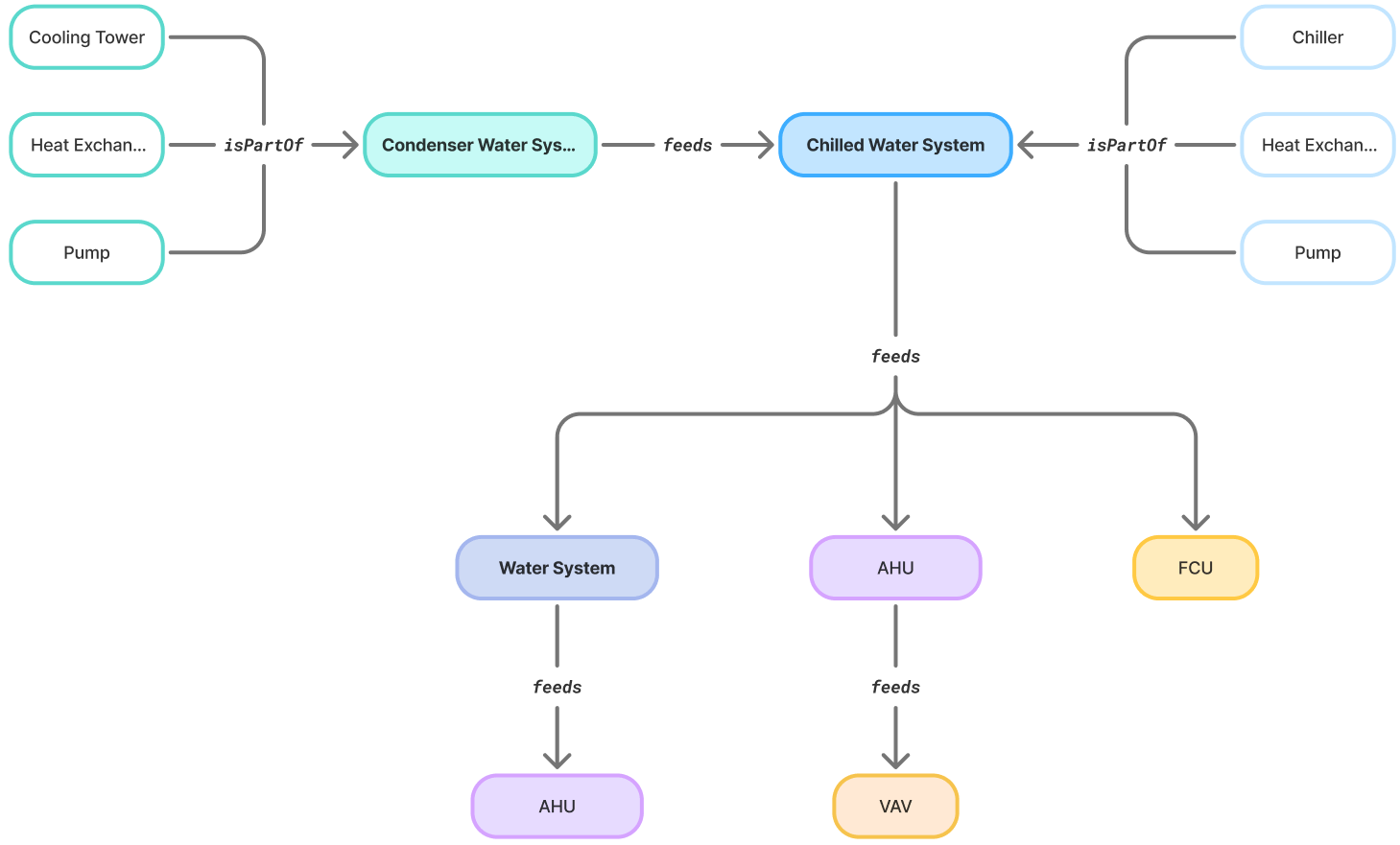
Condenser and chilled water systems connected by feeds references, with components linked by isPartOf
Hot water system
A hot water system contains boilers, heat exchangers, and pumps as components, and feeds AHUs and FCUs, which in turn feed VAVs.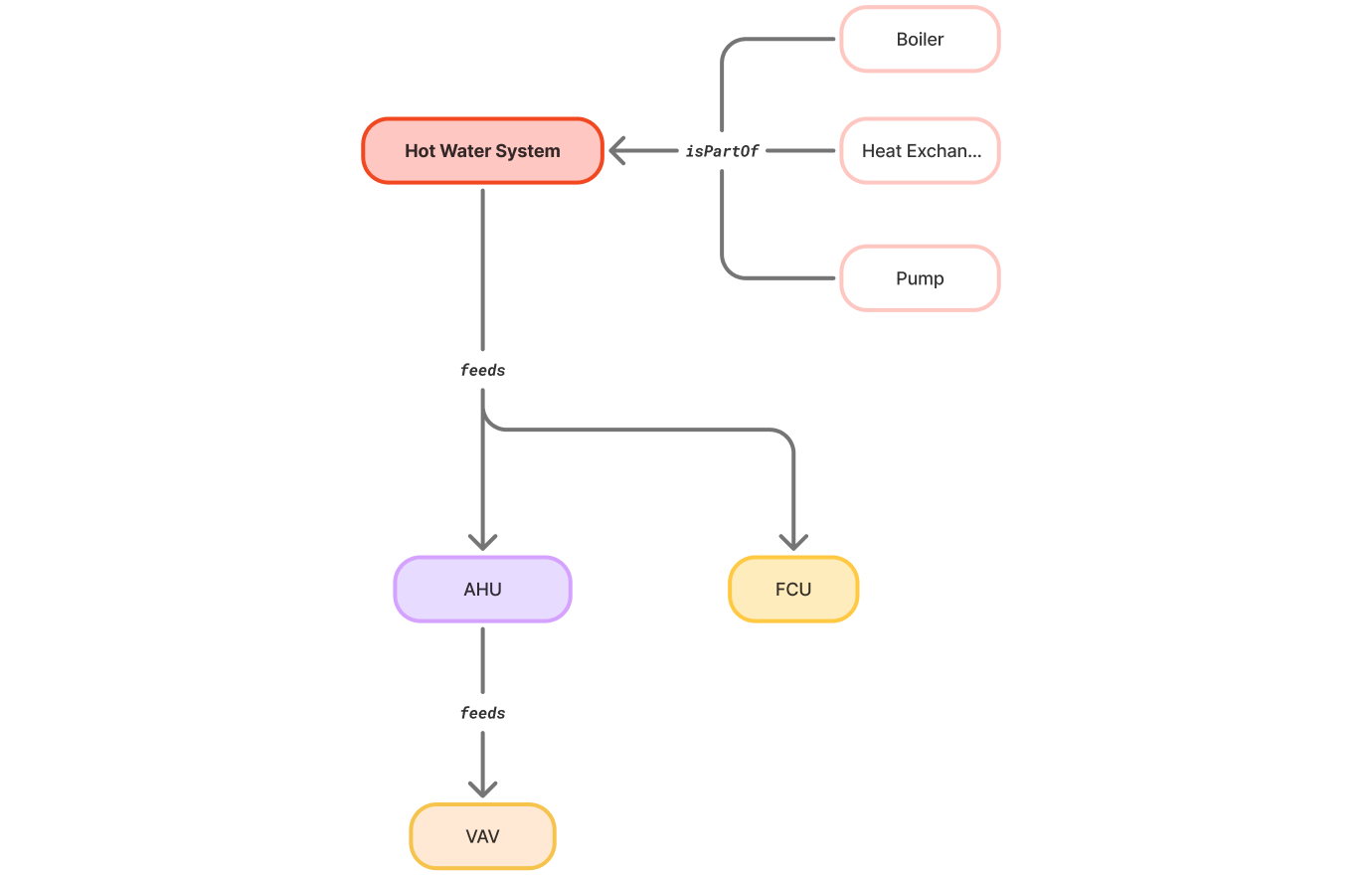
Hot water system feeding AHUs and FCUs, with boiler, heat exchanger, and pump as components
Metering hierarchy
Meters follow a hierarchical structure where site meters have submeters, and each submeter measures specific devices.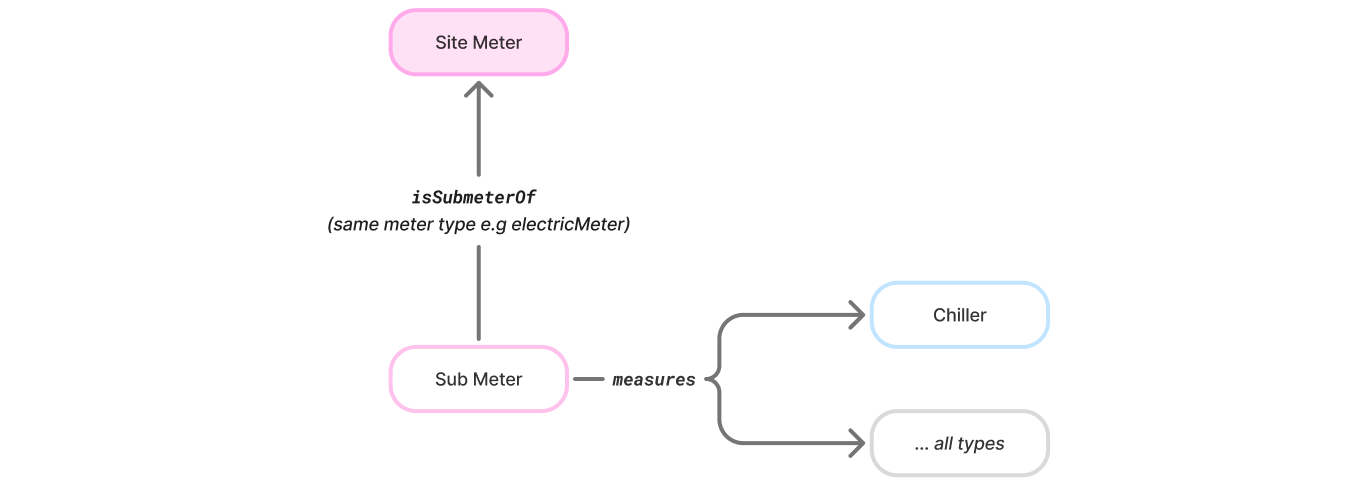
Metering hierarchy showing a site meter with a submeter that measures individual devices
Manage device references
Navigate to Devices > Device Referencing from the building left sidebar. The page lists devices so you can add device references (device-to-device) and space references (device-to-space).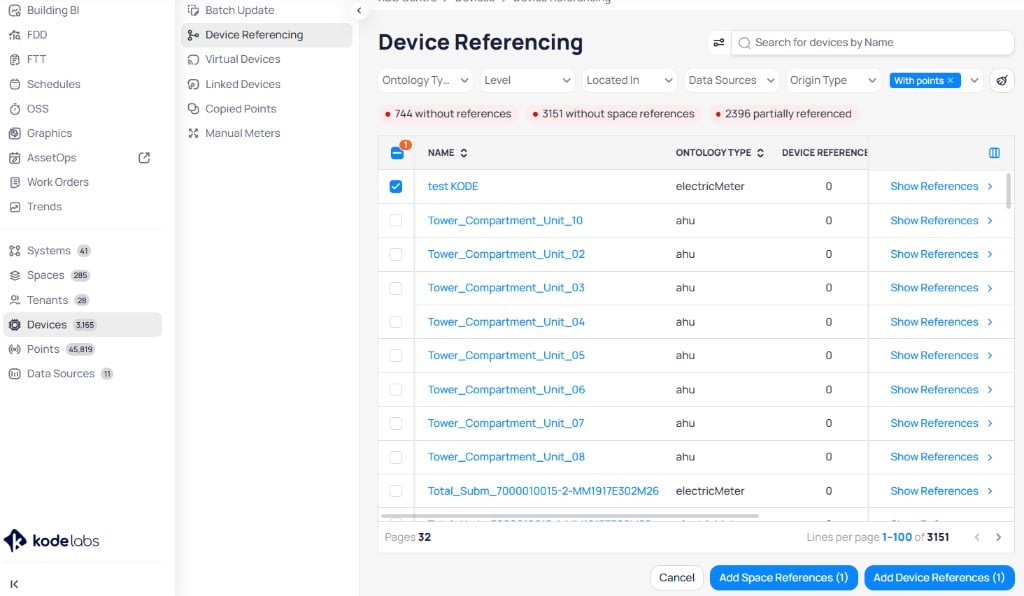
Device Referencing page with filters and reference status
Add device references to multiple devices
Select devices
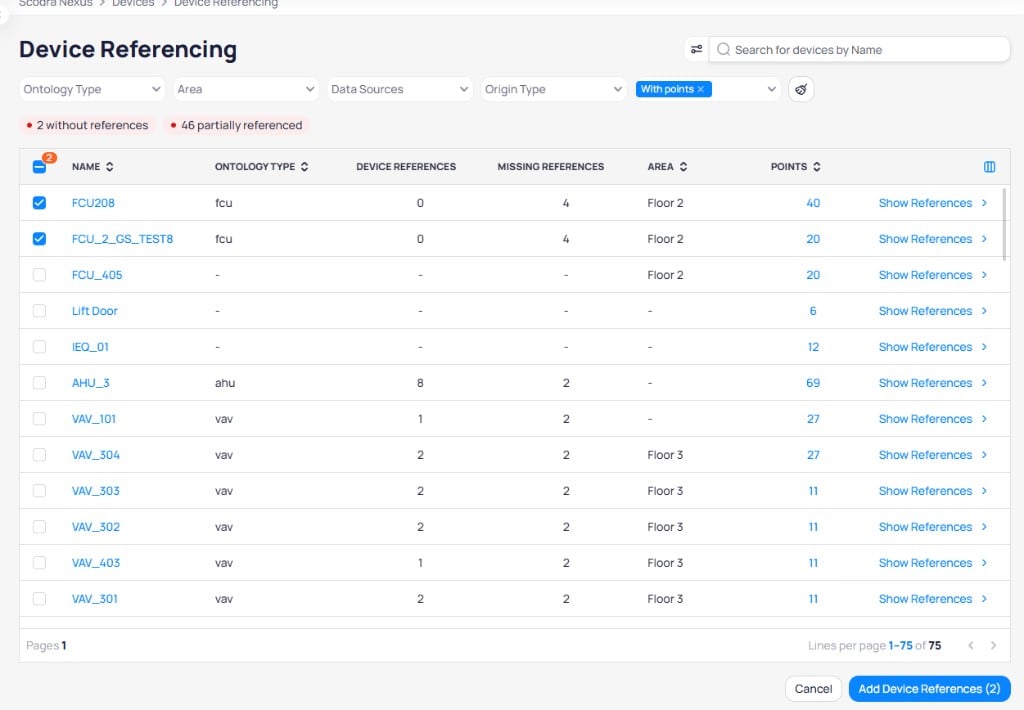
Select devices and click Add Device References to begin adding references in bulk
Choose the reference type
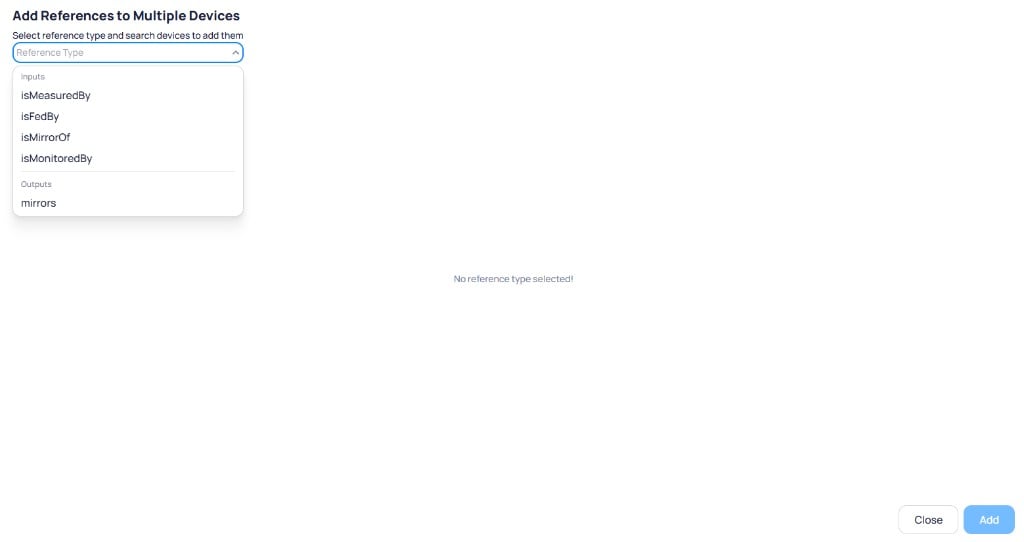
The reference type dropdown groups available references into Inputs and Outputs
Select the target device
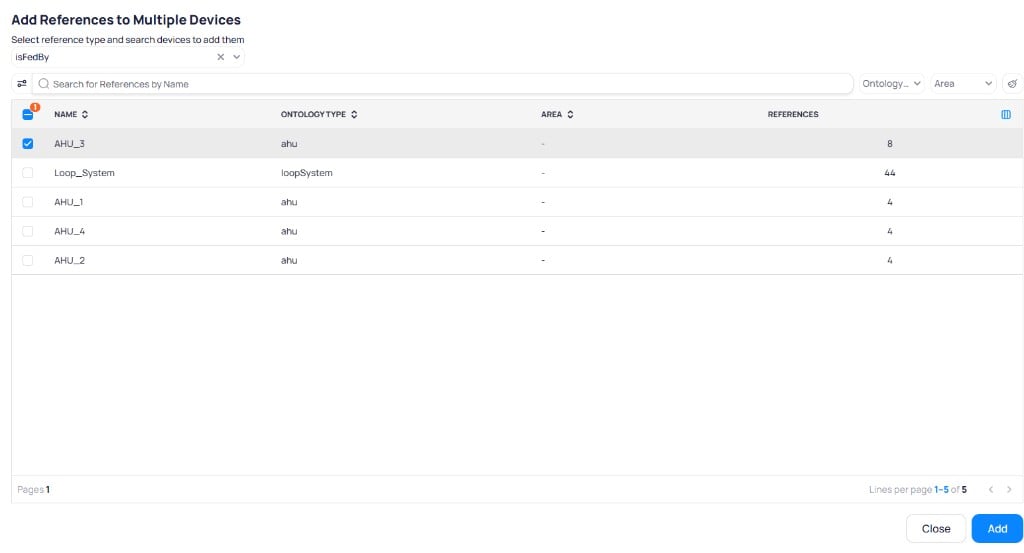
Select a target device from the filtered list of compatible devices
View and drill into references
Click Show References on any device to see its current references. The detail view shows each reference grouped by type (for example,isFedBy) with the referenced device’s name, ontology type, and reference counts.
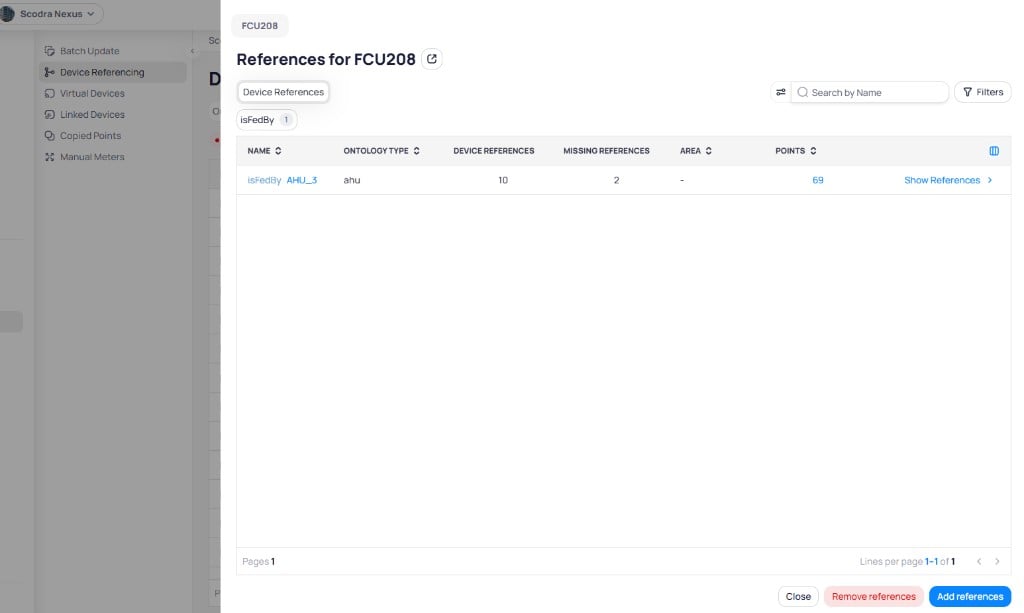
The reference detail view for a device shows its references grouped by type
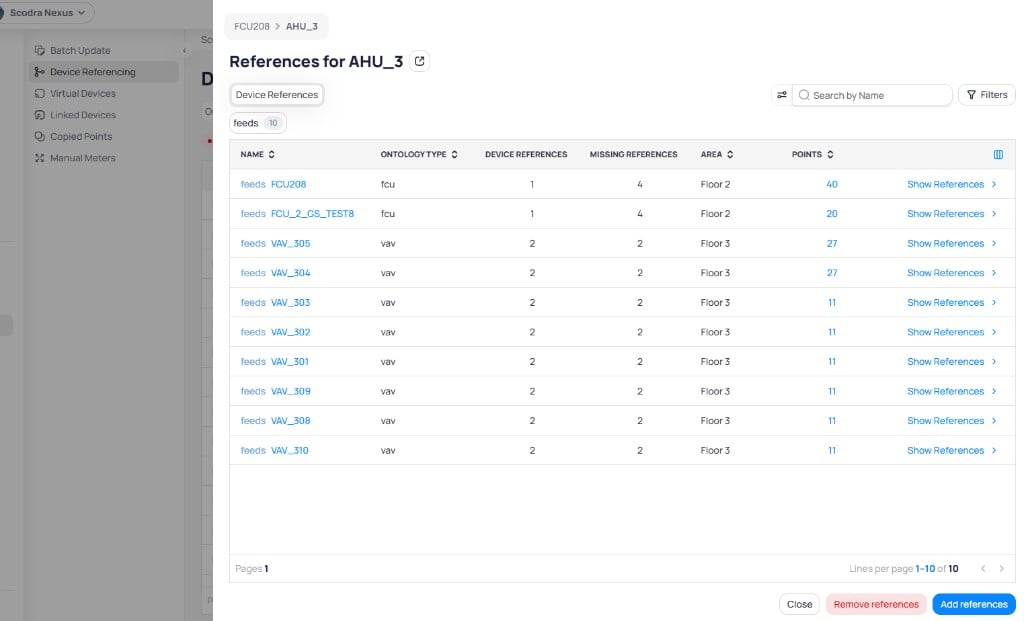
Drilling into AHU_3 shows all devices it feeds, including FCUs and VAVs
- Click Add references to add more references to the device
- Click Remove references to delete existing references
- Click the external link icon next to the device name to navigate directly to that device
View references from device details
References are also available on a device’s Device Details tab. The Referenced Devices section lists all references with their name, reference type, and device type. From here you can add new references with the + Add button or delete existing ones with the delete icon.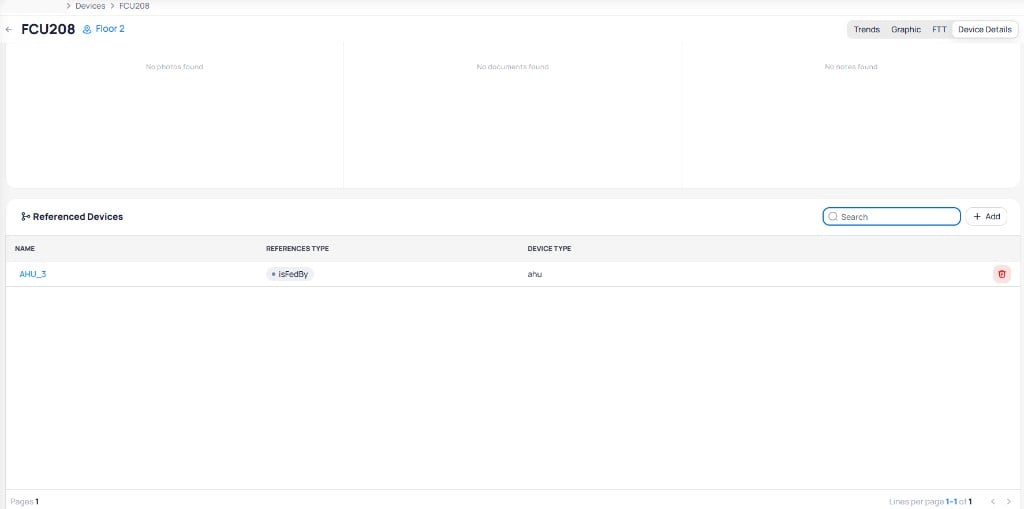
The Device Details tab shows referenced devices with options to add or delete references
View referenced points on trends
You can overlay referenced device points directly on a device’s Trends tab. Click Referenced Devices in the device header to open the referenced devices panel on the right. The panel lists all references grouped by type (for example,isFedBy), along with the referenced device’s points.
Select a referenced device’s points to overlay them on the trend charts. Referenced point data appears as dashed lines on the chart, making it easy to distinguish from the device’s own point data.
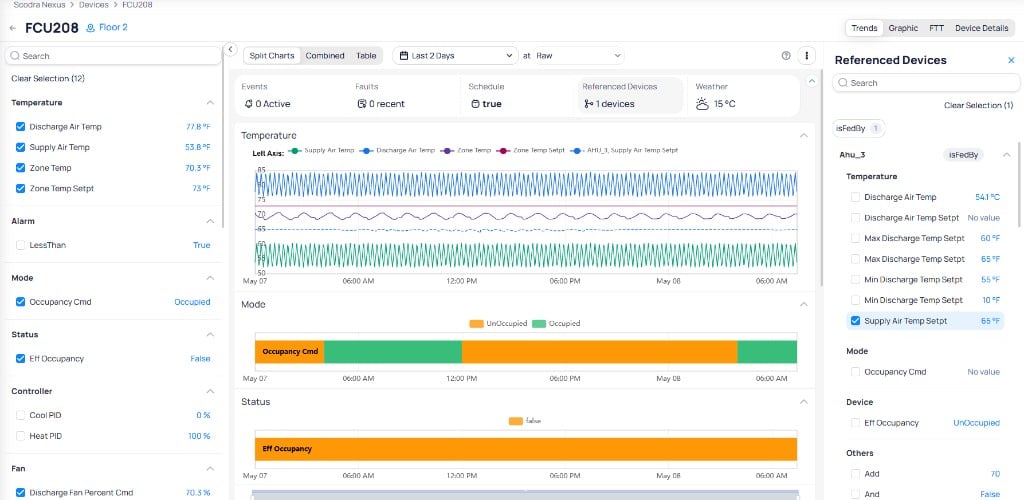
Referenced device points appear as dashed lines on the trend chart, with the Referenced Devices panel on the right