

View the buildings list
Open Buildings from the portfolio sidebar to see all sites in a table.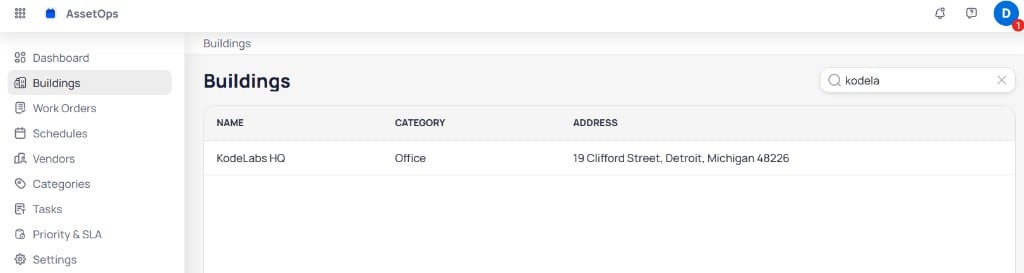
The Buildings page lists each site with name, category, and address
Search buildings
Use the search field in the top right to filter the list by building name or address. For example, type part of a name such askodela to narrow results to KodeLabs HQ before you open the site.
Select a row to open that building and work in building-level modules such as the building dashboard, work orders, and assets.
Search and switch sites
After you open a building, use the site selector in the top navigation bar to move between the portfolio and individual buildings without returning to the Buildings list.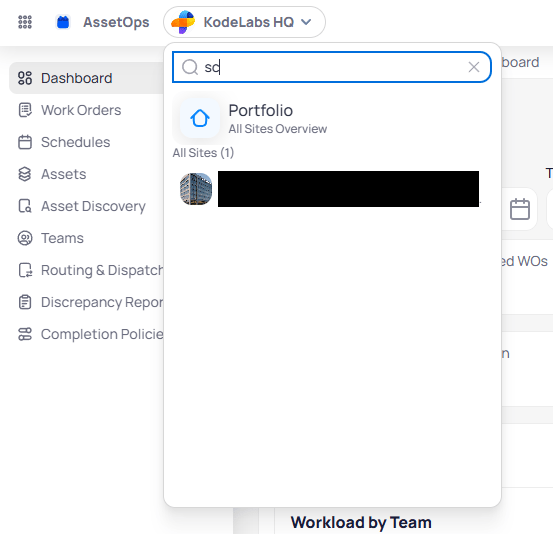
The site selector lets you search for a building or return to the portfolio overview
Open the site selector
Select the current site name in the top bar (for example, KodeLabs HQ) to open the dropdown.Portfolio overview
Choose Portfolio with the subtitle All sites overview to return to portfolio-level navigation and modules such as Dashboard, Buildings, and Work orders.Search for a building
- Open the site selector.
- Type in the search field to filter buildings by name or address.
- Select a building from the results to switch context to that site.
Next steps
After you select a building, use the building dashboard and building-level modules.Building dashboard
Monitor maintenance activity for the selected building.
Assets
View and manage the assets associated with a building.
Work orders
Create and manage corrective maintenance work orders at the building level.