

Portfolio vs building work orders
Most day-to-day work happens at the building level. Portfolio Work orders focuses on visibility across sites. When you open a work order from the portfolio list, AssetOps navigates to that work order in the building context so you can view and manage it on the work order detail page.
Work order list
The portfolio work orders page shows status summary cards, search and filters, and a table of work orders across all buildings.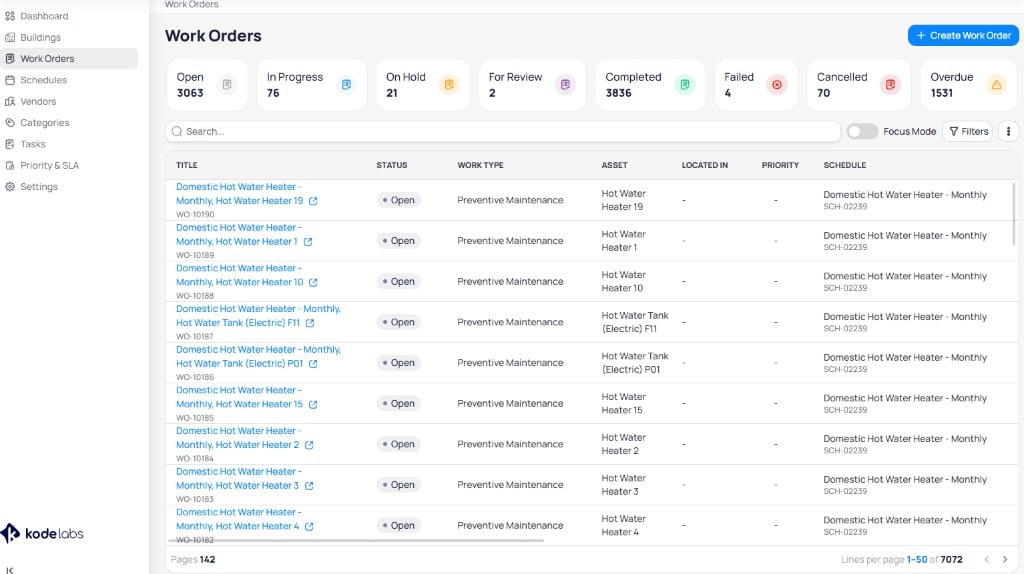
Portfolio work orders list with status cards, Focus mode, search, and cross-building table
Status summary cards
Select a card to filter the table by that status. Counts reflect work orders portfolio-wide based on your current filters.List actions
- Search — Filter the table by text across visible fields
- Focus mode — Toggle to show only urgent work (SLA breached, warnings, high priority). See Focus mode on the building work orders page for the same behavior at building level.
- Filters — Open custom filter criteria, including Region to scope the list to a geographic or organizational grouping
- + Create work order — Start a new work order. See Create a work order.
- Vertical ellipsis menu — Additional list actions
Table columns
Use the column control and horizontal scroll to show additional fields such as tasks, SLA status, dates, assignee, and category. For the full column set, see Work order fields.
Portfolio list actions mirror the building list. Bulk edit runs as a batch with per-item results, failure export, and a seven-day history. For bulk edit fields, custom filters, and column details scoped to one building, see Building work orders.
Create a work order
Select + Create work order from the portfolio list to add work at a specific building. You must choose the Building field because the portfolio view spans all sites.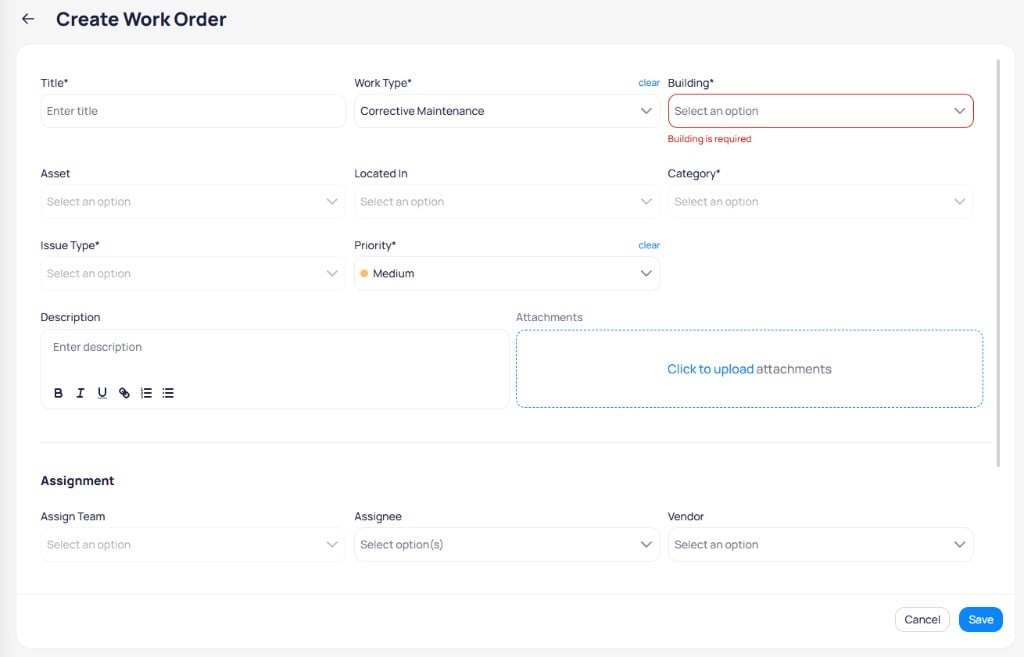
Portfolio create work order form with required Building field
1
Enter general details
Complete required fields.
Field
required
Work order name.
Dropdown
required
Program type (for example, corrective maintenance).
Dropdown
required
Target building for the work order. AssetOps scopes the work order to this building.
Dropdown
Asset the work applies to. Options depend on the selected building.
Dropdown
Building area for the work.
Dropdown
required
Issue type within the category. Routing and dispatch may prefill team and assignee when rules exist for the building.
Dropdown
required
Priority level for SLA tracking.
Field
Rich text description with formatting options.
Field
Upload supporting files.
2
Set assignment
Choose Assign team, Assignee, and Vendor as needed. Additional date and time fields match the building create flow.
3
Save
Select Save to create the work order. Open it from the portfolio list or building list to reach the work order detail page.
Related configuration
Work orders use portfolio-wide categories, vendors, and task templates. Configure those modules before teams create work at the building level.Next steps
Work order detail page
View tasks, logged time, attachments, and follow-ups after you open a work order from the portfolio list.
Building work orders
Manage work orders, Focus mode, filters, and bulk edit for a single building.
Work order basics
Learn how corrective, preventive, and inspection work orders differ in AssetOps.
Priority & SLA
Define SLA targets that drive status and Focus mode on work order lists.