

Configure field mapping and matching rules and asset linking before you run discrepancy reports.
View discrepancy reports
The Discrepancy reports page lists reports created for the building.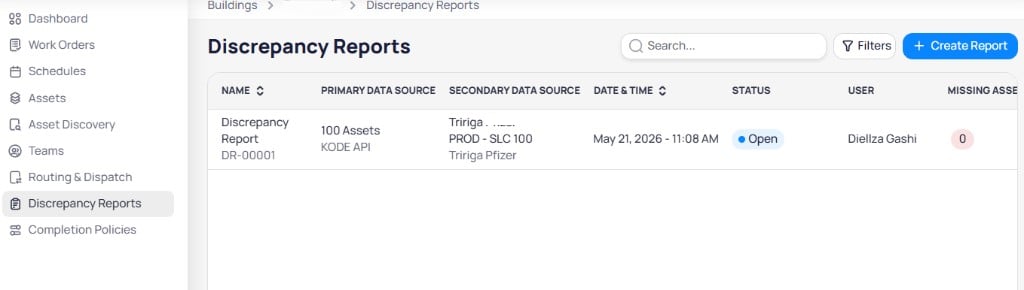
The Discrepancy reports list shows data sources, status, and missing asset counts
Use Search and Filters to find reports. Select + Create report to start a new comparison.
Create a discrepancy report
Creating a report uses a two-step wizard: Select data sources and Choose fields to compare.Step 1: Select data sources
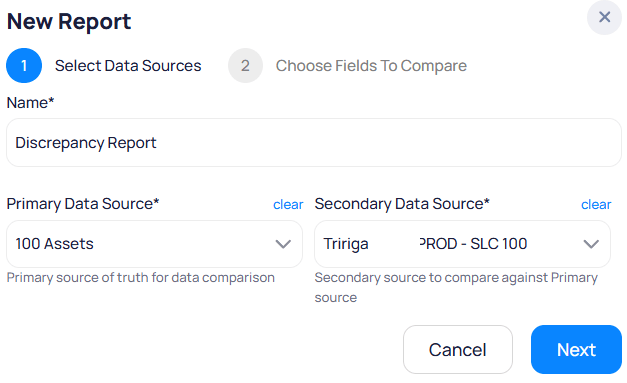
Choose report name, primary source, and secondary source
Field
required
Display name for the report.
Dropdown
required
Source of truth for the comparison.
Dropdown
required
Source to compare against the primary source.
1
Select + Create report
On the Discrepancy reports page, select + Create report.
2
Enter data sources
Enter Name, Primary data source, and Secondary data source, then select Next.
Step 2: Choose fields to compare
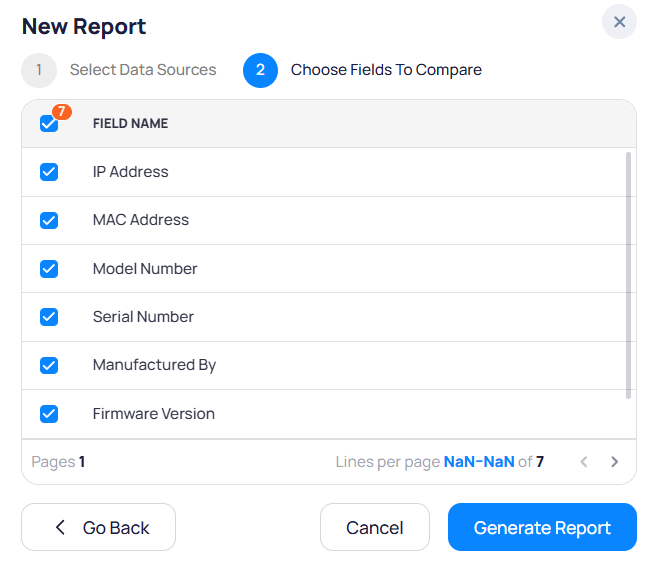
Select asset fields to include in the comparison
- IP address
- MAC address
- Model number
- Serial number
- Manufactured by
- Firmware version
Report details
Select a report from the list to open its detail page. The page has three tabs: Missing assets, Asset discrepancies, and Overview.Missing assets tab
Lists assets that exist in the primary source but are missing from the secondary source (or vice versa, depending on report configuration).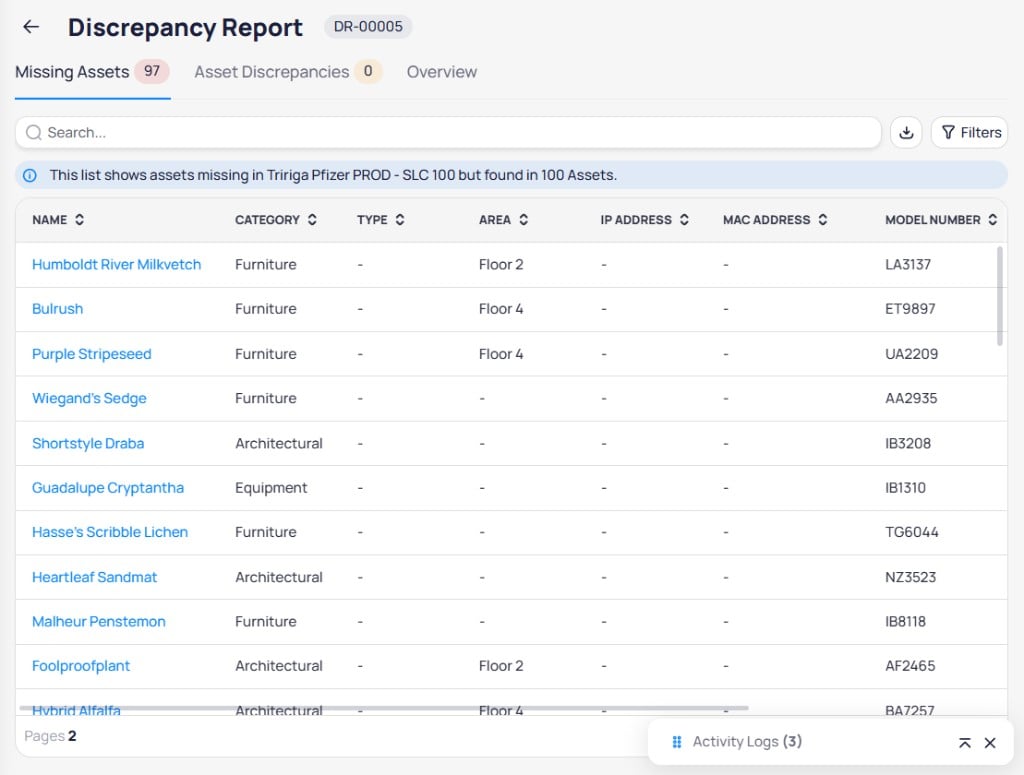
Missing assets lists assets found in one source but not the other
Asset discrepancies tab
Lists assets that exist in both sources but have different values for one or more compared fields.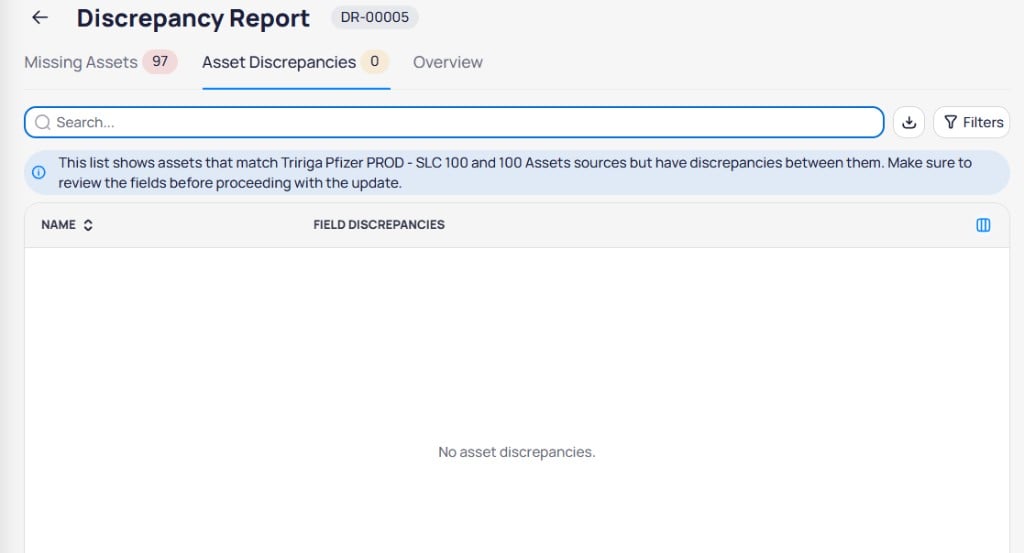
Asset discrepancies shows matched assets with conflicting field values
Overview tab
Summarizes report results and configuration.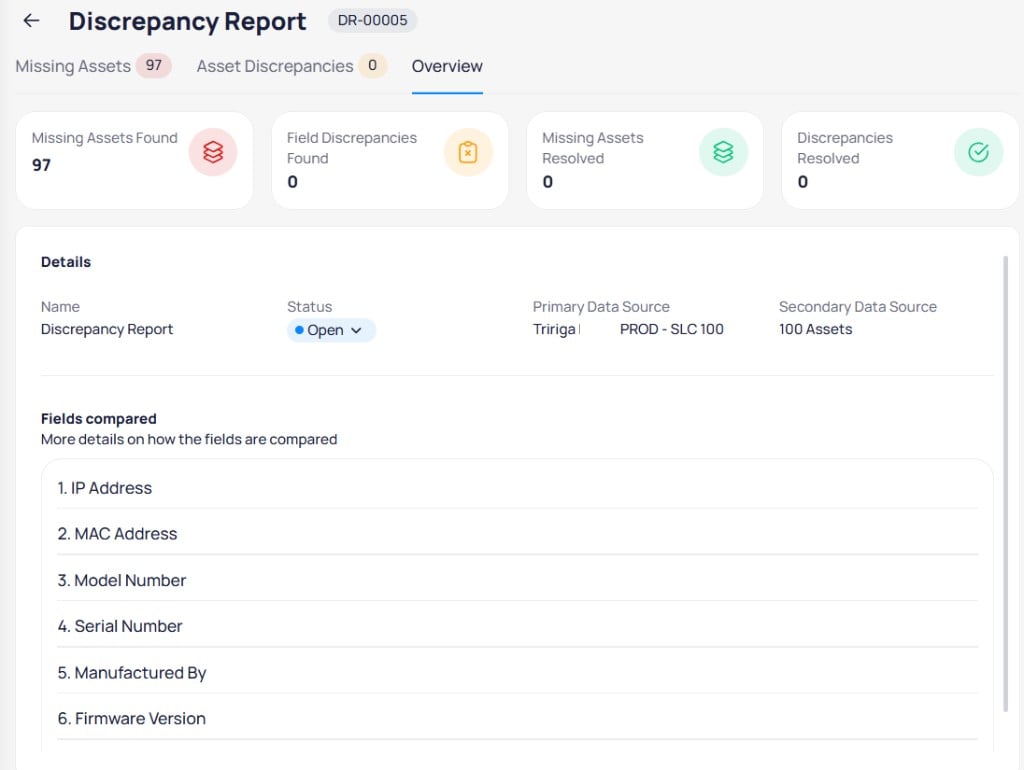
Overview shows summary counts, report details, and fields compared
The Details section shows report Name, Status, Primary data source, and Secondary data source. Change Status from the dropdown when review is complete.
The Fields compared section lists every field included in the report, such as IP address, serial number, and firmware version.
Related modules
Asset discovery
Import assets, configure field mapping and matching rules, and link records across sources.
Assets
Review asset fields after you resolve discrepancies.