

Activity log
Every update to configs is recorded at the building level. The log shows what was changed, who changed it, and when it was changed.Automatic actions on config changes
When a config is deleted or disabled:- Any related active events or active incidents are automatically closed
- If an incident has no other active linked FDD configs or events, it is closed
Device and point changes
Devices and points are managed through the Config Details page, where you select or deselect devices for each routine and configure parameters in the right panel.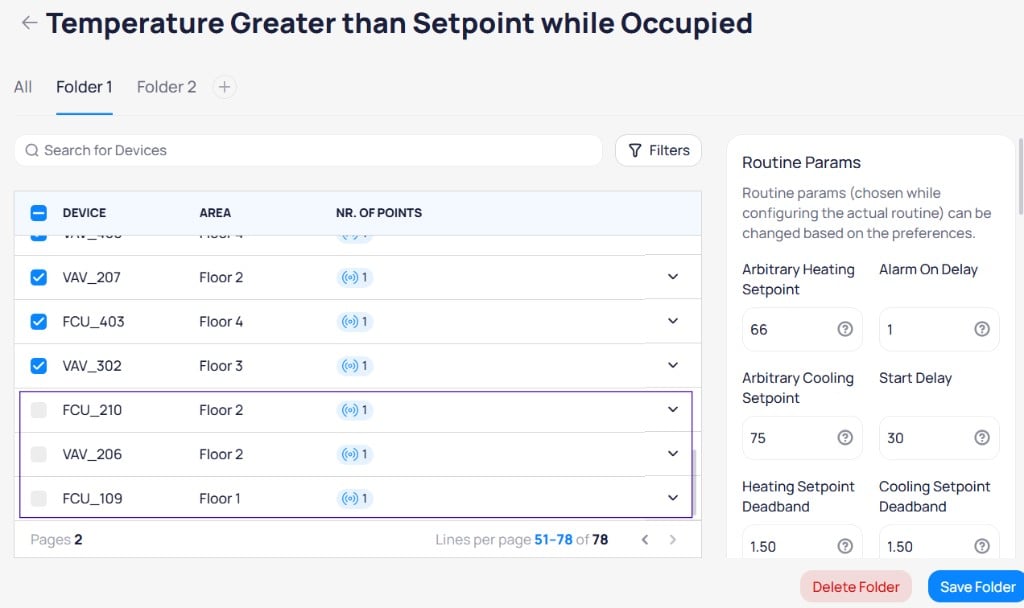
The Config Details page shows selected devices and routine parameters that are affected by device or point changes
Update a point or device
When a point or device is updated (for example, an ontology field is changed), the system checks if it is being used in any FDD configs. If the device or point becomes incompatible:- The related configs are grayed out
- Any active alarms or events linked to it remain active until the device or point is removed from the config
- Delete and recreate the config, or
- Restore the device or point to its previous ontology fields, open the config, deselect the device or point, and save changes
Delete a point or device
When a point or device is deleted, the system checks if it is used in any FDD configs. Related configs gray out after device or point deletion. If an alarm was already generated for the deleted point or device, it remains active in the FDD list. If only some points of a config are deleted:- The config grays out and does not trigger events if the missing point is required for alarms
- Already-triggered alarms remain active for the deleted devices or points
Update names
If an FDD config is enabled and the building, device, or point name changes, the updated name does not appear for:- Already-triggered events
- New events from existing configs
Parameter updates
If parameters for an enabled FDD config are changed while it has already-triggered active events:- The currently active event remains active under the old parameters
- FDD does not retroactively update or close events when parameters are changed
- Once the active event ends, the updated parameters are applied for future event creation
Config actions
The Configs list shows the current status of each routine. Batch actions at the bottom of the page let you delete, disable, enable, or configure multiple routines at once.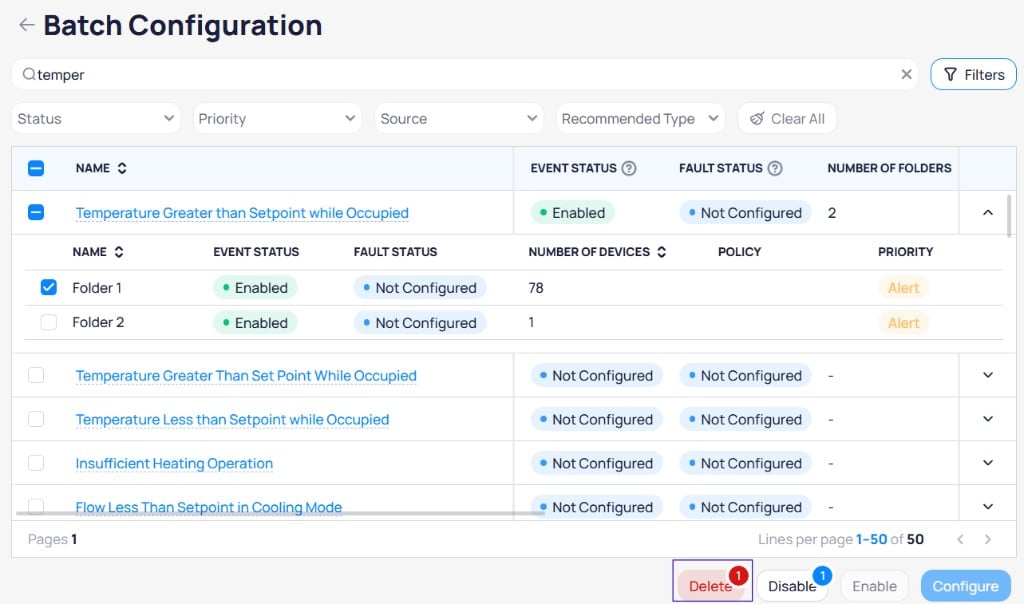
The Configs list shows routine statuses and Multi-Config folders, with batch action buttons at the bottom
Routine updates
Update canonicals or entities
If an FDD routine’s configs are enabled and you add or remove canonicals or entities, or change selected points in logic blocks from the routine, the FDD config changes fromEnabled to Unconfigured.
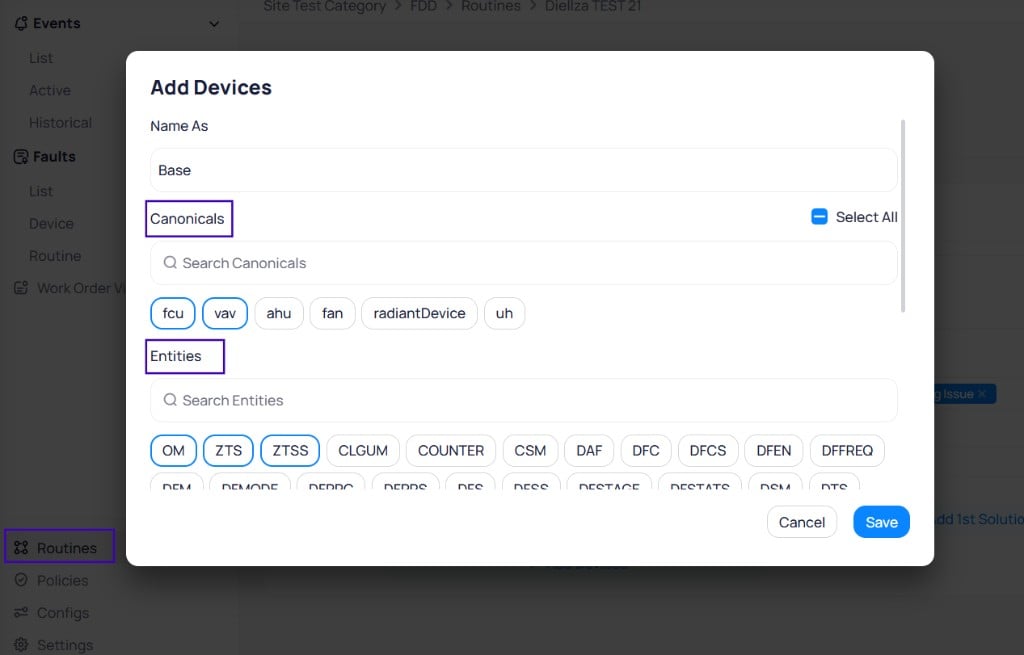
Canonicals and Entities are defined in the routine's Add Devices dialog -- changes here affect all linked configs
Unconfigured.
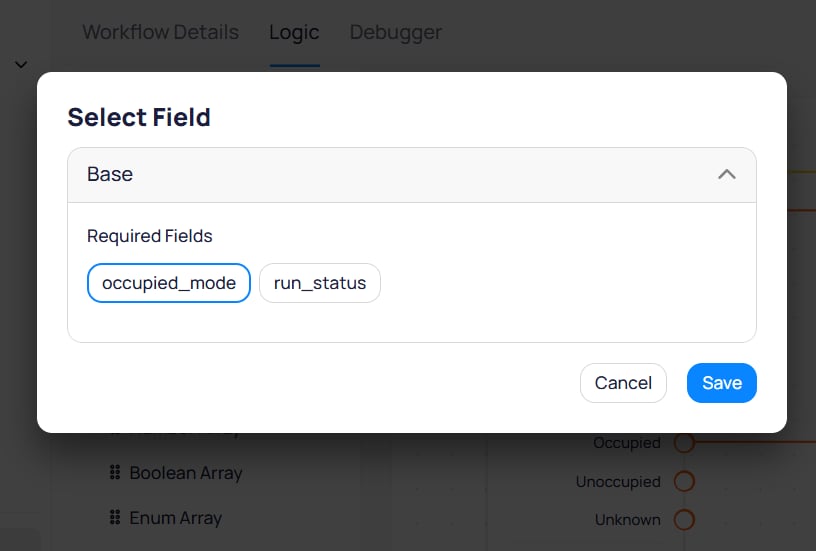
The Select Field dialog in the Logic tab shows the required fields that, if changed, reset linked configs to Unconfigured
Delete a routine
A deleted local FDD routine is removed across the portfolio. All FDD configs linked to it are deleted. Any active events linked to it are deleted.Next steps
Configuration
Set up and manage fault detection rules and monitoring parameters.
Routines
Create and test custom fault detection rules using the logic builder.
Events
Monitor and investigate real-time fault events across your building equipment.