Set up and manage fault detection rules, device monitoring parameters, notification policies, and multi-config folders for your building equipment.
FDD configuration is where you activate and customize monitoring rules (routines) for your building equipment. You define which devices to monitor, what thresholds trigger alerts, and how notifications are delivered.All routines you create on the Routines page automatically become available for configuration here. KODE also provides a set of pre-built library routines that are available by default to every client. Library routines cover common fault conditions across airside, chilled water, and hot water systems.
Navigate to FDD from the left sidebar, open the secondary sidebar, and select Configs.
The Configs list displays all available routines and their current state. Each row provides a summary of the routine’s configuration. Use the search bar and filter dropdowns (Status, Priority, Policy, Source, Recommended Type) to find specific routines. Select Clear All to reset filters.
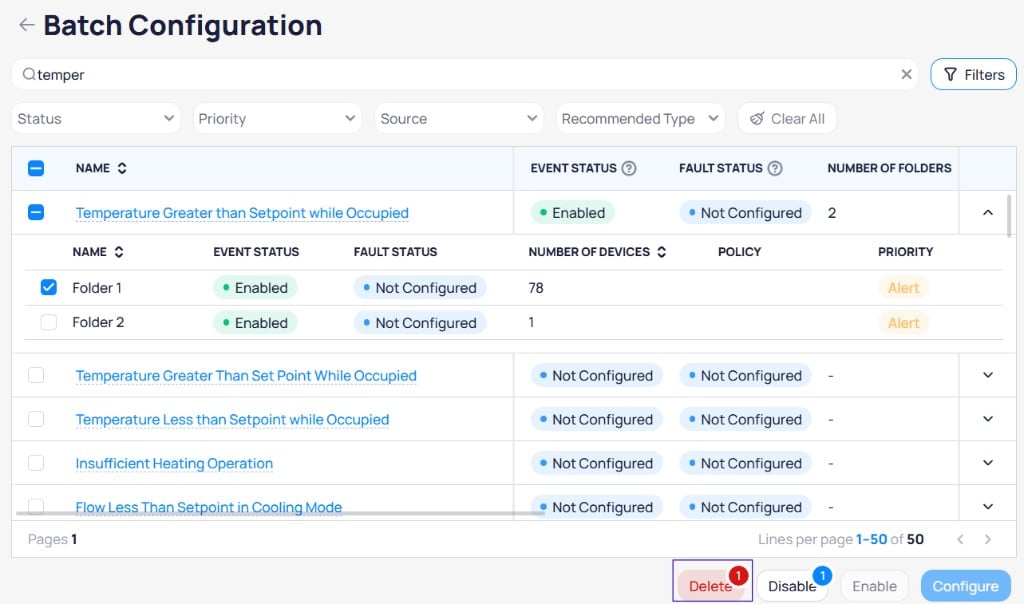
The Batch Configuration page lists all routines available for configuration, including both library and locally created routines
Expand a routine row to view its Multi-Config folders with individual device counts, statuses, and priorities.
Expanded routine showing Multi-Config folders with device counts and priorities
Column
Description
Name
Routine name. Select to open detailed configuration.
Event Status
Current state: Not Configured, Disabled, Enabled, or Mixed
Choose quick configuration for default settings across many routines, or detailed configuration to tune one routine at a time.
Quick configuration
Detailed configuration
Use quick configuration to apply default settings to multiple routines at once.
Select routines using checkboxes to access bulk actions in the bottom toolbar
1
Select routines
Select the checkboxes next to one or more routines in the Configs list.
2
Choose a notification policy
Select the Configure button in the toolbar. Choose a notification policy from the dropdown.
3
Apply the configuration
Select Configure to find compatible devices, create the configuration, and apply default parameters without enabling monitoring yet.Select Configure and Enable when you want the same batch action to start monitoring immediately after configuration.
Select a routine name in the Configs list to open its Config Details page. Use detailed configuration to fine-tune parameters, select specific devices, and set notification preferences for individual routines. Each folder maintains its own independent configuration — you can set different parameters, status setup, notification settings, base settings, and possible solutions per folder.
1
Open the config details
Select the routine name link from the Configs list. The Config Details page has three areas:
Top tabs: Navigate between Overview and individual Multi-Config folders (for example, VAVs, FCUs) with a + button to add folders
Main panel: View and select devices with search and filters
Right panel: Adjust Routine Params, Status Setup, Notification Settings, External Data Source, Base Settings, and Possible Solutions
The Config Details page with device list, routine parameters, and folder tabs
2
Select devices to monitor
The main panel lists all compatible devices automatically. Select individual device checkboxes, use Select All, or search by name. Expand a device row to view its main point and other points.For devices with multiple point options, choose the correct combination from the dropdown next to each device.
3
Configure parameters
The Routine Params panel on the right displays adjustable parameters with default values and info tooltips. Adjust values based on your equipment and environment.
Parameter
Purpose
Arbitrary Heating Setpoint
Temperature threshold for heating faults
Alarm On Delay
Duration a fault condition must persist before generating an event
Arbitrary Cooling Setpoint
Temperature threshold for cooling faults
Start Delay
Wait time after system startup before monitoring begins
Heating Setpoint Deadband
Acceptable deviation from the heating setpoint
Cooling Setpoint Deadband
Acceptable deviation from the cooling setpoint
Single Setpoint Deadband
Acceptable deviation when a single setpoint is used
Return to Normal Delay
Duration a condition must be normal before closing the event
Use tighter tolerances for critical spaces like server rooms. Apply longer delays for equipment with startup fluctuations. Set wider dead band values for older equipment to reduce false positives.
4
Configure status setup
The Status Setup section controls whether the routine generates events, faults, and actively monitors devices.
Status Setup with Event Config, Fault Config, and Routine Config toggles
Event Config: Events are real time and used to monitor critical assets and send high priority notifications.
Fault Config: Faults are generated daily and used to analyze non-critical comfort, energy, and mechanical issues.
Routine Config: Enable to start monitoring devices in this folder.
5
Set notification settings
The Notification Settings section defines how events from this routine are grouped and delivered.
Notification Settings with grouping policy, priority, and notification policy
Grouping Policy
None: Sends individual notifications for each event. Use for critical alarms that need individual attention.
: Groups related events by ontology relationships to reduce notification volume and form incidents.
: Groups events by data source. Use for connectivity routines such as Datasource Down or Device Down.
Priority: Select the priority level for events generated by this routine (Life Safety, Critical, Warning, Alert, or Info).Notification Policy: Select the policy that defines which contacts receive notifications and through which channels.
6
Add external data source
The External Data Source section lets you connect an external system for work order delivery from this config. Select + Add External Source to configure a connection. This section is optional.If you configure an external data source here, it applies only to this configuration and overrides any external data source set on the notification policy.
7
Configure base settings
The Base Settings section defines the content included in event notifications. Default values use dynamic tokens that pull from the routine definition.
Base Settings with event naming, descriptions, notes, and possible solutions
Event Name: The name displayed for generated events. Defaults to {{routines.name}}.
On Create Description: Text included when an event is created. Defaults to {{routines.description}}.
On Create Notes: Additional notes attached to the event at creation.
On End Description: Text included when an event closes. Defaults to {{routines.description}}.
On End Notes: Additional notes attached when the event closes.
Possible Solutions: Add possible solutions that appear in event reports to guide troubleshooting. Select + Add/Sort Solution to add entries.
8
Save the folder
Select Save Folder to apply your configuration. Repeat for each folder as needed.
When you save a folder, the config appears as Disabled in the Configs list. You must enable it separately from the list.
Select + Folder in the top menu of the Config Details page. Enter a descriptive name and select Create.
2
Configure devices
Select devices for this folder and configure parameters, status setup, notification settings, base settings, and possible solutions independently from other folders.
Switch between folders using the top tabs. Each folder maintains its own device selection, routine parameters, status setup, notification settings, external data source, base settings, and possible solutions. Save each folder before switching to another.
A routine’s status displays as Mixed when its folders have different enabled or disabled states.
Verify that your devices have the correct point templating applied. Routines match devices based on canonical point types defined in the ontology.
Configuration does not save
Check for error messages or red-highlighted fields in the configuration panel. All required fields must be completed before saving.
Too many notifications
Increase tolerances and delay values to filter out transient conditions. Consider using Reference-based grouping to consolidate related events.
Events not generating
Confirm that Enable Event Streaming is toggled on. Review threshold values to verify they match actual operating conditions. Check the routine status to confirm it is Enabled.