

Building BI and select Templates at the bottom of the left navigation panel.Template types
Templates are organized into four categories. Use the filter buttons at the top of the page to switch between them.- Collections
- Dashboards
- Pages
- Charts
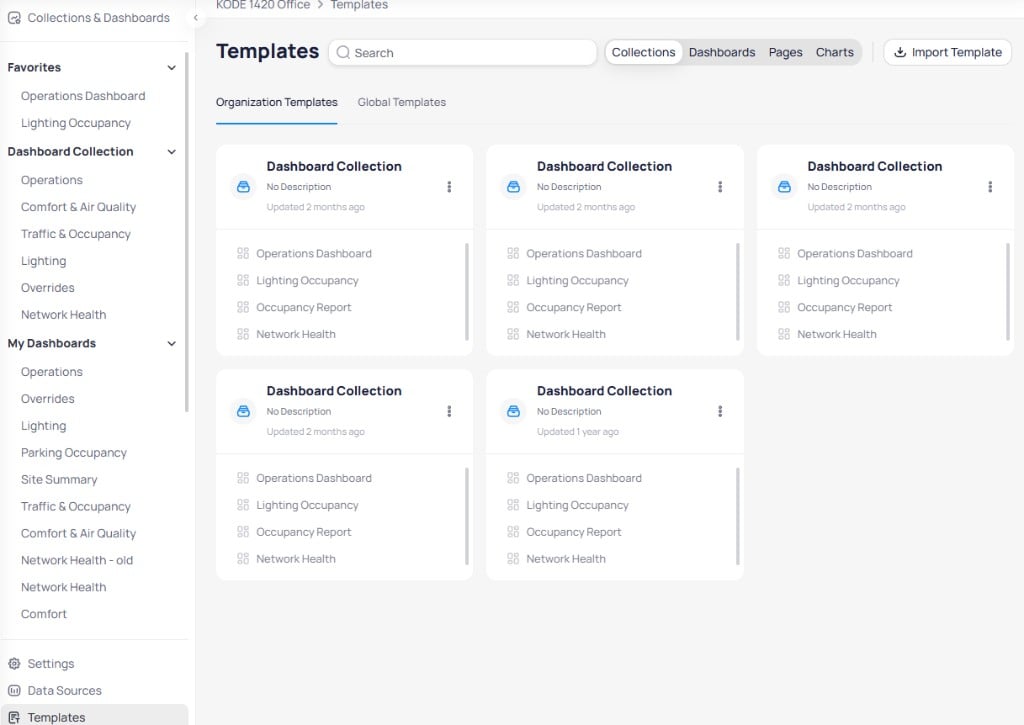
Collections filter showing collection templates with their contained dashboards
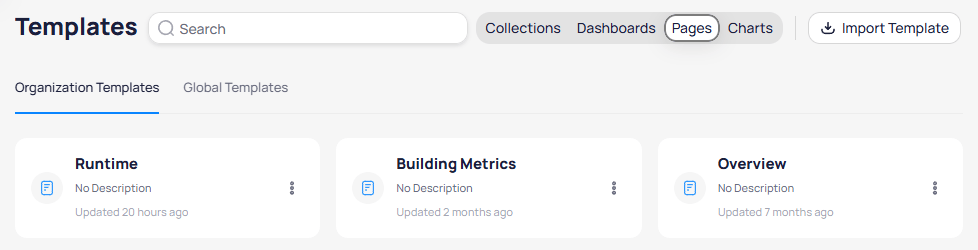
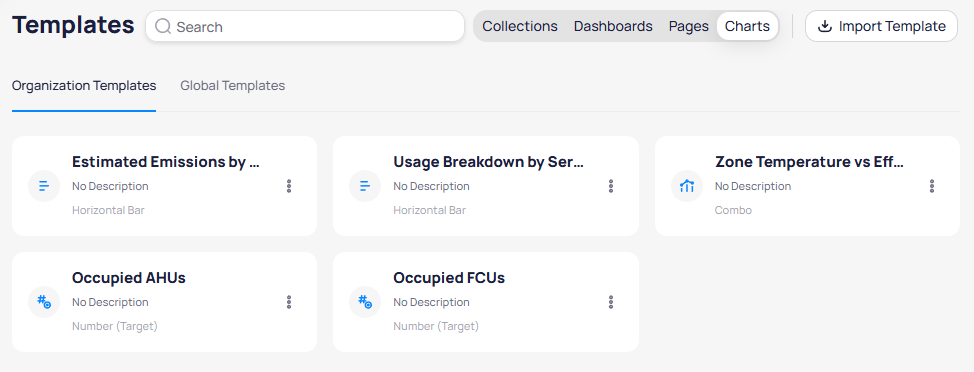
Organization templates
TheOrganization Templates tab displays templates created by your organization. These templates are available to all users with Building BI access in your portfolio.
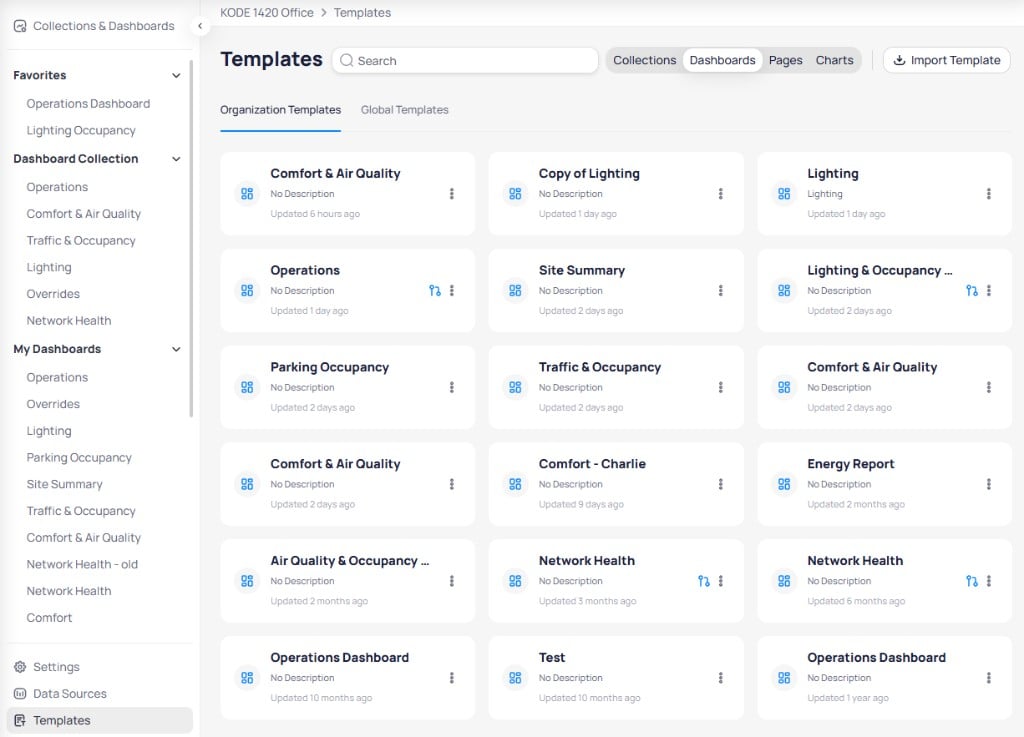
Organization Templates showing saved dashboard templates with descriptions and timestamps
Manage a template
Select the three-dot menu on any organization template to access management actions.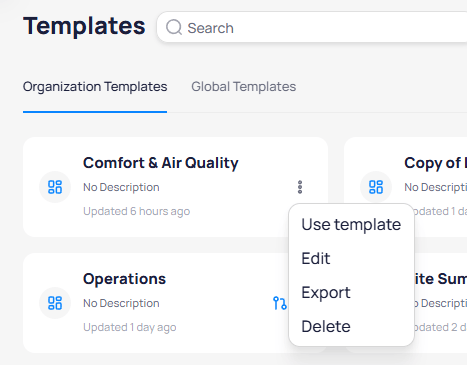
Template three-dot menu with Use template, Edit, Export, and Delete options
Global templates
TheGlobal Templates tab provides standard templates maintained by KODE Labs. These templates are available to all organizations and cover common use cases such as network health, operations, energy reporting, and data quality.
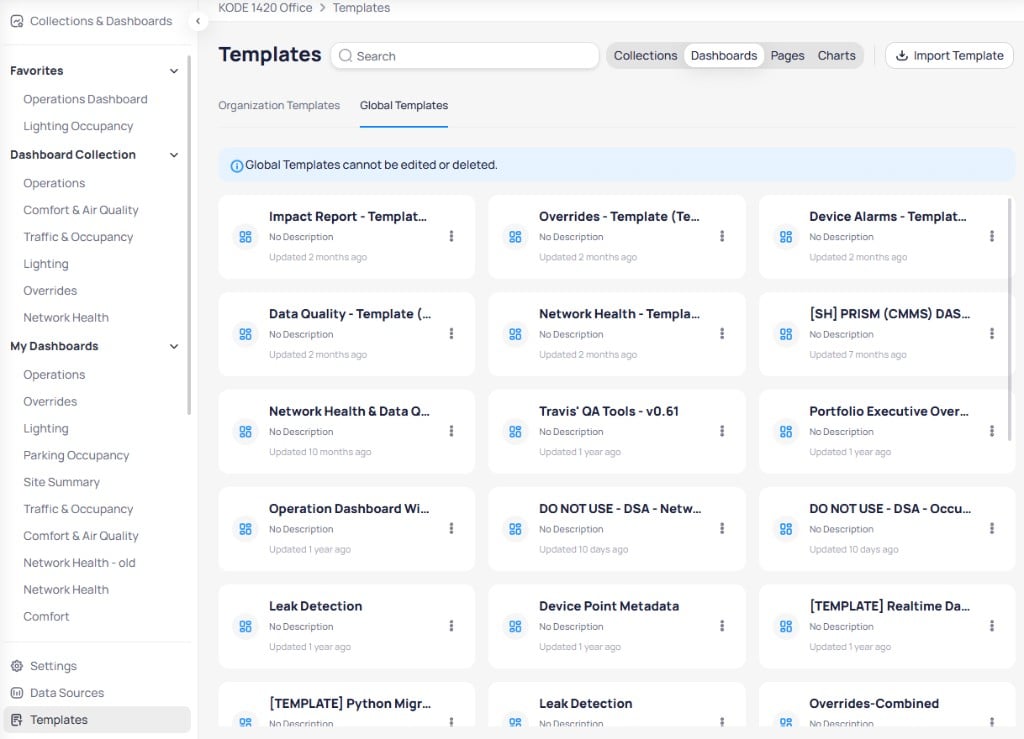
Global Templates showing KODE Labs standard templates available to all organizations
Save as template
You can save collections and dashboards as templates directly from theCollections & Dashboards page.
Save a collection as a template
Open the collection menu
Collections & Dashboards. Select the three-dot menu on a collection and choose Save As Template.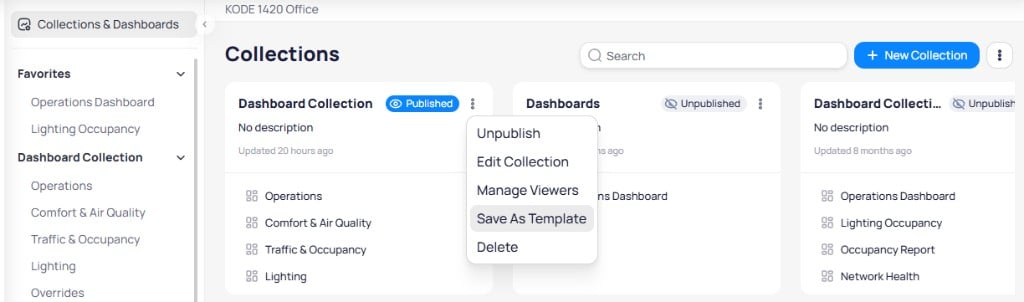
Collection three-dot menu with the Save As Template option
Enter template details
Template Name and an optional Description. Select Save Now to save the template immediately, or select Next to configure dependencies.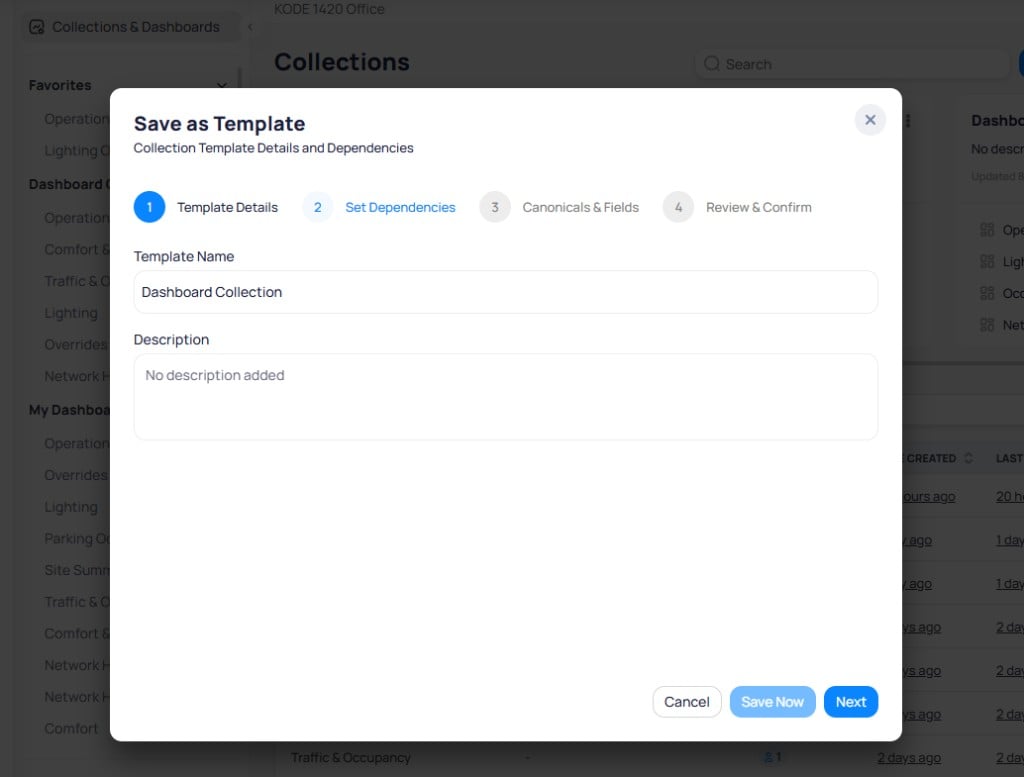
Step 1: Template Details with template name and description fields
Set dependencies
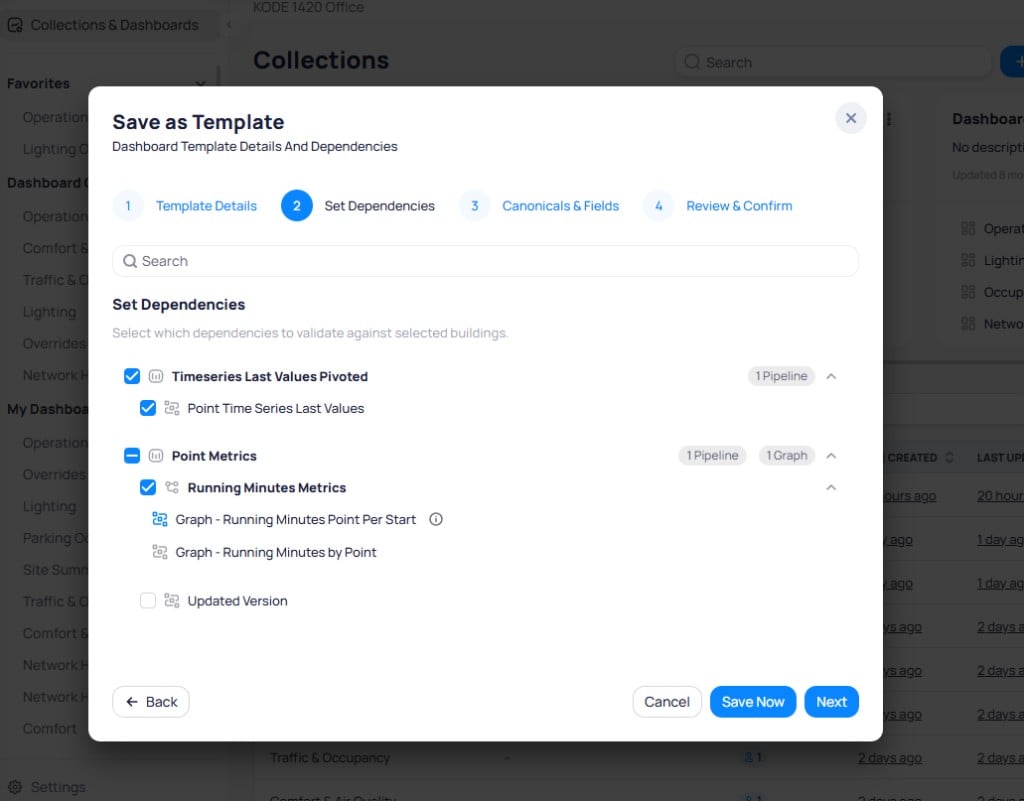
Step 2: Set Dependencies showing data sources and their pipelines
Configure canonicals and fields
Review and confirm
Save Now to finalize.Save a dashboard as a template
Navigate toCollections & Dashboards. In the My Dashboards table, select the three-dot menu on a dashboard and choose Save as template. The same four-step wizard opens.
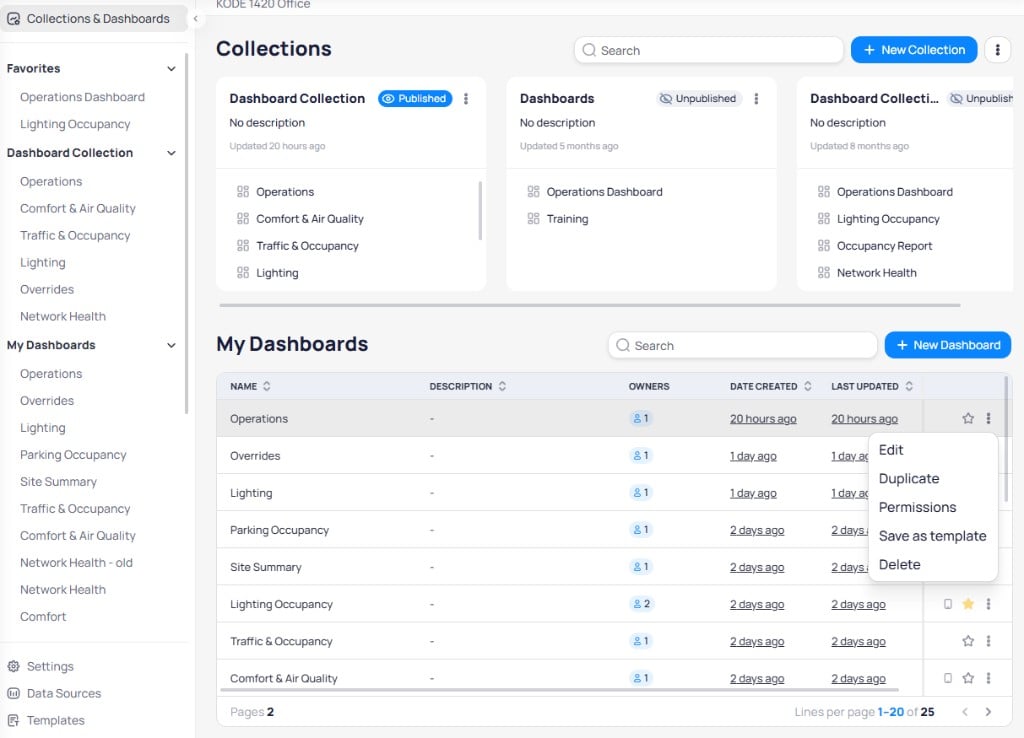
Dashboard three-dot menu with the Save as template option
Save a chart as a template
You can save individual charts as templates while editing a dashboard.Open the chart menu
Save as Template.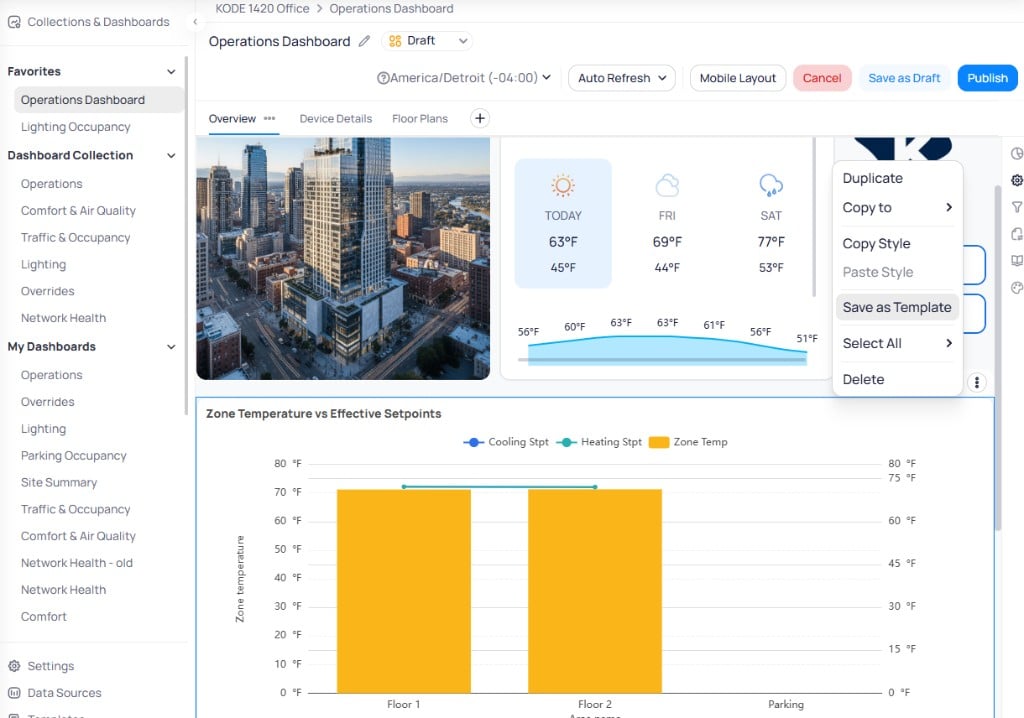
Chart widget three-dot menu with the Save as Template option
Enter template details
Template Title and an optional Description. Select Save to add the chart to your organization templates.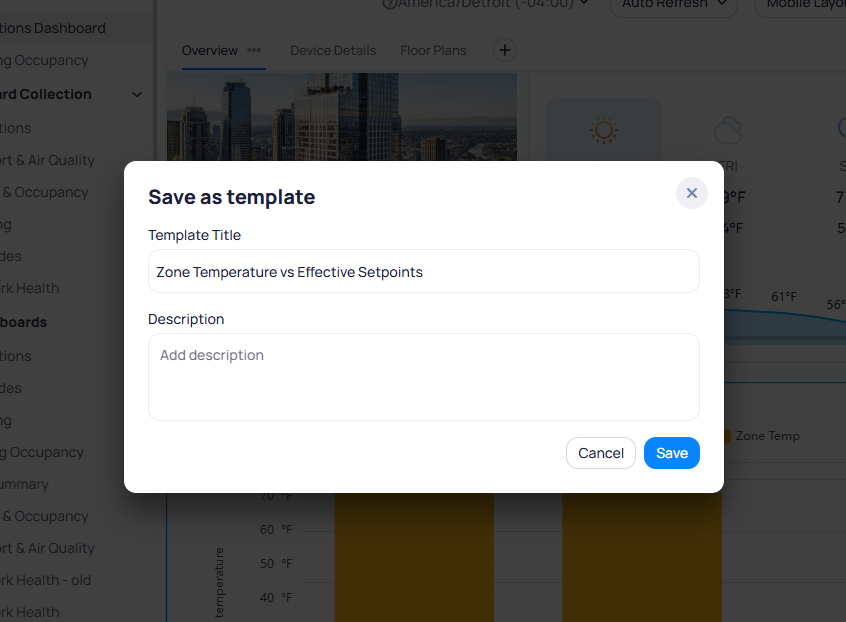
Save as template dialog with Template Title and Description fields
Save a page as a template
You can save individual dashboard pages (tabs) as templates while editing a dashboard.Open the page menu
...) next to the page tab name and choose Save as Template.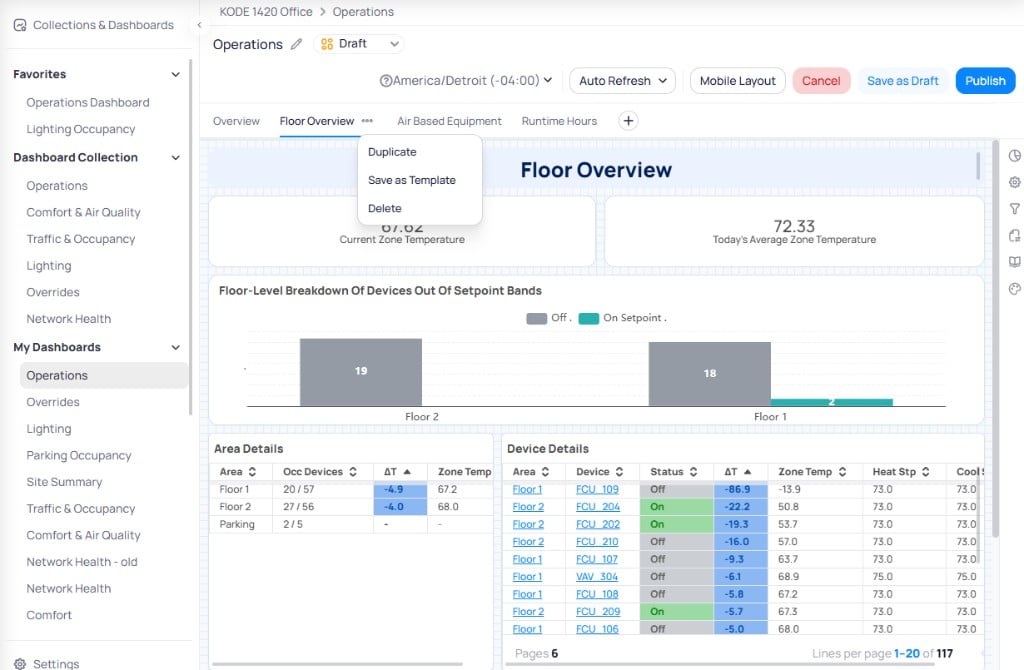
Page tab three-dot menu with Duplicate, Save as Template, and Delete options
Enter template details
Page Name and an optional Description. Select Save to add the page to your organization templates.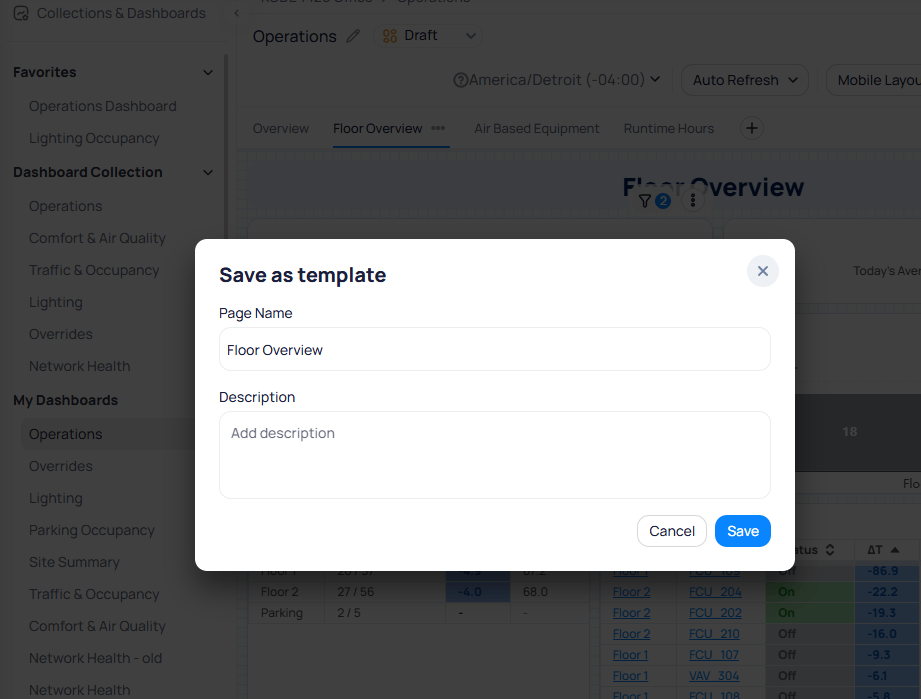
Save as template dialog with Page Name and Description fields
Template Library
The Template Library is a side panel available in dashboard edit mode. It lets you add chart and page templates directly to the dashboard you are editing.Open the Template Library
Template Library button in the right sidebar.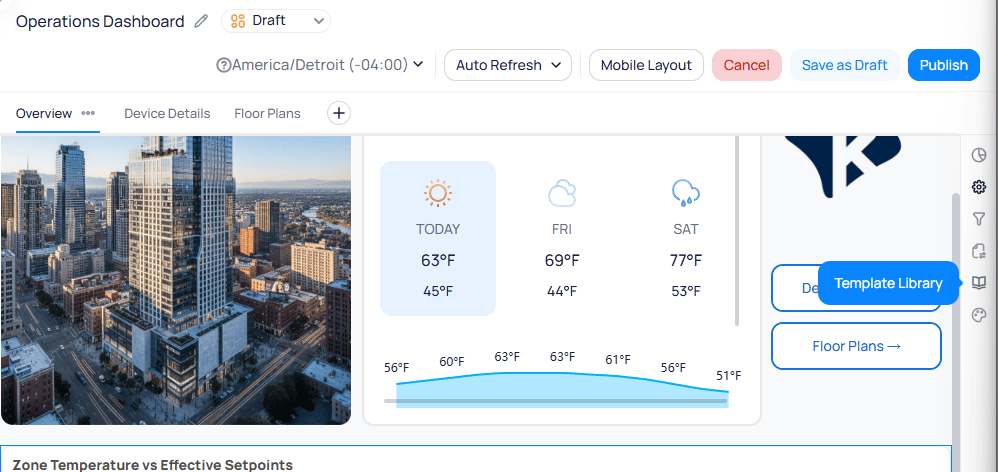
The Template Library button in the dashboard edit sidebar
Select a template type
Charts and Pages. Switch between the Organization Templates and Global Templates tabs, or use the search bar to find a specific template.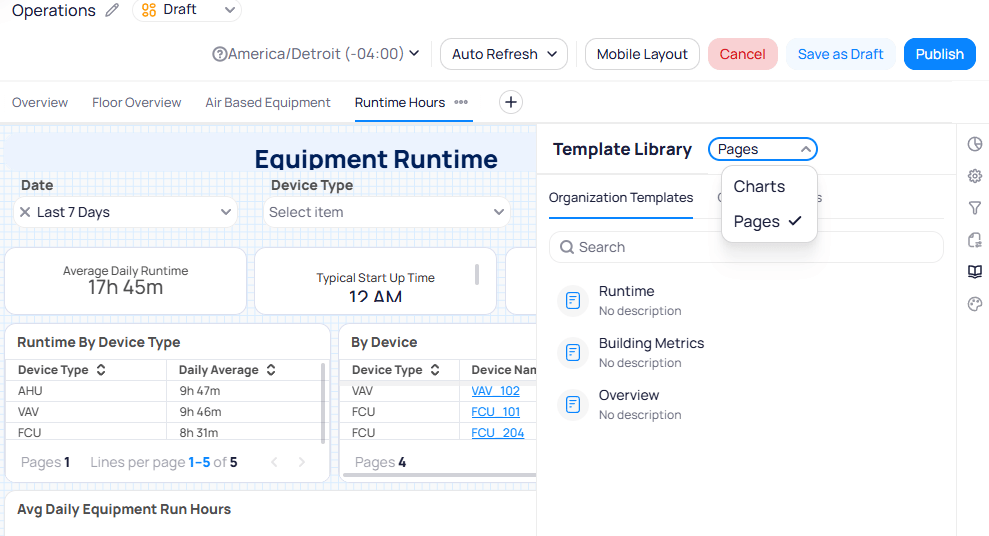
Template Library type dropdown with Charts and Pages options
Add a chart template
Charts selected, drag a chart template from the library panel and drop it onto the dashboard canvas. The chart is added with its preconfigured data source, chart type, and styling.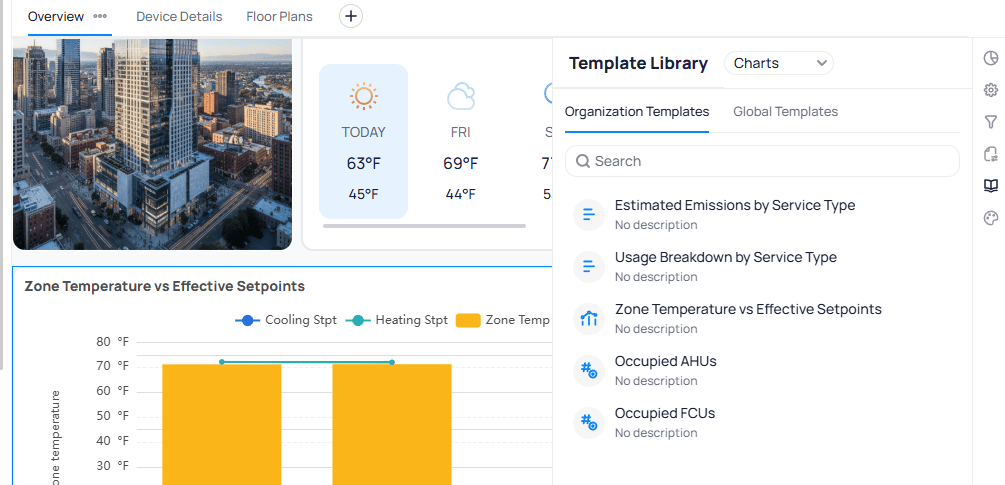
Template Library panel showing available chart templates
Add a page template
Pages selected, hover over a page template and select Use. The page is added as a new tab in the dashboard.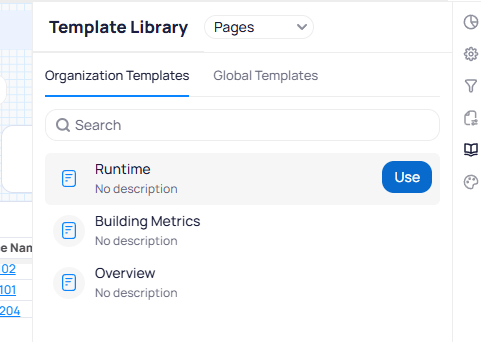
Template Library with Pages selected showing the Use button on a page template
Use a template
Apply a template to create a new dashboard or collection in your current building.Select the template
Use template.Set template details
Dashboard Name, select a Timezone, and add an optional Description. Select Use Now to create the dashboard immediately, or select Next to review dependencies.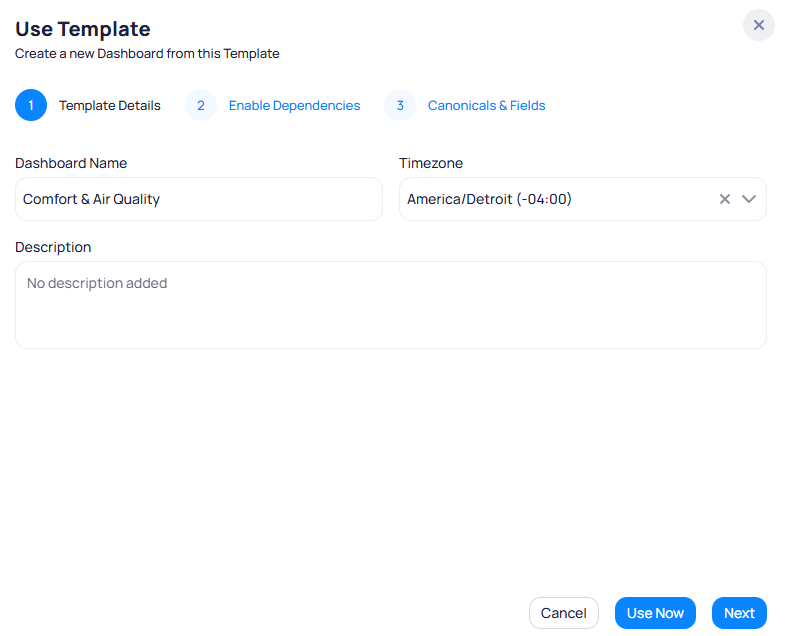
Step 1: Template Details with dashboard name, timezone, and description fields
Enable dependencies
Enable next to each dependency to activate it for the target building. If a dependency does not exist in your organization, an info banner explains that it cannot be scheduled.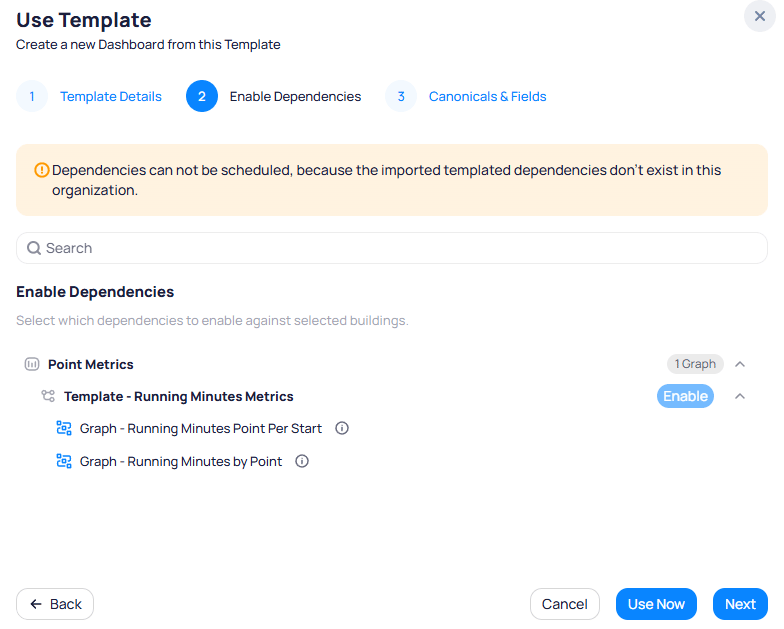
Step 2: Enable Dependencies showing required data sources and their status
Configure canonicals and fields
Export a template
Export a template to share it with another portfolio.- Select the three-dot menu on a template and choose
Export. - The system generates a link and copies it to your clipboard.
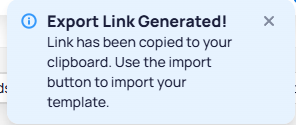
Export confirmation showing the link has been copied to the clipboard
Import Template button in their own Templates page.
Import a template
Import a template from another portfolio using an exported link.Open the import dialog
Import Template in the upper-right corner of the Templates page.Paste the template link
Import URL field. The Title and Template Type fields populate automatically from the link.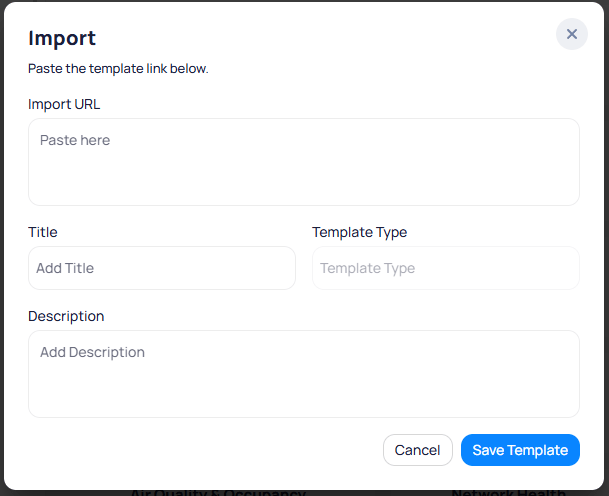
The Import dialog with URL, title, type, and description fields
Save the template
Save Template. The template appears in your Organization Templates tab.