

Draft mode
A draft is a private workspace layered over the live dashboard. Each dashboard has one active draft. SelectingEdit Dashboard opens that draft.
You can save the draft repeatedly without changing what viewers see. When the work is ready, select Publish to push it live.
In edit mode, use Save as Draft next to Publish in the top right. Confirm in the dialog to keep the changes private.
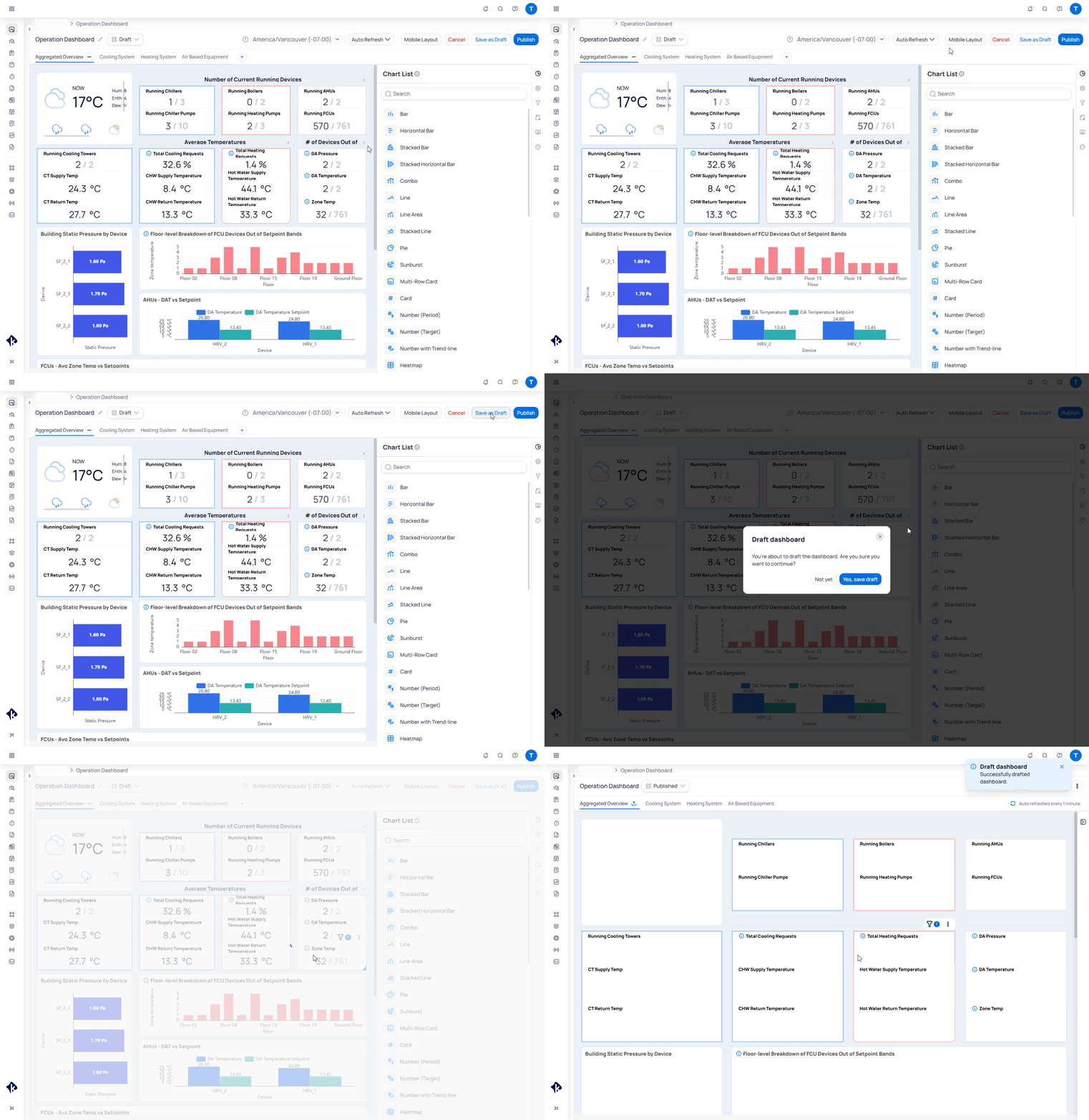
Selecting Save as Draft and confirming to keep changes private
Open version history
Version history is the timeline of saved dashboard states. Each entry includes a date, author, and optional name. Open the three-dot menu on the dashboard and selectVersion history. History opens in a new tab.
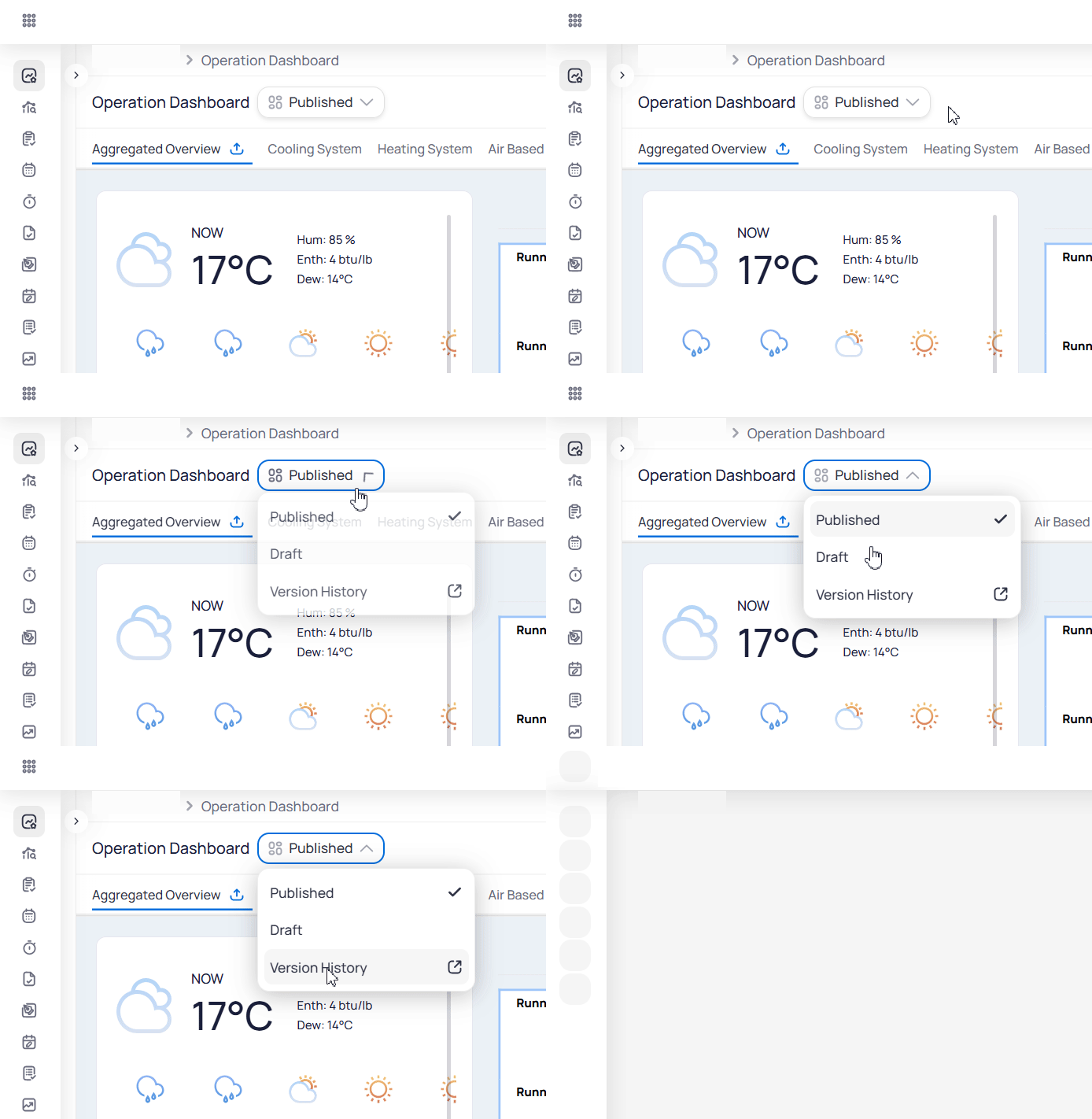
Opening Version history from the dashboard three-dot menu
Published / Draft status dropdown next to the dashboard name.
Browse and rename versions
The version history view shows a read-only preview of the selected version on the left. The timeline sits on the right. Use the list to move between versions. Status labels mark the current published version, earlier published versions, and saved drafts. Turn onShow named and published versions to focus the list.
Select the pencil icon on an entry to rename it. Clearing a custom name returns the entry to its timestamp label.
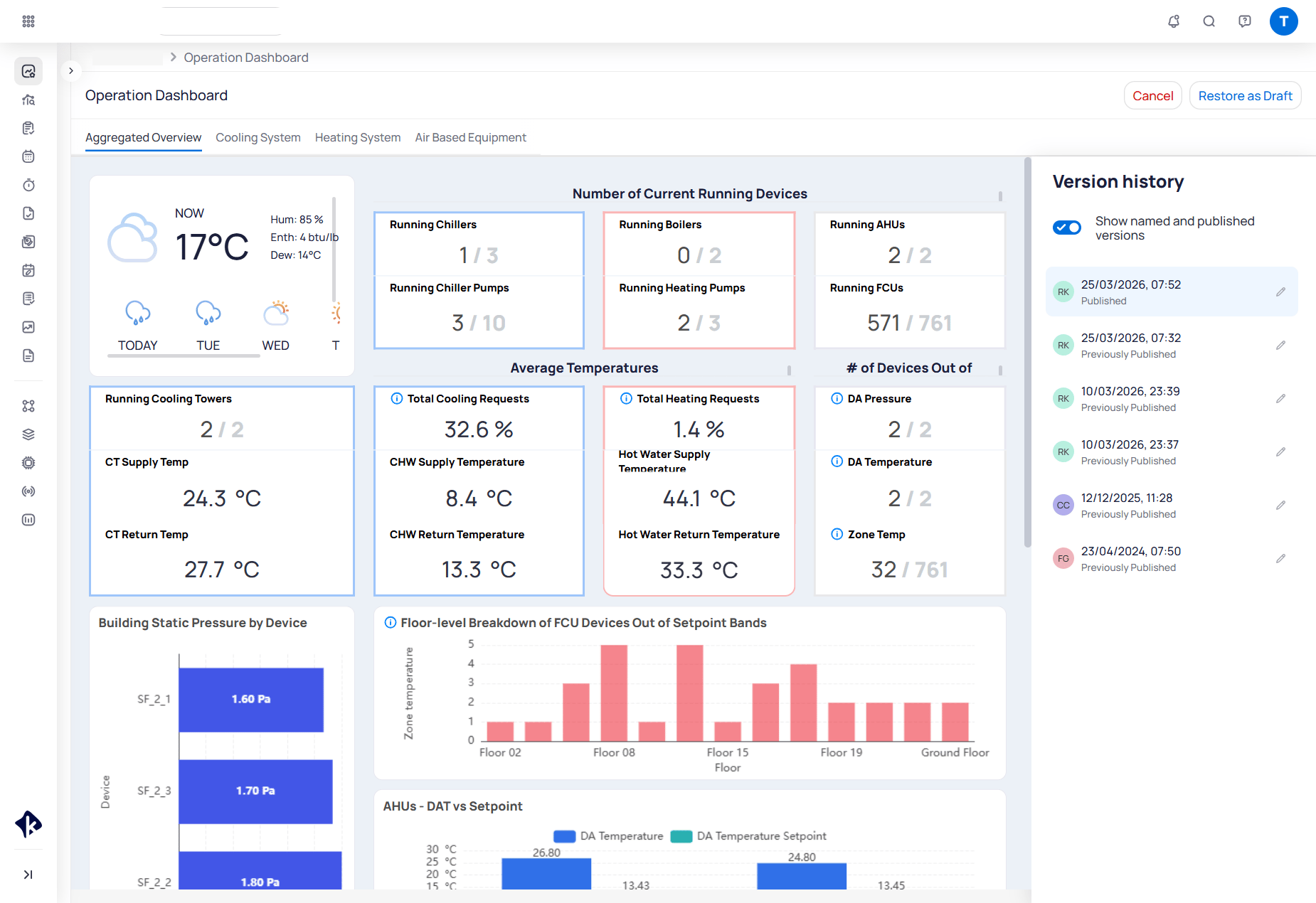
Version history with a dashboard preview and a timeline of published versions
Restore or publish an earlier version
Select a version in the timeline to preview it. When a previous version is selected, you can:- Restore as Draft — copy that version into a new private draft without changing the live dashboard
- Publish — make that version live immediately
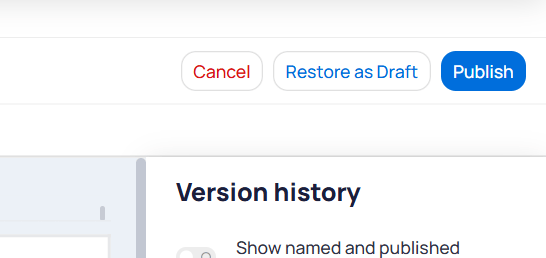
Restore as Draft and Publish actions for a selected previous version
Next steps
Dashboards
Follow the step-by-step draft, publish, and restore workflows.
Permissions
Learn who can edit, publish, and restore dashboards.