> ## Documentation Index
> Fetch the complete documentation index at: https://documentation.kodelabs.com/llms.txt
> Use this file to discover all available pages before exploring further.

# Portfolio and sites on mobile

> Use the portfolio map, site cards, module picker, sort, search, and notifications on the KODE OS mobile app.

Check the health of every site you manage before you pick which one to visit. The portfolio map shows every building you can access as a pin. Spot down devices and open events at a glance, then drill into a site for building operations. This is the mobile counterpart to [Sites](/products/kode-os/sites-and-map) on the web.

## Open the portfolio map

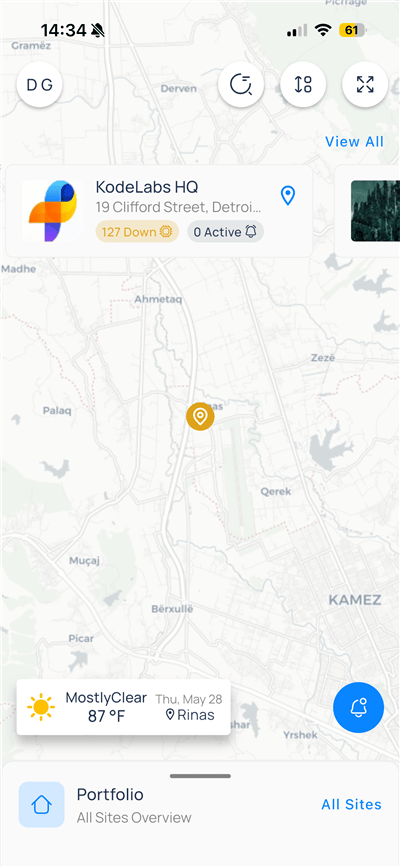
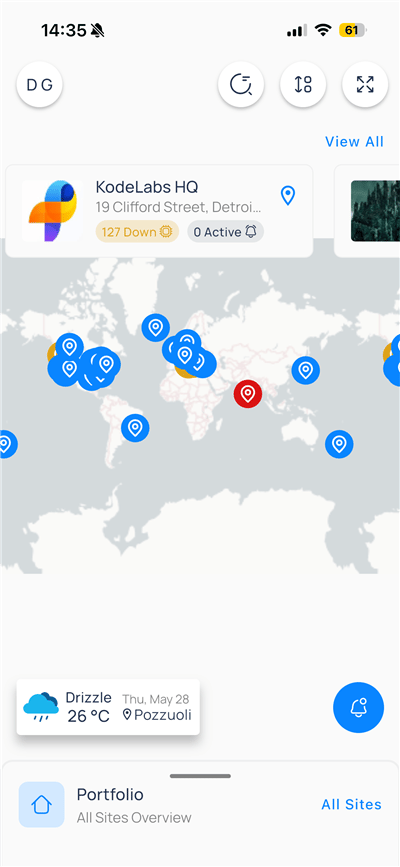
Swipe up the bottom sheet and confirm `Portfolio` / `All Sites Overview` is selected, or tap `All Sites` on the right. The map shows pins for every site you can access.

<div className="flex justify-center w-full my-4">
  <Frame className="w-fit mx-auto">
    <img className="mx-auto block h-auto max-w-[400px] w-full" src="https://mintcdn.com/kodelabs/MYYnSdKhTqQf34f4/images/mobile-app/kode-os-mobile-portfolio-map.png?fit=max&auto=format&n=MYYnSdKhTqQf34f4&q=85&s=8b1421993abf1197515b7c920e5aecbd" alt="World map with site pins, KodeLabs HQ site card, weather widget, and Portfolio bottom sheet" width="400" height="867" data-path="images/mobile-app/kode-os-mobile-portfolio-map.png" />
  </Frame>
</div>

## Map toolbar

| Control            | Purpose                                                                            |
| ------------------ | ---------------------------------------------------------------------------------- |
| Profile (top left) | Open [settings and profile](/products/mobile-app/get-started/customize-experience) |
| Refresh / search   | Open site search on the map (see below)                                            |
| Sort               | Change how site cards are ordered                                                  |
| Expand             | Full-screen map                                                                    |
| `View All`         | Open the full site list when cards are scrollable                                  |

## Site cards and pins

Swipe the horizontal site cards above the map. Each card includes:

* Site name and address
* Points down — devices offline or in fault (yellow badge)
* Active events — open FDD or operational events (bell badge)
* Location pin — centers the map on that site

<div className="flex justify-center w-full my-4">
  <Frame className="w-fit mx-auto" caption="Regional map with site card and weather">
    <img className="mx-auto block h-auto max-w-[400px] w-full" src="https://mintcdn.com/kodelabs/MYYnSdKhTqQf34f4/images/mobile-app/kode-os-mobile-portfolio-map-site-card.png?fit=max&auto=format&n=MYYnSdKhTqQf34f4&q=85&s=6b2b03bbac36415f01c68298c83c1f8f" alt="Map focused on a region with KodeLabs HQ card showing 127 Down and 0 Active badges" width="400" height="867" data-path="images/mobile-app/kode-os-mobile-portfolio-map-site-card.png" />
  </Frame>
</div>

Tap a blue pin for a normal site. A red pin indicates a site that needs attention (for example, critical events or many devices down).

The weather widget shows conditions near the map center. It is informational only and does not change site selection.

## Search sites on the map

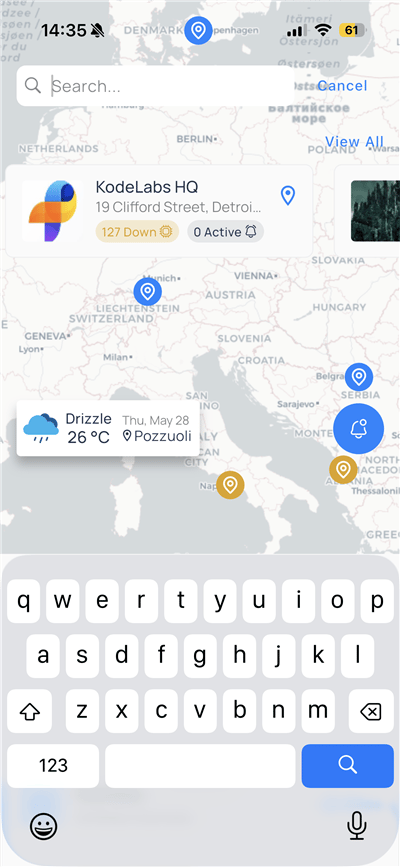
Tap the refresh/search control to focus the search field. Type a site or address, then submit with the keyboard search key.

<div className="flex justify-center w-full my-4">
  <Frame className="w-fit mx-auto">
    <img className="mx-auto block h-auto max-w-[400px] w-full" src="https://mintcdn.com/kodelabs/MYYnSdKhTqQf34f4/images/mobile-app/kode-os-mobile-portfolio-map-search.png?fit=max&auto=format&n=MYYnSdKhTqQf34f4&q=85&s=83946b25276ba6239ba2fa12756d4082" alt="Portfolio map search bar with keyboard and site card visible" width="400" height="867" data-path="images/mobile-app/kode-os-mobile-portfolio-map-search.png" />
  </Frame>
</div>

Select `Cancel` to exit search and return to the full map.

## Sort site cards

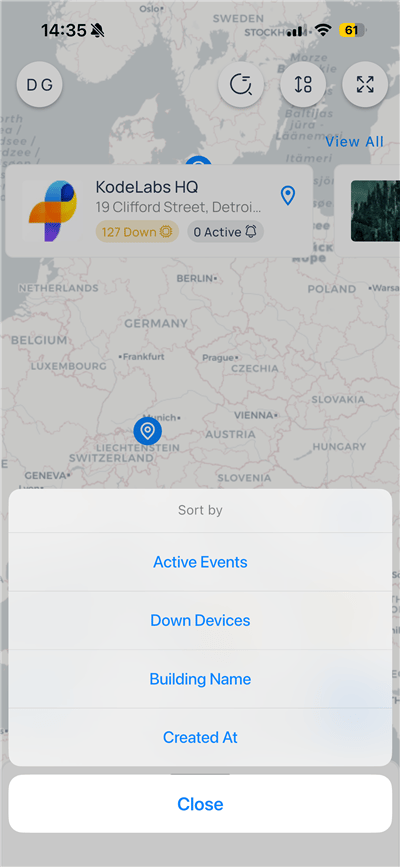
Tap the sort icon (two vertical sliders) to open `Sort by`.

<div className="flex justify-center w-full my-4">
  <Frame className="w-fit mx-auto">
    <img className="mx-auto block h-auto max-w-[400px] w-full" src="https://mintcdn.com/kodelabs/MYYnSdKhTqQf34f4/images/mobile-app/kode-os-mobile-portfolio-sort.png?fit=max&auto=format&n=MYYnSdKhTqQf34f4&q=85&s=578f76fb3154e0e70ac6a4f550350f09" alt="Sort by menu with Active Events, Down Devices, Building Name, and Created At" width="400" height="867" data-path="images/mobile-app/kode-os-mobile-portfolio-sort.png" />
  </Frame>
</div>

| Option          | Orders sites by                                                     |
| --------------- | ------------------------------------------------------------------- |
| `Active Events` | Highest open event count first                                      |
| `Down Devices`  | Most offline devices first                                          |
| `Building Name` | Alphabetical                                                        |
| `Created At`    | Newest or oldest provisioning date (per organization configuration) |

Tap `Close` to apply the sort and return to the map.

## Portfolio module picker

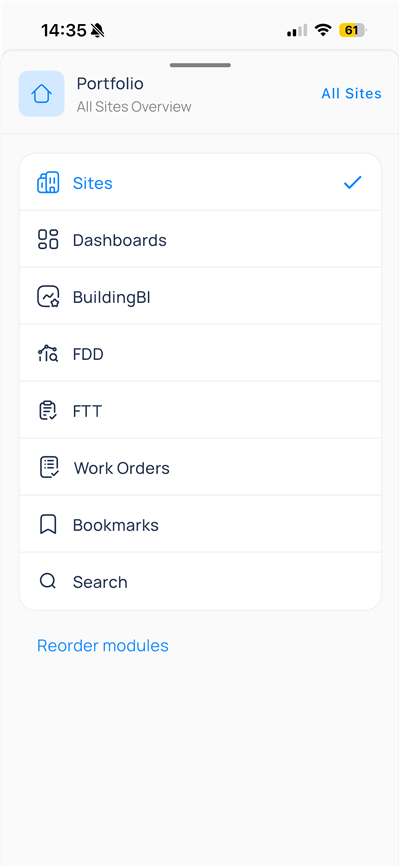
The bottom sheet lists portfolio-level modules. `Sites` is the map view; other entries open cross-site tools without entering a building first.

<div className="flex justify-center w-full my-4">
  <Frame className="w-fit mx-auto" caption="Portfolio modules available from the bottom sheet">
    <img className="mx-auto block h-auto max-w-[400px] w-full" src="https://mintcdn.com/kodelabs/MYYnSdKhTqQf34f4/images/mobile-app/kode-os-mobile-portfolio-module-picker.png?fit=max&auto=format&n=MYYnSdKhTqQf34f4&q=85&s=b83ca48e14fe93b8b6a5cb6c95a4ecec" alt="Portfolio sheet listing Sites, Dashboards, Building BI, FDD, FTT, Work Orders, Bookmarks, and Search" width="400" height="867" data-path="images/mobile-app/kode-os-mobile-portfolio-module-picker.png" />
  </Frame>
</div>

| Module        | Typical use on mobile                                                                         |
| ------------- | --------------------------------------------------------------------------------------------- |
| `Sites`       | Map and site cards (this page)                                                                |
| `Dashboards`  | Portfolio dashboards published to mobile                                                      |
| `BuildingBI`  | Cross-site [Building BI](/products/mobile-app/destinations/building-bi) analytics collections |
| `FDD`         | Portfolio-level fault views when enabled                                                      |
| `FTT`         | Portfolio commissioning summaries                                                             |
| `Work Orders` | [AssetOps maintenance lists](/products/mobile-app/operations/work-orders) when enabled        |
| `Bookmarks`   | Saved devices and views                                                                       |
| `Search`      | Global search entry                                                                           |

A checkmark shows the active module. Select another row to switch modules.

### Reorder modules

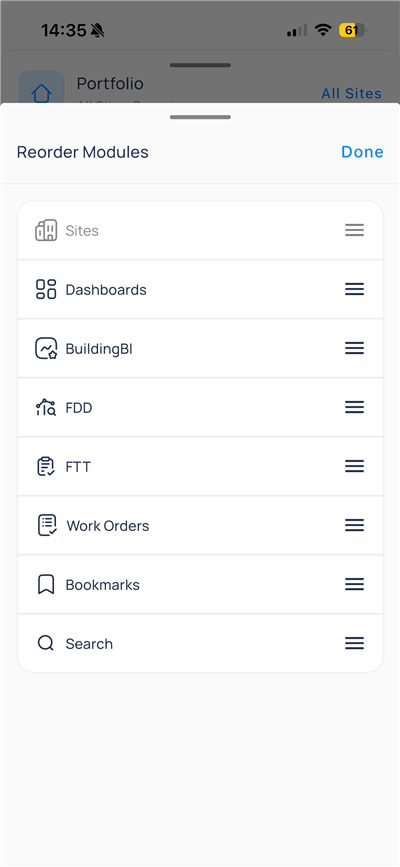
Tap `Reorder modules` at the bottom of the sheet. Drag handles to change the order, then tap `Done`.

<div className="flex justify-center w-full my-4">
  <Frame className="w-fit mx-auto">
    <img className="mx-auto block h-auto max-w-[400px] w-full" src="https://mintcdn.com/kodelabs/MYYnSdKhTqQf34f4/images/mobile-app/kode-os-mobile-portfolio-reorder-modules.png?fit=max&auto=format&n=MYYnSdKhTqQf34f4&q=85&s=35f5331fd8aa47fc26094c2b716cd4e4" alt="Reorder Modules screen with drag handles for Sites, Dashboards, Building BI, and other apps" width="400" height="867" data-path="images/mobile-app/kode-os-mobile-portfolio-reorder-modules.png" />
  </Frame>
</div>

Order is per user on the device and does not change which apps your administrator assigned.

## Notifications

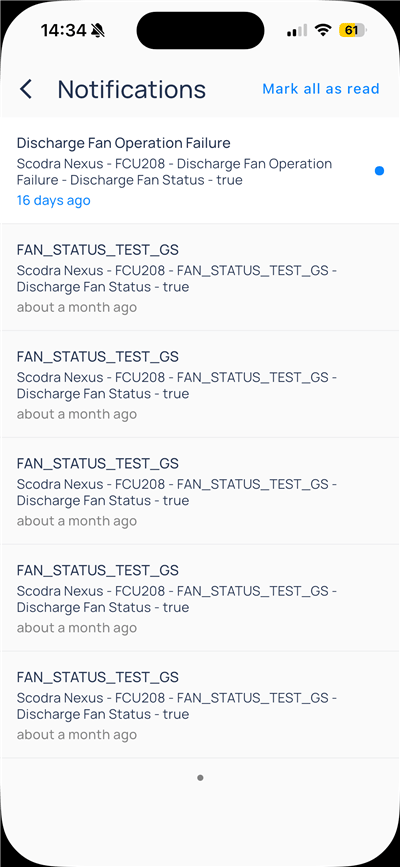
Tap the blue bell floating button on the map to open `Notifications`.

<div className="flex justify-center w-full my-4">
  <Frame className="w-fit mx-auto">
    <img className="mx-auto block h-auto max-w-[400px] w-full" src="https://mintcdn.com/kodelabs/MYYnSdKhTqQf34f4/images/mobile-app/kode-os-mobile-portfolio-notifications.png?fit=max&auto=format&n=MYYnSdKhTqQf34f4&q=85&s=beca64b1c117f1f7e733f3860326c8a3" alt="Notifications list with event titles, device paths, and Mark all as read" width="400" height="867" data-path="images/mobile-app/kode-os-mobile-portfolio-notifications.png" />
  </Frame>
</div>

Each row shows event title, site and device path, point detail, and age. Unread items have a blue dot on the right. Use `Mark all as read` to clear unread state.

## Enter a site

<Steps>
  <Step title="Select a site">
    Tap a site card or map pin for the building you need.
  </Step>

  <Step title="Open building modules">
    After the site loads, use the app launcher or portfolio sheet to open Events, Systems, and other building apps. See [Navigate the app](/products/mobile-app/get-started/navigation).
  </Step>

  <Step title="Switch site later">
    From any building screen, open the bottom bar and tap `Switch Site` to return to the map or pick another property.
  </Step>
</Steps>

## Compare to web

| Web (Sites)             | Mobile (Portfolio)                              |
| ----------------------- | ----------------------------------------------- |
| Table sort columns      | `Sort by` sheet on the map                      |
| Click row to enter site | Tap card or pin                                 |
| Sidebar apps            | `Portfolio` module picker and `Reorder modules` |
| Notification center     | Map bell button                                 |

## Next steps

<CardGroup cols={2}>
  <Card title="Navigate the app" icon="compass" href="/products/mobile-app/get-started/navigation" arrow={true}>
    Move between portfolio, site, and modules.
  </Card>

  <Card title="Building BI on mobile" icon="chart-bar" href="/products/mobile-app/destinations/building-bi" arrow={true}>
    Open published collections and dashboards.
  </Card>
</CardGroup>