> ## Documentation Index
> Fetch the complete documentation index at: https://documentation.kodelabs.com/llms.txt
> Use this file to discover all available pages before exploring further.

# Work orders on mobile

> Triage, update, and create AssetOps work orders from the KODE OS mobile app.

Pick up a maintenance task, update its status, and log what you did—all from the field. `Work Orders` on mobile reads and writes the same building-level [AssetOps](/products/kode-os/assetops/work-orders) records as KODE OS web. AssetOps is the KODE maintenance product that tracks work orders, schedules, and assets across a portfolio. Open the app to review open tasks, assign yourself, change status, and link work to assets such as `VAV_3`.

<Info>
  `Work Orders` appears in the building launcher when AssetOps is enabled for your organization and site. It is separate from [FDD work orders](/products/fdd/work-orders), which create tickets from fault events.
</Info>

## Open Work Orders

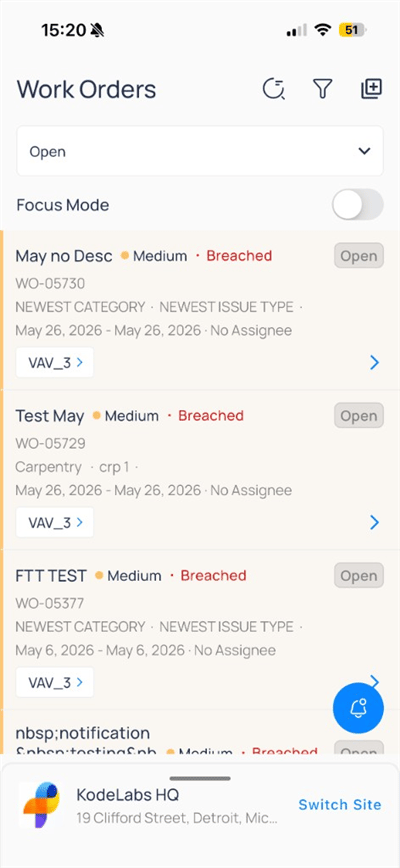
Select `Work Orders` from the building app launcher. Use the header icons to refresh, filter, or create a follow-up.
<div className="flex justify-center w-full my-4">
  <Frame className="w-fit mx-auto">
    <img className="mx-auto block h-auto max-w-[400px] w-full" src="https://mintcdn.com/kodelabs/MYYnSdKhTqQf34f4/images/mobile-app/kode-os-mobile-work-orders-list.png?fit=max&auto=format&n=MYYnSdKhTqQf34f4&q=85&s=22f1d3dc2d1ff9bb2536faa626868800" alt="Work Orders list with Open status, priority, SLA Breached, and VAV_3 asset links" width="400" height="868" data-path="images/mobile-app/kode-os-mobile-work-orders-list.png" />
  </Frame>
</div>

Each card shows:

| Element               | Description                               |
| --------------------- | ----------------------------------------- |
| Title                 | Work order name                           |
| Priority              | For example, `Medium`                     |
| SLA Status            | For example, `Breached`                   |
| Identifier            | Work order ID such as `WO-05729`          |
| Category / Issue type | Classification metadata                   |
| Dates / Assignee      | Start–due range and assignee              |
| Asset                 | Linked equipment (tap to open the device) |
| Status                | `Open`, `In Progress`, or other state     |

### Filter and focus

Tap the status dropdown to limit the list:
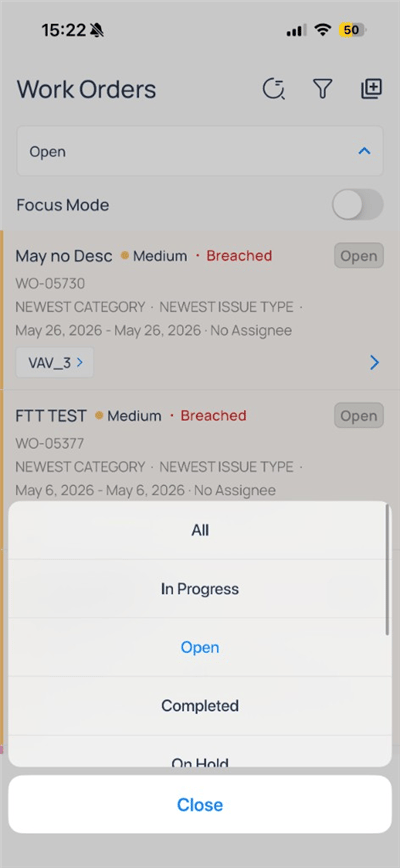
<div className="flex justify-center w-full my-4">
  <Frame className="w-fit mx-auto" caption="All, Open, In Progress, Completed, On Hold">
    <img className="mx-auto block h-auto max-w-[400px] w-full" src="https://mintcdn.com/kodelabs/MYYnSdKhTqQf34f4/images/mobile-app/kode-os-mobile-work-orders-status-menu.png?fit=max&auto=format&n=MYYnSdKhTqQf34f4&q=85&s=1a6b277b10fc0e55e6286f99e4536920" alt="Work Orders status menu with Open selected" width="400" height="868" data-path="images/mobile-app/kode-os-mobile-work-orders-status-menu.png" />
  </Frame>
</div>

Tap the filter icon for advanced criteria:
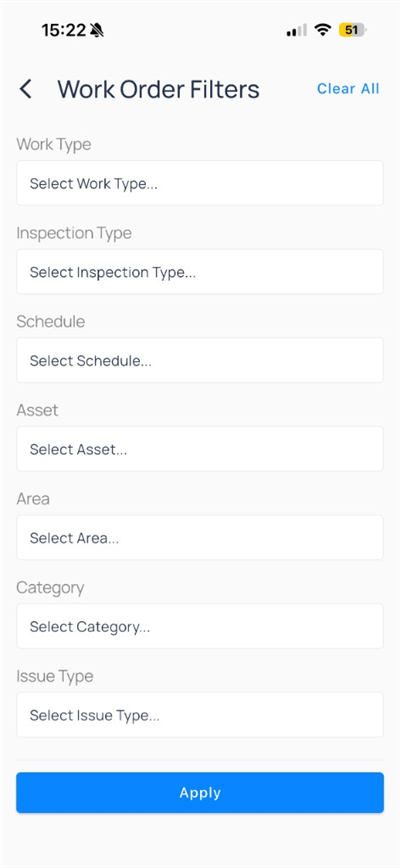
<div className="flex justify-center w-full my-4">
  <Frame className="w-fit mx-auto">
    <img className="mx-auto block h-auto max-w-[400px] w-full" src="https://mintcdn.com/kodelabs/MYYnSdKhTqQf34f4/images/mobile-app/kode-os-mobile-work-orders-filters.png?fit=max&auto=format&n=MYYnSdKhTqQf34f4&q=85&s=656a7bf1598cf4f8e14699d5e4a4b3e5" alt="Work Order Filters for work type, asset, area, category, and issue type" width="400" height="868" data-path="images/mobile-app/kode-os-mobile-work-orders-filters.png" />
  </Frame>
</div>

Turn on `Focus Mode` on the list screen to narrow the set to your assigned or high-priority work when your site configures it.

## Work order detail

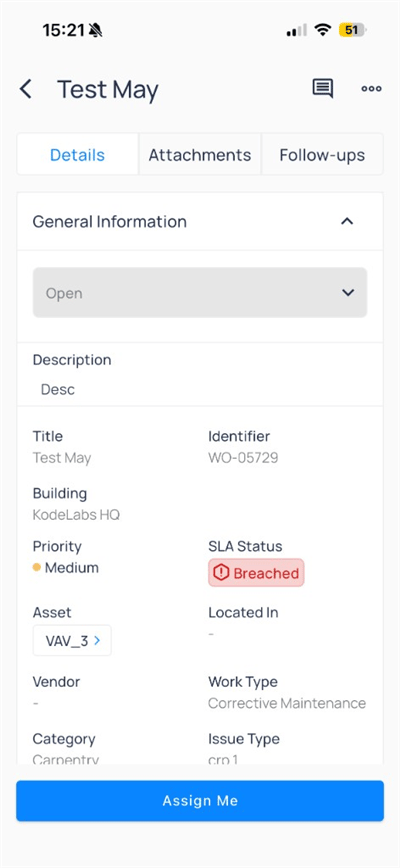
Tap a card to open the detail screen.

<Tabs>
  <Tab title="Details">
    <div className="flex justify-center w-full my-4">
      <Frame className="w-fit mx-auto">
        <img className="mx-auto block h-auto max-w-[400px] w-full" src="https://mintcdn.com/kodelabs/MYYnSdKhTqQf34f4/images/mobile-app/kode-os-mobile-work-order-detail-open.png?fit=max&auto=format&n=MYYnSdKhTqQf34f4&q=85&s=48544fa9367a730d5e8012432cc592c5" alt="Work order Test May Open status with asset VAV_3 and Assign Me button" width="400" height="868" data-path="images/mobile-app/kode-os-mobile-work-order-detail-open.png" />
      </Frame>
    </div>

    `General Information` includes `Title`, `Identifier`, `Building`, `Priority`, `SLA Status`, `Asset`, `Work Type`, `Category`, and `Issue Type`. Tap `Assign Me` to take ownership when you are unassigned.

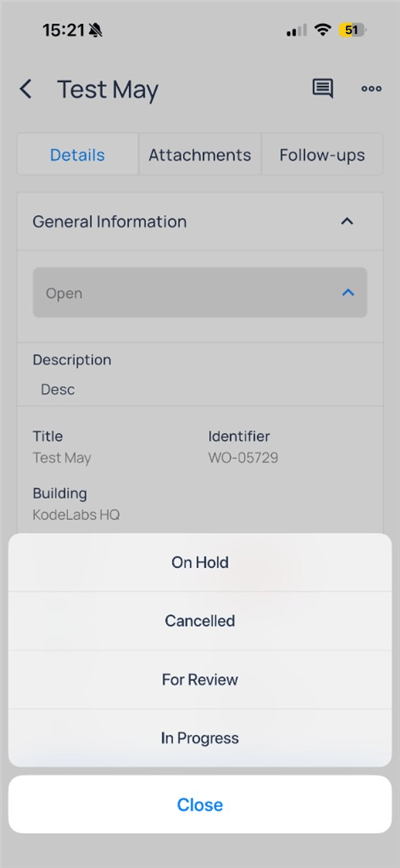
    #### Update status

    Change status from the dropdown at the top of `Details`:

    <div className="flex justify-center w-full my-4">
      <Frame className="w-fit mx-auto">
        <img className="mx-auto block h-auto max-w-[400px] w-full" src="https://mintcdn.com/kodelabs/MYYnSdKhTqQf34f4/images/mobile-app/kode-os-mobile-work-order-status-change.png?fit=max&auto=format&n=MYYnSdKhTqQf34f4&q=85&s=2095add095cef6ed92522d39705477b5" alt="Work order status menu with On Hold, Cancelled, For Review, and In Progress" width="400" height="868" data-path="images/mobile-app/kode-os-mobile-work-order-status-change.png" />
      </Frame>
    </div>

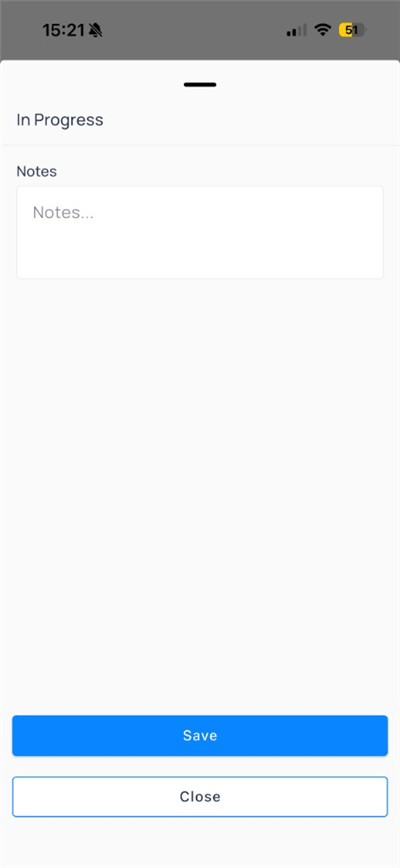
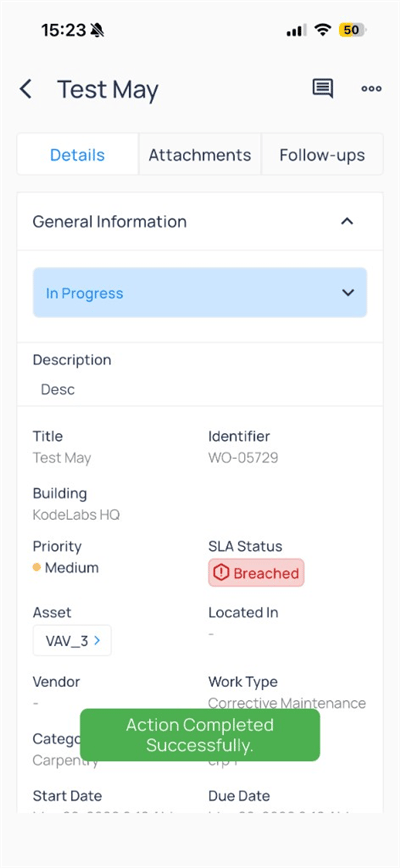
    When you move to `In Progress`, add optional notes:

    <div className="flex justify-center w-full my-4">
      <Frame className="w-fit mx-auto" caption="Notes when starting work">
        <img className="mx-auto block h-auto max-w-[400px] w-full" src="https://mintcdn.com/kodelabs/MYYnSdKhTqQf34f4/images/mobile-app/kode-os-mobile-work-order-in-progress-notes.png?fit=max&auto=format&n=MYYnSdKhTqQf34f4&q=85&s=1ee47bc782727f9f2fa83bf84aa5269d" alt="In Progress sheet with Notes field and Save button" width="400" height="868" data-path="images/mobile-app/kode-os-mobile-work-order-in-progress-notes.png" />
      </Frame>
    </div>

    <div className="flex justify-center w-full my-4">
      <Frame className="w-fit mx-auto">
        <img className="mx-auto block h-auto max-w-[400px] w-full" src="https://mintcdn.com/kodelabs/MYYnSdKhTqQf34f4/images/mobile-app/kode-os-mobile-work-order-detail-in-progress.png?fit=max&auto=format&n=MYYnSdKhTqQf34f4&q=85&s=a955e97072d5cbb5c3fea6833c443c4d" alt="Work order In Progress with success toast after status change" width="400" height="868" data-path="images/mobile-app/kode-os-mobile-work-order-detail-in-progress.png" />
      </Frame>
    </div>

    #### More actions

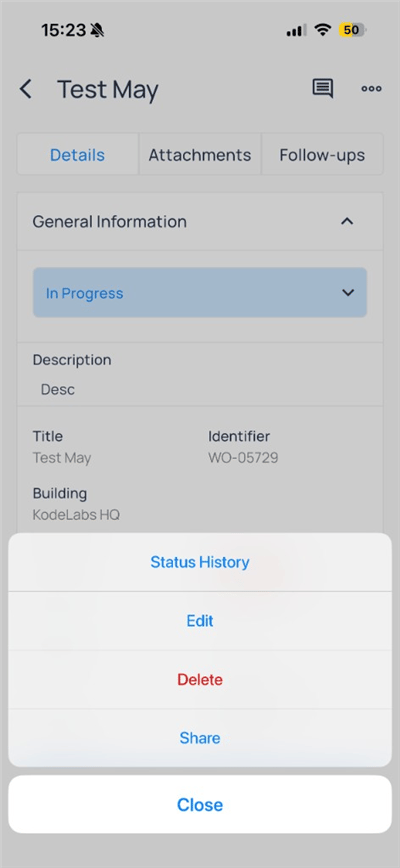
    Open the more menu in the header for administrative actions:

    <div className="flex justify-center w-full my-4">
      <Frame className="w-fit mx-auto">
        <img className="mx-auto block h-auto max-w-[400px] w-full" src="https://mintcdn.com/kodelabs/MYYnSdKhTqQf34f4/images/mobile-app/kode-os-mobile-work-order-more-menu.png?fit=max&auto=format&n=MYYnSdKhTqQf34f4&q=85&s=27414427d68c37af94bd7064b457b5f2" alt="Work order menu with Status History, Edit, Delete, and Share" width="400" height="868" data-path="images/mobile-app/kode-os-mobile-work-order-more-menu.png" />
      </Frame>
    </div>

    | Action           | Use for                                              |
    | ---------------- | ---------------------------------------------------- |
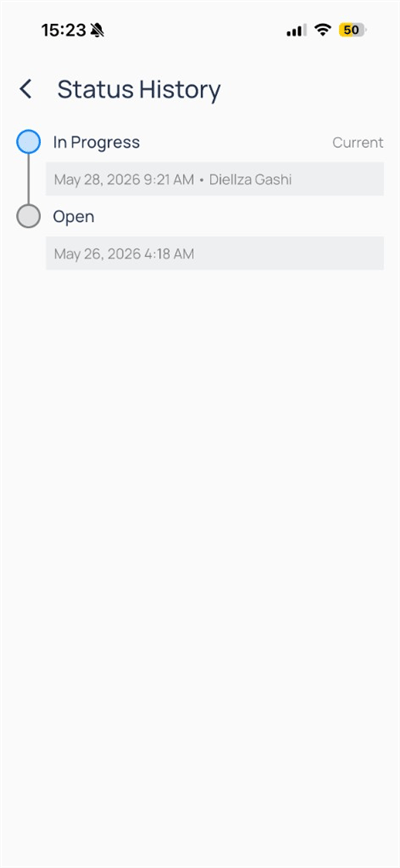
    | `Status History` | Audit trail of status changes                        |
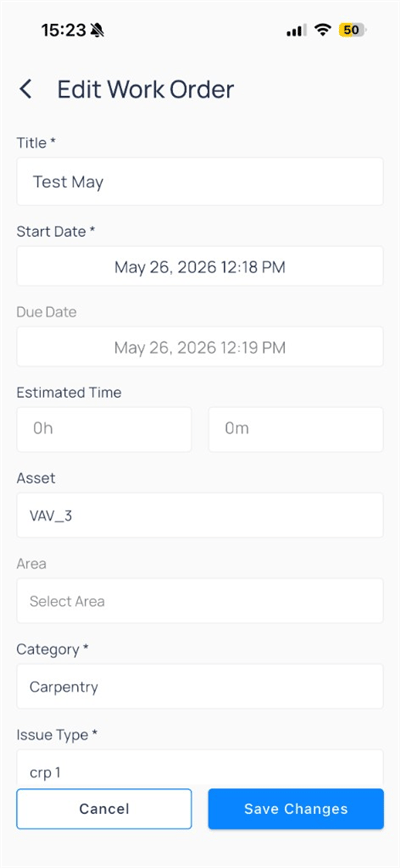
    | `Edit`           | Update title, dates, asset, category, and issue type |
    | `Delete`         | Remove the work order when permitted                 |
    | `Share`          | Send a link or summary                               |

    <div className="flex justify-center w-full my-4">
      <Frame className="w-fit mx-auto" caption="Status timeline">
        <img className="mx-auto block h-auto max-w-[400px] w-full" src="https://mintcdn.com/kodelabs/MYYnSdKhTqQf34f4/images/mobile-app/kode-os-mobile-work-order-status-history.png?fit=max&auto=format&n=MYYnSdKhTqQf34f4&q=85&s=991e928690a1883b7884685a7d7fdcaa" alt="Status History timeline from Open to In Progress with user and timestamp" width="400" height="868" data-path="images/mobile-app/kode-os-mobile-work-order-status-history.png" />
      </Frame>
    </div>

    #### Edit work order

    <div className="flex justify-center w-full my-4">
      <Frame className="w-fit mx-auto">
        <img className="mx-auto block h-auto max-w-[400px] w-full" src="https://mintcdn.com/kodelabs/MYYnSdKhTqQf34f4/images/mobile-app/kode-os-mobile-work-order-edit.png?fit=max&auto=format&n=MYYnSdKhTqQf34f4&q=85&s=fa1aa261db8616611178cb4404b639bc" alt="Edit Work Order form with title, dates, asset VAV_3, category, and issue type" width="400" height="868" data-path="images/mobile-app/kode-os-mobile-work-order-edit.png" />
      </Frame>
    </div>
  </Tab>

  <Tab title="Attachments">
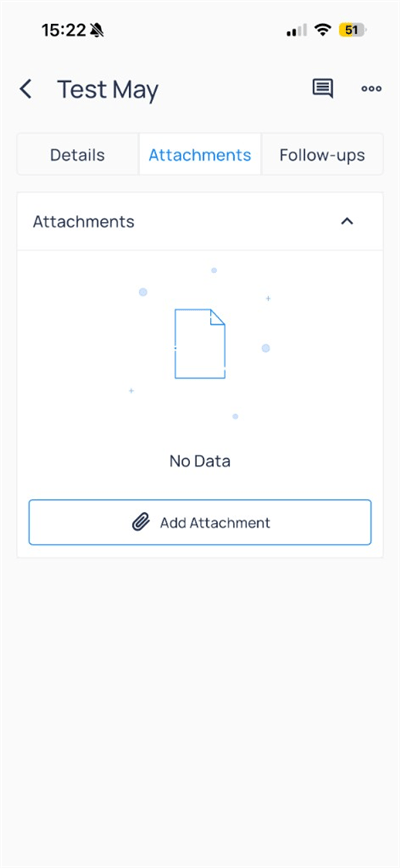
    Add photos or files on the `Attachments` tab.

    <div className="flex justify-center w-full my-4">
      <Frame className="w-fit mx-auto">
        <img className="mx-auto block h-auto max-w-[400px] w-full" src="https://mintcdn.com/kodelabs/MYYnSdKhTqQf34f4/images/mobile-app/kode-os-mobile-work-order-attachments.png?fit=max&auto=format&n=MYYnSdKhTqQf34f4&q=85&s=f977cb10f2a893b933c3e8de6ad44fe2" alt="Work order Attachments tab with Add Attachment button" width="400" height="868" data-path="images/mobile-app/kode-os-mobile-work-order-attachments.png" />
      </Frame>
    </div>

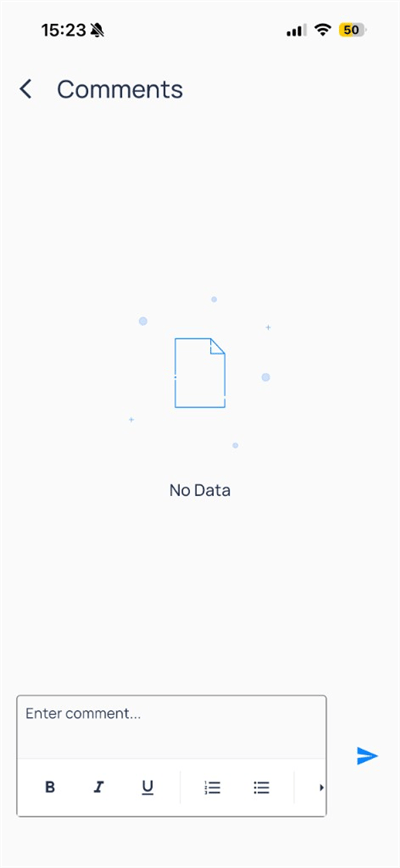
    Open the chat icon or comments flow for team discussion:

    <div className="flex justify-center w-full my-4">
      <Frame className="w-fit mx-auto">
        <img className="mx-auto block h-auto max-w-[400px] w-full" src="https://mintcdn.com/kodelabs/MYYnSdKhTqQf34f4/images/mobile-app/kode-os-mobile-work-order-comments.png?fit=max&auto=format&n=MYYnSdKhTqQf34f4&q=85&s=fd40968647df4afc73430de93985cb41" alt="Work order Comments with rich text toolbar and Enter comment field" width="400" height="868" data-path="images/mobile-app/kode-os-mobile-work-order-comments.png" />
      </Frame>
    </div>
  </Tab>

  <Tab title="Follow-ups">
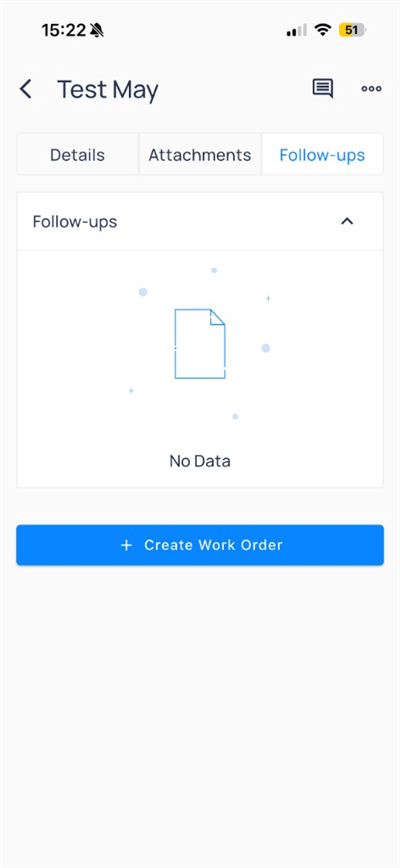
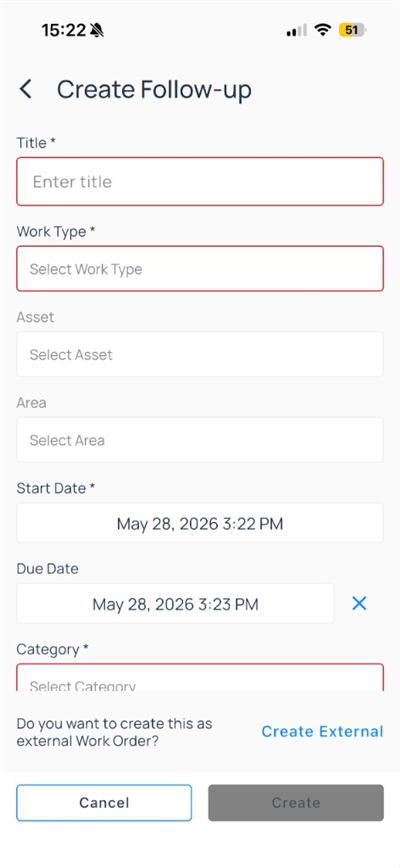
    The `Follow-ups` tab lists child tasks. Tap `+ Create Work Order` to add a follow-up on the same record.

    <div className="flex justify-center w-full my-4">
      <Frame className="w-fit mx-auto">
        <img className="mx-auto block h-auto max-w-[400px] w-full" src="https://mintcdn.com/kodelabs/MYYnSdKhTqQf34f4/images/mobile-app/kode-os-mobile-work-order-follow-ups.png?fit=max&auto=format&n=MYYnSdKhTqQf34f4&q=85&s=c22c27223757658f6b33b42c7b9fe45d" alt="Follow-ups tab with Create Work Order button" width="400" height="868" data-path="images/mobile-app/kode-os-mobile-work-order-follow-ups.png" />
      </Frame>
    </div>

    <div className="flex justify-center w-full my-4">
      <Frame className="w-fit mx-auto" caption="Internal follow-up">
        <img className="mx-auto block h-auto max-w-[400px] w-full" src="https://mintcdn.com/kodelabs/MYYnSdKhTqQf34f4/images/mobile-app/kode-os-mobile-work-order-create-follow-up.png?fit=max&auto=format&n=MYYnSdKhTqQf34f4&q=85&s=674c3e55806d1e92e05b1dcf014800ea" alt="Create Follow-up form with work type, asset, area, and dates" width="400" height="868" data-path="images/mobile-app/kode-os-mobile-work-order-create-follow-up.png" />
      </Frame>
    </div>

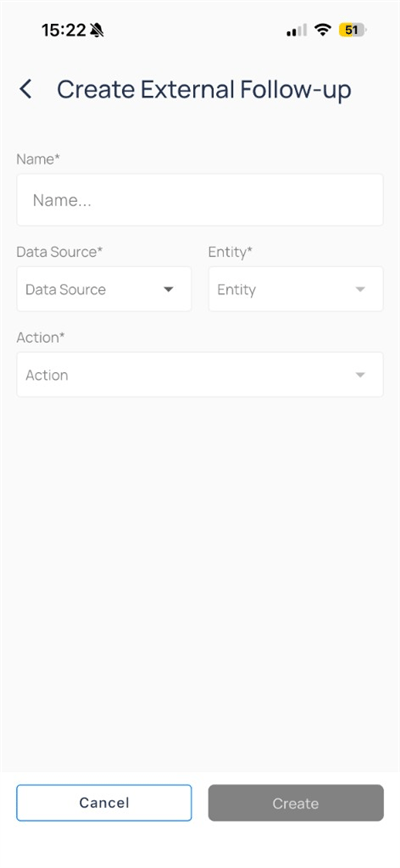
    To route work to an external CMMS, tap `Create External` and complete the integration form:

    <div className="flex justify-center w-full my-4">
      <Frame className="w-fit mx-auto">
        <img className="mx-auto block h-auto max-w-[400px] w-full" src="https://mintcdn.com/kodelabs/MYYnSdKhTqQf34f4/images/mobile-app/kode-os-mobile-work-order-create-external.png?fit=max&auto=format&n=MYYnSdKhTqQf34f4&q=85&s=162da95e8a0f5470d0e3e84e0d248a7a" alt="Create External Follow-up with Name, Data Source, Entity, and Action fields" width="400" height="868" data-path="images/mobile-app/kode-os-mobile-work-order-create-external.png" />
      </Frame>
    </div>
  </Tab>
</Tabs>

## Create work from other modules

You can start work orders from FDD events, faults, and devices when your role allows:

* [Events on mobile](/products/mobile-app/events/work-with-events#work-orders-and-comments) — `Work Orders` on the event menu
* [Manage FDD faults](/products/mobile-app/diagnostics/manage-fdd-faults) — fault detail menu
* [Devices on mobile](/products/mobile-app/building/devices) — device more menu

Those flows use the same AssetOps work order record type as the `Work Orders` app.

## Compare to web

| Web capability                      | Mobile                                                     |
| ----------------------------------- | ---------------------------------------------------------- |
| List, status filter, Focus Mode     | Yes                                                        |
| Work order detail and status change | Yes                                                        |
| Assign me, edit, status history     | Yes                                                        |
| Attachments and comments            | Yes                                                        |
| Follow-ups and external create      | Yes                                                        |
| Bulk edit and export                | Use web                                                    |
| Portfolio dashboards and schedules  | Use [AssetOps](/products/assetops/quickstart/overview) web |

## Next steps

<CardGroup cols={2}>
  <Card title="AssetOps work orders" icon="clipboard-list" href="/products/kode-os/assetops/work-orders" arrow={true}>
    Full work order admin on the web.
  </Card>

  <Card title="Understanding work orders" icon="book-open" href="/products/assetops/quickstart/work-orders" arrow={true}>
    Learn AssetOps work order concepts.
  </Card>

  <Card title="Devices on mobile" icon="hard-drive" href="/products/mobile-app/building/devices" arrow={true}>
    Open equipment, trends, and device actions.
  </Card>
</CardGroup>