> ## Documentation Index
> Fetch the complete documentation index at: https://documentation.kodelabs.com/llms.txt
> Use this file to discover all available pages before exploring further.

# Schedules on mobile

> View and edit weekly schedules, special events, and holiday calendars from the KODE OS mobile app.

A **schedule** sets when equipment should be occupied or unoccupied—for example, Monday through Friday business hours. On mobile you can view schedules and edit weekly days, special events, and holidays when the connector allows it. Schedules match [Schedules](/products/kode-os/schedules) on the web.

Many building controllers use **BACnet**, a common protocol for building automation. Schedule capabilities depend on that connection.

<Info>
  Which actions appear depends on the schedule data source. Tap the info (`i`) icon on a schedule to see `Allowed Actions` for that connector.
</Info>

## Open Schedules

Open `Schedules` from the building app launcher or from `Schedules` on a [device menu](/products/mobile-app/building/devices#device-menu).
<div className="flex justify-center w-full my-4">
  <Frame className="w-fit mx-auto">
    <img className="mx-auto block h-auto max-w-[400px] w-full" src="https://mintcdn.com/kodelabs/MYYnSdKhTqQf34f4/images/mobile-app/kode-os-mobile-schedules-list.png?fit=max&auto=format&n=MYYnSdKhTqQf34f4&q=85&s=49b3c476a17f5c8c4e4300928809b764" alt="Schedules list with Weekly Schedules tab and Test Training row" width="400" height="867" data-path="images/mobile-app/kode-os-mobile-schedules-list.png" />
  </Frame>
</div>

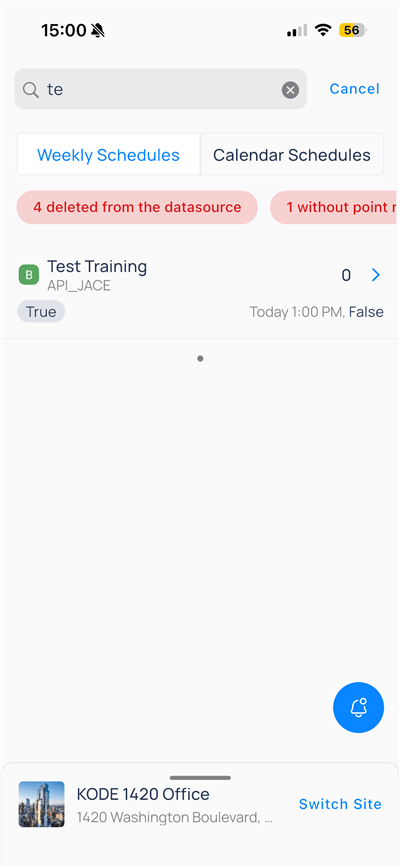
Choose the list type at the top:

| Tab                  | What it contains                                    |
| -------------------- | --------------------------------------------------- |
| `Weekly Schedules`   | Recurring weekday patterns tied to equipment points |
| `Calendar Schedules` | Holiday and calendar-style exceptions               |

Pink banners may appear when the platform detects data issues—for example, devices deleted from the data source, or schedules without point references. Resolve those on the web or connector before you rely on mobile edits.

Tap search, type part of a name, and tap a result. `Cancel` clears search.

## Edit a weekly schedule

Tap a `Weekly Schedules` row (for example, `Test Training`) to open the editor.

### Header actions

| Control    | Purpose                                           |
| ---------- | ------------------------------------------------- |
| `Back`     | Return to the list                                |
| `Sync`     | Refresh from the data source; shows `Last Synced` |
| Info (`i`) | Show `Allowed Actions` for this connector         |
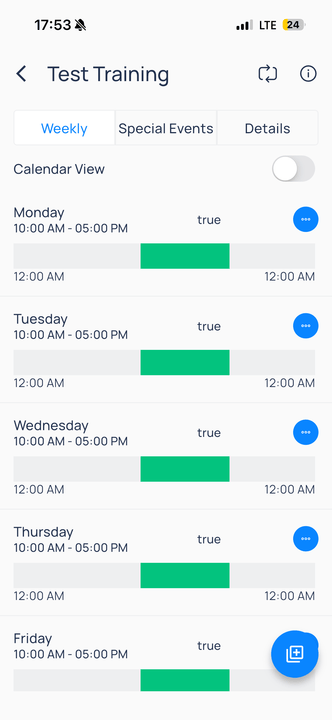
<div className="flex justify-center w-full my-4">
  <Frame className="w-fit mx-auto" caption="Weekly schedule editor with header actions and day timeline">
    <img className="mx-auto block h-auto max-w-[400px] w-full" src="https://mintcdn.com/kodelabs/MYYnSdKhTqQf34f4/images/mobile-app/kode-os-mobile-schedule-weekly-editor.png?fit=max&auto=format&n=MYYnSdKhTqQf34f4&q=85&s=a8d67bff8123409530e31ab686123814" alt="Test Training weekly schedule editor showing Back, Sync, and Info header actions with Monday through Friday timeline bars" width="332" height="720" data-path="images/mobile-app/kode-os-mobile-schedule-weekly-editor.png" />
  </Frame>
</div>

Typical supported actions include list, create, update, and delete for schedules, schedule days, special events, and effective periods.

<Tabs>
  <Tab title="Weekly">
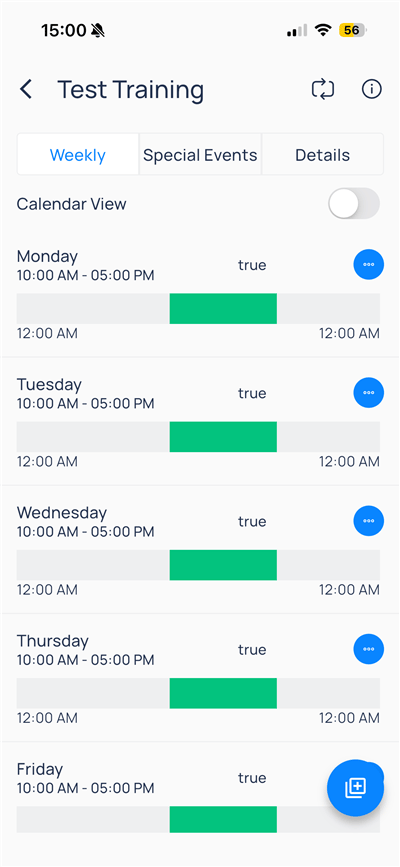
    The `Weekly` tab shows occupied hours per weekday.

    <div className="flex justify-center w-full my-4">
      <Frame className="w-fit mx-auto">
        <img className="mx-auto block h-auto max-w-[400px] w-full" src="https://mintcdn.com/kodelabs/MYYnSdKhTqQf34f4/images/mobile-app/kode-os-mobile-schedule-weekly.png?fit=max&auto=format&n=MYYnSdKhTqQf34f4&q=85&s=ac0dbe5d42540a6ec5d8699ed02d0d1f" alt="Weekly tab with Monday through Friday 10 AM to 5 PM timeline bars" width="400" height="867" data-path="images/mobile-app/kode-os-mobile-schedule-weekly.png" />
      </Frame>
    </div>

    | Element                | Description                                            |
    | ---------------------- | ------------------------------------------------------ |
    | `Calendar View` toggle | Switch list versus timeline grid                       |
    | Day row                | Day name, time range, default value (`true` / `false`) |
    | Timeline bar           | Green segment for occupied hours on a 24-hour track    |
    | Overflow (`⋯`)         | Edit or remove that day’s pattern                      |
    | Add (`+`)              | Add a new weekly day event                             |

    #### Add or edit a weekly day

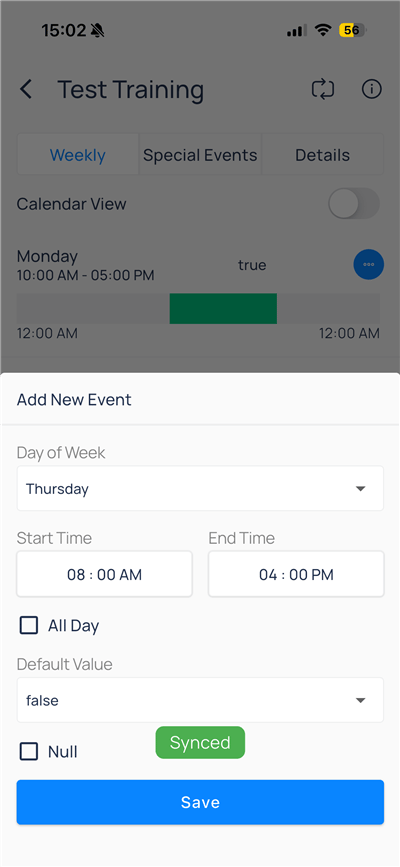
    Tap `+` or the day overflow menu, then configure `Add New Event`:

    <div className="flex justify-center w-full my-4">
      <Frame className="w-fit mx-auto">
        <img className="mx-auto block h-auto max-w-[400px] w-full" src="https://mintcdn.com/kodelabs/MYYnSdKhTqQf34f4/images/mobile-app/kode-os-mobile-schedule-add-event.png?fit=max&auto=format&n=MYYnSdKhTqQf34f4&q=85&s=96b7ce0f1f2397772abeeb94f41887db" alt="Add New Event modal with day, times, default value, and Synced badge" width="400" height="867" data-path="images/mobile-app/kode-os-mobile-schedule-add-event.png" />
      </Frame>
    </div>

    | Field                     | Description                                        |
    | ------------------------- | -------------------------------------------------- |
    | `Day of Week`             | Weekday to apply                                   |
    | `Start Time` / `End Time` | Occupied window                                    |
    | `All Day`                 | Span the full day when enabled                     |
    | `Default Value`           | Output during the window (`true` / `false`)        |
    | `Null`                    | Write null instead of true/false when supported    |
    | `Synced`                  | Green badge when the change is saved to the source |
    | `Save`                    | Commit the event                                   |

    Turn `Calendar View` on and pick a day letter to see hourly rows with a green block for the active window.
  </Tab>

  <Tab title="Special Events">
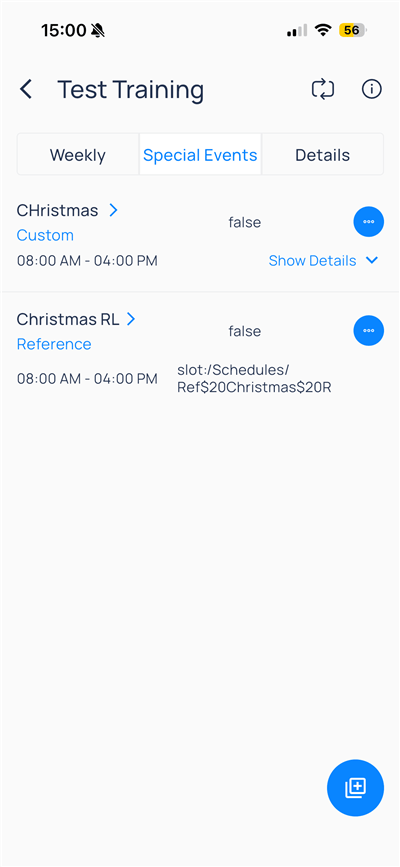
    `Special Events` lists one-off or recurring exceptions (custom or reference types).

    <div className="flex justify-center w-full my-4">
      <Frame className="w-fit mx-auto">
        <img className="mx-auto block h-auto max-w-[400px] w-full" src="https://mintcdn.com/kodelabs/MYYnSdKhTqQf34f4/images/mobile-app/kode-os-mobile-schedule-special-events.png?fit=max&auto=format&n=MYYnSdKhTqQf34f4&q=85&s=42dea3c91c224caae632236e66e3d9d7" alt="Special Events tab with Custom and Reference Christmas events" width="400" height="867" data-path="images/mobile-app/kode-os-mobile-schedule-special-events.png" />
      </Frame>
    </div>

    | Label          | Meaning                                                    |
    | -------------- | ---------------------------------------------------------- |
    | `Custom`       | Event defined only in this schedule                        |
    | `Reference`    | Points to another schedule slot (path shown when expanded) |
    | Time range     | Active window for the exception                            |
    | Default value  | `false` or `true` during the event                         |
    | `Show Details` | Expand reference path or extra fields                      |
    | Overflow (`⋯`) | Edit or delete                                             |

    Use the `+` button to add a special event when `Allowed Actions` includes create.
  </Tab>

  <Tab title="Details">
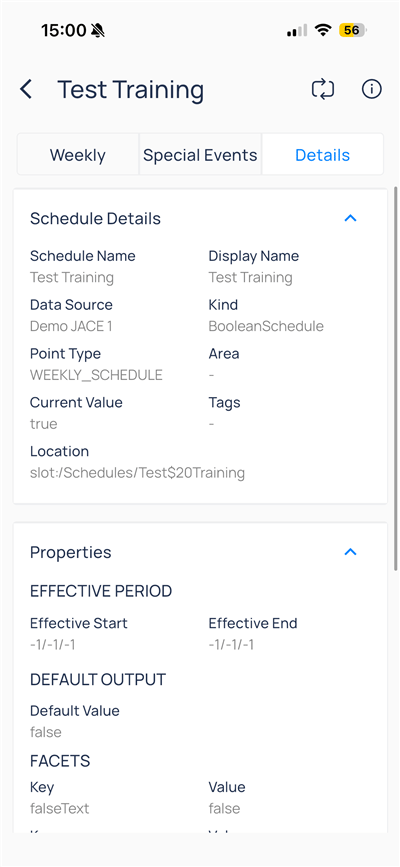
    `Details` shows read-only metadata and BACnet facets.

    <div className="flex justify-center w-full my-4">
      <Frame className="w-fit mx-auto">
        <img className="mx-auto block h-auto max-w-[400px] w-full" src="https://mintcdn.com/kodelabs/MYYnSdKhTqQf34f4/images/mobile-app/kode-os-mobile-schedule-details.png?fit=max&auto=format&n=MYYnSdKhTqQf34f4&q=85&s=da24e78c85b8aa03df5836f3e73ad9b6" alt="Details tab with schedule name, data source, kind, and location path" width="400" height="867" data-path="images/mobile-app/kode-os-mobile-schedule-details.png" />
      </Frame>
    </div>

    | Group            | Examples                                                                                      |
    | ---------------- | --------------------------------------------------------------------------------------------- |
    | Schedule details | Name, display name, data source, kind, point type, area, current value, tags, `Location` path |
    | Properties       | Effective period, default output, facets (for example, `falseText`)                           |

    Use this tab to confirm you opened the correct schedule before editing weekly or special events.
  </Tab>
</Tabs>

## Manage holiday calendars

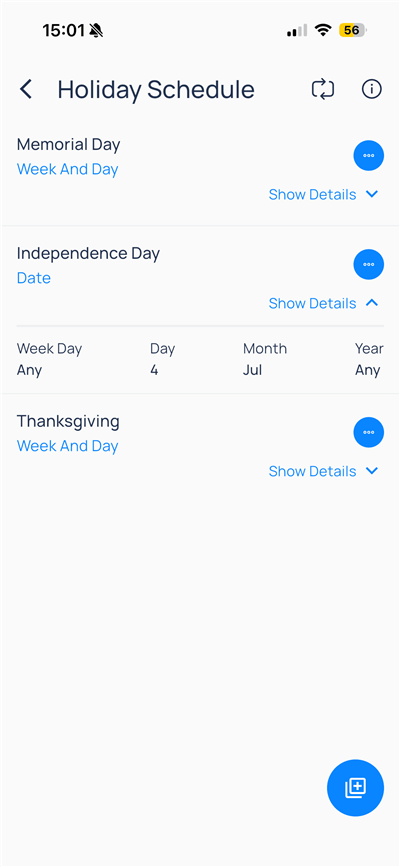
Open `Calendar Schedules`, then open `Holiday Schedule` (or search for `holiday`).
<div className="flex justify-center w-full my-4">
  <Frame className="w-fit mx-auto">
    <img className="mx-auto block h-auto max-w-[400px] w-full" src="https://mintcdn.com/kodelabs/IXjGUtCN1G_ZdIHf/images/mobile-app/kode-os-mobile-holiday-schedule.png?fit=max&auto=format&n=IXjGUtCN1G_ZdIHf&q=85&s=11eb5f999c75fad3ac4af49591032481" alt="Holiday Schedule list with Memorial Day, Independence Day expanded date pattern, Thanksgiving, and New Event button" width="400" height="867" data-path="images/mobile-app/kode-os-mobile-holiday-schedule.png" />
  </Frame>
</div>

| Control        | Purpose                       |
| -------------- | ----------------------------- |
| Refresh        | Sync holidays from the source |
| Info (`i`)     | Help for holiday rules        |
| Overflow (`⋯`) | Edit or delete                |
| `Show Details` | Expand date pattern grid      |
| `New Event`    | Add a holiday                 |

Tap overflow on a holiday row to reveal `Delete` and `Edit`.

### Add a holiday

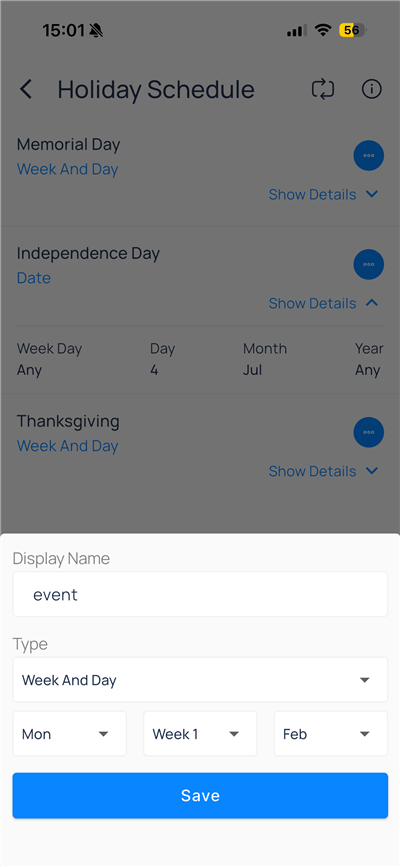
Tap `New Event`, then set:

| Field                               | Description                         |
| ----------------------------------- | ----------------------------------- |
| `Display Name`                      | Label in lists                      |
| `Type`                              | `Date` or `Week And Day`            |
| Day of week / week of month / month | Pattern when type is `Week And Day` |
| `Save`                              | Write to the data source            |

| Type           | Use for                                                            |
| -------------- | ------------------------------------------------------------------ |
| `Date`         | Fixed calendar day (for example, day `4`, month `Jul`, year `Any`) |
| `Week And Day` | Floating holidays (for example, the nth weekday of a month)        |
<div className="flex justify-center w-full my-4">
  <Frame className="w-fit mx-auto" caption="Fixed date example: July 4">
    <img className="mx-auto block h-auto max-w-[400px] w-full" src="https://mintcdn.com/kodelabs/IXjGUtCN1G_ZdIHf/images/mobile-app/kode-os-mobile-holiday-schedule-details.png?fit=max&auto=format&n=IXjGUtCN1G_ZdIHf&q=85&s=ca84a2982d8b1877b71eb7cafb5b71bf" alt="Independence Day expanded with Week Day, Day, Month, and Year fields" width="400" height="867" data-path="images/mobile-app/kode-os-mobile-holiday-schedule-details.png" />
  </Frame>
</div>

## Web vs mobile

| Task                                             | Platform              |
| ------------------------------------------------ | --------------------- |
| Create schedule definitions on new points        | Web                   |
| Bulk BACnet downloads                            | Web                   |
| View, edit weekly days, special events, holidays | Mobile (when allowed) |
| Effective period advanced edits                  | Web preferred         |

## Next steps

<CardGroup cols={2}>
  <Card title="Optimized start/stop" icon="timer" href="/products/mobile-app/operations/oss" arrow={true}>
    Set operation mode and equipment scope.
  </Card>

  <Card title="Points on mobile" icon="circle-dot" href="/products/mobile-app/building/points" arrow={true}>
    Browse status, filters, and point writes.
  </Card>

  <Card title="Devices on mobile" icon="hard-drive" href="/products/mobile-app/building/devices" arrow={true}>
    Open equipment, trends, and device actions.
  </Card>
</CardGroup>