> ## Documentation Index
> Fetch the complete documentation index at: https://documentation.kodelabs.com/llms.txt
> Use this file to discover all available pages before exploring further.
# Optimized start/stop on mobile
> Set OSS operation modes, scope equipment, and review active status from the OSS module on the KODE OS mobile app.
Optimized start/stop (OSS) starts HVAC equipment just in time so zones hit their setpoint by occupancy, instead of running on a fixed schedule. On mobile, choose how aggressively the system pre-heats or pre-cools zones and control which equipment participates. This page follows [OSS](/products/kode-os/oss) on the web.
## Open OSS
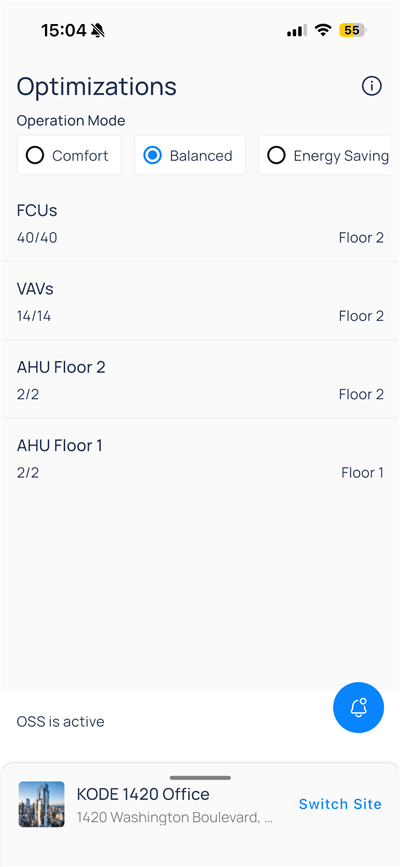
Select `OSS` from the building app launcher (label varies by site).
The footer shows whether OSS is running for the current site (for example, `OSS is active`). Use the notification bell when your site sends OSS alerts.
## Operation mode
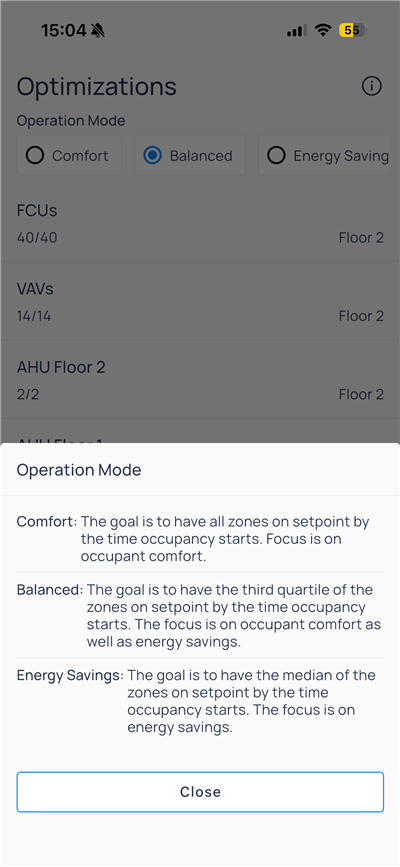
Three radio options set the optimization strategy for scoped equipment:
| Mode | Goal |
| --------------- | --------------------------------------------------------------- |
| `Comfort` | All zones on setpoint by occupancy start; comfort first |
| `Balanced` | Third quartile of zones on setpoint; balance comfort and energy |
| `Energy Saving` | Median of zones on setpoint; energy first |
Tap the info icon next to the title to open definitions, then `Close` to return.
Select a mode to apply it for the building. Your site may require OSS to be activated on web before mobile shows `OSS is active`.
## Equipment scope
Below `Operation Mode`, `OSS` lists equipment groups included in the run:
| Row | Meaning |
| ----------------- | --------------------------------------------- |
| `FCUs 40/40` | Forty fan coil units in scope on Floor 2 |
| `VAVs 14/14` | Fourteen variable air volume boxes on Floor 2 |
| `AHU Floor 2 2/2` | Two air handlers on Floor 2 |
| `AHU Floor 1 2/2` | Two air handlers on Floor 1 |
The fraction is included devices / total devices in that category. Tap a row to add or remove individual units when your role allows configuration on device.
## Add or remove devices
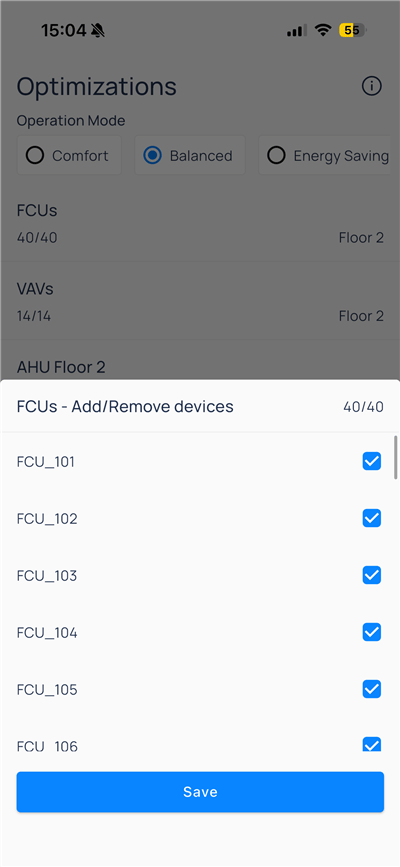
Opening a category (for example, `FCUs`) shows a checklist of units. Clear or select rows, then tap `Save` to update scope.
| Control | Action |
| ---------------- | ---------------------------------------------------- |
| Checkbox | Include or exclude a unit from OSS for this category |
| `40/40` (header) | Selected count versus total in the group |
| `Save` | Apply changes and return to `OSS` |
Excluding a device removes it from the next optimization cycle for that adapter—the configuration that customizes OSS for a specific HVAC system. Use web [OSS](/products/kode-os/oss) for adapter setup, learning mode, bypass, and dashboard history when those controls are not on mobile.
## Compare to web
| Capability | Web | Mobile |
| --------------------------------------------------- | ---- | -------------------------------------- |
| Operation mode (Comfort / Balanced / Energy Saving) | Yes | Yes |
| Per-category device scope | Yes | Yes (add/remove modal) |
| Activate OSS / learning / bypass | Full | Status shown; advanced controls on web |
| Performance dashboard and trends | Full | Not shown on mobile |
## Next steps
Edit weekly days, special events, and holidays.
Switch dashboard, graphic, and widget views.
Adapter setup, learning, and dashboards.