> ## Documentation Index
> Fetch the complete documentation index at: https://documentation.kodelabs.com/llms.txt
> Use this file to discover all available pages before exploring further.
# Customize your mobile experience
> Manage profile, app appearance, help links, and organization switching in the KODE OS mobile app.
The profile menu is where you personalize KODE OS on your device and switch between organizations your account can access. Building configuration—devices, routines, dashboards—stays in the web modules.
## Open profile and settings
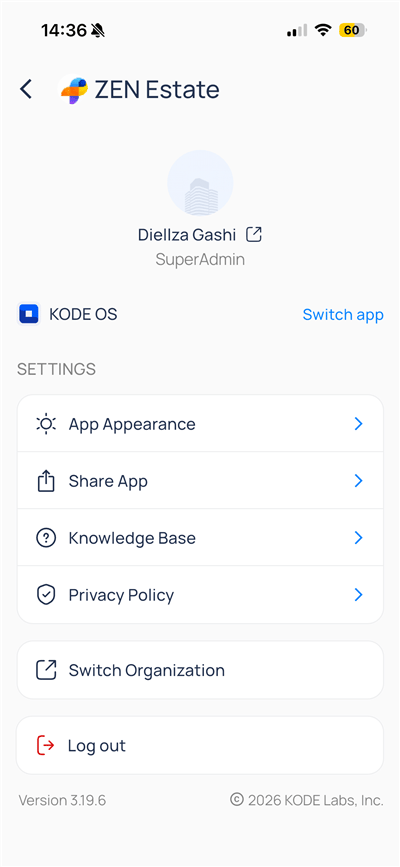
From the [portfolio map](/products/mobile-app/portfolio/portfolio-and-sites), tap your initials in the top-left corner. You can also open profile from branded app headers (for example, `ZEN Estate`).
The header shows your name, role, and which app shell you are in.
| Element | Description |
| ------------------------ | -------------------------------------------------------------------------------- |
| `Name` | Launchpad display name (external link icon opens account details when enabled) |
| `Role` | Permission tier (for example, SuperAdmin) |
| `KODE OS` / `Switch app` | Jump to another branded mobile shell if your organization provides multiple apps |
| `Version` | Installed build at the bottom (for example, 3.19.6) |
| `Copyright` | KODE Labs legal footer |
## Settings options
Under `SETTINGS`, each row opens a focused screen or browser view.
| Option | Icon | What it does |
| ---------------- | ------ | ------------------------------------------------- |
| `App Appearance` | Sun | Choose Light, Dark, or System theme |
| `Share App` | Share | Send the store link so others can install KODE OS |
| `Knowledge Base` | Help | Open documentation and help articles |
| `Privacy Policy` | Shield | View the KODE Labs privacy policy |
These options customize the app experience only. They do not change building data, schedules, or FDD rules.
### App appearance
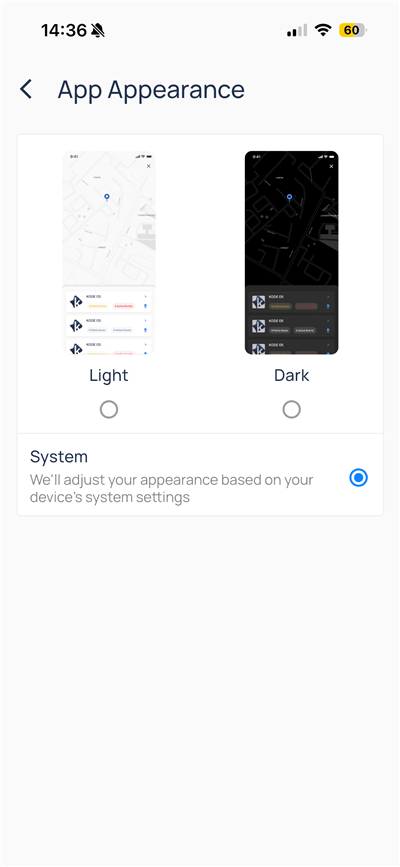
Tap `App Appearance` to set how KODE OS renders on your phone.
| Theme | Behavior |
| -------- | ------------------------------------------------------------------ |
| `Light` | Light map background and white module cards |
| `Dark` | Dark map and list surfaces for low-light use |
| `System` | Matches iOS or Android light/dark mode automatically (recommended) |
Select a radio button to apply the theme immediately. Thumbnails show how `Sites` and module rows look in each mode.
### Share app, knowledge base, and privacy policy
* `Share App` — opens the native share sheet with the public app link.
* `Knowledge Base` — opens help content in the mobile browser.
* `Privacy Policy` — opens the legal policy page managed by KODE Labs.
## Switch organization
Use `Switch Organization` when your account has access to more than one organization.
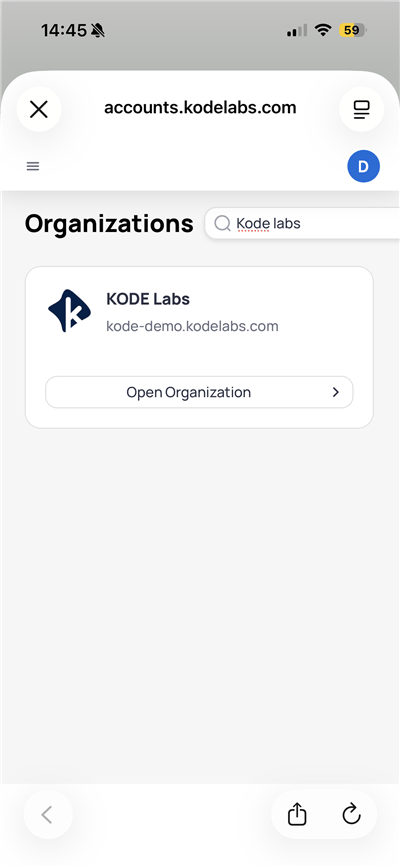
From the profile screen, select `Switch Organization`. The organizations page opens in the web view at `accounts.kodelabs.com`.
Use the search field to filter organizations. Each card shows the organization name and workspace domain.
Tap `Open Organization` on the card you need. KODE OS reloads with that organization's sites and apps.
If you only see one organization, your administrator has not granted access to others.
## Log out
Tap `Log out` to end your session on the device. You return to the workspace sign-in screen. Sign in again with the same workspace and credentials when you are ready.
Enable push notifications in iOS or Android system settings so KODE OS alerts reach you when the app is in the background. Open alerts from the portfolio map `bell` or module notification buttons.
## What you cannot change here
| Task | Where to do it |
| -------------------------- | ----------------------------------------------------------- |
| User role or permissions | [Launchpad](/products/launchpad/client-organizations/users) |
| Which apps appear per site | Launchpad app enablement |
| Dashboard design | Web [Building BI](/products/building-bi/overview) |
| FDD routines | Web [FDD](/products/fdd/overview) |
## Next steps
Pin devices and views with reminders.
Use the map, site cards, and site switcher.