> ## Documentation Index
> Fetch the complete documentation index at: https://documentation.kodelabs.com/llms.txt
> Use this file to discover all available pages before exploring further.

# Systems on mobile

> Browse plant systems, switch dashboard, graphic, and widget views, and manage system devices from the KODE OS mobile app.

Open a chiller plant or air handling system as one unit instead of hunting through individual devices. A system is a grouping of related equipment—for example every device in a chiller plant—shown together in one view. This page follows [Systems](/products/kode-os/systems) on the web.

<Info>
  System creation, tagging, and graphic authoring require the web Systems module. Mobile is for operations and monitoring.
</Info>

## Open Systems

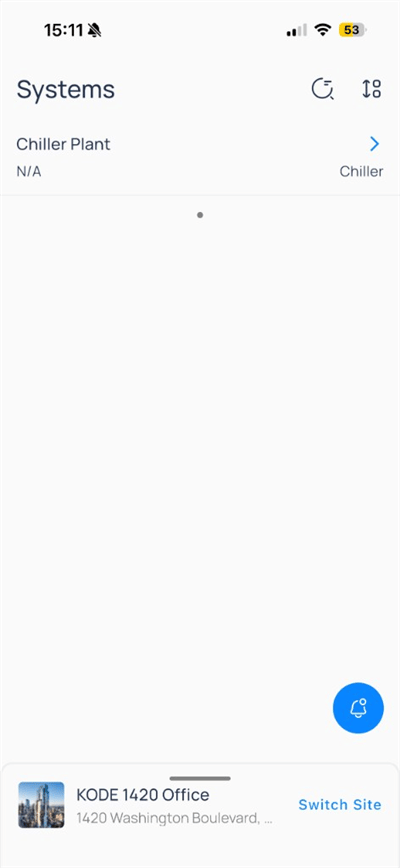
Select `Systems` from the building app launcher.

<div className="flex justify-center w-full my-4">
  <Frame className="w-fit mx-auto">
    <img className="mx-auto block h-auto max-w-[400px] w-full" src="https://mintcdn.com/kodelabs/MYYnSdKhTqQf34f4/images/mobile-app/kode-os-mobile-systems-list.png?fit=max&auto=format&n=MYYnSdKhTqQf34f4&q=85&s=8f0e4ad07b9880ee457055582699baad" alt="Systems list with Chiller Plant row and Chiller type label" width="400" height="868" data-path="images/mobile-app/kode-os-mobile-systems-list.png" />
  </Frame>
</div>

Each row shows system name, optional status, and type (for example, `Chiller`). Tap a row to open the system.

Use search and filter icons in the header when your site exposes them.

## System header

Inside a system such as `Chiller Plant`, the header includes:

| Control       | Action                                          |
| ------------- | ----------------------------------------------- |
| Back          | Return to the systems list                      |
| Bookmark      | Save this system for quick access               |
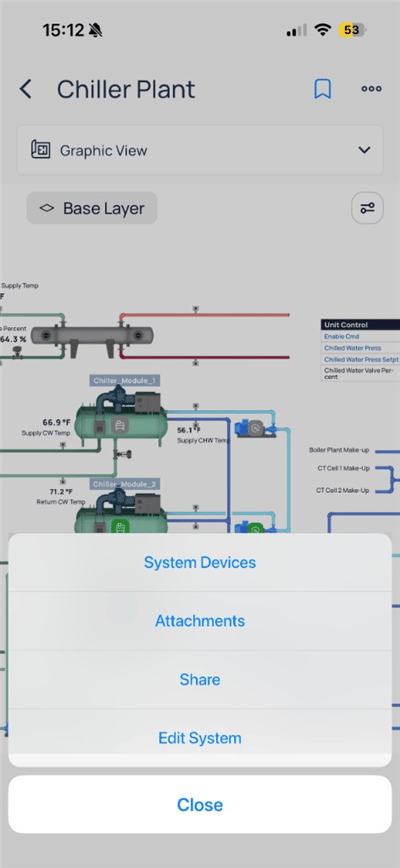
| More (`...`)  | System Devices, Attachments, Share, Edit System |
| View selector | Switch Dashboard, Graphic, or Widget view       |

## Switch view mode

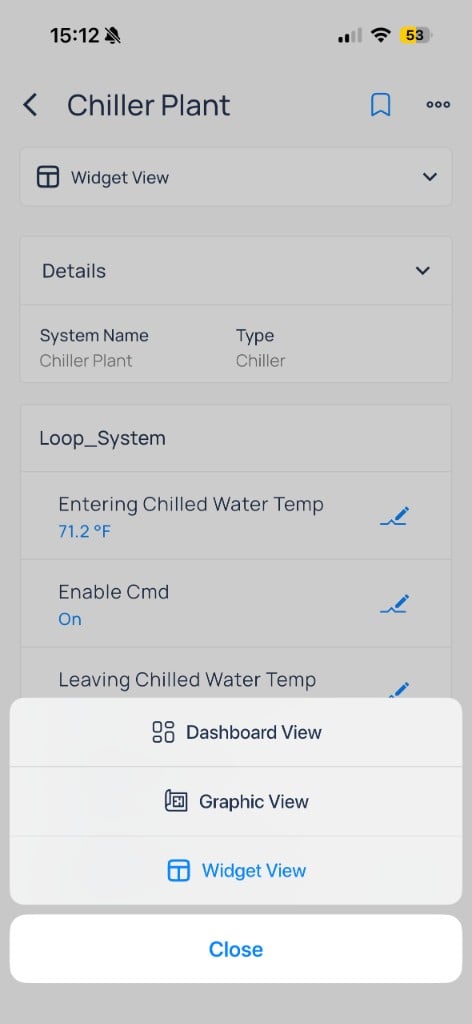
Tap the view dropdown to change how the system is presented.

<div className="flex justify-center w-full my-4">
  <Frame className="w-fit mx-auto" caption="Dashboard, Graphic, and Widget views">
    <img className="mx-auto block h-auto max-w-[400px] w-full" src="https://mintcdn.com/kodelabs/MYYnSdKhTqQf34f4/images/mobile-app/kode-os-mobile-systems-view-selector.png?fit=max&auto=format&n=MYYnSdKhTqQf34f4&q=85&s=d8f3f6767fd9901a6bb108a428a00fc5" alt="Chiller Plant Widget view with view mode action sheet showing Dashboard View, Graphic View, and Widget View options" width="472" height="1024" data-path="images/mobile-app/kode-os-mobile-systems-view-selector.png" />
  </Frame>
</div>

| View             | Purpose                                      |
| ---------------- | -------------------------------------------- |
| `Dashboard View` | Grouped sensors and setpoints by point field |
| `Graphic View`   | Published schematic with live values         |
| `Widget View`    | Compact point list for quick reads           |

<Tabs>
  <Tab title="Dashboard">
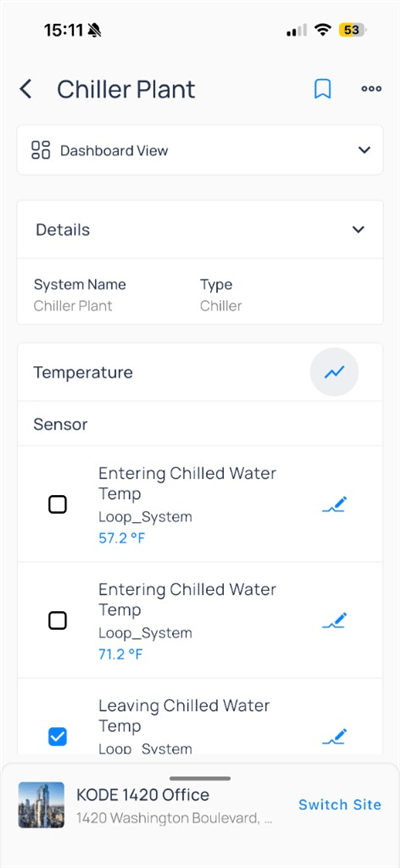
    `Dashboard View` lists points by category (for example, `Temperature` under `Loop_System`). Checkboxes select points for trends; pencil icons open writes.

    <div className="flex justify-center w-full my-4">
      <Frame className="w-fit mx-auto">
        <img className="mx-auto block h-auto max-w-[400px] w-full" src="https://mintcdn.com/kodelabs/MYYnSdKhTqQf34f4/images/mobile-app/kode-os-mobile-system-chiller-dashboard.png?fit=max&auto=format&n=MYYnSdKhTqQf34f4&q=85&s=7f636ac6d2b2f31d07cb321a954e55a1" alt="Chiller Plant dashboard with Entering and Leaving Chilled Water Temp sensors" width="400" height="868" data-path="images/mobile-app/kode-os-mobile-system-chiller-dashboard.png" />
      </Frame>
    </div>

    Expand `Details` to confirm `System Name` and `Type`.
  </Tab>

  <Tab title="Widget">
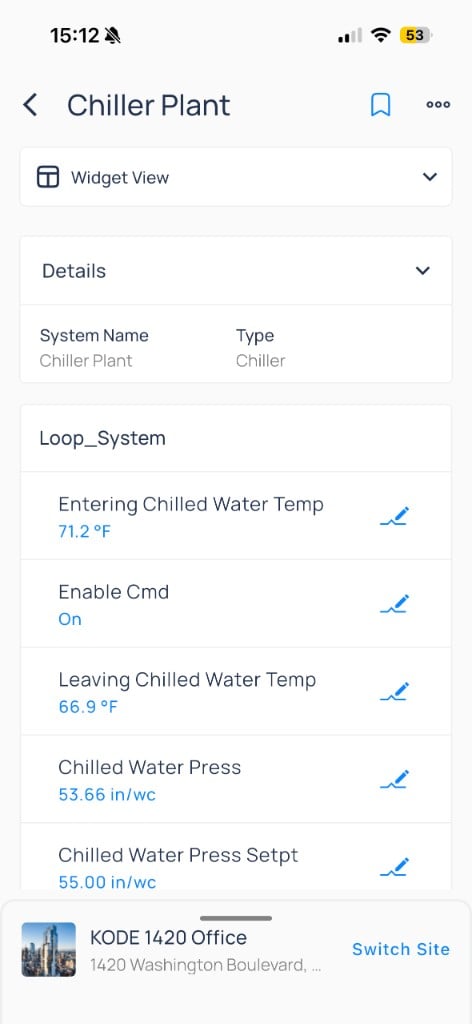
    `Widget View` emphasizes live values for operational points such as temperatures, enable commands, and pressures.

    <div className="flex justify-center w-full my-4">
      <Frame className="w-fit mx-auto">
        <img className="mx-auto block h-auto max-w-[400px] w-full" src="https://mintcdn.com/kodelabs/MYYnSdKhTqQf34f4/images/mobile-app/kode-os-mobile-system-chiller-widget.png?fit=max&auto=format&n=MYYnSdKhTqQf34f4&q=85&s=d06ff3d471edd9b3696ad2979ead9e6b" alt="Chiller Plant widget view with loop system entering temp, enable command, and pressures" width="472" height="1024" data-path="images/mobile-app/kode-os-mobile-system-chiller-widget.png" />
      </Frame>
    </div>

    Tap the pencil beside a point to open [Points on mobile](/products/mobile-app/building/points) or [Trends on mobile](/products/mobile-app/analytics/trends).
  </Tab>

  <Tab title="Graphic">
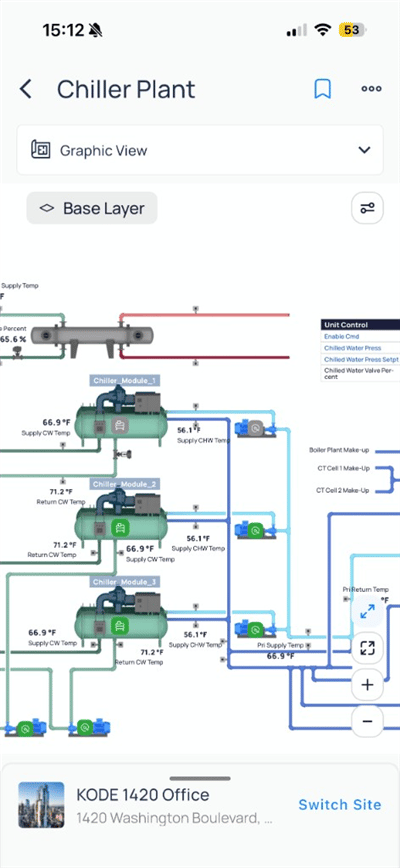
    `Graphic View` renders the system schematic published on web. Use `Base Layer` and map controls to pan and zoom.

    <div className="flex justify-center w-full my-4">
      <Frame className="w-fit mx-auto" caption="Chiller plant schematic with CW and CHW loops">
        <img className="mx-auto block h-auto max-w-[400px] w-full" src="https://mintcdn.com/kodelabs/MYYnSdKhTqQf34f4/images/mobile-app/kode-os-mobile-system-chiller-graphic.png?fit=max&auto=format&n=MYYnSdKhTqQf34f4&q=85&s=5f4a862c296b87b8dc11fc2c10ed6e23" alt="Chiller Plant graphic view with chiller modules, piping, and Unit Control table" width="400" height="868" data-path="images/mobile-app/kode-os-mobile-system-chiller-graphic.png" />
      </Frame>
    </div>

    Temperature and pressure labels update in place on the graphic. Tap equipment on the diagram when drill-down is enabled.
  </Tab>
</Tabs>

## System menu

Open more (`...`) for system-level actions.

<div className="flex justify-center w-full my-4">
  <Frame className="w-fit mx-auto">
    <img className="mx-auto block h-auto max-w-[400px] w-full" src="https://mintcdn.com/kodelabs/MYYnSdKhTqQf34f4/images/mobile-app/kode-os-mobile-system-chiller-menu.png?fit=max&auto=format&n=MYYnSdKhTqQf34f4&q=85&s=c5a195d43562e038912ec492934fa261" alt="Chiller Plant menu with System Devices, Attachments, Share, and Edit System" width="400" height="868" data-path="images/mobile-app/kode-os-mobile-system-chiller-menu.png" />
  </Frame>
</div>

### System Devices

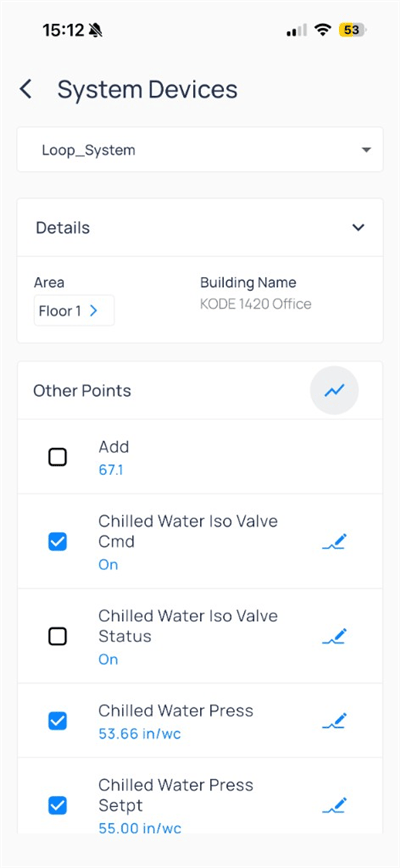
`System Devices` lists child equipment and points grouped under the system (for example, `Loop_System`).

<div className="flex justify-center w-full my-4">
  <Frame className="w-fit mx-auto">
    <img className="mx-auto block h-auto max-w-[400px] w-full" src="https://mintcdn.com/kodelabs/MYYnSdKhTqQf34f4/images/mobile-app/kode-os-mobile-system-devices.png?fit=max&auto=format&n=MYYnSdKhTqQf34f4&q=85&s=5af2be983beae048eb8ef869b6ad2d4f" alt="System Devices for the loop system with chilled water valve and pressure points" width="400" height="868" data-path="images/mobile-app/kode-os-mobile-system-devices.png" />
  </Frame>
</div>

Select checkboxes to include points in a trend or bulk action. Pencil icons mark writable points.

### Attachments

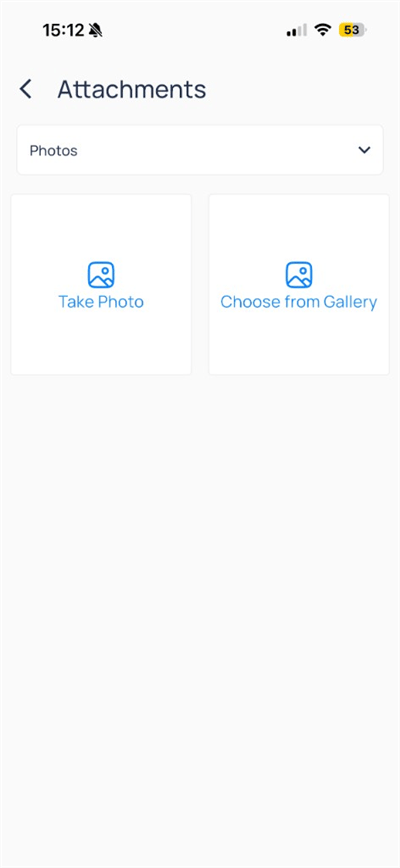
`Attachments` lets you capture or upload photos for the system record.

<div className="flex justify-center w-full my-4">
  <Frame className="w-fit mx-auto">
    <img className="mx-auto block h-auto max-w-[400px] w-full" src="https://mintcdn.com/kodelabs/MYYnSdKhTqQf34f4/images/mobile-app/kode-os-mobile-system-attachments.png?fit=max&auto=format&n=MYYnSdKhTqQf34f4&q=85&s=0c9acbe55b188e42d2209bfc18e3ee53" alt="System Attachments with Take Photo and Choose from Gallery" width="400" height="868" data-path="images/mobile-app/kode-os-mobile-system-attachments.png" />
  </Frame>
</div>

### Edit System

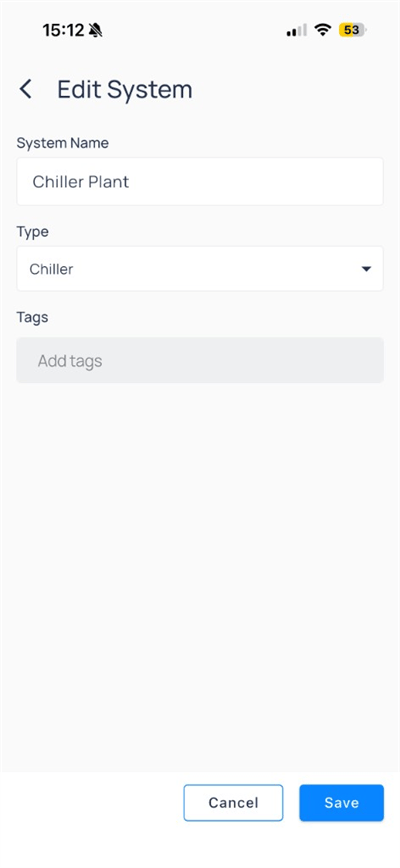
When your role allows, `Edit System` updates name, type, and tags.

<div className="flex justify-center w-full my-4">
  <Frame className="w-fit mx-auto">
    <img className="mx-auto block h-auto max-w-[400px] w-full" src="https://mintcdn.com/kodelabs/MYYnSdKhTqQf34f4/images/mobile-app/kode-os-mobile-system-edit.png?fit=max&auto=format&n=MYYnSdKhTqQf34f4&q=85&s=f305f034ed954ffa0ab861716d675232" alt="Edit System form with name Chiller Plant and type Chiller" width="400" height="868" data-path="images/mobile-app/kode-os-mobile-system-edit.png" />
  </Frame>
</div>

Tap `Save` to apply or `Cancel` to discard.

## Compare to web

| Capability                         | Web  | Mobile             |
| ---------------------------------- | ---- | ------------------ |
| Systems list                       | Full | Yes                |
| Dashboard / graphic / widget views | Full | Yes                |
| System Devices point list          | Full | Yes                |
| Attachments (photos)               | Full | Yes                |
| Limited metadata edit              | Full | Yes (when enabled) |
| Create system, author graphics     | Full | Web only           |

## Next steps

<CardGroup cols={2}>
  <Card title="Devices on mobile" icon="hard-drive" href="/products/mobile-app/building/devices" arrow={true}>
    Open equipment, trends, and device actions.
  </Card>

  <Card title="Points on mobile" icon="circle-dot" href="/products/mobile-app/building/points" arrow={true}>
    Browse status, filters, and point writes.
  </Card>

  <Card title="Areas and floor plans" icon="layers" href="/products/mobile-app/building/areas" arrow={true}>
    Browse floors, layers, and spatial triage.
  </Card>

  <Card title="Systems on web" icon="monitor" href="/products/kode-os/systems" arrow={true}>
    Create systems and author graphics.
  </Card>
</CardGroup>