> ## Documentation Index
> Fetch the complete documentation index at: https://documentation.kodelabs.com/llms.txt
> Use this file to discover all available pages before exploring further.

# Points on mobile

> Browse point status, filter the list, and write or bulk-write values from the KODE OS mobile app.

A point is a single read or write value on a device, such as a temperature reading or an on/off status. Use `Points` on mobile to review health badges, filter the list, and write overrides from `Points`, `Writable Points`, or a device sensor. This page follows [Points](/products/kode-os/points/points) on the web.

<Warning>
  Writes affect live equipment. Confirm site, point, and priority before you tap `Write Point`.
</Warning>

## Open Points

Select `Points` from the building app launcher.

<div className="flex justify-center w-full my-4">
  <Frame className="w-fit mx-auto">
    <img className="mx-auto block h-auto max-w-[400px] w-full" src="https://mintcdn.com/kodelabs/MYYnSdKhTqQf34f4/images/mobile-app/kode-os-mobile-points-status-summary.png?fit=max&auto=format&n=MYYnSdKhTqQf34f4&q=85&s=c6b163697e0020386df7557ea7d89bcc" alt="Points screen with Ok, No Value, Overridden, and FDD status counts" width="400" height="868" data-path="images/mobile-app/kode-os-mobile-points-status-summary.png" />
  </Frame>
</div>

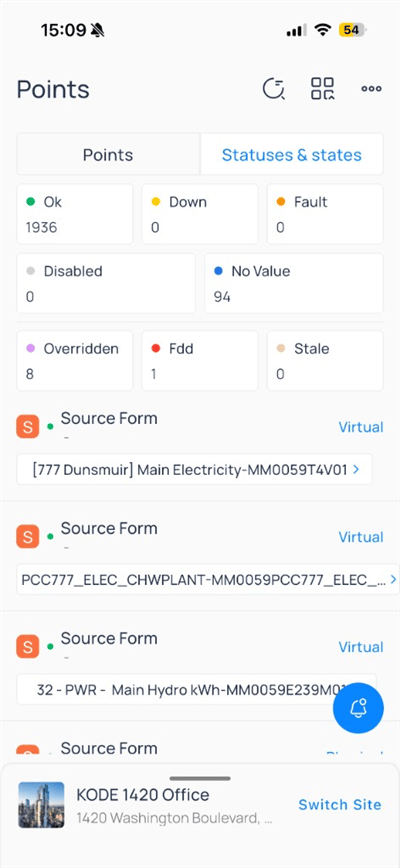
Use the `Points` and `Statuses & states` tabs to switch between the point list and state-oriented views.

### Status summary

Colored badges summarize how many points are in each state:

| Badge        | Meaning                          |
| ------------ | -------------------------------- |
| `Ok`         | Healthy, current value           |
| `Down`       | Communication or source issue    |
| `Fault`      | Equipment fault                  |
| `Disabled`   | Point disabled                   |
| `No Value`   | No reading at this time          |
| `Overridden` | Active override                  |
| `FDD`        | An FDD routine flagged the point |
| `Stale`      | Value older than expected        |

Tap a badge to filter the list to that status when supported.

## Browse the point list

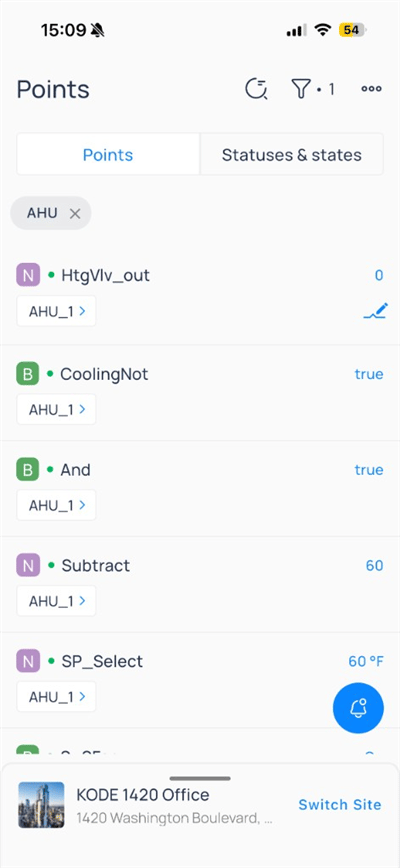
Each row shows point name, device tag (for example, `AHU_1`), data type icon, live value, and status dot. Writable rows show a pencil icon—tap the row or the pencil to open `Write Point`. See [Write a point](#write-a-point) for the full override form.

<div className="flex justify-center w-full my-4">
  <Frame className="w-fit mx-auto" caption="Points filtered to AHU">
    <img className="mx-auto block h-auto max-w-[400px] w-full" src="https://mintcdn.com/kodelabs/MYYnSdKhTqQf34f4/images/mobile-app/kode-os-mobile-points-list-ahu.png?fit=max&auto=format&n=MYYnSdKhTqQf34f4&q=85&s=5f5f0f32693f27053cafd13743ec6cd1" alt="Points list with AHU filter chip showing HtgVlv_out and CoolingNot values" width="400" height="868" data-path="images/mobile-app/kode-os-mobile-points-list-ahu.png" />
  </Frame>
</div>

| Element       | Description                                                                   |
| ------------- | ----------------------------------------------------------------------------- |
| Type letter   | `N` numeric, `B` true/false, `S` string/source form                           |
| Green dot     | Point is online                                                               |
| Pencil        | Writable point—tap the row or the pencil to open `Write Point`                |
| `Write Point` | Override form for a single writable point—see [Write a point](#write-a-point) |
| Filter chip   | Active filter (tap `x` to remove)                                             |

Header icons include search/history, filter (badge shows active filter count), and more options.

## Apply point filters

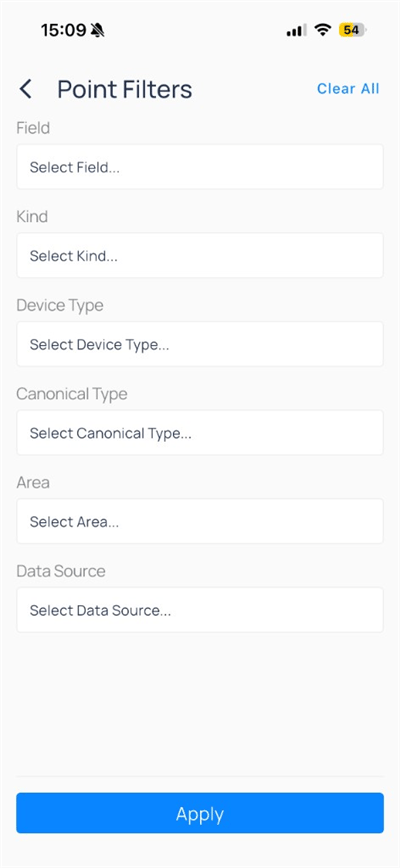
Tap the filter icon to open `Point Filters`.

<div className="flex justify-center w-full my-4">
  <Frame className="w-fit mx-auto">
    <img className="mx-auto block h-auto max-w-[400px] w-full" src="https://mintcdn.com/kodelabs/MYYnSdKhTqQf34f4/images/mobile-app/kode-os-mobile-point-filters.png?fit=max&auto=format&n=MYYnSdKhTqQf34f4&q=85&s=730a15b2963c7963b407cd4018eae8f6" alt="Point Filters with Field, Kind, Device Type, Area, and Data Source dropdowns" width="400" height="868" data-path="images/mobile-app/kode-os-mobile-point-filters.png" />
  </Frame>
</div>

| Field            | Description                                                                                                            |
| ---------------- | ---------------------------------------------------------------------------------------------------------------------- |
| `Field`          | Point field template (discharge air temp, fan status, and so on)                                                       |
| `Kind`           | Point kind in the ontology—the standard naming system that maps a vendor's raw point names to consistent KODE OS types |
| `Device Type`    | Equipment category                                                                                                     |
| `Canonical Type` | Canonical type tag                                                                                                     |
| `Area`           | Floor or zone                                                                                                          |
| `Data Source`    | Connector                                                                                                              |

Tap `Clear All`, set criteria, then `Apply`.

## Write multiple points

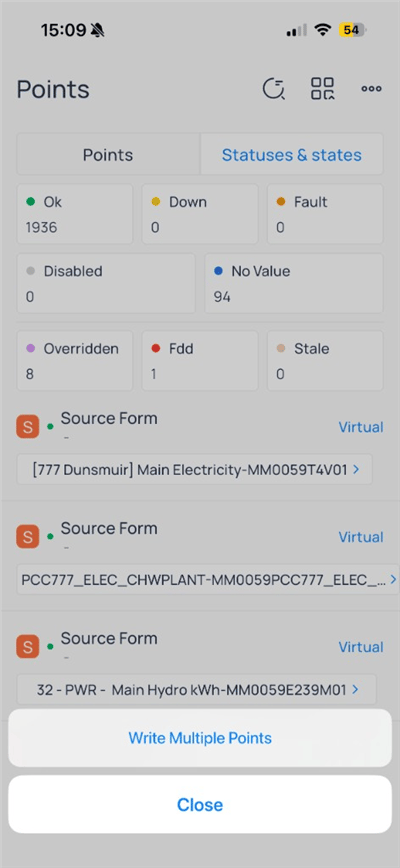
Open the three-dot menu on `Points` and choose `Write Multiple Points` to start a bulk write from the full point list.

<div className="flex justify-center w-full my-4">
  <Frame className="w-fit mx-auto">
    <img className="mx-auto block h-auto max-w-[400px] w-full" src="https://mintcdn.com/kodelabs/MYYnSdKhTqQf34f4/images/mobile-app/kode-os-mobile-points-write-multiple.png?fit=max&auto=format&n=MYYnSdKhTqQf34f4&q=85&s=5ec8686243816211141b6d9ccff526f7" alt="Points menu with Write Multiple Points and Close" width="400" height="868" data-path="images/mobile-app/kode-os-mobile-points-write-multiple.png" />
  </Frame>
</div>

For site-wide writable source forms, use `Writable Points` instead (see below).

## Writable points

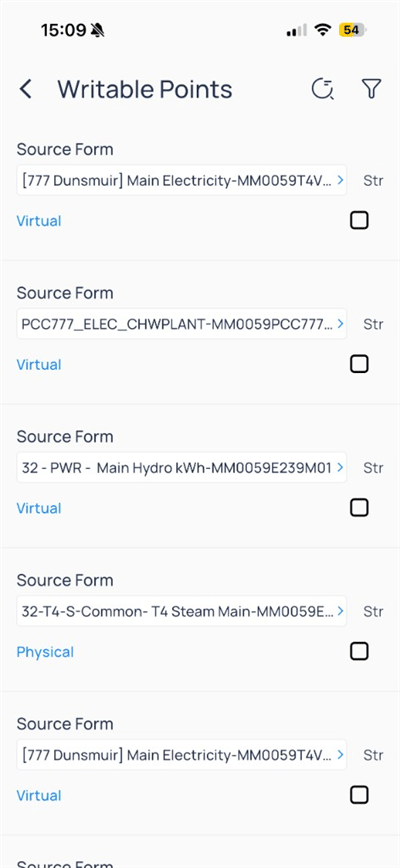
`Writable Points` lists only points your role can command, often grouped by source form—a label for how the point is wired, shown as a virtual (KODE OS-computed) or physical (mapped to a real controller point) row.

<div className="flex justify-center w-full my-4">
  <Frame className="w-fit mx-auto">
    <img className="mx-auto block h-auto max-w-[400px] w-full" src="https://mintcdn.com/kodelabs/MYYnSdKhTqQf34f4/images/mobile-app/kode-os-mobile-writable-points.png?fit=max&auto=format&n=MYYnSdKhTqQf34f4&q=85&s=e108dfffeed1f3acafb1de4089c3dffa" alt="Writable Points list with virtual and physical source forms" width="400" height="868" data-path="images/mobile-app/kode-os-mobile-writable-points.png" />
  </Frame>
</div>

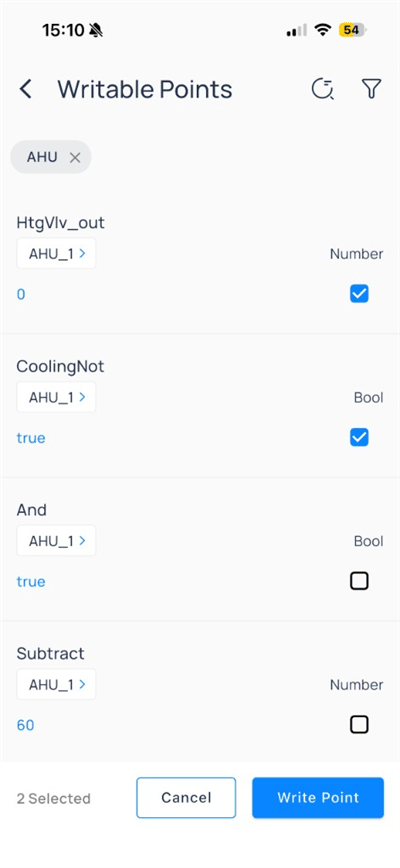
Filter to an equipment type (for example, `AHU`), select rows, then tap `Write Point` on the footer bar.

<div className="flex justify-center w-full my-4">
  <Frame className="w-fit mx-auto" caption="Two points selected for bulk write">
    <img className="mx-auto block h-auto max-w-[400px] w-full" src="https://mintcdn.com/kodelabs/MYYnSdKhTqQf34f4/images/mobile-app/kode-os-mobile-writable-points-bulk-write.png?fit=max&auto=format&n=MYYnSdKhTqQf34f4&q=85&s=95694844abd0c11a788ea5da129d19fa" alt="Writable points filtered to AHU with HtgVlv_out and CoolingNot selected" width="400" height="868" data-path="images/mobile-app/kode-os-mobile-writable-points-bulk-write.png" />
  </Frame>
</div>

| Footer control | Action                                  |
| -------------- | --------------------------------------- |
| `Cancel`       | Clear selection                         |
| `Write Point`  | Open the write flow for selected points |

This matches [Commanding points](/products/kode-os/points/commanding-points) on the web.

## Write a point

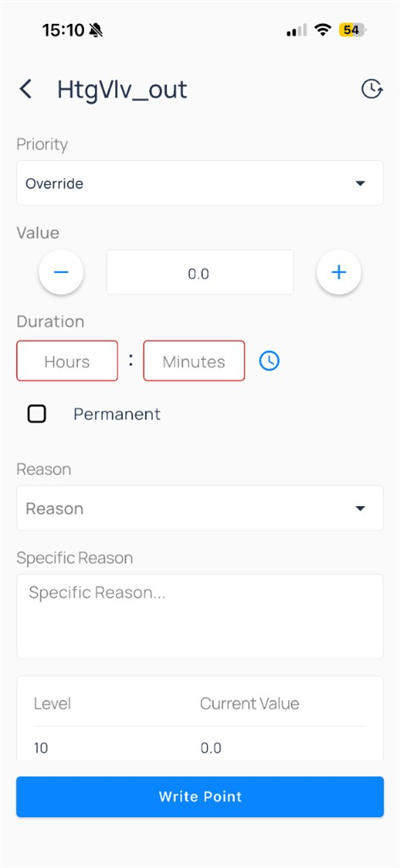
Tap a writable row or the pencil on a [device](/products/mobile-app/building/devices) sensor to open the override form. This is the canonical write flow, whether you start from a single point row, `Writable Points`, or a device sensor.

<div className="flex justify-center w-full my-4">
  <Frame className="w-fit mx-auto" caption="Override for HtgVlv_out">
    <img className="mx-auto block h-auto max-w-[400px] w-full" src="https://mintcdn.com/kodelabs/MYYnSdKhTqQf34f4/images/mobile-app/kode-os-mobile-write-point-htgvlv.png?fit=max&auto=format&n=MYYnSdKhTqQf34f4&q=85&s=00827921c7bcab8ce24b335b7125af18" alt="Write point form for HtgVlv_out with priority Override and value 0.0" width="400" height="868" data-path="images/mobile-app/kode-os-mobile-write-point-htgvlv.png" />
  </Frame>
</div>

| Field                        | Description                                                                                                                                                    |
| ---------------------------- | -------------------------------------------------------------------------------------------------------------------------------------------------------------- |
| `Priority`                   | BACnet priority level (for example, `Override`)—a 1–16 ranking that controllers use to decide which command wins when more than one source writes to the point |
| `Value`                      | Target with +/- steppers                                                                                                                                       |
| `Duration`                   | Hours and minutes, or `Permanent`                                                                                                                              |
| `Reason` / `Specific Reason` | Audit categories                                                                                                                                               |
| `Level` / `Current Value`    | Read-only context                                                                                                                                              |

Submit with `Write Point`. Use the history icon for recent commands on that point.

## Compare to web

| Capability                      | Web  | Mobile                                      |
| ------------------------------- | ---- | ------------------------------------------- |
| Points list and status badges   | Full | Yes                                         |
| Point filters                   | Full | Yes                                         |
| Mass write / export             | Full | `Write Multiple Points` and Writable Points |
| Points batch update, export CSV | Full | Not shown on mobile                         |
| Edit point metadata             | Full | Limited                                     |

## Next steps

<CardGroup cols={2}>
  <Card title="Devices on mobile" icon="hard-drive" href="/products/mobile-app/building/devices" arrow={true}>
    Open equipment, trends, and device actions.
  </Card>

  <Card title="Trends on mobile" icon="chart-line" href="/products/mobile-app/analytics/trends" arrow={true}>
    Chart points and save shared views.
  </Card>

  <Card title="Commanding points on web" icon="monitor" href="/products/kode-os/points/commanding-points" arrow={true}>
    Advanced commanding and mass write.
  </Card>
</CardGroup>