> ## Documentation Index
> Fetch the complete documentation index at: https://documentation.kodelabs.com/llms.txt
> Use this file to discover all available pages before exploring further.

# Manual meters on mobile

> Add manual meters, log readings, and review reading history from the KODE OS mobile app.

Register an offline utility meter and log its reading while you are standing in front of it. Each manual meter is stored as a device in Cloud BMS. This page follows [Create and manage manual meters](/products/kode-os/devices/manual-meters) on the web.

<Info>
  The `Manual Meters` app appears in the building launcher when it is published for your site and role.
</Info>

## Open Manual Meters

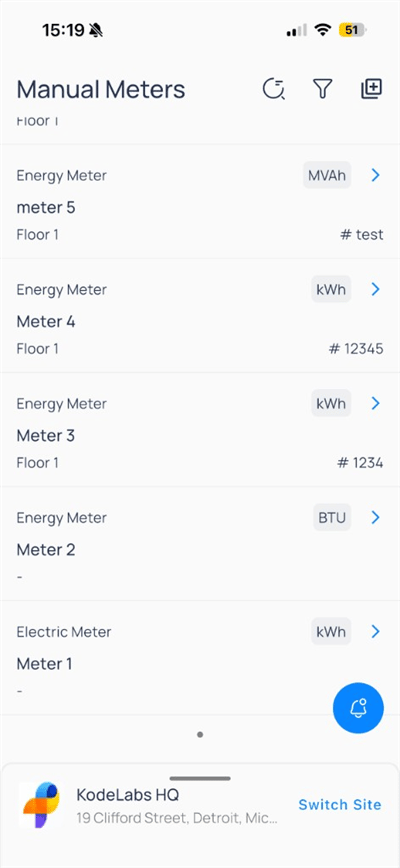
Select `Manual Meters` from the building app launcher. The list is scoped to the current floor or area when a filter applies (for example, `FLOOR 1`).

Use the header icons to:

| Icon    | Action                            |
| ------- | --------------------------------- |
| History | Refresh or review recent activity |
| Filter  | Narrow the list                   |
| Add     | Open `Add Meter`                  |

<div className="flex justify-center w-full my-4">
  <Frame className="w-fit mx-auto">
    <img className="mx-auto block h-auto max-w-[400px] w-full" src="https://mintcdn.com/kodelabs/MYYnSdKhTqQf34f4/images/mobile-app/kode-os-mobile-manual-meters-list.png?fit=max&auto=format&n=MYYnSdKhTqQf34f4&q=85&s=5221c201dc0f4bf5e98887d0432d6b2d" alt="Manual Meters list with energy meters, units such as kWh, and floor location" width="400" height="868" data-path="images/mobile-app/kode-os-mobile-manual-meters-list.png" />
  </Frame>
</div>

Each row shows meter type, name, location, unit badge, and identifier tag. Tap a row to open meter detail.

## Add a meter

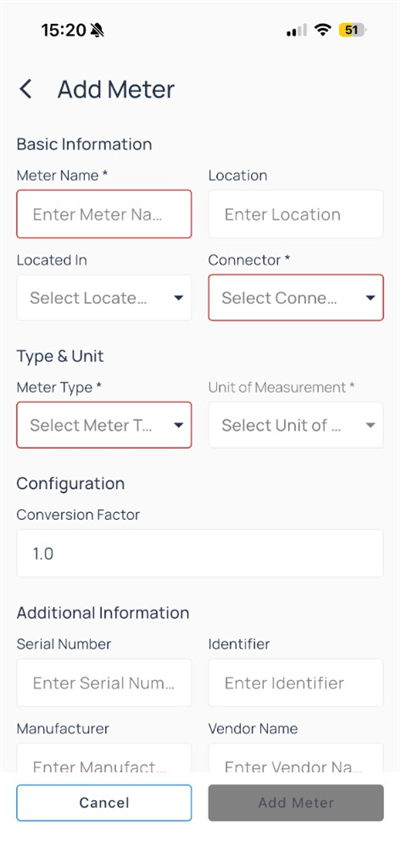
Tap the `Add` icon in the header.

<div className="flex justify-center w-full my-4">
  <Frame className="w-fit mx-auto">
    <img className="mx-auto block h-auto max-w-[400px] w-full" src="https://mintcdn.com/kodelabs/IXjGUtCN1G_ZdIHf/images/mobile-app/kode-os-mobile-manual-meters-add-meter.png?fit=max&auto=format&n=IXjGUtCN1G_ZdIHf&q=85&s=491d146a84f05ebd2703332fd6fbdd4b" alt="Add Meter form with Basic Information, Type and Unit, Configuration, and Additional Information sections" width="400" height="868" data-path="images/mobile-app/kode-os-mobile-manual-meters-add-meter.png" />
  </Frame>
</div>

Complete the required fields (marked with an asterisk and red border until valid):

| Section                  | Fields                                                                  |
| ------------------------ | ----------------------------------------------------------------------- |
| `Basic Information`      | `Meter Name`, `Location`, `Located In`, `Connector`                     |
| `Type & Unit`            | `Meter Type`, `Unit of Measurement`                                     |
| `Configuration`          | `Conversion Factor` (default `1.0`)                                     |
| `Additional Information` | `Serial Number`, `Identifier`, `Manufacturer`, `Vendor Name` (optional) |

Tap `Add Meter` when the form is complete. Tap `Cancel` to discard.

## Meter detail and reading logs

<div className="flex justify-center w-full my-4">
  <Frame className="w-fit mx-auto">
    <img className="mx-auto block h-auto max-w-[400px] w-full" src="https://mintcdn.com/kodelabs/MYYnSdKhTqQf34f4/images/mobile-app/kode-os-mobile-manual-meters-meter-detail.png?fit=max&auto=format&n=MYYnSdKhTqQf34f4&q=85&s=ee99c37317245e5df63479274fb4e149" alt="Manual meter detail with type Energy Meter, connector N4, Located In path, and empty Reading Logs" width="400" height="868" data-path="images/mobile-app/kode-os-mobile-manual-meters-meter-detail.png" />
  </Frame>
</div>

<Tabs>
  <Tab title="Details">
    | Section   | Content                                                  |
    | --------- | -------------------------------------------------------- |
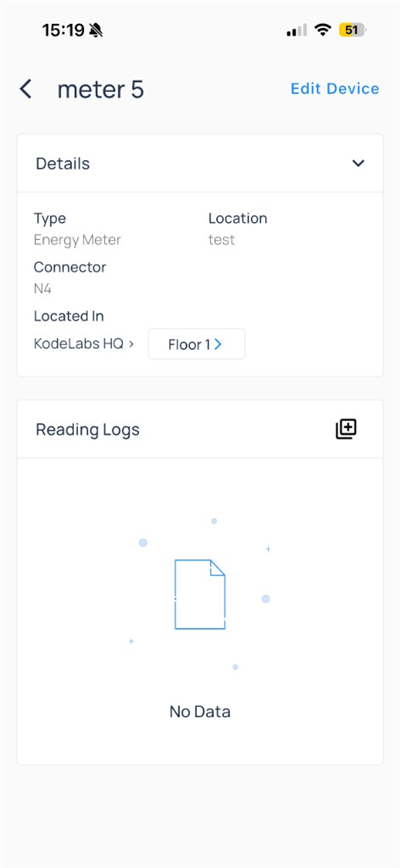
    | `Details` | `Type`, `Location`, `Connector`, `Located In` breadcrumb |

    Tap `Edit Device` in the header to change device metadata.
  </Tab>

  <Tab title="Reading Logs">
    Historical readings appear here; the list shows `No Data` until the first entry.

    Tap the `+` icon on `Reading Logs` to add a reading.
  </Tab>
</Tabs>

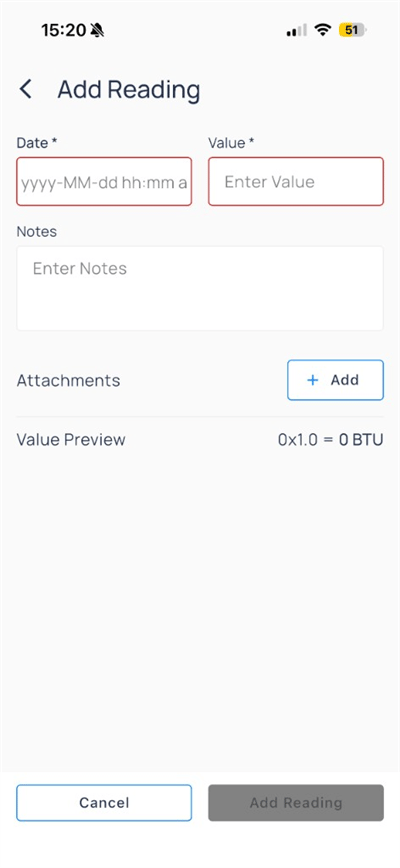
## Add a reading

<div className="flex justify-center w-full my-4">
  <Frame className="w-fit mx-auto">
    <img className="mx-auto block h-auto max-w-[400px] w-full" src="https://mintcdn.com/kodelabs/IXjGUtCN1G_ZdIHf/images/mobile-app/kode-os-mobile-manual-meters-add-reading.png?fit=max&auto=format&n=IXjGUtCN1G_ZdIHf&q=85&s=a0af876565a47a64ccf58b8252c02cb6" alt="Add Reading form with Date, Value, Notes, Attachments, and Value Preview" width="400" height="868" data-path="images/mobile-app/kode-os-mobile-manual-meters-add-reading.png" />
  </Frame>
</div>

| Field           | Description                                                                |
| --------------- | -------------------------------------------------------------------------- |
| `Date`          | Reading timestamp                                                          |
| `Value`         | Meter reading at that time                                                 |
| `Notes`         | Optional context                                                           |
| `Attachments`   | Photos or files (`+ Add`)                                                  |
| `Value Preview` | Converted value after the conversion factor (for example, `0x1.0 = 0 BTU`) |

Tap `Add Reading` when `Date` and `Value` are filled. The button stays disabled until required fields are valid.

<Warning>
  Compare `Value Preview` to the previous reading before you save. Large jumps may indicate a typo or unit mismatch.
</Warning>

## Edit device metadata

<div className="flex justify-center w-full my-4">
  <Frame className="w-fit mx-auto">
    <img className="mx-auto block h-auto max-w-[400px] w-full" src="https://mintcdn.com/kodelabs/MYYnSdKhTqQf34f4/images/mobile-app/kode-os-mobile-manual-meters-edit-device.png?fit=max&auto=format&n=MYYnSdKhTqQf34f4&q=85&s=68c716fff945573778796875125de6be" alt="Edit Device form for manual meter with name, location, type, and area fields" width="400" height="868" data-path="images/mobile-app/kode-os-mobile-manual-meters-edit-device.png" />
  </Frame>
</div>

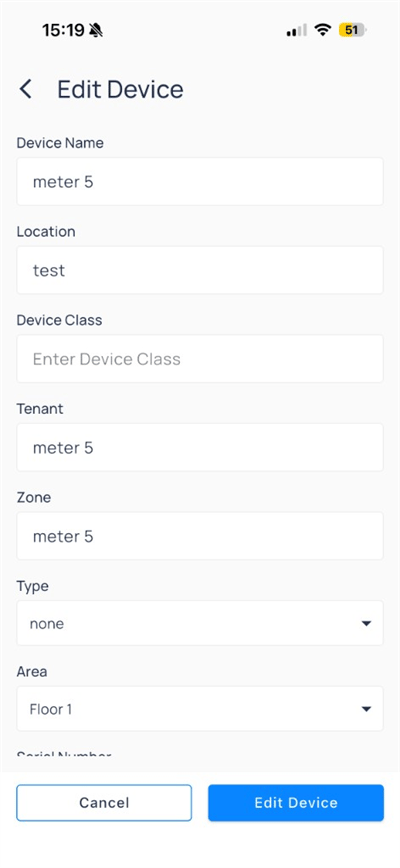
Update `Device Name`, `Location`, `Type`, `Area`, and other fields. Tap `Edit Device` to save or `Cancel` to discard.

## Compare to web

| Web capability               | Mobile  |
| ---------------------------- | ------- |
| Manual Meters list           | Yes     |
| Add single meter             | Yes     |
| Add reading per meter        | Yes     |
| Reading logs on device       | Yes     |
| Edit device metadata         | Yes     |
| Batch add meters or readings | Use web |
| CSV upload                   | Use web |
| Add metadata columns in bulk | Use web |

## Next steps

<CardGroup cols={2}>
  <Card title="Devices on mobile" icon="hard-drive" href="/products/mobile-app/building/devices" arrow={true}>
    Open equipment, trends, and device actions.
  </Card>

  <Card title="Manual meters on web" icon="monitor" href="/products/kode-os/devices/manual-meters" arrow={true}>
    Batch add meters and CSV upload.
  </Card>

  <Card title="Trends on mobile" icon="chart-line" href="/products/mobile-app/analytics/trends" arrow={true}>
    Chart points and save shared views.
  </Card>
</CardGroup>