> ## Documentation Index
> Fetch the complete documentation index at: https://documentation.kodelabs.com/llms.txt
> Use this file to discover all available pages before exploring further.

# Devices on mobile

> Browse equipment, view live points, write overrides, and open related schedules or diagnostics from the KODE OS mobile app.

A **device** is a piece of equipment in the building—for example an air handler (`AHU`) or variable air volume box (`VAV`). On mobile you open equipment from `Systems`, `Areas`, search, or graphics, then monitor points and jump to related apps.

Devices match [Devices](/products/kode-os/devices/devices) on the web for day-to-day operations.

<Warning>
  Point writes affect live equipment. Confirm the site, device, and priority before you tap `Write Point`. See [Points on mobile](/products/mobile-app/building/points#write-a-point) for the full override form and bulk writes.
</Warning>

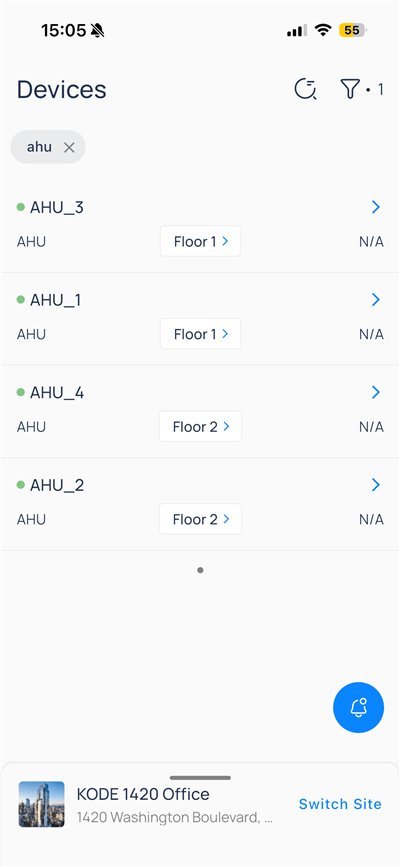
## Open the device list

From the building app launcher, select `Devices`. The header shows `Devices`, search, and filters.

<div className="flex justify-center w-full my-4">
  <Frame className="w-fit mx-auto" caption="Devices list with search chip and filter badge">
    <img className="mx-auto block h-auto max-w-[400px] w-full" src="https://mintcdn.com/kodelabs/IXjGUtCN1G_ZdIHf/images/mobile-app/kode-os-mobile-devices-list.png?fit=max&auto=format&n=IXjGUtCN1G_ZdIHf&q=85&s=453ed406d498d3171ff78db08f933914" alt="Devices list filtered by ahu with search and filter icons in the header and AHU rows" width="400" height="867" data-path="images/mobile-app/kode-os-mobile-devices-list.png" />
  </Frame>
</div>

## Filter the list

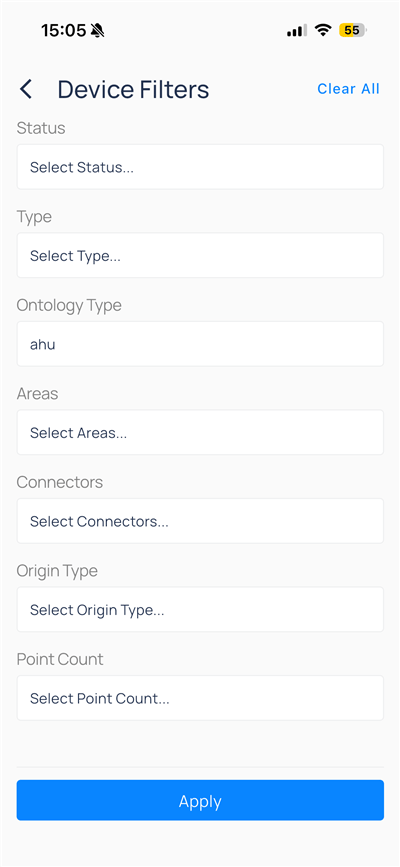
When browsing many units, open `Device Filters` before you select equipment.

<div className="flex justify-center w-full my-4">
  <Frame className="w-fit mx-auto" caption="Device Filters with Ontology Type set to ahu">
    <img className="mx-auto block h-auto max-w-[400px] w-full" src="https://mintcdn.com/kodelabs/IXjGUtCN1G_ZdIHf/images/mobile-app/kode-os-mobile-device-filters.png?fit=max&auto=format&n=IXjGUtCN1G_ZdIHf&q=85&s=1305644fe621cd886464f974a37cf61b" alt="Device Filters screen with Ontology Type ahu and Apply button" width="400" height="867" data-path="images/mobile-app/kode-os-mobile-device-filters.png" />
  </Frame>
</div>

| Field           | Description                                                                                |
| --------------- | ------------------------------------------------------------------------------------------ |
| `Status`        | Online, offline, or fault state                                                            |
| `Type`          | Equipment category                                                                         |
| `Ontology Type` | Standardized equipment tag (for example, `ahu`). Ontology maps vendor names to KODE types. |
| `Areas`         | Floor or zone                                                                              |
| `Connectors`    | Integration connection that feeds the device                                               |
| `Origin Type`   | Physical versus virtual                                                                    |
| `Point Count`   | Devices by point volume                                                                    |

Tap `Clear All`, set criteria, then `Apply`.

## Device detail

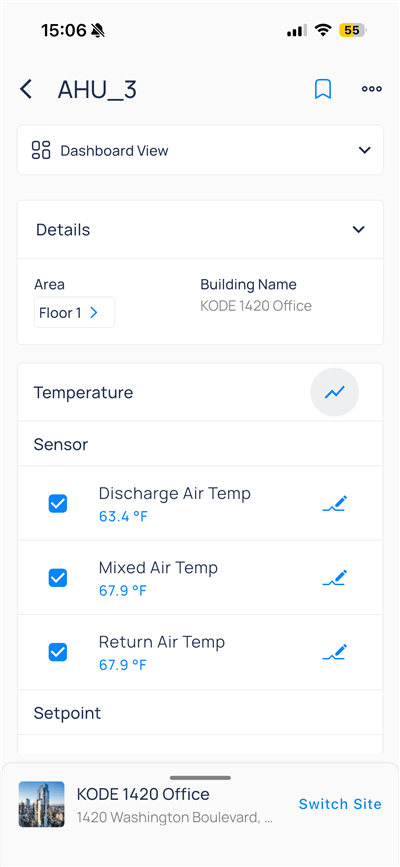
Select a device to open its detail view (for example, `AHU_3`). The header shows the device name, bookmark, and `More` menu. Expand `Details` for area and building. Sensor rows show live values. A pencil icon marks writable points.

<div className="flex justify-center w-full my-4">
  <Frame className="w-fit mx-auto" caption="AHU_3 dashboard with Temperature sensors">
    <img className="mx-auto block h-auto max-w-[400px] w-full" src="https://mintcdn.com/kodelabs/QV43LEddE2aJcRYU/images/mobile-app/kode-os-mobile-device-ahu-dashboard.png?fit=max&auto=format&n=QV43LEddE2aJcRYU&q=85&s=7ff9c3a5ba82b74ef0152d08ce3e5052" alt="AHU_3 device detail with Details, Temperature sensors, and graph icon" width="400" height="867" data-path="images/mobile-app/kode-os-mobile-device-ahu-dashboard.png" />
  </Frame>
</div>

### Switch view mode

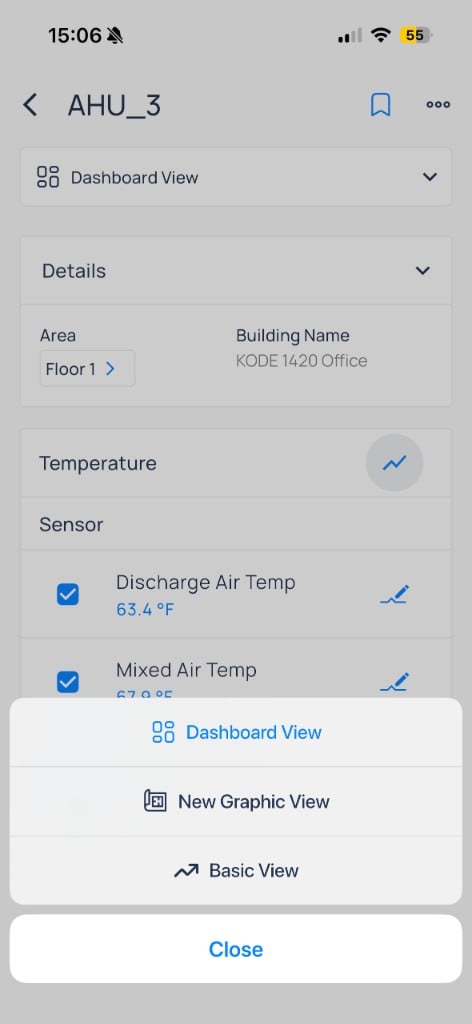
Tap the current view label (for example, `Dashboard View`) to change layout:

| View               | Use when                                     |
| ------------------ | -------------------------------------------- |
| `Dashboard View`   | Grouped sensors and setpoints by point field |
| `New Graphic View` | Floor plan or equipment graphic              |
| `Basic View`       | Compact list of key points                   |

<div className="flex justify-center w-full my-4">
  <Frame className="w-fit mx-auto" caption="Dashboard, New Graphic, and Basic views">
    <img className="mx-auto block h-auto max-w-[400px] w-full" src="https://mintcdn.com/kodelabs/IXjGUtCN1G_ZdIHf/images/mobile-app/kode-os-mobile-device-view-selector.png?fit=max&auto=format&n=IXjGUtCN1G_ZdIHf&q=85&s=99fe2ff5b05bf292e67f853669449e5b" alt="AHU_3 view selector showing Dashboard View, New Graphic View, and Basic View options" width="472" height="1024" data-path="images/mobile-app/kode-os-mobile-device-view-selector.png" />
  </Frame>
</div>

### Trend points on the device

Tap the graph icon on a point group such as `Temperature` to open the device trend for checked sensors. Switch between chart and table. Change the window from the time dropdown (for example, `Last 2 Days`).

For multi-point trending across many devices, use [Trends on mobile](/products/mobile-app/analytics/trends).

### Write a point

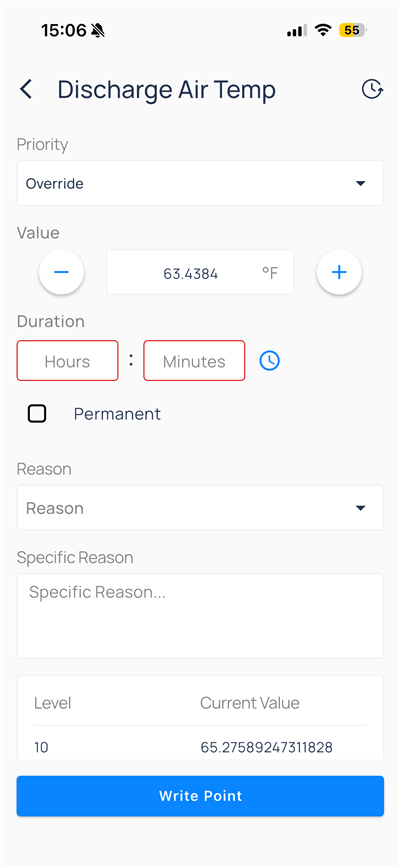
Tap the pencil on a writable sensor to open `Write Point`.

<div className="flex justify-center w-full my-4">
  <Frame className="w-fit mx-auto" caption="Write Point command for Discharge Air Temp">
    <img className="mx-auto block h-auto max-w-[400px] w-full" src="https://mintcdn.com/kodelabs/MYYnSdKhTqQf34f4/images/mobile-app/kode-os-mobile-write-point-override.png?fit=max&auto=format&n=MYYnSdKhTqQf34f4&q=85&s=04ddf349280063428cb31376a0cdf33c" alt="Write Point command window with priority Override, value, duration, reason, and Write Point button" width="400" height="867" data-path="images/mobile-app/kode-os-mobile-write-point-override.png" />
  </Frame>
</div>

Set priority, value, duration, and reason, then tap `Write Point`. For field definitions and bulk writes, see [Write a point](/products/mobile-app/building/points#write-a-point).

<Note>
  To bookmark a device, add a note, or set `Remind Me`, see [Use bookmarks on mobile](/products/mobile-app/get-started/bookmarks#create-or-edit-a-bookmark).
</Note>

## Device menu

<span id="device-menu" />

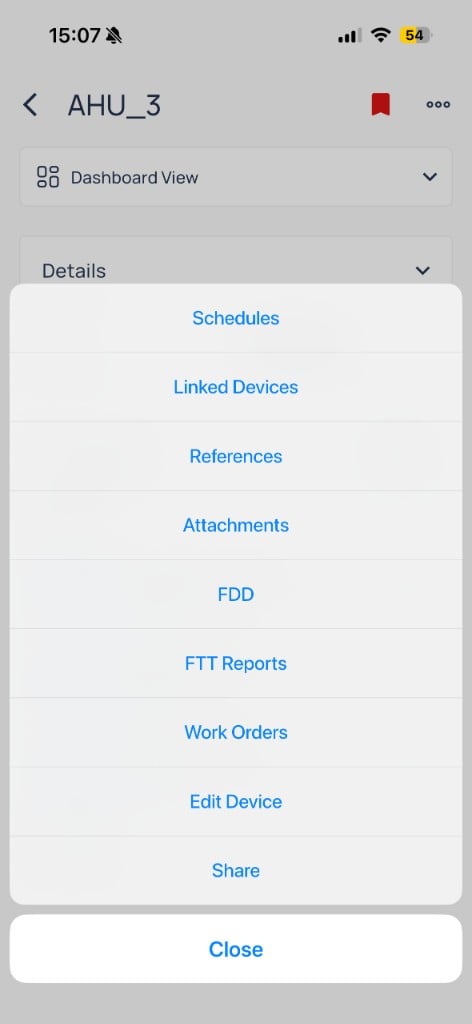
Open the `More` (`⋯`) menu for cross-module shortcuts.

<div className="flex justify-center w-full my-4">
  <Frame className="w-fit mx-auto" caption="Cross-module shortcuts on AHU_3">
    <img className="mx-auto block h-auto max-w-[400px] w-full" src="https://mintcdn.com/kodelabs/QV43LEddE2aJcRYU/images/mobile-app/kode-os-mobile-device-actions-menu.png?fit=max&auto=format&n=QV43LEddE2aJcRYU&q=85&s=e6ee08b5725a152dc71da2a1a04124e7" alt="AHU_3 three-dot menu with Schedules, Linked Devices, References, Attachments, FDD, FTT Reports, Work Orders, Edit Device, and Share" width="472" height="1024" data-path="images/mobile-app/kode-os-mobile-device-actions-menu.png" />
  </Frame>
</div>

| Menu item        | Opens                                                                                                           |
| ---------------- | --------------------------------------------------------------------------------------------------------------- |
| `Schedules`      | Schedules linked to this device — [Schedules](/products/mobile-app/operations/schedules)                        |
| `Linked Devices` | Related equipment                                                                                               |
| `References`     | Which sensors and setpoints map to the device template                                                          |
| `Attachments`    | Photos and files                                                                                                |
| `FDD`            | Fault reports for the device — [Events](/products/mobile-app/events/work-with-events#fdd-reports-from-a-device) |
| `FTT Reports`    | Functional test history — [FTT](/products/mobile-app/diagnostics/functional-testing#ftt-reports-from-a-device)  |
| `Work Orders`    | [AssetOps work orders](/products/mobile-app/operations/work-orders) when enabled                                |
| `Edit Device`    | Limited metadata edits                                                                                          |
| `Share`          | Share device context                                                                                            |

<AccordionGroup>
  <Accordion title="Schedules from a device">
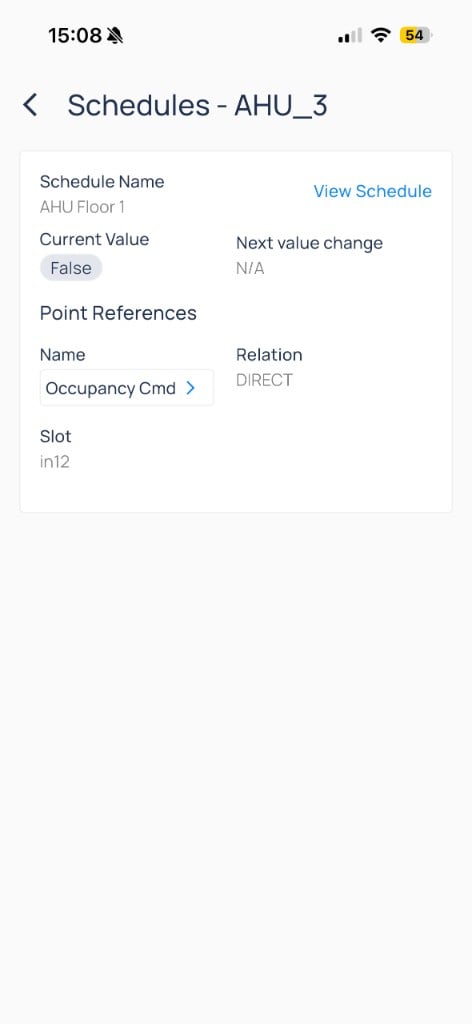
    `Schedules` lists schedule cards with current value, next change, and point references. Tap `View Schedule` for the weekly or calendar editor.

    <div className="flex justify-center w-full my-4">
      <Frame className="w-fit mx-auto" caption="AHU Floor 1 schedule card on AHU_3">
        <img className="mx-auto block h-auto max-w-[400px] w-full" src="https://mintcdn.com/kodelabs/IXjGUtCN1G_ZdIHf/images/mobile-app/kode-os-mobile-device-schedules.png?fit=max&auto=format&n=IXjGUtCN1G_ZdIHf&q=85&s=b14980623e4b7948832aa0129d45f1b0" alt="Schedules for AHU_3 showing current value False, next value change N/A, and Occupancy command point reference" width="472" height="1024" data-path="images/mobile-app/kode-os-mobile-device-schedules.png" />
      </Frame>
    </div>
  </Accordion>

  <Accordion title="References">
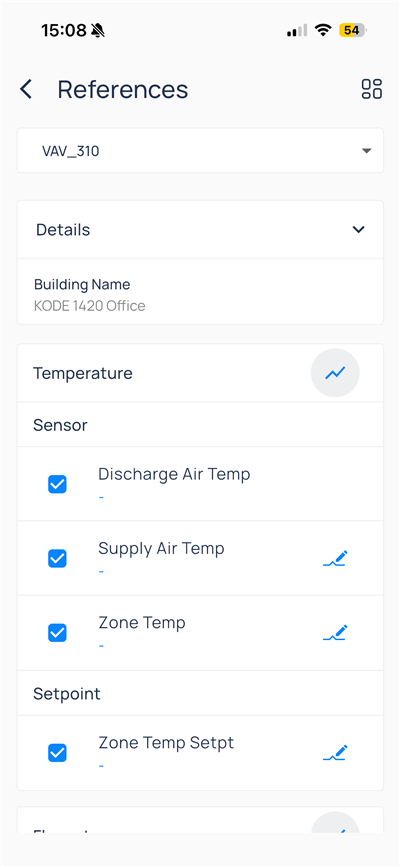
    `References` shows which sensors and setpoints map to the device template. Use checkboxes to select points, then tap the graph icon to trend them. Pencil icons open writes when your role allows.

    <div className="flex justify-center w-full my-4">
      <Frame className="w-fit mx-auto" caption="Reference points for VAV_310">
        <img className="mx-auto block h-auto max-w-[400px] w-full" src="https://mintcdn.com/kodelabs/IXjGUtCN1G_ZdIHf/images/mobile-app/kode-os-mobile-device-references.png?fit=max&auto=format&n=IXjGUtCN1G_ZdIHf&q=85&s=ac8156cd00c4c8dd6ae1452c9ecc6a18" alt="References for VAV_310 with temperature sensors and zone temperature setpoint" width="400" height="867" data-path="images/mobile-app/kode-os-mobile-device-references.png" />
      </Frame>
    </div>
  </Accordion>

  <Accordion title="Attachments and Edit Device">
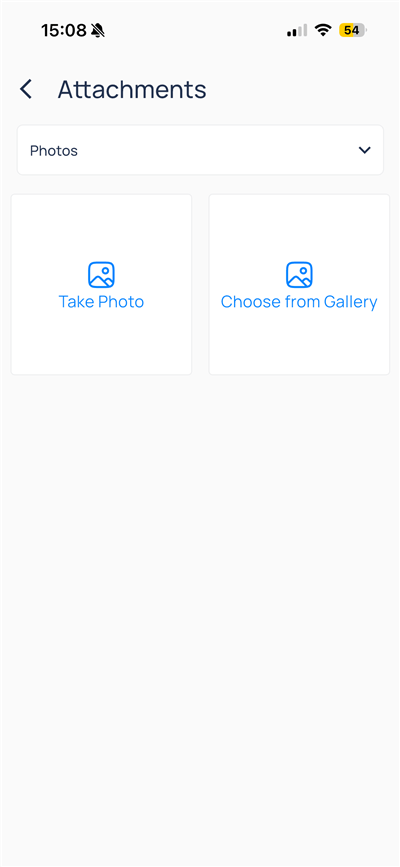
    `Attachments` lets you capture or upload photos for the asset.

    <div className="flex justify-center w-full my-4">
      <Frame className="w-fit mx-auto">
        <img className="mx-auto block h-auto max-w-[400px] w-full" src="https://mintcdn.com/kodelabs/QV43LEddE2aJcRYU/images/mobile-app/kode-os-mobile-device-attachments.png?fit=max&auto=format&n=QV43LEddE2aJcRYU&q=85&s=d50caabf5f3f390ec7af34058130dcbd" alt="Attachments screen with Take Photo and Choose from Gallery" width="400" height="867" data-path="images/mobile-app/kode-os-mobile-device-attachments.png" />
      </Frame>
    </div>

    When enabled, `Edit Device` updates name, location, type, area, and other metadata. Batch updates, templates, and virtual device creation remain on web [Devices](/products/kode-os/devices/devices).
  </Accordion>
</AccordionGroup>

## Compare to web

| Capability                                  | Web     | Mobile                                                        |
| ------------------------------------------- | ------- | ------------------------------------------------------------- |
| Device list and filters                     | Full    | Yes                                                           |
| Dashboard / graphic / basic views           | Full    | Yes                                                           |
| Point trends (chart and table)              | Full    | Yes                                                           |
| Write point / override                      | Full    | Yes                                                           |
| References, schedules, FDD, FTT from device | Full    | Yes                                                           |
| Attachments (photos)                        | Full    | Yes                                                           |
| Bookmark with reminder                      | Limited | Yes ([Bookmarks](/products/mobile-app/get-started/bookmarks)) |
| Device templates, batch update, discovery   | Full    | Web only                                                      |

## Next steps

<CardGroup cols={2}>
  <Card title="Points on mobile" icon="circle-dot" href="/products/mobile-app/building/points" arrow={true}>
    Browse status, filters, and point writes.
  </Card>

  <Card title="Bookmarks" icon="bookmark" href="/products/mobile-app/get-started/bookmarks" arrow={true}>
    Pin devices and views with reminders.
  </Card>

  <Card title="Schedules on mobile" icon="calendar" href="/products/mobile-app/operations/schedules" arrow={true}>
    Edit weekly days, special events, and holidays.
  </Card>

  <Card title="Work orders on mobile" icon="clipboard-list" href="/products/mobile-app/operations/work-orders" arrow={true}>
    Triage, assign, and update AssetOps work.
  </Card>

  <Card title="Devices on web" icon="monitor" href="/products/kode-os/devices/devices" arrow={true}>
    Templates, batch update, and discovery.
  </Card>
</CardGroup>