> ## Documentation Index
> Fetch the complete documentation index at: https://documentation.kodelabs.com/llms.txt
> Use this file to discover all available pages before exploring further.

# Areas and floor plans on mobile

> Browse floors and zones, open layered floor plan maps with occupancy and temperature overlays, and jump to FDD from the KODE OS mobile app.

Walk a floor and check occupancy, temperature, or fault status without opening each device one by one. `Areas` groups a building into floors, zones, and other spatial sections. Floor plans overlay live data on a map of that space. This page follows [Areas](/products/kode-os/areas) and [Floor plans](/products/kode-os/graphics/floor-plans) on the web.

<Info>
  Area creation, ontology mapping, and floor plan authoring are web tasks. Mobile is for navigation, spatial monitoring, and triage.
</Info>

## How to open

<Tabs>
  <Tab title="Areas">
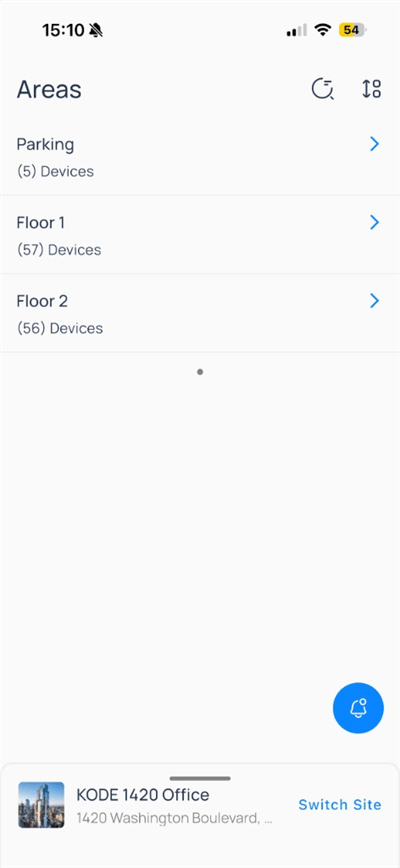
    From the building app launcher, select `Areas`. The list shows floors, zones, and other spatial groupings for the site.
  </Tab>

  <Tab title="Floor plan insights">
    Some sites publish `Floor plan insights` as a separate launcher app. Open it, pick a floor such as `Floor 1`, then use the `Overview` dropdown when alternate layouts are published.
  </Tab>
</Tabs>

## Browse the area list

When you open `Areas`, each row includes:

| Element      | Description                                  |
| ------------ | -------------------------------------------- |
| Area name    | For example, `Parking`, `Floor 1`, `Floor 2` |
| Device count | Total devices in parentheses                 |
| Chevron      | Opens the area detail map or device list     |

<div className="flex justify-center w-full my-4">
  <Frame className="w-fit mx-auto">
    <img className="mx-auto block h-auto max-w-[400px] w-full" src="https://mintcdn.com/kodelabs/QV43LEddE2aJcRYU/images/mobile-app/kode-os-mobile-areas-list.png?fit=max&auto=format&n=QV43LEddE2aJcRYU&q=85&s=08e59fc019918e45a32f0cdd7ef08c41" alt="Areas list showing Parking, Floor 1, and Floor 2 with device counts" width="400" height="868" data-path="images/mobile-app/kode-os-mobile-areas-list.png" />
  </Frame>
</div>

Use search (magnifying glass with history) to find an area. Use the sort/filter icon when your site exposes list filters.

## Floor plan overview

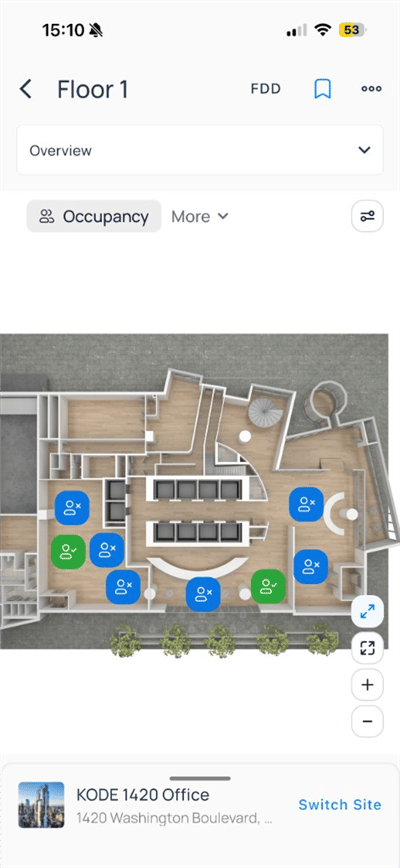
Tap an area such as `Floor 1` to open the `Overview` floor plan. The header includes `FDD`, bookmark, and a more menu.

<div className="flex justify-center w-full my-4">
  <Frame className="w-fit mx-auto" caption="Occupancy layer on Floor 1">
    <img className="mx-auto block h-auto max-w-[400px] w-full" src="https://mintcdn.com/kodelabs/QV43LEddE2aJcRYU/images/mobile-app/kode-os-mobile-area-floor1-occupancy.png?fit=max&auto=format&n=QV43LEddE2aJcRYU&q=85&s=5cccc0147e3f2f2866b15ef707d36023" alt="Floor 1 overview map with green occupied and blue unoccupied markers" width="400" height="868" data-path="images/mobile-app/kode-os-mobile-area-floor1-occupancy.png" />
  </Frame>
</div>

### Layer chips

Below `Overview`, choose what to overlay on the map:

| Layer         | Shows                            |
| ------------- | -------------------------------- |
| `Occupancy`   | Occupied versus unoccupied zones |
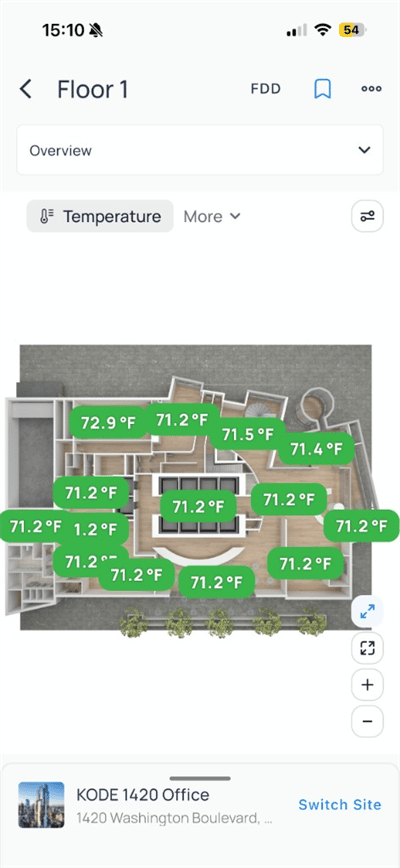
| `Temperature` | Zone temperature labels          |
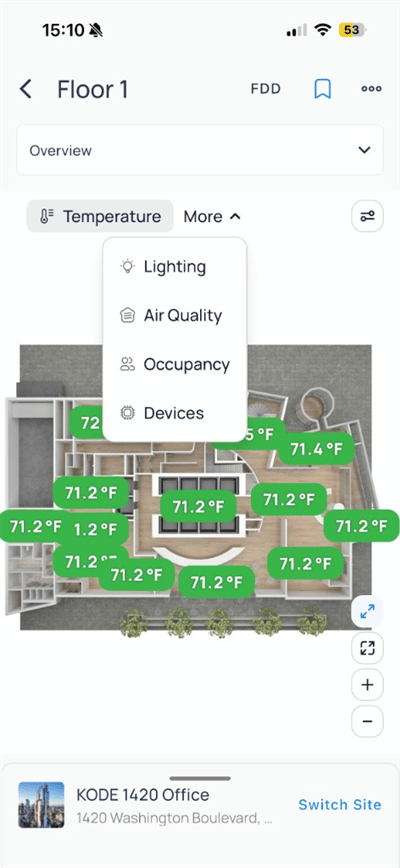
| `Lighting`    | Lighting state by zone           |
| `Air Quality` | IAQ-related values               |
| `Devices`     | Equipment markers                |

Open `More` to switch layers when not shown as a chip.

<div className="flex justify-center w-full my-4">
  <Frame className="w-fit mx-auto">
    <img className="mx-auto block h-auto max-w-[400px] w-full" src="https://mintcdn.com/kodelabs/QV43LEddE2aJcRYU/images/mobile-app/kode-os-mobile-area-floor1-layers-menu.png?fit=max&auto=format&n=QV43LEddE2aJcRYU&q=85&s=c0134c8dd6523998331fb12cd235a390" alt="Floor 1 More menu with Lighting, Air Quality, Occupancy, and Devices layers" width="400" height="868" data-path="images/mobile-app/kode-os-mobile-area-floor1-layers-menu.png" />
  </Frame>
</div>

<div className="flex justify-center w-full my-4">
  <Frame className="w-fit mx-auto" caption="Temperature labels on rooms">
    <img className="mx-auto block h-auto max-w-[400px] w-full" src="https://mintcdn.com/kodelabs/QV43LEddE2aJcRYU/images/mobile-app/kode-os-mobile-area-floor1-temperature.png?fit=max&auto=format&n=QV43LEddE2aJcRYU&q=85&s=80d9d06625e91da6c518036490a31e10" alt="Floor 1 map with temperature pills such as 71.2 F on zones" width="400" height="868" data-path="images/mobile-app/kode-os-mobile-area-floor1-temperature.png" />
  </Frame>
</div>

### Map controls

| Control  | Action                                    |
| -------- | ----------------------------------------- |
| Expand   | Full-screen plan                          |
| Recenter | Frame the floor in view                   |
| Zoom +/- | Pinch or use on-screen buttons            |
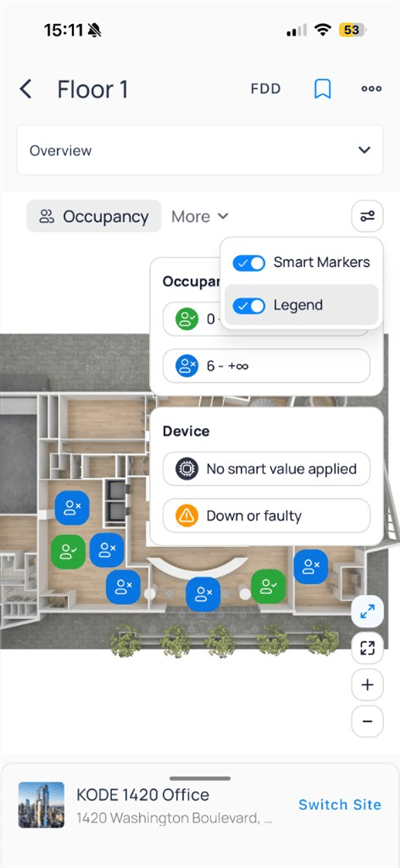
| Settings | Toggle `Smart Markers` and `Legend`       |
| Bookmark | Save this floor and layer                 |
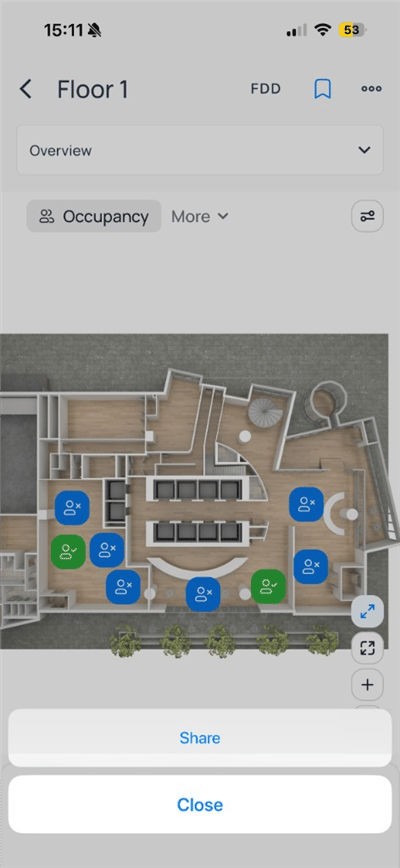
| `FDD`    | Open faults filtered to this floor        |
| Share    | Share a link or image of the current view |

Open the settings icon on the layer bar to toggle `Smart Markers` and `Legend`. The legend explains occupancy colors and device fault icons.

<div className="flex justify-center w-full my-4">
  <Frame className="w-fit mx-auto">
    <img className="mx-auto block h-auto max-w-[400px] w-full" src="https://mintcdn.com/kodelabs/QV43LEddE2aJcRYU/images/mobile-app/kode-os-mobile-area-floor1-legend.png?fit=max&auto=format&n=QV43LEddE2aJcRYU&q=85&s=68f3c6a04b67ff9dad8a834740043e39" alt="Floor 1 with Smart Markers and Legend toggles and occupancy legend panel" width="400" height="868" data-path="images/mobile-app/kode-os-mobile-area-floor1-legend.png" />
  </Frame>
</div>

| Legend item          | Meaning                        |
| -------------------- | ------------------------------ |
| Green person (check) | Occupied or in-range occupancy |
| Blue person (x)      | Unoccupied or out-of-range     |
| Yellow warning       | Device down or faulty          |
| Chip icon            | No smart value applied         |

Tap more (`...`) and choose `Share` to send the current floor context.

<div className="flex justify-center w-full my-4">
  <Frame className="w-fit mx-auto">
    <img className="mx-auto block h-auto max-w-[400px] w-full" src="https://mintcdn.com/kodelabs/QV43LEddE2aJcRYU/images/mobile-app/kode-os-mobile-area-floor1-share.png?fit=max&auto=format&n=QV43LEddE2aJcRYU&q=85&s=0f6791f8701c72d71619abb7c9f76334" alt="Floor 1 more menu with Share and Close" width="400" height="868" data-path="images/mobile-app/kode-os-mobile-area-floor1-share.png" />
  </Frame>
</div>

## FDD from an area

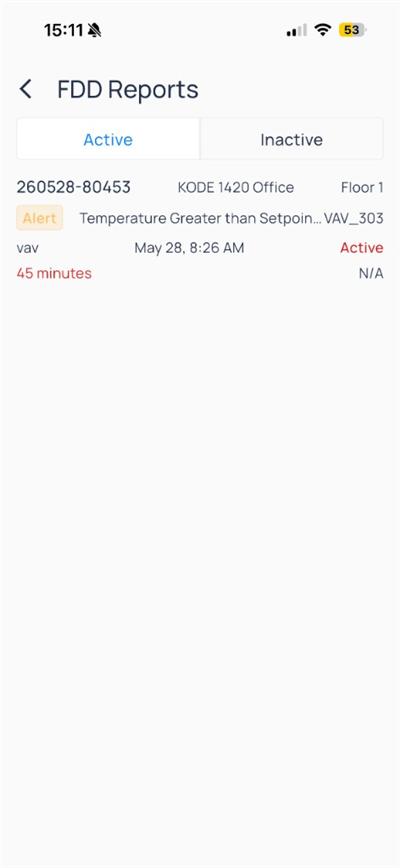
Tap `FDD` in the area header to open `FDD Reports` filtered to that floor. FDD flags equipment behavior that deviates from expected patterns, rather than a single instantaneous alarm.

<Tabs>
  <Tab title="Active">
    `Active` lists faults that are currently open on the floor.

    <div className="flex justify-center w-full my-4">
      <Frame className="w-fit mx-auto">
        <img className="mx-auto block h-auto max-w-[400px] w-full" src="https://mintcdn.com/kodelabs/QV43LEddE2aJcRYU/images/mobile-app/kode-os-mobile-area-fdd-reports.png?fit=max&auto=format&n=QV43LEddE2aJcRYU&q=85&s=13d51763a95ca82494c100b0511e3050" alt="FDD Reports active tab with Temperature Greater than Setpoint alert on Floor 1" width="400" height="868" data-path="images/mobile-app/kode-os-mobile-area-fdd-reports.png" />
      </Frame>
    </div>
  </Tab>

  <Tab title="Inactive">
    `Inactive` lists faults that are no longer active (history).
  </Tab>
</Tabs>

See [Manage FDD faults on mobile](/products/mobile-app/diagnostics/manage-fdd-faults) for portfolio-level workflows.

## Drill into equipment

From the map or area device list, open a unit to view points, trends, and commands. See [Devices on mobile](/products/mobile-app/building/devices) and [Systems on mobile](/products/mobile-app/destinations/systems).

## Compare to web

| Capability                     | Web  | Mobile                                 |
| ------------------------------ | ---- | -------------------------------------- |
| Area list and device counts    | Full | Yes                                    |
| Spatial overview with layers   | Full | Yes (`Overview` map)                   |
| Dedicated floor plan graphics  | Full | Yes (`Areas` or `Floor plan insights`) |
| Create or edit areas and plans | Full | No                                     |
| FDD from area context          | Full | Yes (`FDD` header link)                |

## Next steps

<CardGroup cols={2}>
  <Card title="Devices on mobile" icon="hard-drive" href="/products/mobile-app/building/devices" arrow={true}>
    Open equipment, trends, and device actions.
  </Card>

  <Card title="Points on mobile" icon="circle-dot" href="/products/mobile-app/building/points" arrow={true}>
    Browse status, filters, and point writes.
  </Card>

  <Card title="Areas on web" icon="monitor" href="/products/kode-os/areas" arrow={true}>
    Create areas and ontology mapping.
  </Card>

  <Card title="Floor plans on web" icon="monitor" href="/products/kode-os/graphics/floor-plans" arrow={true}>
    Author floor plan graphics and layers.
  </Card>
</CardGroup>