> ## Documentation Index
> Fetch the complete documentation index at: https://documentation.kodelabs.com/llms.txt
> Use this file to discover all available pages before exploring further.
# Sites and map view
> Navigate your building portfolio, access individual sites, and monitor portfolio-level health from the map view.
The Sites module is the entry point to Cloud BMS and is accessible at the portfolio level. It displays all buildings in your portfolio as a list with an interactive map, providing a portfolio-level overview of building health and quick access to individual sites. Select a building to enter the building level, where you can access data sources, devices, systems, areas, graphics, schedules, and trends for that site.
```mermaid actions={false} theme={"theme":{"light":"github-dark","dark":"github-dark"}}
---
config:
theme: neutral
---
flowchart LR
MAP[Portfolio Map] -- "select building" --> SITE[Building View]
SITE -- "access" --> BBI[Building BI]
SITE -- "access" --> FDD_M[FDD]
SITE -- "access" --> FTT_M[FTT]
SITE -- "access" --> SCH[Schedules]
SITE -- "access" --> OSS_M[OSS]
SITE -- "access" --> GFX[Graphic Tool]
SITE -- "access" --> TR[Trends]
SITE -- "access" --> SYS[Systems]
SITE -- "access" --> AREA[Areas]
SITE -- "access" --> DEV[Devices]
SITE -- "access" --> DS[Data Sources]
classDef sky stroke:#374D7C,fill:#E2EBFF,color:#374D7C
classDef green fill:#B0E4CC,color:#285A48,stroke:#285A48
class MAP,SITE sky
class BBI,FDD_M,FTT_M,SCH,OSS_M,GFX,TR,SYS,AREA,DEV,DS green
```
## Navigate through sites
The Sites page displays a scrollable building list on the left and an interactive map on the right. Each site card shows the building name, address, device-down count, and active event status.
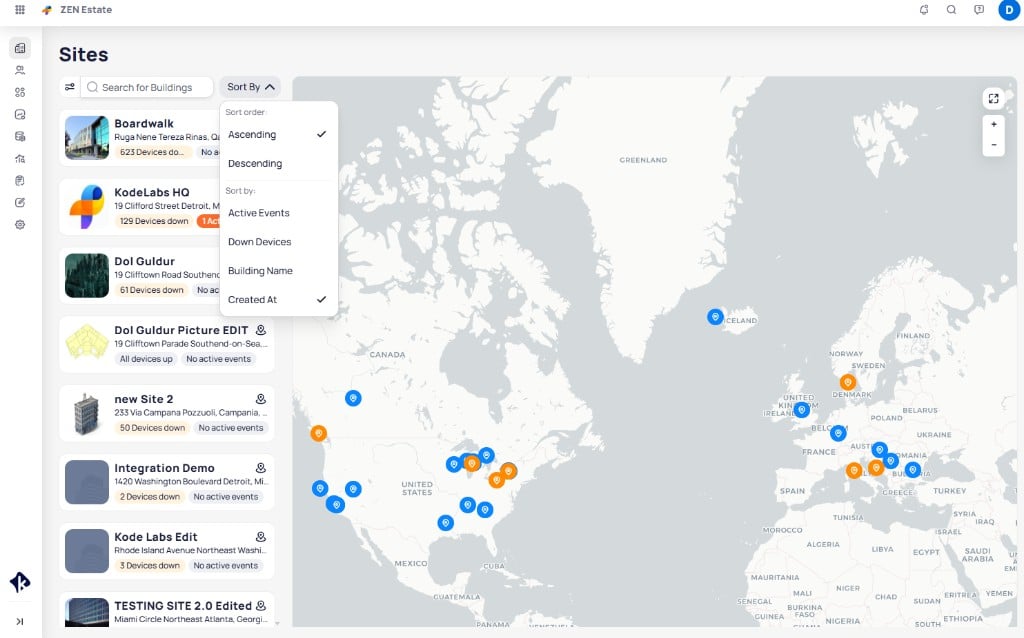 You can find and select a site in three ways:
* **Search** using the search bar at the top of the sites list
* **Browse** by scrolling through the building list on the left side
* **Map** by clicking a building marker on the interactive map
### Search for a site
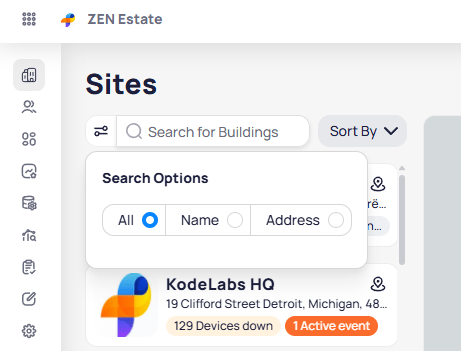
Click the search bar and type a building name or address. The search options allow you to filter by `All`, `Name`, or `Address`.
You can find and select a site in three ways:
* **Search** using the search bar at the top of the sites list
* **Browse** by scrolling through the building list on the left side
* **Map** by clicking a building marker on the interactive map
### Search for a site
Click the search bar and type a building name or address. The search options allow you to filter by `All`, `Name`, or `Address`.
 ### Sort sites
Use the `Sort By` button to organize the site list:
* **Sort order** -- ascending or descending
* **Sort by** -- active events, down devices, building name, or created date
### Locate a site on the map
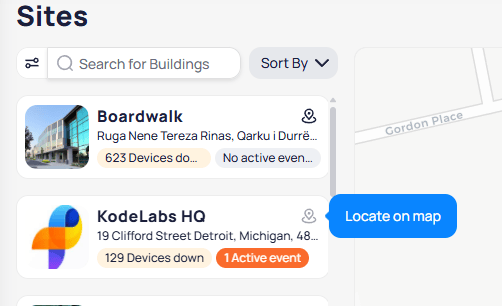
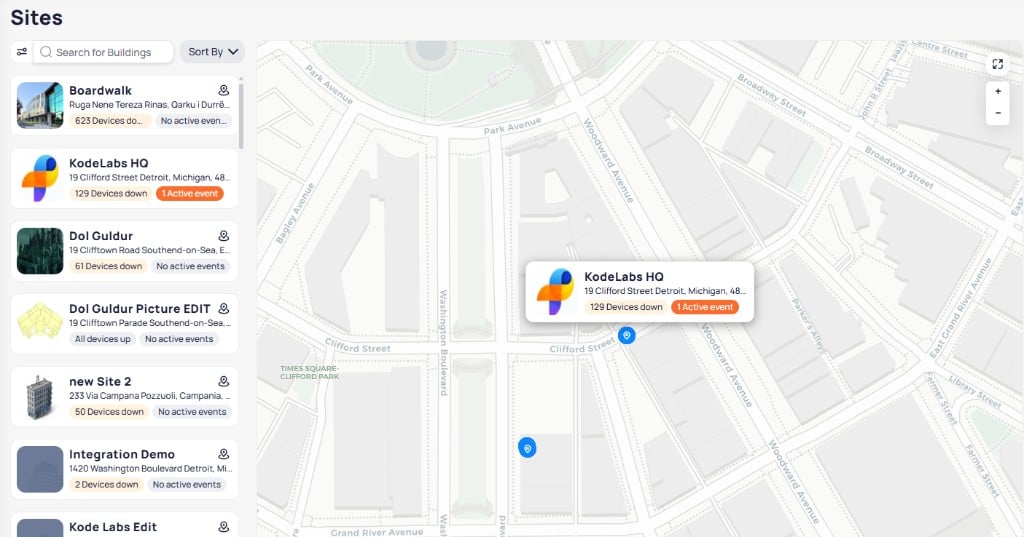
Each site card in the list includes a location icon. Hover over a site card to reveal the `Locate on map` button. Click it to zoom the map to that building's position and display a popup with the address and status.
### Sort sites
Use the `Sort By` button to organize the site list:
* **Sort order** -- ascending or descending
* **Sort by** -- active events, down devices, building name, or created date
### Locate a site on the map
Each site card in the list includes a location icon. Hover over a site card to reveal the `Locate on map` button. Click it to zoom the map to that building's position and display a popup with the address and status.
 Click any building marker on the map to see a summary popup with the building name, address, device status, and active events. Click through to open that site's building view.
 ### Switch between sites
You can switch between sites directly while working within a specific site. The site switcher is located on the left side of the screen. Select a different site, and the page updates automatically without returning to the portfolio view.
## Map view
The map on the right side of the Sites page provides a portfolio-level perspective of all your buildings.
* **Building markers** appear on the map with color-coded health indicators (green for healthy, orange for warnings, red for critical issues)
* **Zoom controls** in the upper-right corner let you zoom in, zoom out, and reset the view
* **Marker popups** display the building name, address, device-down count, and active events when you click a marker
## Building overview
When you select a site from the list or map, the building view opens with a summary of the site's key metrics and quick access to its modules:
* **Systems** count and quick access to the systems module
* **Areas** count with navigation to floor plans
* **Devices** count with status summary (online, offline, in alarm)
* **Points** count across all devices
* **Data Sources** count with connectivity health
For advanced analytics, custom widgets, and reporting, use Building BI from the building sidebar.
## Next steps
Set up and manage the integrations that feed data into your site.
Define the spatial layout and floor plans for your building.
### Switch between sites
You can switch between sites directly while working within a specific site. The site switcher is located on the left side of the screen. Select a different site, and the page updates automatically without returning to the portfolio view.
## Map view
The map on the right side of the Sites page provides a portfolio-level perspective of all your buildings.
* **Building markers** appear on the map with color-coded health indicators (green for healthy, orange for warnings, red for critical issues)
* **Zoom controls** in the upper-right corner let you zoom in, zoom out, and reset the view
* **Marker popups** display the building name, address, device-down count, and active events when you click a marker
## Building overview
When you select a site from the list or map, the building view opens with a summary of the site's key metrics and quick access to its modules:
* **Systems** count and quick access to the systems module
* **Areas** count with navigation to floor plans
* **Devices** count with status summary (online, offline, in alarm)
* **Points** count across all devices
* **Data Sources** count with connectivity health
For advanced analytics, custom widgets, and reporting, use Building BI from the building sidebar.
## Next steps
Set up and manage the integrations that feed data into your site.
Define the spatial layout and floor plans for your building.