> ## Documentation Index
> Fetch the complete documentation index at: https://documentation.kodelabs.com/llms.txt
> Use this file to discover all available pages before exploring further.
# Optimized Start/Stop (OSS)
> Use AI-powered Optimized Start/Stop to calculate the optimal HVAC start time, balancing energy savings with occupant comfort.
OSS is a building-level module. Select a building from the [sites list](/products/kode-os/sites-and-map), then navigate to `OSS` in the left sidebar. You can also access OSS from the `Schedules` module by clicking the `OSS` tab.
Optimized Start/Stop (OSS) is an AI-powered module that determines the latest possible time to start HVAC equipment while still achieving comfortable zone temperatures by the time occupants arrive. Instead of starting equipment at a fixed early time, OSS uses machine learning to predict the optimal start time based on current building conditions, weather data, and historical performance.
### Benefits
* **Energy savings** -- reduces energy consumption by starting HVAC equipment only when needed, avoiding unnecessary early starts
* **Occupant comfort** -- ensures spaces reach the target temperature by the time occupants arrive
* **Engineering efficiency** -- frees up engineers from manually adjusting start times based on weather and building conditions
* **Real-time insights** -- provides daily data on comfort performance and space conditions through the OSS dashboard
* **Performance tracking** -- analyzes energy savings and equipment performance over time with historical trend data
## How OSS works
The OSS algorithm analyzes three categories of input to calculate the optimal start time:
* **Sensor data** -- indoor zone temperatures, setpoints, occupied mode, run status, and fan commands
* **Weather data** -- outdoor temperature, humidity, wind speed, and atmospheric pressure
* **Building factors** -- insulation characteristics, current conditions, and device performance history
Using these inputs, OSS predicts how long the building needs to reach the target temperature and calculates the start time:
`OSS Start Time = Schedule Start Time - OSS Prediction`
For example, if the schedule start time is 08:00 and OSS predicts 45 minutes to reach the setpoint, OSS starts the equipment at 07:15 instead of the traditional 06:00 fixed start.
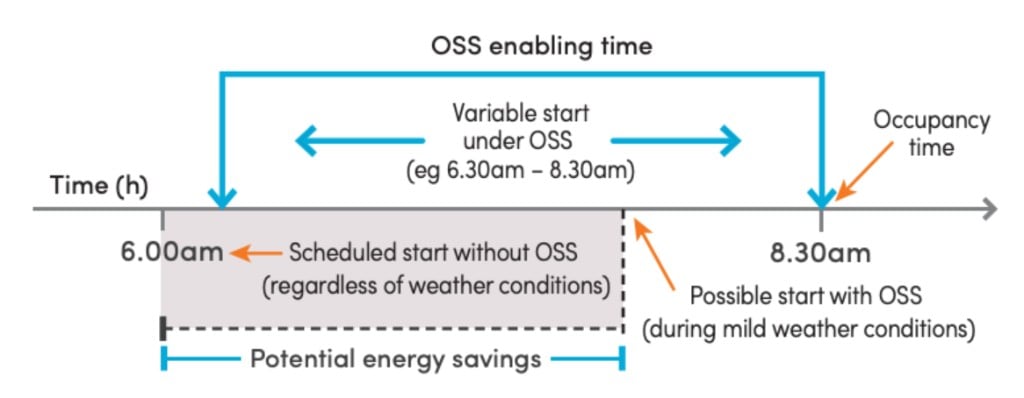 For accurate predictions, the algorithm requires reliable sensor data. Faulty sensors or insufficient historical data can reduce prediction accuracy.
## Operation modes
OSS provides three modes that balance comfort and energy savings differently. Select the operation mode from the OSS page. The status bar at the bottom shows whether OSS is currently active or inactive, with an `Activate` button to enable it.
For accurate predictions, the algorithm requires reliable sensor data. Faulty sensors or insufficient historical data can reduce prediction accuracy.
## Operation modes
OSS provides three modes that balance comfort and energy savings differently. Select the operation mode from the OSS page. The status bar at the bottom shows whether OSS is currently active or inactive, with an `Activate` button to enable it.
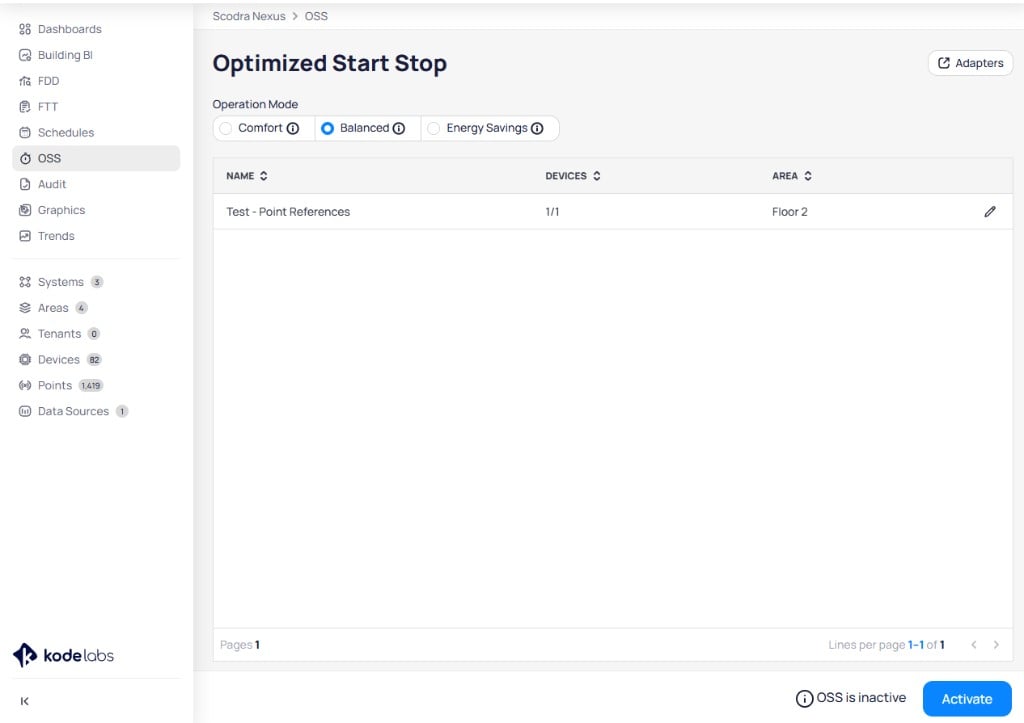 | Mode | Goal | Behavior |
| ------------------ | -------------------------- | ------------------------------------------------------------------------------------------------------------------------------------------------------------------------------------------------------------------------------------------------------------------------------------------------------------------- |
| **Comfort** | Maximum occupant comfort | All zones reach setpoints by the schedule start time. OSS starts the first VAV and overrides the AHU simultaneously, with remaining VAVs activating as needed. |
| **Balanced** | Comfort and energy savings | Once 25% of VAVs are ready, OSS overrides the AHU and starts them. The remaining VAVs activate progressively to reach full occupancy by start time. |
| **Energy Savings** | Maximum energy efficiency | OSS overrides the AHU and starts the first 50% of VAVs when ready. The rest activate gradually to reach full occupancy by start time. |
## Requirements
### Permissions
The following user roles have default permissions to configure OSS:
* Super Admin
* System Admin
* System Integrator
* Engineering Manager
### Required points
The OSS machine learning model requires these five points on each device:
The sensor that measures the zone air temperature for the space you want to optimize.
The cooling temperature setpoint for the zone. This may be an effective, occupied, or general zone temperature setpoint depending on how the device is programmed.
The heating temperature setpoint for the zone. Similar to the cooling setpoint, select the appropriate variant for your device configuration.
A point that indicates whether the device is currently on or off.
A writable point that overrides the device between on and off states. At least one `occupied_mode` point must be writable on either the base or reference device.
### Schedule requirements
OSS requires a valid schedule configured on the devices. Without a schedule, OSS cannot determine when occupancy starts or control equipment start times.
Schedules should not be configured so that starting one device (for example, an AHU) automatically enables its downstream devices (for example, VAVs). Each device must have its own independent schedule for OSS to control them individually.
### Data requirements
For accurate predictions, OSS requires at least 15 to 20 devices with at least 15 days of valid historical data. The `occupied_mode` and `run_status` points must show regular on/off switching patterns during this period.
## Supported HVAC architectures
OSS supports multiple HVAC system configurations:
* **VAV - AHU** -- variable air volume boxes controlled by an air handling unit
* **VAV - AHU - AHU** -- cascaded AHU configurations
* **FCU** -- fan coil units operating independently
* **AHU** -- standalone air handling units
## Configure an OSS adapter
The OSS adapter specifies which devices to optimize and which points to use for control. Each building requires its own adapter configuration.
### Create a new adapter
Navigate to `OSS` from the building sidebar. Click `Adapters` in the upper right to view the list of configured adapters.
| Mode | Goal | Behavior |
| ------------------ | -------------------------- | ------------------------------------------------------------------------------------------------------------------------------------------------------------------------------------------------------------------------------------------------------------------------------------------------------------------- |
| **Comfort** | Maximum occupant comfort | All zones reach setpoints by the schedule start time. OSS starts the first VAV and overrides the AHU simultaneously, with remaining VAVs activating as needed. |
| **Balanced** | Comfort and energy savings | Once 25% of VAVs are ready, OSS overrides the AHU and starts them. The remaining VAVs activate progressively to reach full occupancy by start time. |
| **Energy Savings** | Maximum energy efficiency | OSS overrides the AHU and starts the first 50% of VAVs when ready. The rest activate gradually to reach full occupancy by start time. |
## Requirements
### Permissions
The following user roles have default permissions to configure OSS:
* Super Admin
* System Admin
* System Integrator
* Engineering Manager
### Required points
The OSS machine learning model requires these five points on each device:
The sensor that measures the zone air temperature for the space you want to optimize.
The cooling temperature setpoint for the zone. This may be an effective, occupied, or general zone temperature setpoint depending on how the device is programmed.
The heating temperature setpoint for the zone. Similar to the cooling setpoint, select the appropriate variant for your device configuration.
A point that indicates whether the device is currently on or off.
A writable point that overrides the device between on and off states. At least one `occupied_mode` point must be writable on either the base or reference device.
### Schedule requirements
OSS requires a valid schedule configured on the devices. Without a schedule, OSS cannot determine when occupancy starts or control equipment start times.
Schedules should not be configured so that starting one device (for example, an AHU) automatically enables its downstream devices (for example, VAVs). Each device must have its own independent schedule for OSS to control them individually.
### Data requirements
For accurate predictions, OSS requires at least 15 to 20 devices with at least 15 days of valid historical data. The `occupied_mode` and `run_status` points must show regular on/off switching patterns during this period.
## Supported HVAC architectures
OSS supports multiple HVAC system configurations:
* **VAV - AHU** -- variable air volume boxes controlled by an air handling unit
* **VAV - AHU - AHU** -- cascaded AHU configurations
* **FCU** -- fan coil units operating independently
* **AHU** -- standalone air handling units
## Configure an OSS adapter
The OSS adapter specifies which devices to optimize and which points to use for control. Each building requires its own adapter configuration.
### Create a new adapter
Navigate to `OSS` from the building sidebar. Click `Adapters` in the upper right to view the list of configured adapters.
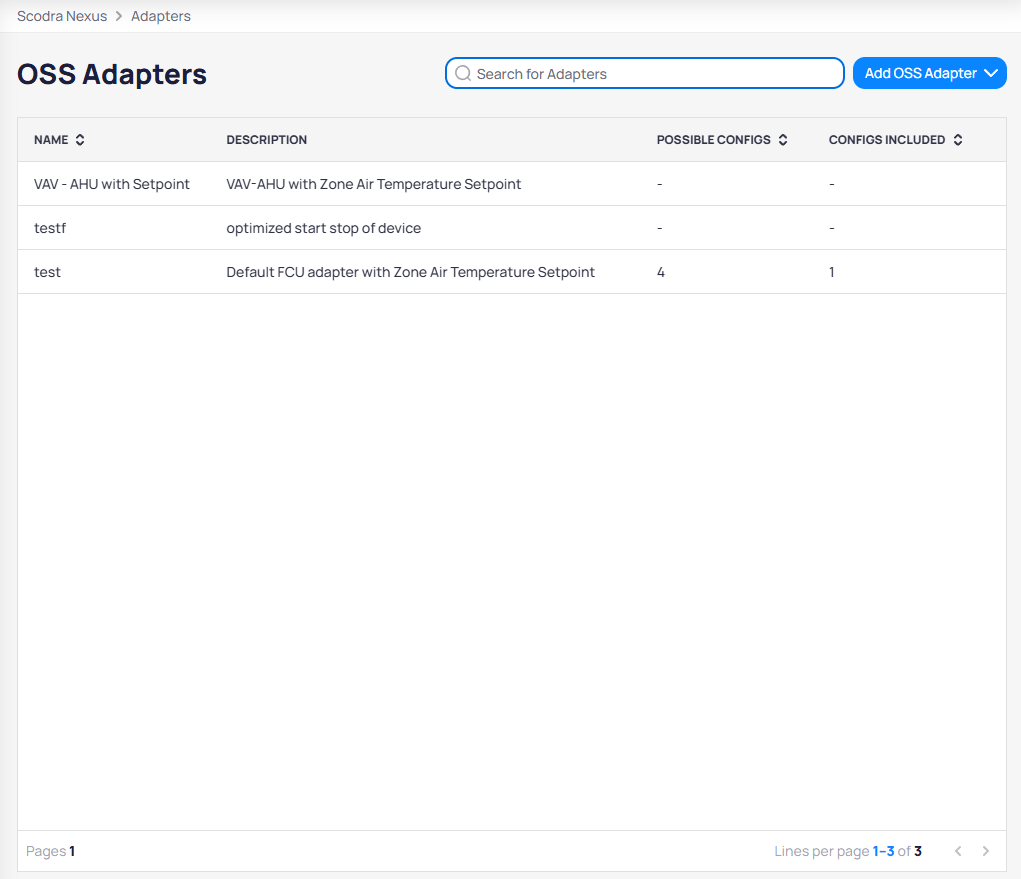 Click `Add OSS Adapter` to expand the dropdown with two options:
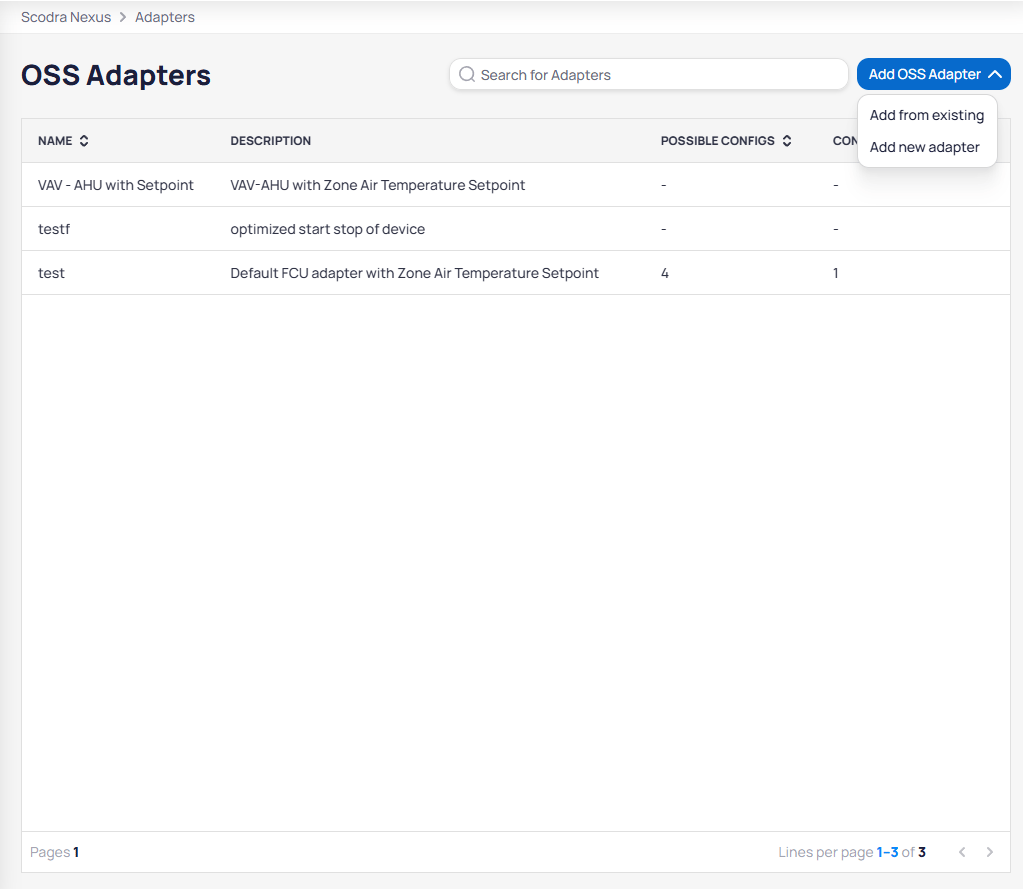 * **Add from existing** -- use a pre-built adapter template from the KODE library
* **Add new adapter** -- create a custom adapter from scratch
Select `Add new adapter` to start the creation wizard.
Enter a name and description for the adapter. Select the **base device** by choosing its canonical type (for example, `vav` or `fcu`). Click `+ Add Reference` to add a **reference device** if the architecture requires it (for example, an AHU that serves the selected VAVs).
* **Add from existing** -- use a pre-built adapter template from the KODE library
* **Add new adapter** -- create a custom adapter from scratch
Select `Add new adapter` to start the creation wizard.
Enter a name and description for the adapter. Select the **base device** by choosing its canonical type (for example, `vav` or `fcu`). Click `+ Add Reference` to add a **reference device** if the architecture requires it (for example, an AHU that serves the selected VAVs).
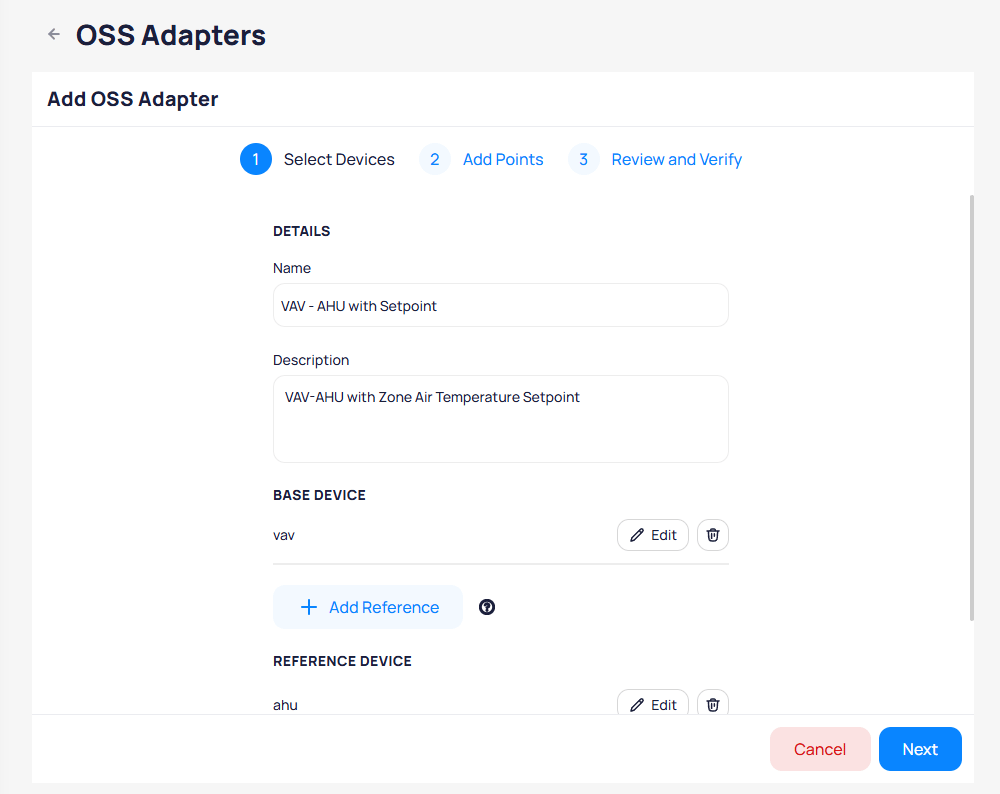 Devices are exclusive to one adapter. Click `Next` to proceed to point mapping.
Map the required points for the base device and reference device. Each point type has an `Edit Points` button to configure the specific point mapping.
Devices are exclusive to one adapter. Click `Next` to proceed to point mapping.
Map the required points for the base device and reference device. Each point type has an `Edit Points` button to configure the specific point mapping.
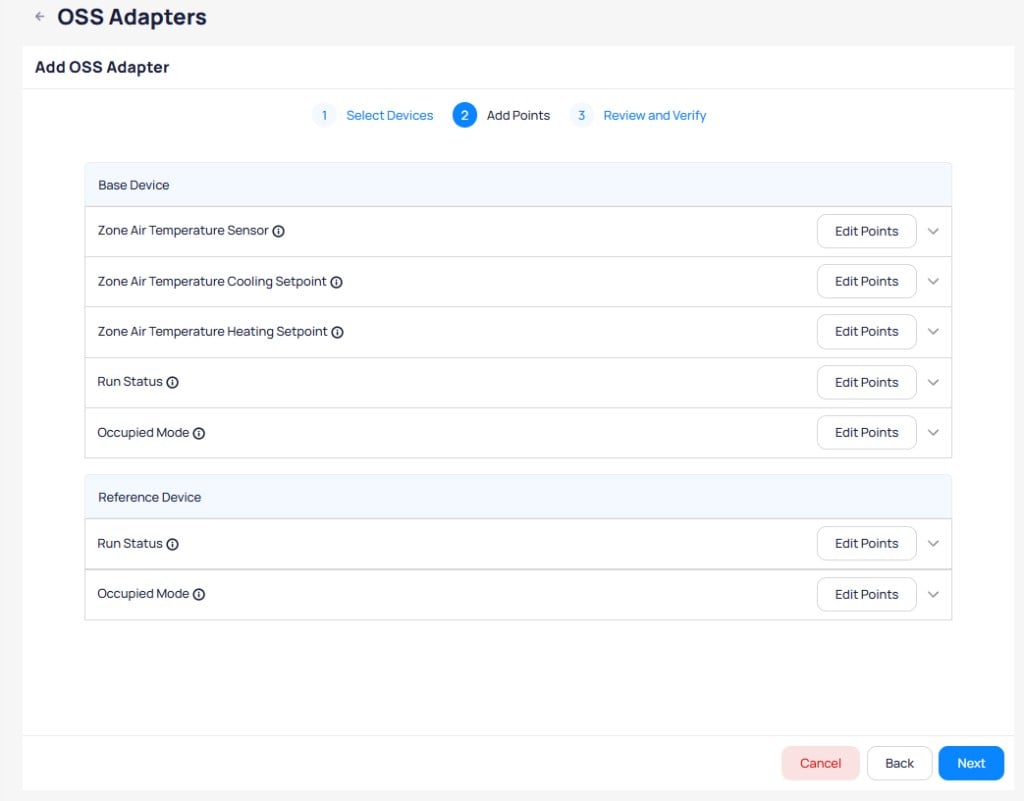 Click `Edit Points` on a point type to expand it and configure the mapping. Select the point from the device, set the aggregation function if multiple points of the same type exist, and map enum values for on/off or occupied/unoccupied states.
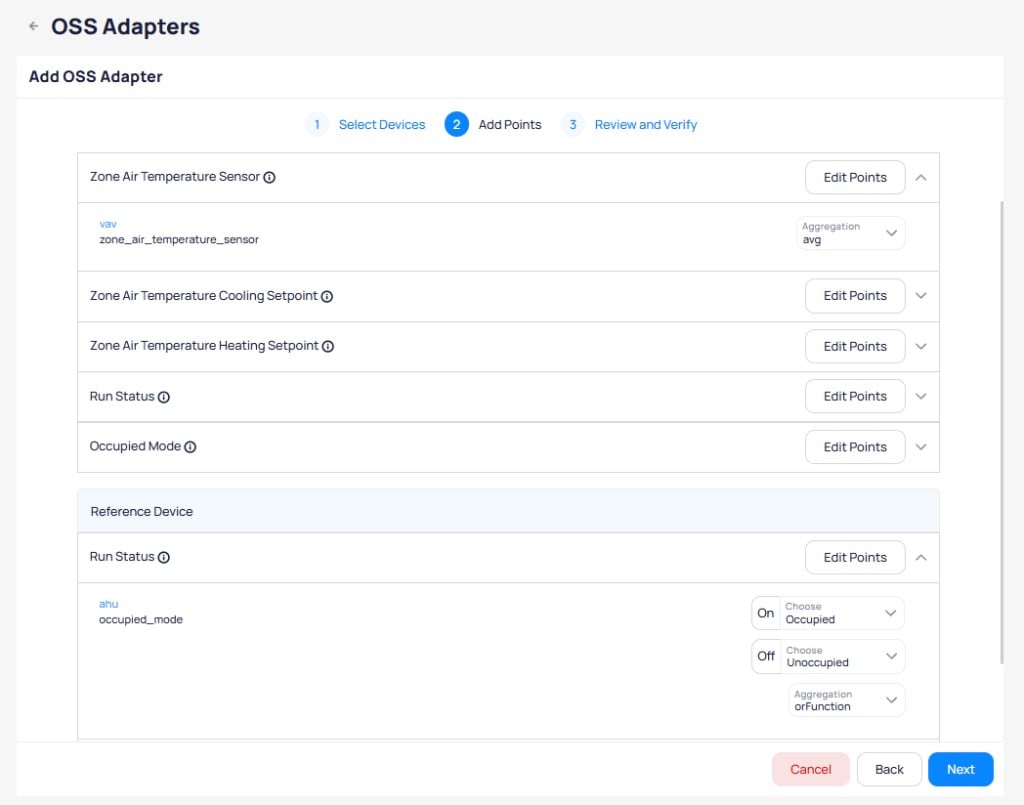 If a device has multiple points of the same type, select an aggregation function (AVG, MIN, MAX, SUM, MED) to combine them. For cooling and heating setpoints, you can configure upper and lower bands that define the acceptable temperature range.
The review page has two tabs:
* **Completed Devices** -- lists devices that meet all OSS requirements (required points mapped, schedules in place, writable occupied mode)
* **Devices With Issues** -- lists devices that need adjustments before OSS can control them
If a device has multiple points of the same type, select an aggregation function (AVG, MIN, MAX, SUM, MED) to combine them. For cooling and heating setpoints, you can configure upper and lower bands that define the acceptable temperature range.
The review page has two tabs:
* **Completed Devices** -- lists devices that meet all OSS requirements (required points mapped, schedules in place, writable occupied mode)
* **Devices With Issues** -- lists devices that need adjustments before OSS can control them
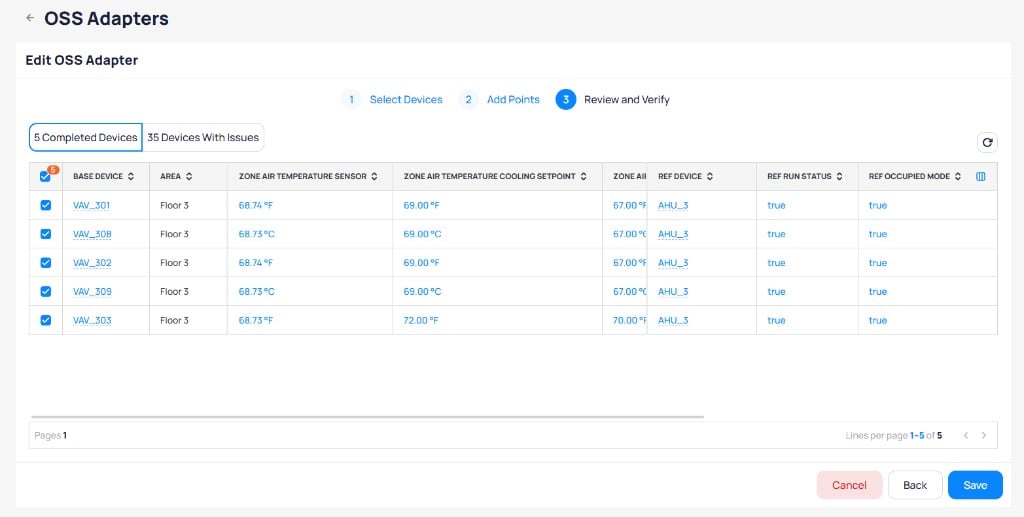
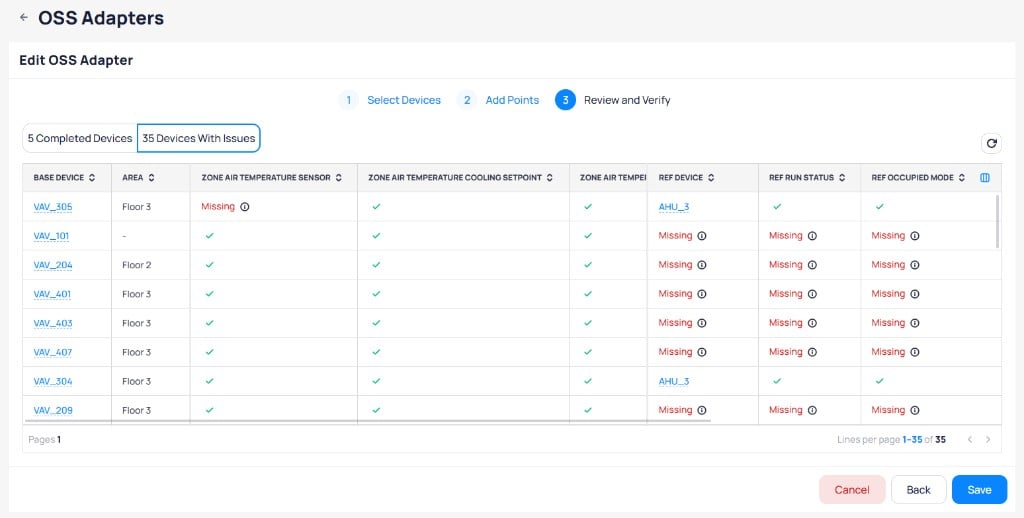 Common reasons a device appears under **Devices With Issues**:
* Required ontology point fields are not assigned
* Occupied Mode is missing or not writable
* Required enum values are not mapped for Occupied / Unoccupied interpretation
* The device has no schedule point reference
* Parent or child device referencing is missing (for example, a VAV without an `isFedBy` AHU)
Use this remediation loop until devices move to **Completed Devices**:
1. Fix missing schedule references on the schedule **Point References** page.
2. Add missing device references (for example, `isFedBy`) on the device.
3. Complete ontology field mapping in device modeling.
4. Map enum values for Run Status and Occupied Mode as needed.
5. Return to Review and Verify and select `Refresh` to re-check status.
Select the devices you want to include from the Completed Devices tab and click `Save`.
If you save without selecting any Completed devices, the adapter does not create an active device list.
After saving, the OSS Adapters page shows the updated adapter with its possible configs and configs included counts.
Common reasons a device appears under **Devices With Issues**:
* Required ontology point fields are not assigned
* Occupied Mode is missing or not writable
* Required enum values are not mapped for Occupied / Unoccupied interpretation
* The device has no schedule point reference
* Parent or child device referencing is missing (for example, a VAV without an `isFedBy` AHU)
Use this remediation loop until devices move to **Completed Devices**:
1. Fix missing schedule references on the schedule **Point References** page.
2. Add missing device references (for example, `isFedBy`) on the device.
3. Complete ontology field mapping in device modeling.
4. Map enum values for Run Status and Occupied Mode as needed.
5. Return to Review and Verify and select `Refresh` to re-check status.
Select the devices you want to include from the Completed Devices tab and click `Save`.
If you save without selecting any Completed devices, the adapter does not create an active device list.
After saving, the OSS Adapters page shows the updated adapter with its possible configs and configs included counts.
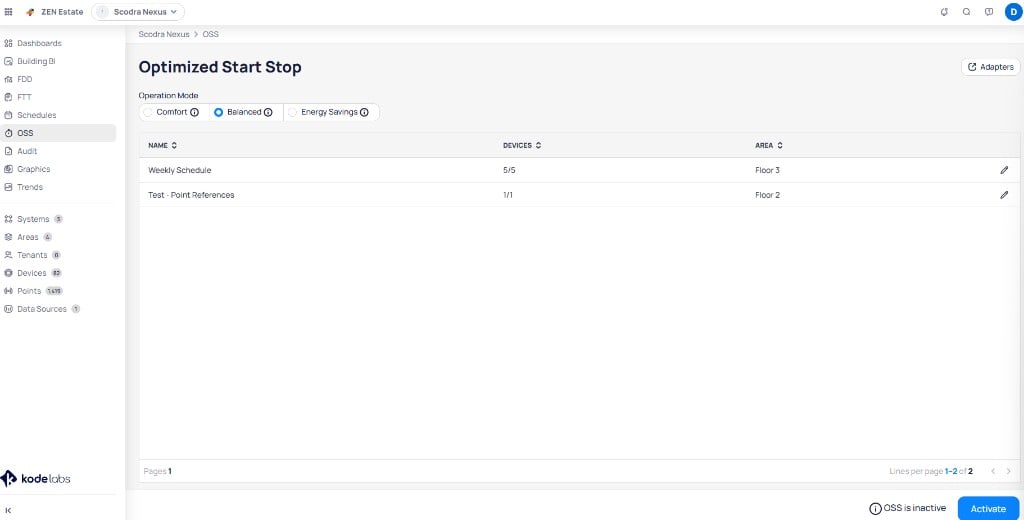
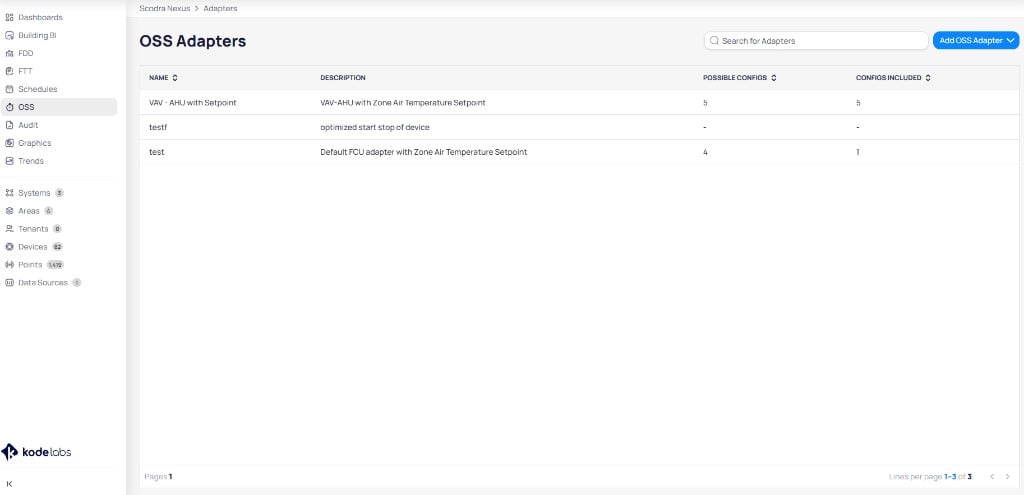 Navigate back to the OSS page. The adapter appears in the list with the number of devices and area. Click `Activate` in the bottom right corner to enable OSS.
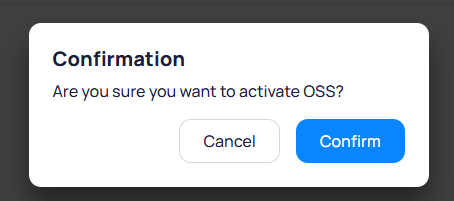
 A confirmation dialog appears. Click `Confirm` to activate OSS.
 OSS begins preparing and the Activity Log tracks the activation progress. Wait for the process to complete.
 ### Use an existing adapter template
KODE Labs provides pre-built adapter templates for common HVAC configurations. Click `Add OSS Adapter` and select `Add from existing` to browse the template library.
### Use an existing adapter template
KODE Labs provides pre-built adapter templates for common HVAC configurations. Click `Add OSS Adapter` and select `Add from existing` to browse the template library.
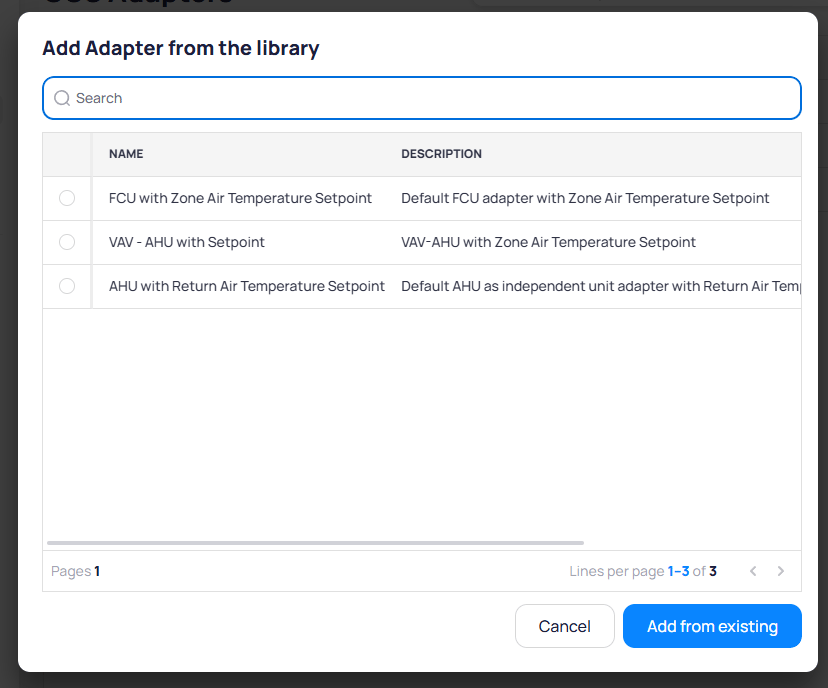 Select a template and click `Add from existing`. Steps one and two of the adapter creation process are prefilled from the template. You can modify any prefilled values before saving.
### Edit or delete an adapter
To edit an adapter, click the pencil icon next to the schedule name on the OSS page. The Add/remove devices dialog opens, where you can select or deselect devices for the adapter.
Select a template and click `Add from existing`. Steps one and two of the adapter creation process are prefilled from the template. You can modify any prefilled values before saving.
### Edit or delete an adapter
To edit an adapter, click the pencil icon next to the schedule name on the OSS page. The Add/remove devices dialog opens, where you can select or deselect devices for the adapter.
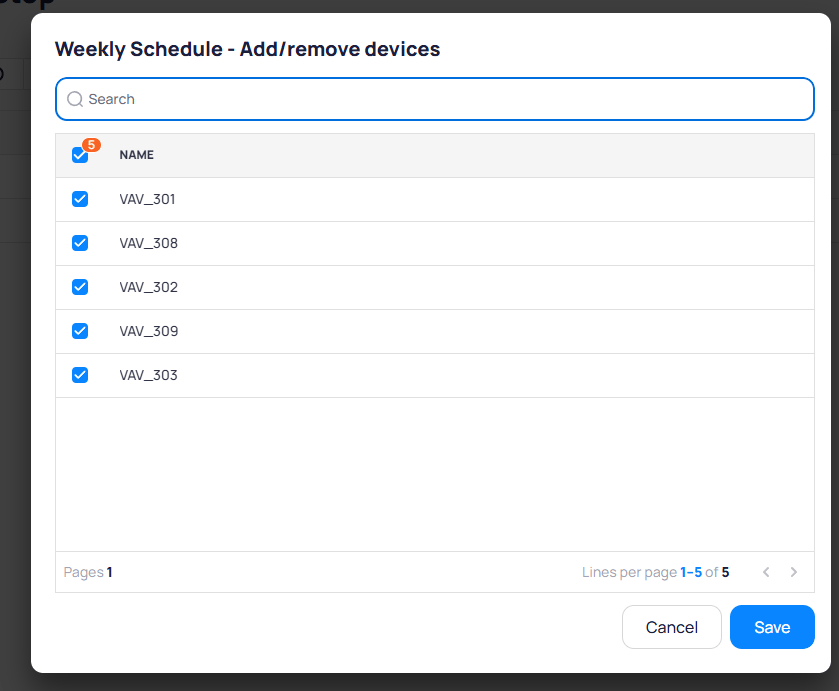 To fully reconfigure an adapter (device types, point mappings, or review settings), click the adapter name from the OSS Adapters page to open the adapter creation wizard. To delete an adapter, click the three-dot menu and select the delete icon.
## Schedule best practices for OSS
When OSS is active, the schedule start time represents the **target satisfaction time** (when the space should be at the setpoint), not the equipment start time. OSS handles the actual start time calculation.
For example, if an office building has occupancy from 08:30 to 17:30, set the schedule start time to 08:30. OSS calculates the optimal equipment start time so that the building reaches the target temperature by 08:30.
**Recommended:**
* Set the schedule start time to the desired occupancy start
* Ensure each device has its own independent schedule
* Turn off any BAS logic that automatically enables downstream devices when a parent device starts
**Avoid:**
* Schedules where starting an AHU automatically enables its connected VAVs
* Cascaded schedules where one schedule triggers another
* Enum schedules with point mappers or switches that control devices
## Key behaviors and limits
* OSS requires a schedule to be in place. Without a schedule, OSS cannot override equipment.
* If a device is already in occupancy override, OSS does not make additional changes.
* If the predicted start time is less than five minutes before the schedule start, the device follows its original schedule.
* If a device is already at the setpoint, OSS does not override it.
* Devices that are occupied 24/7 cannot be controlled by OSS.
* OSS does not operate with schedules that start between 12:00 AM and 3:00 AM. For best results, schedules should start no earlier than 3:00 AM. If a schedule starts at 2:00 AM and OSS predicts a three-hour duration, it may override the device at 2:00 AM, which can lead to accuracy issues.
## Ongoing operations
### End user guidance
To ensure smooth building operations with OSS:
* **Initial rollout** -- adjust schedules to reflect target occupancy times, set proper temperature and equipment setpoints, and verify lease start and end dates
* **Daily monitoring** -- check your inbox for recommended building startup emails from OSS
* **Dashboard review** -- review the Daily OSS Dashboard regularly to confirm comfort goals are met, and use the Historical OSS Dashboard to identify outliers and address poor-performing devices or systems
### Deployment checklist
Before activating OSS, verify the following:
* Schedules are configured in Cloud BMS with proper AHU references
* VAV devices have Zone Air Temperature Sensor, Zone Air Temperature Setpoints, and `isFedBy` references to their parent AHU
* AHU devices include a writable `Occupied Mode` point
* Adapters are configured based on the correct Zone Temperature Setpoint type
* Users are trained on schedule adjustments, the OSS algorithm behavior, the control strategy, and dashboard interpretation
## Verify OSS overrides
When OSS overrides a point, the point's activity log records the action with `OSS App` as the user and `Oss Start` as the reason. The log entry shows the priority levels and current values at each level, along with the override duration.
### Command actions and priority levels
Cloud BMS uses a BACnet-inspired priority model for writable points. The same command dialog appears for BACnet and non-BACnet integrations, such as REST API thermostats. How each action maps on the device depends on the connector.
BACnet points that accept commands have **16 priority levels** (1 is highest, 16 is lowest). When every level is empty (`null`), the point uses a **fallback / default** value (`Relinquish_Default` in BACnet). That fallback is **not** a 17th BACnet priority. Some interfaces label it as level 17 for display only.
`Override` and `Set` turn different knobs under the hood, even when the visible value looks the same.
| Action | What it writes\* | Description |
| ---------- | -------------------- | ------------------------------------------------------------------------------------------- |
| `Override` | Priority 8\* | Temporary exception in the priority array. Takes precedence over lower-priority automation. |
| `Set` | Fallback / default\* | Changes the fallback or default value. |
| `Auto` | — | Clears an `Override` |
| `Release` | — | Clears a `Set` |
\*Typical for most BACnet and Niagara deployments. Connectors and site standards can differ.
`Override`, `Auto`, and `Set` borrow Niagara-style action names. `Release` is a Cloud BMS action that clears a `Set`.
In Niagara-style control, `Set` keeps a non-null fallback so sequences and logic keep a reliable baseline. Use the priority array (including `Override`) for programmed automation and temporary exceptions.
To make `Set` write to priority 16 instead of the fallback or default, enable **`Set in Slot16`** (Niagara) on the point. Configure that option from [device details](/products/kode-os/devices/devices#view-and-edit-points), [device templates](/products/kode-os/devices/device-templates), or [points batch update](/products/kode-os/points/points-batch-update).
To fully reconfigure an adapter (device types, point mappings, or review settings), click the adapter name from the OSS Adapters page to open the adapter creation wizard. To delete an adapter, click the three-dot menu and select the delete icon.
## Schedule best practices for OSS
When OSS is active, the schedule start time represents the **target satisfaction time** (when the space should be at the setpoint), not the equipment start time. OSS handles the actual start time calculation.
For example, if an office building has occupancy from 08:30 to 17:30, set the schedule start time to 08:30. OSS calculates the optimal equipment start time so that the building reaches the target temperature by 08:30.
**Recommended:**
* Set the schedule start time to the desired occupancy start
* Ensure each device has its own independent schedule
* Turn off any BAS logic that automatically enables downstream devices when a parent device starts
**Avoid:**
* Schedules where starting an AHU automatically enables its connected VAVs
* Cascaded schedules where one schedule triggers another
* Enum schedules with point mappers or switches that control devices
## Key behaviors and limits
* OSS requires a schedule to be in place. Without a schedule, OSS cannot override equipment.
* If a device is already in occupancy override, OSS does not make additional changes.
* If the predicted start time is less than five minutes before the schedule start, the device follows its original schedule.
* If a device is already at the setpoint, OSS does not override it.
* Devices that are occupied 24/7 cannot be controlled by OSS.
* OSS does not operate with schedules that start between 12:00 AM and 3:00 AM. For best results, schedules should start no earlier than 3:00 AM. If a schedule starts at 2:00 AM and OSS predicts a three-hour duration, it may override the device at 2:00 AM, which can lead to accuracy issues.
## Ongoing operations
### End user guidance
To ensure smooth building operations with OSS:
* **Initial rollout** -- adjust schedules to reflect target occupancy times, set proper temperature and equipment setpoints, and verify lease start and end dates
* **Daily monitoring** -- check your inbox for recommended building startup emails from OSS
* **Dashboard review** -- review the Daily OSS Dashboard regularly to confirm comfort goals are met, and use the Historical OSS Dashboard to identify outliers and address poor-performing devices or systems
### Deployment checklist
Before activating OSS, verify the following:
* Schedules are configured in Cloud BMS with proper AHU references
* VAV devices have Zone Air Temperature Sensor, Zone Air Temperature Setpoints, and `isFedBy` references to their parent AHU
* AHU devices include a writable `Occupied Mode` point
* Adapters are configured based on the correct Zone Temperature Setpoint type
* Users are trained on schedule adjustments, the OSS algorithm behavior, the control strategy, and dashboard interpretation
## Verify OSS overrides
When OSS overrides a point, the point's activity log records the action with `OSS App` as the user and `Oss Start` as the reason. The log entry shows the priority levels and current values at each level, along with the override duration.
### Command actions and priority levels
Cloud BMS uses a BACnet-inspired priority model for writable points. The same command dialog appears for BACnet and non-BACnet integrations, such as REST API thermostats. How each action maps on the device depends on the connector.
BACnet points that accept commands have **16 priority levels** (1 is highest, 16 is lowest). When every level is empty (`null`), the point uses a **fallback / default** value (`Relinquish_Default` in BACnet). That fallback is **not** a 17th BACnet priority. Some interfaces label it as level 17 for display only.
`Override` and `Set` turn different knobs under the hood, even when the visible value looks the same.
| Action | What it writes\* | Description |
| ---------- | -------------------- | ------------------------------------------------------------------------------------------- |
| `Override` | Priority 8\* | Temporary exception in the priority array. Takes precedence over lower-priority automation. |
| `Set` | Fallback / default\* | Changes the fallback or default value. |
| `Auto` | — | Clears an `Override` |
| `Release` | — | Clears a `Set` |
\*Typical for most BACnet and Niagara deployments. Connectors and site standards can differ.
`Override`, `Auto`, and `Set` borrow Niagara-style action names. `Release` is a Cloud BMS action that clears a `Set`.
In Niagara-style control, `Set` keeps a non-null fallback so sequences and logic keep a reliable baseline. Use the priority array (including `Override`) for programmed automation and temporary exceptions.
To make `Set` write to priority 16 instead of the fallback or default, enable **`Set in Slot16`** (Niagara) on the point. Configure that option from [device details](/products/kode-os/devices/devices#view-and-edit-points), [device templates](/products/kode-os/devices/device-templates), or [points batch update](/products/kode-os/points/points-batch-update).
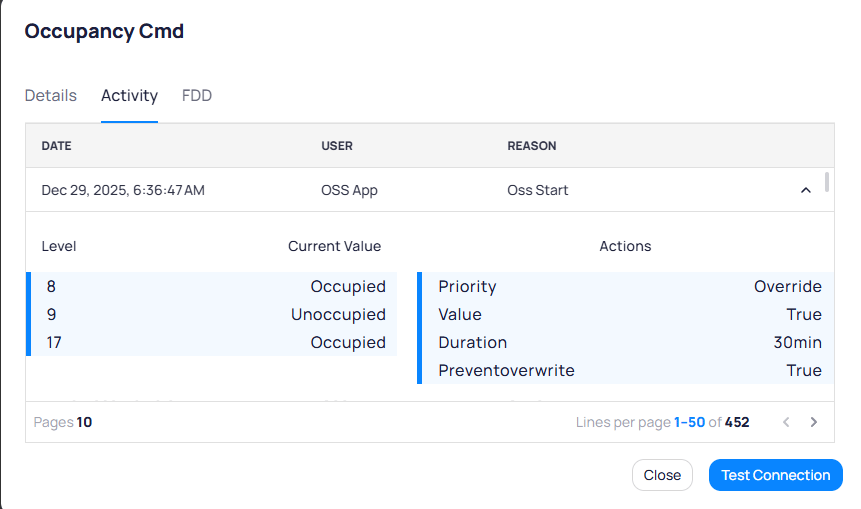 Use the activity log to confirm that OSS is actively controlling a device and to review the override parameters (priority, value, duration). Click `Test Connection` to verify the point connection to the data source.
## OSS dashboard
The OSS dashboard monitors device performance and optimization results through Building BI. Once the OSS adapter is activated, all dashboard calculations are enabled automatically except for the Hours Saved metric, which requires manual data submission. The dashboard shows data only for devices configured with OSS that were running for the specified day or time period.
Two dashboard templates are available in Building BI:
* **OSS Dashboard \[AHU-VAV]** -- for setups with parent-child devices (for example, AHU-VAV). Includes an AHU Startup Details table on the Current Day page.
* **OSS Dashboard \[FCU]** -- for individual devices (for example, FCU, AHU, or VAV alone). Replaces the AHU Startup Details table with a Weather Widget.
Filter the dashboard by date, area, and schedule to focus on specific devices or time periods.
### Key metrics
* **Comfort Index (CI)** -- the difference between the temperature setpoint and the actual zone temperature at occupancy start (when people arrive)
* **Recovery Temperature (RT)** -- the difference between the temperature setpoint and the zone temperature at device OSS start (when OSS starts the device)
* **Hours Saved** -- total runtime hours saved compared to the pre-OSS schedule (requires manual data submission)
### Current Day
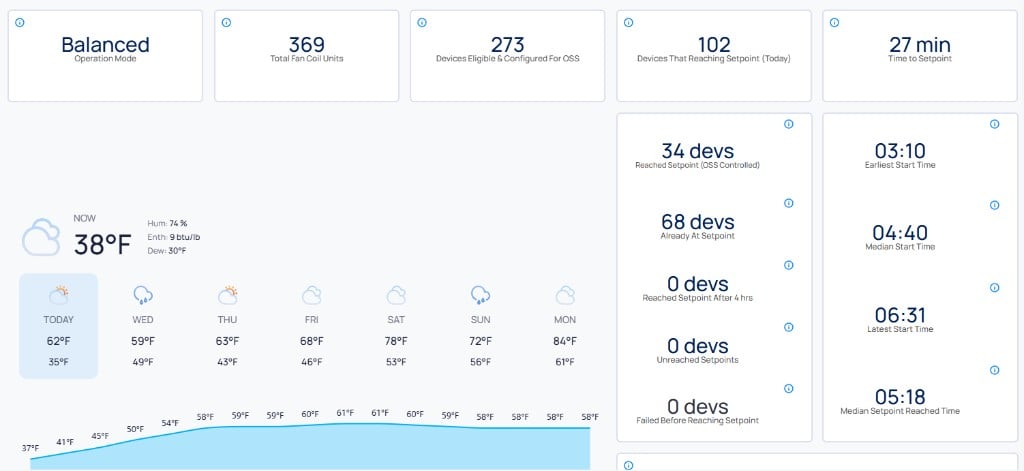
The Current Day page is updated every hour and provides an overview of devices configured with OSS for the current day. The top cards display key metrics at a glance. The FCU template replaces the AHU Startup Details table with a Weather Widget showing current conditions and a seven-day forecast.
Use the activity log to confirm that OSS is actively controlling a device and to review the override parameters (priority, value, duration). Click `Test Connection` to verify the point connection to the data source.
## OSS dashboard
The OSS dashboard monitors device performance and optimization results through Building BI. Once the OSS adapter is activated, all dashboard calculations are enabled automatically except for the Hours Saved metric, which requires manual data submission. The dashboard shows data only for devices configured with OSS that were running for the specified day or time period.
Two dashboard templates are available in Building BI:
* **OSS Dashboard \[AHU-VAV]** -- for setups with parent-child devices (for example, AHU-VAV). Includes an AHU Startup Details table on the Current Day page.
* **OSS Dashboard \[FCU]** -- for individual devices (for example, FCU, AHU, or VAV alone). Replaces the AHU Startup Details table with a Weather Widget.
Filter the dashboard by date, area, and schedule to focus on specific devices or time periods.
### Key metrics
* **Comfort Index (CI)** -- the difference between the temperature setpoint and the actual zone temperature at occupancy start (when people arrive)
* **Recovery Temperature (RT)** -- the difference between the temperature setpoint and the zone temperature at device OSS start (when OSS starts the device)
* **Hours Saved** -- total runtime hours saved compared to the pre-OSS schedule (requires manual data submission)
### Current Day
The Current Day page is updated every hour and provides an overview of devices configured with OSS for the current day. The top cards display key metrics at a glance. The FCU template replaces the AHU Startup Details table with a Weather Widget showing current conditions and a seven-day forecast.
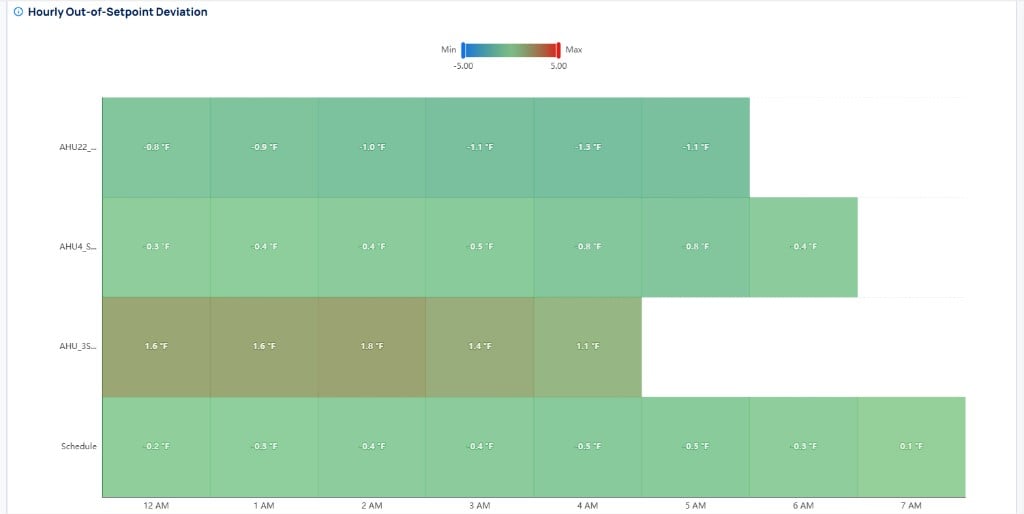
 The **Hourly Out-of-Setpoint Deviation** heatmap shows how much devices within each schedule deviate from their setpoint throughout the day. Green indicates minimal deviation, while red and blue indicate significant deviation. Each cell displays the actual deviation value in degrees.
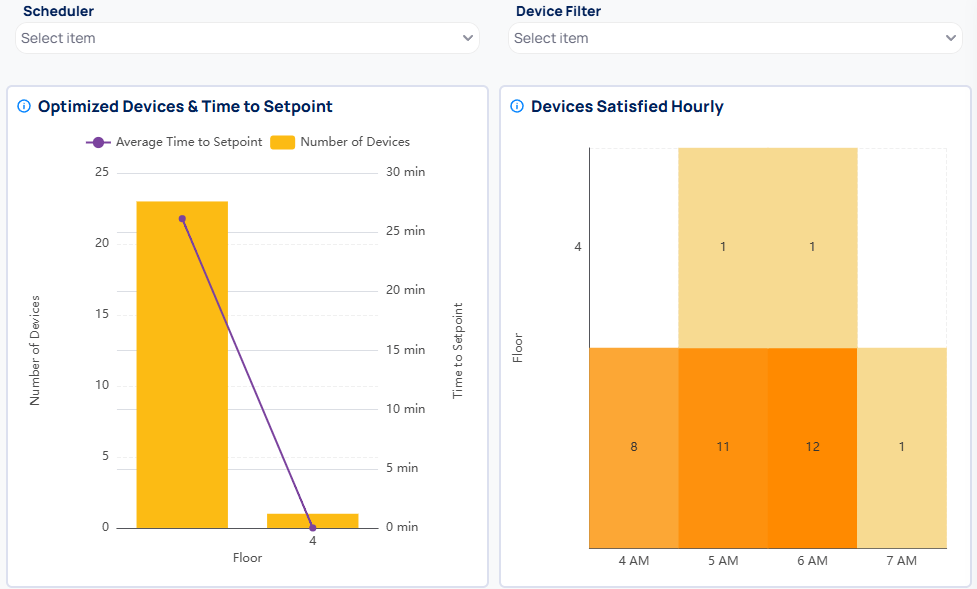
 The **Optimized Devices and Time to Setpoint** chart shows the number of devices optimized per floor and the average time to reach setpoint. The **Devices Satisfied Hourly** chart shows how many optimized devices reached setpoint at each hour. Use the `Scheduler` and `Device Filter` dropdowns to narrow down the view.
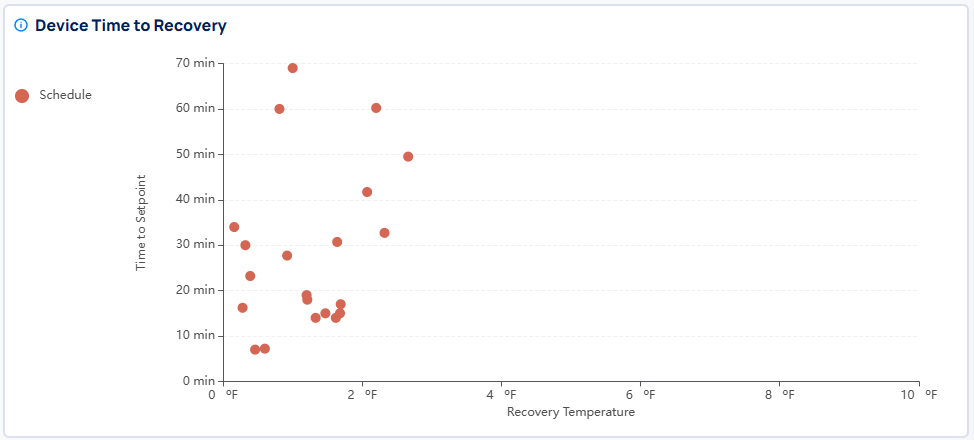
 The **Device Time to Recovery** scatter plot shows individual device performance. Each point represents a device, and colors represent schedules. Devices in the upper-left corner (long recovery time, low recovery temperature) may need attention. Devices in the lower-right corner are recovering efficiently.
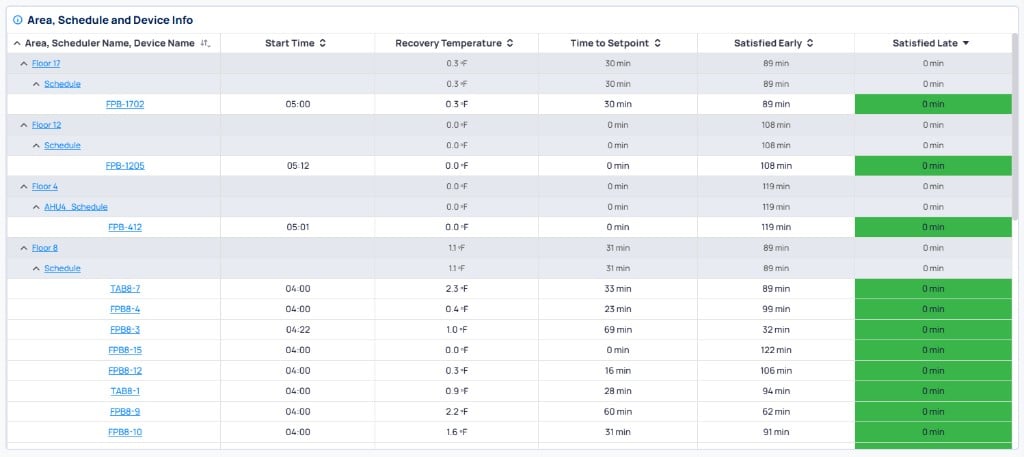
 The **Area, Schedule and Device Info** table provides a hierarchical view of metrics grouped by area, schedule, and device. You can see start times, recovery temperature, time to setpoint, and whether devices satisfied early or late.
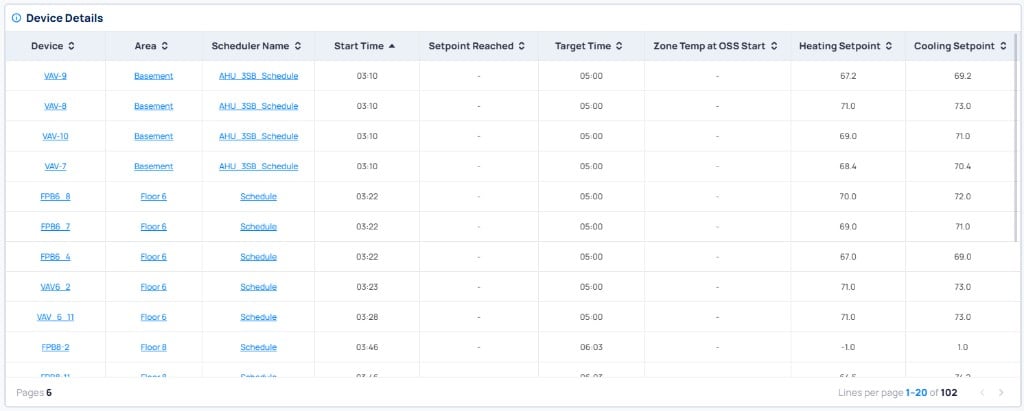
 The **Device Details** table at the bottom shows specific device information including start time, setpoint reached time, target time, zone temperature at OSS start, and heating and cooling setpoints.
 ### Historical
The Historical page is updated every hour and provides long-term performance data over a selected time period. Use this page to track OSS performance trends and identify devices that consistently underperform.
### Historical
The Historical page is updated every hour and provides long-term performance data over a selected time period. Use this page to track OSS performance trends and identify devices that consistently underperform.
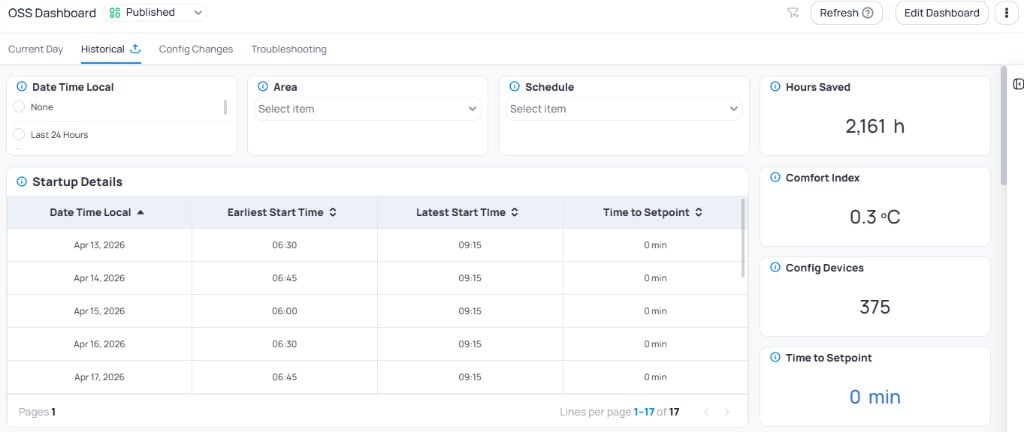 The Historical page includes the same chart types as Current Day but aggregated over the selected date range.
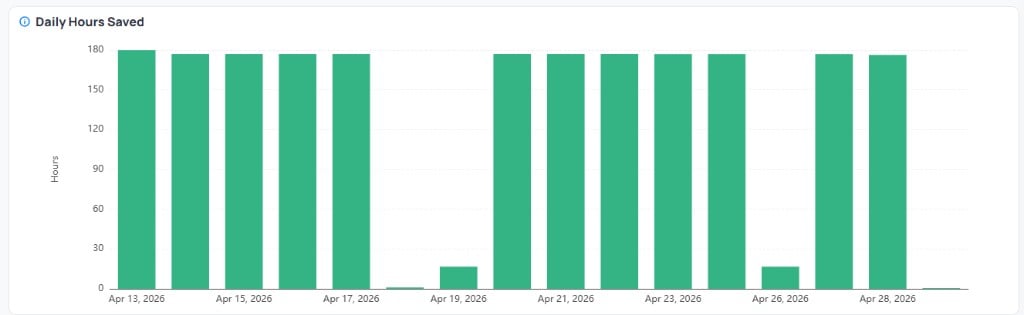
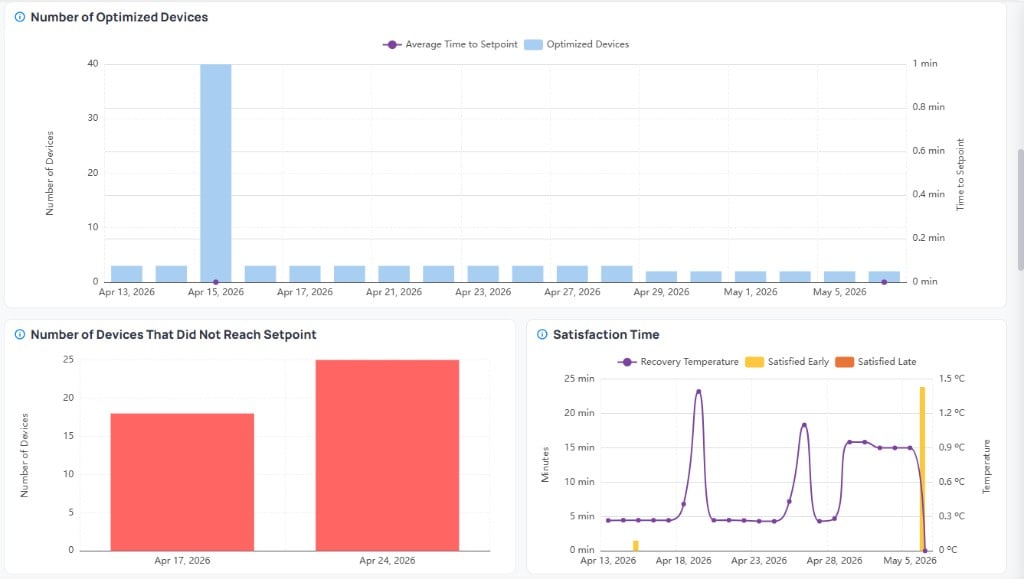
The **Daily Hours Saved** chart shows hours saved by OSS per day. Below it, the **Number of Optimized Devices** chart shows how many devices OSS optimized per day with the average time to setpoint trend line.
The Historical page includes the same chart types as Current Day but aggregated over the selected date range.
The **Daily Hours Saved** chart shows hours saved by OSS per day. Below it, the **Number of Optimized Devices** chart shows how many devices OSS optimized per day with the average time to setpoint trend line.
 The **Number of Devices That Did Not Reach Setpoint** chart shows daily failure counts. The **Satisfaction Time** chart tracks when devices reached setpoint relative to occupancy start, with Satisfied Early (yellow) and Satisfied Late (orange/red) indicators and a Recovery Temperature trend line (purple).
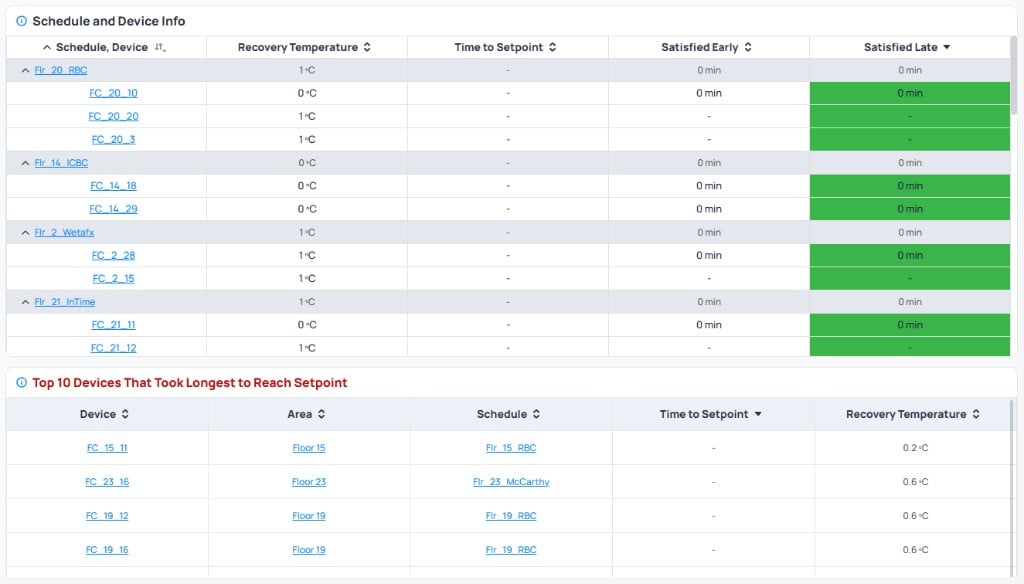
 The **Schedule and Device Info** table provides aggregated metrics grouped by schedule and device. Below it, the **Top 10 Devices That Took Longest to Reach Setpoint** table highlights devices that may need attention based on their average recovery time.
 #### Hours Saved metric
The Hours Saved metric is not calculated automatically. Submit a data sheet to KODE support at [support@kodelabs.com](mailto:support@kodelabs.com) with the following fields for each schedule:
* **Building Name** -- the name of the building
* **Schedule Name** -- the scheduler name in Cloud BMS
* **Day of Week** -- the day of the week (Monday through Saturday)
* **Space Entry Time** -- the expected occupant arrival time used to benchmark target comfort time
* **Pre-OSS Start Time** -- the typical scheduled HVAC start time before OSS activation
### Config Changes
The Config Changes page is updated daily. It tracks changes to configured devices that may have made them incompatible with OSS. The top cards show Compatible Devices, Active Configs, Inactive Configs, Expired Configs, and Adapters Affected. The **Detected Change Type** chart and **Expired Configs Per Adapter** chart help identify which changes are causing incompatibility.
#### Hours Saved metric
The Hours Saved metric is not calculated automatically. Submit a data sheet to KODE support at [support@kodelabs.com](mailto:support@kodelabs.com) with the following fields for each schedule:
* **Building Name** -- the name of the building
* **Schedule Name** -- the scheduler name in Cloud BMS
* **Day of Week** -- the day of the week (Monday through Saturday)
* **Space Entry Time** -- the expected occupant arrival time used to benchmark target comfort time
* **Pre-OSS Start Time** -- the typical scheduled HVAC start time before OSS activation
### Config Changes
The Config Changes page is updated daily. It tracks changes to configured devices that may have made them incompatible with OSS. The top cards show Compatible Devices, Active Configs, Inactive Configs, Expired Configs, and Adapters Affected. The **Detected Change Type** chart and **Expired Configs Per Adapter** chart help identify which changes are causing incompatibility.
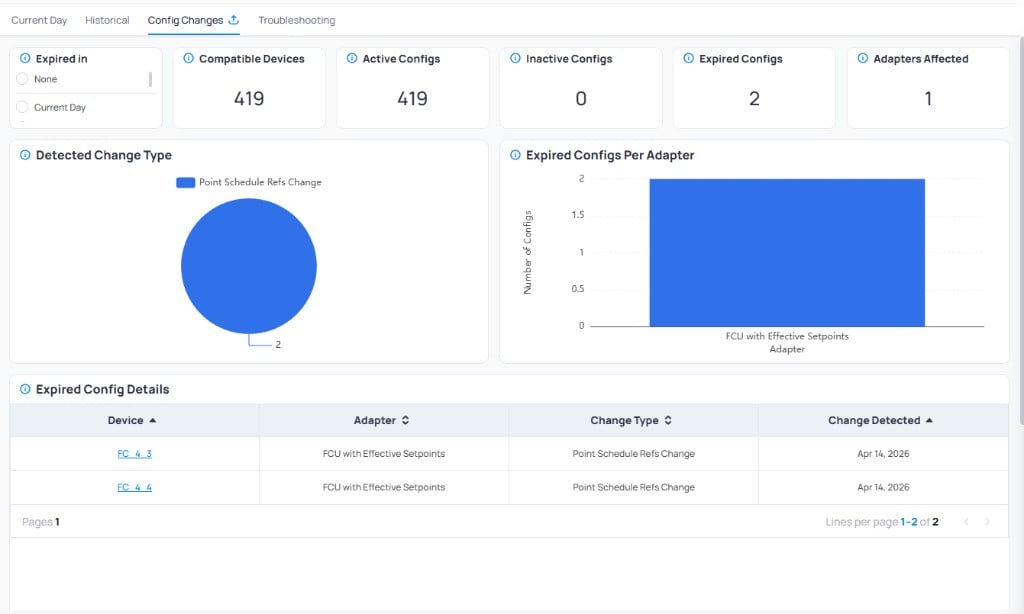 A device may appear more than once if multiple changes were detected on the same day. Review the **Expired Config Details** table to identify which devices were made incompatible and take corrective action to restore compatibility.
### Troubleshooting
The Troubleshooting page is updated every hour. It displays overrides made by OSS on configured devices. Filter by `Date Time Local`, `Override Status`, and `Canonical Type` to narrow down specific issues. The top cards show Devices Overridden and Issues counts.
A device may appear more than once if multiple changes were detected on the same day. Review the **Expired Config Details** table to identify which devices were made incompatible and take corrective action to restore compatibility.
### Troubleshooting
The Troubleshooting page is updated every hour. It displays overrides made by OSS on configured devices. Filter by `Date Time Local`, `Override Status`, and `Canonical Type` to narrow down specific issues. The top cards show Devices Overridden and Issues counts.
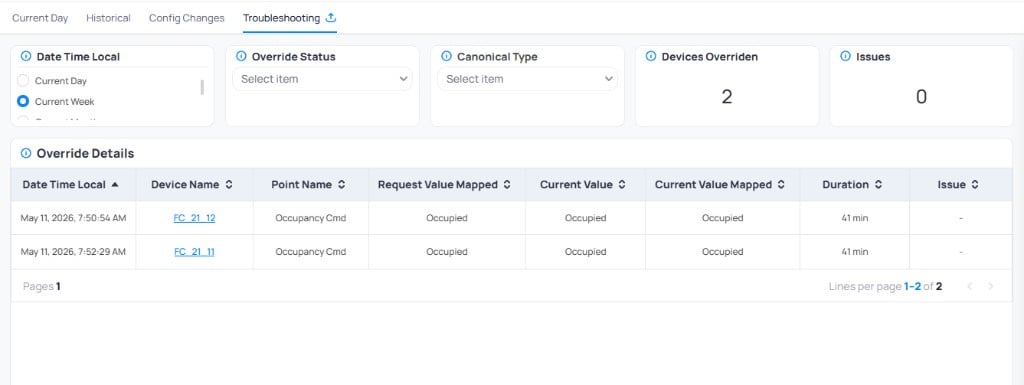 The **Override Details** table shows the timestamp, device name, point name, requested value, current value, duration, and any issues that occurred during the override. Use this page to understand why a device could not be turned on by OSS.
## Next steps
Set up the schedules that OSS uses to determine target satisfaction times.
Manage the equipment that OSS optimizes.
The **Override Details** table shows the timestamp, device name, point name, requested value, current value, duration, and any issues that occurred during the override. Use this page to understand why a device could not be turned on by OSS.
## Next steps
Set up the schedules that OSS uses to determine target satisfaction times.
Manage the equipment that OSS optimizes.