> ## Documentation Index
> Fetch the complete documentation index at: https://documentation.kodelabs.com/llms.txt
> Use this file to discover all available pages before exploring further.
# Virtual devices
> Split systems into logical virtual devices, map points from pseudo devices, and manage virtual equipment alongside physical devices.
Virtual devices let you separate grouped systems and devices so you can use them more clearly in operations and analytics. You can split one physical device into multiple virtual devices, group points by function, or build logical views without adding hardware.
You configure virtual devices on `Setup Virtual Devices`. Pseudo devices are sources whose points you reuse; virtual devices are the destinations you build. Assign points by dragging them from a pseudo device into a virtual device configuration. You can also drag selected point groups into **Create New Device** to create a virtual device named from the group.
## Navigate to Setup Virtual Devices
Open `Devices` at your site or building. Click `Batch Update Devices` in the upper right, then choose `Virtual Devices` in the left menu to open `Setup Virtual Devices`.
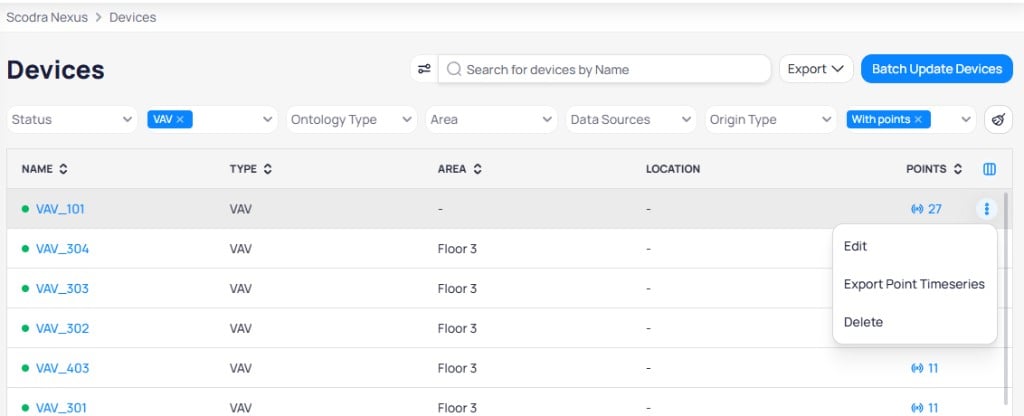
From the main `Devices` list you can also open `Batch Update Devices` for bulk work, or use the row menu on a device for `Edit`, `Export Point Timeseries`, or `Delete`.
 ## Pseudo devices
A pseudo device is a source device whose points you can assign to virtual devices. Only devices marked as pseudo appear in the `Pseudo Devices` list on `Setup Virtual Devices`.
### Mark a device as pseudo
Use either path:
* **Device list:** Go to `Devices`. Hover the row for the device you want. On the right side of the row, click the three-dot menu (it appears when you hover), then choose `Edit`. Set `Is Pseudo Device` to `True`, then click `Save`.
* **Batch update:** Go to `Devices` > `Batch Update Devices`, select the devices, open the **Properties** panel, set `Is Pseudo Device` to `True`, and apply.
## Pseudo devices
A pseudo device is a source device whose points you can assign to virtual devices. Only devices marked as pseudo appear in the `Pseudo Devices` list on `Setup Virtual Devices`.
### Mark a device as pseudo
Use either path:
* **Device list:** Go to `Devices`. Hover the row for the device you want. On the right side of the row, click the three-dot menu (it appears when you hover), then choose `Edit`. Set `Is Pseudo Device` to `True`, then click `Save`.
* **Batch update:** Go to `Devices` > `Batch Update Devices`, select the devices, open the **Properties** panel, set `Is Pseudo Device` to `True`, and apply.
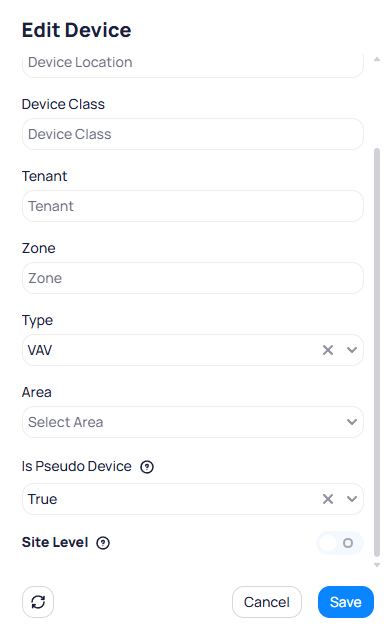 After you mark a device as pseudo, it leaves the main Devices list. To see it again, unset the pseudo flag or open **More** and select `Show Pseudo devices`.
## Page layout
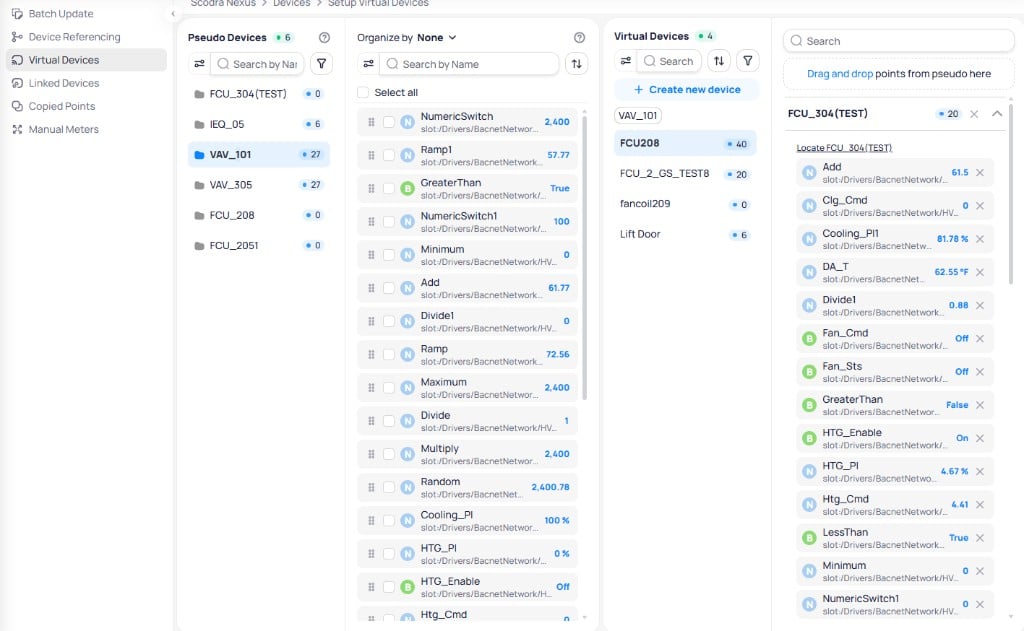
The `Setup Virtual Devices` page is split into two sides:
**Left — Pseudo devices**
* Lists pseudo devices with point counts.
* Use search, sort, and filters (for example devices with or without points).
* Select a device to load its points in the adjacent panel. Each point shows name, path (for example Niagara slot path), and live value.
**Right — Virtual devices**
* Lists virtual devices you created.
* Select one to view or edit its assigned points. Points are grouped by the pseudo device they came from where applicable.
* Filter and sort by name, created date, type, area, point count, and related chips (for example `Created from {pseudoDeviceName}` after you select a pseudo device).
Use `Locate Device` on a virtual device when you need to highlight its source pseudo device on the left.
## Create virtual devices
Click `+ Create new device` in the `Virtual Devices` column.
### Create new device dialog
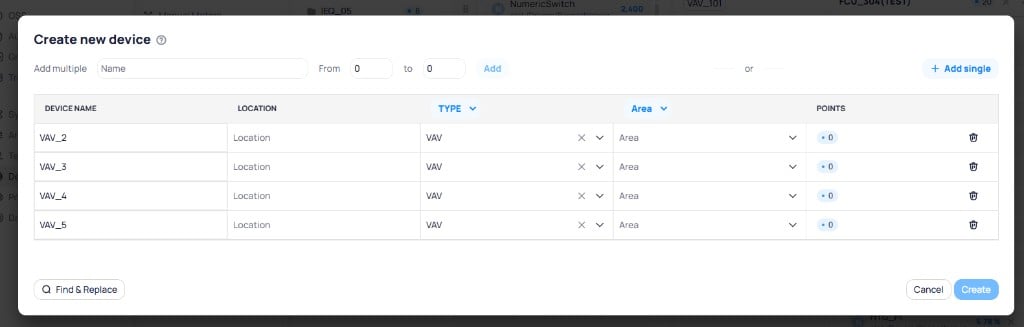
**Bulk rows:** In `Add multiple`, enter a base `Name`, set `From` and `To` for the numeric range, then click `Add`. Names are generated for each row (for example `Meeting_Room 1` through `Meeting_Room 15`). You can then set `Location`, `Type`, `Area`, and `Tags` per row. Use the column header dropdowns on `Type` or `Area` to apply the same value to many rows at once.
**Single rows:** Click `+ Add single` to add one row and fill all fields manually.
Use `Find & Replace` at the bottom of the dialog to rename or adjust values in bulk. When the table looks correct, click `Create`.
After creation, the new virtual device appears in the `Virtual Devices` list and you can select it to map points.
After you mark a device as pseudo, it leaves the main Devices list. To see it again, unset the pseudo flag or open **More** and select `Show Pseudo devices`.
## Page layout
The `Setup Virtual Devices` page is split into two sides:
**Left — Pseudo devices**
* Lists pseudo devices with point counts.
* Use search, sort, and filters (for example devices with or without points).
* Select a device to load its points in the adjacent panel. Each point shows name, path (for example Niagara slot path), and live value.
**Right — Virtual devices**
* Lists virtual devices you created.
* Select one to view or edit its assigned points. Points are grouped by the pseudo device they came from where applicable.
* Filter and sort by name, created date, type, area, point count, and related chips (for example `Created from {pseudoDeviceName}` after you select a pseudo device).
Use `Locate Device` on a virtual device when you need to highlight its source pseudo device on the left.
## Create virtual devices
Click `+ Create new device` in the `Virtual Devices` column.
### Create new device dialog
**Bulk rows:** In `Add multiple`, enter a base `Name`, set `From` and `To` for the numeric range, then click `Add`. Names are generated for each row (for example `Meeting_Room 1` through `Meeting_Room 15`). You can then set `Location`, `Type`, `Area`, and `Tags` per row. Use the column header dropdowns on `Type` or `Area` to apply the same value to many rows at once.
**Single rows:** Click `+ Add single` to add one row and fill all fields manually.
Use `Find & Replace` at the bottom of the dialog to rename or adjust values in bulk. When the table looks correct, click `Create`.
After creation, the new virtual device appears in the `Virtual Devices` list and you can select it to map points.
 ### Edit or delete a virtual device
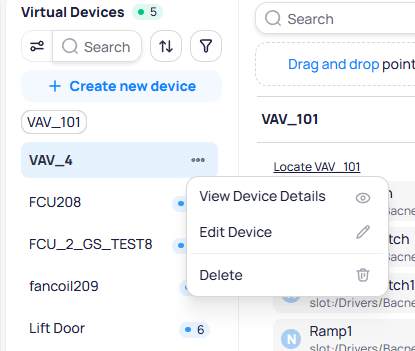
In the `Virtual Devices` column on Setup Virtual Devices, hover the row for the virtual device you want to change. Click the three-dot menu on the right side of the row (it appears when you hover), then choose an option:
* `View Device Details` — Opens the device’s full page (same as opening it from the main `Devices` list).
* `Edit Device` — Opens the edit dialog to change properties such as name, location, type, and area.
* `Delete` — Removes the virtual device. Confirm when prompted.
### Edit or delete a virtual device
In the `Virtual Devices` column on Setup Virtual Devices, hover the row for the virtual device you want to change. Click the three-dot menu on the right side of the row (it appears when you hover), then choose an option:
* `View Device Details` — Opens the device’s full page (same as opening it from the main `Devices` list).
* `Edit Device` — Opens the edit dialog to change properties such as name, location, type, and area.
* `Delete` — Removes the virtual device. Confirm when prompted.
 ## Map points to virtual devices
The workspace shows pseudo devices, their points, the virtual device list, and the configuration panel for the selected virtual device.
## Map points to virtual devices
The workspace shows pseudo devices, their points, the virtual device list, and the configuration panel for the selected virtual device.
 ### Drag and drop
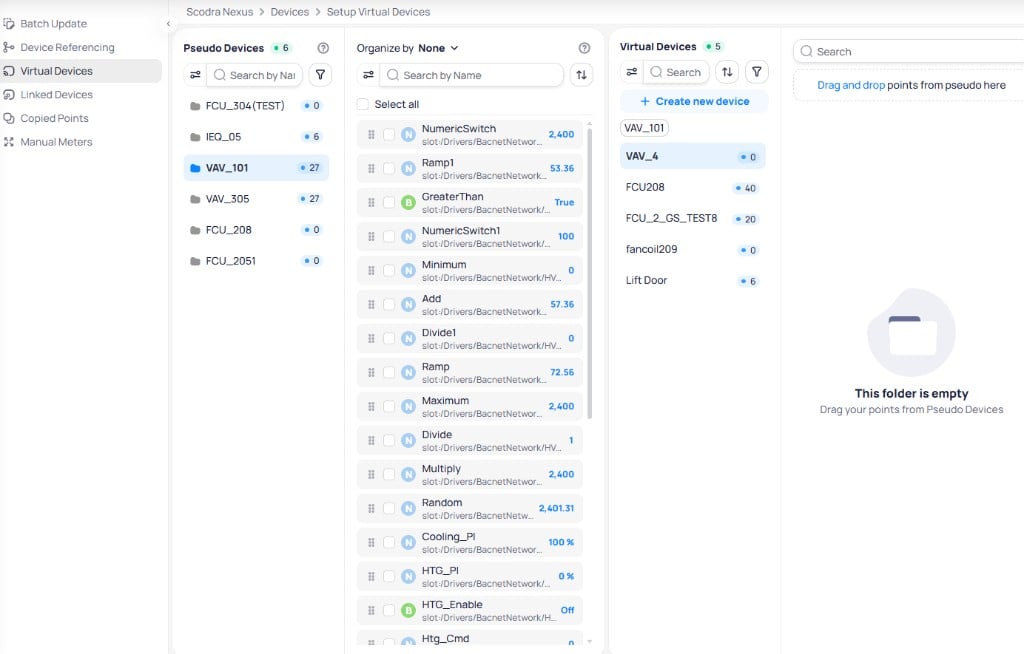
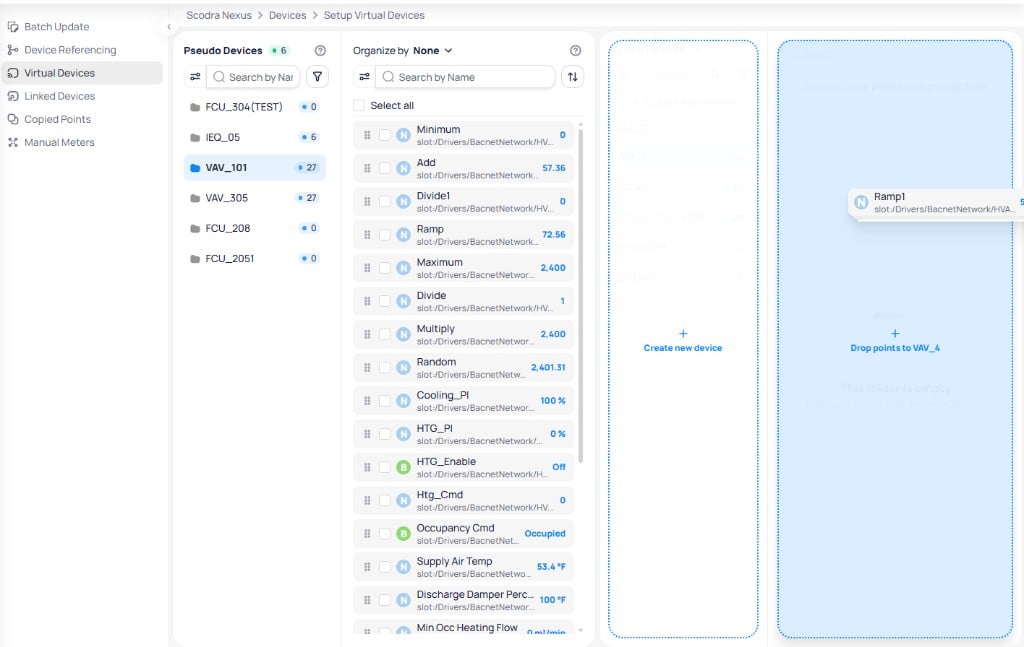
Select a pseudo device on the left and a virtual device on the right. Drag points from the middle column into the configuration panel. When the virtual device is empty, you see `Drag and drop points from pseudo here`. While dragging, the target may show a prompt such as `Drop points to {device}`.
### Drag and drop
Select a pseudo device on the left and a virtual device on the right. Drag points from the middle column into the configuration panel. When the virtual device is empty, you see `Drag and drop points from pseudo here`. While dragging, the target may show a prompt such as `Drop points to {device}`.
 ### Review and remove points
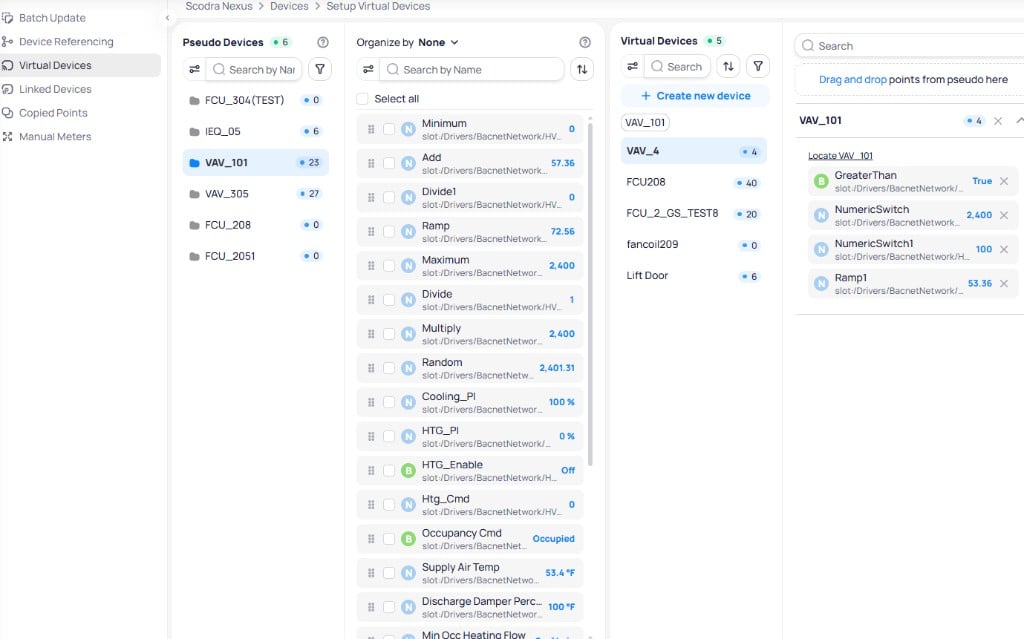
Each mapped point shows type, name, path, value, and an `X` icon. Click `X` to remove that point from the virtual device immediately. No confirmation dialog appears. The point becomes available again on the source pseudo device if you want to map it elsewhere.
### Review and remove points
Each mapped point shows type, name, path, value, and an `X` icon. Click `X` to remove that point from the virtual device immediately. No confirmation dialog appears. The point becomes available again on the source pseudo device if you want to map it elsewhere.
 ## Use virtual devices elsewhere
Virtual devices you create behave like other devices where your permissions allow: `Trends`, `Device Details`, graphics, and schedules.
Pseudo devices supply points; virtual devices are the grouped or split views you use for day-to-day monitoring and control.
## Next steps
Open any device for details, trends, and batch actions from the list.
Set Is Pseudo Device and other properties across many devices at once.
## Use virtual devices elsewhere
Virtual devices you create behave like other devices where your permissions allow: `Trends`, `Device Details`, graphics, and schedules.
Pseudo devices supply points; virtual devices are the grouped or split views you use for day-to-day monitoring and control.
## Next steps
Open any device for details, trends, and batch actions from the list.
Set Is Pseudo Device and other properties across many devices at once.