> ## Documentation Index
> Fetch the complete documentation index at: https://documentation.kodelabs.com/llms.txt
> Use this file to discover all available pages before exploring further.
# FTT projects
> Create, schedule, and manage Functional Testing projects to automate equipment testing across your building in Cloud BMS.
FTT projects automate testing across entire buildings, multiple floors, and extended time periods. A project assigns devices to a workflow, sets a testing schedule, and groups tasks by floor or device count for systematic execution.
Navigate to `FTT` from the left sidebar, then select the three-dot menu at the top right and choose `Projects`.
If you are new to FTT, run one on-demand test first so you know how scores are produced. See [What is Functional Testing?](/products/ftt/overview) and [What is Functional Testing?](/products/ftt/overview).
## Projects list
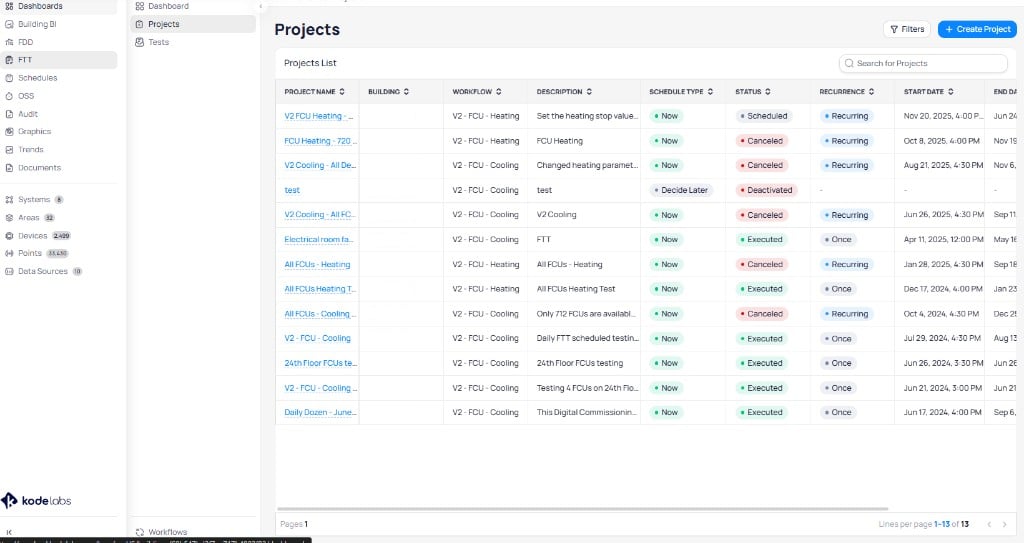
The projects list displays all FTT projects with their status, schedule, and configuration details.
 | Column | Description |
| --------------- | ------------------------------------------------------------ |
| `Project Name` | Name of the testing project |
| `Building` | Building where the tests run |
| `Workflow` | Testing workflow assigned to the project |
| `Description` | Summary of the project scope |
| `Schedule Type` | Whether the project runs Now or is set to Decide Later |
| `Status` | Current status (Scheduled, Executed, Cancelled, Deactivated) |
| `Recurrence` | Whether the project is Recurring or Once |
| `Start Date` | Date and time the project begins |
| `End Date` | Date and time the project ends |
## Create a project
Choose the building where you want to run tests. This step completes automatically if you navigate to FTT from within a building.
Choose the testing workflow for your project. The left panel lists all available workflows from the library. Select a workflow to view and adjust its parameters on the right.
| Column | Description |
| --------------- | ------------------------------------------------------------ |
| `Project Name` | Name of the testing project |
| `Building` | Building where the tests run |
| `Workflow` | Testing workflow assigned to the project |
| `Description` | Summary of the project scope |
| `Schedule Type` | Whether the project runs Now or is set to Decide Later |
| `Status` | Current status (Scheduled, Executed, Cancelled, Deactivated) |
| `Recurrence` | Whether the project is Recurring or Once |
| `Start Date` | Date and time the project begins |
| `End Date` | Date and time the project ends |
## Create a project
Choose the building where you want to run tests. This step completes automatically if you navigate to FTT from within a building.
Choose the testing workflow for your project. The left panel lists all available workflows from the library. Select a workflow to view and adjust its parameters on the right.
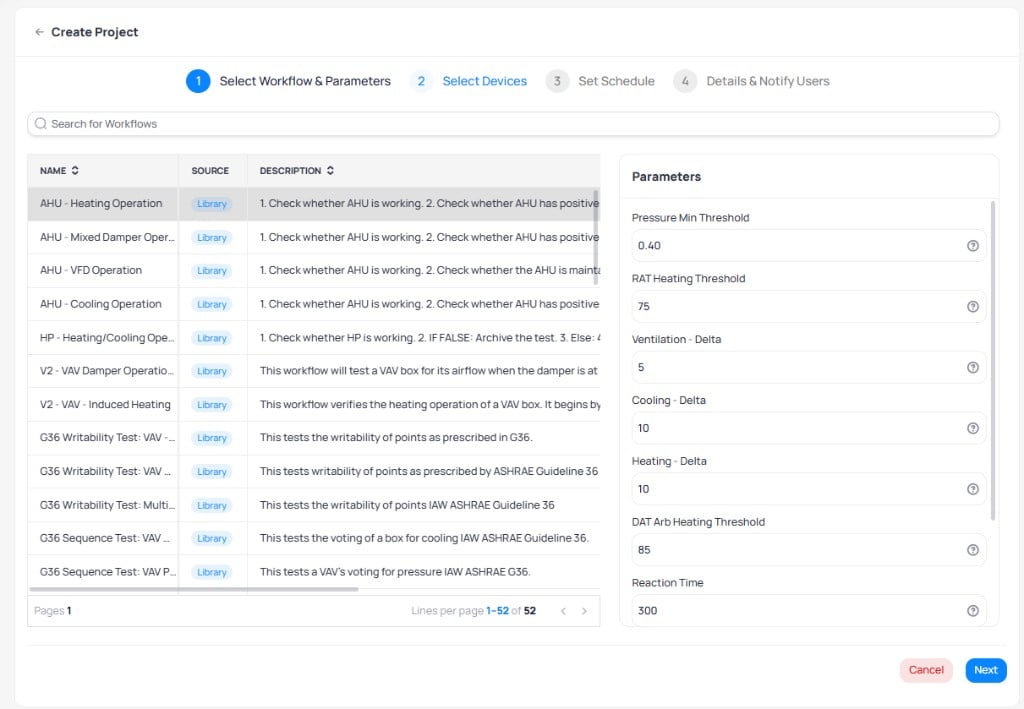 Each workflow includes adjustable parameters that control success criteria and time limits. Adjust these values to match your building's specific requirements.
See the workflow library pages for detailed parameter descriptions: [VAV workflows](/products/ftt/vav-workflows), [FCU workflows](/products/ftt/fcu-workflows), [AHU workflows](/products/ftt/ahu-workflows), and [Heat pump workflows](/products/ftt/hp-workflows).
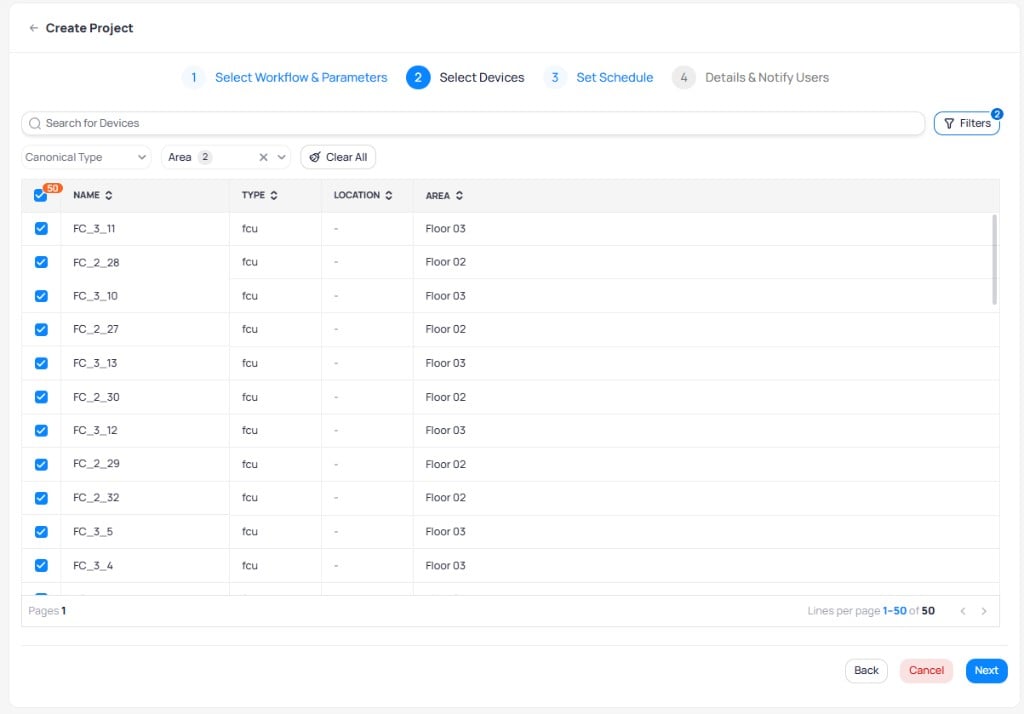
Select the devices to test during the project. Use the search bar and filters to narrow devices by `Canonical Type` and `Area`. For building-wide commissioning, select all compatible devices. You can also select specific floors or individual devices.
Each workflow includes adjustable parameters that control success criteria and time limits. Adjust these values to match your building's specific requirements.
See the workflow library pages for detailed parameter descriptions: [VAV workflows](/products/ftt/vav-workflows), [FCU workflows](/products/ftt/fcu-workflows), [AHU workflows](/products/ftt/ahu-workflows), and [Heat pump workflows](/products/ftt/hp-workflows).
Select the devices to test during the project. Use the search bar and filters to narrow devices by `Canonical Type` and `Area`. For building-wide commissioning, select all compatible devices. You can also select specific floors or individual devices.
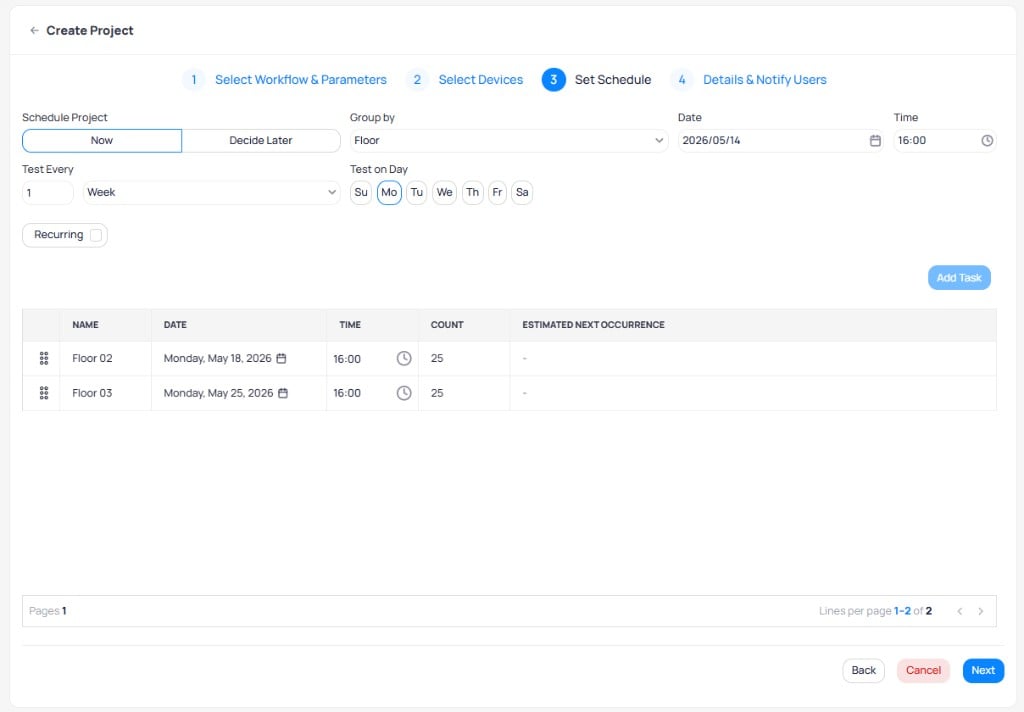
 Configure when and how tests run. The schedule defines the testing cadence, grouping strategy, and recurrence pattern.
 **Schedule project**
| Option | Description |
| -------------- | ---------------------------------------------------------------------- |
| `Now` | Finalize the schedule immediately |
| `Decide Later` | Save the workflow and parameters as a draft and set the schedule later |
**Group by**
| Option | Description |
| --------------------- | ---------------------------------------------------------------------- |
| `By Floor` | Test one floor per commissioning day, working from bottom to top |
| `By Count of Devices` | Test a fixed number of devices per day (such as 5, 10, or 50) |
| `By None` | Include all selected devices in a single group with one testing period |
**Choose a grouping strategy**
* Use **By Floor** when operators review results by area and you want a clear floor-by-floor cadence.
* Use **By Count of Devices** when floors are uneven or you want a fixed daily workload (for example, 10 devices per day).
* Use **By None** for a small selection, a single floor already filtered in device pick, or a one-time commissioning batch.
**Date and time**
Set the project start date and the time each test begins. Common configurations schedule tests during late afternoon when equipment runs at steady state.
The `Date` is the earliest possible start date. `Test on Day` (for weekly cadence) is the weekday when runs are allowed. Cloud BMS schedules the first run on the first selected Test-on-Day that falls on or after the Date.
For example, if `Date` is Friday, February 7 and `Test on Day` is Monday, the project does not run on February 7. It starts on the next Monday after February 7.
**Test frequency**
Use `Test Every` and `Test on Day` to define how often tests run. The schedule preview updates as you configure these fields.
**Recurrence**
Enable the `Recurring` toggle and optionally turn on `Advanced Settings` to configure repeat behavior.
Simple recurrence starts the next cycle after the current cycle finishes. Advanced scheduling starts the next cycle a set time after project start or project end. The platform blocks overlapping advanced schedules.
**Schedule project**
| Option | Description |
| -------------- | ---------------------------------------------------------------------- |
| `Now` | Finalize the schedule immediately |
| `Decide Later` | Save the workflow and parameters as a draft and set the schedule later |
**Group by**
| Option | Description |
| --------------------- | ---------------------------------------------------------------------- |
| `By Floor` | Test one floor per commissioning day, working from bottom to top |
| `By Count of Devices` | Test a fixed number of devices per day (such as 5, 10, or 50) |
| `By None` | Include all selected devices in a single group with one testing period |
**Choose a grouping strategy**
* Use **By Floor** when operators review results by area and you want a clear floor-by-floor cadence.
* Use **By Count of Devices** when floors are uneven or you want a fixed daily workload (for example, 10 devices per day).
* Use **By None** for a small selection, a single floor already filtered in device pick, or a one-time commissioning batch.
**Date and time**
Set the project start date and the time each test begins. Common configurations schedule tests during late afternoon when equipment runs at steady state.
The `Date` is the earliest possible start date. `Test on Day` (for weekly cadence) is the weekday when runs are allowed. Cloud BMS schedules the first run on the first selected Test-on-Day that falls on or after the Date.
For example, if `Date` is Friday, February 7 and `Test on Day` is Monday, the project does not run on February 7. It starts on the next Monday after February 7.
**Test frequency**
Use `Test Every` and `Test on Day` to define how often tests run. The schedule preview updates as you configure these fields.
**Recurrence**
Enable the `Recurring` toggle and optionally turn on `Advanced Settings` to configure repeat behavior.
Simple recurrence starts the next cycle after the current cycle finishes. Advanced scheduling starts the next cycle a set time after project start or project end. The platform blocks overlapping advanced schedules.
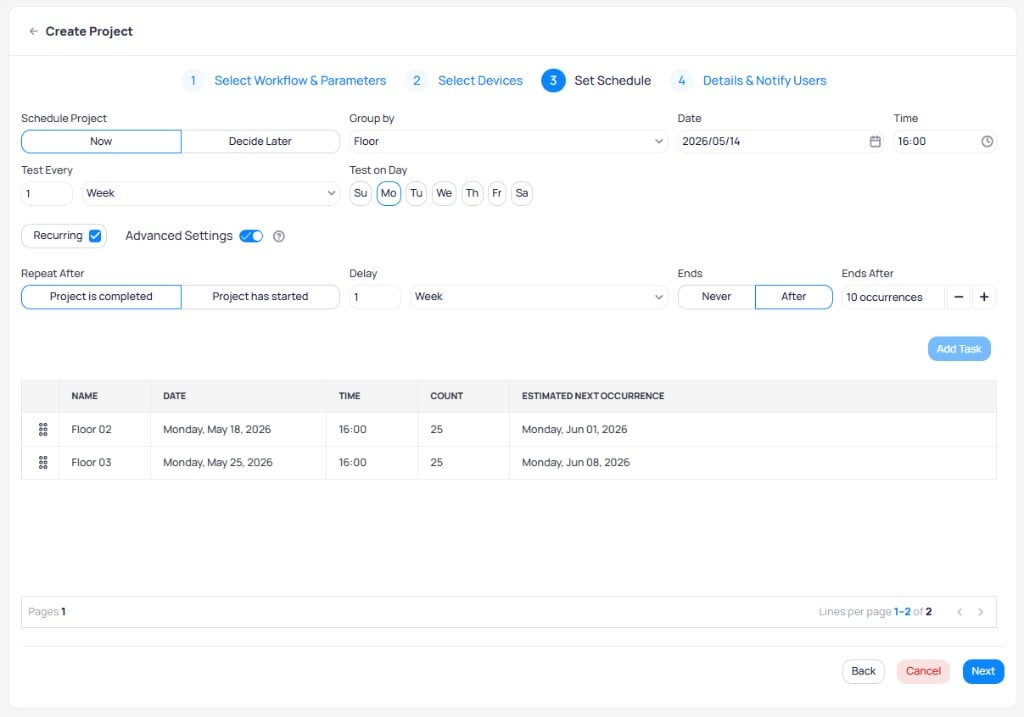 | Option | Description |
| -------------- | ---------------------------------------------------------------------------------------------------- |
| `Repeat After` | Choose whether the next cycle starts after the project is completed or after the project has started |
| `Delay` | Set a delay period (in weeks) between project cycles |
| `Ends` | Choose `Never` for continuous testing or `After` to limit the number of recurrences |
**Schedule preview**
The preview table shows all scheduled tasks with their dates, device counts, and estimated next occurrences. Tasks are automatically named based on floor or group.
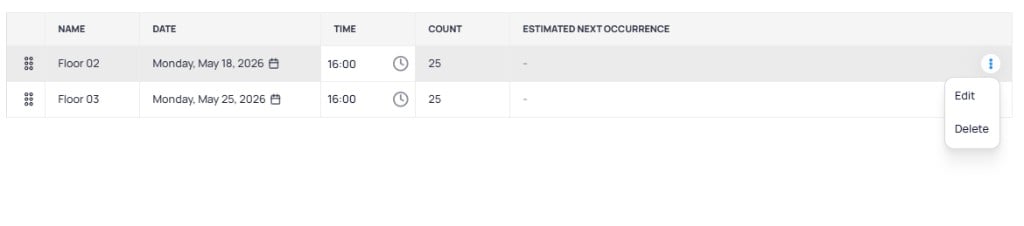
* **Reorder tasks**: drag the handle on the left side of each row
* **Edit or delete a task**: select the three-dot menu on a task row to edit its details or remove it from the schedule
* **Add Task**: after you remove a device from an existing task, `Add Task` becomes available. Use it to create a new task for devices that are not in any group, then assign those devices on the Devices tab
| Option | Description |
| -------------- | ---------------------------------------------------------------------------------------------------- |
| `Repeat After` | Choose whether the next cycle starts after the project is completed or after the project has started |
| `Delay` | Set a delay period (in weeks) between project cycles |
| `Ends` | Choose `Never` for continuous testing or `After` to limit the number of recurrences |
**Schedule preview**
The preview table shows all scheduled tasks with their dates, device counts, and estimated next occurrences. Tasks are automatically named based on floor or group.
* **Reorder tasks**: drag the handle on the left side of each row
* **Edit or delete a task**: select the three-dot menu on a task row to edit its details or remove it from the schedule
* **Add Task**: after you remove a device from an existing task, `Add Task` becomes available. Use it to create a new task for devices that are not in any group, then assign those devices on the Devices tab
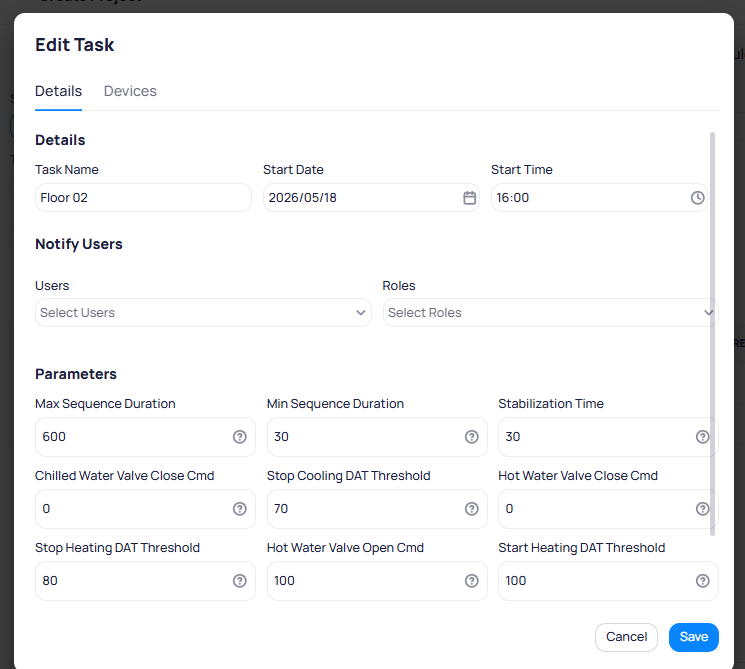
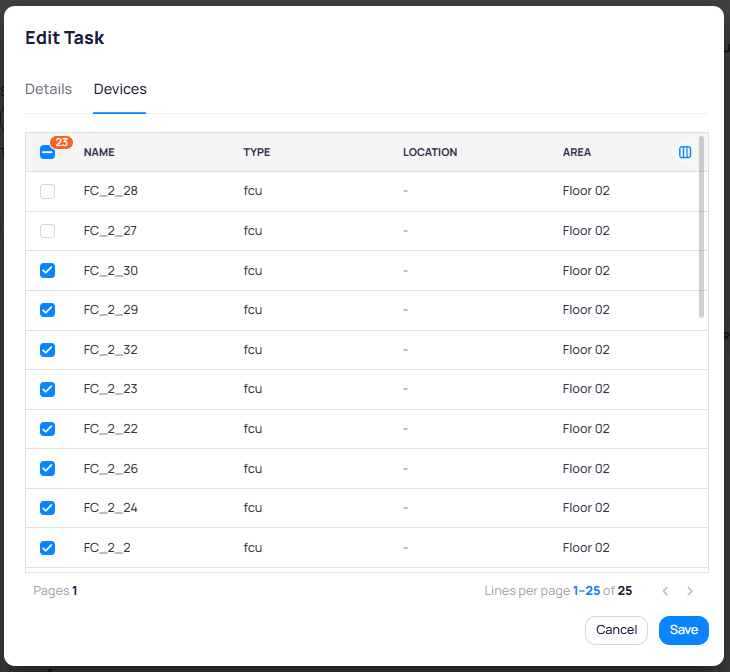
 The **Edit Task** dialog lets you modify task-level settings on two tabs:
* **Details**: change the task name, start date, start time, notify users, and adjust workflow parameters for this specific task
The **Edit Task** dialog lets you modify task-level settings on two tabs:
* **Details**: change the task name, start date, start time, notify users, and adjust workflow parameters for this specific task
 * **Devices**: add or remove individual devices from this task
 Complete the project configuration with a name, description, notification settings, and simultaneous test limits.
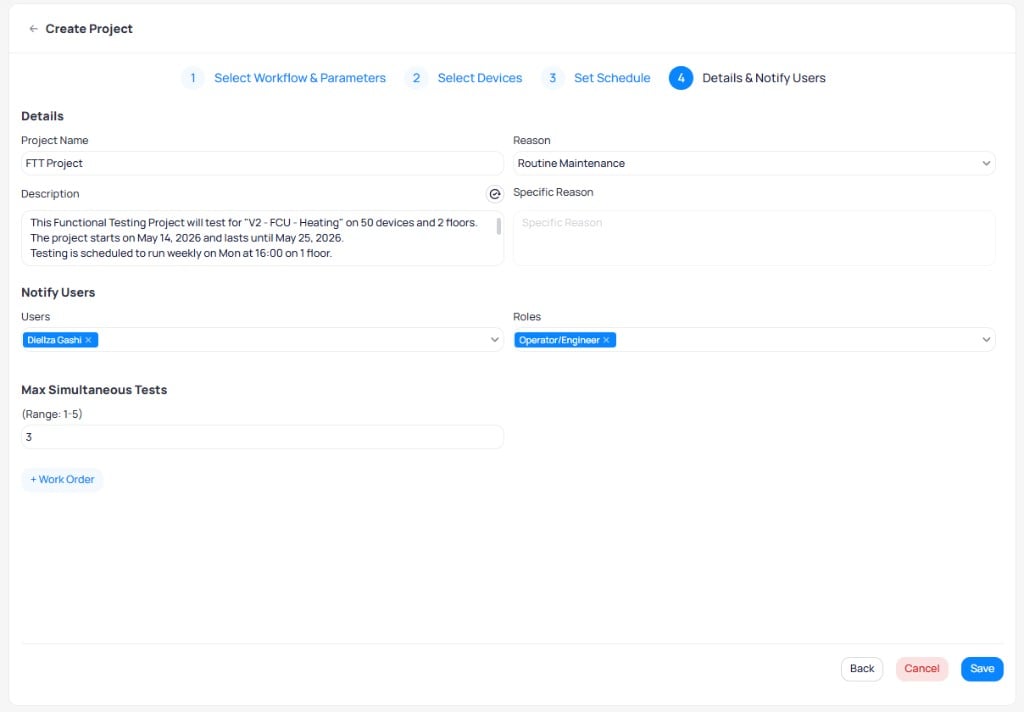 | Field | Description |
| ------------------------ | --------------------------------------------------------------------------------------------------------------- |
| `Project Name` | Descriptive name for the project scope, such as "Spring FCU Heating" or "Annual VAV Damper Testing" |
| `Description` | Summary of the project. Select the auto-generate icon to create a description from your schedule configuration. |
| `Reason` | Category for creating the project, such as "Routine Maintenance" |
| `Specific Reason` | Additional detail about why the project was created |
| `Notify Users` | Select specific users to notify before tests, after tests, or both |
| `Notify Roles` | Select a role (such as Operator/Engineer) to notify all users in that role |
| `Max Simultaneous Tests` | Number of devices tested at the same time within a single task (range: 1 to 5) |
Confirm whether notifications send before tests, after tests, or both when you select users and roles.
#### Work orders
Select `+ Work Order` to configure automatic work order creation when testing completes. Work orders push results to an external system through the QR Connect API.
| Field | Description |
| ------------------------ | --------------------------------------------------------------------------------------------------------------- |
| `Project Name` | Descriptive name for the project scope, such as "Spring FCU Heating" or "Annual VAV Damper Testing" |
| `Description` | Summary of the project. Select the auto-generate icon to create a description from your schedule configuration. |
| `Reason` | Category for creating the project, such as "Routine Maintenance" |
| `Specific Reason` | Additional detail about why the project was created |
| `Notify Users` | Select specific users to notify before tests, after tests, or both |
| `Notify Roles` | Select a role (such as Operator/Engineer) to notify all users in that role |
| `Max Simultaneous Tests` | Number of devices tested at the same time within a single task (range: 1 to 5) |
Confirm whether notifications send before tests, after tests, or both when you select users and roles.
#### Work orders
Select `+ Work Order` to configure automatic work order creation when testing completes. Work orders push results to an external system through the QR Connect API.
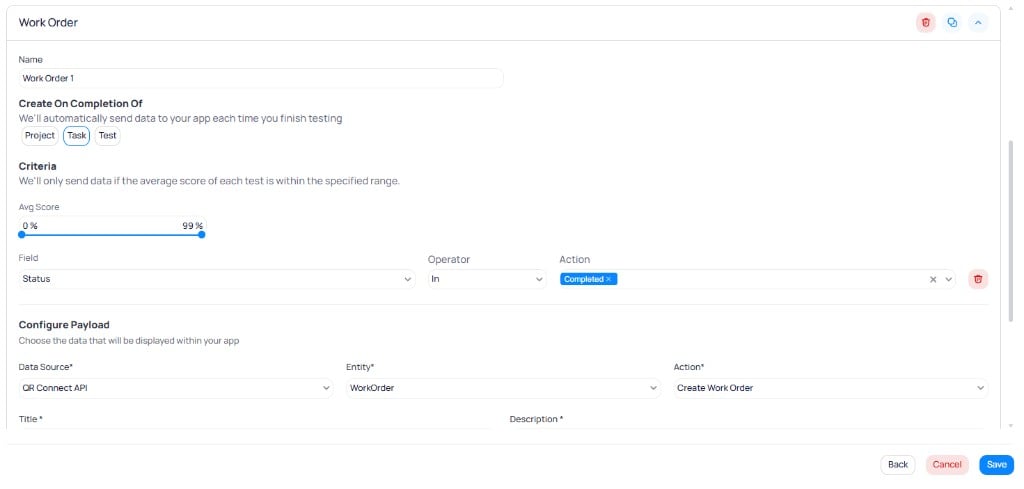 | Field | Description |
| --------------------------- | --------------------------------------------------------------------------------------------------------- |
| `Name` | Identifier for the work order rule |
| `Create On Completion Of` | Trigger point: `Project`, `Task`, or `Test` |
| `Avg Score` | Score range that triggers work order creation (for example, 0% to 99% to capture all non-perfect results) |
| `Field / Operator / Action` | Filter conditions (for example, Status In Completed) |
The **Configure Payload** section maps FTT data to your external work order system. Set the data source, entity, and action, then fill in the required fields using template variables.
| Field | Description |
| --------------------------- | --------------------------------------------------------------------------------------------------------- |
| `Name` | Identifier for the work order rule |
| `Create On Completion Of` | Trigger point: `Project`, `Task`, or `Test` |
| `Avg Score` | Score range that triggers work order creation (for example, 0% to 99% to capture all non-perfect results) |
| `Field / Operator / Action` | Filter conditions (for example, Status In Completed) |
The **Configure Payload** section maps FTT data to your external work order system. Set the data source, entity, and action, then fill in the required fields using template variables.
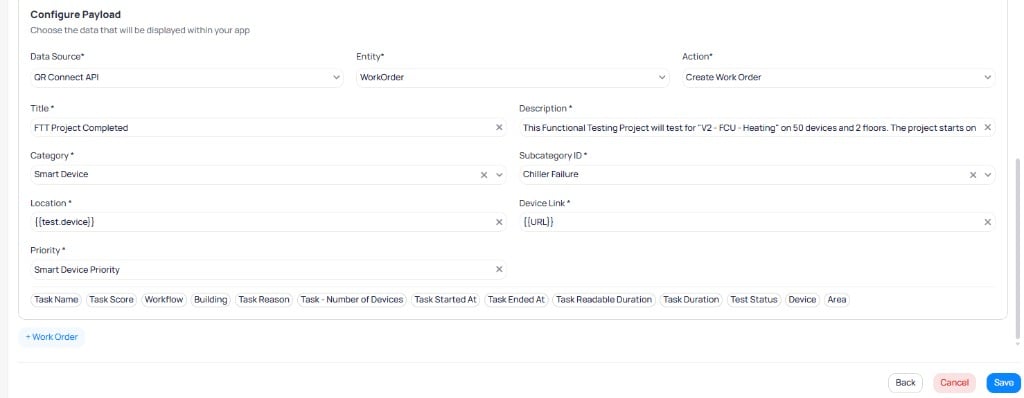 Available template variables include `Task Name`, `Task Score`, `Workflow`, `Building`, `Task Reason`, `Task - Number of Devices`, `Task Started At`, `Task Ended At`, `Task Readable Duration`, `Task Duration`, `Test Status`, `Device`, and `Area`.
Select `Save` to create the project. A preview of the project and all scheduled dates appears.
## Manage existing projects
Projects often run over weeks or months. As tasks complete, statuses turn green and average scores update for each task. Select a project from the list to open its details.
### Project details
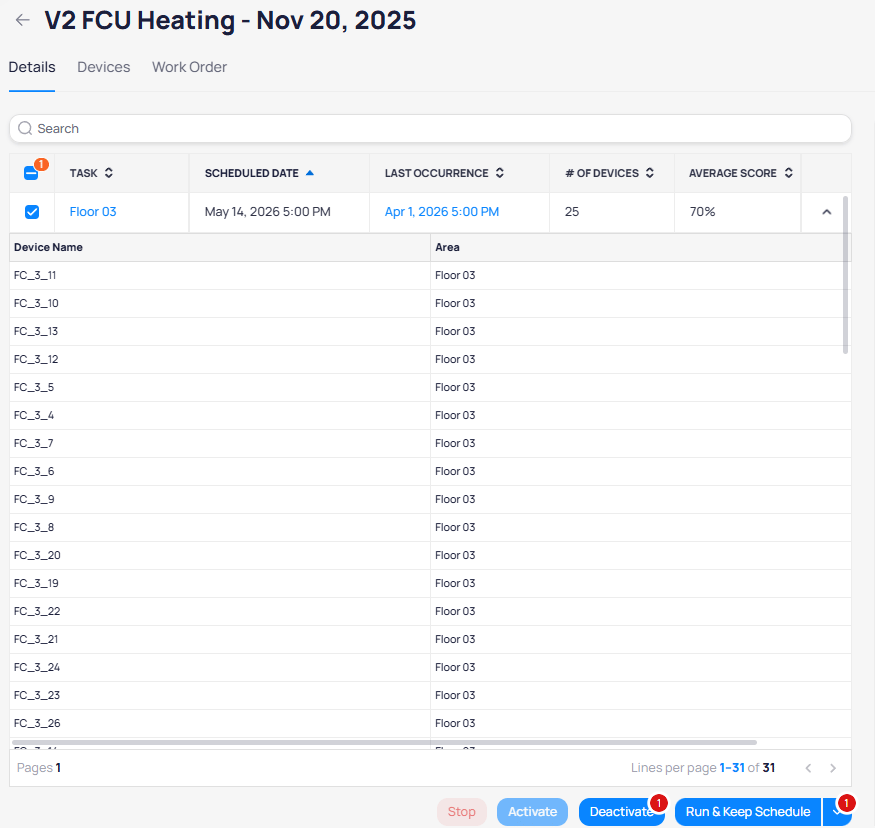
The **Details** tab shows all scheduled tasks with their execution history and scoring. The right panel displays project metadata including workflow, device count, completion percentage, status, description, recurrence settings, and assigned users.
Available template variables include `Task Name`, `Task Score`, `Workflow`, `Building`, `Task Reason`, `Task - Number of Devices`, `Task Started At`, `Task Ended At`, `Task Readable Duration`, `Task Duration`, `Test Status`, `Device`, and `Area`.
Select `Save` to create the project. A preview of the project and all scheduled dates appears.
## Manage existing projects
Projects often run over weeks or months. As tasks complete, statuses turn green and average scores update for each task. Select a project from the list to open its details.
### Project details
The **Details** tab shows all scheduled tasks with their execution history and scoring. The right panel displays project metadata including workflow, device count, completion percentage, status, description, recurrence settings, and assigned users.
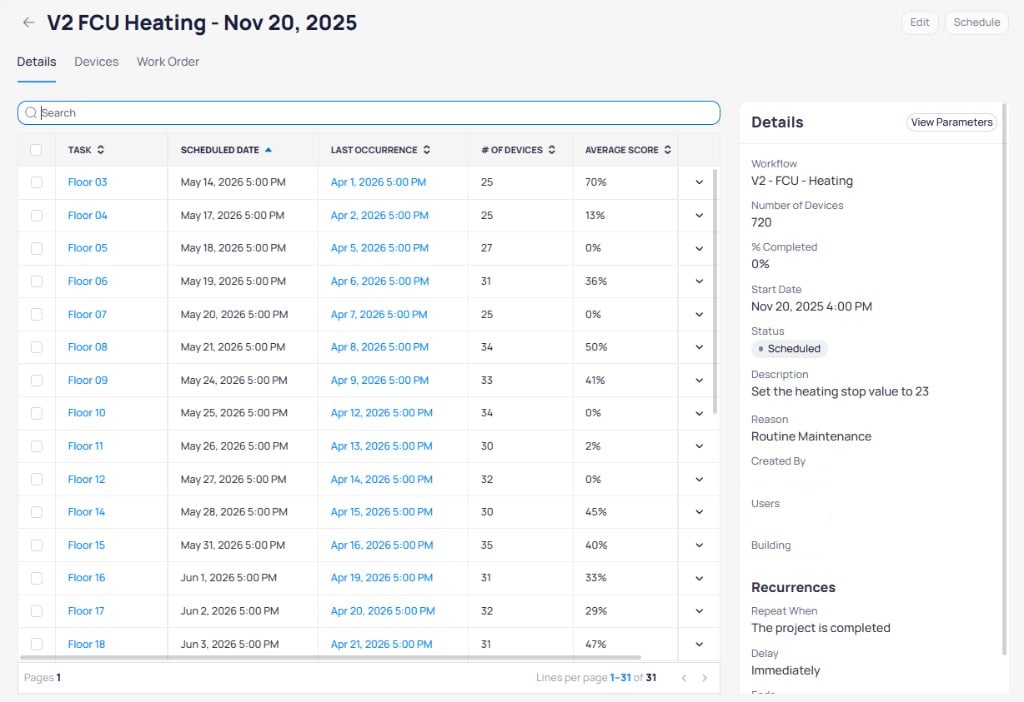 Expand a task row to view the individual devices assigned to that task. Select one or more tasks to access bulk actions at the bottom of the page.
 ### Devices tab
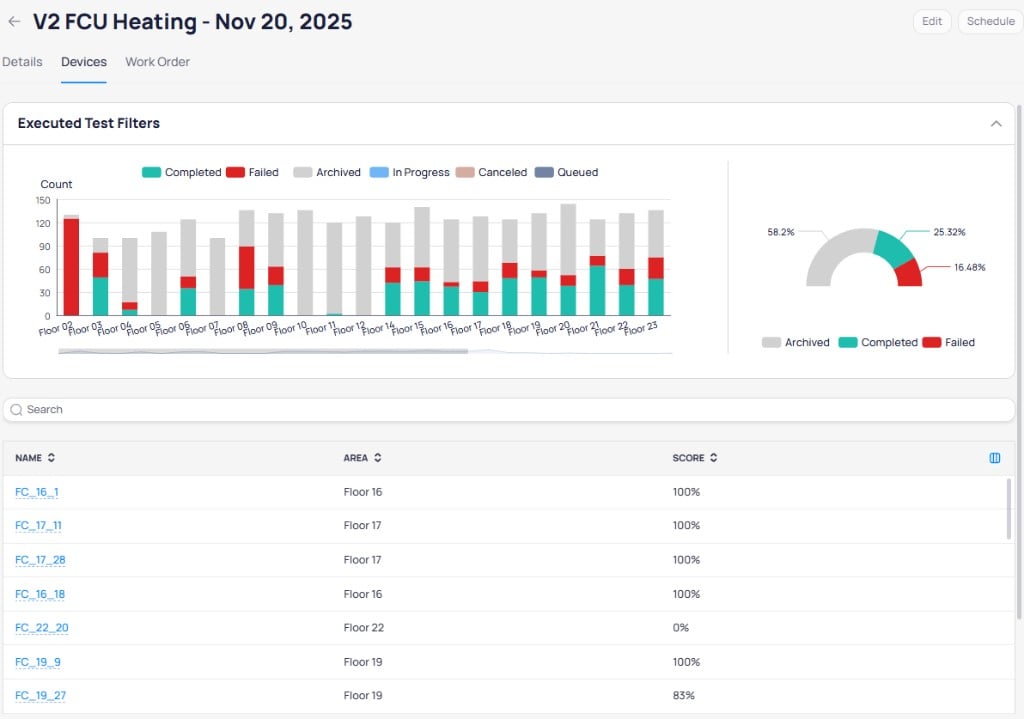
The **Devices** tab provides a cross-project view of all device test results. A stacked bar chart shows completed, failed, and archived test counts per floor. A donut chart summarizes overall pass rates. The device table lists individual scores and allows sorting and searching.
### Devices tab
The **Devices** tab provides a cross-project view of all device test results. A stacked bar chart shows completed, failed, and archived test counts per floor. A donut chart summarizes overall pass rates. The device table lists individual scores and allows sorting and searching.
 ### Task actions
Select one or more tasks in a project to access the following actions:
| Action | Description |
| ------------ | --------------------------------------------------------------------------------------------------------------- |
| `Run & Keep` | Run the task immediately and keep the original scheduled date. The devices test twice. |
| `Run` | Run the task immediately and replace the scheduled date with the current time. The task does not execute again. |
| `Deactivate` | Cancel a specific task. Useful when a floor is under construction or no longer relevant. |
| `Activate` | Reactivate a previously deactivated task |
| `Stop` | Stop a task that is currently in progress |
For recurring projects, task changes apply to all future iterations. Stopping or running a task persists that state across subsequent project cycles.
### Project-level actions
| Action | Description |
| ----------------- | ------------------------------------------------------------------------------------------- |
| `Edit` | Access all configuration options. You cannot remove devices that already have test results. |
| `Schedule` | Quickly adjust the testing schedule without editing the full project |
| `Open Task` | Open a dedicated page to view results for a specific task |
| `Last Occurrence` | View results from the most recent execution of a task |
| `Devices` | View all results across the entire project with cross-filtering charts to identify failures |
## Best practices
### Align projects with heating and cooling seasons
| Season | Recommended workflows |
| --------------------- | --------------------------------- |
| Spring through summer | VAV damper operation, FCU cooling |
| Fall through winter | VAV induced heating, FCU heating |
### Schedule tests during optimal windows
* **Weekly cadence**: creates a manageable workload for operators to review results
* **Late afternoon timing**: equipment runs at steady state rather than during startup
* **Low-occupancy days**: minimizes impact on occupants
### Test at scale with daily batches
Testing 10 devices per day takes less than 30 minutes. Schedule daily batches at 4:00 or 5:00 PM to systematically cover the entire building.
### Use recurring projects
Recurring projects enable continuous commissioning. Set up annual testing cycles aligned with heating and cooling seasons, or run year-round continuous testing.
## Next steps
Review detailed test scores and device performance history.
Practice an on-demand FCU heating run before you schedule at scale.
Browse and create testing workflows for your equipment.
Follow the recommended deployment strategy for calibrating and scheduling FTT.
### Task actions
Select one or more tasks in a project to access the following actions:
| Action | Description |
| ------------ | --------------------------------------------------------------------------------------------------------------- |
| `Run & Keep` | Run the task immediately and keep the original scheduled date. The devices test twice. |
| `Run` | Run the task immediately and replace the scheduled date with the current time. The task does not execute again. |
| `Deactivate` | Cancel a specific task. Useful when a floor is under construction or no longer relevant. |
| `Activate` | Reactivate a previously deactivated task |
| `Stop` | Stop a task that is currently in progress |
For recurring projects, task changes apply to all future iterations. Stopping or running a task persists that state across subsequent project cycles.
### Project-level actions
| Action | Description |
| ----------------- | ------------------------------------------------------------------------------------------- |
| `Edit` | Access all configuration options. You cannot remove devices that already have test results. |
| `Schedule` | Quickly adjust the testing schedule without editing the full project |
| `Open Task` | Open a dedicated page to view results for a specific task |
| `Last Occurrence` | View results from the most recent execution of a task |
| `Devices` | View all results across the entire project with cross-filtering charts to identify failures |
## Best practices
### Align projects with heating and cooling seasons
| Season | Recommended workflows |
| --------------------- | --------------------------------- |
| Spring through summer | VAV damper operation, FCU cooling |
| Fall through winter | VAV induced heating, FCU heating |
### Schedule tests during optimal windows
* **Weekly cadence**: creates a manageable workload for operators to review results
* **Late afternoon timing**: equipment runs at steady state rather than during startup
* **Low-occupancy days**: minimizes impact on occupants
### Test at scale with daily batches
Testing 10 devices per day takes less than 30 minutes. Schedule daily batches at 4:00 or 5:00 PM to systematically cover the entire building.
### Use recurring projects
Recurring projects enable continuous commissioning. Set up annual testing cycles aligned with heating and cooling seasons, or run year-round continuous testing.
## Next steps
Review detailed test scores and device performance history.
Practice an on-demand FCU heating run before you schedule at scale.
Browse and create testing workflows for your equipment.
Follow the recommended deployment strategy for calibrating and scheduling FTT.