> ## Documentation Index
> Fetch the complete documentation index at: https://documentation.kodelabs.com/llms.txt
> Use this file to discover all available pages before exploring further.
# FDD settings
> Configure FDD priorities, acknowledgment behavior, table column visibility, and triage rules from the Settings page.
The FDD Settings page provides four configuration tabs that control how events are prioritized, acknowledged, displayed, and triaged across your portfolio.
Navigate to `FDD` in the left sidebar, then select `Settings` at the bottom of the secondary sidebar.
## Priorities
The Priorities tab defines the severity levels assigned to events, incidents, and faults. Each priority level has a name, description, color-coded badge, SLA configuration, and visibility toggle.
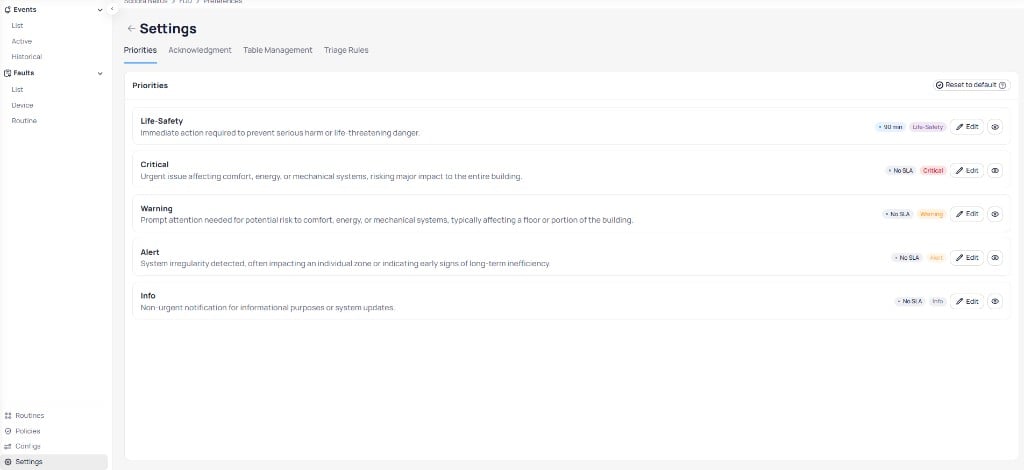 The default configuration includes five levels:
| Priority | Description |
| --------------- | -------------------------------------------------------------------------------------------------------------------------------------------- |
| **Life-Safety** | Immediate action required to prevent serious harm or life-threatening danger |
| **Critical** | Urgent issue affecting comfort, energy, or mechanical systems, risking major impact to the entire building |
| **Warning** | Prompt attention needed for potential risk to comfort, energy, or mechanical systems, typically affecting a floor or portion of the building |
| **Alert** | System irregularity detected, often impacting an individual zone or indicating early signs of long-term inefficiency |
| **Info** | Non-urgent notification for informational purposes or system updates |
Each priority level supports the following options:
* **SLA** -- set a time-based service level agreement for response (for example, 90 minutes for Life-Safety)
* **Edit** -- modify the name, description, color, or SLA for the priority level
* **Visibility** -- toggle the priority level on or off. Hidden priorities do not appear in filters or event views.
Select `Reset to default` to restore the original Cloud BMS priority configuration.
## Acknowledgment
The Acknowledgment tab controls how users acknowledge events. Only users assigned to the event's notification policy can acknowledge it. These settings control comment requirements. They do not change who is allowed to acknowledge.
The default configuration includes five levels:
| Priority | Description |
| --------------- | -------------------------------------------------------------------------------------------------------------------------------------------- |
| **Life-Safety** | Immediate action required to prevent serious harm or life-threatening danger |
| **Critical** | Urgent issue affecting comfort, energy, or mechanical systems, risking major impact to the entire building |
| **Warning** | Prompt attention needed for potential risk to comfort, energy, or mechanical systems, typically affecting a floor or portion of the building |
| **Alert** | System irregularity detected, often impacting an individual zone or indicating early signs of long-term inefficiency |
| **Info** | Non-urgent notification for informational purposes or system updates |
Each priority level supports the following options:
* **SLA** -- set a time-based service level agreement for response (for example, 90 minutes for Life-Safety)
* **Edit** -- modify the name, description, color, or SLA for the priority level
* **Visibility** -- toggle the priority level on or off. Hidden priorities do not appear in filters or event views.
Select `Reset to default` to restore the original Cloud BMS priority configuration.
## Acknowledgment
The Acknowledgment tab controls how users acknowledge events. Only users assigned to the event's notification policy can acknowledge it. These settings control comment requirements. They do not change who is allowed to acknowledge.
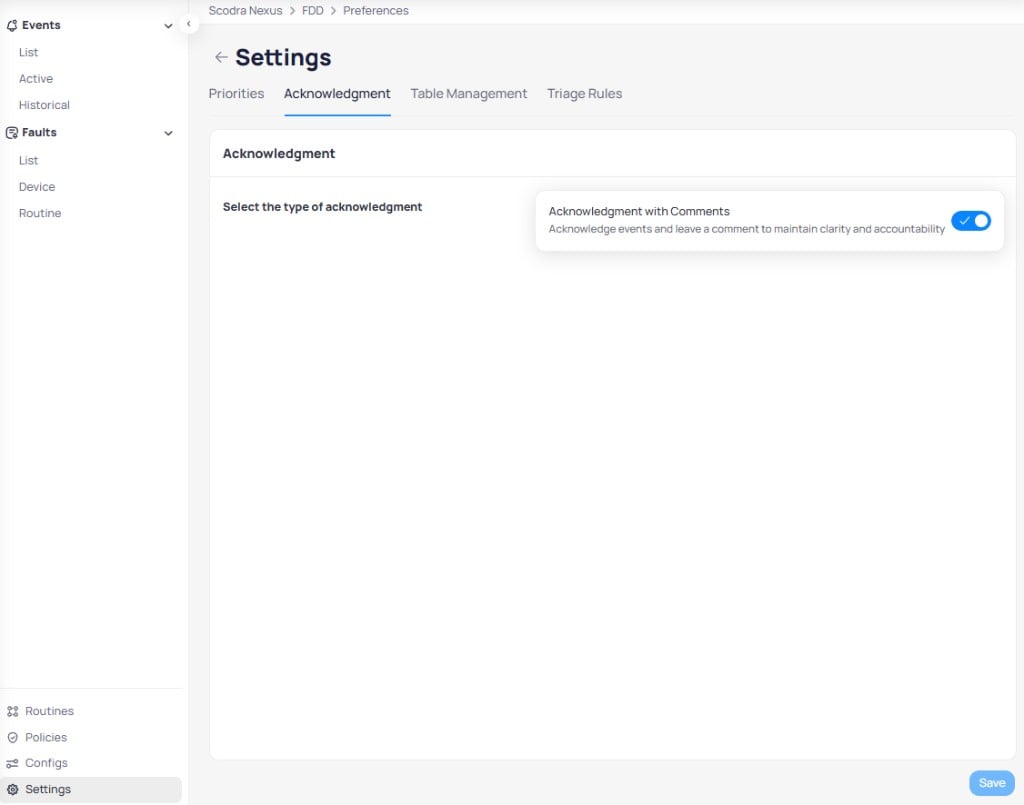 When enabled, users must leave a comment when acknowledging an event. This maintains clarity and accountability by requiring documentation of the acknowledgment action.
Select `Save` to apply changes.
## Table Management
The Table Management tab controls column visibility and ordering across Events, Incidents, and Faults tables throughout your portfolio. Each table type maintains independent column settings.
When enabled, users must leave a comment when acknowledging an event. This maintains clarity and accountability by requiring documentation of the acknowledgment action.
Select `Save` to apply changes.
## Table Management
The Table Management tab controls column visibility and ordering across Events, Incidents, and Faults tables throughout your portfolio. Each table type maintains independent column settings.
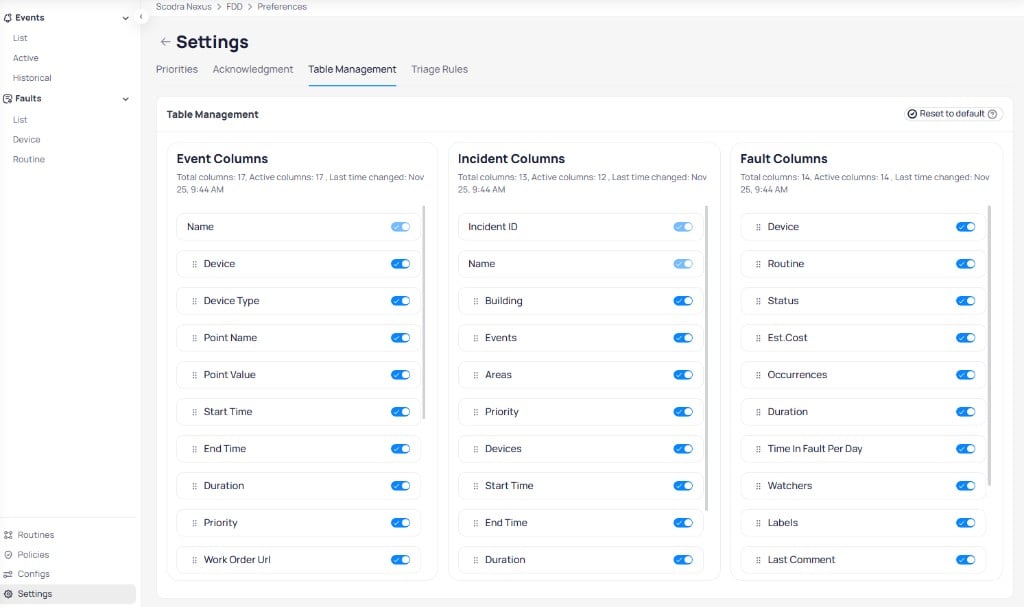 Each column group displays a count indicator (for example, "Total columns: 17, Active columns: 17") and the date of the last change.
### Configure columns
* **Toggle visibility** -- use the switch next to each column name to show (blue) or hide (gray) the column
* **Reorder columns** -- click and hold the drag handle next to any column name, drag to the desired position, and release
### Apply changes
| Action | Behavior |
| -------------------- | ------------------------------------------------------------------- |
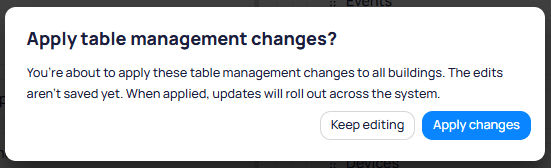
| **Apply changes** | Applies table management changes to all buildings across the system |
| **Keep editing** | Returns to the editor without saving |
| **Reset to default** | Restores the original Cloud BMS column settings immediately |
When you select `Apply changes`, a confirmation dialog appears.
Each column group displays a count indicator (for example, "Total columns: 17, Active columns: 17") and the date of the last change.
### Configure columns
* **Toggle visibility** -- use the switch next to each column name to show (blue) or hide (gray) the column
* **Reorder columns** -- click and hold the drag handle next to any column name, drag to the desired position, and release
### Apply changes
| Action | Behavior |
| -------------------- | ------------------------------------------------------------------- |
| **Apply changes** | Applies table management changes to all buildings across the system |
| **Keep editing** | Returns to the editor without saving |
| **Reset to default** | Restores the original Cloud BMS column settings immediately |
When you select `Apply changes`, a confirmation dialog appears.
 Resetting to default applies instantly and affects all users portfolio-wide. Coordinate with your team before resetting.
Individual users can customize their own column preferences per building. User preferences override the organization's portfolio or building-level settings.
### Column reference
| Column | Description |
| -------------- | ---------------------------------------------------- |
| Name | The name of the event |
| Device | The device associated with the event |
| Device Type | The type of device |
| Point Name | The specific data point name from the device |
| Point Value | The value of the data point at the time of the event |
| Start Time | When the event began |
| End Time | When the event ended |
| Duration | The total duration of the event |
| Priority | The priority level assigned to the event |
| Work Order Url | Link to the associated work order |
| SLA | Service level agreement status for the event |
| Area | The area where the event occurred |
| Building | The building where the event occurred |
| Assignees | Users assigned to the event |
| Event ID | Unique identifier for the event |
| Incident ID | Linked incident identifier |
| Ack'ed | Whether the event has been acknowledged |
| Column | Description |
| ----------- | -------------------------------------------------- |
| Incident ID | Unique identifier for the incident |
| Name | The name or title of the incident |
| Building | The building where the incident occurred |
| Events | The number of events associated with this incident |
| Areas | The areas affected by the incident |
| Priority | The priority level assigned to the incident |
| Devices | The devices involved in the incident |
| Start Time | When the incident began |
| End Time | When the incident was resolved |
| Duration | The total duration of the incident |
| Assignees | Users assigned to the incident |
| Ack'ed | Whether the incident has been acknowledged |
| Column | Description |
| --------------------- | --------------------------------------------------------- |
| Device | Device associated with the fault |
| Routine | FDD routine that detected the fault |
| Status | Current status of the fault |
| Est. Cost | Estimated cost impact of the fault |
| Occurrences | Number of fault occurrences during the date range |
| Duration | Total active duration of the fault |
| Time in Fault Per Day | Daily time series showing cumulative time in fault state |
| Watchers | Users monitoring the fault |
| Labels | Tags applied to the fault (Reopened, Overdue, Work Order) |
| Last Comment | Most recent comment on the fault |
| Last Activity | Timestamp of the most recent action on the fault |
| Area | The area where the fault occurred |
| Work Order Url | Link to the associated work order |
## Triage Rules
The Triage Rules tab defines automated rules that manage fault statuses and labels based on time-based conditions. Each rule has a description, an optional label, a configurable time parameter, and an enabled toggle.
Resetting to default applies instantly and affects all users portfolio-wide. Coordinate with your team before resetting.
Individual users can customize their own column preferences per building. User preferences override the organization's portfolio or building-level settings.
### Column reference
| Column | Description |
| -------------- | ---------------------------------------------------- |
| Name | The name of the event |
| Device | The device associated with the event |
| Device Type | The type of device |
| Point Name | The specific data point name from the device |
| Point Value | The value of the data point at the time of the event |
| Start Time | When the event began |
| End Time | When the event ended |
| Duration | The total duration of the event |
| Priority | The priority level assigned to the event |
| Work Order Url | Link to the associated work order |
| SLA | Service level agreement status for the event |
| Area | The area where the event occurred |
| Building | The building where the event occurred |
| Assignees | Users assigned to the event |
| Event ID | Unique identifier for the event |
| Incident ID | Linked incident identifier |
| Ack'ed | Whether the event has been acknowledged |
| Column | Description |
| ----------- | -------------------------------------------------- |
| Incident ID | Unique identifier for the incident |
| Name | The name or title of the incident |
| Building | The building where the incident occurred |
| Events | The number of events associated with this incident |
| Areas | The areas affected by the incident |
| Priority | The priority level assigned to the incident |
| Devices | The devices involved in the incident |
| Start Time | When the incident began |
| End Time | When the incident was resolved |
| Duration | The total duration of the incident |
| Assignees | Users assigned to the incident |
| Ack'ed | Whether the incident has been acknowledged |
| Column | Description |
| --------------------- | --------------------------------------------------------- |
| Device | Device associated with the fault |
| Routine | FDD routine that detected the fault |
| Status | Current status of the fault |
| Est. Cost | Estimated cost impact of the fault |
| Occurrences | Number of fault occurrences during the date range |
| Duration | Total active duration of the fault |
| Time in Fault Per Day | Daily time series showing cumulative time in fault state |
| Watchers | Users monitoring the fault |
| Labels | Tags applied to the fault (Reopened, Overdue, Work Order) |
| Last Comment | Most recent comment on the fault |
| Last Activity | Timestamp of the most recent action on the fault |
| Area | The area where the fault occurred |
| Work Order Url | Link to the associated work order |
## Triage Rules
The Triage Rules tab defines automated rules that manage fault statuses and labels based on time-based conditions. Each rule has a description, an optional label, a configurable time parameter, and an enabled toggle.
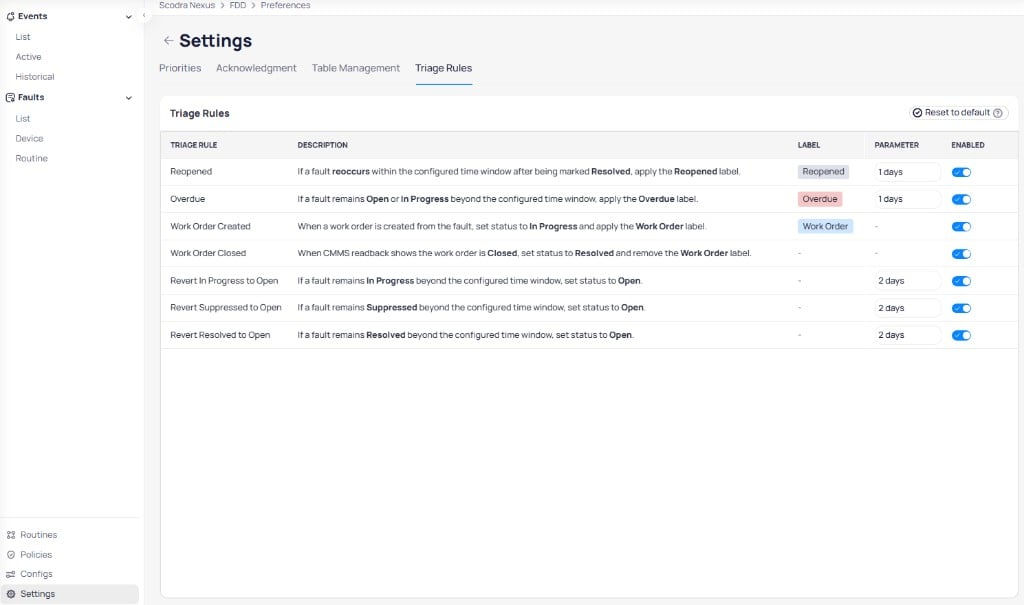 | Rule | Description | Label | Default parameter |
| ------------------------------ | --------------------------------------------------------------------------------------------------------------- | ---------- | ----------------- |
| **Reopened** | If a fault reoccurs within the configured time window after being marked `Resolved`, apply the `Reopened` label | Reopened | 1 day |
| **Overdue** | If a fault remains `Open` or `In Progress` beyond the configured time window, apply the `Overdue` label | Overdue | 1 day |
| **Work Order Created** | When a work order is created from the fault, set status to `In Progress` and apply the `Work Order` label | Work Order | -- |
| **Work Order Closed** | When CMMS readback shows the work order is `Closed`, set status to `Resolved` and remove the `Work Order` label | Work Order | -- |
| **Revert In Progress to Open** | If a fault remains `In Progress` beyond the configured time window, set status to `Open` | -- | 2 days |
| **Revert Suppressed to Open** | If a fault remains `Suppressed` beyond the configured time window, set status to `Open` | -- | 2 days |
| **Revert Resolved to Open** | If a fault remains `Resolved` beyond the configured time window, set status to `Open` | -- | 2 days |
Use the toggle in the `Enabled` column to activate or deactivate individual rules. Select `Reset to default` to restore the original triage rule configuration.
## Next steps
Monitor and investigate real-time fault events across your building equipment.
Control how FDD delivers alerts through email, SMS, push, and phone calls.
Understand how configuration changes affect active events and incidents.
| Rule | Description | Label | Default parameter |
| ------------------------------ | --------------------------------------------------------------------------------------------------------------- | ---------- | ----------------- |
| **Reopened** | If a fault reoccurs within the configured time window after being marked `Resolved`, apply the `Reopened` label | Reopened | 1 day |
| **Overdue** | If a fault remains `Open` or `In Progress` beyond the configured time window, apply the `Overdue` label | Overdue | 1 day |
| **Work Order Created** | When a work order is created from the fault, set status to `In Progress` and apply the `Work Order` label | Work Order | -- |
| **Work Order Closed** | When CMMS readback shows the work order is `Closed`, set status to `Resolved` and remove the `Work Order` label | Work Order | -- |
| **Revert In Progress to Open** | If a fault remains `In Progress` beyond the configured time window, set status to `Open` | -- | 2 days |
| **Revert Suppressed to Open** | If a fault remains `Suppressed` beyond the configured time window, set status to `Open` | -- | 2 days |
| **Revert Resolved to Open** | If a fault remains `Resolved` beyond the configured time window, set status to `Open` | -- | 2 days |
Use the toggle in the `Enabled` column to activate or deactivate individual rules. Select `Reset to default` to restore the original triage rule configuration.
## Next steps
Monitor and investigate real-time fault events across your building equipment.
Control how FDD delivers alerts through email, SMS, push, and phone calls.
Understand how configuration changes affect active events and incidents.