> ## Documentation Index
> Fetch the complete documentation index at: https://documentation.kodelabs.com/llms.txt
> Use this file to discover all available pages before exploring further.
# Budget model configuration
> Create and train budget prediction models with the five-step Model Configuration wizard in EnerG
**Model Configuration** trains regression models that power budget predictions in EnerG. In the [building view](/products/energ/get-started/navigation#budget-submenu), expand **Budget** in the left sidebar and open **Model Configuration**. Link trained models to budgets in [Budget planning](/products/energ/finance/budget-planning) through the **Model** field in Basic Setup. For how budget models produce predicted values, see [Budgets and capital planning](/products/energ/concepts/budgets-and-capital-planning#budget-models).
For portfolio rollups, see [Portfolio budget and planning](/products/energ/analytics/portfolio-budgets). For variance against an active plan, see [Building budget overview](/products/energ/finance/budget-overview).
Models need enough historical usage and weather data in the reference period. Confirm meter completeness on [Building meters](/products/energ/buildings/meters) before you train.
## Open Model Configuration
From [Portfolio Home](/products/energ/analytics/benchmarking), open a building in the building view.
In the left sidebar, expand **Budget**, then click **Model Configuration**.
## Manage configurations
The **Model Configuration** page lists prediction models for the building. Click **+ Create Configuration** to start the five-step wizard. Click a **Name** to open the summary drawer, or use **Actions** to edit or delete a row.
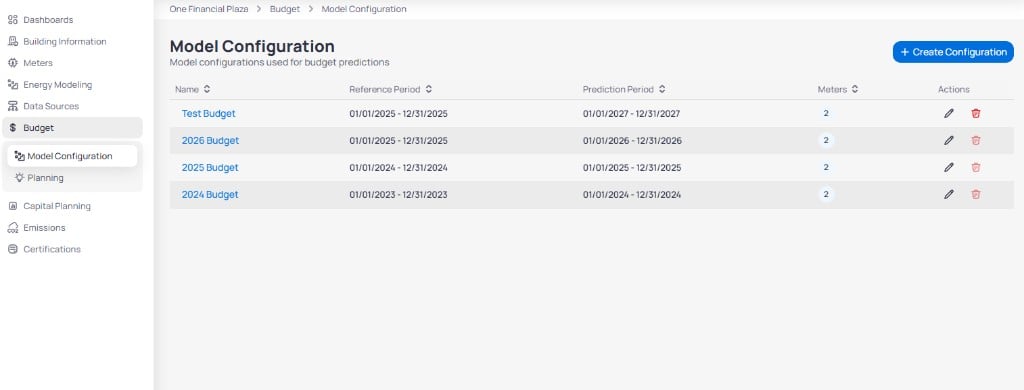 | Column | What it shows |
| --------------------- | --------------------------------------------- |
| **Name** | Model label. Click to review training results |
| **Reference Period** | Historical window used to train the model |
| **Prediction Period** | Future window the model targets |
| **Meters** | Count of meters included |
| **Actions** | Edit or delete the configuration |
### Review the summary drawer
Click a configuration **Name** to open **Summary** without entering the wizard.
| Column | What it shows |
| --------------------- | --------------------------------------------- |
| **Name** | Model label. Click to review training results |
| **Reference Period** | Historical window used to train the model |
| **Prediction Period** | Future window the model targets |
| **Meters** | Count of meters included |
| **Actions** | Edit or delete the configuration |
### Review the summary drawer
Click a configuration **Name** to open **Summary** without entering the wizard.
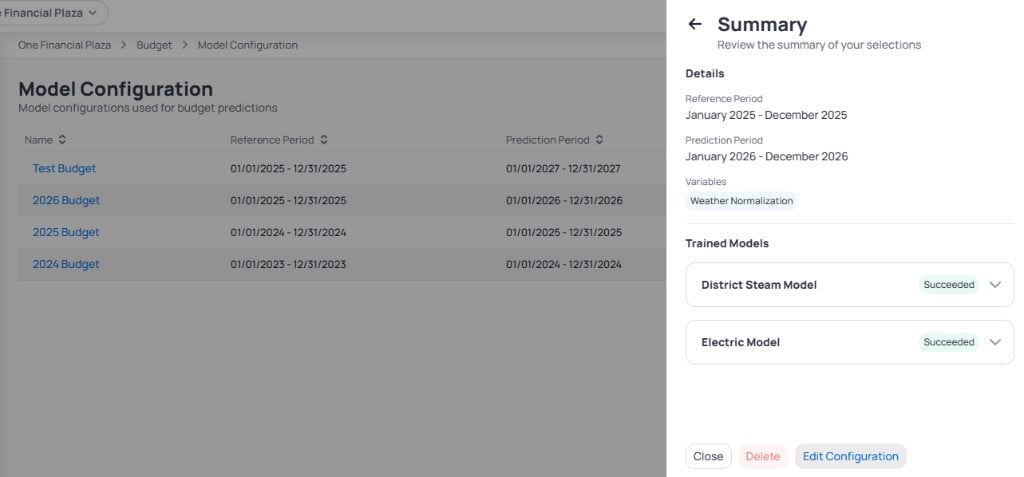 | Field | What it shows |
| --------------------- | -------------------------------------------------------------------------------------------------- |
| **Reference Period** | Training baseline dates |
| **Prediction Period** | Target forecast dates |
| **Variables** | Independent drivers, such as **Weather Normalization** |
| **Trained Models** | Per-service-type status, such as **Succeeded** for **Electric Model** and **District Steam Model** |
Click **Edit Configuration** to change settings or **Delete** to remove the model.
## Create a model configuration
Click **+ Create Configuration** to open the wizard. Progress appears in the left sidebar across five steps: **Basic Setup**, **Historical Usage**, **Historical Weather**, **Variables**, and **Summary**.
### Step 1: Basic setup
Define the model name, prediction period, and meters by service type.
| Field | What it shows |
| --------------------- | -------------------------------------------------------------------------------------------------- |
| **Reference Period** | Training baseline dates |
| **Prediction Period** | Target forecast dates |
| **Variables** | Independent drivers, such as **Weather Normalization** |
| **Trained Models** | Per-service-type status, such as **Succeeded** for **Electric Model** and **District Steam Model** |
Click **Edit Configuration** to change settings or **Delete** to remove the model.
## Create a model configuration
Click **+ Create Configuration** to open the wizard. Progress appears in the left sidebar across five steps: **Basic Setup**, **Historical Usage**, **Historical Weather**, **Variables**, and **Summary**.
### Step 1: Basic setup
Define the model name, prediction period, and meters by service type.
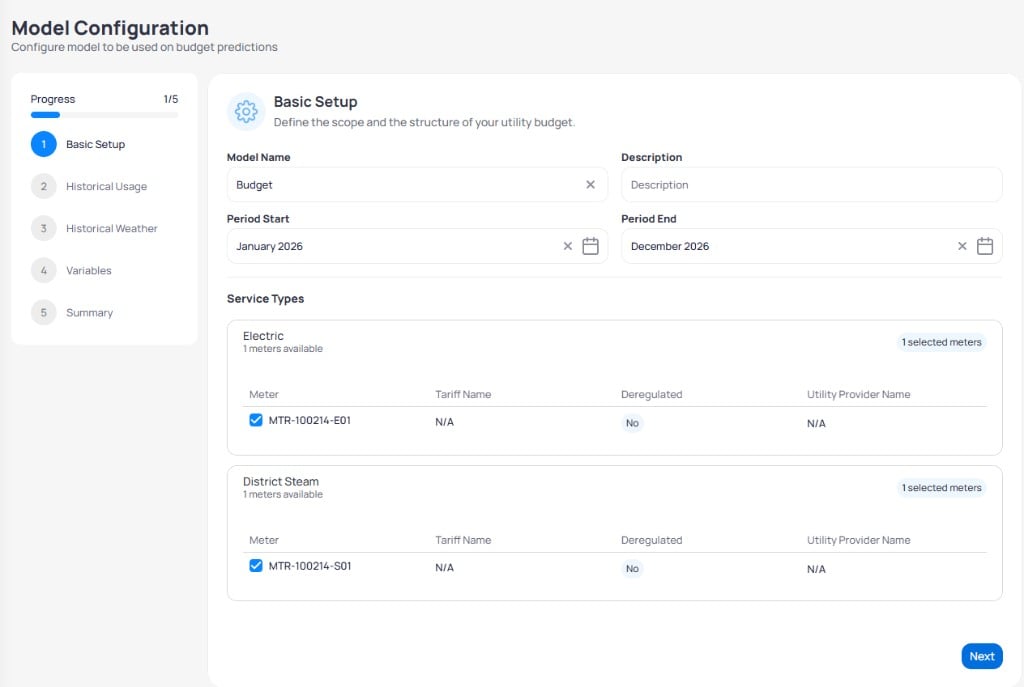 | Field | Purpose |
| --------------------------------- | ------------------------------------------------------------------------------------------------------------------- |
| **Model Name** | Label in lists and in Budget planning **Model** dropdown |
| **Description** | Optional notes |
| **Period Start** / **Period End** | Prediction period for the model |
| **Service Types** | Select meters per commodity. Tables show **Meter**, **Tariff Name**, **Deregulated**, and **Utility Provider Name** |
Click **Next** to continue.
### Step 2: Historical usage
Choose a reference year and review usage or cost trends that inform the model.
| Field | Purpose |
| --------------------------------- | ------------------------------------------------------------------------------------------------------------------- |
| **Model Name** | Label in lists and in Budget planning **Model** dropdown |
| **Description** | Optional notes |
| **Period Start** / **Period End** | Prediction period for the model |
| **Service Types** | Select meters per commodity. Tables show **Meter**, **Tariff Name**, **Deregulated**, and **Utility Provider Name** |
Click **Next** to continue.
### Step 2: Historical usage
Choose a reference year and review usage or cost trends that inform the model.
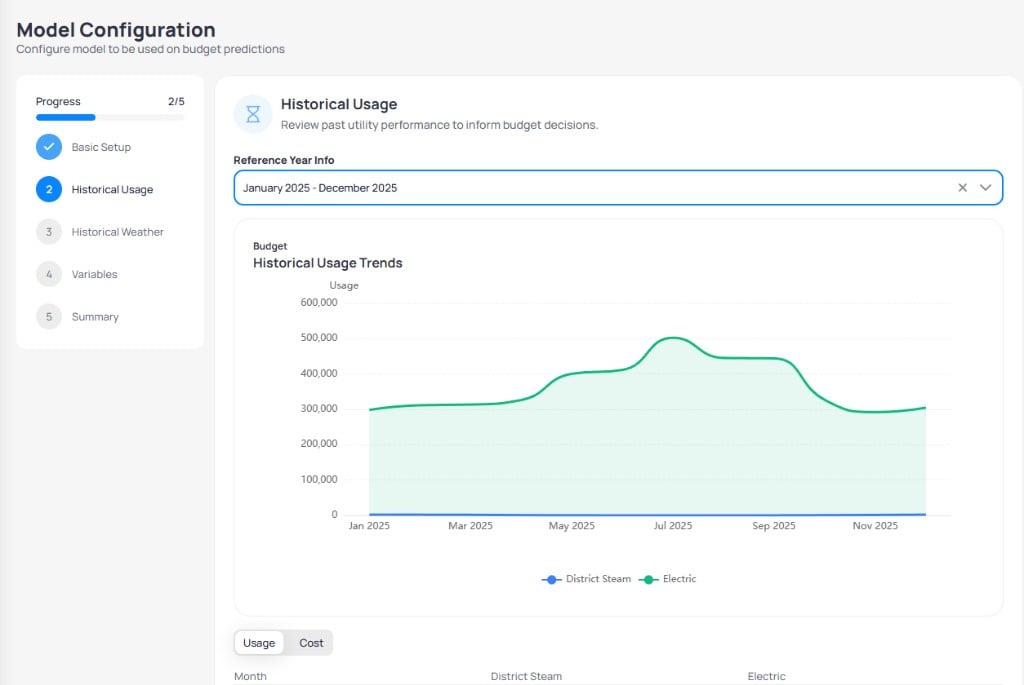 | Control | Purpose |
| ---------------------------------- | ------------------------------------------------------------------------ |
| **Reference Year Info** | Historical window for training, such as **January 2025 – December 2025** |
| **Budget Historical Usage Trends** | Line chart by service type across the reference year |
| **Usage** / **Cost** | Toggle the chart and table between consumption and spend |
Scroll below the chart for a monthly table.
| Control | Purpose |
| ---------------------------------- | ------------------------------------------------------------------------ |
| **Reference Year Info** | Historical window for training, such as **January 2025 – December 2025** |
| **Budget Historical Usage Trends** | Line chart by service type across the reference year |
| **Usage** / **Cost** | Toggle the chart and table between consumption and spend |
Scroll below the chart for a monthly table.
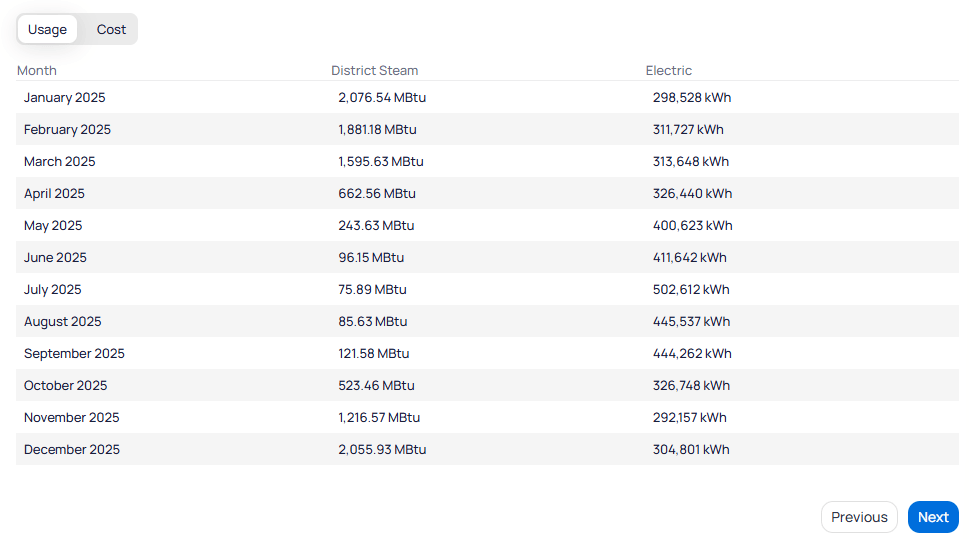 Confirm seasonal patterns before you click **Next**.
### Step 3: Historical weather
Review temperature and degree-day patterns for the reference period.
#### YOY comparison
Confirm seasonal patterns before you click **Next**.
### Step 3: Historical weather
Review temperature and degree-day patterns for the reference period.
#### YOY comparison
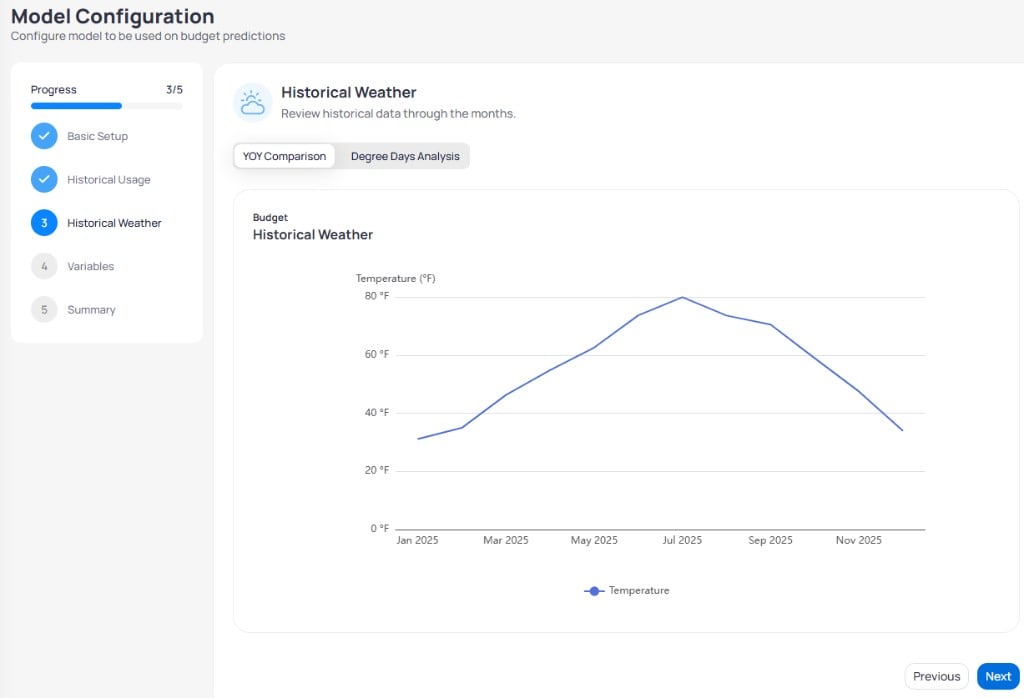 **YOY Comparison** plots monthly temperature for the reference year.
#### Degree days analysis
**YOY Comparison** plots monthly temperature for the reference year.
#### Degree days analysis
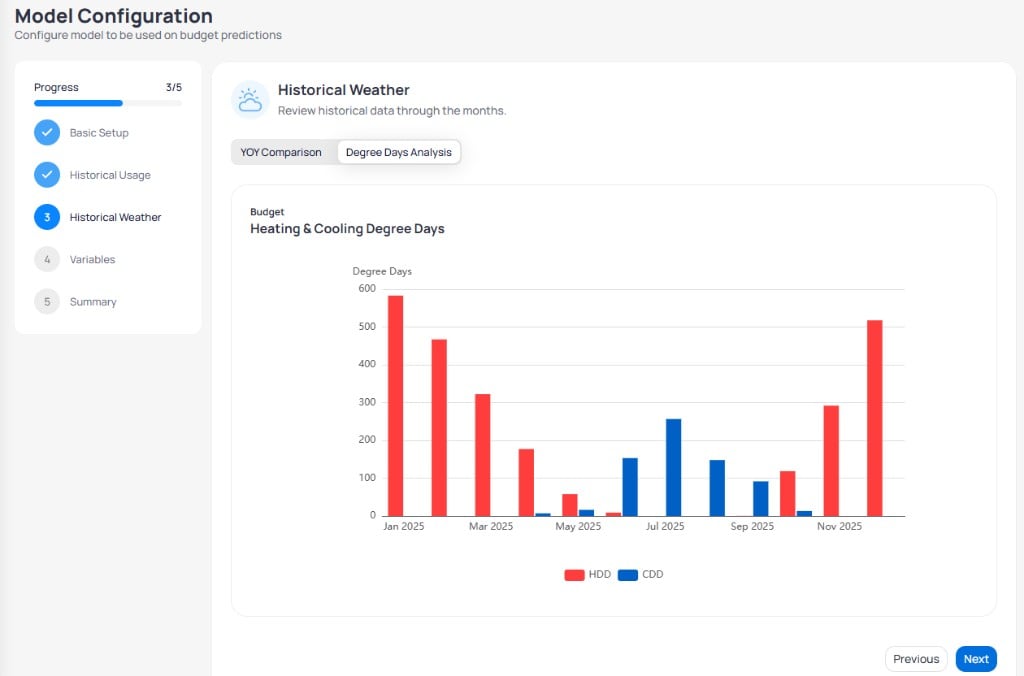 **Degree Days Analysis** shows **HDD** (heating degree days) and **CDD** (cooling degree days) by month. Use this view when **Weather Normalization** is a model variable. See [Weather normalization](/products/energ/reference/calculations-and-parameters#weather-normalization) for base-temperature and tolerance settings.
### Step 4: Variables
Select independent variables for the linear regression model.
**Degree Days Analysis** shows **HDD** (heating degree days) and **CDD** (cooling degree days) by month. Use this view when **Weather Normalization** is a model variable. See [Weather normalization](/products/energ/reference/calculations-and-parameters#weather-normalization) for base-temperature and tolerance settings.
### Step 4: Variables
Select independent variables for the linear regression model.
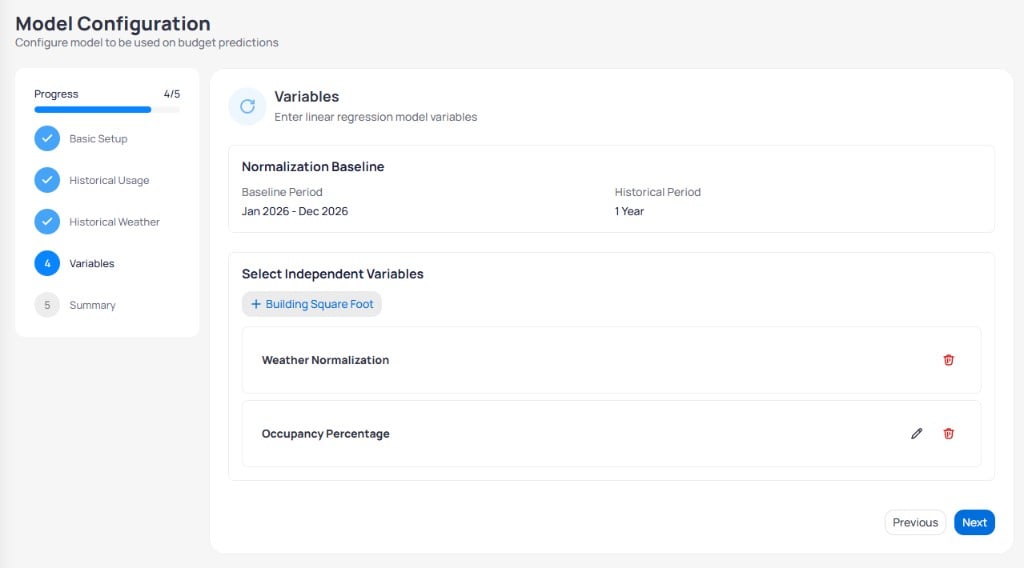 | Section | Purpose |
| -------------------------------- | ---------------------------------------------------------------------------------------------------------- |
| **Normalization Baseline** | **Baseline Period** and **Historical Period** for weather-adjusted models |
| **Select Independent Variables** | Add drivers such as **Weather Normalization**, **Occupancy Percentage**, or **Building Square Foot** |
| **+ Building Square Foot** | Adds floor area from [Building information](/products/energ/buildings/building-information) when available |
Use the pencil icon to edit a variable or the trash icon to remove one.
### Step 5: Summary
Submit the configuration to train models for each service type. EnerG trains one model per service type you selected in Basic Setup.
| Section | Purpose |
| -------------------------------- | ---------------------------------------------------------------------------------------------------------- |
| **Normalization Baseline** | **Baseline Period** and **Historical Period** for weather-adjusted models |
| **Select Independent Variables** | Add drivers such as **Weather Normalization**, **Occupancy Percentage**, or **Building Square Foot** |
| **+ Building Square Foot** | Adds floor area from [Building information](/products/energ/buildings/building-information) when available |
Use the pencil icon to edit a variable or the trash icon to remove one.
### Step 5: Summary
Submit the configuration to train models for each service type. EnerG trains one model per service type you selected in Basic Setup.
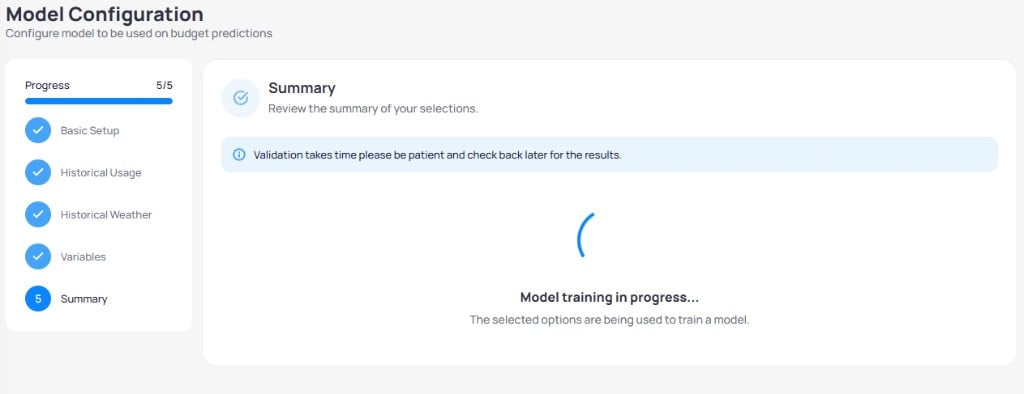 Training runs in the background. An info banner notes that validation takes time. Refresh the wizard or reopen **Summary** from the configuration list when training completes.
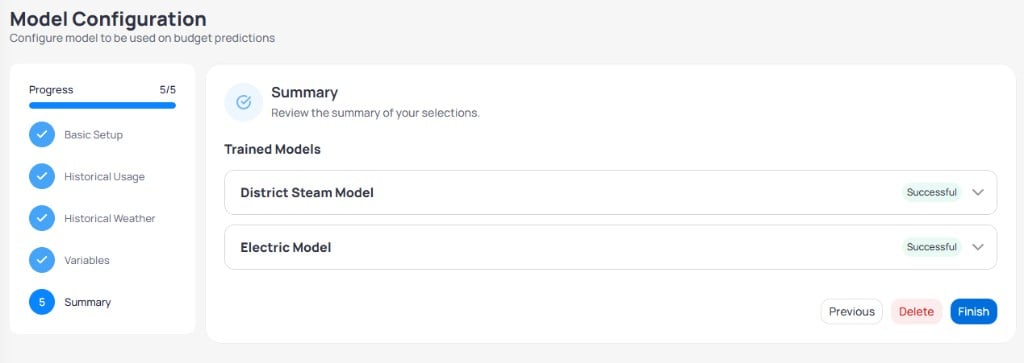 | Section | What it shows |
| ------------------ | ------------------------------------------------------------------------------ |
| **Trained Models** | One row per commodity, such as **District Steam Model** and **Electric Model** |
| **Successful** | Training completed and passed validation for that service type |
Click **Finish** to save the configuration. Use **Delete** only when you want to discard the draft before finishing. Failed models show an error state instead of **Successful**; widen the reference period or adjust **Variables** before you retry.
Do not delete a configuration that an **Active** budget in [Budget planning](/products/energ/finance/budget-planning) still references.
## Use models in Budget planning
When you create a budget in [Budget planning](/products/energ/finance/budget-planning), choose **Smart Generation** or **Reference Year** and select the trained **Model** from the dropdown in Basic Setup. EnerG applies predicted values from the configuration you completed here.
## Next steps
Build Draft, Active, or Completed budgets using trained models.
Compare actual spend to your active budget.
Confirm occupancy, area, and envelope inputs that affect variables.
Verify billing completeness before you set reference periods.
| Section | What it shows |
| ------------------ | ------------------------------------------------------------------------------ |
| **Trained Models** | One row per commodity, such as **District Steam Model** and **Electric Model** |
| **Successful** | Training completed and passed validation for that service type |
Click **Finish** to save the configuration. Use **Delete** only when you want to discard the draft before finishing. Failed models show an error state instead of **Successful**; widen the reference period or adjust **Variables** before you retry.
Do not delete a configuration that an **Active** budget in [Budget planning](/products/energ/finance/budget-planning) still references.
## Use models in Budget planning
When you create a budget in [Budget planning](/products/energ/finance/budget-planning), choose **Smart Generation** or **Reference Year** and select the trained **Model** from the dropdown in Basic Setup. EnerG applies predicted values from the configuration you completed here.
## Next steps
Build Draft, Active, or Completed budgets using trained models.
Compare actual spend to your active budget.
Confirm occupancy, area, and envelope inputs that affect variables.
Verify billing completeness before you set reference periods.