> ## Documentation Index
> Fetch the complete documentation index at: https://documentation.kodelabs.com/llms.txt
> Use this file to discover all available pages before exploring further.
# Budget planning
> Create and manage building energy budgets with the six-step Budget Planning wizard in EnerG
**Budget Planning** lets you create, edit, and activate annual energy budgets for one building in the [building view](/products/energ/get-started/navigation#budget-submenu). Expand **Budget** in the left sidebar and open **Planning**. After you finalize a budget, track performance on [Building budget overview](/products/energ/finance/budget-overview).
For portfolio-wide budget tables, use [Portfolio budget and planning](/products/energ/analytics/portfolio-budgets).
## Open Budget Planning
From [Portfolio Home](/products/energ/analytics/benchmarking), open a building in the building view.
In the left sidebar, expand **Budget**, then click **Planning**.
## Manage budgets
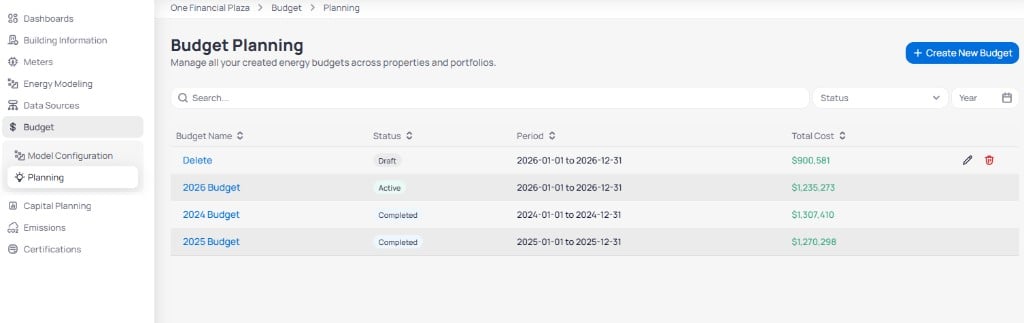
The **Budget Planning** list shows every budget you created for the building. Click **+ Create New Budget** to start the six-step wizard. Use **Actions** on a row to edit or delete a budget.
 | Column | What it shows |
| --------------- | ----------------------------------------------------- |
| **Budget Name** | Label for the plan. Click the name to open the wizard |
| **Status** | **Draft**, **Active**, or **Completed** |
| **Period** | Start and end dates for the budget year |
| **Total Cost** | Sum of planned cost across included service types |
| **Actions** | Edit or delete the budget |
| Control | Purpose |
| ---------- | ------------------------------------------------- |
| **Search** | Find a budget by name |
| **Status** | Filter by **Draft**, **Active**, or **Completed** |
| **Year** | Filter budgets by calendar year |
Only one budget should be **Active** for a given period when you use it for variance on [Building budget overview](/products/energ/finance/budget-overview).
## Create a budget
Click **+ Create New Budget** to open the wizard. Progress appears in the left sidebar across six steps.
### Step 1: Basic setup
Define the budget name, planning method, service types, and period.
| Column | What it shows |
| --------------- | ----------------------------------------------------- |
| **Budget Name** | Label for the plan. Click the name to open the wizard |
| **Status** | **Draft**, **Active**, or **Completed** |
| **Period** | Start and end dates for the budget year |
| **Total Cost** | Sum of planned cost across included service types |
| **Actions** | Edit or delete the budget |
| Control | Purpose |
| ---------- | ------------------------------------------------- |
| **Search** | Find a budget by name |
| **Status** | Filter by **Draft**, **Active**, or **Completed** |
| **Year** | Filter budgets by calendar year |
Only one budget should be **Active** for a given period when you use it for variance on [Building budget overview](/products/energ/finance/budget-overview).
## Create a budget
Click **+ Create New Budget** to open the wizard. Progress appears in the left sidebar across six steps.
### Step 1: Basic setup
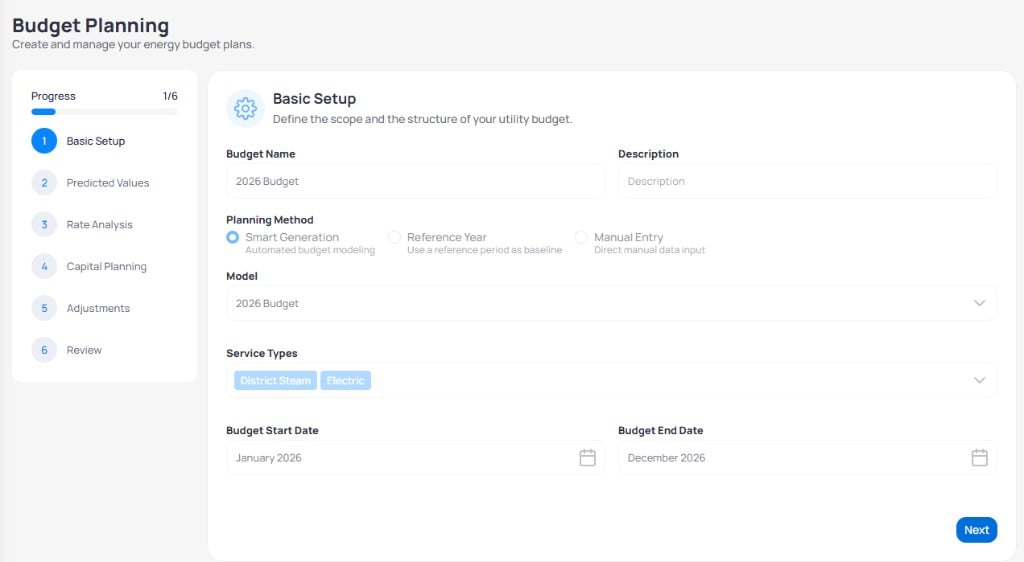
Define the budget name, planning method, service types, and period.
 | Field | Purpose |
| ------------------------------------------- | ----------------------------------------------------------------------------------------------------------------------------------------------- |
| **Budget Name** | Display name in lists and reports |
| **Description** | Optional notes |
| **Planning Method** | **Smart Generation** builds projections from history, **Reference Year** copies a baseline period, or **Manual Entry** for direct monthly input |
| **Model** | Trained model from [Model configuration](/products/energ/finance/budgets) when you use Smart Generation or Reference Year |
| **Service Types** | Commodities in the plan, such as **Electric** and **District Steam** |
| **Budget Start Date** / **Budget End Date** | Planning period, typically a full calendar year |
Click **Next** to continue.
### Step 2: Predicted values
Review monthly consumption EnerG predicts from your planning method and service types.
| Field | Purpose |
| ------------------------------------------- | ----------------------------------------------------------------------------------------------------------------------------------------------- |
| **Budget Name** | Display name in lists and reports |
| **Description** | Optional notes |
| **Planning Method** | **Smart Generation** builds projections from history, **Reference Year** copies a baseline period, or **Manual Entry** for direct monthly input |
| **Model** | Trained model from [Model configuration](/products/energ/finance/budgets) when you use Smart Generation or Reference Year |
| **Service Types** | Commodities in the plan, such as **Electric** and **District Steam** |
| **Budget Start Date** / **Budget End Date** | Planning period, typically a full calendar year |
Click **Next** to continue.
### Step 2: Predicted values
Review monthly consumption EnerG predicts from your planning method and service types.
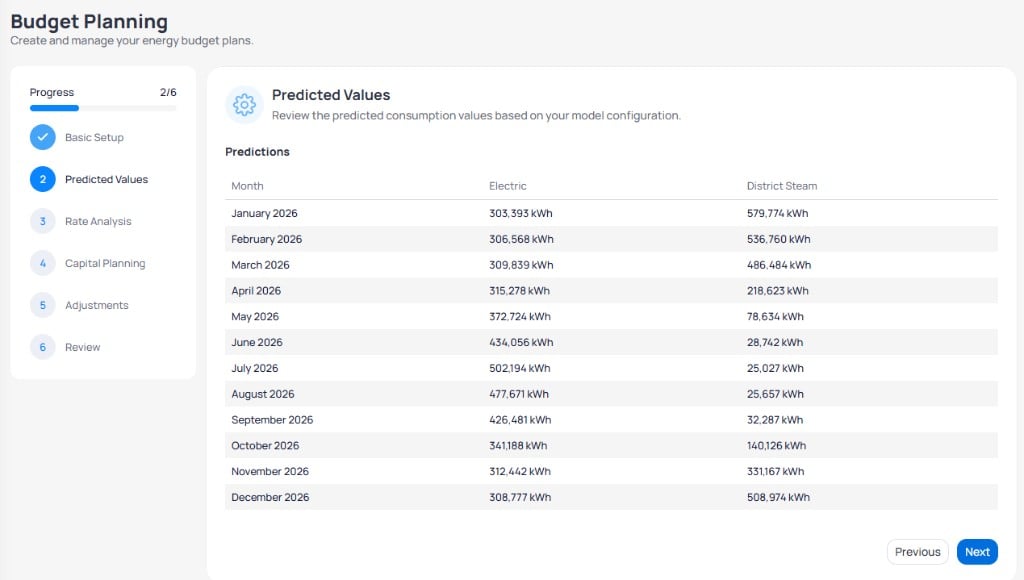 Confirm seasonal patterns look reasonable before you apply rates. Override values later in **Adjustments** if you expect anomalies.
### Step 3: Rate analysis
Configure rate and escalation settings per service type, then review monthly consumption and cost.
Confirm seasonal patterns look reasonable before you apply rates. Override values later in **Adjustments** if you expect anomalies.
### Step 3: Rate analysis
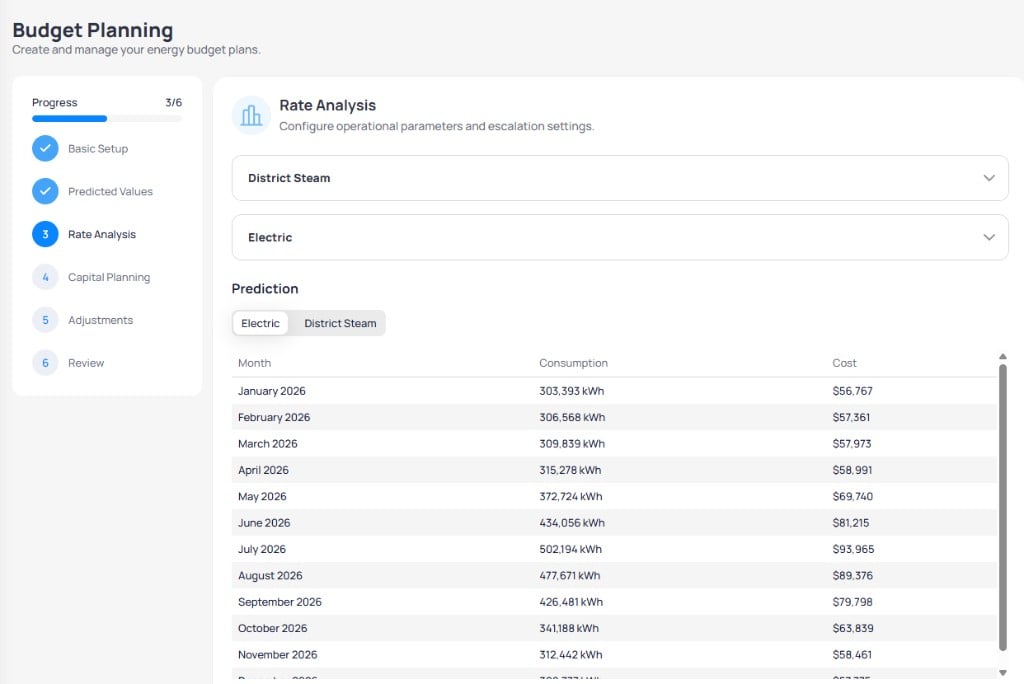
Configure rate and escalation settings per service type, then review monthly consumption and cost.
 | Section | Purpose |
| -------------------------------------- | ---------------------------------------------------------------- |
| **District Steam** / **Electric** | Expand each section to set operational parameters and escalation |
| **Electric** / **District Steam** tabs | Switch the monthly table between commodities |
| **Consumption** / **Cost** | Predicted usage and spend for each month |
### Step 4: Capital planning
Add capital projects so the budget reflects expected savings from conservation measures. For the underlying concepts, see [Measures, curves, and scenarios](/products/energ/concepts/budgets-and-capital-planning#measures-curves-and-scenarios).
| Section | Purpose |
| -------------------------------------- | ---------------------------------------------------------------- |
| **District Steam** / **Electric** | Expand each section to set operational parameters and escalation |
| **Electric** / **District Steam** tabs | Switch the monthly table between commodities |
| **Consumption** / **Cost** | Predicted usage and spend for each month |
### Step 4: Capital planning
Add capital projects so the budget reflects expected savings from conservation measures. For the underlying concepts, see [Measures, curves, and scenarios](/products/energ/concepts/budgets-and-capital-planning#measures-curves-and-scenarios).
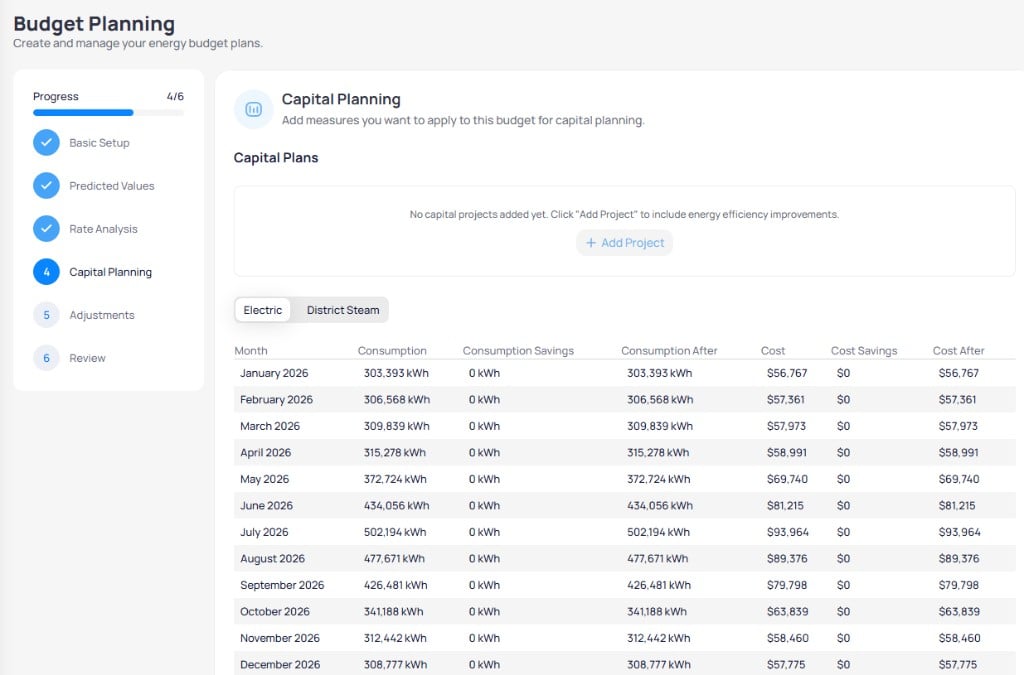 Define measures on **Measure Creation** and bundle them into a scenario in **Scenario Planner** under [Capital planning](/products/energ/sustainability/capital-planning#measure-creation) before you add projects here. Review payback and savings on [Scenario Analysis](/products/energ/sustainability/capital-planning#scenario-analysis) or compare bundles on [Scenario Comparison](/products/energ/sustainability/capital-planning#scenario-comparison).
Click **+ Add Project** to pull measures from capital planning into this budget. Until you add projects, **Consumption Savings** and **Cost Savings** remain zero and **After** columns match baseline predictions.
Treat **Payback (Years)** on measures as a planning signal. Confirm capital cost, incentives, and savings against your funding rules before you activate the budget.
When a measure reaches **Operations**, align it with [M\&V models](/products/energ/energy-modeling/mv-models) so verified savings match the reductions you planned in the budget.
### Step 5: Adjustments
Add manual budget adjustments and occupant cost recovery settings.
Define measures on **Measure Creation** and bundle them into a scenario in **Scenario Planner** under [Capital planning](/products/energ/sustainability/capital-planning#measure-creation) before you add projects here. Review payback and savings on [Scenario Analysis](/products/energ/sustainability/capital-planning#scenario-analysis) or compare bundles on [Scenario Comparison](/products/energ/sustainability/capital-planning#scenario-comparison).
Click **+ Add Project** to pull measures from capital planning into this budget. Until you add projects, **Consumption Savings** and **Cost Savings** remain zero and **After** columns match baseline predictions.
Treat **Payback (Years)** on measures as a planning signal. Confirm capital cost, incentives, and savings against your funding rules before you activate the budget.
When a measure reaches **Operations**, align it with [M\&V models](/products/energ/energy-modeling/mv-models) so verified savings match the reductions you planned in the budget.
### Step 5: Adjustments
Add manual budget adjustments and occupant cost recovery settings.
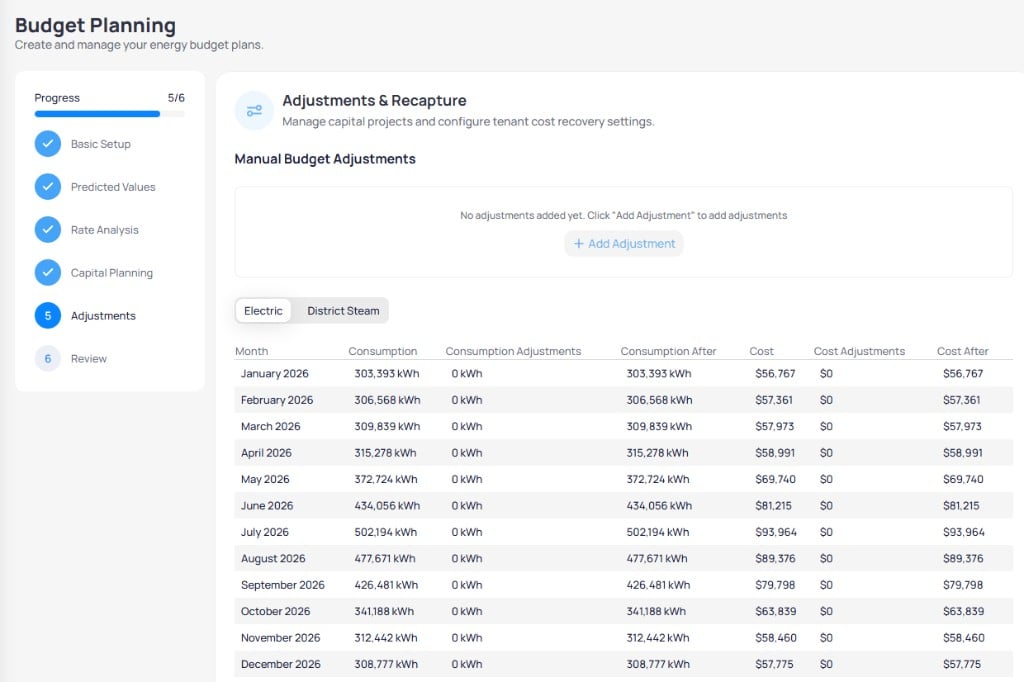 Click **+ Add Adjustment** for one-time changes that Smart Generation does not capture. The monthly table shows **Consumption Adjustments**, **Cost Adjustments**, and **After** totals per month.
### Step 6: Review and finalize
Review annual totals, emissions, meters, and a historical comparison chart before you save.
Click **+ Add Adjustment** for one-time changes that Smart Generation does not capture. The monthly table shows **Consumption Adjustments**, **Cost Adjustments**, and **After** totals per month.
### Step 6: Review and finalize
Review annual totals, emissions, meters, and a historical comparison chart before you save.
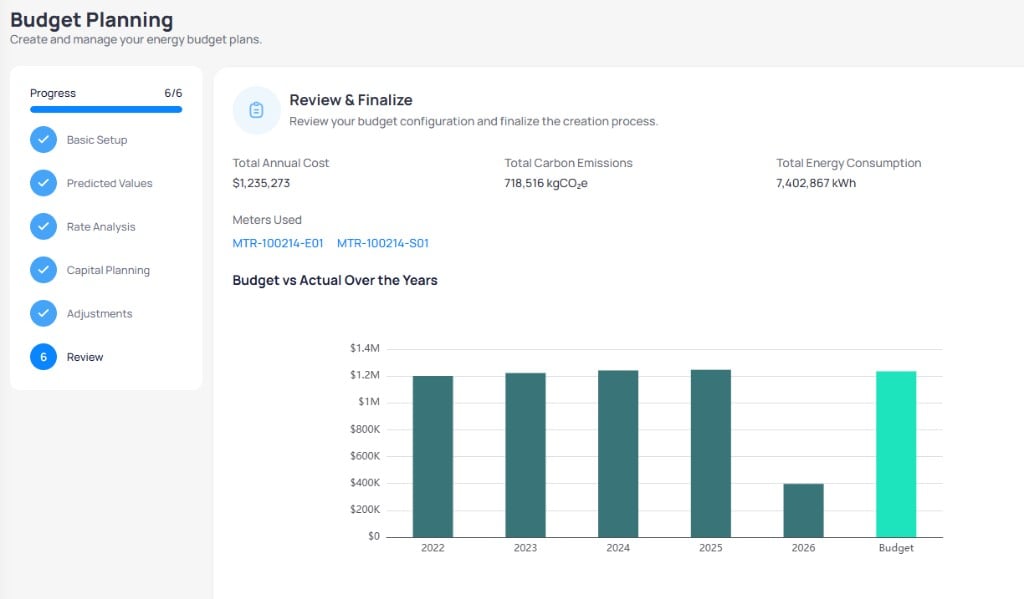 | Metric | What it shows |
| ----------------------------------- | ----------------------------------------------- |
| **Total Annual Cost** | Sum of planned spend for the period |
| **Total Carbon Emissions** | Planned emissions in kgCO₂e |
| **Total Energy Consumption** | Planned usage across service types |
| **Meters Used** | Meters that feed the budget model |
| **Budget vs Actual Over the Years** | Compares the new plan to historical actual cost |
Click **Finish** to save the budget. Set status to **Active** when the plan is ready for variance tracking.
## Budget statuses
| Status | When to use it |
| ------------- | ------------------------------------------------------------------------------------------------------------------------------ |
| **Draft** | Work in progress. Not used in overview variance until activated |
| **Active** | Official plan for the period. Drives **Budget** columns on [Building budget overview](/products/energ/finance/budget-overview) |
| **Completed** | Closed plan for a prior year. Keep for audit and year-over-year comparison |
## Next steps
Compare actual spend to your active budget with charts and tables.
Configure simpler manual or Smart Generation models outside the full wizard.
Define measures and projects to include in step 4 of the wizard.
Download utility statements and review cost dashboards.
| Metric | What it shows |
| ----------------------------------- | ----------------------------------------------- |
| **Total Annual Cost** | Sum of planned spend for the period |
| **Total Carbon Emissions** | Planned emissions in kgCO₂e |
| **Total Energy Consumption** | Planned usage across service types |
| **Meters Used** | Meters that feed the budget model |
| **Budget vs Actual Over the Years** | Compares the new plan to historical actual cost |
Click **Finish** to save the budget. Set status to **Active** when the plan is ready for variance tracking.
## Budget statuses
| Status | When to use it |
| ------------- | ------------------------------------------------------------------------------------------------------------------------------ |
| **Draft** | Work in progress. Not used in overview variance until activated |
| **Active** | Official plan for the period. Drives **Budget** columns on [Building budget overview](/products/energ/finance/budget-overview) |
| **Completed** | Closed plan for a prior year. Keep for audit and year-over-year comparison |
## Next steps
Compare actual spend to your active budget with charts and tables.
Configure simpler manual or Smart Generation models outside the full wizard.
Define measures and projects to include in step 4 of the wizard.
Download utility statements and review cost dashboards.