> ## Documentation Index
> Fetch the complete documentation index at: https://documentation.kodelabs.com/llms.txt
> Use this file to discover all available pages before exploring further.
# Portfolio meters
> Manage and monitor utility meters across your portfolio in EnerG
Open `Meters` in the [portfolio view](/products/energ/get-started/navigation#portfolio-view) left sidebar. The sections below follow the order you use in the product: review the main page, filter the table, assign meters, create virtual meters, then manage linked meters.
For meter detail at a single site, switch to the [building view](/products/energ/get-started/navigation#building-view) and open [Building meters](/products/energ/buildings/meters).
## Meters page
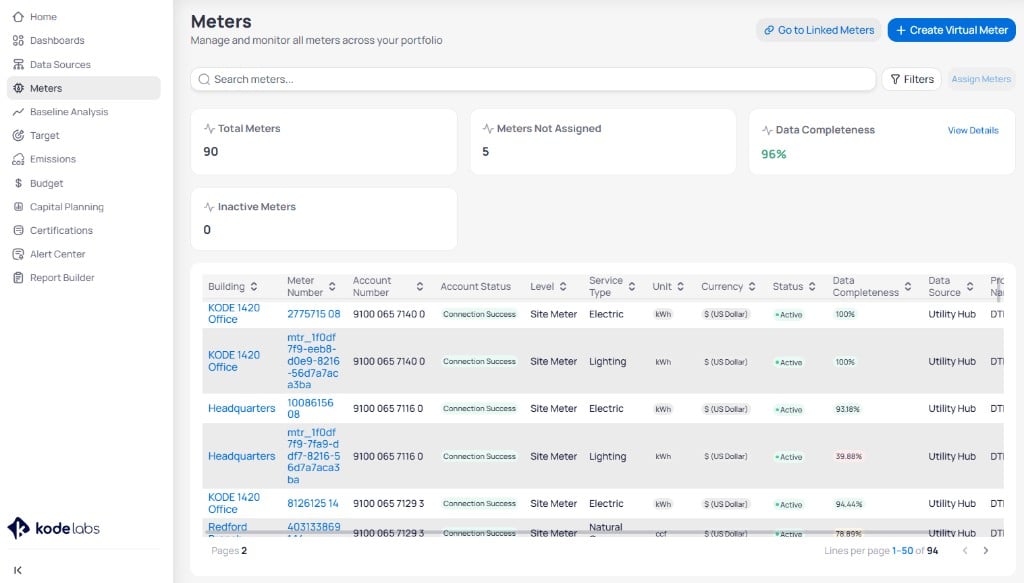
The portfolio **Meters** page title reads **Meters** with the subtitle *Manage and monitor all meters across your portfolio.*
### Page actions
| Action | Purpose |
| ------------------------ | --------------------------------------------------------------------------------- |
| `Go to Linked Meters` | Open the [Linked meters page](#linked-meters-page) to view, edit, or create links |
| `+ Create Virtual Meter` | Open the panel to [create a virtual meter](#create-a-virtual-meter) |
| `Filters` | Open filter controls for the meters table |
| `Assign Meters` | Start the workflow to [assign meters](#assign-meters-to-buildings) to a building |
 ### Summary cards
Four cards summarize portfolio health above the table.
| Card | What it shows |
| ----------------------- | ----------------------------------------------------------------- |
| **Total Meters** | Count of meters across all buildings |
| **Meters Not Assigned** | Meters that still need a building assignment |
| **Data Completeness** | Portfolio-wide completeness percentage with a `View Details` link |
| **Inactive Meters** | Meters marked inactive |
Click `View Details` on **Data Completeness** to open a drill-down by building, account, and month. For how EnerG scores coverage and why gaps matter, see [Data completeness](/products/energ/concepts/data-completeness).
Mark meters **inactive** when a utility account closes or the provider issues a new meter number. Inactive meters stay available for historical regressions and M\&V, but they should not count against current completeness if no new bills are expected. Leave inactive meters unassigned or excluded so they do not inflate gap alerts.
### Summary cards
Four cards summarize portfolio health above the table.
| Card | What it shows |
| ----------------------- | ----------------------------------------------------------------- |
| **Total Meters** | Count of meters across all buildings |
| **Meters Not Assigned** | Meters that still need a building assignment |
| **Data Completeness** | Portfolio-wide completeness percentage with a `View Details` link |
| **Inactive Meters** | Meters marked inactive |
Click `View Details` on **Data Completeness** to open a drill-down by building, account, and month. For how EnerG scores coverage and why gaps matter, see [Data completeness](/products/energ/concepts/data-completeness).
Mark meters **inactive** when a utility account closes or the provider issues a new meter number. Inactive meters stay available for historical regressions and M\&V, but they should not count against current completeness if no new bills are expected. Leave inactive meters unassigned or excluded so they do not inflate gap alerts.
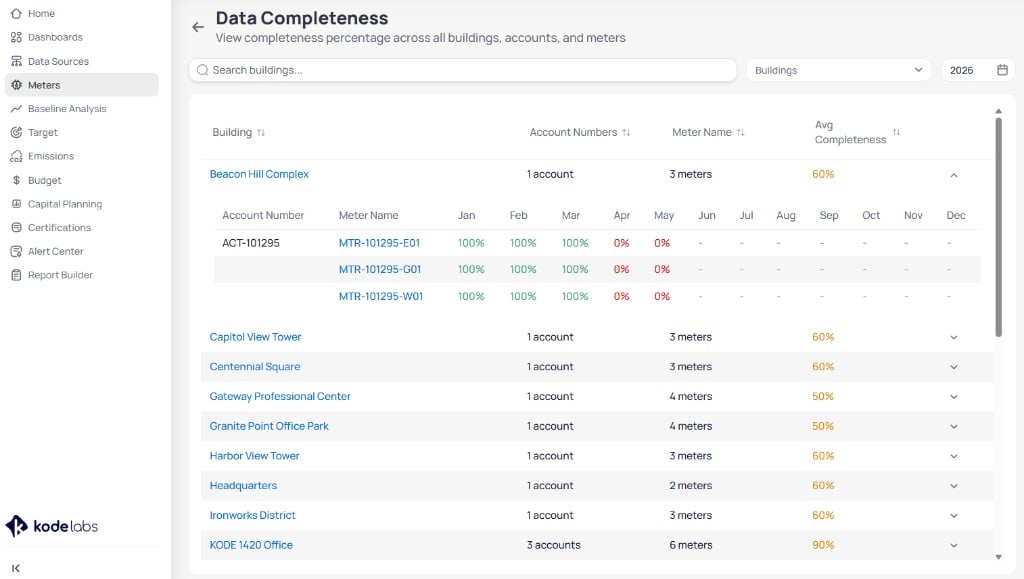 On the Data Completeness page, click a **building name** to open [Building information](/products/energ/buildings/building-information). Click a **meter name** to open meter details.
### Meters table
The table lists every meter in the portfolio. Each column header supports sorting. Use pagination at the bottom to move through large result sets. Click a **Building** or **Meter Number** link to open [Building information](/products/energ/buildings/building-information) or meter details. For what each column shows, see [Meter table columns](/products/energ/reference/data-and-meter-fields#meter-columns).
## Filter meters
Use the search field above the table to find meters by number or name. Click `Filters` to show the filter row. The button highlights when filters are active.
On the Data Completeness page, click a **building name** to open [Building information](/products/energ/buildings/building-information). Click a **meter name** to open meter details.
### Meters table
The table lists every meter in the portfolio. Each column header supports sorting. Use pagination at the bottom to move through large result sets. Click a **Building** or **Meter Number** link to open [Building information](/products/energ/buildings/building-information) or meter details. For what each column shows, see [Meter table columns](/products/energ/reference/data-and-meter-fields#meter-columns).
## Filter meters
Use the search field above the table to find meters by number or name. Click `Filters` to show the filter row. The button highlights when filters are active.
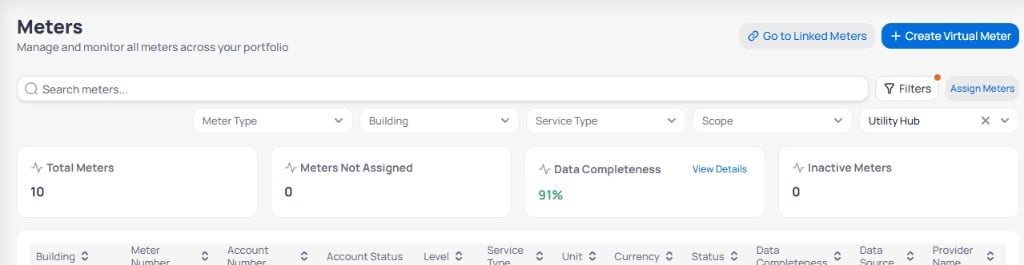 | Filter | Purpose |
| ---------------- | ---------------------------------------------- |
| **Meter Type** | Narrow by utility, interval, or virtual meters |
| **Building** | Limit results to one or more sites |
| **Service Type** | Filter by commodity |
| **Scope** | Filter by site-level or submeter scope |
| **Data Source** | Limit to meters from a specific feed |
You must select a **Data Source** before `Assign Meters` becomes available.
## Assign meters to buildings
Use `Assign Meters` to link meters from a data source to a building. You filter by **Data Source**, open the workflow, pick the building, then select meters from that feed.
Click `Filters` to show the filter row. Select a **Data Source** such as `Utility Hub`. `Assign Meters` stays disabled until you choose a data source.
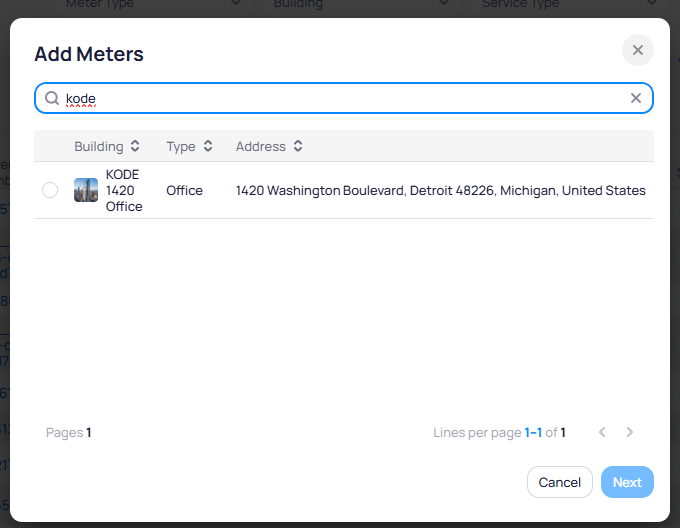
Click `Assign Meters` next to the filter row. The **Add Meters** dialog opens.
On the **Add Meters** page, search for a building by name. Select one row in the table, then click `Next`.
The table lists **Building**, **Type**, and **Address** for each site.
| Filter | Purpose |
| ---------------- | ---------------------------------------------- |
| **Meter Type** | Narrow by utility, interval, or virtual meters |
| **Building** | Limit results to one or more sites |
| **Service Type** | Filter by commodity |
| **Scope** | Filter by site-level or submeter scope |
| **Data Source** | Limit to meters from a specific feed |
You must select a **Data Source** before `Assign Meters` becomes available.
## Assign meters to buildings
Use `Assign Meters` to link meters from a data source to a building. You filter by **Data Source**, open the workflow, pick the building, then select meters from that feed.
Click `Filters` to show the filter row. Select a **Data Source** such as `Utility Hub`. `Assign Meters` stays disabled until you choose a data source.
Click `Assign Meters` next to the filter row. The **Add Meters** dialog opens.
On the **Add Meters** page, search for a building by name. Select one row in the table, then click `Next`.
The table lists **Building**, **Type**, and **Address** for each site.
 On the **Add existing Meters** page, search for meters if needed. Check each meter you want to assign. Review **Meter Number**, **Service Type**, **Account Number**, **Provider Name**, and **Address**, then click `Submit`.
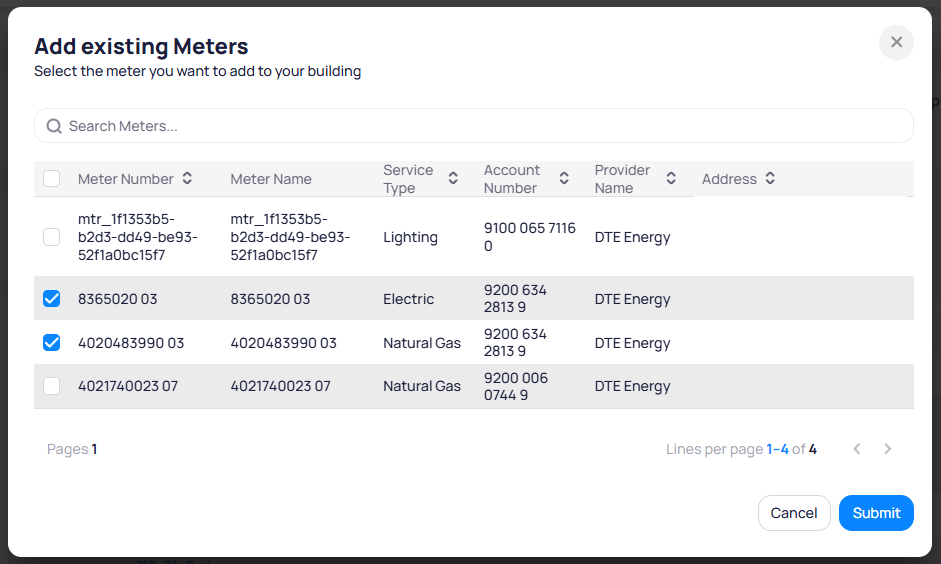 Assigned meters appear in the portfolio **Meters** table and in [Building meters](/products/energ/buildings/meters) for that site.
## Create a virtual meter
Click `+ Create Virtual Meter` in the top-right corner of the Meters page. Virtual meters calculate usage from other meters instead of a direct utility feed.
Choose a **Calculation Method**:
| Method | Use when |
| -------------------- | ---------------------------------------------------------------------------------------------- |
| **Custom Formula** | You define an equation from other meters after you set service type, unit, currency, and scope |
| **Percentage Split** | You allocate a fixed share of one or more source meters |
Assigned meters appear in the portfolio **Meters** table and in [Building meters](/products/energ/buildings/meters) for that site.
## Create a virtual meter
Click `+ Create Virtual Meter` in the top-right corner of the Meters page. Virtual meters calculate usage from other meters instead of a direct utility feed.
Choose a **Calculation Method**:
| Method | Use when |
| -------------------- | ---------------------------------------------------------------------------------------------- |
| **Custom Formula** | You define an equation from other meters after you set service type, unit, currency, and scope |
| **Percentage Split** | You allocate a fixed share of one or more source meters |
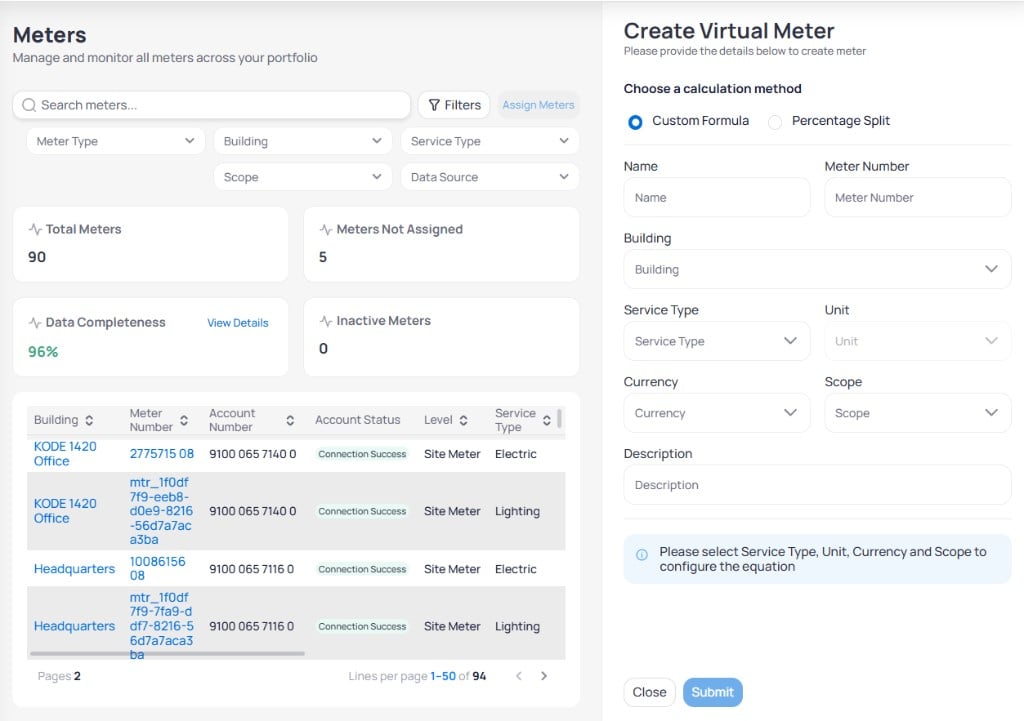
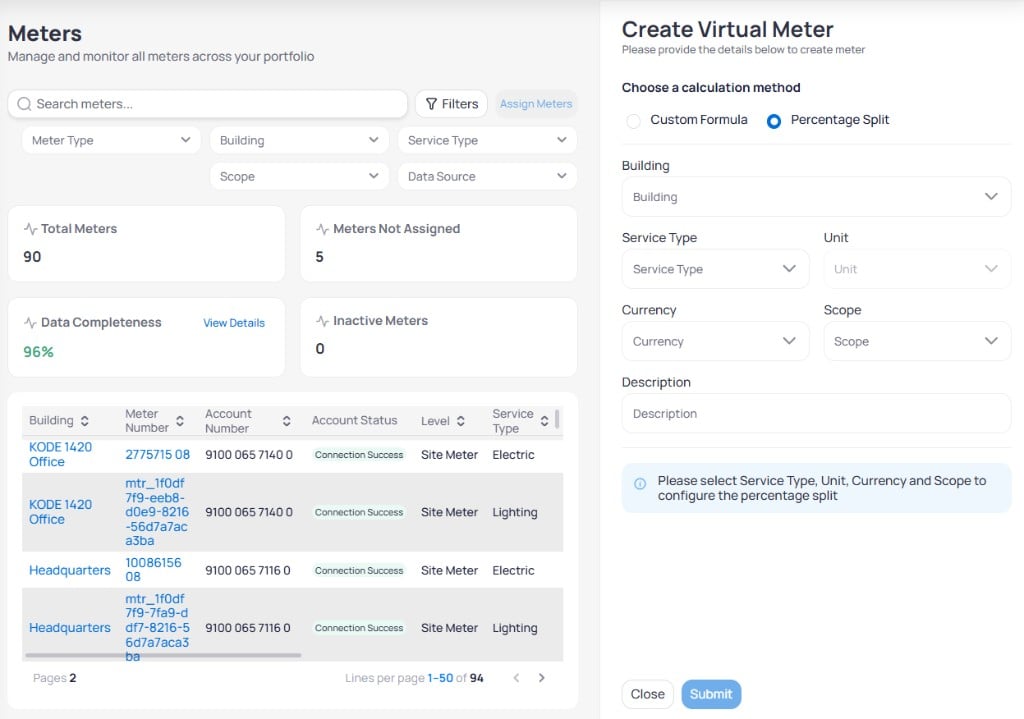 Provide **Name**, **Meter Number**, **Building**, **Service Type**, **Unit**, **Currency**, **Scope**, and an optional **Description**.
For **Custom Formula**, build the equation after required fields are set. For **Percentage Split**, define the share across source meters when EnerG prompts you.
Click `Submit`. The virtual meter appears in the portfolio table.
## Linked meters page
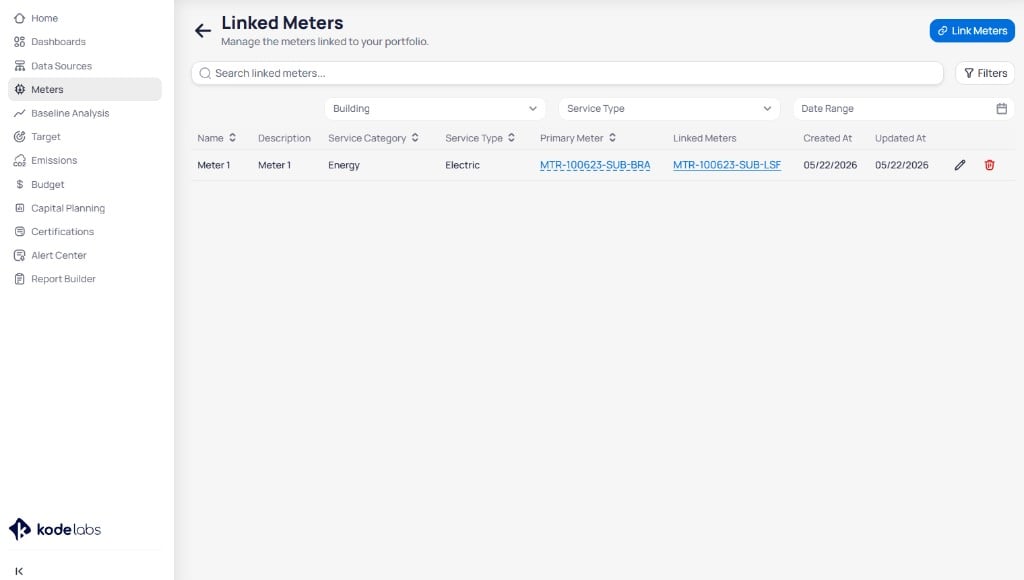
Click `Go to Linked Meters` on the Meters page to open the **Linked Meters** view. The page title reads **Linked Meters** with the subtitle *Manage the meters linked to your portfolio.*
Provide **Name**, **Meter Number**, **Building**, **Service Type**, **Unit**, **Currency**, **Scope**, and an optional **Description**.
For **Custom Formula**, build the equation after required fields are set. For **Percentage Split**, define the share across source meters when EnerG prompts you.
Click `Submit`. The virtual meter appears in the portfolio table.
## Linked meters page
Click `Go to Linked Meters` on the Meters page to open the **Linked Meters** view. The page title reads **Linked Meters** with the subtitle *Manage the meters linked to your portfolio.*
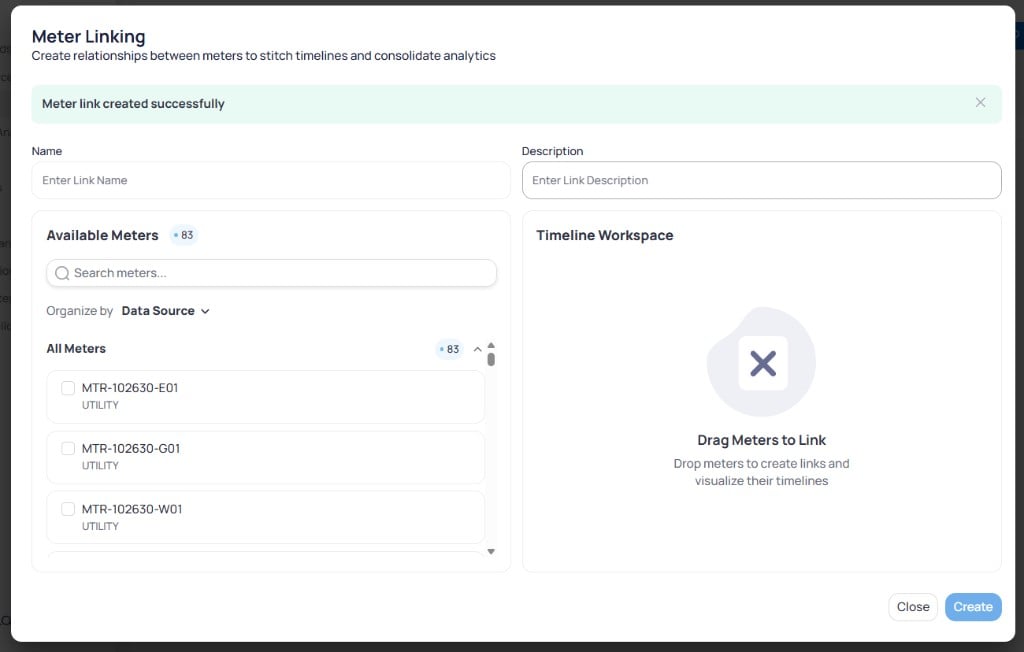 Use the **Search linked meters...** field to find links by name. Click `Filters` to show **Building**, **Service Type**, and **Date Range** filters when you need to narrow a large portfolio.
### Read link details
The table lists every meter link with sortable columns.
| Column | Description |
| -------------------- | -------------------------------------------------------------------------------- |
| **Name** | Label you gave the link when you created it |
| **Description** | Optional notes that explain why the meters are linked |
| **Service Category** | Broad group such as Energy or Waste |
| **Service Type** | Commodity such as Electric or Natural Gas |
| **Primary Meter** | Main meter in the relationship. Click the meter ID to open that meter’s details. |
| **Linked Meters** | Secondary meter tied to the primary. Click the meter ID to open its details. |
| **Created At** | Date the link was created |
| **Updated At** | Date of the last change |
| **Actions** | Row controls to edit or delete the link |
Click a meter ID under **Primary Meter** or **Linked Meters** when you need to review billing data, completeness, or properties for that meter before you change the link.
### Edit or delete a link
Use the row actions at the right end of each link.
* **Edit** (pencil icon) — Open the **Edit Meter Link** modal to change the name, description, linked meters, or which meter is primary.
* **Delete** (trash icon) — Remove the link. The individual meters stay in EnerG; only the relationship is removed.
Use the **Search linked meters...** field to find links by name. Click `Filters` to show **Building**, **Service Type**, and **Date Range** filters when you need to narrow a large portfolio.
### Read link details
The table lists every meter link with sortable columns.
| Column | Description |
| -------------------- | -------------------------------------------------------------------------------- |
| **Name** | Label you gave the link when you created it |
| **Description** | Optional notes that explain why the meters are linked |
| **Service Category** | Broad group such as Energy or Waste |
| **Service Type** | Commodity such as Electric or Natural Gas |
| **Primary Meter** | Main meter in the relationship. Click the meter ID to open that meter’s details. |
| **Linked Meters** | Secondary meter tied to the primary. Click the meter ID to open its details. |
| **Created At** | Date the link was created |
| **Updated At** | Date of the last change |
| **Actions** | Row controls to edit or delete the link |
Click a meter ID under **Primary Meter** or **Linked Meters** when you need to review billing data, completeness, or properties for that meter before you change the link.
### Edit or delete a link
Use the row actions at the right end of each link.
* **Edit** (pencil icon) — Open the **Edit Meter Link** modal to change the name, description, linked meters, or which meter is primary.
* **Delete** (trash icon) — Remove the link. The individual meters stay in EnerG; only the relationship is removed.
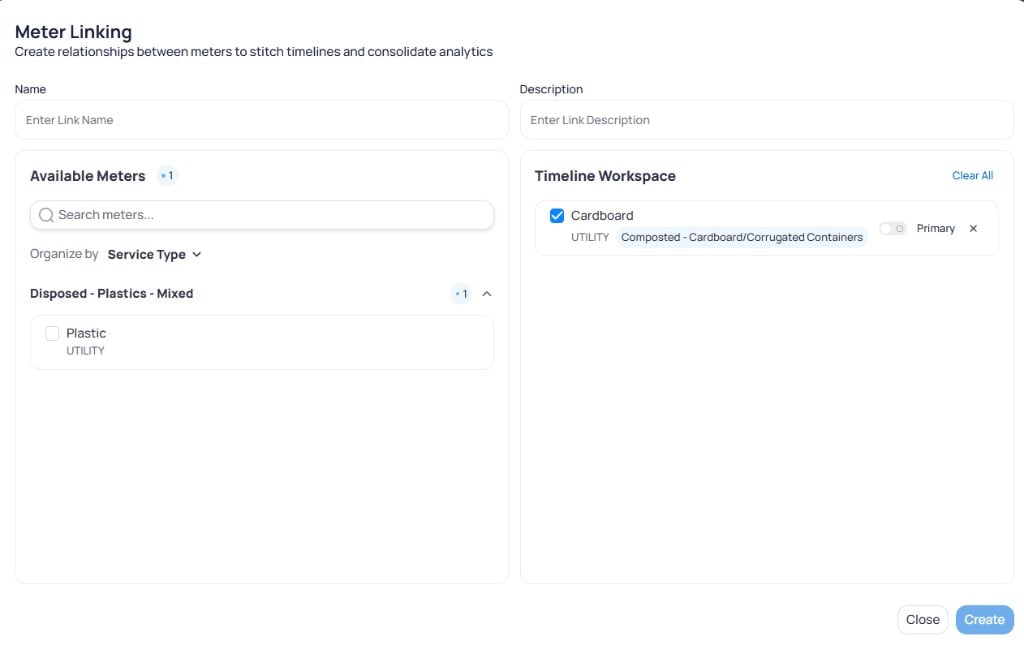
 On the Linked Meters page, click the **edit** icon on the link row.
Change **Name** or **Description** if needed. In **Available Meters**, select or clear meters to add or remove them from the **Timeline Workspace**. Turn **Primary** on for the meter that should drive the stitched timeline.
Click `Update`. The table refreshes with your changes.
## Link meters
Meter links stitch timelines across related feeds so analytics stay continuous when accounts or meter numbers change. Create a new link from the Linked Meters page.
On the Linked Meters page, click `Link Meters` in the top-right corner. The **Meter Linking** modal opens.
On the Linked Meters page, click the **edit** icon on the link row.
Change **Name** or **Description** if needed. In **Available Meters**, select or clear meters to add or remove them from the **Timeline Workspace**. Turn **Primary** on for the meter that should drive the stitched timeline.
Click `Update`. The table refreshes with your changes.
## Link meters
Meter links stitch timelines across related feeds so analytics stay continuous when accounts or meter numbers change. Create a new link from the Linked Meters page.
On the Linked Meters page, click `Link Meters` in the top-right corner. The **Meter Linking** modal opens.
 Fill in **Name** and **Description** so operators can recognize the link later.
In **Available Meters**, search or organize the list by **Data Source** or **Service Type**. Select the first meter you want to link, then select the second meter. You can check meters in the list or drag them into the **Timeline Workspace**.
Fill in **Name** and **Description** so operators can recognize the link later.
In **Available Meters**, search or organize the list by **Data Source** or **Service Type**. Select the first meter you want to link, then select the second meter. You can check meters in the list or drag them into the **Timeline Workspace**.
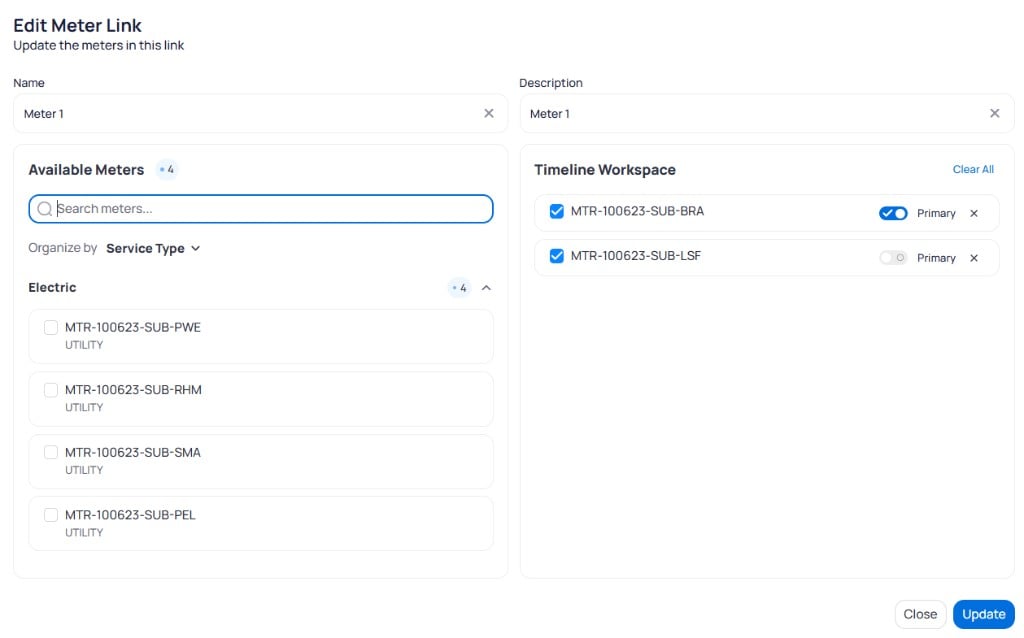 In the **Timeline Workspace**, turn **Primary** on for the meter that should anchor comparisons. Leave **Primary** off for the secondary meter.
Click `Create`. A success message confirms the link. The new row appears on the Linked Meters table.
Link meters that represent the same physical account across a meter change or data source migration. Keep service type and scope aligned so stitched timelines do not mix unrelated commodities.
## Next steps
Connect feeds before you assign meters across the portfolio.
Review and edit meters after you open a building.
Resolve data quality alerts for portfolio meters.
Select a building to continue work in the building view.
Understand how feeds and meters organize portfolio data.
Look up meter columns, service types, and status values.
In the **Timeline Workspace**, turn **Primary** on for the meter that should anchor comparisons. Leave **Primary** off for the secondary meter.
Click `Create`. A success message confirms the link. The new row appears on the Linked Meters table.
Link meters that represent the same physical account across a meter change or data source migration. Keep service type and scope aligned so stitched timelines do not mix unrelated commodities.
## Next steps
Connect feeds before you assign meters across the portfolio.
Review and edit meters after you open a building.
Resolve data quality alerts for portfolio meters.
Select a building to continue work in the building view.
Understand how feeds and meters organize portfolio data.
Look up meter columns, service types, and status values.