> ## Documentation Index
> Fetch the complete documentation index at: https://documentation.kodelabs.com/llms.txt
> Use this file to discover all available pages before exploring further.
# Emission factors library
> Create, publish, and manage emission factor sets for carbon calculations in EnerG
Manage the emission factors that drive carbon calculations in the [portfolio view](/products/energ/get-started/navigation#portfolio-view). Expand `Emissions` in the left sidebar and open `Emission Factors` to create, publish, and edit factor sets. For how factors convert activity into carbon, see [Emission factors](/products/energ/concepts/emissions-accounting#emission-factors).
## Navigate to Emission Factors
Click `Emissions` > `Emission Factors` in the portfolio left sidebar.
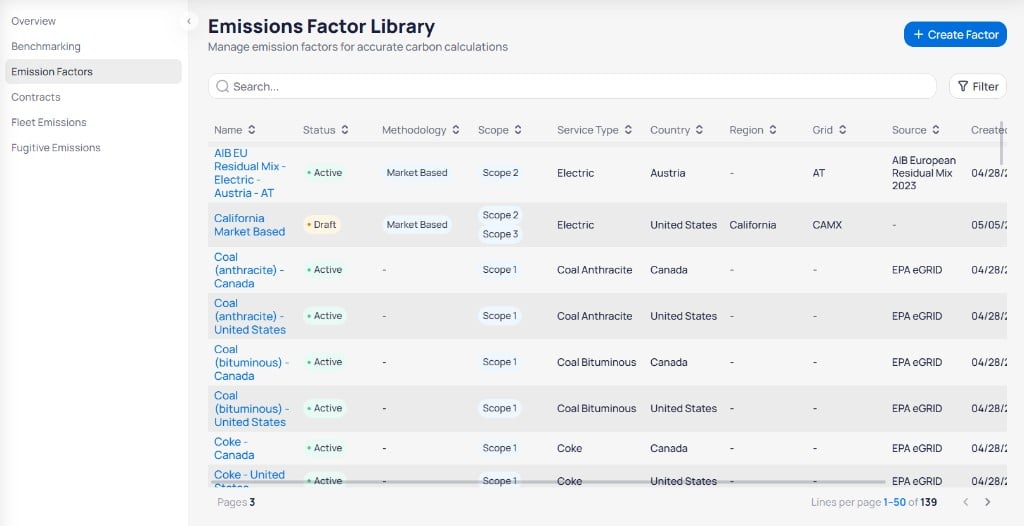 Click `+ Create Factor` to open the **Create Factor Set** panel. Review the library table to check existing factors before you add or edit entries. For the column definitions in this table, see [emission factor fields](/products/energ/reference/emissions-reference#emission-factor-fields).
## Search and filter factors
Use **Search** to find factors by name. Click `Filter` to show additional filters.
Click `+ Create Factor` to open the **Create Factor Set** panel. Review the library table to check existing factors before you add or edit entries. For the column definitions in this table, see [emission factor fields](/products/energ/reference/emissions-reference#emission-factor-fields).
## Search and filter factors
Use **Search** to find factors by name. Click `Filter` to show additional filters.
 | Filter | Purpose |
| ------------------------ | ----------------------------------------------------------- |
| **Status** | Show `Active`, `Draft`, or other statuses |
| **Service Type** | Filter by commodity such as `Electric` or `Coal Anthracite` |
| **Country** | Limit factors to one country |
| **Methodology** | Filter by approach such as `Market Based` |
| **Effective date range** | Show factors effective within a date window |
Use pagination at the bottom to move through large libraries (for example, `1–50 of 139`).
## Publish or edit a factor
Each factor row includes actions on the right side of the table.
| Action | Purpose |
| ----------------- | ------------------------------------------------------------------------ |
| **Publish Draft** | Activate a factor in `Draft` status so it applies to carbon calculations |
| **Edit** | Open the factor set to change details, documentation, or geography |
| **Delete** | Remove the factor from the library |
| Filter | Purpose |
| ------------------------ | ----------------------------------------------------------- |
| **Status** | Show `Active`, `Draft`, or other statuses |
| **Service Type** | Filter by commodity such as `Electric` or `Coal Anthracite` |
| **Country** | Limit factors to one country |
| **Methodology** | Filter by approach such as `Market Based` |
| **Effective date range** | Show factors effective within a date window |
Use pagination at the bottom to move through large libraries (for example, `1–50 of 139`).
## Publish or edit a factor
Each factor row includes actions on the right side of the table.
| Action | Purpose |
| ----------------- | ------------------------------------------------------------------------ |
| **Publish Draft** | Activate a factor in `Draft` status so it applies to carbon calculations |
| **Edit** | Open the factor set to change details, documentation, or geography |
| **Delete** | Remove the factor from the library |
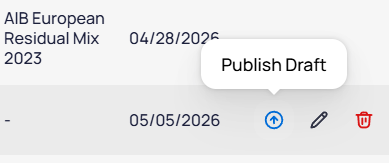 Factors with **Active** status are already published. Click **Publish Draft** on draft rows (such as `California Market Based`) before you rely on them in emissions reports.
## Create a factor set
Click `+ Create Factor` to open the **Create Factor Set** panel on the right.
Factors with **Active** status are already published. Click **Publish Draft** on draft rows (such as `California Market Based`) before you rely on them in emissions reports.
## Create a factor set
Click `+ Create Factor` to open the **Create Factor Set** panel on the right.
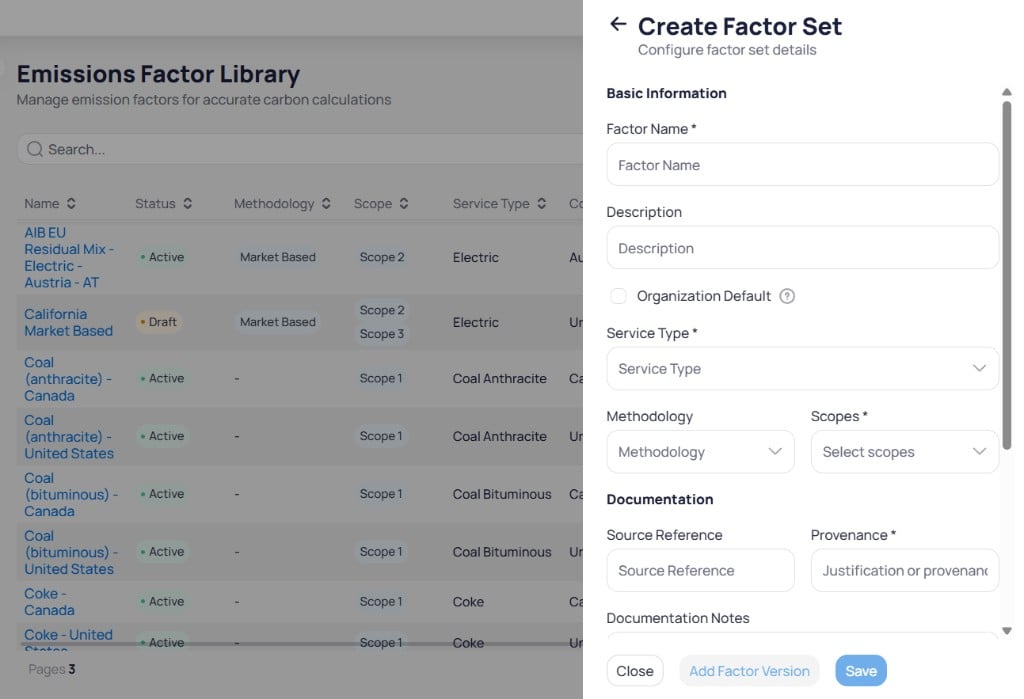 Fill in **Factor Name**, **Service Type**, and **Scopes** (for example, Scope 2). Add **Description**, **Methodology**, and **Organization Default** when needed.
Enter **Provenance** and optional **Source Reference** and **Documentation Notes**.
Choose **Apply to Building** or **Apply geography wise**. When you apply geography wise, set **Country**, then **Region** and **Grid Code**, which activate after you select a country.
Click `Add Factor Version` to add a version before you save, or click `Save` to store the factor set. Click `Close` to exit without saving.
For the full list of factor set fields, see [emission factor fields](/products/energ/reference/emissions-reference#emission-factor-fields).
Factors in `Draft` status do not affect production calculations until you activate them. Review draft entries before you rely on them in [Emissions overview](/products/energ/analytics/portfolio-emissions-overview) or [Benchmarking](/products/energ/analytics/portfolio-emissions-benchmarking).
## Next steps
Understand how factors convert activity into carbon.
Look up the full emission factor field list.
See how factors roll up in portfolio emissions charts.
Manage REC and volume-based emission contracts.
Manage vehicles and mileage for Scope 1 mobile combustion.
Track refrigerant loss for Scope 1 fugitive reporting.
Fill in **Factor Name**, **Service Type**, and **Scopes** (for example, Scope 2). Add **Description**, **Methodology**, and **Organization Default** when needed.
Enter **Provenance** and optional **Source Reference** and **Documentation Notes**.
Choose **Apply to Building** or **Apply geography wise**. When you apply geography wise, set **Country**, then **Region** and **Grid Code**, which activate after you select a country.
Click `Add Factor Version` to add a version before you save, or click `Save` to store the factor set. Click `Close` to exit without saving.
For the full list of factor set fields, see [emission factor fields](/products/energ/reference/emissions-reference#emission-factor-fields).
Factors in `Draft` status do not affect production calculations until you activate them. Review draft entries before you rely on them in [Emissions overview](/products/energ/analytics/portfolio-emissions-overview) or [Benchmarking](/products/energ/analytics/portfolio-emissions-benchmarking).
## Next steps
Understand how factors convert activity into carbon.
Look up the full emission factor field list.
See how factors roll up in portfolio emissions charts.
Manage REC and volume-based emission contracts.
Manage vehicles and mileage for Scope 1 mobile combustion.
Track refrigerant loss for Scope 1 fugitive reporting.