> ## Documentation Index
> Fetch the complete documentation index at: https://documentation.kodelabs.com/llms.txt
> Use this file to discover all available pages before exploring further.
# Templates
> Save, import, export, and apply reusable Building BI templates for collections, dashboards, pages, and charts across buildings and portfolios.
Templates let you save and reuse Building BI configurations across buildings and portfolios. You can template collections, dashboards, individual pages, or single charts and apply them to any compatible building.
Navigate to `Building BI` and select `Templates` at the bottom of the left navigation panel.
See [template levels](/products/building-bi/reference/template-types), [templating versus deployment](/products/building-bi/concepts/templating-vs-deployment), and [template types](/products/building-bi/reference/template-types) to choose the right reuse strategy.
## Template types
Templates are organized into four categories. Use the filter buttons at the top of the page to switch between them.
| Type | Description |
| ------------- | --------------------------------------------------------------------------------------- |
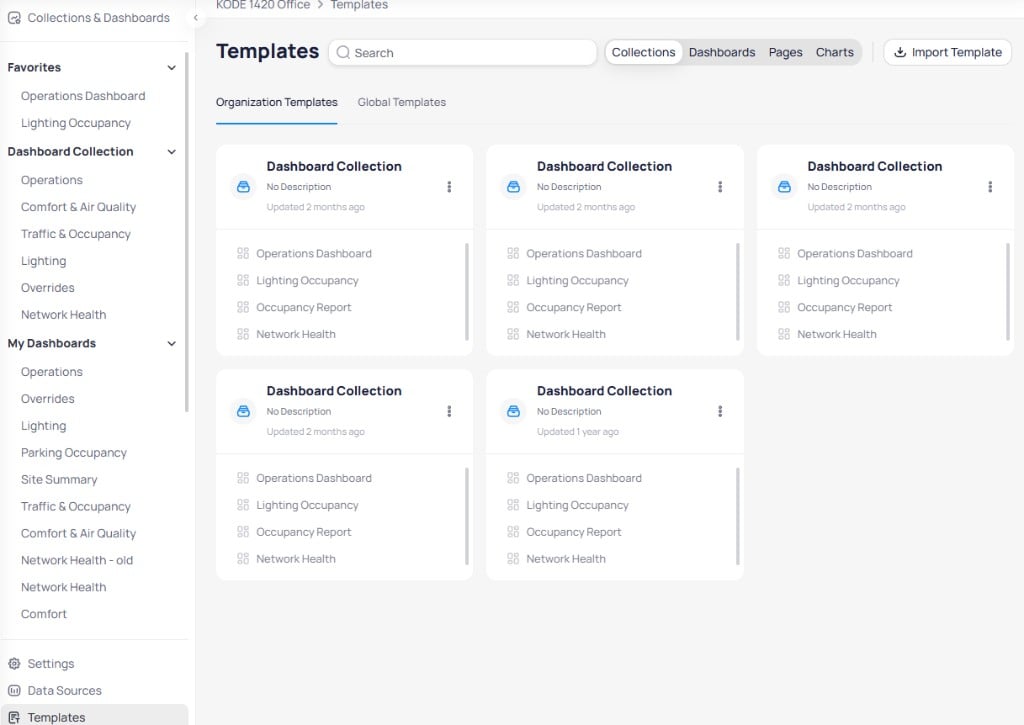
| `Collections` | A full collection including its dashboards, pages, charts, and data source dependencies |
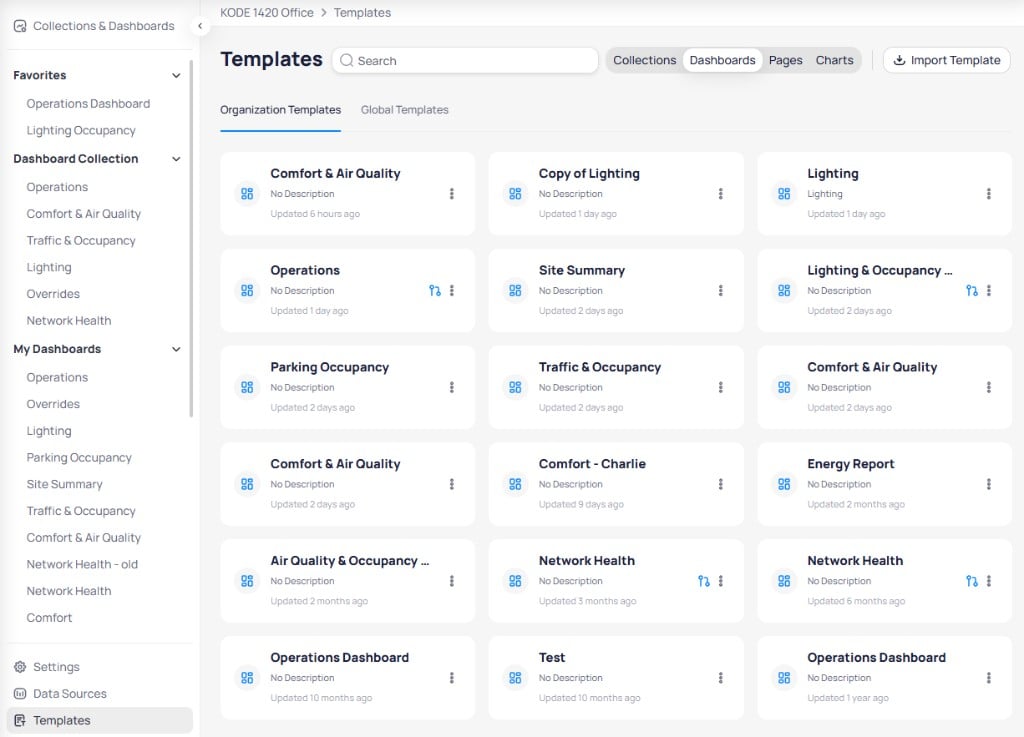
| `Dashboards` | A single dashboard with all its pages, charts, and data source dependencies |
| `Pages` | An individual dashboard page with its charts and layout |
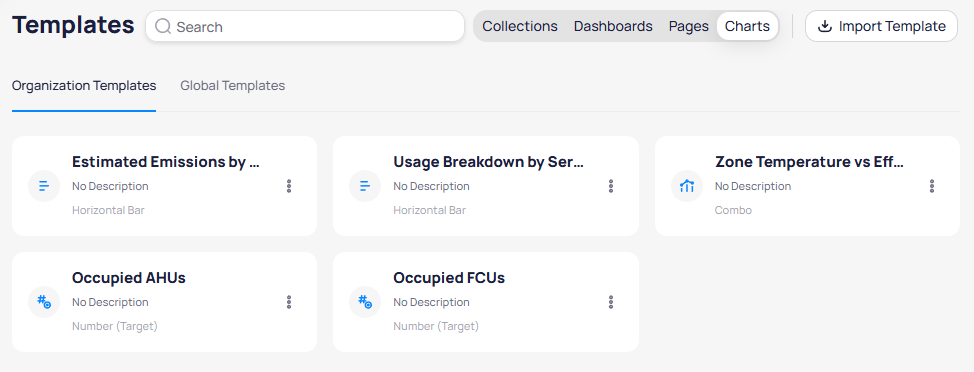
| `Charts` | A single chart widget with its data source configuration and styling |
The `Title` and `Template Type` fields are populated automatically when you save or import a template. You do not need to set the template type manually.
Collection templates include all contained dashboards and their data source dependencies.
 Dashboard templates include all pages, charts, and data source configurations within a single dashboard.
 Page templates capture the layout and chart configuration of a single dashboard page.
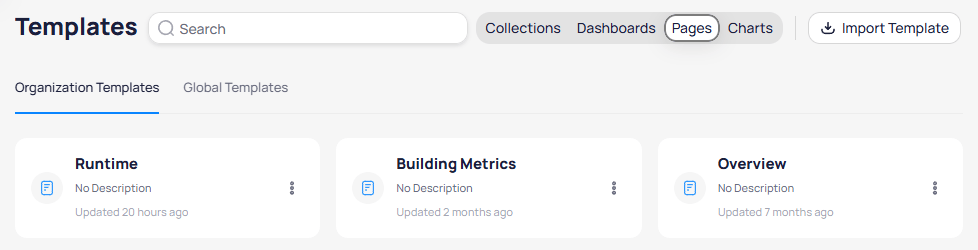 Chart templates save a single widget with its chart type, data source, and styling. Each card displays the chart type below the template name.
 ## Organization templates
The `Organization Templates` tab displays templates created by your organization. These templates are available to all users with Building BI access in your portfolio.
### Manage a template
Select the three-dot menu on any organization template to access management actions.
## Organization templates
The `Organization Templates` tab displays templates created by your organization. These templates are available to all users with Building BI access in your portfolio.
### Manage a template
Select the three-dot menu on any organization template to access management actions.
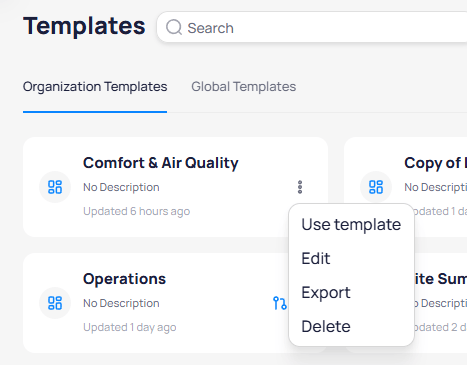 | Action | Description |
| -------------- | ----------------------------------------------------------------------- |
| `Use template` | Create a new dashboard or collection from this template |
| `Edit` | Modify the template name, description, or configuration |
| `Export` | Generate a shareable link to transfer the template to another portfolio |
| `Delete` | Permanently remove the template |
## Global templates
The `Global Templates` tab provides standard templates maintained by KODE Labs. These templates are available to all organizations and cover common use cases such as network health, operations, energy reporting, and data quality.
| Action | Description |
| -------------- | ----------------------------------------------------------------------- |
| `Use template` | Create a new dashboard or collection from this template |
| `Edit` | Modify the template name, description, or configuration |
| `Export` | Generate a shareable link to transfer the template to another portfolio |
| `Delete` | Permanently remove the template |
## Global templates
The `Global Templates` tab provides standard templates maintained by KODE Labs. These templates are available to all organizations and cover common use cases such as network health, operations, energy reporting, and data quality.
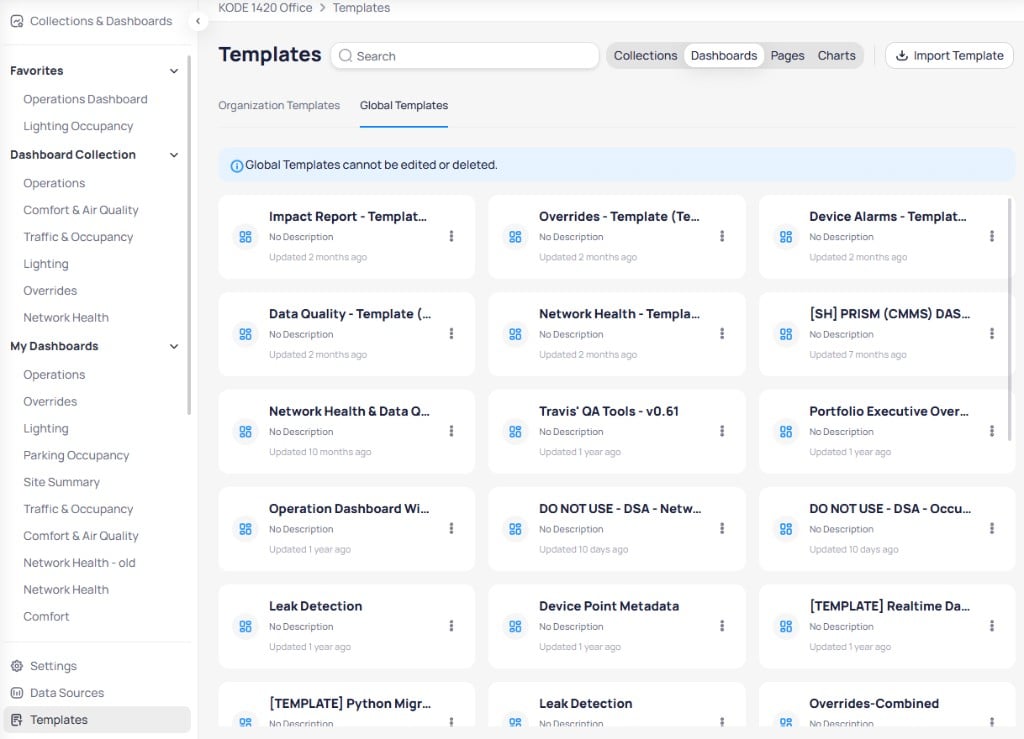 Global templates cannot be edited or deleted. You can use them to create new dashboards, or export them to share the link with other portfolios.
## Save as template
You can save collections and dashboards as templates directly from the `Collections & Dashboards` page.
### Save a collection as a template
Navigate to `Collections & Dashboards`. Select the three-dot menu on a collection and choose `Save As Template`.
Global templates cannot be edited or deleted. You can use them to create new dashboards, or export them to share the link with other portfolios.
## Save as template
You can save collections and dashboards as templates directly from the `Collections & Dashboards` page.
### Save a collection as a template
Navigate to `Collections & Dashboards`. Select the three-dot menu on a collection and choose `Save As Template`.
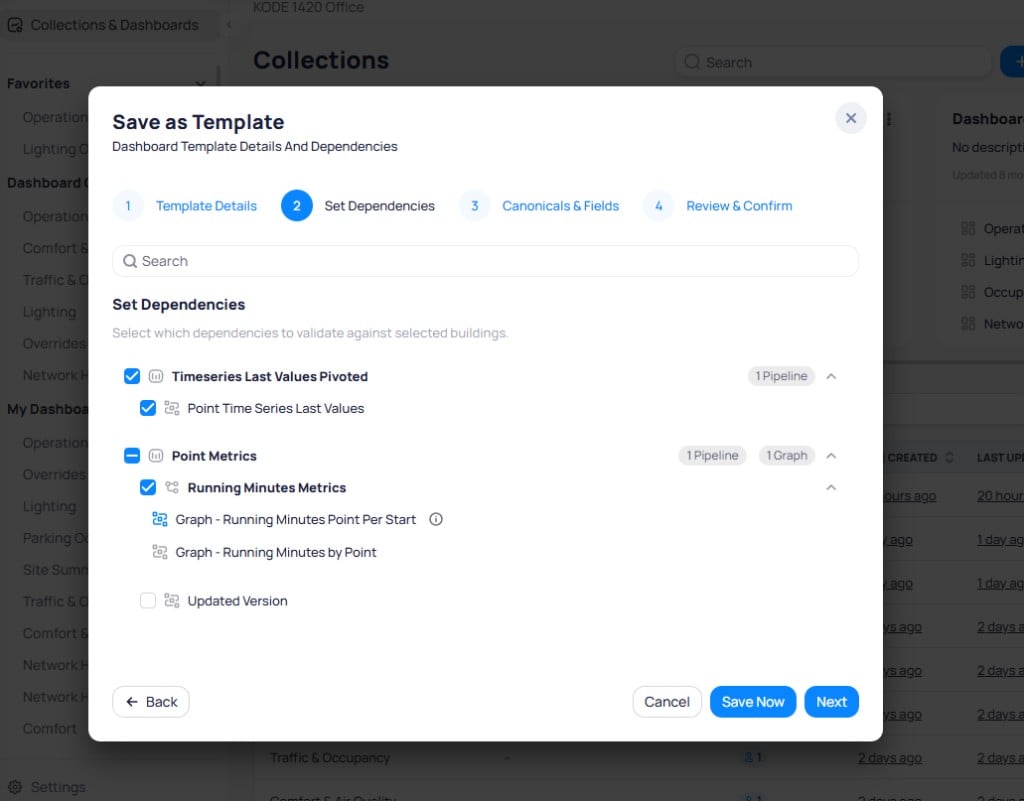
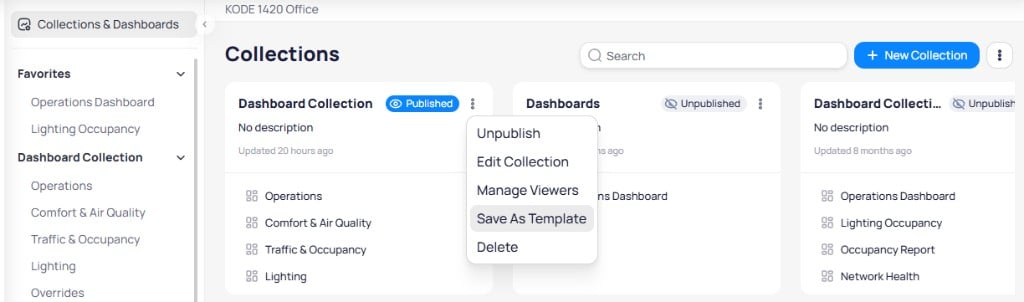 Enter a `Template Name` and an optional `Description`. Select `Save Now` to save the template immediately, or select `Next` to configure dependencies.
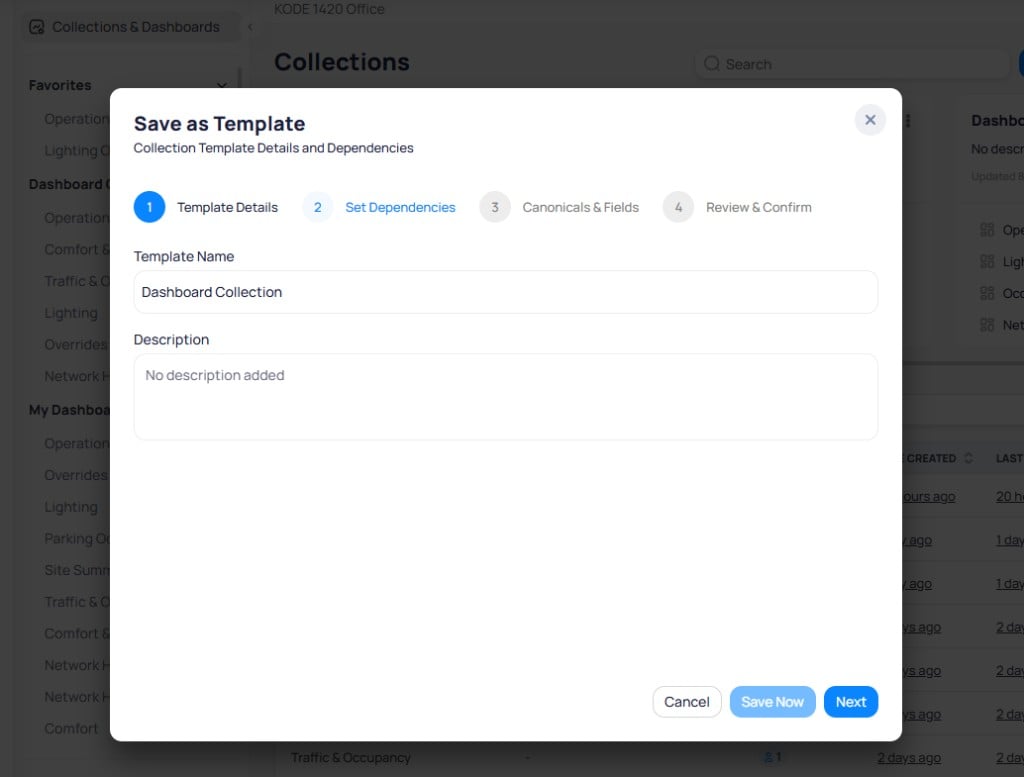 Select which data source dependencies to include with the template. Expand each data source to see its pipelines and graphs. Check or uncheck individual items to control what is bundled with the template.
 Select the canonical types and ontology fields that define how the template maps to building data. When you later deploy the template, Building BI flags any required canonical or ontology field that is missing at the target building or portfolio.
Review the template configuration and select `Save Now` to finalize.
### Save a dashboard as a template
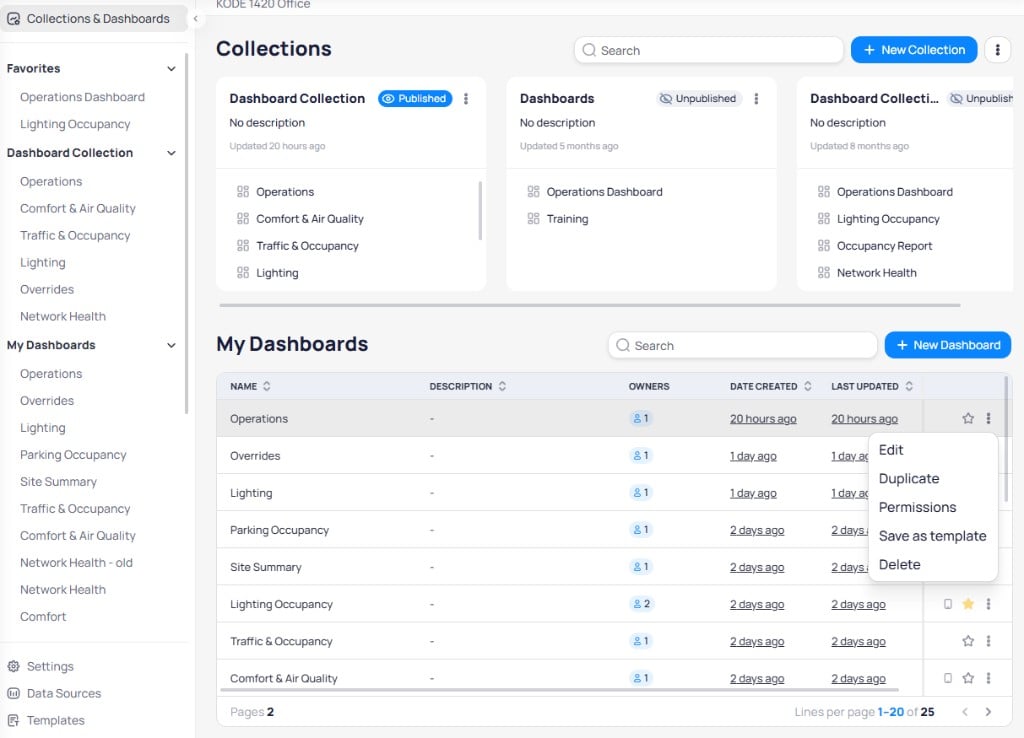
Navigate to `Collections & Dashboards`. In the `My Dashboards` table, select the three-dot menu on a dashboard and choose `Save as template`. The same four-step wizard opens.
Select the canonical types and ontology fields that define how the template maps to building data. When you later deploy the template, Building BI flags any required canonical or ontology field that is missing at the target building or portfolio.
Review the template configuration and select `Save Now` to finalize.
### Save a dashboard as a template
Navigate to `Collections & Dashboards`. In the `My Dashboards` table, select the three-dot menu on a dashboard and choose `Save as template`. The same four-step wizard opens.
 ### Save a chart as a template
You can save individual charts as templates while editing a dashboard.
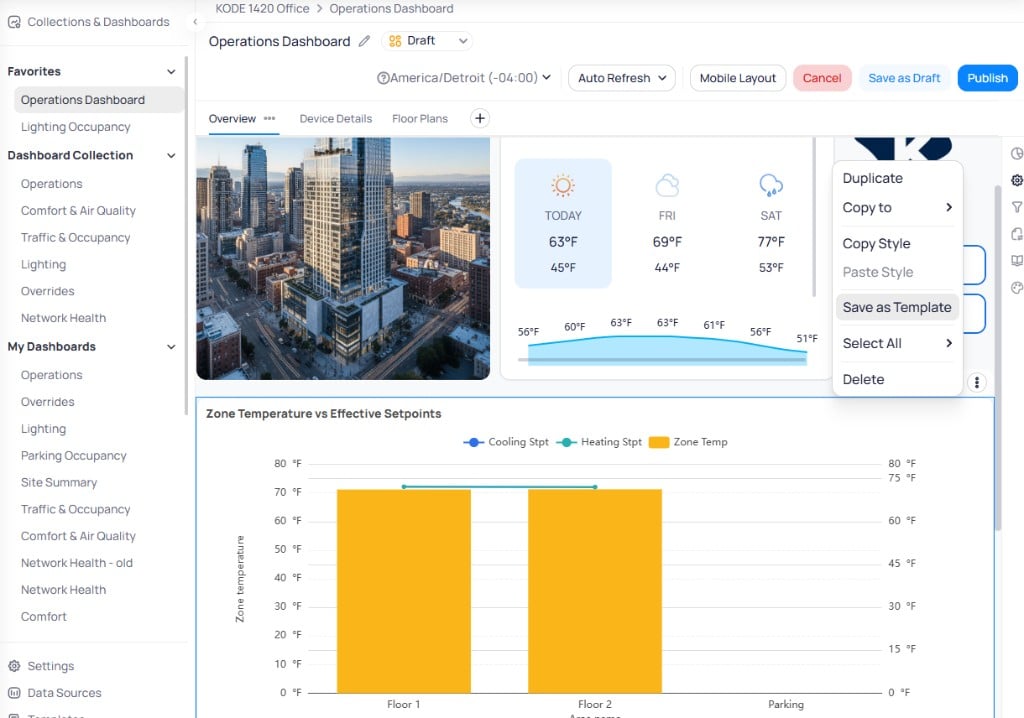
Enter edit mode on a dashboard. Select the three-dot menu on any chart widget and choose `Save as Template`.
### Save a chart as a template
You can save individual charts as templates while editing a dashboard.
Enter edit mode on a dashboard. Select the three-dot menu on any chart widget and choose `Save as Template`.
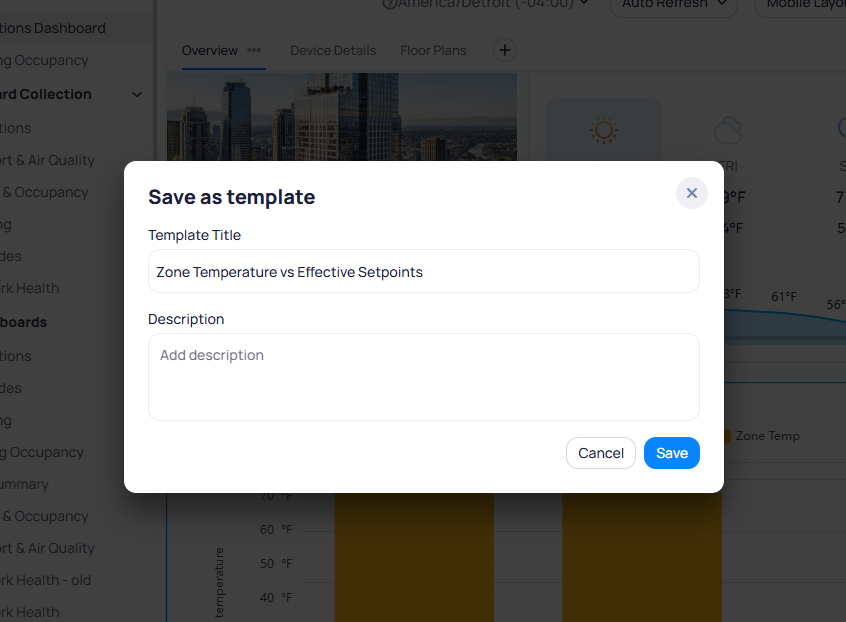
 Enter a `Template Title` and an optional `Description`. Select `Save` to add the chart to your organization templates.
 ### Save a page as a template
You can save individual dashboard pages (tabs) as templates while editing a dashboard.
Enter edit mode on a dashboard. Select the three-dot menu (`...`) next to the page tab name and choose `Save as Template`.
### Save a page as a template
You can save individual dashboard pages (tabs) as templates while editing a dashboard.
Enter edit mode on a dashboard. Select the three-dot menu (`...`) next to the page tab name and choose `Save as Template`.
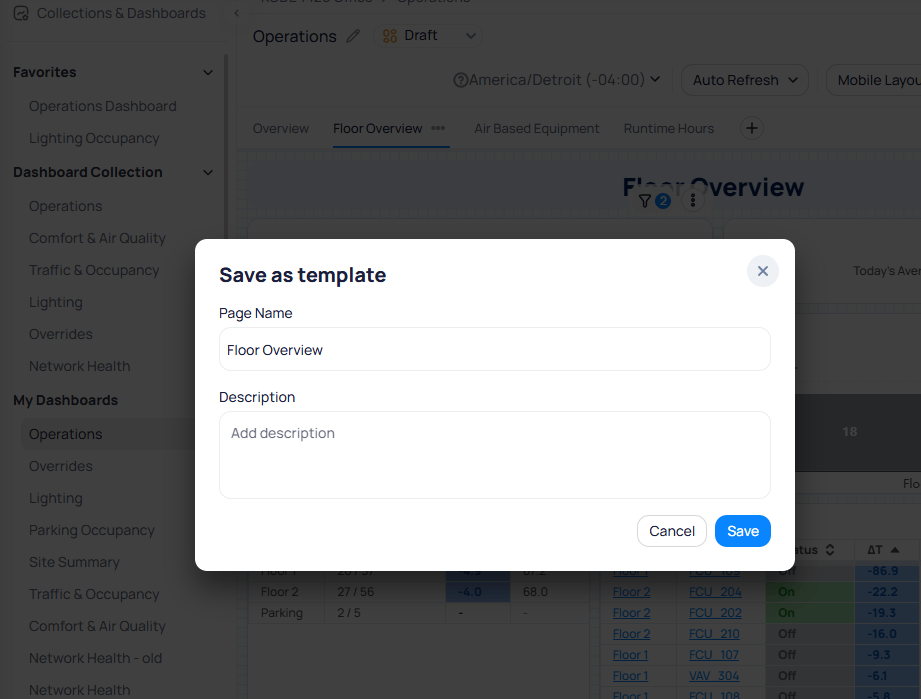
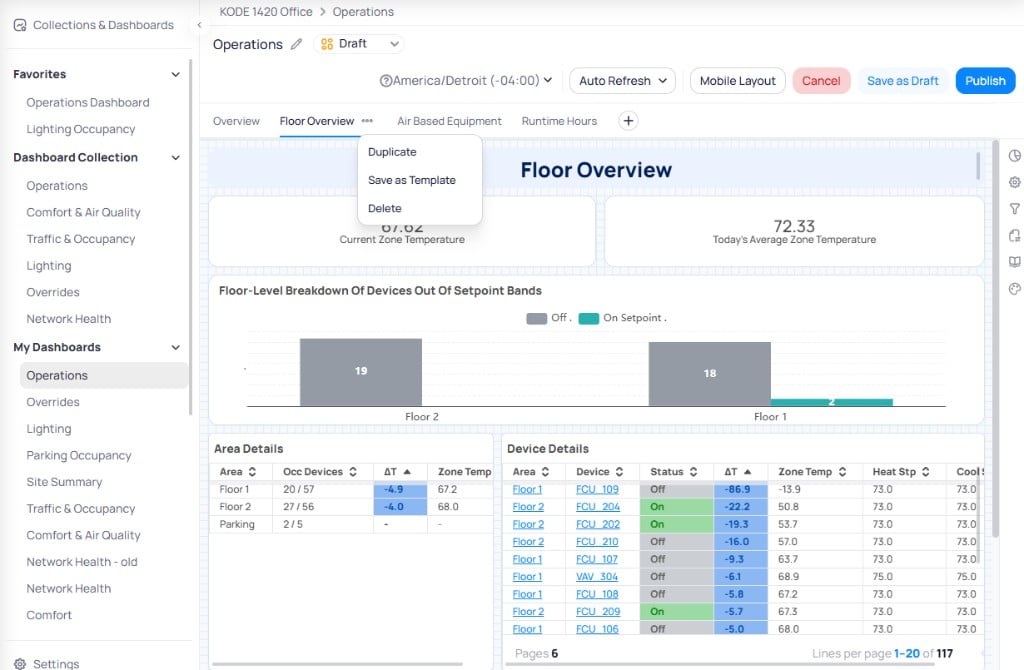 Enter a `Page Name` and an optional `Description`. Select `Save` to add the page to your organization templates.
 ## Template Library
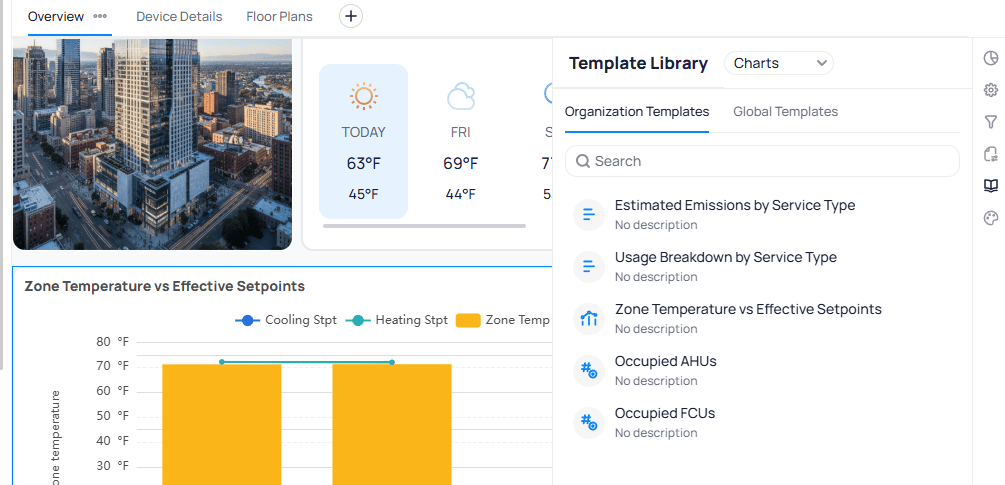
The Template Library is a side panel available in dashboard edit mode. It lets you add chart and page templates directly to the dashboard you are editing.
Enter edit mode on a dashboard. Select the `Template Library` button in the right sidebar.
## Template Library
The Template Library is a side panel available in dashboard edit mode. It lets you add chart and page templates directly to the dashboard you are editing.
Enter edit mode on a dashboard. Select the `Template Library` button in the right sidebar.
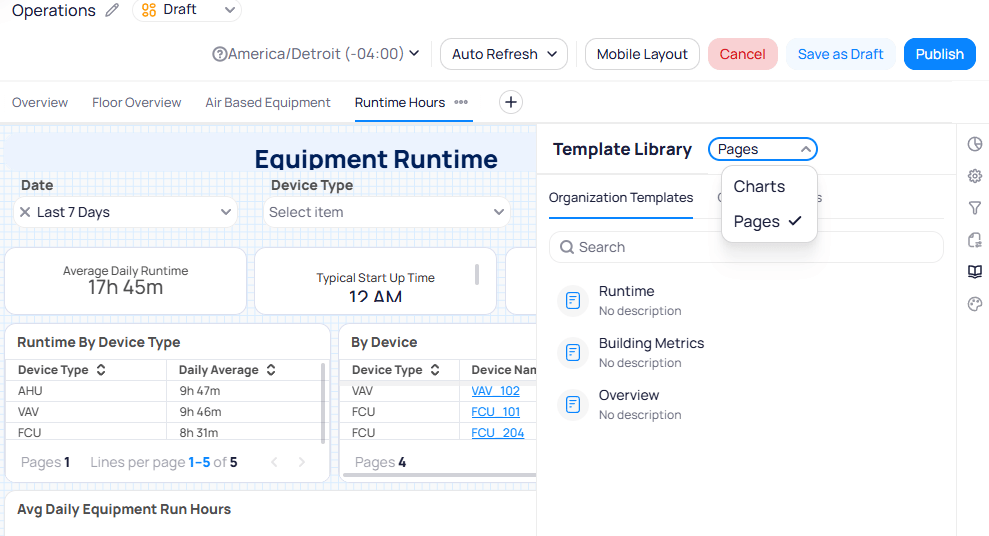
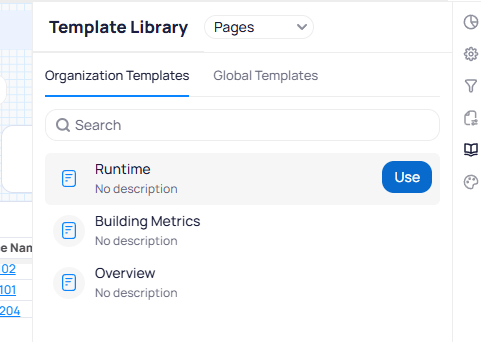
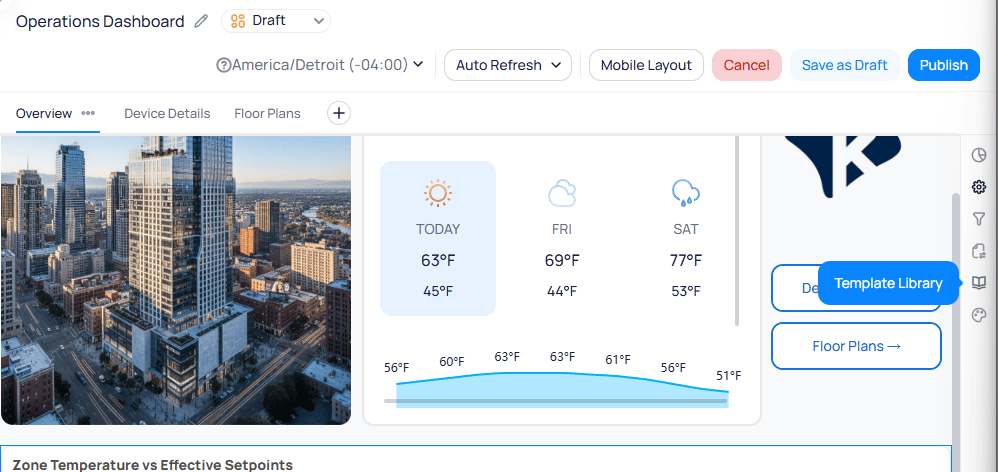 Use the dropdown at the top of the panel to switch between `Charts` and `Pages`. Switch between the `Organization Templates` and `Global Templates` tabs, or use the search bar to find a specific template.
 With `Charts` selected, drag a chart template from the library panel and drop it onto the dashboard canvas. The chart is added with its preconfigured data source, chart type, and styling.
 With `Pages` selected, hover over a page template and select `Use`. The page is added as a new tab in the dashboard.
 ## Use a template
Apply a template to create a new dashboard or collection in your current building.
**Deployment risk:** Deployed dashboards retain the data filters, chart configurations, and settings defined on the host building's dashboard. If the target buildings do not contain the same data, equipment, naming conventions, or configuration, some charts may return errors or no data. Before deploying, confirm that all selected buildings support the dashboard's requirements.
Select the three-dot menu on a template and choose `Use template`.
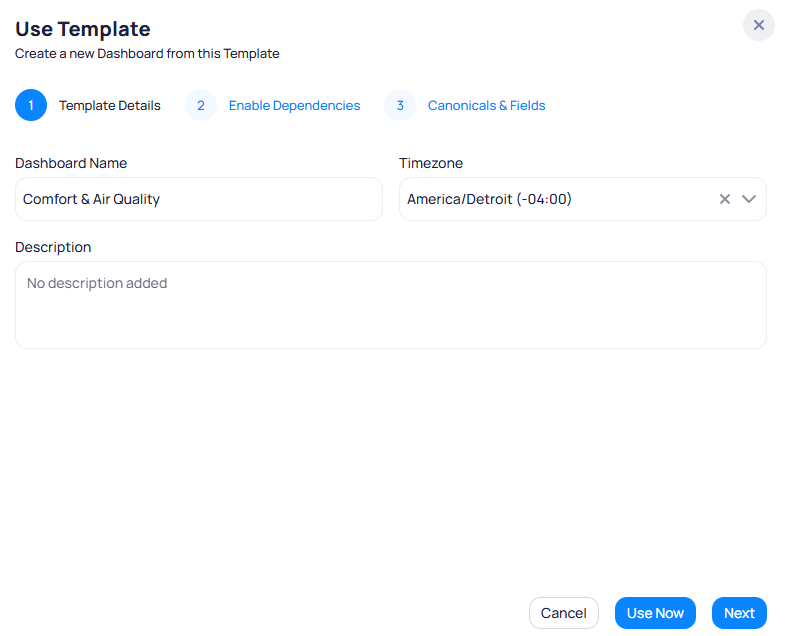
Enter a `Dashboard Name`, select a `Timezone`, and add an optional `Description`. Select `Use Now` to create the dashboard immediately, or select `Next` to review dependencies.
## Use a template
Apply a template to create a new dashboard or collection in your current building.
**Deployment risk:** Deployed dashboards retain the data filters, chart configurations, and settings defined on the host building's dashboard. If the target buildings do not contain the same data, equipment, naming conventions, or configuration, some charts may return errors or no data. Before deploying, confirm that all selected buildings support the dashboard's requirements.
Select the three-dot menu on a template and choose `Use template`.
Enter a `Dashboard Name`, select a `Timezone`, and add an optional `Description`. Select `Use Now` to create the dashboard immediately, or select `Next` to review dependencies.
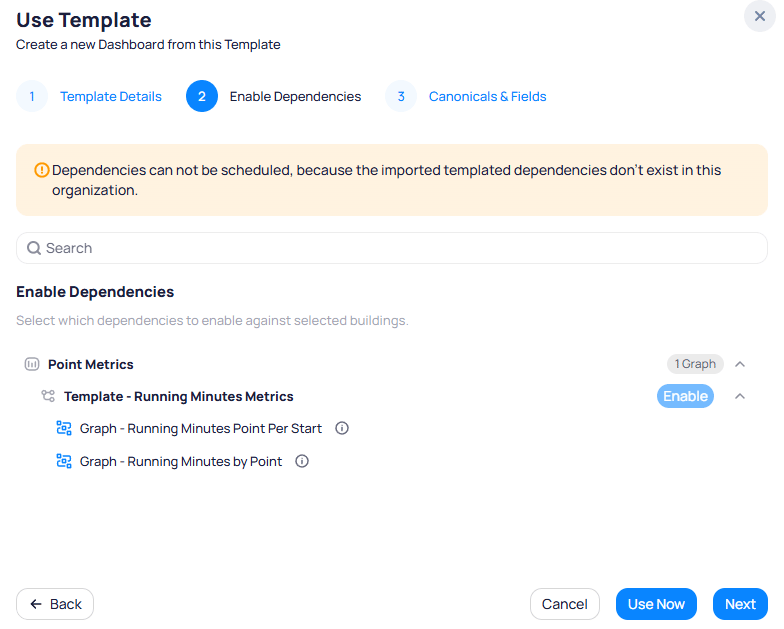
 Review the data source dependencies required by the template. Select `Enable` next to each dependency to activate it for the target building. If a dependency does not exist in your organization, an info banner explains that it cannot be scheduled.
 Select the canonical types and ontology fields the template requires. These determine how the template maps to the target building's data model.
Building BI validates each selection against the building or portfolio you are deploying to. If a required canonical type or ontology field does not exist there, the deployment windows flags it. Use that feedback as a QA check before you finish deploying the collection or dashboard.
## Export a template
Export a template to share it with another portfolio.
1. Select the three-dot menu on a template and choose `Export`.
2. The system generates a link and copies it to your clipboard.
Select the canonical types and ontology fields the template requires. These determine how the template maps to the target building's data model.
Building BI validates each selection against the building or portfolio you are deploying to. If a required canonical type or ontology field does not exist there, the deployment windows flags it. Use that feedback as a QA check before you finish deploying the collection or dashboard.
## Export a template
Export a template to share it with another portfolio.
1. Select the three-dot menu on a template and choose `Export`.
2. The system generates a link and copies it to your clipboard.
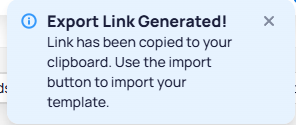 Share the copied link with the recipient. They can import it using the `Import Template` button in their own Templates page.
## Import a template
Import a template from another portfolio using an exported link.
Select `Import Template` in the upper-right corner of the Templates page.
Paste the exported template URL into the `Import URL` field. The `Title` and `Template Type` fields populate automatically from the link.
Share the copied link with the recipient. They can import it using the `Import Template` button in their own Templates page.
## Import a template
Import a template from another portfolio using an exported link.
Select `Import Template` in the upper-right corner of the Templates page.
Paste the exported template URL into the `Import URL` field. The `Title` and `Template Type` fields populate automatically from the link.
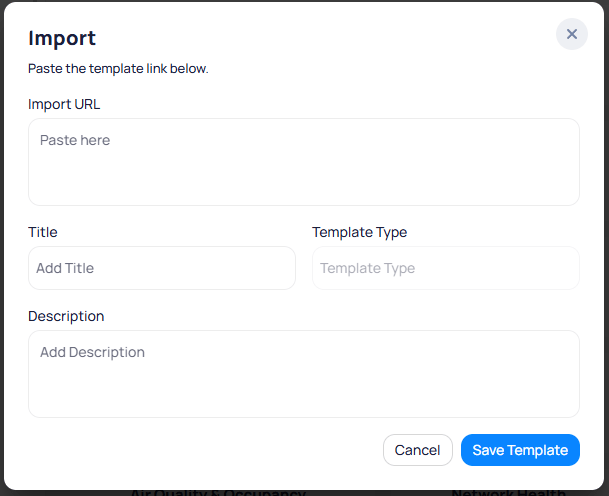 Review the auto-populated details and select `Save Template`. The template appears in your `Organization Templates` tab.
## Related reading
Control visibility and organize dashboards by audience.
Choose independent copies or governed portfolio parity.
Compare collection, dashboard, page, and chart templates.
Deploy dashboards and manage predefined versus custom views.
## Next steps
Organize and publish dashboard collections for your teams.
Deploy dashboard configurations across multiple sites in your portfolio.
Review the auto-populated details and select `Save Template`. The template appears in your `Organization Templates` tab.
## Related reading
Control visibility and organize dashboards by audience.
Choose independent copies or governed portfolio parity.
Compare collection, dashboard, page, and chart templates.
Deploy dashboards and manage predefined versus custom views.
## Next steps
Organize and publish dashboard collections for your teams.
Deploy dashboard configurations across multiple sites in your portfolio.