> ## Documentation Index
> Fetch the complete documentation index at: https://documentation.kodelabs.com/llms.txt
> Use this file to discover all available pages before exploring further.
# Building BI settings
> View and manage shared links, scheduled reports, custom color palettes, and templates from the Building BI Settings page.
The Building BI settings page gives you a centralized view of all [shared links and scheduled reports](/products/building-bi/reference/shared-links-scheduled-reports), [custom color palettes](/products/building-bi/reference/color-tools), and templates across your dashboards.
## Access settings
Navigate to `Building BI` and click `Settings` at the bottom of the page.
## Shared links
The `Shared Links` tab displays all generated links for your dashboards. Use the search bar and `Active`/`Expired` filters to find specific links. Select one or more links using the checkboxes to delete them in bulk.
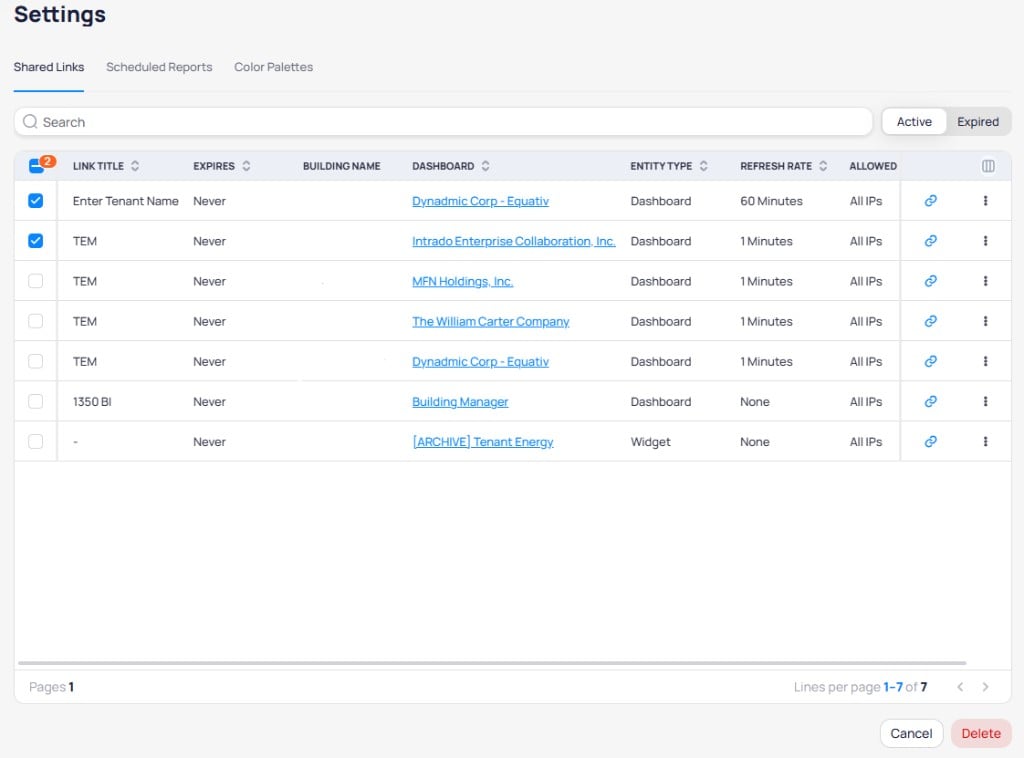 Each entry shows the following details:
| Field | Description |
| ----------------- | ------------------------------------------------- |
| **Expiration** | When the shared link expires |
| **Building Name** | The building associated with the dashboard |
| **Refresh Rate** | How often the shared view refreshes with new data |
| **Allowed IPs** | IP addresses permitted to access the link |
### Edit a shared link
Click the three-dot menu on the shared link and select `Edit`.
Update any of the following fields:
* **Pages to share** -- Select which dashboard pages are included in the link.
* **Link Title** -- Update the display name for the shared link.
* **Refresh Rate** -- Change how frequently the shared view refreshes.
* **Allowed IPs** -- Restrict access to specific IP addresses.
Click `Save` to apply the updated settings.
Changing the `Allowed IPs` field requires dashboard ownership. Contact the dashboard owner if you need to modify IP restrictions.
### Delete a shared link
Click the three-dot menu on the shared link and select `Delete`. This revokes access for anyone using the link.
## Scheduled reports
The `Scheduled Reports` tab lists all active and paused report schedules across your dashboards. Use the search bar and `Enabled`/`Disabled` filters to find specific reports.
Each entry shows the following details:
| Field | Description |
| ----------------- | ------------------------------------------------- |
| **Expiration** | When the shared link expires |
| **Building Name** | The building associated with the dashboard |
| **Refresh Rate** | How often the shared view refreshes with new data |
| **Allowed IPs** | IP addresses permitted to access the link |
### Edit a shared link
Click the three-dot menu on the shared link and select `Edit`.
Update any of the following fields:
* **Pages to share** -- Select which dashboard pages are included in the link.
* **Link Title** -- Update the display name for the shared link.
* **Refresh Rate** -- Change how frequently the shared view refreshes.
* **Allowed IPs** -- Restrict access to specific IP addresses.
Click `Save` to apply the updated settings.
Changing the `Allowed IPs` field requires dashboard ownership. Contact the dashboard owner if you need to modify IP restrictions.
### Delete a shared link
Click the three-dot menu on the shared link and select `Delete`. This revokes access for anyone using the link.
## Scheduled reports
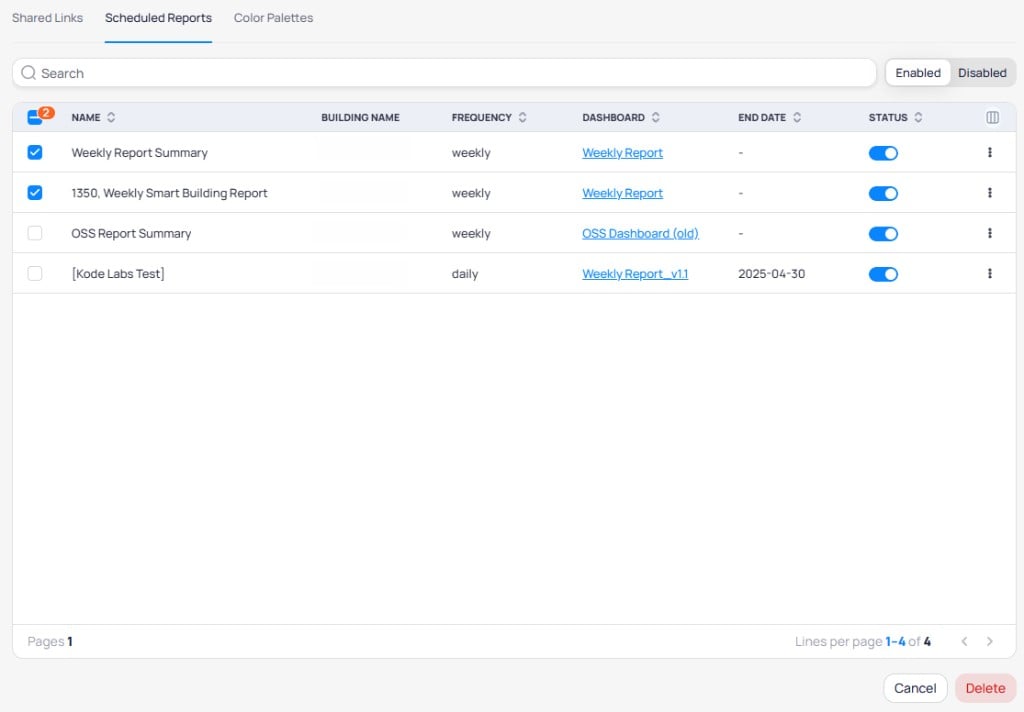
The `Scheduled Reports` tab lists all active and paused report schedules across your dashboards. Use the search bar and `Enabled`/`Disabled` filters to find specific reports.
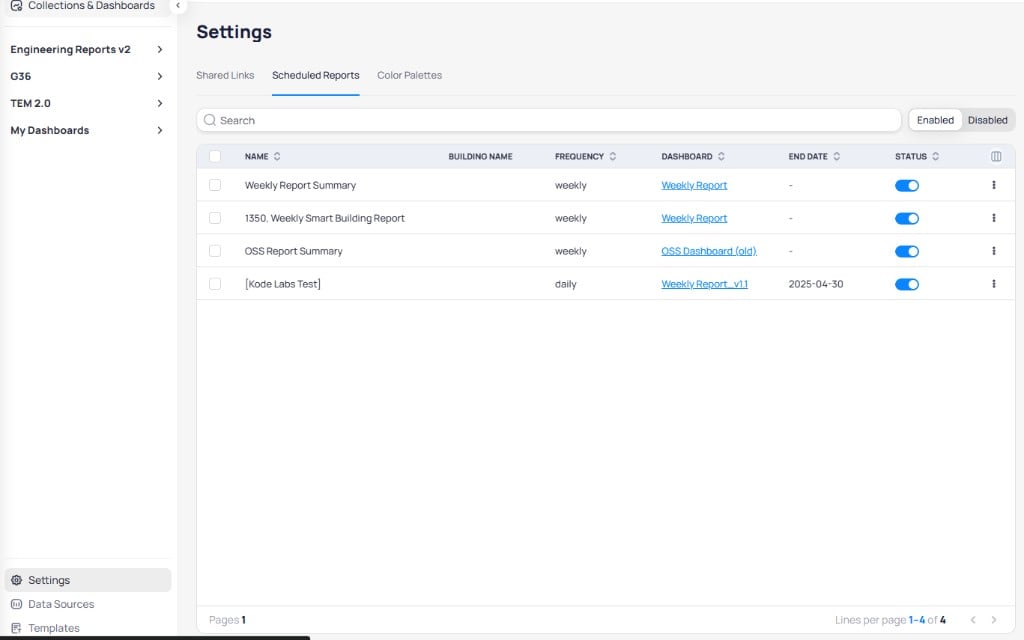 Select one or more reports using the checkboxes to access bulk actions. Select `Delete` to remove the selected schedules.
 ### Edit a scheduled report
Select the three-dot menu on any report and select `Edit`. You can modify the report name, included pages, frequency, repeat interval, recipients, and other schedule settings.
### Delete a scheduled report
Select the three-dot menu on the report and select `Delete`. This permanently removes the schedule and stops all future deliveries.
## Custom color palettes
Organization-level color palettes are managed from the `Color Palettes` tab. Create reusable palettes for branding, themes, or visualization contexts and apply them across all Building BI dashboards in your portfolio. See [color tools](/products/building-bi/reference/color-tools) and [dashboard styling principles](/products/building-bi/widget-customization#styling-best-practices) for selection and usage guidance.
Centralized palettes reduce ad-hoc color choices and help teams maintain a consistent visual identity across charts, backgrounds, markers, and other widget elements.
### Edit a scheduled report
Select the three-dot menu on any report and select `Edit`. You can modify the report name, included pages, frequency, repeat interval, recipients, and other schedule settings.
### Delete a scheduled report
Select the three-dot menu on the report and select `Delete`. This permanently removes the schedule and stops all future deliveries.
## Custom color palettes
Organization-level color palettes are managed from the `Color Palettes` tab. Create reusable palettes for branding, themes, or visualization contexts and apply them across all Building BI dashboards in your portfolio. See [color tools](/products/building-bi/reference/color-tools) and [dashboard styling principles](/products/building-bi/widget-customization#styling-best-practices) for selection and usage guidance.
Centralized palettes reduce ad-hoc color choices and help teams maintain a consistent visual identity across charts, backgrounds, markers, and other widget elements.
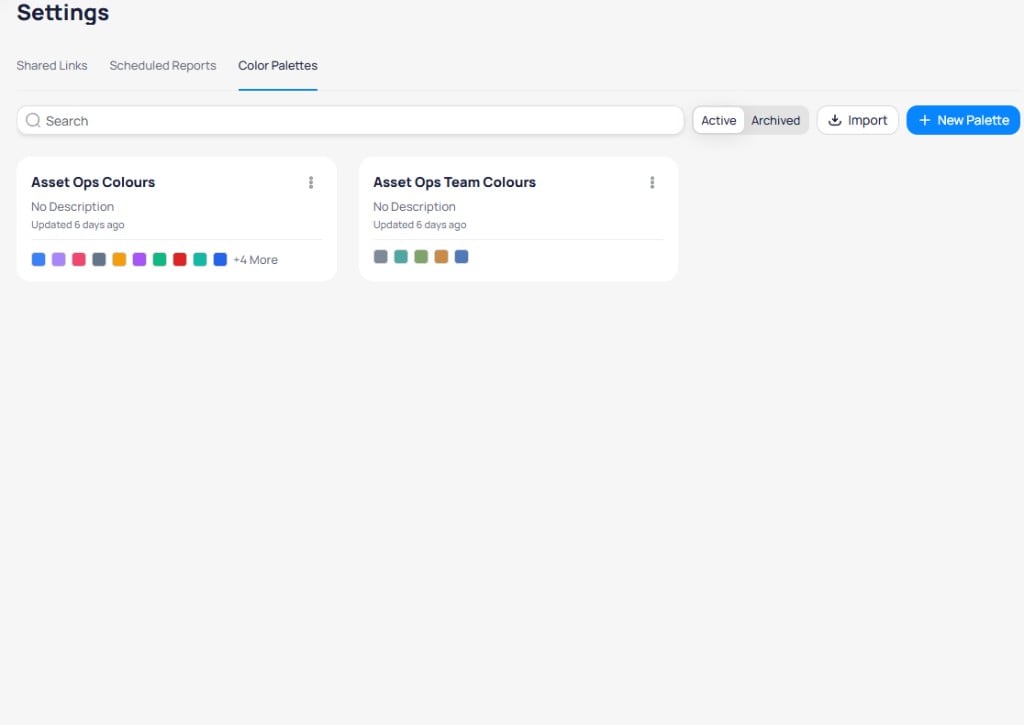 Use the `Active`/`Archived` toggle to filter palettes by status. Select `Import` to upload a previously exported palette, or select `+ New Palette` to create one.
### Create a palette
Select `+ New Palette` and configure the palette details.
Use the `Active`/`Archived` toggle to filter palettes by status. Select `Import` to upload a previously exported palette, or select `+ New Palette` to create one.
### Create a palette
Select `+ New Palette` and configure the palette details.
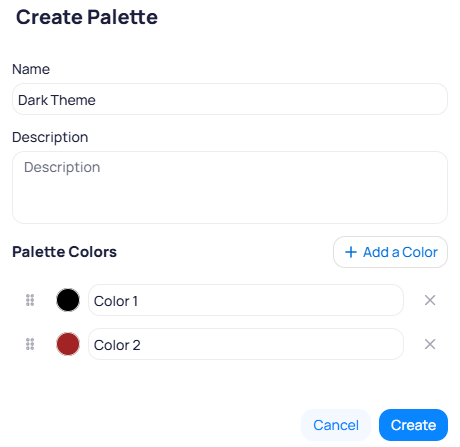 | Field | Description |
| ---------------- | --------------------------------------------------------------------------------------------------------- |
| `Name` | Display name for the palette |
| `Description` | Optional description of the palette purpose |
| `Palette Colors` | List of colors in the palette. Select `+ Add a Color` to add entries. Drag the handles to reorder colors. |
Select `Create` to save the palette.
### Manage a palette
Select the three-dot menu on a palette card to access management actions.
| Field | Description |
| ---------------- | --------------------------------------------------------------------------------------------------------- |
| `Name` | Display name for the palette |
| `Description` | Optional description of the palette purpose |
| `Palette Colors` | List of colors in the palette. Select `+ Add a Color` to add entries. Drag the handles to reorder colors. |
Select `Create` to save the palette.
### Manage a palette
Select the three-dot menu on a palette card to access management actions.
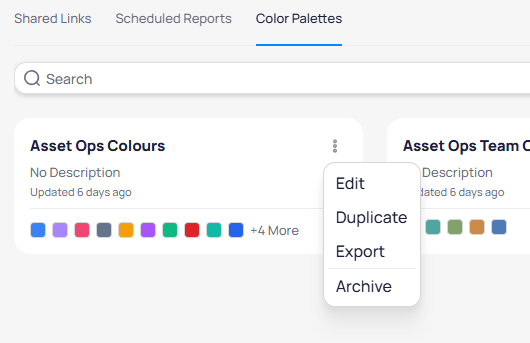 | Action | Description |
| ----------- | ------------------------------------------------ |
| `Edit` | Modify the palette name, description, or colors |
| `Duplicate` | Create a copy of the palette |
| `Export` | Download the palette for use in other portfolios |
| `Archive` | Move the palette to the archived list |
Color palettes created here appear as options in the `Colors` section of any widget style configuration. Unlike the predefined color schemes provided by KODE Labs, custom palettes are designed and maintained by your organization.
## Templates
The `Templates` page is accessible from the bottom of the left navigation panel. See [Templates](/products/building-bi/templates) for full documentation on saving, importing, exporting, and applying templates.
## Related reading
For export and schedule workflows, see [PDF exports and scheduled reports](/products/building-bi/pdf-exports). For field-level details, see [Shared Links and Scheduled Reports](/products/building-bi/reference/shared-links-scheduled-reports). For who can share or schedule, see [How Building BI permissions work](/products/building-bi/concepts/how-permissions-work).
Style widgets, apply defaults, manage palettes, and add graphics.
Match chart types to the question you need to answer.
Look up Setup requirements for every widget type.
Configure series colors, gradients, and palettes.
## Next steps
Create and configure interactive dashboards with charts, tables, and widgets.
Export dashboards as PDF files and schedule automated reports.
| Action | Description |
| ----------- | ------------------------------------------------ |
| `Edit` | Modify the palette name, description, or colors |
| `Duplicate` | Create a copy of the palette |
| `Export` | Download the palette for use in other portfolios |
| `Archive` | Move the palette to the archived list |
Color palettes created here appear as options in the `Colors` section of any widget style configuration. Unlike the predefined color schemes provided by KODE Labs, custom palettes are designed and maintained by your organization.
## Templates
The `Templates` page is accessible from the bottom of the left navigation panel. See [Templates](/products/building-bi/templates) for full documentation on saving, importing, exporting, and applying templates.
## Related reading
For export and schedule workflows, see [PDF exports and scheduled reports](/products/building-bi/pdf-exports). For field-level details, see [Shared Links and Scheduled Reports](/products/building-bi/reference/shared-links-scheduled-reports). For who can share or schedule, see [How Building BI permissions work](/products/building-bi/concepts/how-permissions-work).
Style widgets, apply defaults, manage palettes, and add graphics.
Match chart types to the question you need to answer.
Look up Setup requirements for every widget type.
Configure series colors, gradients, and palettes.
## Next steps
Create and configure interactive dashboards with charts, tables, and widgets.
Export dashboards as PDF files and schedule automated reports.