> ## Documentation Index
> Fetch the complete documentation index at: https://documentation.kodelabs.com/llms.txt
> Use this file to discover all available pages before exploring further.
# Shared links and scheduled reports
> Field reference for Building BI shared links and scheduled PDF reports, including IP rules and Settings management options.
Field reference for Building BI shared links and scheduled PDF reports. Create either from a dashboard three-dot menu. Manage them across your portfolio in [Building BI settings](/products/building-bi/settings).
## Shared links
A shared link is a URL that lets people outside KODE OS, or without a signed-in session, view a dashboard or widget. Recipients get a read-only interactive view. They can use charts and filters but cannot edit the dashboard.
Create a dashboard link from the dashboard three-dot menu → `Share`. Create a widget link from the widget three-dot menu → `Share`. Both use the same field set.
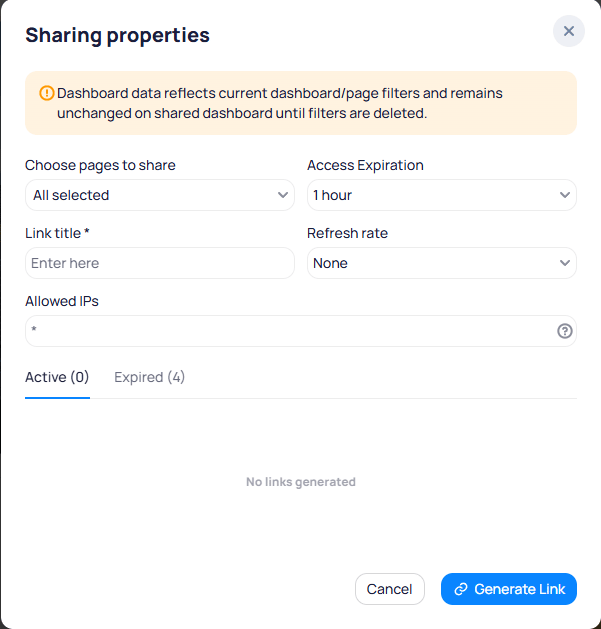 1. Open the dashboard or widget three-dot menu and select `Share`.
2. Set pages, expiration, link title, refresh rate, and allowed IP addresses.
3. Select `Generate Link`, then select the link icon to copy the URL.
Full steps live in [Share dashboards and widgets](/products/building-bi/dashboards#share-dashboards-and-widgets).
### Share fields
Select which dashboard pages the link exposes. Choose all pages or a subset.
Set when access ends. Choose `Never` for no expiration.
Label used to find and manage the link. Titles do not need to be unique.
How often the shared view refreshes with new data. Defaults to `None`. More frequent refresh uses more compute, so prefer longer intervals when possible.
Restricts access by IPv4 address. Leave blank or enter `*` to allow all addresses. Only the dashboard owner can edit this field.
### IP address rules
| Rule | Behavior |
| ------------- | ----------------------------------------------------------------- |
| Allowed list | The request IP must match an allowed address |
| Blank or `*` | All IP addresses are allowed |
| Disallowed IP | Returns HTTP `403` and does not show content |
| Visibility | Only the owner sees IP values; others see that restrictions exist |
### Manage shared links
In [Settings](/products/building-bi/settings#shared-links), use the `Active` and `Expired` lists. Edit or delete a link from the three-dot menu. You can also manage links from the `Active` and `Expired` tabs in the share dialog.
## Scheduled reports
A scheduled report is a recurring PDF export emailed to recipients. Create one from the dashboard three-dot menu → `Schedule PDF Report`.
1. Open the dashboard or widget three-dot menu and select `Share`.
2. Set pages, expiration, link title, refresh rate, and allowed IP addresses.
3. Select `Generate Link`, then select the link icon to copy the URL.
Full steps live in [Share dashboards and widgets](/products/building-bi/dashboards#share-dashboards-and-widgets).
### Share fields
Select which dashboard pages the link exposes. Choose all pages or a subset.
Set when access ends. Choose `Never` for no expiration.
Label used to find and manage the link. Titles do not need to be unique.
How often the shared view refreshes with new data. Defaults to `None`. More frequent refresh uses more compute, so prefer longer intervals when possible.
Restricts access by IPv4 address. Leave blank or enter `*` to allow all addresses. Only the dashboard owner can edit this field.
### IP address rules
| Rule | Behavior |
| ------------- | ----------------------------------------------------------------- |
| Allowed list | The request IP must match an allowed address |
| Blank or `*` | All IP addresses are allowed |
| Disallowed IP | Returns HTTP `403` and does not show content |
| Visibility | Only the owner sees IP values; others see that restrictions exist |
### Manage shared links
In [Settings](/products/building-bi/settings#shared-links), use the `Active` and `Expired` lists. Edit or delete a link from the three-dot menu. You can also manage links from the `Active` and `Expired` tabs in the share dialog.
## Scheduled reports
A scheduled report is a recurring PDF export emailed to recipients. Create one from the dashboard three-dot menu → `Schedule PDF Report`.
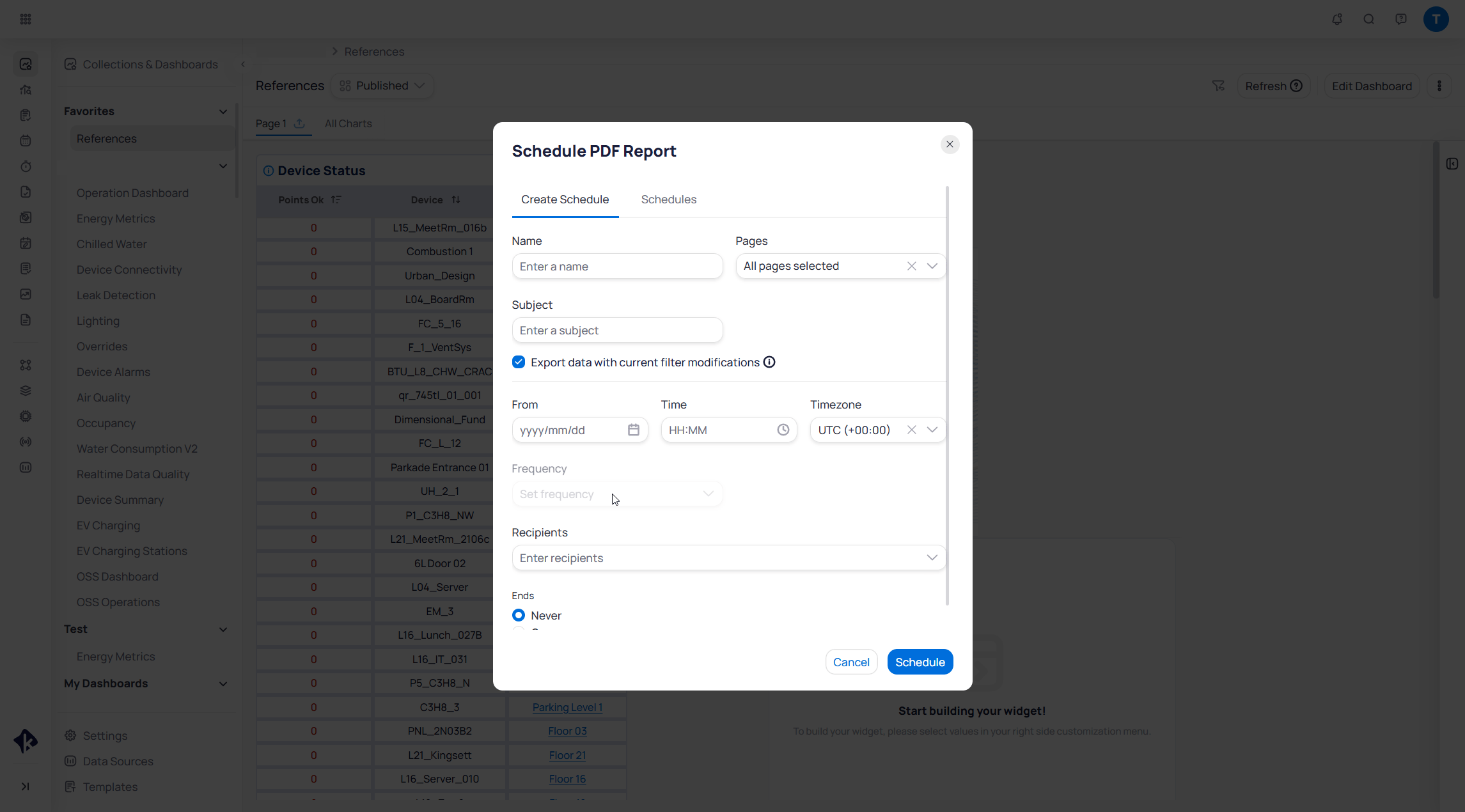 1. Open the dashboard three-dot menu and select `Schedule PDF Report`.
2. On the `Create Schedule` tab, complete the schedule fields.
3. Select `Schedule` to activate delivery.
For one-time exports and full schedule steps, see [PDF exports and scheduled reports](/products/building-bi/pdf-exports).
### Schedule fields
Identifier for the schedule in Settings and the schedule list.
Dashboard pages included in the PDF. Choose `All pages selected` or specific pages.
Email subject line for each delivery.
When enabled, the exported PDF reflects the current dashboard filter state. Pinned filters are not included.
Sets the first delivery date, time of day, and timezone. Later sends follow this start time on the chosen frequency.
How often the report repeats after the start time, such as daily, weekly, or monthly.
One or more email addresses. Recipients must have a KODE Labs account.
Choose `Never` for an indefinite schedule, or `On` to set an end date.
### PDF export limits
PDF export cuts off content that requires scrolling. Check widget sizes when you test so data is not lost. Run a [test PDF export](/products/building-bi/pdf-exports#export-a-dashboard-as-pdf) before you create a scheduled report.
Tooltips and dynamic filters often do not appear well in PDF output. Prefer layouts that show critical values without hover or scroll.
Scheduled report emails include a PDF attachment and a live link to the dashboard.
### Manage scheduled reports
In [Settings](/products/building-bi/settings#scheduled-reports), use the `Enabled` and `Disabled` lists. Edit or delete a schedule, or toggle status to pause delivery before the end date. You can also manage schedules from the `Schedules` tab in the schedule dialog.
## Next steps
Create shareable links for live dashboard or widget views.
Export PDFs and schedule recurring report delivery.
Manage shared links and schedules across your portfolio.
Understand view access, edit access, and collaborators.
1. Open the dashboard three-dot menu and select `Schedule PDF Report`.
2. On the `Create Schedule` tab, complete the schedule fields.
3. Select `Schedule` to activate delivery.
For one-time exports and full schedule steps, see [PDF exports and scheduled reports](/products/building-bi/pdf-exports).
### Schedule fields
Identifier for the schedule in Settings and the schedule list.
Dashboard pages included in the PDF. Choose `All pages selected` or specific pages.
Email subject line for each delivery.
When enabled, the exported PDF reflects the current dashboard filter state. Pinned filters are not included.
Sets the first delivery date, time of day, and timezone. Later sends follow this start time on the chosen frequency.
How often the report repeats after the start time, such as daily, weekly, or monthly.
One or more email addresses. Recipients must have a KODE Labs account.
Choose `Never` for an indefinite schedule, or `On` to set an end date.
### PDF export limits
PDF export cuts off content that requires scrolling. Check widget sizes when you test so data is not lost. Run a [test PDF export](/products/building-bi/pdf-exports#export-a-dashboard-as-pdf) before you create a scheduled report.
Tooltips and dynamic filters often do not appear well in PDF output. Prefer layouts that show critical values without hover or scroll.
Scheduled report emails include a PDF attachment and a live link to the dashboard.
### Manage scheduled reports
In [Settings](/products/building-bi/settings#scheduled-reports), use the `Enabled` and `Disabled` lists. Edit or delete a schedule, or toggle status to pause delivery before the end date. You can also manage schedules from the `Schedules` tab in the schedule dialog.
## Next steps
Create shareable links for live dashboard or widget views.
Export PDFs and schedule recurring report delivery.
Manage shared links and schedules across your portfolio.
Understand view access, edit access, and collaborators.