> ## Documentation Index
> Fetch the complete documentation index at: https://documentation.kodelabs.com/llms.txt
> Use this file to discover all available pages before exploring further.
# Filter options
> Filter types, operators by data type, and interaction widgets in Building BI.
Building BI filters charts by column data type and by filter type. This reference lists operators for String, Numeric, DateTime, and Boolean columns. It also covers metric filters, Top N filters, and multi-widget filter behaviors.
## Filter types
Standard filters apply to one chart in the Chart Parameters `Setup` tab.
Cross filters, slicers, page filters, and dashboard filters can affect many widgets. Use `Edit Scope` to control which widgets a cross filter or slicer impacts. Configure page and dashboard filters in the `Filter` panel.
A metric filter is an alternative to a standard filter. It keeps rows based on an aggregation such as `Sum`, `Count`, or `Max`.
Bar, Line, Pie, Time Series, and Table charts also support a Top N filter. Top N limits the chart to the top or bottom N values in a column. Use it mainly for focus and styling.
```mermaid actions={false} theme={"theme":{"light":"github-dark","dark":"github-dark"}}
---
config:
theme: neutral
---
flowchart TB
F["Filters in Building BI"]
F --> S["Standard filter
one chart"]
F --> M["Metric filter
aggregation + Show Value When"]
F --> T["Top N filter
top or bottom N"]
F --> X["Multi-widget filters"]
X --> CF["Cross filter"]
X --> SL["Slicer"]
X --> PF["Page filter"]
X --> DF["Dashboard filter"]
```
## Operators by data type
The filter UI adapts to the data type of the selected column.
### String
`Starts with` · `Doesn't Start with` · `Ends with` · `Contains` · `Doesn't Contain` · `Equals` · `Not Equal` · `In` · `Not in` · `Is null` · `Is not null` · `Is blank` · `Is not blank`
The null and blank operators take no value. The value input is hidden and `null` is sent to the backend.
### Numeric
`Greater Than` · `Greater than or equals` · `Less than` · `Less than or equals` · `Between` · `Not between` · `Equals` · `Not equal` · `In` · `Not in` · `Is not a number`
`Not between` treats both bounds as exclusive. `Is not a number` takes no value.
### Boolean
`True` · `False` · `Is null` · `Is not null`
### Date and time
Date and time filters offer these time-range types:
| Type | Description |
| ------------------------------- | -------------------------------------------------------------------------------------------------------------------------------------------------------------------------------------------------------------------------------------------------------------------------------------------------------------------- |
| Current Date/Time | The in-progress period anchored on now. Unit: Day, Week, Month, Quarter, or Year. Includes today. |
| Previous Date/Time | The completed prior period (Day, Week, Month, Quarter, or Year). Excludes today. |
| Last Date/Time | A rolling window, such as last N days, ending at now. |
| Specific Range with Granularity | A specific date or time compared with `Equals` at a chosen granularity, such as the month of `09-2023`. |
| Relative Date/Time | A dynamic range from configurable `From` and `To` bounds (each Inclusive or Exclusive). From: `In the last`, `First day of the`, `Last day of the`. To: `Now`, `After from`, `First day of the`, `Last day of the`. Units: Minute and Hour for DateTime only; Day, Week, Month, Quarter, Year for Date and DateTime. |
| Custom (legacy) | The pre-redesign combination filter. Existing Custom filters migrate to Relative Date/Time, then Custom is removed. |
**Granularity options** for Specific Range with Granularity:
* Date columns: Year, Year-Quarter, Year-Month, Year-Week, Quarter, Month, Week, Day of Year, Day of Month, Day of Week.
* DateTime columns: all of the above plus Date, Date-Hour, Date-Half-Hour, Date-Hour-15min, Date-Hour-Minute, Hour, Minute.
Minute and Hour units appear only for DateTime columns. See [Timezone configuration](/products/building-bi/reference/timezone-configuration) for how filter time ranges anchor to a timezone.
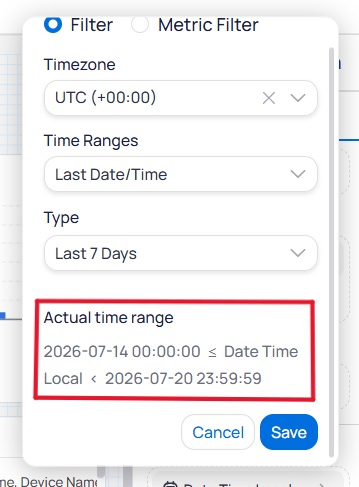
Always check the actual time range shown at the bottom of the date-time filter configuration. That readout is the resolved range the query uses.
 ## Metric filters
A metric filter keeps rows based on an aggregation of a column, not the raw column values. For example, keep devices where the count of alarms is greater than 10.
Configure a metric filter in this order:
1. Choose an aggregation, such as `Count`, `Count Distinct`, `Sum`, `Min`, `Max`, or `Average`.
2. Set the `Show Value When` operator and value.
`Show Value When` uses the same operators as a Numeric filter, including `Equals`, `In`, `Greater Than`, and `Is not a number`.
For String columns, the available aggregations are `Count` and `Count Distinct` only.
If you select a metric column instead of a raw column, Building BI skips the aggregation step. You configure only `Show Value When` and the operator.
## Top N filters
| Input | Description |
| ------------------- | -------------------------------------------------------- |
| Category | The dimension to rank. |
| Number of Items (N) | How many items to keep, plus a toggle for Top or Bottom. |
| Value to sort by | The metric that determines ranking. |
A standard visual set to show many items with scrolling can work better than a hard Top N. Viewers can still reach lower-ranked data without changing the filter. Label Top N cuts so viewers know data is hidden. Prefer Top N for glance-only displays; prefer scrolling (for example top 20 with a scrollbar) for interactive ops dashboards.
## Interaction widgets and behaviors
| Feature | Description |
| ---------------------------- | ----------------------------------------------------------------------------------------------------------------------------------------------------------------------------------------------------------------- |
| Slicer | An on-canvas widget that holds a single-column filter and applies it within its scope. See [Slicer widget](/products/building-bi/reference/slicer-widget). |
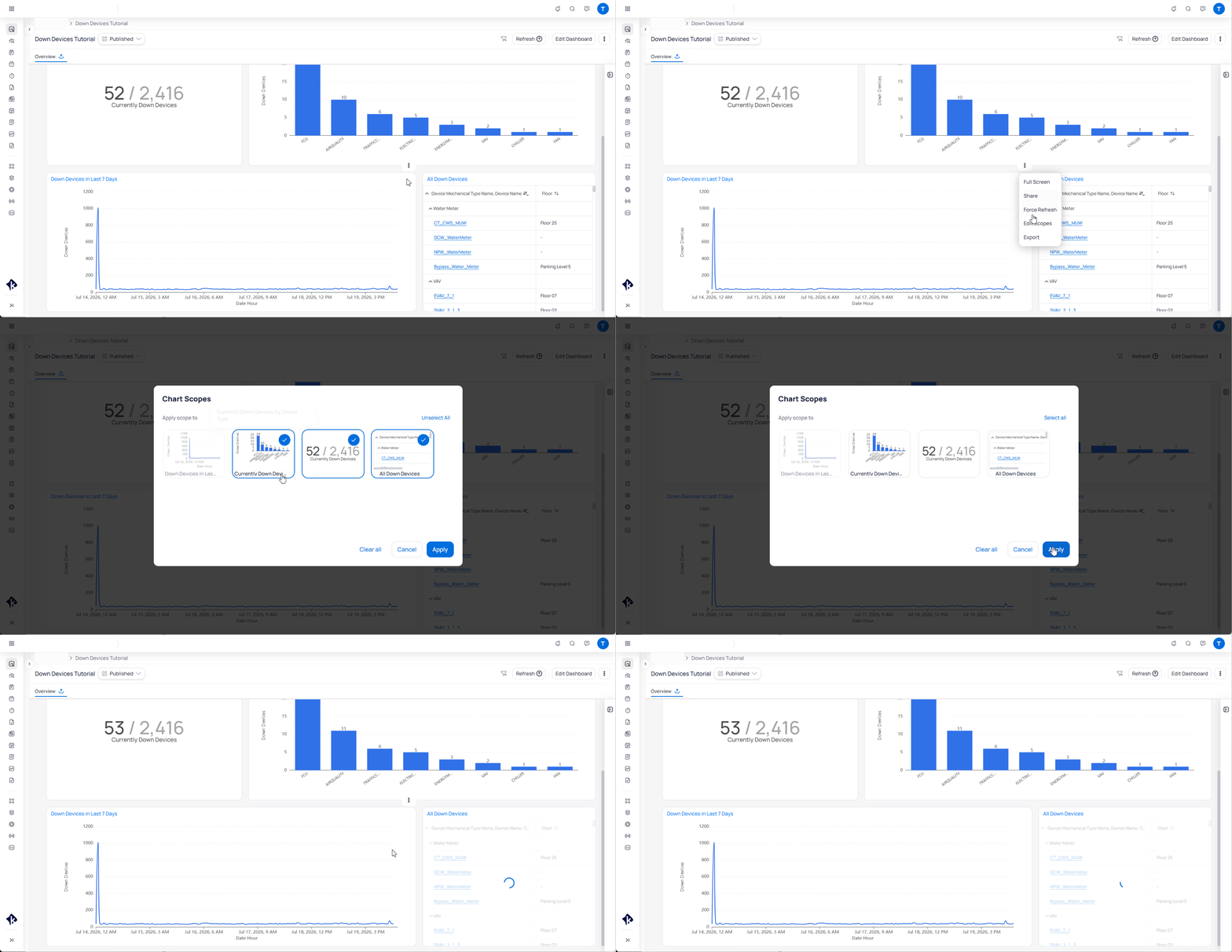
| Filter scopes (`Edit Scope`) | Defines which widgets and other filters a filter, slicer, or cross filter influences. By default, every filter affects all charts and filters on its page. See [Filter scope hierarchy](#filter-scope-hierarchy). |
| Cross filter | Clicking a chart segment, such as a pie slice or bar, applies that segment as a temporary filter to the rest of the page. Toggle this in the chart filter section. |
| Drill-through filters | Right-click a data point to open a target page or dashboard. Widgets on the target are auto-filtered by that selection. See [Drill-through filters](/products/building-bi/concepts/drill-through-filters). |
### Multi-widget filter matching
Slicers and other multi-widget filters work across different data sources when the underlying database column names match exactly. Display names do not matter.
For example, filtering on `device_name` in a Real-Time data source updates a Last Value widget when that source also uses the exact `device_name` column. Prefer ID columns such as `device_id` when names can change. See [Column reference](/products/building-bi/data-sources#column-reference).
### Filter interdependence
Filters applied to a dataset restrict the options available in other filters. If a value is missing from a dropdown, current filter combinations have likely excluded it.
If a target option is missing, remove other filters to expose the full dataset. You can also bypass the dropdown with a `Contains` filter and type the expected value.
### Filter scope hierarchy
Which filter types can affect others, and which they can exclude from scope:
| Filter type | Affects Dashboard filters | Affects Page filters | Affects Slicer filters | Affects Cross filters |
| ----------------- | :-----------------------: | :------------------: | :--------------------: | :-------------------: |
| Dashboard filters | ✓ | ✓ | ✓ | ✓ |
| Page filters | ✓ | ✓ | ✓ | ✓ |
| Slicer filters | | | ✓ | ✓ |
| Cross filters | | | ✓ | ✓ |
A filter can only exclude (scope out) filters at or below its own level. New widgets are affected by existing filters by default, so re-check exclusions as a dashboard grows.
Use scopes when one widget must stay as an unfiltered reference (for example, a portfolio benchmark card) while a slicer updates the rest of the page. Excluded widgets also skip re-query when that filter changes.
## Metric filters
A metric filter keeps rows based on an aggregation of a column, not the raw column values. For example, keep devices where the count of alarms is greater than 10.
Configure a metric filter in this order:
1. Choose an aggregation, such as `Count`, `Count Distinct`, `Sum`, `Min`, `Max`, or `Average`.
2. Set the `Show Value When` operator and value.
`Show Value When` uses the same operators as a Numeric filter, including `Equals`, `In`, `Greater Than`, and `Is not a number`.
For String columns, the available aggregations are `Count` and `Count Distinct` only.
If you select a metric column instead of a raw column, Building BI skips the aggregation step. You configure only `Show Value When` and the operator.
## Top N filters
| Input | Description |
| ------------------- | -------------------------------------------------------- |
| Category | The dimension to rank. |
| Number of Items (N) | How many items to keep, plus a toggle for Top or Bottom. |
| Value to sort by | The metric that determines ranking. |
A standard visual set to show many items with scrolling can work better than a hard Top N. Viewers can still reach lower-ranked data without changing the filter. Label Top N cuts so viewers know data is hidden. Prefer Top N for glance-only displays; prefer scrolling (for example top 20 with a scrollbar) for interactive ops dashboards.
## Interaction widgets and behaviors
| Feature | Description |
| ---------------------------- | ----------------------------------------------------------------------------------------------------------------------------------------------------------------------------------------------------------------- |
| Slicer | An on-canvas widget that holds a single-column filter and applies it within its scope. See [Slicer widget](/products/building-bi/reference/slicer-widget). |
| Filter scopes (`Edit Scope`) | Defines which widgets and other filters a filter, slicer, or cross filter influences. By default, every filter affects all charts and filters on its page. See [Filter scope hierarchy](#filter-scope-hierarchy). |
| Cross filter | Clicking a chart segment, such as a pie slice or bar, applies that segment as a temporary filter to the rest of the page. Toggle this in the chart filter section. |
| Drill-through filters | Right-click a data point to open a target page or dashboard. Widgets on the target are auto-filtered by that selection. See [Drill-through filters](/products/building-bi/concepts/drill-through-filters). |
### Multi-widget filter matching
Slicers and other multi-widget filters work across different data sources when the underlying database column names match exactly. Display names do not matter.
For example, filtering on `device_name` in a Real-Time data source updates a Last Value widget when that source also uses the exact `device_name` column. Prefer ID columns such as `device_id` when names can change. See [Column reference](/products/building-bi/data-sources#column-reference).
### Filter interdependence
Filters applied to a dataset restrict the options available in other filters. If a value is missing from a dropdown, current filter combinations have likely excluded it.
If a target option is missing, remove other filters to expose the full dataset. You can also bypass the dropdown with a `Contains` filter and type the expected value.
### Filter scope hierarchy
Which filter types can affect others, and which they can exclude from scope:
| Filter type | Affects Dashboard filters | Affects Page filters | Affects Slicer filters | Affects Cross filters |
| ----------------- | :-----------------------: | :------------------: | :--------------------: | :-------------------: |
| Dashboard filters | ✓ | ✓ | ✓ | ✓ |
| Page filters | ✓ | ✓ | ✓ | ✓ |
| Slicer filters | | | ✓ | ✓ |
| Cross filters | | | ✓ | ✓ |
A filter can only exclude (scope out) filters at or below its own level. New widgets are affected by existing filters by default, so re-check exclusions as a dashboard grows.
Use scopes when one widget must stay as an unfiltered reference (for example, a portfolio benchmark card) while a slicer updates the rest of the page. Excluded widgets also skip re-query when that filter changes.
 ### Slicer filters
A [slicer](/products/building-bi/reference/slicer-widget) holds one filter. The operator is fixed by the column data type:
* String → `In` (single or multi-select)
* Boolean → `Equals` (single select)
* Number → `Between` (min/max slider)
* Date/Time → Current, Previous, Last, or Specific
Slicer selections persist as the dashboard's initial state. They are sent to the backend under `slicerFilters`. Dashboard, page, and cross filters can affect slicers. Slicers cannot be metric filters.
## Next steps
Understand how filters combine into one query and why dropdown options can disappear.
Jump from a summary chart to a detail view that opens already filtered.
Configure the on-canvas filter control for a single column.
Set dashboard and page filters in the Filter panel.
### Slicer filters
A [slicer](/products/building-bi/reference/slicer-widget) holds one filter. The operator is fixed by the column data type:
* String → `In` (single or multi-select)
* Boolean → `Equals` (single select)
* Number → `Between` (min/max slider)
* Date/Time → Current, Previous, Last, or Specific
Slicer selections persist as the dashboard's initial state. They are sent to the backend under `slicerFilters`. Dashboard, page, and cross filters can affect slicers. Slicers cannot be metric filters.
## Next steps
Understand how filters combine into one query and why dropdown options can disappear.
Jump from a summary chart to a detail view that opens already filtered.
Configure the on-canvas filter control for a single column.
Set dashboard and page filters in the Filter panel.