> ## Documentation Index
> Fetch the complete documentation index at: https://documentation.kodelabs.com/llms.txt
> Use this file to discover all available pages before exploring further.
# PDF exports and scheduled reports
> Export dashboards as PDF files and schedule automated PDF reports for recurring delivery to team members.
Building BI lets you export dashboards as PDF files and schedule automated reports for recurring delivery. Use PDF exports for one-time snapshots. Use scheduled reports for ongoing distribution.
As an alternative to a static PDF, you can also share a live, interactive dashboard or widget with a [shareable link](/products/building-bi/dashboards#share-dashboards-and-widgets). Use a link when recipients need to explore data, not just read a PDF snapshot.
A shareable link lets people view and interact with a dashboard without a normal KODE OS session. From the dashboard three-dot menu, select `Share`. Set pages, expiration, link title, refresh rate, and allowed IP addresses, then generate the link.
Recipients get a read-only interactive view. They can use charts and filters but cannot edit the dashboard. You can also share an individual widget from its three-dot menu.
For full steps, see [Share dashboards and widgets](/products/building-bi/dashboards#share-dashboards-and-widgets). For field details, see [Shared links and scheduled reports](/products/building-bi/reference/shared-links-scheduled-reports). Manage links portfolio-wide in [Building BI settings](/products/building-bi/settings#shared-links).
## Export a dashboard as PDF
Navigate to the dashboard you want to export. Select the three-dot menu in the top-right corner and choose `Export`.
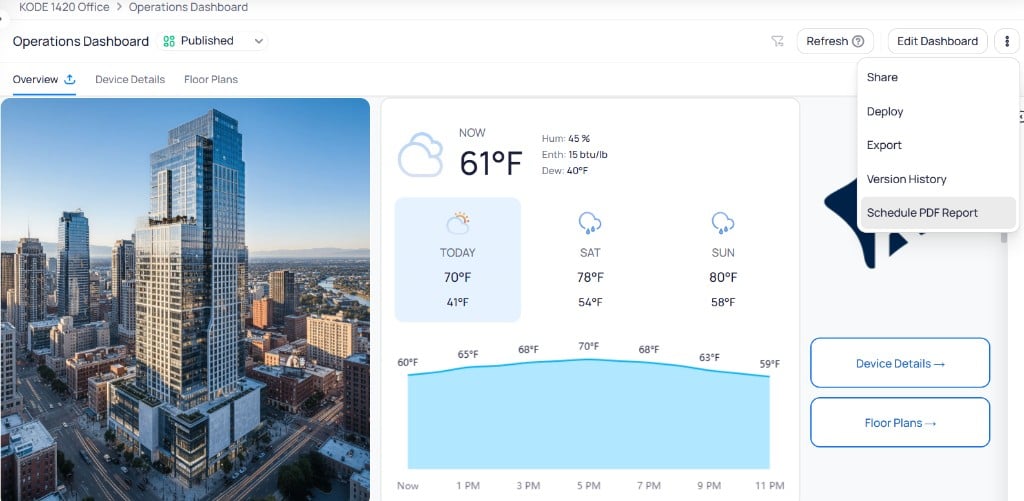 Set the following options:
| Field | Description |
| ------------------------------------------------- | --------------------------------------------------------------------------------------------------------------------------- |
| **File Name** | The name for the exported PDF file |
| **Pages** | Select `All Pages` or choose specific pages to include |
| **Export data with current filter modifications** | Include data reflecting any active dashboard filters. See [filter options](/products/building-bi/reference/filter-options). |
Set the following options:
| Field | Description |
| ------------------------------------------------- | --------------------------------------------------------------------------------------------------------------------------- |
| **File Name** | The name for the exported PDF file |
| **Pages** | Select `All Pages` or choose specific pages to include |
| **Export data with current filter modifications** | Include data reflecting any active dashboard filters. See [filter options](/products/building-bi/reference/filter-options). |
 Select `Export`. The file downloads automatically once processing completes.
Processing time depends on the dashboard size and complexity. Larger dashboards with many widgets take longer to generate.
Pinned dashboard filters are not included in PDF exports. The exported PDF reflects the dashboard data without any pinned filter modifications applied at the time of export.
## Schedule a PDF report
Scheduled reports automatically send dashboard PDFs to specified recipients on a recurring basis.
Navigate to the dashboard and select the three-dot menu. Choose `Schedule PDF Report`. The dialog has two tabs: `Create Schedule` and `Schedules`.
On the `Create Schedule` tab, complete the following fields:
Select `Export`. The file downloads automatically once processing completes.
Processing time depends on the dashboard size and complexity. Larger dashboards with many widgets take longer to generate.
Pinned dashboard filters are not included in PDF exports. The exported PDF reflects the dashboard data without any pinned filter modifications applied at the time of export.
## Schedule a PDF report
Scheduled reports automatically send dashboard PDFs to specified recipients on a recurring basis.
Navigate to the dashboard and select the three-dot menu. Choose `Schedule PDF Report`. The dialog has two tabs: `Create Schedule` and `Schedules`.
On the `Create Schedule` tab, complete the following fields:
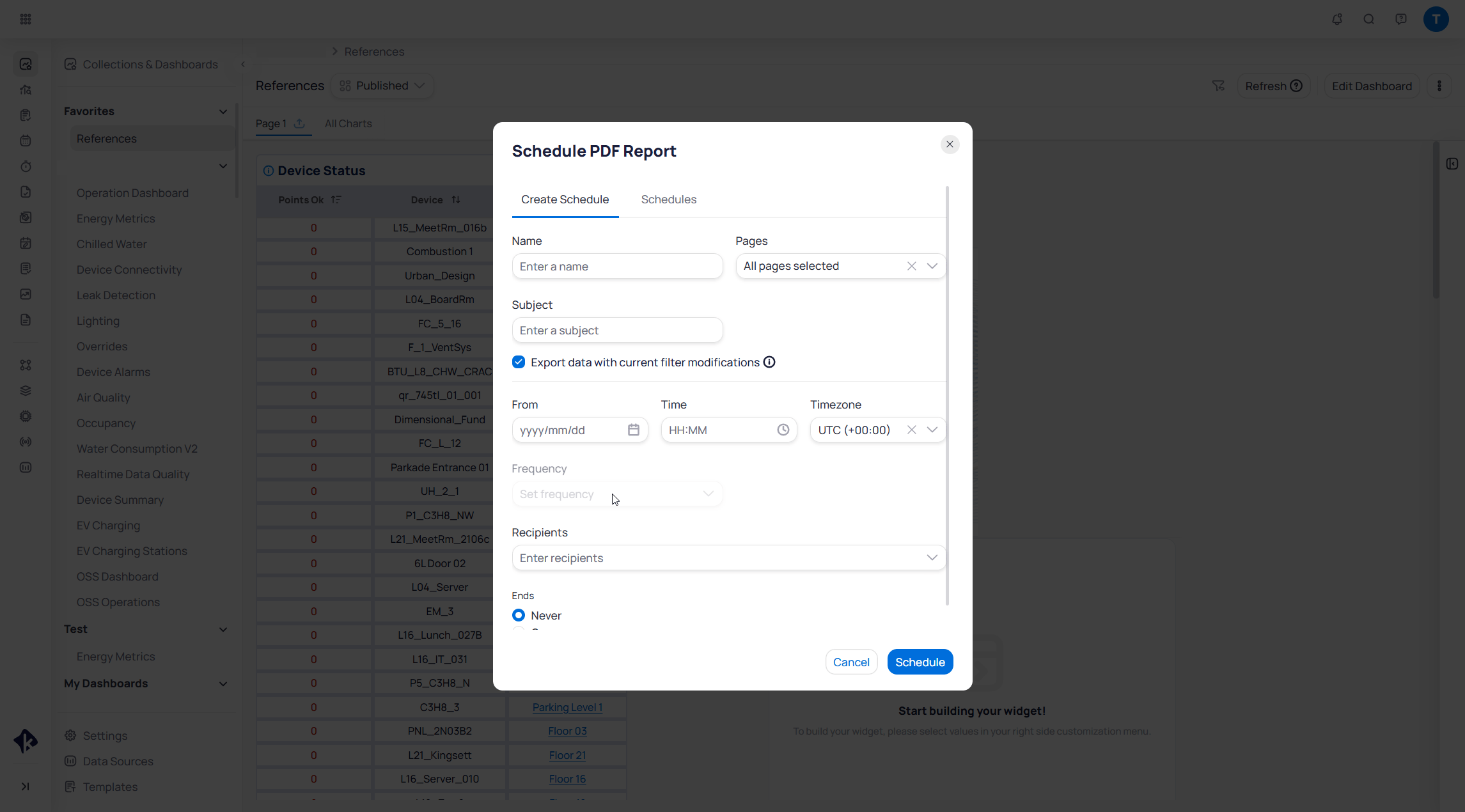 Enter a descriptive name for the scheduled report.
Select which dashboard pages to include. Choose `All pages selected` to export every page, or pick specific pages.
Set the email subject line for the report.
When enabled, the exported PDF reflects the current dashboard filter state.
Set the first delivery date, time of day, and timezone. Later sends follow this start time on the chosen frequency.
Choose how often the report repeats after the start time (for example, daily, weekly, or monthly).
Add email addresses for users who should receive the report.
Choose `Never` for an indefinite schedule, or `On` to set an end date.
Select `Schedule` to activate the recurring report.
Only users with a KODE Labs account can be added as recipients.
Scheduled report emails include both a PDF attachment and a live link to the dashboard. Recipients can use the PDF for a quick review and follow the link for further investigation with interactive filters and real-time data.
## Manage scheduled reports
Select the `Schedules` tab in the Schedule PDF Report dialog to view all active report schedules. The table lists each schedule with its name, frequency, active status, and end date. Use the toggle to enable or disable a schedule, or select the three-dot menu to `Edit` or `Delete` it.
Enter a descriptive name for the scheduled report.
Select which dashboard pages to include. Choose `All pages selected` to export every page, or pick specific pages.
Set the email subject line for the report.
When enabled, the exported PDF reflects the current dashboard filter state.
Set the first delivery date, time of day, and timezone. Later sends follow this start time on the chosen frequency.
Choose how often the report repeats after the start time (for example, daily, weekly, or monthly).
Add email addresses for users who should receive the report.
Choose `Never` for an indefinite schedule, or `On` to set an end date.
Select `Schedule` to activate the recurring report.
Only users with a KODE Labs account can be added as recipients.
Scheduled report emails include both a PDF attachment and a live link to the dashboard. Recipients can use the PDF for a quick review and follow the link for further investigation with interactive filters and real-time data.
## Manage scheduled reports
Select the `Schedules` tab in the Schedule PDF Report dialog to view all active report schedules. The table lists each schedule with its name, frequency, active status, and end date. Use the toggle to enable or disable a schedule, or select the three-dot menu to `Edit` or `Delete` it.
 ## Related reading
Manage schedules in [Building BI settings](/products/building-bi/settings). For field-level details, see [Shared links and scheduled reports](/products/building-bi/reference/shared-links-scheduled-reports). For who can share or schedule, see [How Building BI permissions work](/products/building-bi/concepts/how-permissions-work).
## Next steps
Create shareable links for live, interactive dashboard or widget views.
Manage shared links and scheduled reports from the Building BI settings page.
## Related reading
Manage schedules in [Building BI settings](/products/building-bi/settings). For field-level details, see [Shared links and scheduled reports](/products/building-bi/reference/shared-links-scheduled-reports). For who can share or schedule, see [How Building BI permissions work](/products/building-bi/concepts/how-permissions-work).
## Next steps
Create shareable links for live, interactive dashboard or widget views.
Manage shared links and scheduled reports from the Building BI settings page.