> ## Documentation Index
> Fetch the complete documentation index at: https://documentation.kodelabs.com/llms.txt
> Use this file to discover all available pages before exploring further.
# Drill-through filters
> Use drill-through to jump from a summary chart to a detail page or dashboard that opens already filtered to the selection.
Drill-through lets a viewer right-click a data point and jump to a more detailed page or dashboard that opens **pre-filtered** to that selection.
It turns a high-level chart into a doorway: select West region on a portfolio bar and land on a building-level page already filtered to West. It is not the same as drill-down, which expands a hierarchy inside one chart.
Analysts move between altitudes — portfolio overview, then a building, then a device — and usually rebuild the same filter by hand at each step. Drill-through collapses that into one action and carries the context with you.
## Drill-through is not drill-down
* **Drill-down** stays inside one chart and expands configured hierarchy layers (for example, region → building → floor). Same widget, more detail.
* **Drill-through** navigates to a different page or dashboard and filters its widgets by the point you selected. Different view, same context.
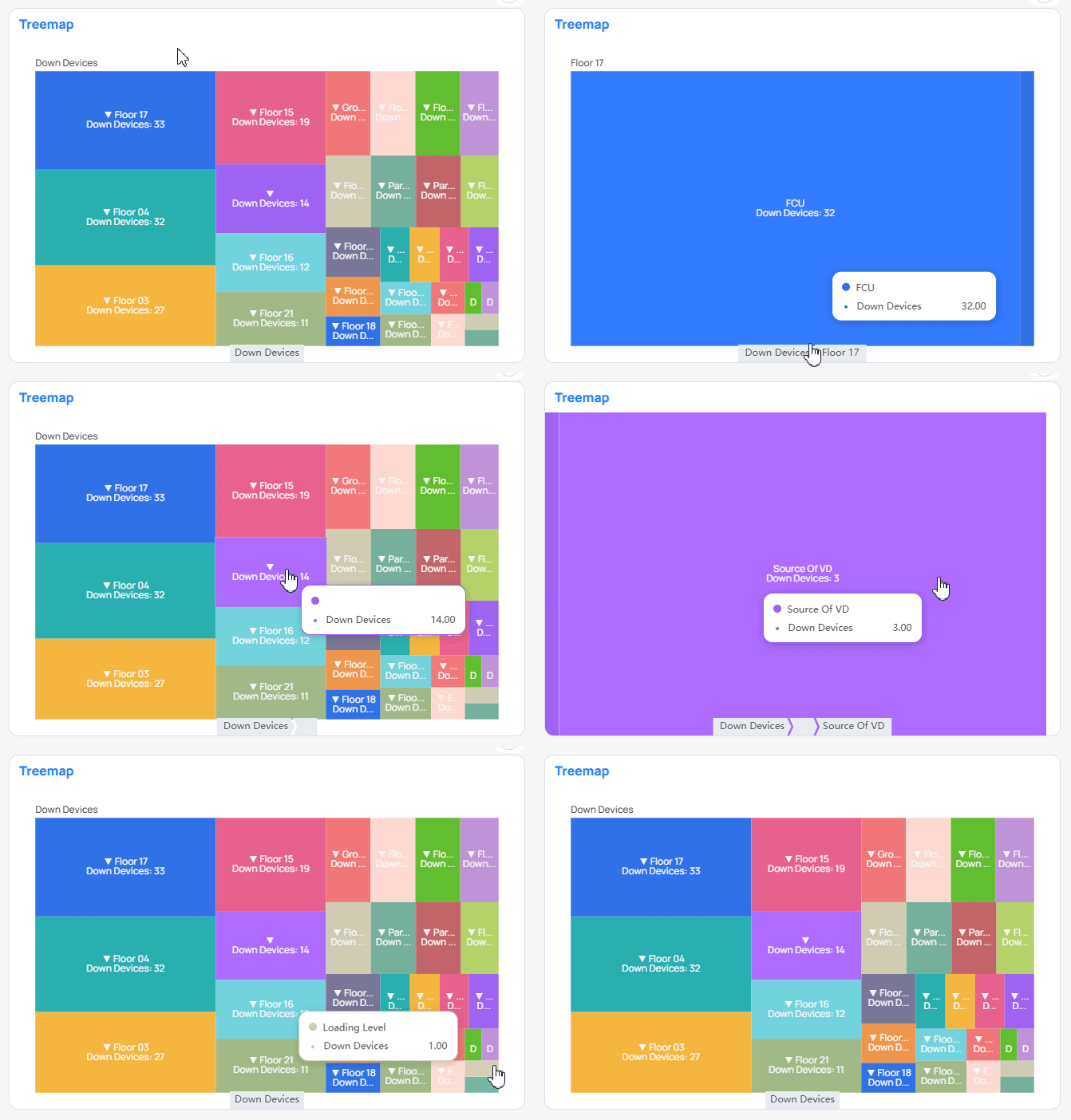
A treemap with nested hierarchy levels is a common drill-down pattern: select a block to expand into the next layer inside the same chart.
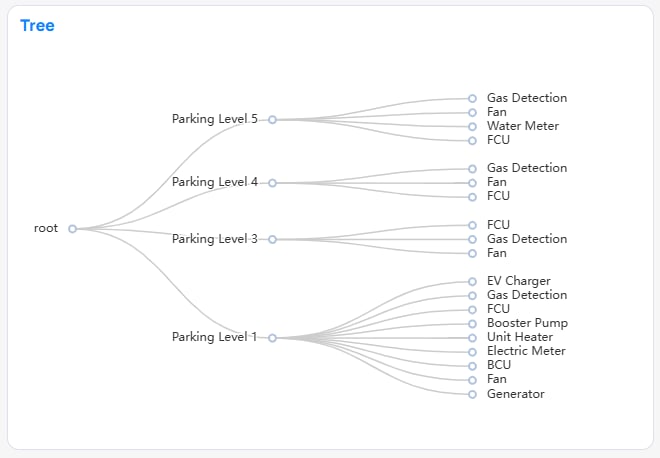
 A [Tree](/products/building-bi/reference/chart-types#tree) chart shows the same nesting as branches. Both stay in one widget. Drill-through leaves the widget and opens another view.
 For drill-down setup fields, see [Chart types](/products/building-bi/reference/chart-types).
## A cross-filter that travels
When you right-click a data point, Building BI reads the column behind it (for example, `region = West`). If that column is registered as a drill-through column on a target, navigation options appear. Choosing one builds a normal `EQUALS` or `IN` filter from your selection and applies it to the target's widgets. Eligibility matches cross-filtering, so a metrics-only chart cannot be a source.
| Target | What happens |
| ----------------------------------- | --------------------------------------------------------------------------- |
| **Page** (same dashboard) | Navigates to another page; the drill-through filter applies to its widgets. |
| **Dashboard** (different dashboard) | Opens the target in a new tab; the filter is applied, then discarded. |
Rules:
* Enable drill-through on both the source and the target dashboard.
* A target declares which columns can be drilled into. The selection is not saved on the target — it behaves like a one-time cross-filter.
* An optional **Keep all filters** toggle decides whether the source's other active filters travel with the drill-through value, or only the selected value.
* Allowed directions: Portfolio → Building, and Building → dashboards within the same building. Building → Portfolio and Building → another building are not allowed.
See [Filter options](/products/building-bi/reference/filter-options) and [Filter scopes](/products/building-bi/reference/filter-options#filter-scope-hierarchy).
## When drill-through fits
| Use drill-through when… | Prefer something else when… |
| ----------------------------------------- | ---------------------------------------------------------------------------------------------------------- |
| Viewers move from summary to detail often | A [navigation widget](/products/building-bi/reference/chart-types) jump without a carried filter is enough |
| You can enable both source and target | The journey must work on shared links or mobile (drill-through does not) |
| Direction stays within allowed paths | You need Building → Portfolio or cross-building lateral jumps |
Treating the filter as one-time and unsaved keeps targets clean. The cost is that the target does not remember where you came from. Directional limits keep navigation predictable — some cross-building journeys must go back up through the portfolio.
* Drill-through does not work on shared links or on mobile.
* A target that has not opted in will not appear as an option.
* Refreshing or re-opening the target outside the drill-through flow will not reproduce the carried filter.
## Next steps
Configure filters and related interactions on a dashboard.
Control which widgets a carried filter touches on arrival.
For drill-down setup fields, see [Chart types](/products/building-bi/reference/chart-types).
## A cross-filter that travels
When you right-click a data point, Building BI reads the column behind it (for example, `region = West`). If that column is registered as a drill-through column on a target, navigation options appear. Choosing one builds a normal `EQUALS` or `IN` filter from your selection and applies it to the target's widgets. Eligibility matches cross-filtering, so a metrics-only chart cannot be a source.
| Target | What happens |
| ----------------------------------- | --------------------------------------------------------------------------- |
| **Page** (same dashboard) | Navigates to another page; the drill-through filter applies to its widgets. |
| **Dashboard** (different dashboard) | Opens the target in a new tab; the filter is applied, then discarded. |
Rules:
* Enable drill-through on both the source and the target dashboard.
* A target declares which columns can be drilled into. The selection is not saved on the target — it behaves like a one-time cross-filter.
* An optional **Keep all filters** toggle decides whether the source's other active filters travel with the drill-through value, or only the selected value.
* Allowed directions: Portfolio → Building, and Building → dashboards within the same building. Building → Portfolio and Building → another building are not allowed.
See [Filter options](/products/building-bi/reference/filter-options) and [Filter scopes](/products/building-bi/reference/filter-options#filter-scope-hierarchy).
## When drill-through fits
| Use drill-through when… | Prefer something else when… |
| ----------------------------------------- | ---------------------------------------------------------------------------------------------------------- |
| Viewers move from summary to detail often | A [navigation widget](/products/building-bi/reference/chart-types) jump without a carried filter is enough |
| You can enable both source and target | The journey must work on shared links or mobile (drill-through does not) |
| Direction stays within allowed paths | You need Building → Portfolio or cross-building lateral jumps |
Treating the filter as one-time and unsaved keeps targets clean. The cost is that the target does not remember where you came from. Directional limits keep navigation predictable — some cross-building journeys must go back up through the portfolio.
* Drill-through does not work on shared links or on mobile.
* A target that has not opted in will not appear as an option.
* Refreshing or re-opening the target outside the drill-through flow will not reproduce the carried filter.
## Next steps
Configure filters and related interactions on a dashboard.
Control which widgets a carried filter touches on arrival.