> ## Documentation Index
> Fetch the complete documentation index at: https://documentation.kodelabs.com/llms.txt
> Use this file to discover all available pages before exploring further.
# Collections
> Organize, publish, and manage Building BI dashboard collections to share curated dashboard sets with specific roles.
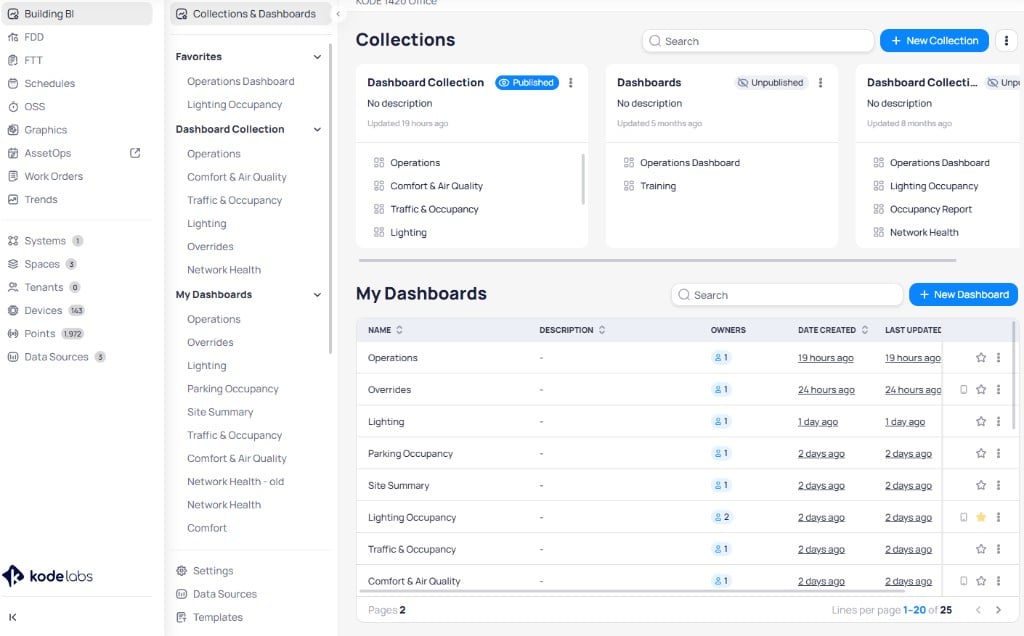
Collections organize and publish Building BI dashboards for users and roles. A dashboard must belong to a collection and be published before it is visible beyond its collaborators.
For how collections control visibility, support multiple audiences, and relate to permissions, see [How Building BI permissions work](/products/building-bi/concepts/how-permissions-work).
 ## Default landing behavior
The first dashboard in the first collection a user has access to automatically becomes their default landing page when they open Building BI. Arrange your most critical information at the top of the first collection for each user group.
Users can override the default landing page by marking a dashboard as a favorite. Favorited dashboards appear in a pinned section at the top of the left navigation panel.
## Create a collection
Click `New Collection` in the upper-right corner of the Building BI view.
Click the pencil icon next to the default name and enter a descriptive title.
Drag dashboards from the right panel and drop them into the left panel labeled `Drop dashboards here`.
## Default landing behavior
The first dashboard in the first collection a user has access to automatically becomes their default landing page when they open Building BI. Arrange your most critical information at the top of the first collection for each user group.
Users can override the default landing page by marking a dashboard as a favorite. Favorited dashboards appear in a pinned section at the top of the left navigation panel.
## Create a collection
Click `New Collection` in the upper-right corner of the Building BI view.
Click the pencil icon next to the default name and enter a descriptive title.
Drag dashboards from the right panel and drop them into the left panel labeled `Drop dashboards here`.
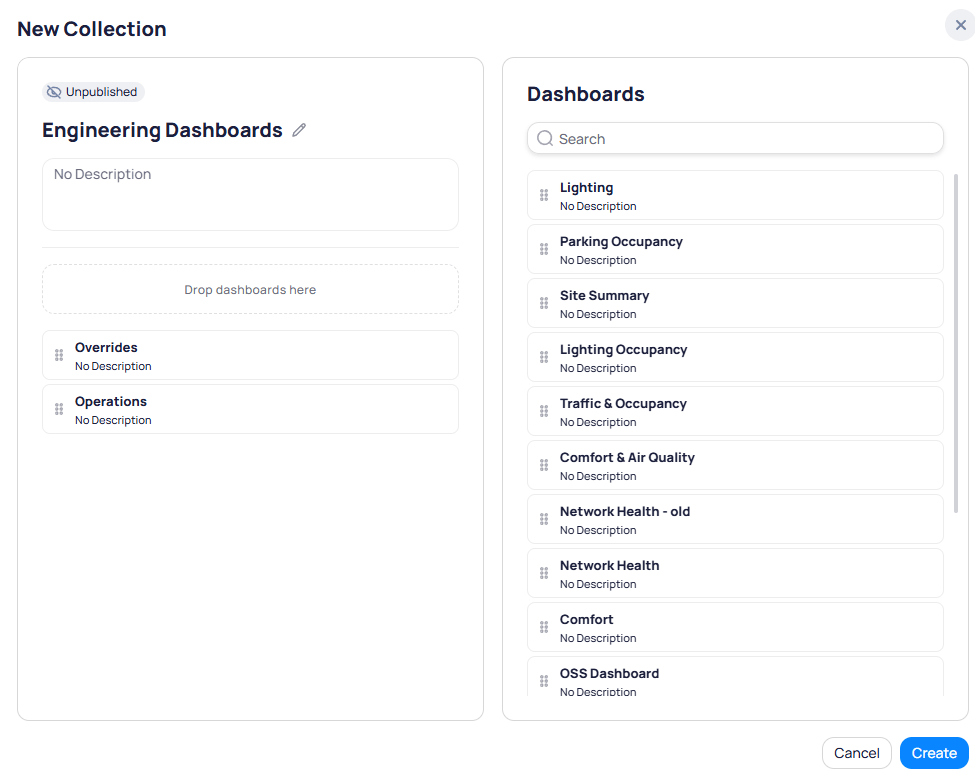 Drag dashboards within the left panel to set the display order.
Click `Create` to save. The new collection remains in an `Unpublished` state until you publish it.
## Publish a collection
Publishing makes a collection visible to users beyond its collaborators.
Click the three-dot menu on the collection and select `Publish`.
Select `Publish to All` to make the collection available to every user, or select `Publish to Specific Roles` to restrict access.
Drag dashboards within the left panel to set the display order.
Click `Create` to save. The new collection remains in an `Unpublished` state until you publish it.
## Publish a collection
Publishing makes a collection visible to users beyond its collaborators.
Click the three-dot menu on the collection and select `Publish`.
Select `Publish to All` to make the collection available to every user, or select `Publish to Specific Roles` to restrict access.
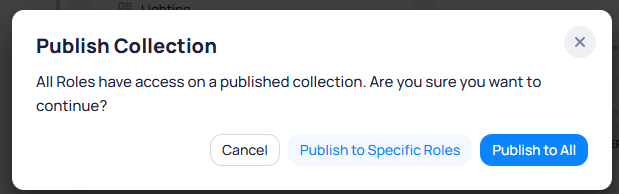 Click `Save` to apply the publishing configuration.
Collections publish to roles only, not to individual users. Assign users to the appropriate roles in Launchpad to control access.
To remove a collection from publication, click the three-dot menu and select `Unpublish`.
## Shared dashboards across collections
A single dashboard can appear in multiple collections to serve different audiences. This does not duplicate the dashboard. Any edits made to a dashboard automatically propagate across all collections where it appears.
## Manage a collection
Select the three-dot menu on a collection card to access all management actions.
Click `Save` to apply the publishing configuration.
Collections publish to roles only, not to individual users. Assign users to the appropriate roles in Launchpad to control access.
To remove a collection from publication, click the three-dot menu and select `Unpublish`.
## Shared dashboards across collections
A single dashboard can appear in multiple collections to serve different audiences. This does not duplicate the dashboard. Any edits made to a dashboard automatically propagate across all collections where it appears.
## Manage a collection
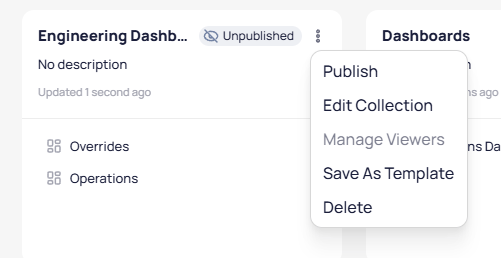
Select the three-dot menu on a collection card to access all management actions.
 | Action | Description |
| ------------------ | --------------------------------------------------------------------------------- |
| `Publish` | Make the collection visible to all users or specific roles |
| `Edit Collection` | Rename the collection, add dashboards, or remove existing ones |
| `Manage Viewers` | Add or remove roles to control which teams can access the collection |
| `Save As Template` | Save the collection as a reusable template with dependencies and ontology mapping |
| `Delete` | Permanently remove the collection |
### Manage viewers
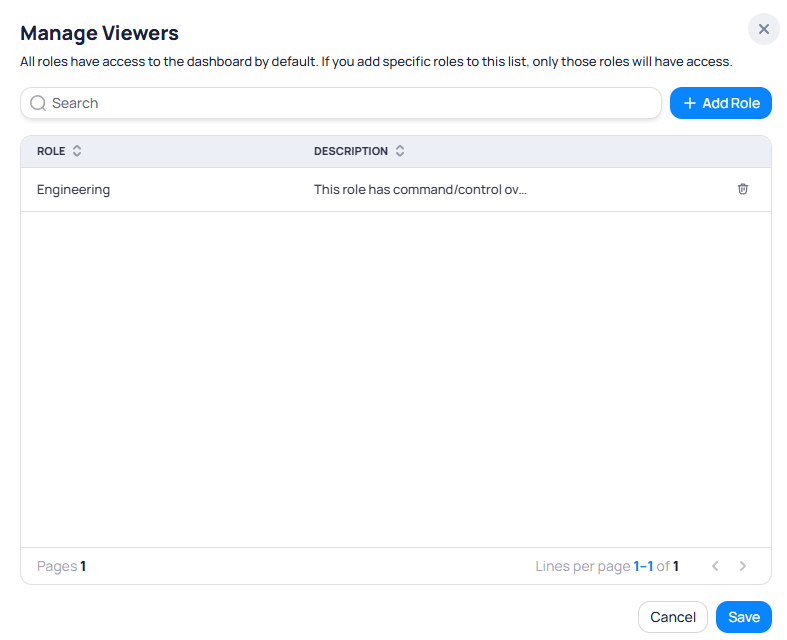
Select `Manage Viewers` from the three-dot menu to control which roles can access the collection. By default, all roles have access. Adding specific roles restricts access to only those roles. See [How Building BI permissions work](/products/building-bi/concepts/how-permissions-work) for how view and edit access relate.
| Action | Description |
| ------------------ | --------------------------------------------------------------------------------- |
| `Publish` | Make the collection visible to all users or specific roles |
| `Edit Collection` | Rename the collection, add dashboards, or remove existing ones |
| `Manage Viewers` | Add or remove roles to control which teams can access the collection |
| `Save As Template` | Save the collection as a reusable template with dependencies and ontology mapping |
| `Delete` | Permanently remove the collection |
### Manage viewers
Select `Manage Viewers` from the three-dot menu to control which roles can access the collection. By default, all roles have access. Adding specific roles restricts access to only those roles. See [How Building BI permissions work](/products/building-bi/concepts/how-permissions-work) for how view and edit access relate.
 ## Delete a collection
Select the three-dot menu on a collection and select `Delete`. Confirm the deletion when prompted.
Deleting a collection removes it permanently. Dashboards within the collection are not deleted and remain in your `My Dashboards` table, but they lose their published visibility until added to another collection.
## Organize collections and favorites
You can reorder how collections and favorites appear in the Building BI left pane. The order you set here directly controls the left navigation order for all users with access to those collections.
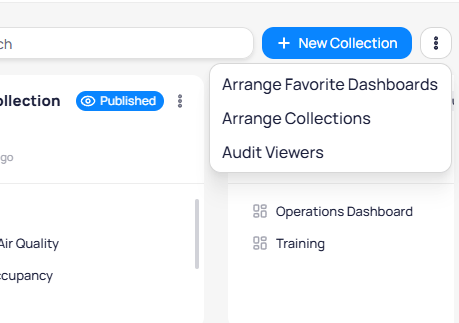
Select the three-dot menu in the upper-right corner of Building BI to access arrangement and audit options.
## Delete a collection
Select the three-dot menu on a collection and select `Delete`. Confirm the deletion when prompted.
Deleting a collection removes it permanently. Dashboards within the collection are not deleted and remain in your `My Dashboards` table, but they lose their published visibility until added to another collection.
## Organize collections and favorites
You can reorder how collections and favorites appear in the Building BI left pane. The order you set here directly controls the left navigation order for all users with access to those collections.
Select the three-dot menu in the upper-right corner of Building BI to access arrangement and audit options.
 ### Arrange collections
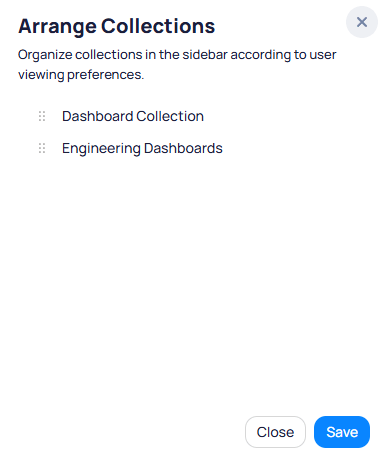
Select `Arrange Collections` to reorder how collections appear in the left navigation. Drag collections to set the display order, then select `Save`.
### Arrange collections
Select `Arrange Collections` to reorder how collections appear in the left navigation. Drag collections to set the display order, then select `Save`.
 ### Arrange favorites
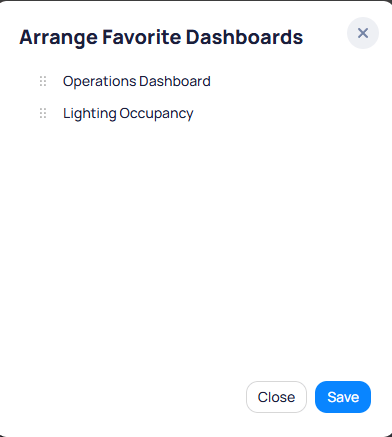
Select `Arrange Favorite Dashboards` to reorder your favorited dashboards in the left navigation panel. Drag dashboards to set the display order, then select `Save`.
### Arrange favorites
Select `Arrange Favorite Dashboards` to reorder your favorited dashboards in the left navigation panel. Drag dashboards to set the display order, then select `Save`.
 ### Audit viewers
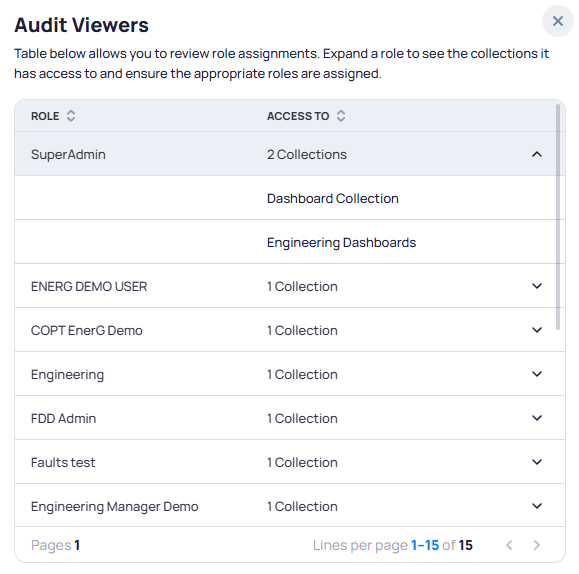
Select `Audit Viewers` to review role assignments across your organization. Expand a role to see which collections it has access to.
### Audit viewers
Select `Audit Viewers` to review role assignments across your organization. Expand a role to see which collections it has access to.
 ## Collaborator access
When you add a user as a collaborator on a dashboard, they receive full edit access. Collaborators can modify the dashboard content and manage other users, including adding or removing additional collaborators.
Collaborators have the same level of access as dashboard owners. If you need to share an editable version with external users, duplicate the dashboard first and share the copy to avoid unintended changes to the original.
## My Dashboards
The `My Dashboards` section lists all dashboards you have collaborator (edit) access to. This table is sorted by `Last Updated` by default, which matches the order displayed in your left navigation panel.
## Save a collection as a template
Save a collection as a reusable template to deploy across multiple buildings. Select the three-dot menu on a collection and choose `Save As Template`.
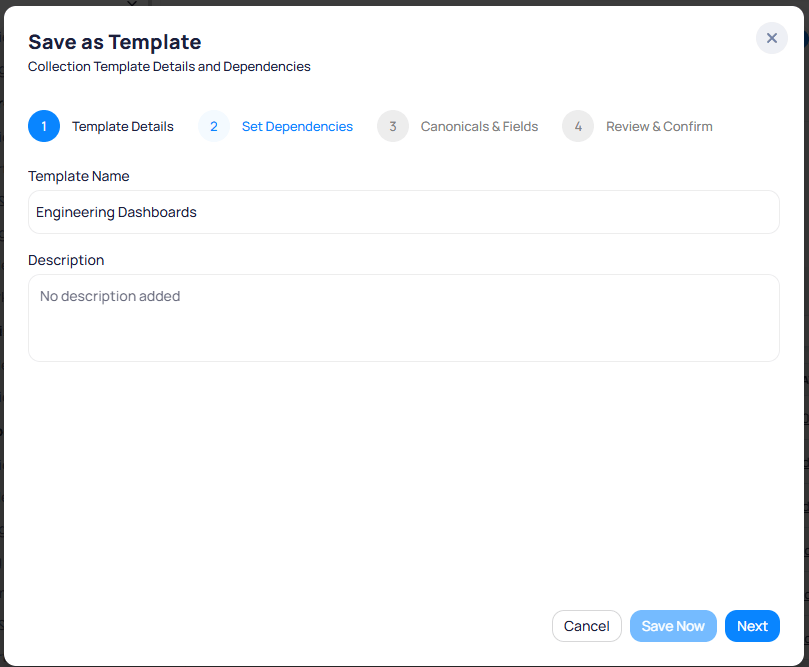
Enter a `Template Name` and optional `Description` for the template. Select `Save Now` to save immediately, or select `Next` to configure dependencies.
## Collaborator access
When you add a user as a collaborator on a dashboard, they receive full edit access. Collaborators can modify the dashboard content and manage other users, including adding or removing additional collaborators.
Collaborators have the same level of access as dashboard owners. If you need to share an editable version with external users, duplicate the dashboard first and share the copy to avoid unintended changes to the original.
## My Dashboards
The `My Dashboards` section lists all dashboards you have collaborator (edit) access to. This table is sorted by `Last Updated` by default, which matches the order displayed in your left navigation panel.
## Save a collection as a template
Save a collection as a reusable template to deploy across multiple buildings. Select the three-dot menu on a collection and choose `Save As Template`.
Enter a `Template Name` and optional `Description` for the template. Select `Save Now` to save immediately, or select `Next` to configure dependencies.
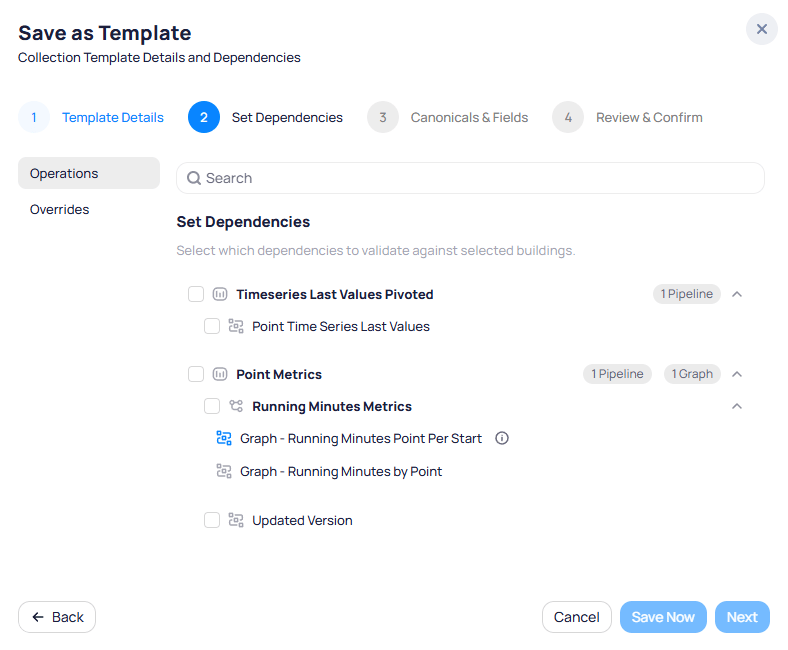
 Select which data source dependencies to validate against target buildings. Each dashboard in the collection lists its pipelines, graphs, and other dependencies. Select the dependencies that must exist at the target site for the template to work correctly.
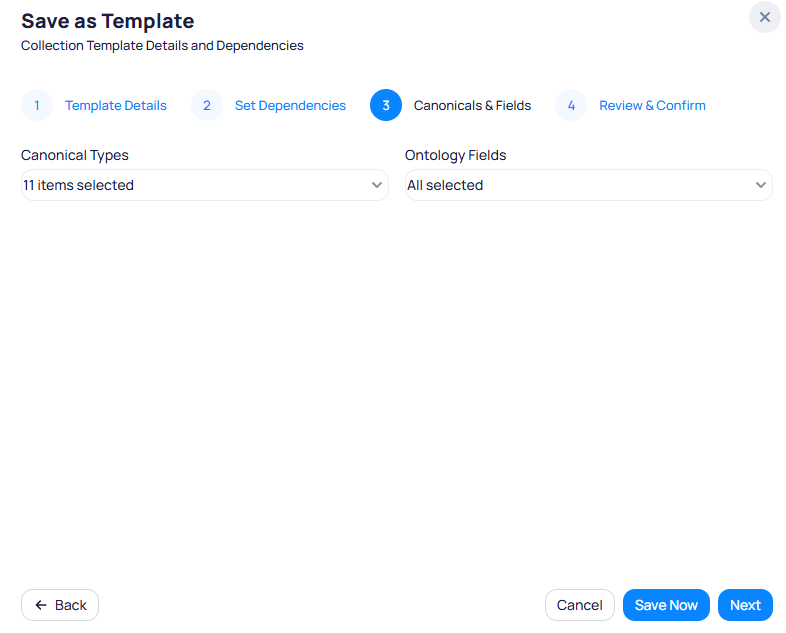
 Select the `Canonical Types` and `Ontology Fields` that the template requires. These determine which buildings are compatible when deploying the template.
When you deploy the template, Building BI checks these requirements against the target building or portfolio. It flags missing canonical types or ontology fields so you can catch gaps before the collection goes live. Use this step as a QA check for site readiness.
Select the `Canonical Types` and `Ontology Fields` that the template requires. These determine which buildings are compatible when deploying the template.
When you deploy the template, Building BI checks these requirements against the target building or portfolio. It flags missing canonical types or ontology fields so you can catch gaps before the collection goes live. Use this step as a QA check for site readiness.
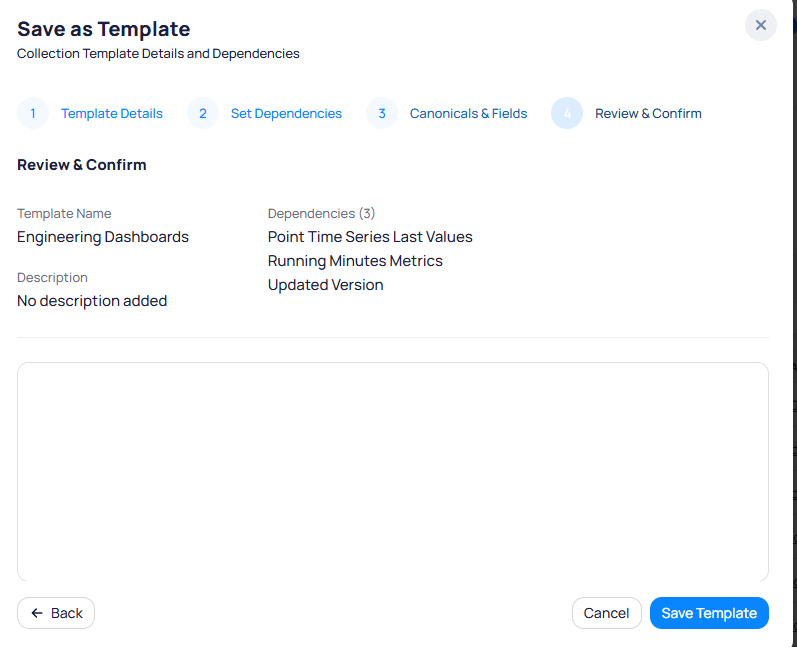
 Review the template name, description, and dependencies. Add any additional notes in the text area. Select `Save Template` to create the template, or select `Back` to modify previous steps.
 ## Navigation widget
The navigation widget links a dashboard to another page within the same dashboard or to a different Building BI dashboard.
Open a dashboard in edit mode and drag the `Navigation` widget onto the canvas.
Set the `Navigate to` field to one of:
* **Page** -- Select a page within the current dashboard.
* **Dashboard** -- Select another Building BI dashboard.
Save the dashboard to apply the navigation widget configuration.
## Related reading
Control visibility and organize dashboards by audience.
Choose independent copies or governed portfolio parity.
Compare collection, dashboard, page, and chart templates.
Deploy dashboards and manage predefined versus custom views.
## Next steps
Create and configure interactive dashboards with charts, tables, and widgets.
Deploy dashboard configurations across multiple sites in your portfolio.
## Navigation widget
The navigation widget links a dashboard to another page within the same dashboard or to a different Building BI dashboard.
Open a dashboard in edit mode and drag the `Navigation` widget onto the canvas.
Set the `Navigate to` field to one of:
* **Page** -- Select a page within the current dashboard.
* **Dashboard** -- Select another Building BI dashboard.
Save the dashboard to apply the navigation widget configuration.
## Related reading
Control visibility and organize dashboards by audience.
Choose independent copies or governed portfolio parity.
Compare collection, dashboard, page, and chart templates.
Deploy dashboards and manage predefined versus custom views.
## Next steps
Create and configure interactive dashboards with charts, tables, and widgets.
Deploy dashboard configurations across multiple sites in your portfolio.