> ## Documentation Index
> Fetch the complete documentation index at: https://documentation.kodelabs.com/llms.txt
> Use this file to discover all available pages before exploring further.
# Portfolio-Wide Buildings
> View portfolio buildings and access the building-level
The **Buildings** section at the [portfolio level](/products/assetops/quickstart/usage-workflow#portfolio-level) lists every building in your portfolio that uses AssetOps. Use it to review site details and open building-level operations for a specific property.
## View the buildings list
Open **Buildings** from the portfolio sidebar to see all sites in a table.
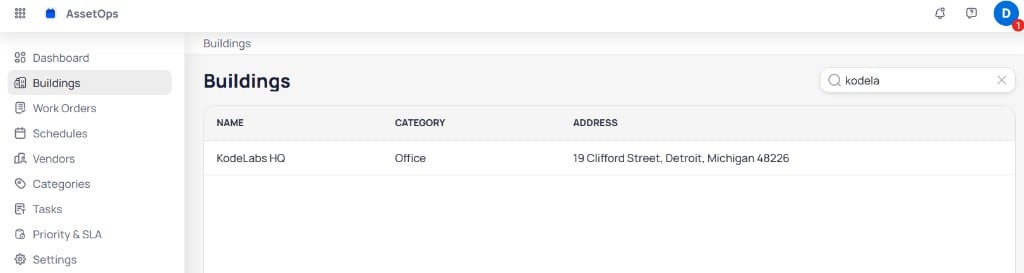 The table includes:
| Column | Description |
| ------------ | ------------------------------------------------ |
| **Name** | Building display name (for example, KodeLabs HQ) |
| **Category** | Building type (for example, Office) |
| **Address** | Full street address for the property |
### Search buildings
Use the search field in the top right to filter the list by building name or address. For example, type part of a name such as `kodela` to narrow results to **KodeLabs HQ** before you open the site.
Select a row to open that building and work in building-level modules such as the [building dashboard](/products/assetops/building/dashboard), [work orders](/products/assetops/work-orders/work-orders-overview), and [assets](/products/assetops/assets/assets).
## Search and switch sites
After you open a building, use the **site selector** in the top navigation bar to move between the portfolio and individual buildings without returning to the Buildings list.
The table includes:
| Column | Description |
| ------------ | ------------------------------------------------ |
| **Name** | Building display name (for example, KodeLabs HQ) |
| **Category** | Building type (for example, Office) |
| **Address** | Full street address for the property |
### Search buildings
Use the search field in the top right to filter the list by building name or address. For example, type part of a name such as `kodela` to narrow results to **KodeLabs HQ** before you open the site.
Select a row to open that building and work in building-level modules such as the [building dashboard](/products/assetops/building/dashboard), [work orders](/products/assetops/work-orders/work-orders-overview), and [assets](/products/assetops/assets/assets).
## Search and switch sites
After you open a building, use the **site selector** in the top navigation bar to move between the portfolio and individual buildings without returning to the Buildings list.
 ### Open the site selector
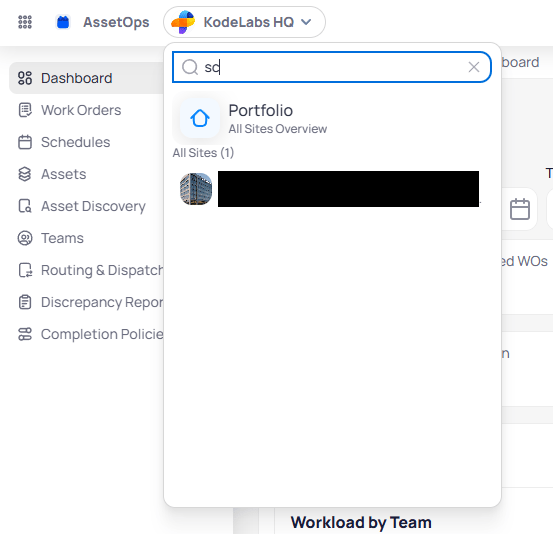
Select the current site name in the top bar (for example, **KodeLabs HQ**) to open the dropdown.
### Portfolio overview
Choose **Portfolio** with the subtitle **All sites overview** to return to portfolio-level navigation and modules such as [Dashboard](/products/assetops/portfolio/dashboard), **Buildings**, and [Work orders](/products/assetops/portfolio/work-orders).
### Search for a building
1. Open the site selector.
2. Type in the search field to filter buildings by name or address.
3. Select a building from the results to switch context to that site.
The sidebar updates to building-level modules, including **Dashboard**, **Work orders**, **Schedules**, **Assets**, and **Teams**.
Use the site selector when you move between buildings frequently. Use the **Buildings** list when you need a full table view of every site in the portfolio.
## Next steps
After you select a building, use the [building dashboard](/products/assetops/building/dashboard) and building-level modules.
Monitor maintenance activity for the selected building.
View and manage the assets associated with a building.
Create and manage corrective maintenance work orders at the building level.
### Open the site selector
Select the current site name in the top bar (for example, **KodeLabs HQ**) to open the dropdown.
### Portfolio overview
Choose **Portfolio** with the subtitle **All sites overview** to return to portfolio-level navigation and modules such as [Dashboard](/products/assetops/portfolio/dashboard), **Buildings**, and [Work orders](/products/assetops/portfolio/work-orders).
### Search for a building
1. Open the site selector.
2. Type in the search field to filter buildings by name or address.
3. Select a building from the results to switch context to that site.
The sidebar updates to building-level modules, including **Dashboard**, **Work orders**, **Schedules**, **Assets**, and **Teams**.
Use the site selector when you move between buildings frequently. Use the **Buildings** list when you need a full table view of every site in the portfolio.
## Next steps
After you select a building, use the [building dashboard](/products/assetops/building/dashboard) and building-level modules.
Monitor maintenance activity for the selected building.
View and manage the assets associated with a building.
Create and manage corrective maintenance work orders at the building level.