> ## Documentation Index
> Fetch the complete documentation index at: https://documentation.kodelabs.com/llms.txt
> Use this file to discover all available pages before exploring further.
# Portfolio schedules
> View, filter, export, and open schedules across all buildings in your AssetOps portfolio
The **Schedules** module at the [portfolio level](/products/assetops/quickstart/usage-workflow#portfolio-level) shows recurring maintenance and inspection schedules across all buildings. Use it to confirm upcoming work, spot gaps, and align preventive programs portfolio-wide.
## Portfolio vs building schedules
| Level | Scope | Typical use |
| --------- | ------------- | --------------------------------------------- |
| Portfolio | All buildings | Compliance oversight, cross-site planning |
| Building | One building | Create, edit, and run schedules for that site |
Define and maintain schedule instances at the [building level](/products/assetops/schedules/schedules-overview). When you open a schedule from the portfolio list or calendar, AssetOps navigates to that schedule in the building context on the [schedule detail page](/products/assetops/schedules/schedules-overview#schedule-detail-page).
***
## Schedule list
The default **list** view shows schedules from every building in the portfolio.
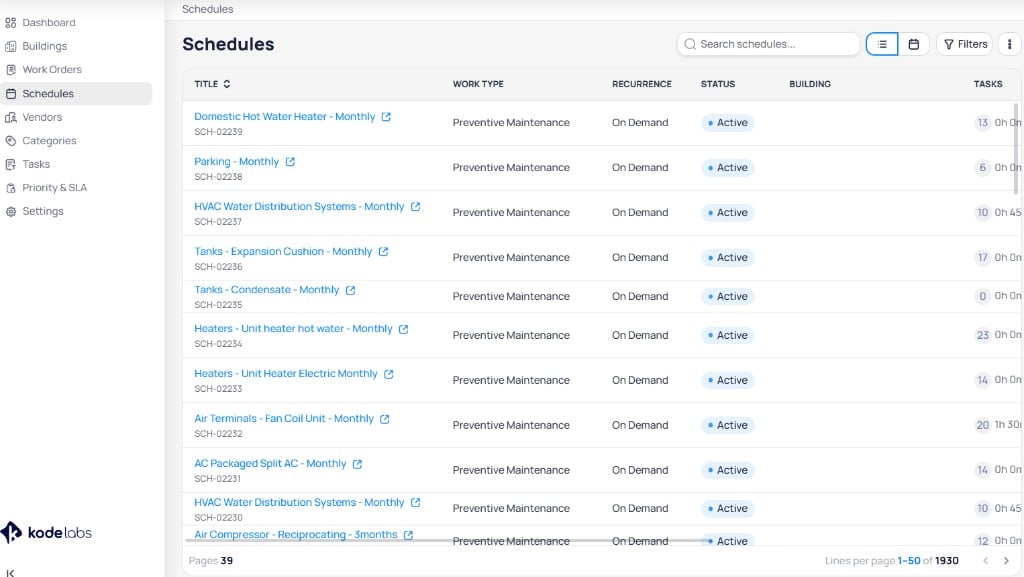 | Column | Description |
| -------------- | --------------------------------------------------------------------------------------------------------------------------------------------------------------------------------------------------------------------------------------------------------------------------------------------- |
| **Title** | Schedule name as a link, with schedule ID below (for example, `SCH-02239`). Select the title or the external-link icon beside it to open the schedule in the [building-level detail view](/products/assetops/schedules/schedules-overview#schedule-detail-page) for that schedule's building. |
| **Work type** | **Preventive maintenance** or **Inspection** |
| **Recurrence** | How often work is generated (for example, **Weekly**, **On demand**) |
| **Status** | **Active** or inactive |
| **Building** | Building where the schedule applies |
| **Tasks** | Number of tasks and total estimated time |
Use **Search schedules** to find records. Use the column control to show or hide fields. Pagination at the bottom shows how many schedules match your current filters.
### Export
Open the vertical ellipsis menu in the schedule list header and select **Export** to download schedule data.
### Calendar view
Select the **calendar** view toggle to see scheduled work across the portfolio on a monthly grid.
| Column | Description |
| -------------- | --------------------------------------------------------------------------------------------------------------------------------------------------------------------------------------------------------------------------------------------------------------------------------------------- |
| **Title** | Schedule name as a link, with schedule ID below (for example, `SCH-02239`). Select the title or the external-link icon beside it to open the schedule in the [building-level detail view](/products/assetops/schedules/schedules-overview#schedule-detail-page) for that schedule's building. |
| **Work type** | **Preventive maintenance** or **Inspection** |
| **Recurrence** | How often work is generated (for example, **Weekly**, **On demand**) |
| **Status** | **Active** or inactive |
| **Building** | Building where the schedule applies |
| **Tasks** | Number of tasks and total estimated time |
Use **Search schedules** to find records. Use the column control to show or hide fields. Pagination at the bottom shows how many schedules match your current filters.
### Export
Open the vertical ellipsis menu in the schedule list header and select **Export** to download schedule data.
### Calendar view
Select the **calendar** view toggle to see scheduled work across the portfolio on a monthly grid.
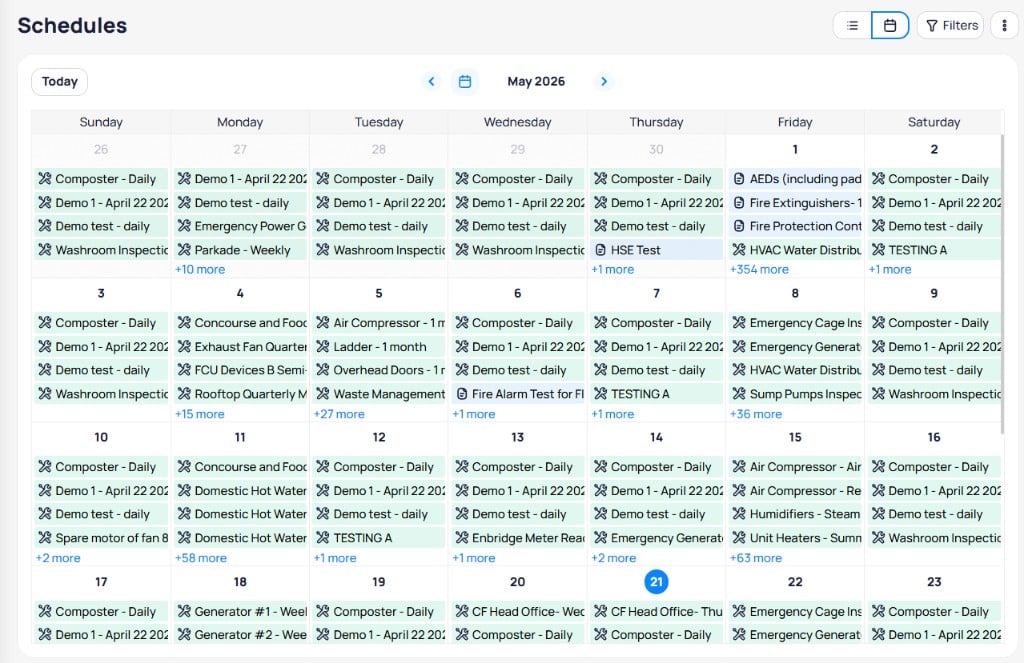 Use **Today**, month arrows, or the date picker to move between periods. Select a schedule chip or **+N more** link to open that schedule on the [schedule detail page](/products/assetops/schedules/schedules-overview#schedule-detail-page) in building context.
### Filters
Select **Filters** to open the filter panel.
Use **Today**, month arrows, or the date picker to move between periods. Select a schedule chip or **+N more** link to open that schedule on the [schedule detail page](/products/assetops/schedules/schedules-overview#schedule-detail-page) in building context.
### Filters
Select **Filters** to open the filter panel.
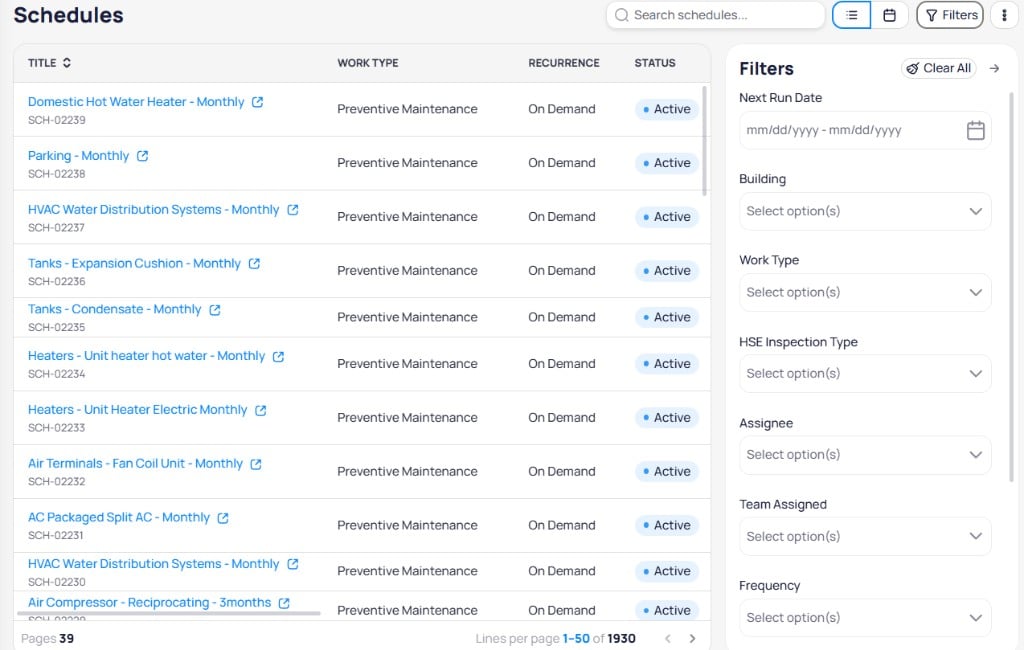 | Filter | Description |
| ------------------- | ------------------------------------------------- |
| **Next run date** | Date range for upcoming runs |
| **Building** | Limit results to one or more buildings |
| **Region** | Geographic or organizational grouping |
| **Work type** | Preventive maintenance or Inspection |
| **Inspection type** | Inspection category for inspection schedules |
| **Assignee** | User assigned to generated work orders |
| **Team assigned** | Team assigned to generated work orders |
| **Frequency** | Recurrence pattern (for example, monthly, weekly) |
Select **Clear all** to reset filters. Building-level schedules document additional filters such as **Asset** on the [Building schedules](/products/assetops/schedules/schedules-overview#filters) page.
Portfolio list, calendar, export, and filters mirror the building schedules experience. Bulk edit runs as a batch with per-item results, failure export, and a seven-day history. For **+ Create**, bulk edit fields, and schedule wizard steps, see [Building schedules](/products/assetops/schedules/schedules-overview).
***
## Schedule types
Building schedules support three schedule types. Each type defines how timing is applied when work is generated:
* **Just once** — A single scheduled occurrence
* **Recurrent** — Repeating intervals for preventive maintenance or inspections
* **On demand** — Schedules triggered when needed
***
## Next steps
View details, tasks, assets, attachments, and logs after you open a schedule from the portfolio list or calendar.
Create schedules, run bulk edit, and manage schedule status for one building.
Define reusable tasks assigned to scheduled work orders at the portfolio level.
Review work orders generated from schedules across all buildings.
| Filter | Description |
| ------------------- | ------------------------------------------------- |
| **Next run date** | Date range for upcoming runs |
| **Building** | Limit results to one or more buildings |
| **Region** | Geographic or organizational grouping |
| **Work type** | Preventive maintenance or Inspection |
| **Inspection type** | Inspection category for inspection schedules |
| **Assignee** | User assigned to generated work orders |
| **Team assigned** | Team assigned to generated work orders |
| **Frequency** | Recurrence pattern (for example, monthly, weekly) |
Select **Clear all** to reset filters. Building-level schedules document additional filters such as **Asset** on the [Building schedules](/products/assetops/schedules/schedules-overview#filters) page.
Portfolio list, calendar, export, and filters mirror the building schedules experience. Bulk edit runs as a batch with per-item results, failure export, and a seven-day history. For **+ Create**, bulk edit fields, and schedule wizard steps, see [Building schedules](/products/assetops/schedules/schedules-overview).
***
## Schedule types
Building schedules support three schedule types. Each type defines how timing is applied when work is generated:
* **Just once** — A single scheduled occurrence
* **Recurrent** — Repeating intervals for preventive maintenance or inspections
* **On demand** — Schedules triggered when needed
***
## Next steps
View details, tasks, assets, attachments, and logs after you open a schedule from the portfolio list or calendar.
Create schedules, run bulk edit, and manage schedule status for one building.
Define reusable tasks assigned to scheduled work orders at the portfolio level.
Review work orders generated from schedules across all buildings.