> ## Documentation Index
> Fetch the complete documentation index at: https://documentation.kodelabs.com/llms.txt
> Use this file to discover all available pages before exploring further.
# Priority and SLA
> Configure priority levels and SLA targets for work orders across your AssetOps portfolio
**Priority & SLA** at the [portfolio level](/products/assetops/quickstart/usage-workflow#portfolio-level) defines how urgent work is classified and how quickly it must be completed. Priority levels rank work orders by urgency. Service level agreements (SLAs) set response and completion targets for each priority.
These rules apply consistently across all buildings so teams and vendors share the same expectations. SLA results appear on the [portfolio dashboard](/products/assetops/portfolio/dashboard) and [portfolio work orders](/products/assetops/portfolio/work-orders) views.
## View priority and SLA configuration
Open **Priority & SLA** from the portfolio sidebar to manage priority levels and SLA targets.
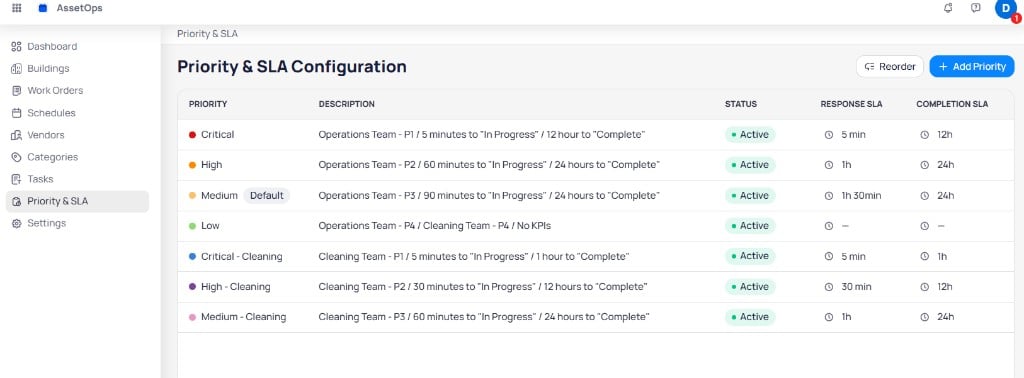 The table includes:
| Column | Description |
| ------------------ | ----------------------------------------------------------------- |
| **Priority** | Priority name with a color indicator |
| **Description** | Internal notes such as team assignment and target workflow states |
| **Status** | **Active** or inactive |
| **Response SLA** | Time to acknowledge and assign the work order |
| **Completion SLA** | Time to complete the work order |
Use **Reorder** to change priority rank. Select **+ Add Priority** to create a new level.
### Default priority
One priority can be marked **Default**. The default priority applies to new work orders when no priority is specified during creation.
## Create a priority level
Creating a priority uses a two-step flow: **General info** and **SLA configuration**.
### Step 1: General info
The table includes:
| Column | Description |
| ------------------ | ----------------------------------------------------------------- |
| **Priority** | Priority name with a color indicator |
| **Description** | Internal notes such as team assignment and target workflow states |
| **Status** | **Active** or inactive |
| **Response SLA** | Time to acknowledge and assign the work order |
| **Completion SLA** | Time to complete the work order |
Use **Reorder** to change priority rank. Select **+ Add Priority** to create a new level.
### Default priority
One priority can be marked **Default**. The default priority applies to new work orders when no priority is specified during creation.
## Create a priority level
Creating a priority uses a two-step flow: **General info** and **SLA configuration**.
### Step 1: General info
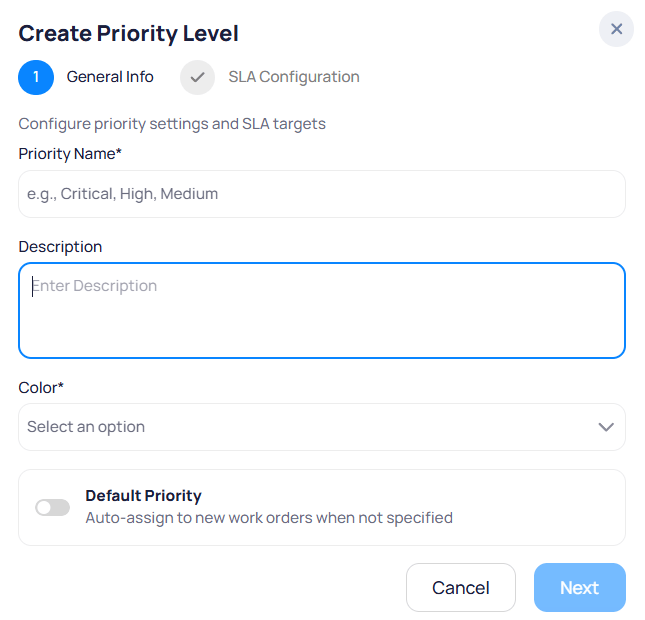 Display name for the priority level, such as Critical, High, or Medium - Cleaning.
Optional notes for administrators, such as team ownership or internal priority codes.
Color indicator shown on work orders and dashboards for this priority.
When enabled, auto-assigns this priority to new work orders when no priority is specified.
On the **Priority & SLA** page, select **+ Add Priority**.
Enter **Priority name**, **Description**, and **Color**. Enable **Default priority** if this level should apply when none is selected.
Select **Next** to open SLA configuration.
### Step 2: SLA configuration
Display name for the priority level, such as Critical, High, or Medium - Cleaning.
Optional notes for administrators, such as team ownership or internal priority codes.
Color indicator shown on work orders and dashboards for this priority.
When enabled, auto-assigns this priority to new work orders when no priority is specified.
On the **Priority & SLA** page, select **+ Add Priority**.
Enter **Priority name**, **Description**, and **Color**. Enable **Default priority** if this level should apply when none is selected.
Select **Next** to open SLA configuration.
### Step 2: SLA configuration
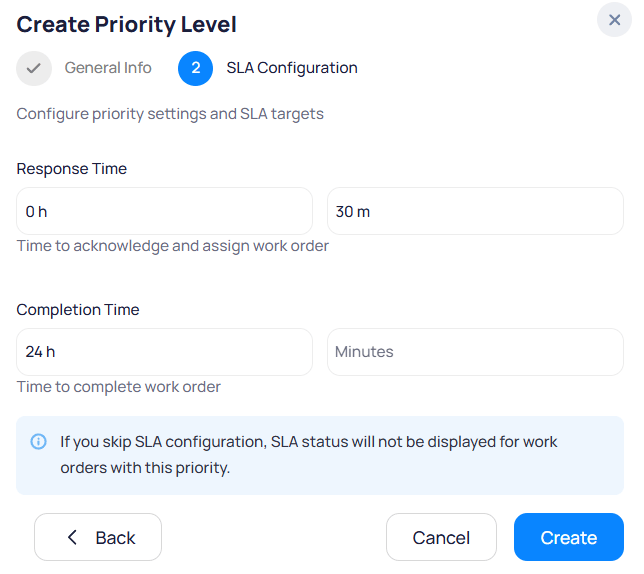 Time to acknowledge and assign the work order. Enter hours and minutes.
Time to complete the work order. Enter hours and minutes.
If you skip SLA configuration, SLA status does not display for work orders with this priority.
Enter the **Response time** in hours and minutes.
Enter the **Completion time** in hours and minutes.
Select **Create** to save the priority level. Select **Back** to change general info, or **Cancel** to exit without saving.
## Reorder priorities
Priority **level** determines rank when users sort or triage work. Lower level numbers represent higher urgency.
Time to acknowledge and assign the work order. Enter hours and minutes.
Time to complete the work order. Enter hours and minutes.
If you skip SLA configuration, SLA status does not display for work orders with this priority.
Enter the **Response time** in hours and minutes.
Enter the **Completion time** in hours and minutes.
Select **Create** to save the priority level. Select **Back** to change general info, or **Cancel** to exit without saving.
## Reorder priorities
Priority **level** determines rank when users sort or triage work. Lower level numbers represent higher urgency.
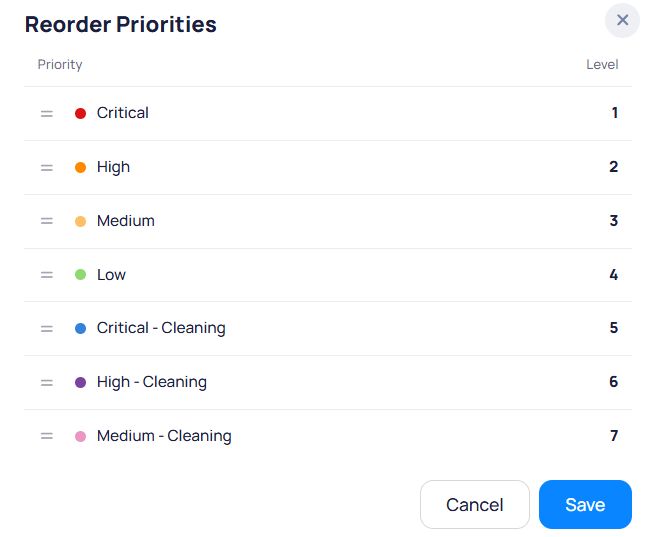 On the **Priority & SLA** page, select **Reorder**.
Use the drag handle on each row to move priorities up or down.
Select **Save** to apply the new order.
## Edit a priority level
Open the row menu on a priority and select **Edit** to update general info or SLA targets.
On the **Priority & SLA** page, select **Reorder**.
Use the drag handle on each row to move priorities up or down.
Select **Save** to apply the new order.
## Edit a priority level
Open the row menu on a priority and select **Edit** to update general info or SLA targets.
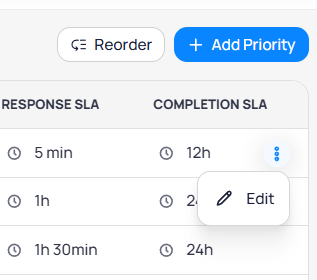 You can change the name, description, color, default setting, status, and SLA times. Updates apply according to your organization's rules for new and in-progress work orders.
## How priority and SLA affect work orders
Priority and SLA influence operations across AssetOps:
* **Work order creation** — Users select a priority when they create or triage work. The default priority applies when none is chosen.
* **SLA tracking** — Response and completion clocks compare elapsed time to configured targets.
* **Dashboards** — [Portfolio](/products/assetops/portfolio/dashboard) and [building](/products/assetops/building/dashboard) dashboards show SLA met, breached, and compliance metrics.
* **Routing** — Combined with [categories](/products/assetops/resources/categories) and [routing & dispatch](/products/assetops/resources/routing-dispatch) to route urgent work to the right teams.
## Related modules
Track open work and SLA status across all buildings.
Monitor SLA met, breached, and compliance rate portfolio-wide.
Classify work orders for routing alongside priority rules.
You can change the name, description, color, default setting, status, and SLA times. Updates apply according to your organization's rules for new and in-progress work orders.
## How priority and SLA affect work orders
Priority and SLA influence operations across AssetOps:
* **Work order creation** — Users select a priority when they create or triage work. The default priority applies when none is chosen.
* **SLA tracking** — Response and completion clocks compare elapsed time to configured targets.
* **Dashboards** — [Portfolio](/products/assetops/portfolio/dashboard) and [building](/products/assetops/building/dashboard) dashboards show SLA met, breached, and compliance metrics.
* **Routing** — Combined with [categories](/products/assetops/resources/categories) and [routing & dispatch](/products/assetops/resources/routing-dispatch) to route urgent work to the right teams.
## Related modules
Track open work and SLA status across all buildings.
Monitor SLA met, breached, and compliance rate portfolio-wide.
Classify work orders for routing alongside priority rules.