> ## Documentation Index
> Fetch the complete documentation index at: https://documentation.kodelabs.com/llms.txt
> Use this file to discover all available pages before exploring further.
# Discrepancy reports
> Compare asset data sources and resolve missing assets and field mismatches at the building level
**Discrepancy reports** compare asset data between two sources at the [building level](/products/assetops/quickstart/usage-workflow#building-level). Use them to find assets that exist in one source but not another, or fields that differ between matched assets.
Reports help you validate data after [asset discovery](/products/assetops/assets/asset-discovery) or when you integrate external systems such as a CMMS or data hub.
Configure [field mapping and matching rules](/products/assetops/assets/asset-discovery#configurations) and [asset linking](/products/assetops/assets/asset-discovery#asset-linking) before you run discrepancy reports.
Open a building from [Buildings](/products/assetops/resources/buildings), then select **Discrepancy reports** in the building sidebar.
## View discrepancy reports
The **Discrepancy reports** page lists reports created for the building.
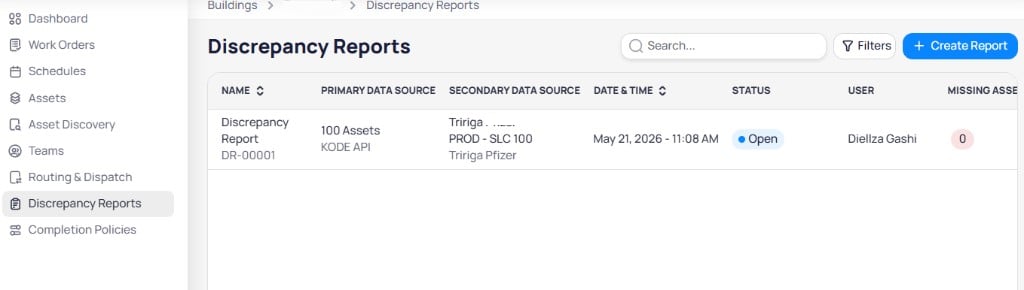 | Column | Description |
| ------------------------- | ------------------------------------------ |
| **Name** | Report name and ID (for example, DR-00001) |
| **Primary data source** | Source of truth for comparison |
| **Secondary data source** | Source compared against the primary |
| **Date & time** | When the report was generated |
| **Status** | **Open** or resolved states |
| **User** | User who created the report |
| **Missing assets** | Count of assets missing from one source |
Use **Search** and **Filters** to find reports. Select **+ Create report** to start a new comparison.
## Create a discrepancy report
Creating a report uses a two-step wizard: **Select data sources** and **Choose fields to compare**.
### Step 1: Select data sources
| Column | Description |
| ------------------------- | ------------------------------------------ |
| **Name** | Report name and ID (for example, DR-00001) |
| **Primary data source** | Source of truth for comparison |
| **Secondary data source** | Source compared against the primary |
| **Date & time** | When the report was generated |
| **Status** | **Open** or resolved states |
| **User** | User who created the report |
| **Missing assets** | Count of assets missing from one source |
Use **Search** and **Filters** to find reports. Select **+ Create report** to start a new comparison.
## Create a discrepancy report
Creating a report uses a two-step wizard: **Select data sources** and **Choose fields to compare**.
### Step 1: Select data sources
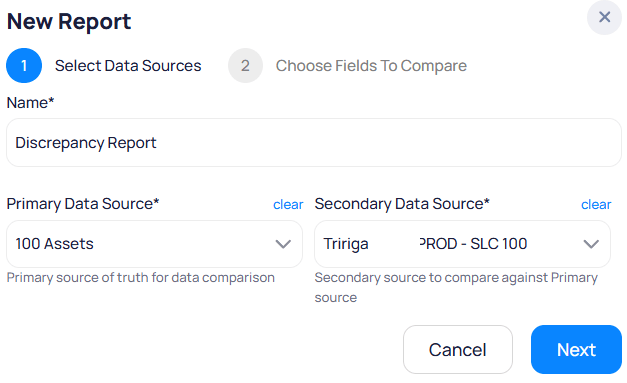 Display name for the report.
Source of truth for the comparison.
Source to compare against the primary source.
On the **Discrepancy reports** page, select **+ Create report**.
Enter **Name**, **Primary data source**, and **Secondary data source**, then select **Next**.
### Step 2: Choose fields to compare
Display name for the report.
Source of truth for the comparison.
Source to compare against the primary source.
On the **Discrepancy reports** page, select **+ Create report**.
Enter **Name**, **Primary data source**, and **Secondary data source**, then select **Next**.
### Step 2: Choose fields to compare
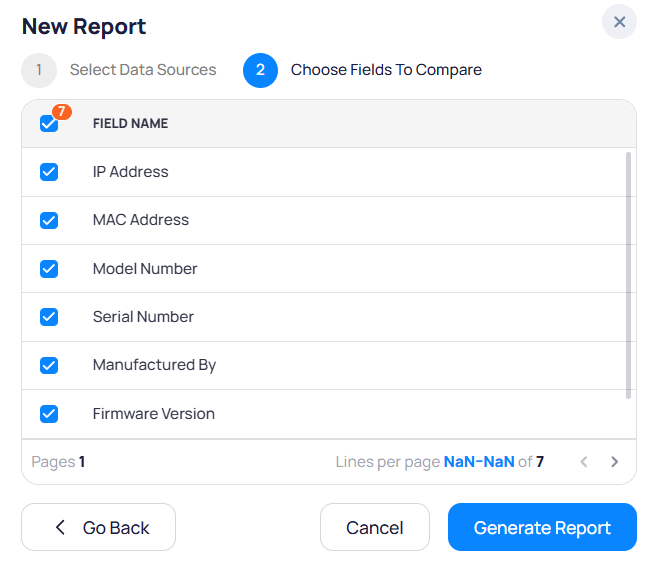 Select the fields AssetOps compares between matched assets, such as:
* **IP address**
* **MAC address**
* **Model number**
* **Serial number**
* **Manufactured by**
* **Firmware version**
Select **Generate report** to run the comparison. Use **Go back** to change data sources, or **Cancel** to exit.
## Report details
Select a report from the list to open its detail page. The page has three tabs: **Missing assets**, **Asset discrepancies**, and **Overview**.
### Missing assets tab
Lists assets that exist in the primary source but are missing from the secondary source (or vice versa, depending on report configuration).
Select the fields AssetOps compares between matched assets, such as:
* **IP address**
* **MAC address**
* **Model number**
* **Serial number**
* **Manufactured by**
* **Firmware version**
Select **Generate report** to run the comparison. Use **Go back** to change data sources, or **Cancel** to exit.
## Report details
Select a report from the list to open its detail page. The page has three tabs: **Missing assets**, **Asset discrepancies**, and **Overview**.
### Missing assets tab
Lists assets that exist in the primary source but are missing from the secondary source (or vice versa, depending on report configuration).
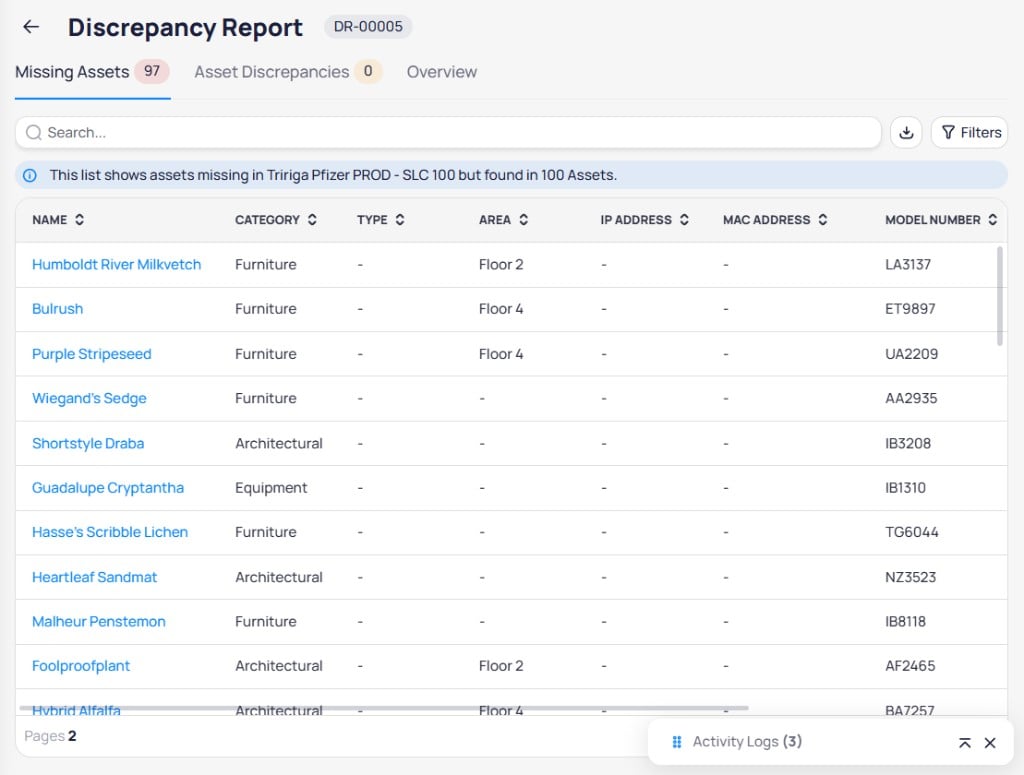 The table includes asset attributes such as **Name**, **Category**, **Type**, **Area**, and the fields you selected during report creation.
Select an asset **Name** to open that asset's detail page in the [Assets](/products/assetops/assets/assets) module.
Use **Search**, **Download**, and **Filters** to work with the list. Resolve missing assets by updating source data or linking assets in [asset discovery](/products/assetops/assets/asset-discovery).
### Asset discrepancies tab
Lists assets that exist in both sources but have different values for one or more compared fields.
The table includes asset attributes such as **Name**, **Category**, **Type**, **Area**, and the fields you selected during report creation.
Select an asset **Name** to open that asset's detail page in the [Assets](/products/assetops/assets/assets) module.
Use **Search**, **Download**, and **Filters** to work with the list. Resolve missing assets by updating source data or linking assets in [asset discovery](/products/assetops/assets/asset-discovery).
### Asset discrepancies tab
Lists assets that exist in both sources but have different values for one or more compared fields.
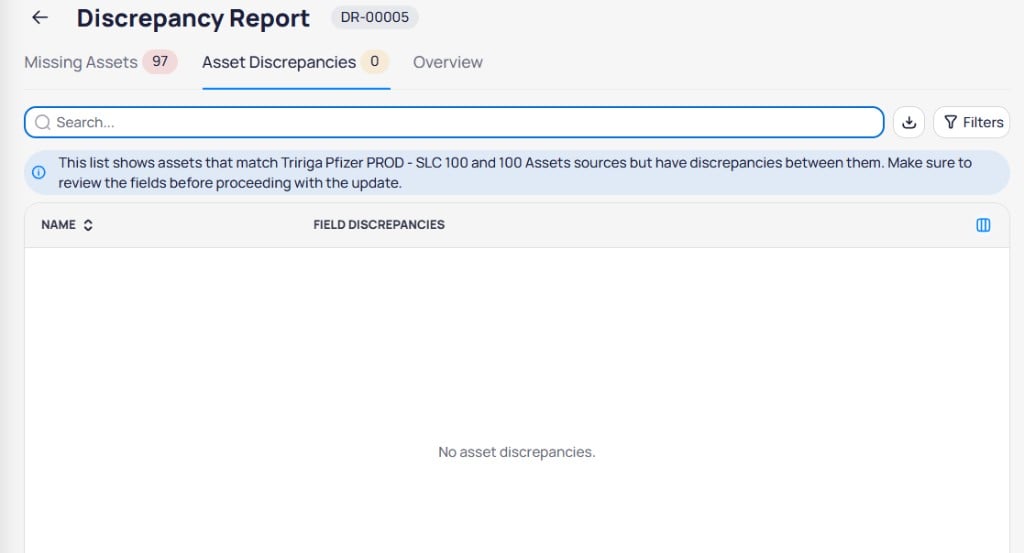 Select an asset **Name** to open its detail page in the [Assets](/products/assetops/assets/assets) module. Review **Field discrepancies** for each asset before you update records. When no mismatches exist, the tab shows **No asset discrepancies**.
### Overview tab
Summarizes report results and configuration.
Select an asset **Name** to open its detail page in the [Assets](/products/assetops/assets/assets) module. Review **Field discrepancies** for each asset before you update records. When no mismatches exist, the tab shows **No asset discrepancies**.
### Overview tab
Summarizes report results and configuration.
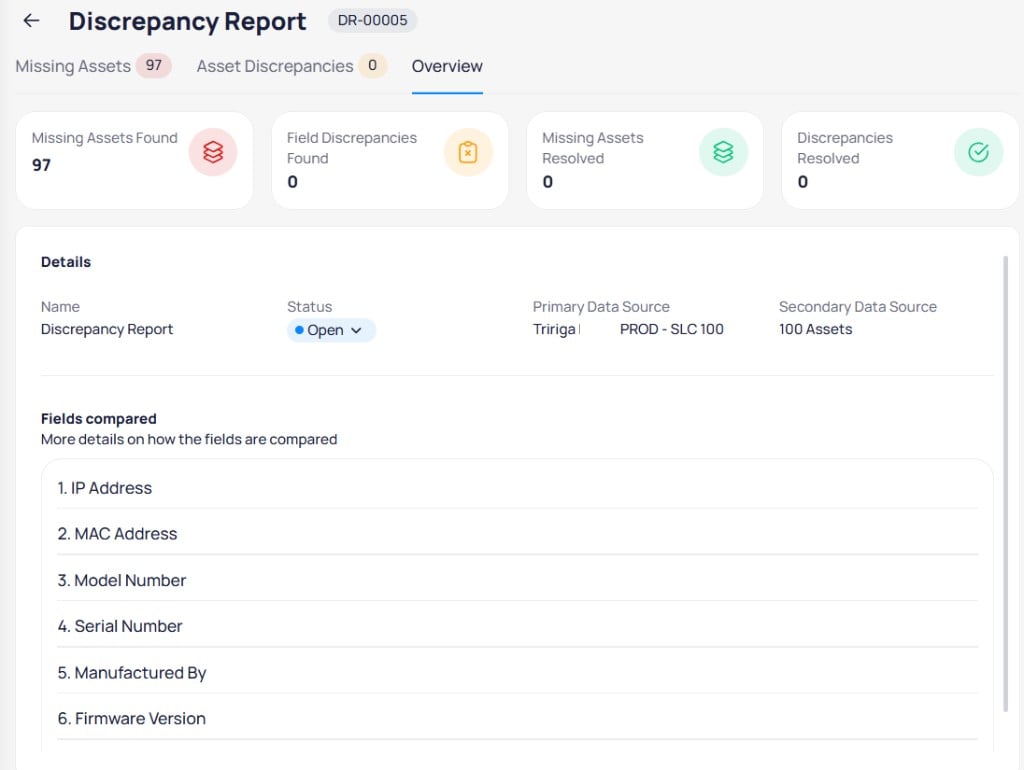 Summary cards typically include:
| Metric | Description |
| ----------------------------- | ---------------------------------------------- |
| **Missing assets found** | Assets present in one source but not the other |
| **Field discrepancies found** | Matched assets with conflicting field values |
| **Missing assets resolved** | Missing assets you marked resolved |
| **Discrepancies resolved** | Field discrepancies you marked resolved |
The **Details** section shows report **Name**, **Status**, **Primary data source**, and **Secondary data source**. Change **Status** from the dropdown when review is complete.
The **Fields compared** section lists every field included in the report, such as IP address, serial number, and firmware version.
## Related modules
Import assets, configure field mapping and matching rules, and link records across sources.
Review asset fields after you resolve discrepancies.
Summary cards typically include:
| Metric | Description |
| ----------------------------- | ---------------------------------------------- |
| **Missing assets found** | Assets present in one source but not the other |
| **Field discrepancies found** | Matched assets with conflicting field values |
| **Missing assets resolved** | Missing assets you marked resolved |
| **Discrepancies resolved** | Field discrepancies you marked resolved |
The **Details** section shows report **Name**, **Status**, **Primary data source**, and **Secondary data source**. Change **Status** from the dropdown when review is complete.
The **Fields compared** section lists every field included in the report, such as IP address, serial number, and firmware version.
## Related modules
Import assets, configure field mapping and matching rules, and link records across sources.
Review asset fields after you resolve discrepancies.